
Gemini May Let You Highlight Parts of an Image for Smarter Responses
SammyGuru is reader-supported. We have affiliate and sponsored partnerships, so we may earn a commission when you buy through links on our site — at no extra cost to you. Learn more.
Google aims to make its Gemini AI assistant smarter and easier to use. The company is now developing image markup tools that will let you highlight part of a picture for AI analysis. It may make the tool available for everyone in the coming weeks through an update to the Google app.
Google is making Gemini smarter with image markup tools
As you know, Gemini can look at images and give you responses based on your prompt. For example, you can upload a photo and ask questions such as “What animal is this?”. The AI then analyzes the picture and gives you an answer. This is definitely one of the most useful features of the AI assistant.
However, there is a catch — Gemini looks at everything in the picture equally. That means if your photo has many objects, Gemini might not know which part you want to analyze. Thankfully, Google is now addressing this limitation by adding new image markup tools, as spotted by Android Authority after updating the Google app to version 16.42.61.
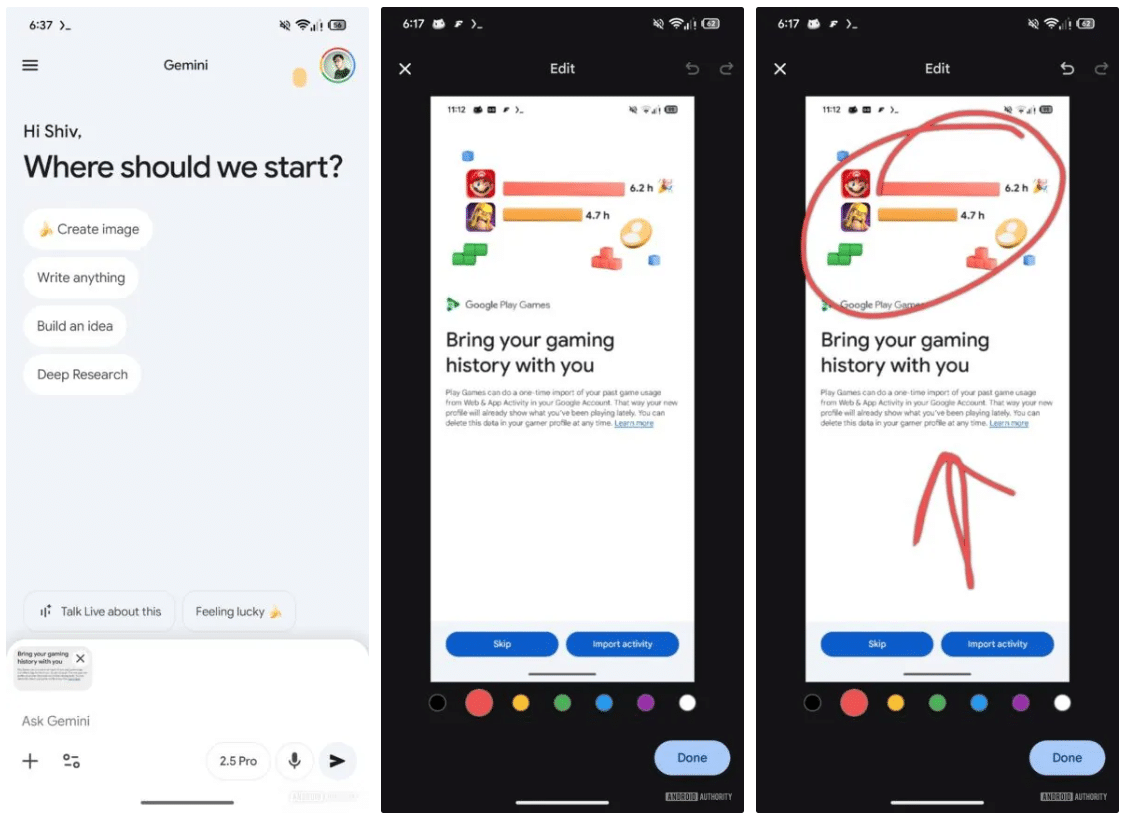
The new feature will let you circle or highlight parts of an image before sending it to Gemini. For example, if you take a photo of a crowded desk, you can simply circle a gadget and then ask the AI chatbot about it. When you pick an image from the Gallery or capture a new photo on the Gemini platform, the markup interface shows up with different color options. It’s unclear at the moment what special meanings those colors have.
The new tools also work with Gemini’s Nano Banana, which lets you edit photos into countless new creations. This may come in handy to perform tasks like removing unwanted objects or enhancing certain parts of an image. Apart from the new markup interface, Gemini will bring a new feature that lets you long-press the mic icon to keep it active.

Written by
Binay KonwarBinay Konwar started his blogging journey in 2014 and has since written plenty of tech articles. At present, he is working as a News Writer at SammyGuru, covering everything about Samsung. He holds a Master's degree in Mathematics, but his real passion lies in tech and writing. In his free time, he enjoys playing chess and watching movies.

Follow us on Google Discover & set us as a preferred source in Google News
Share this Post
___________________________


New Blog Posts
___________________________

First Set of Pixel 11 Pro XL Renders Are Here
Pixel 11 Pro XL CAD renders show minimal design changes

Is Samsung Preparing One UI 8.5 Beta for Galaxy Z Fold 5 and Flip 5?
Samsung may launch a One UI 8.5 beta program for its 2023 foldables

Galaxy S25 One UI 8.5 Beta May Run Longer Than Expected
Galaxy S25 series’ One UI 8.5 beta may stretch to 10 rounds







