
3 Ways to Sort Apps on Your Galaxy — There’s a Hidden Surprise
SammyGuru is reader-supported. We have affiliate and sponsored partnerships, so we may earn a commission when you buy through links on our site — at no extra cost to you. Learn more.
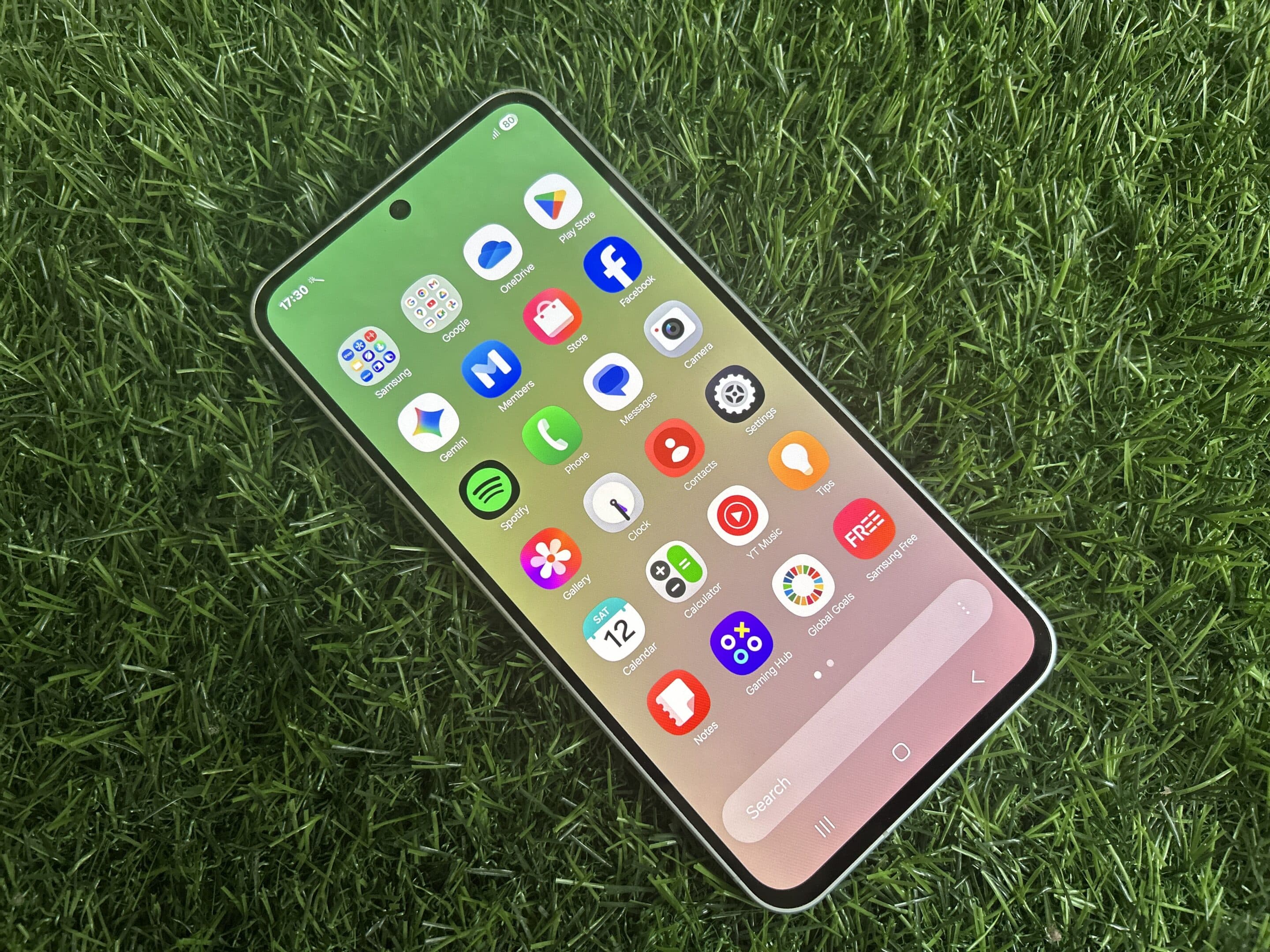
Are you tired of the boring app drawer on your Galaxy phone and want to try something new without installing a third-party app launcher? Samsung’s One UI gives you more control than you might think, and even hides a nifty sorting trick most users never notice. In this guide, we’ll walk you through three different ways to sort your apps.
3 simple ways you can arrange apps on your Galaxy phone
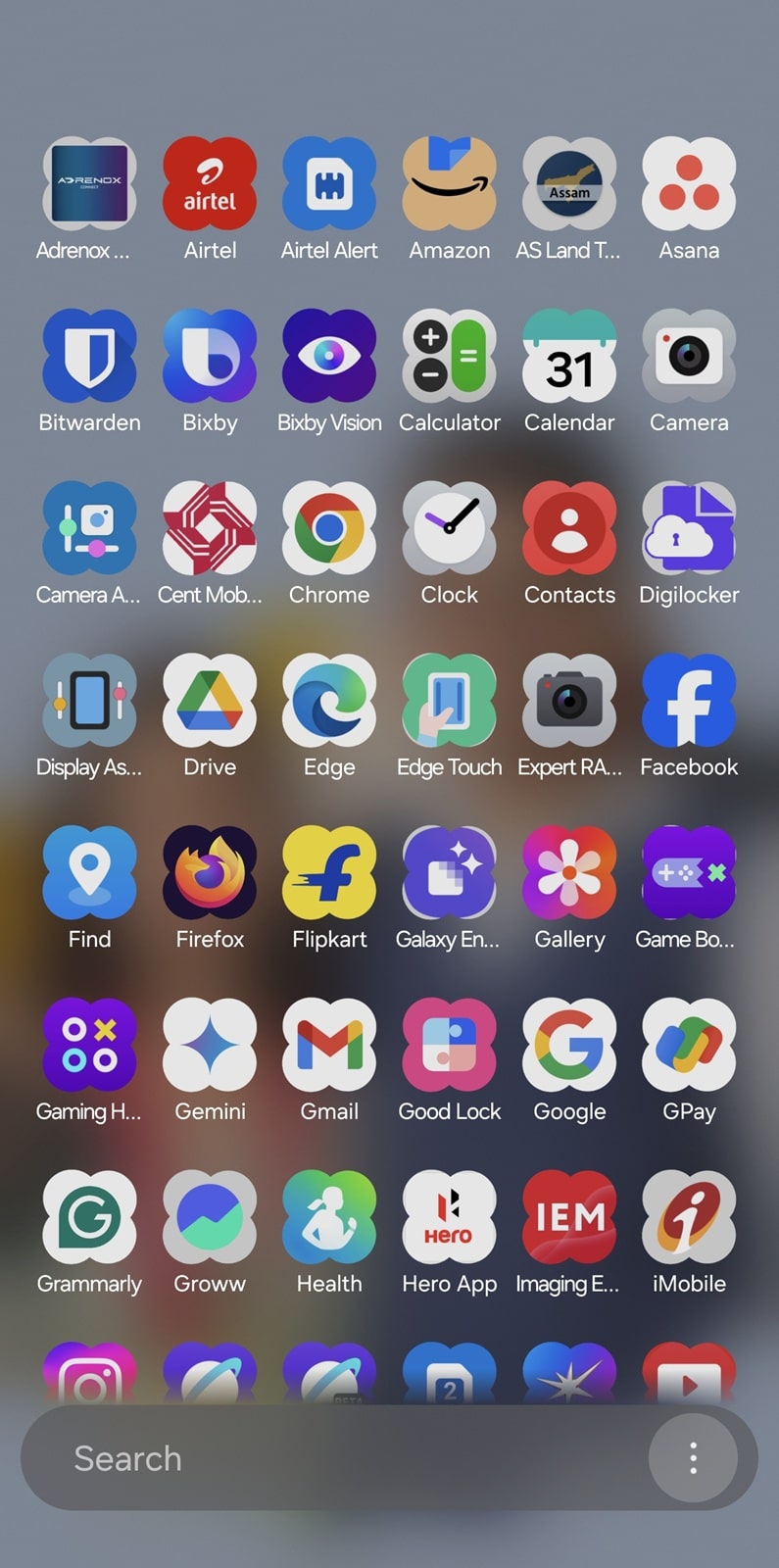
If you are on One UI 7 or newer, you have a vertical app drawer by default. You swipe up on the home screen and continue scrolling to see all your apps. It’s neat and simple, with apps arranged in alphabetical order. But if you prefer that traditional horizontal scrolling system, it’s easy to switch back. Here’s how:
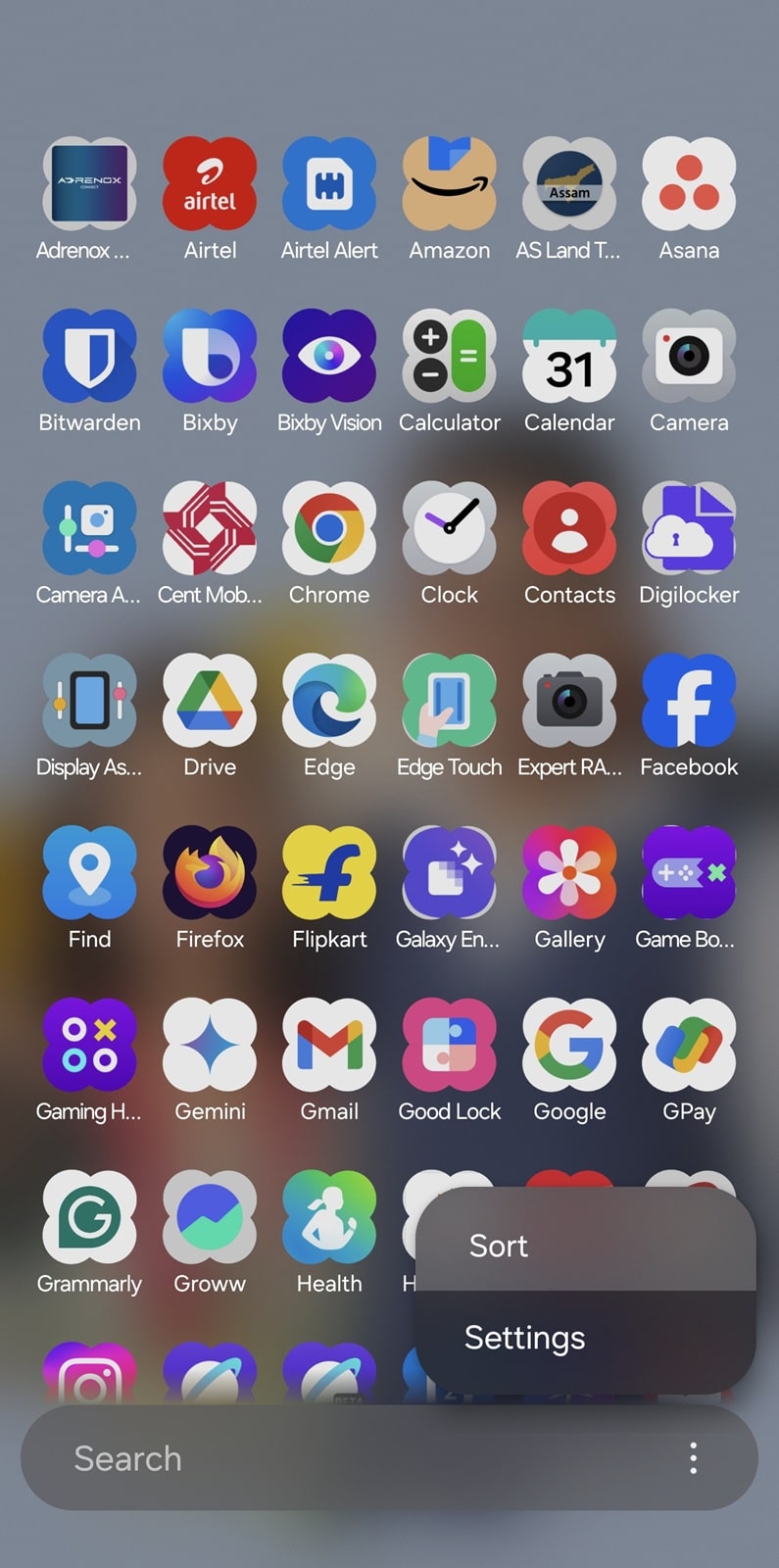
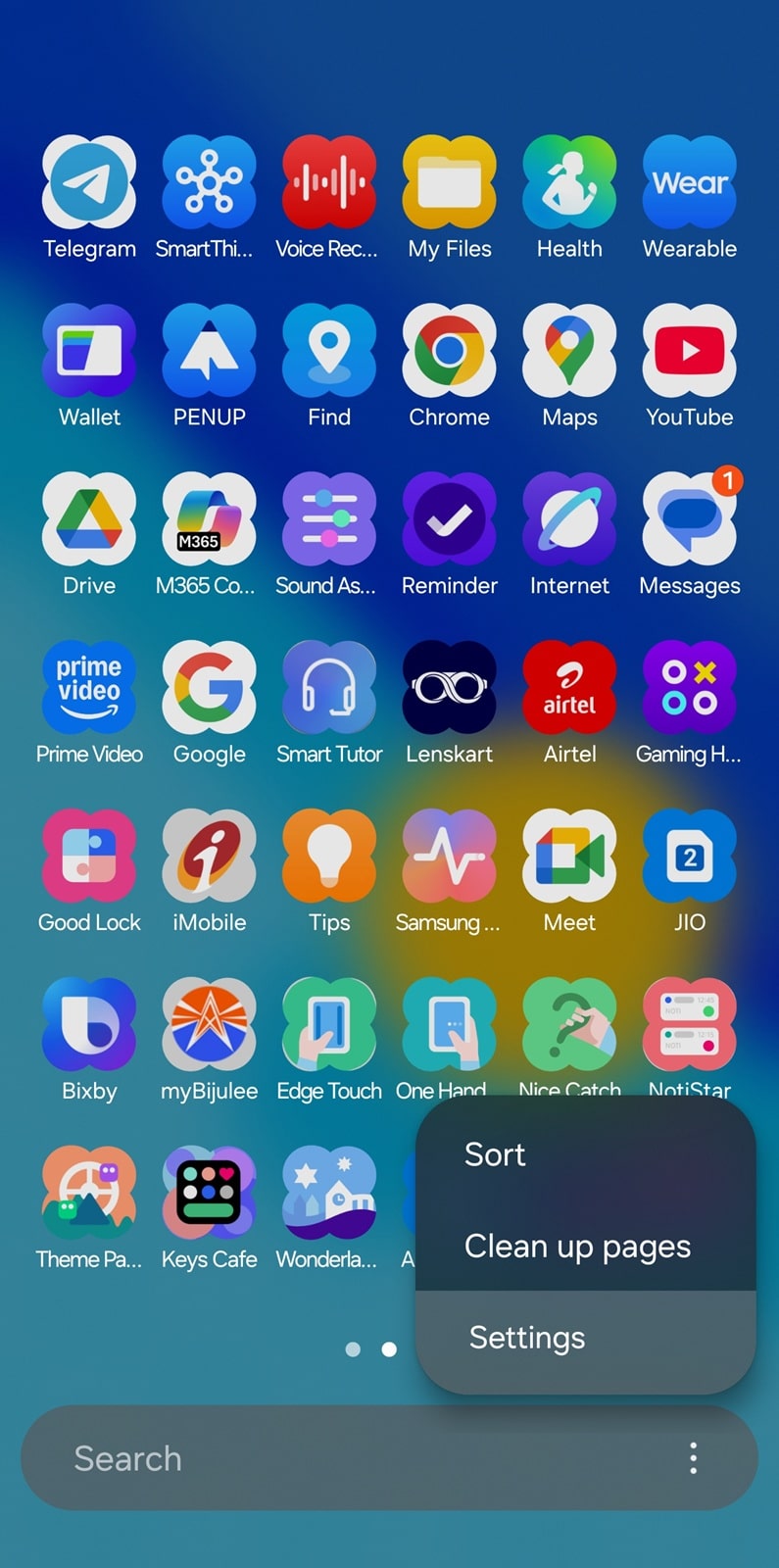
- When on the app drawer, tap the three vertical dots in the bottom right corner (within the search bar) and select Sort
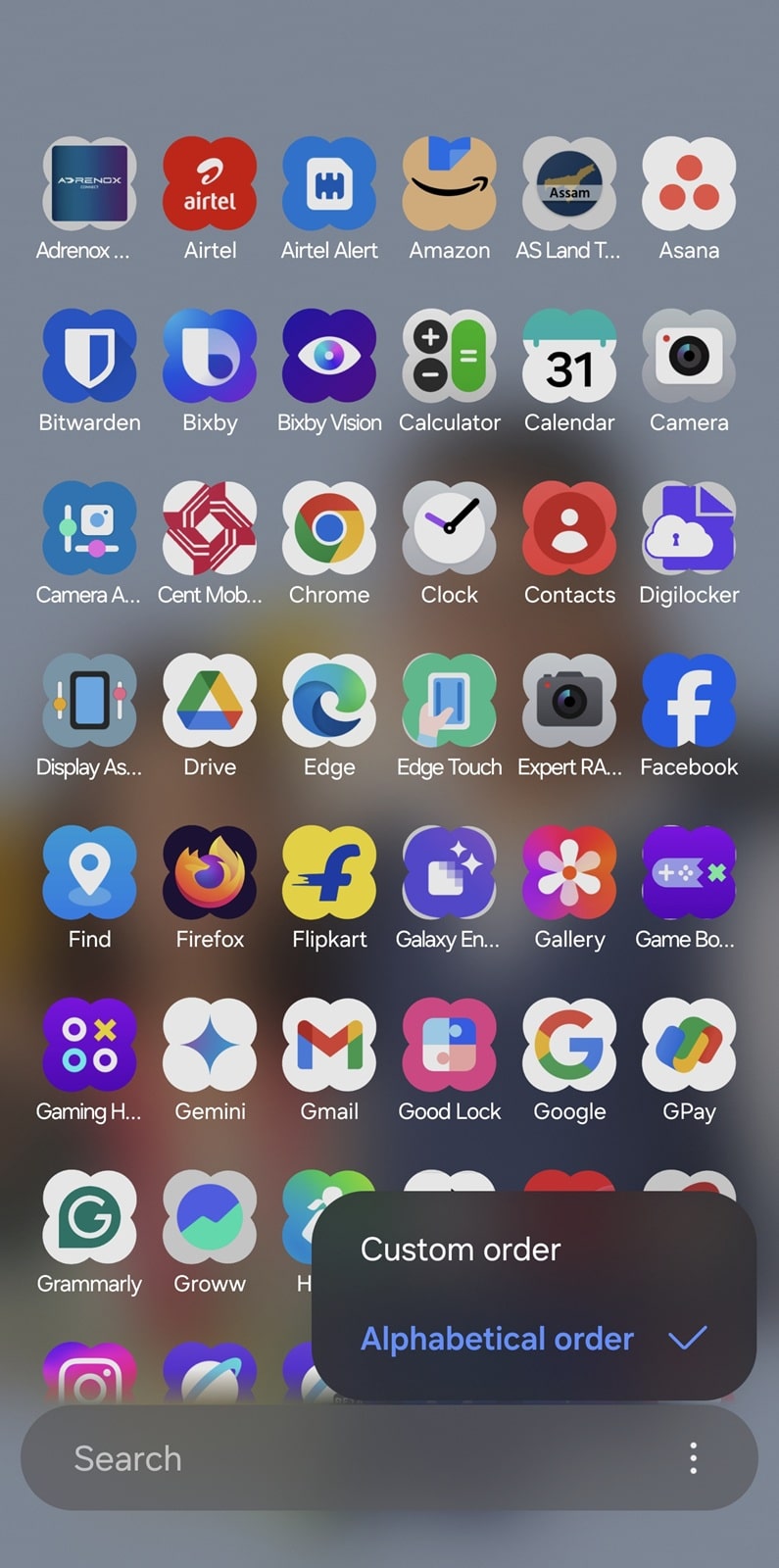
- Alphabetical order is selected — switch to Custom order
-
- Your app drawer is now back to the traditional horizontal layout — if there are blank spaces in some pages, tap the same three vertical dots and select Clean up pages
- Select Apply to confirm the changes
- If you wish to, you can switch back to the vertical app drawer from the same “Sort” menu — select Alphabetical order
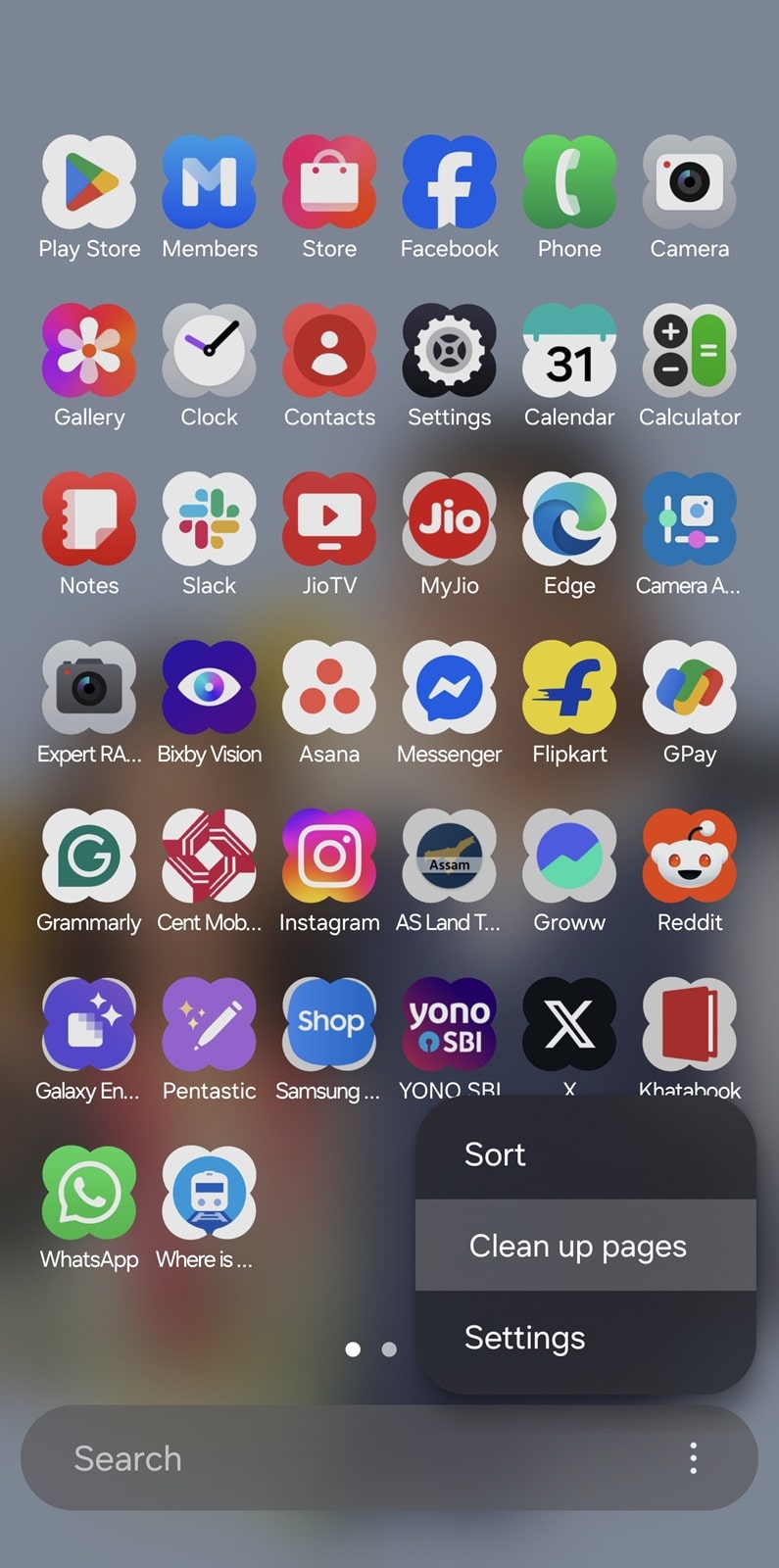
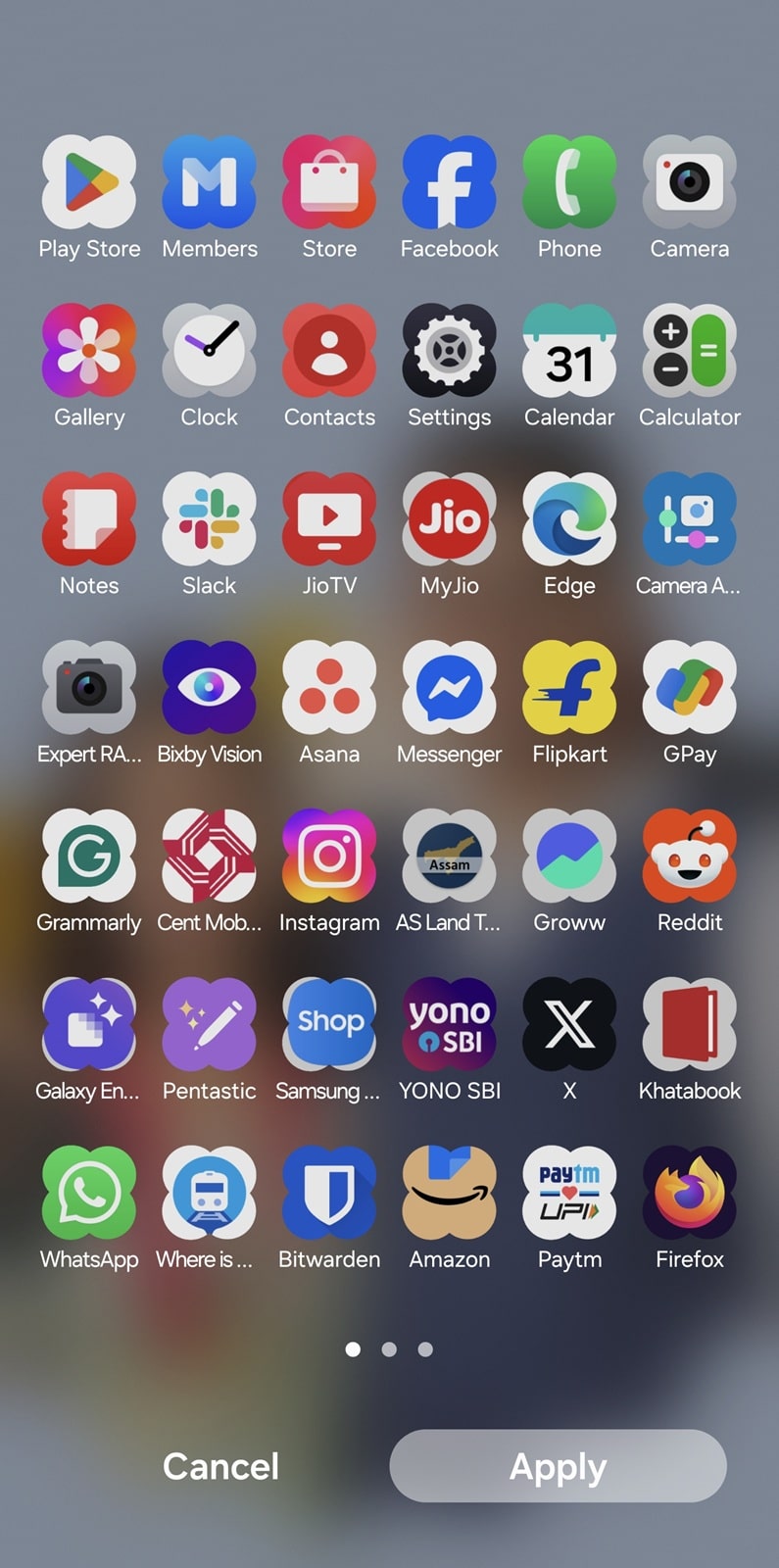
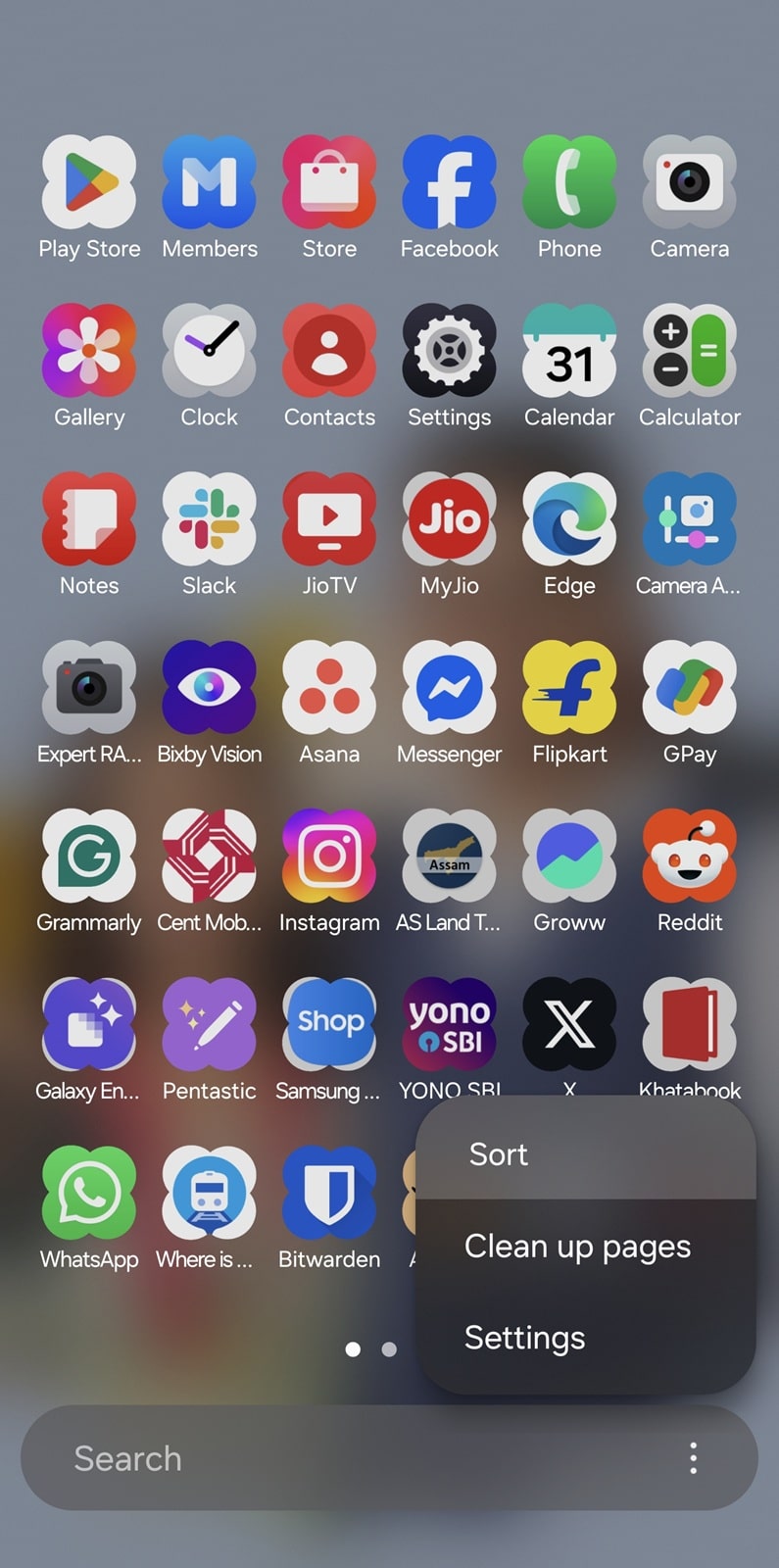
These are the two straightforward sorting options Samsung offers for its app launcher. For some reason, you can’t get alphabetical order when using the horizontal layout and custom order when using the vertical layout. However, on the horizontal layout, you can place apps in any custom order. We hope Samsung lets users choose between alphabetical and custom order across both sorting options in future updates.
The hidden surprise many Galaxy users often overlook
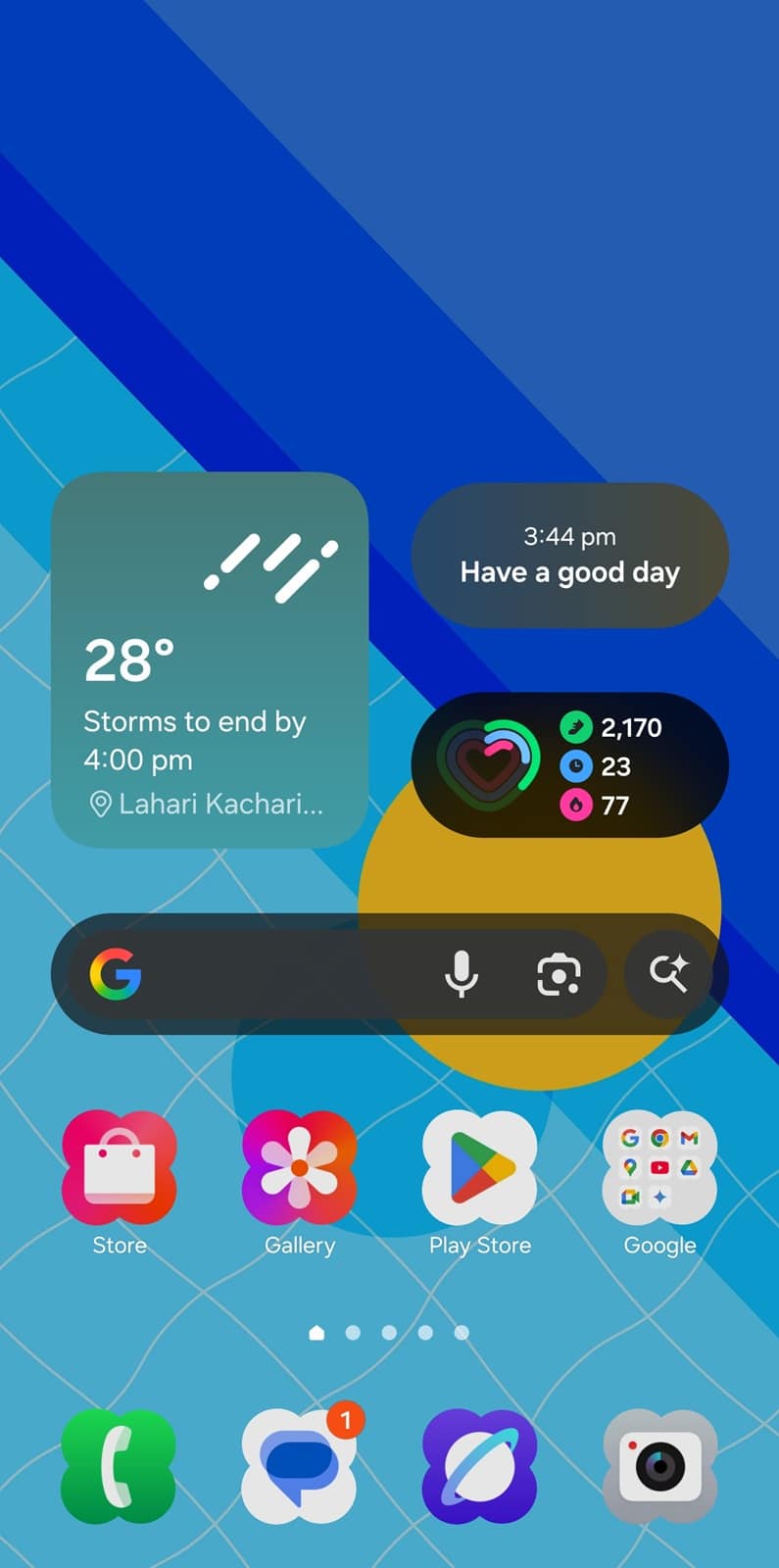
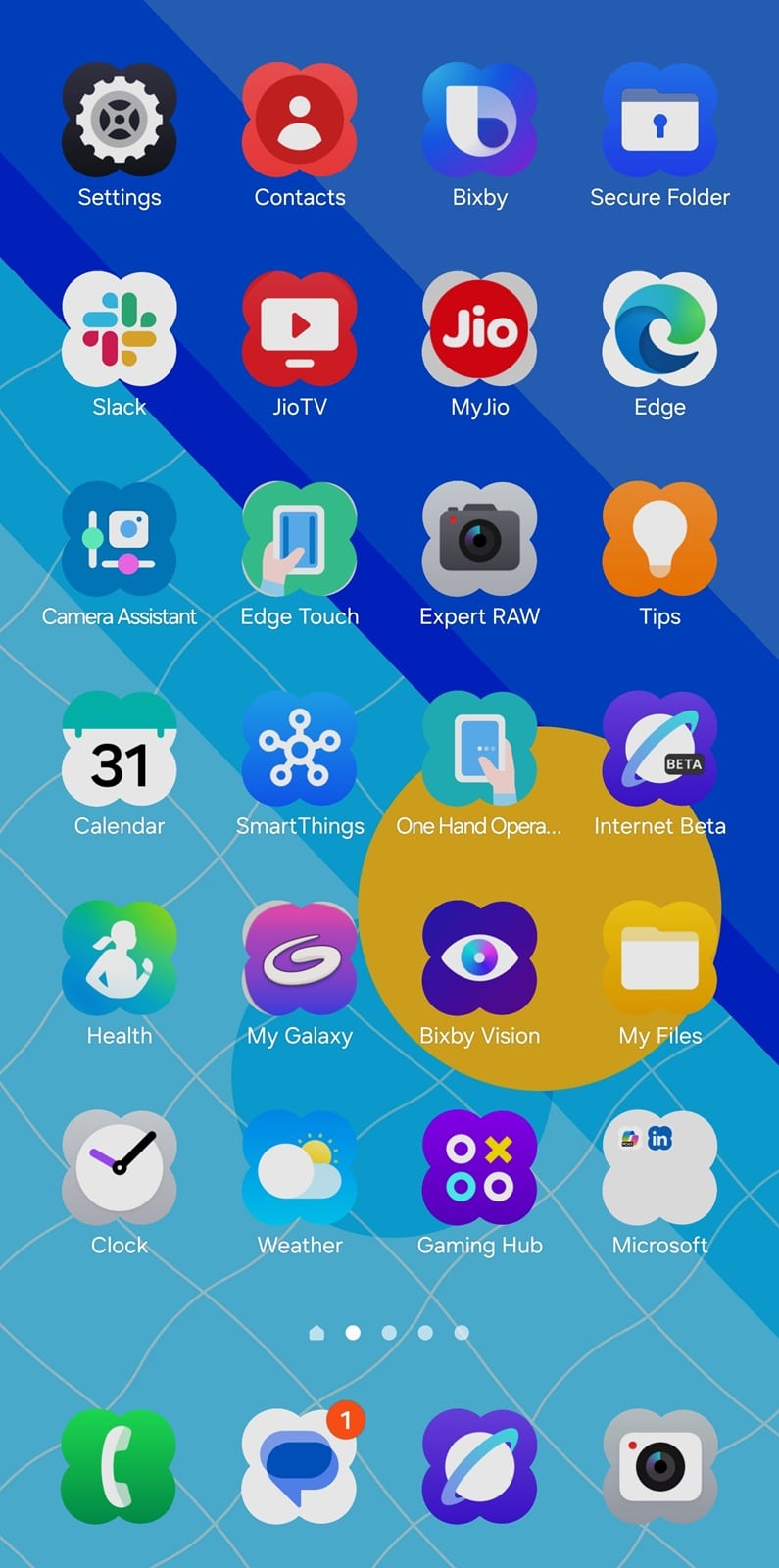
Besides these two options, One UI lets you arrange apps in a third way, where all your apps appear on the screen. Pages are added to the right of the main home screen to show your apps. To do that, follow the steps below:
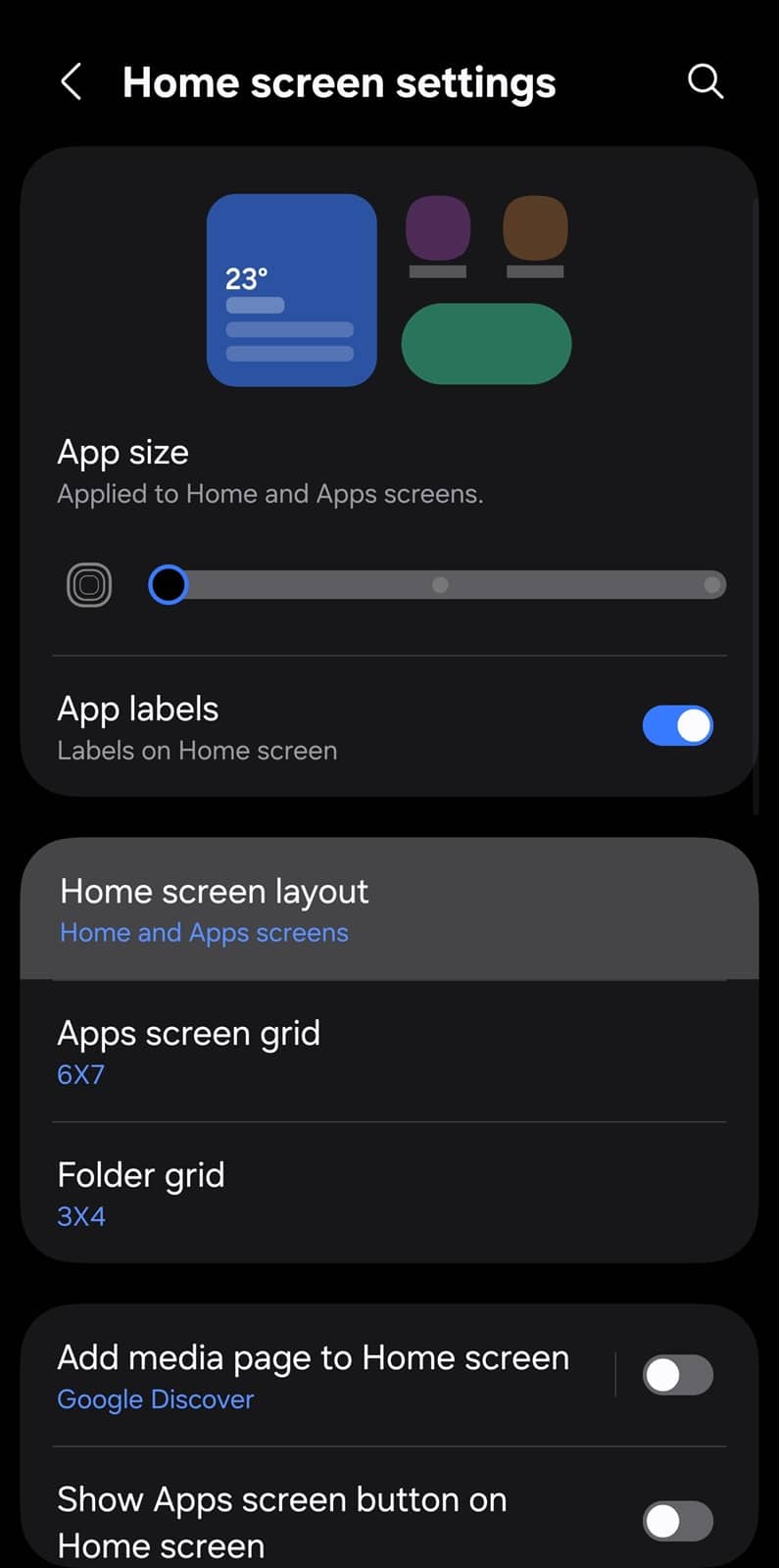
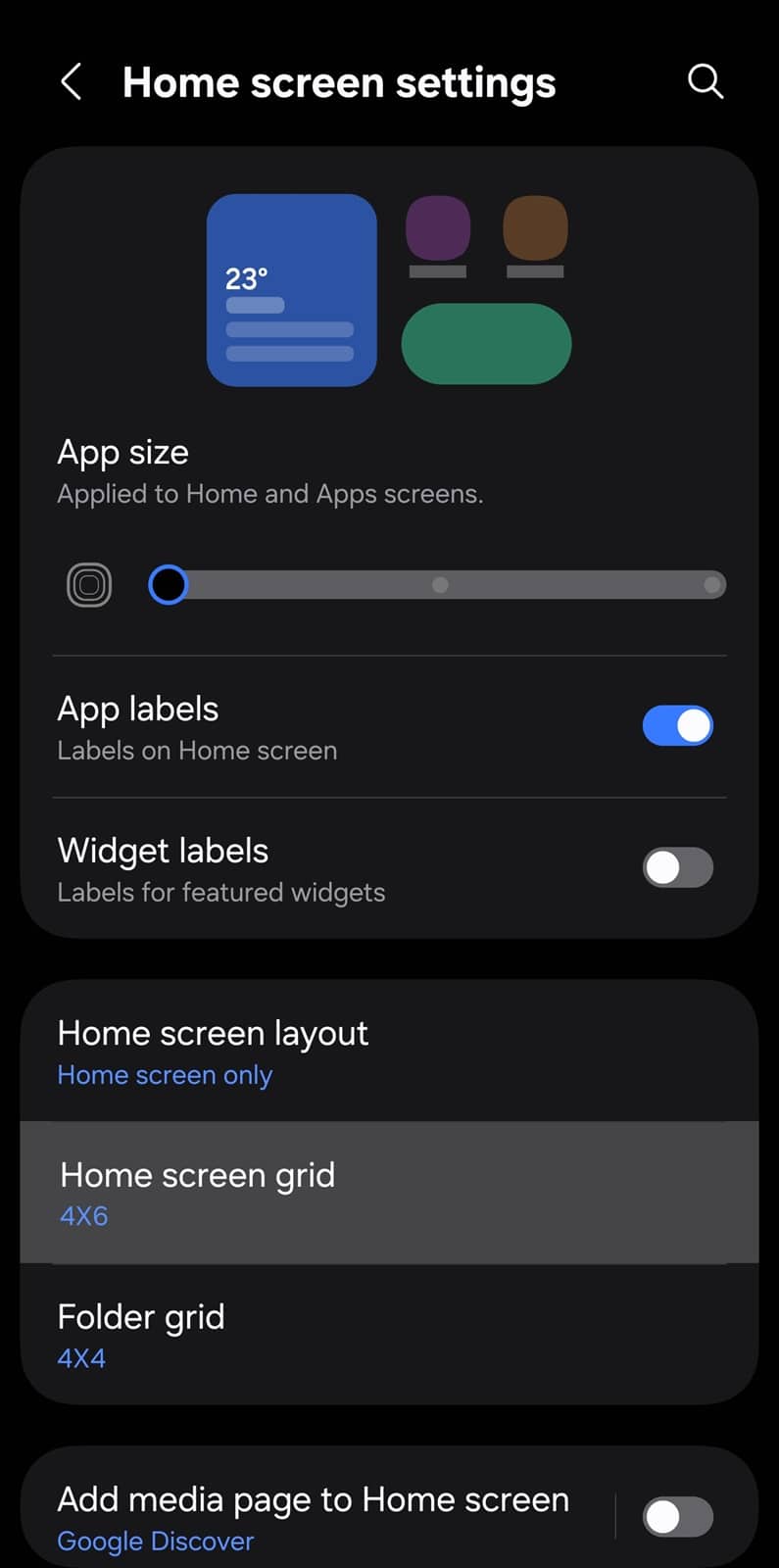
- Press and hold on the home screen and select Settings from the bottom menu (alternatively, you can tap the three vertical dots in the app drawer and select Settings)
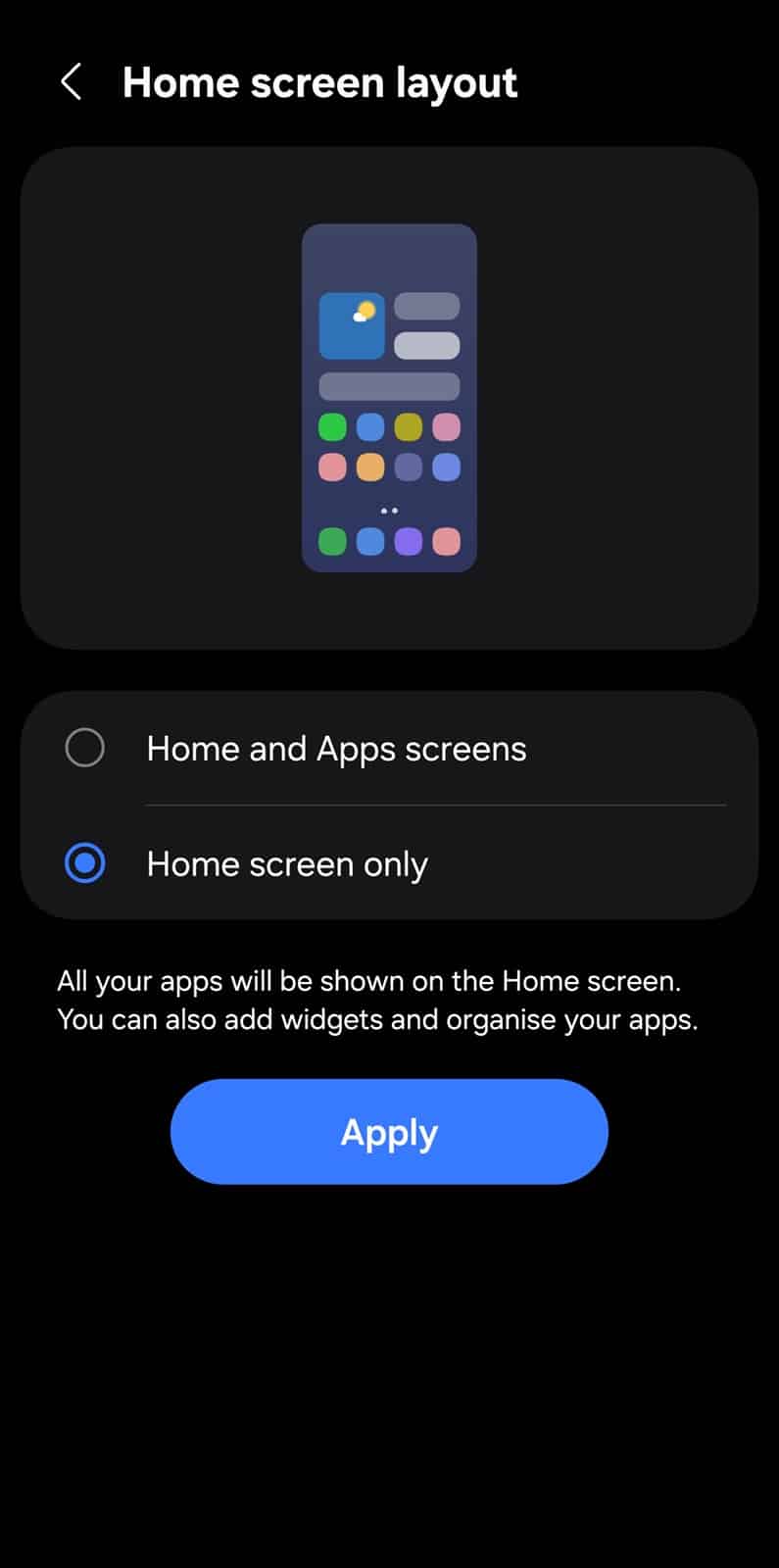
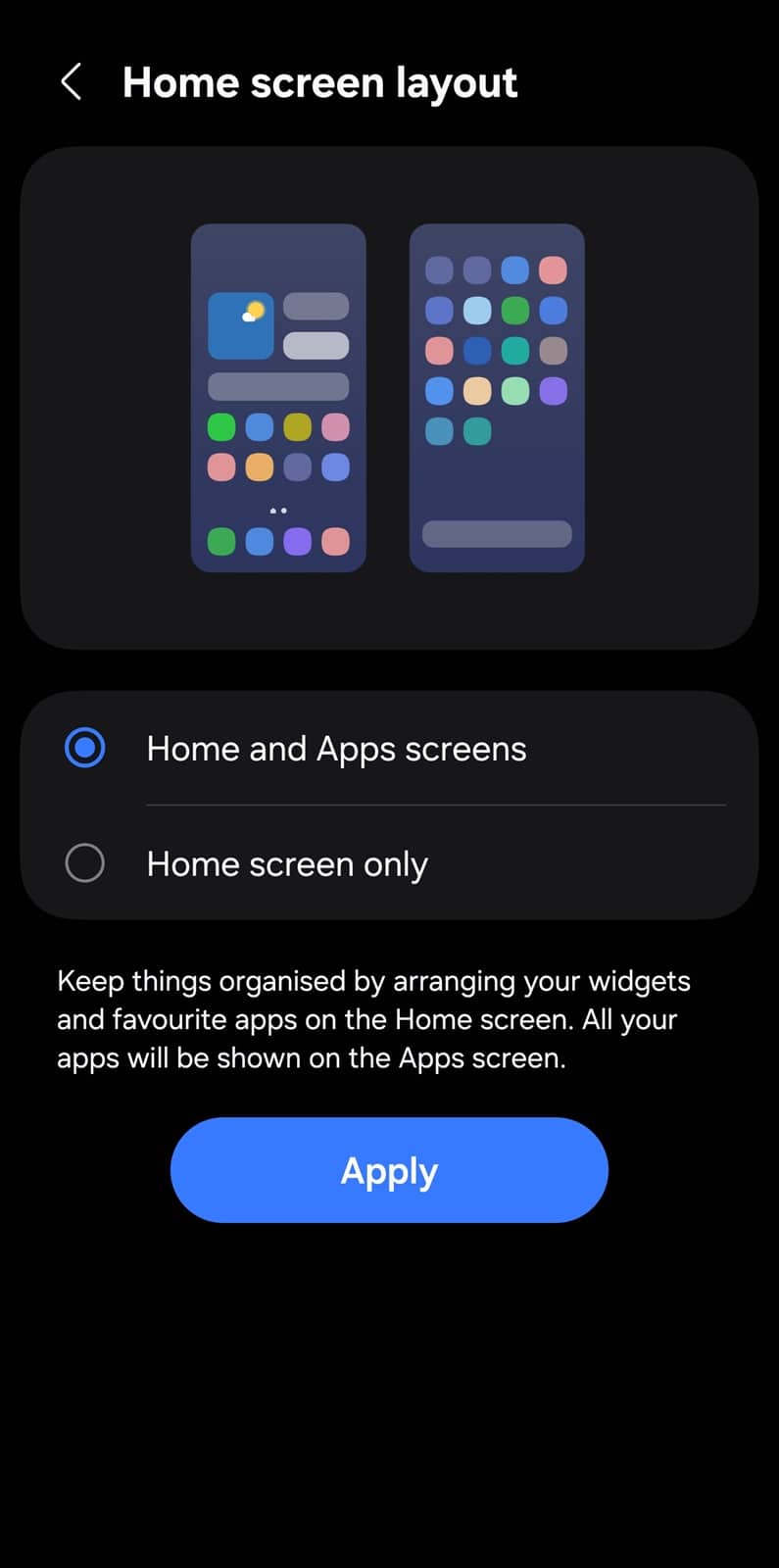
- Go to Home screen layout
- Select Home screen only and click Apply
-
- You will return to your home screen with a new layout for your apps
- If you wish to customize the app grid size, go back to the same menu and switch to a different Home screen grid
- Likewise, you can switch back to the traditional app launcher from the Home screen layout menu
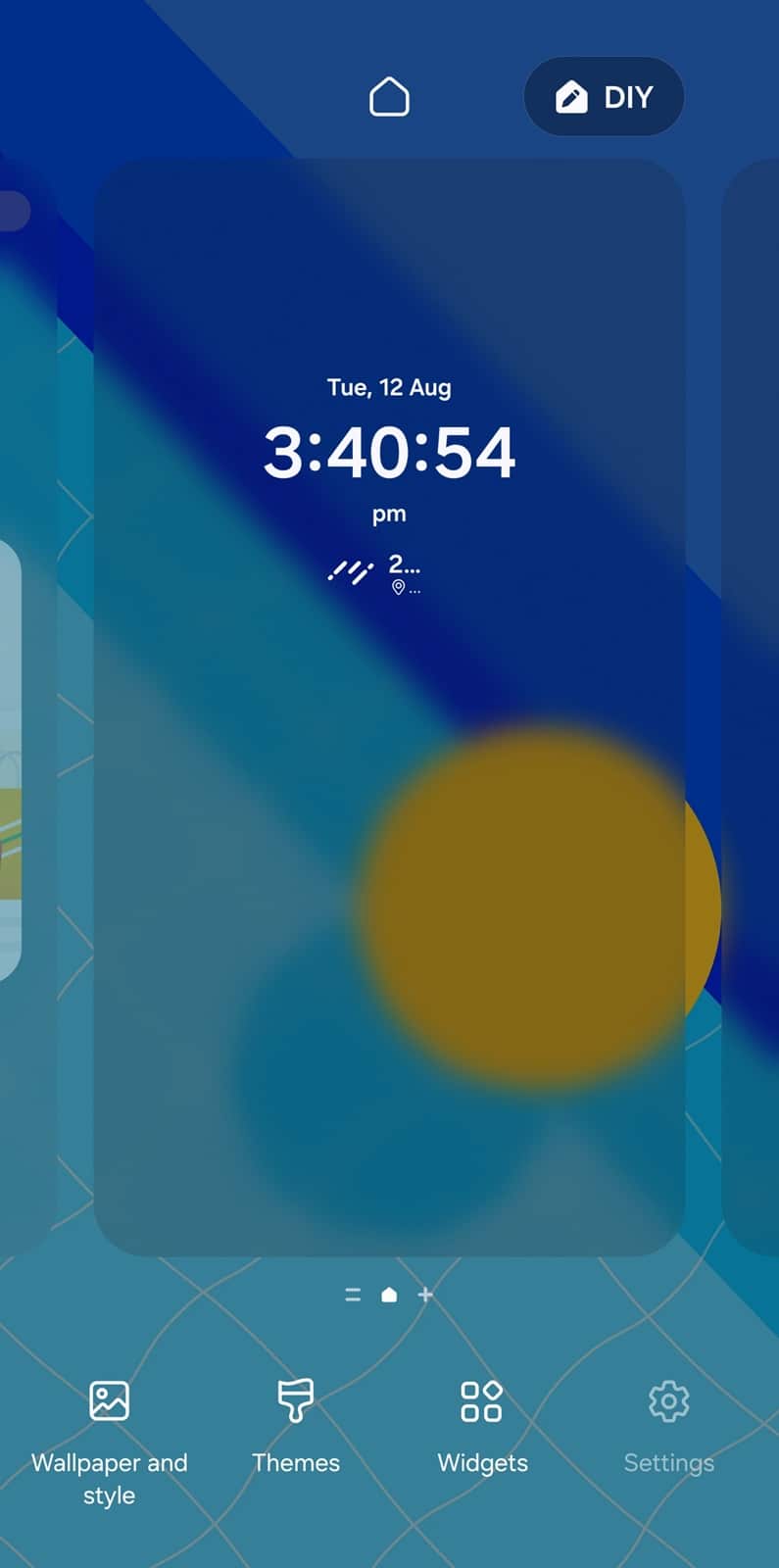
With these three methods, you can keep your Galaxy’s app drawer as organized — or as chaotic — as you like. Whether you prefer hands-on rearranging, alphabetical order, or all apps on the home screen, One UI gives you the flexibility to make your phone work your way. Try them out, and you might wonder how you ever managed without them. If you have questions, reach out to us on X.

Written by
Sumit AdhikariSumit, a life-long Samsung user, is passionate about technology and has been professionally writing on tech since 2017. He’s a mathematics graduate by education and enjoys teaching basic mathematics tricks to school kids in his spare time. Sumit believes in artificial intelligence and dreams of a fully open, intelligent and connected world.

Follow us on Google Discover & set us as a preferred source in Google News
Share this Post
___________________________


New Blog Posts
___________________________

First Set of Pixel 11 Pro XL Renders Are Here
Pixel 11 Pro XL CAD renders show minimal design changes

Is Samsung Preparing One UI 8.5 Beta for Galaxy Z Fold 5 and Flip 5?
Samsung may launch a One UI 8.5 beta program for its 2023 foldables

Galaxy S25 One UI 8.5 Beta May Run Longer Than Expected
Galaxy S25 series’ One UI 8.5 beta may stretch to 10 rounds







