
What Are “Other Files” on Your Galaxy — and How to Delete Them
SammyGuru is reader-supported. We have affiliate and sponsored partnerships, so we may earn a commission when you buy through links on our site — at no extra cost to you. Learn more.
If you’ve ever checked your Galaxy phone’s storage, you’ve likely noticed a mysterious section labeled “Other files” that takes up several gigabytes of space. Until recently, Samsung didn’t allow users to access or explore what was inside this category, let alone delete those files. But that’s changing with One UI 8. In this guide, we’ll explain what the “Other files” are, what’s new in One UI 8, and how you can now view and manage them on your Galaxy smartphone or tablet.
What are “Other Files” on a Galaxy device?
The “Other files” section includes all the miscellaneous data stored on your phone that doesn’t fit neatly into other storage categories like photos, videos, or documents. According to Samsung, this system folder “stores data from apps you have installed on your smartphone or tablet,” including system files, cached data, and temporary files.
Previously, users couldn’t even open this section. It was completely off-limits due to system restrictions. However, with One UI 8, Samsung quietly added the ability to access the “Other files” folder directly from your storage settings or My Files app. While most of the data here remains undeletable because it’s essential for apps and system processes, you can finally view what’s consuming space and remove certain unnecessary files.
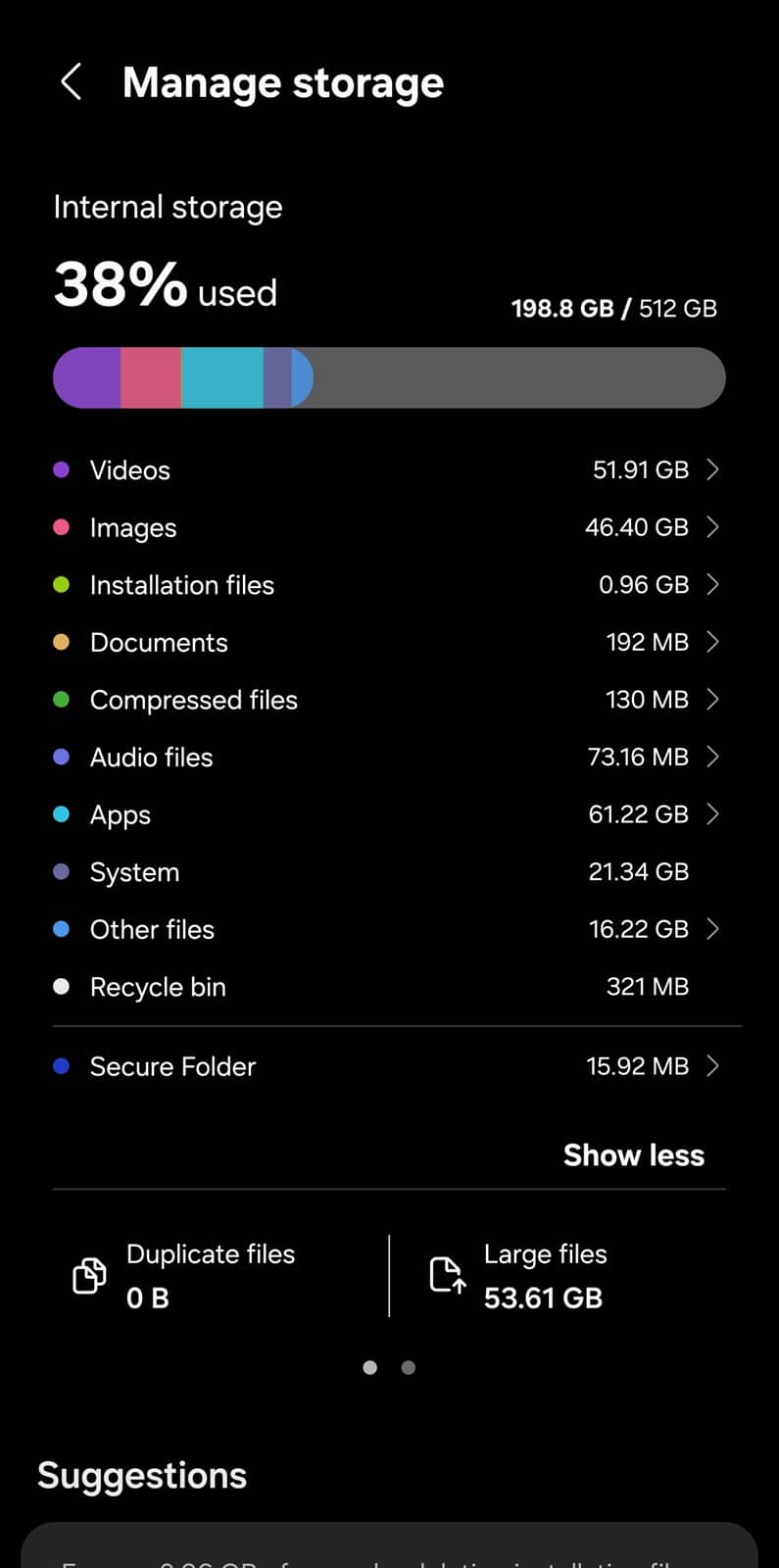
Inside the “Other files” section, you’ll now find three categories:
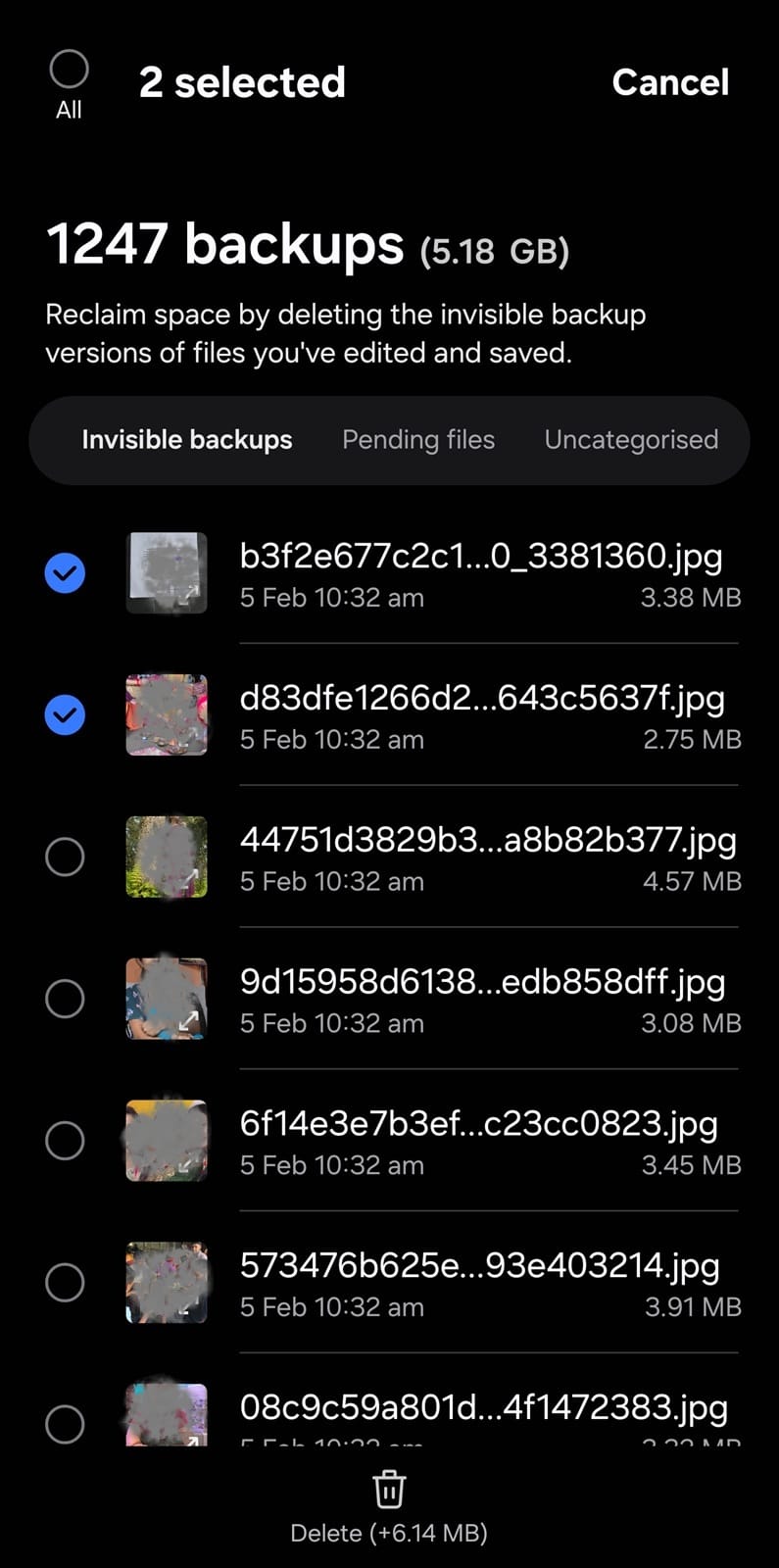
- Invisible backups – Temporary backup files created during app or photo edits. For example, Gallery creates backups so you can revert to the original image in case you didn’t like an edit.
- Pending files – Files that are waiting to be processed, such as unfinished downloads or uploads.
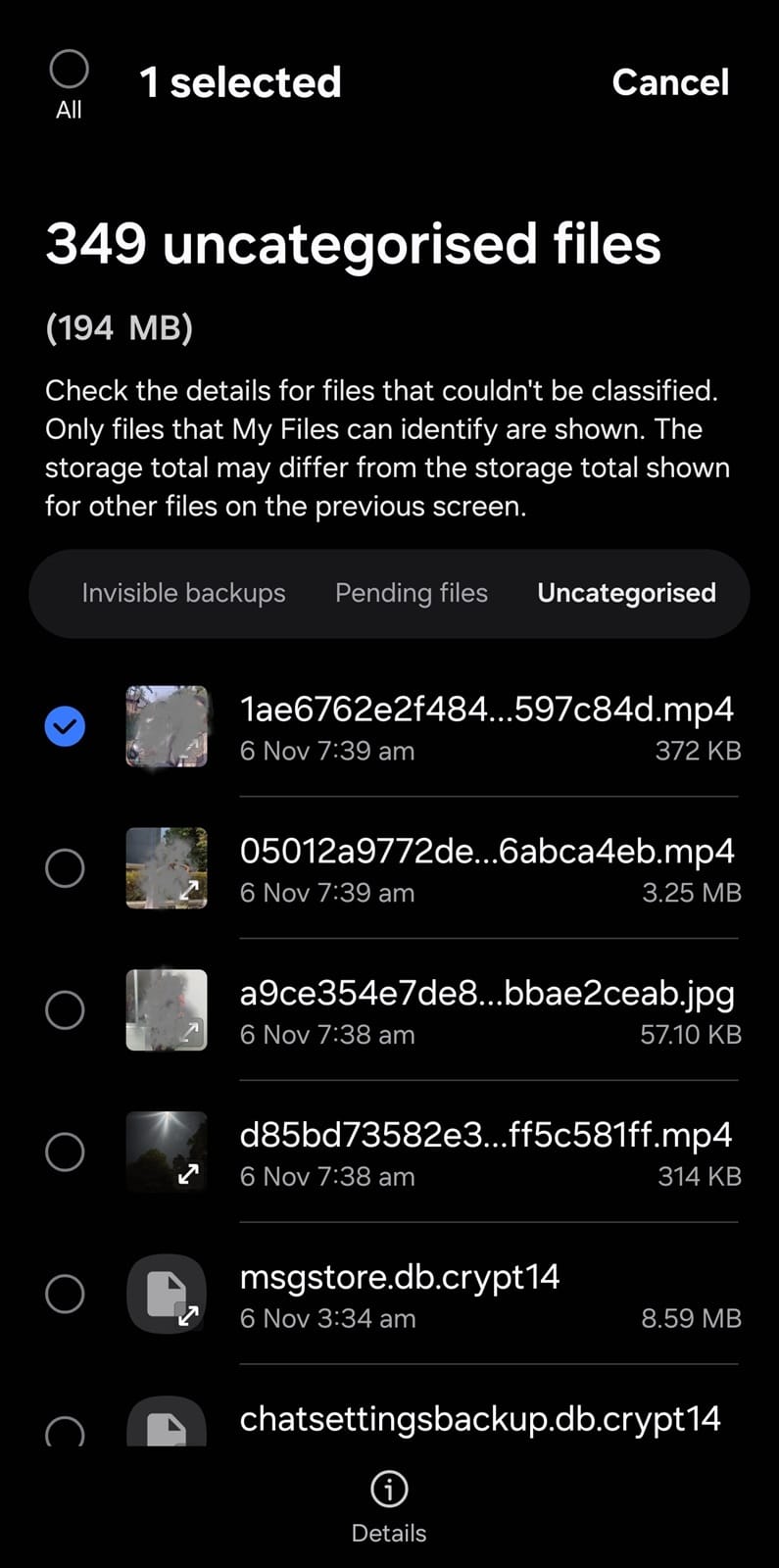
- Uncategorized files – Files recognized by the system but not sorted into a specific category. These include auto-expiring stories or statuses from apps like WhatsApp that are temporarily downloaded to the device.
How to access and delete “Other Files” on your Galaxy?
You can reach the “Other files” section using Device Care or My Files.
- Using Device Care: Open Settings > Device care > Storage > Show more > Other files.
- Using the My Files app: Open My Files > Manage storage > Show more > Other files.
You’ll now see the aforementioned three sections — Invisible backups, Pending files, and Uncategorized files — along with file details such as size and file path. You can delete most of the files in the Invisible backups category from this screen. However, files in the other two categories cannot be deleted right away. Instead, you can see the file path and manually navigate to that path in My Files to delete those files.
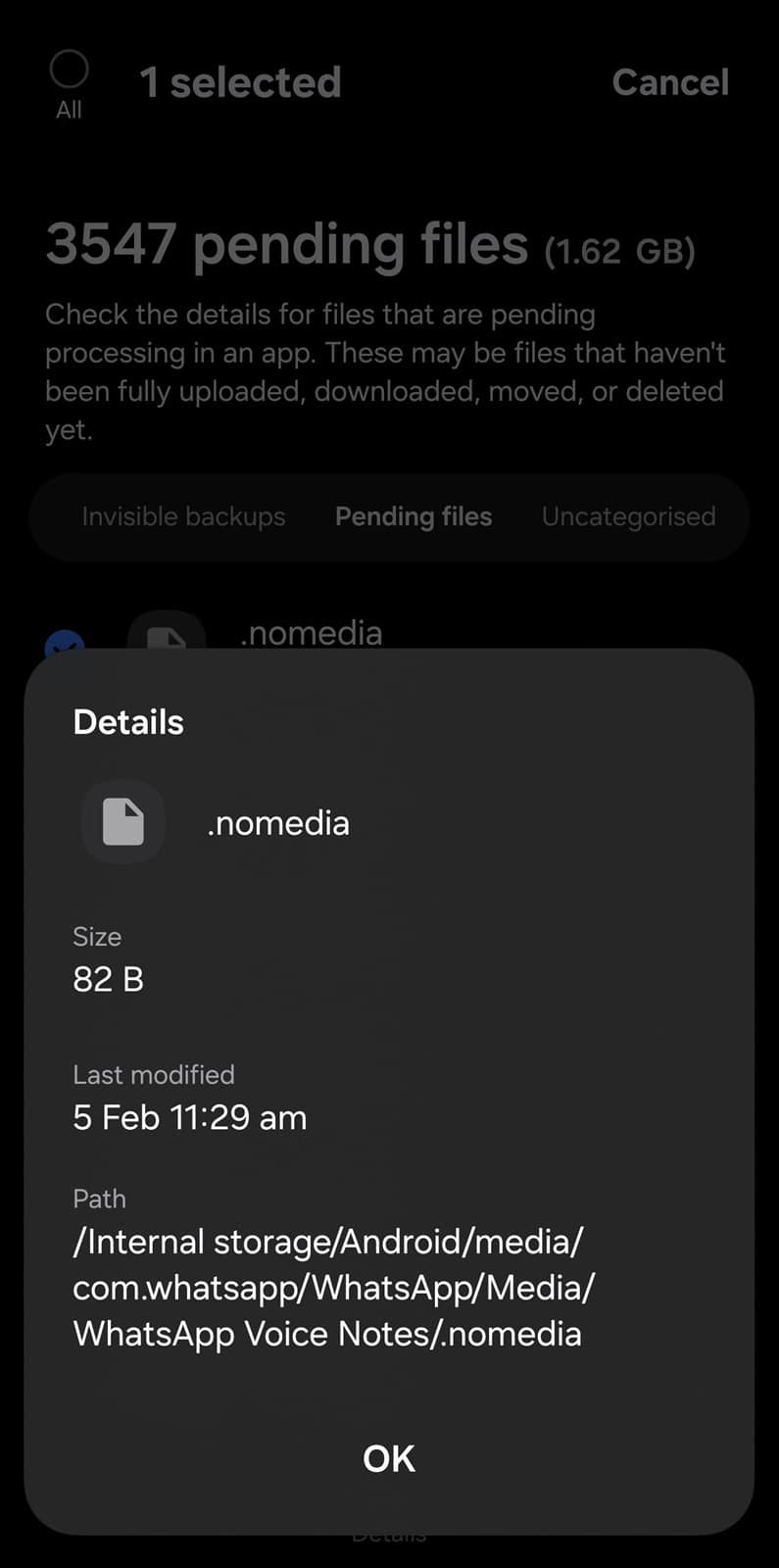
This isn’t the most convenient method, but it’s progress. It gives Galaxy users more visibility into what’s eating up their storage, which wasn’t possible in older One UI versions. If you are running out of storage space, this is a great way to free up some space. As mentioned above, some of these files are essential for the proper functioning of apps and services, so you might not want to delete everything from “Other files.”

Written by
Sumit AdhikariSumit, a life-long Samsung user, is passionate about technology and has been professionally writing on tech since 2017. He’s a mathematics graduate by education and enjoys teaching basic mathematics tricks to school kids in his spare time. Sumit believes in artificial intelligence and dreams of a fully open, intelligent and connected world.

Follow us on Google Discover & set us as a preferred source in Google News
Share this Post
___________________________


New Blog Posts
___________________________

First Set of Pixel 11 Pro XL Renders Are Here
Pixel 11 Pro XL CAD renders show minimal design changes

Is Samsung Preparing One UI 8.5 Beta for Galaxy Z Fold 5 and Flip 5?
Samsung may launch a One UI 8.5 beta program for its 2023 foldables

Galaxy S25 One UI 8.5 Beta May Run Longer Than Expected
Galaxy S25 series’ One UI 8.5 beta may stretch to 10 rounds







