
Samsung’s Connectivity Lab: Unlock Secret Wi-Fi Tools on Your Galaxy
SammyGuru is reader-supported. We have affiliate and sponsored partnerships, so we may earn a commission when you buy through links on our site — at no extra cost to you. Learn more.
Samsung Galaxy phones come with a bunch of hidden features, and one of them is Connectivity Lab. This secret menu lets you unlock advanced tools to manage Wi-Fi and mobile data. Let’s explore what it is and how you can take advantage of it.
What is Connectivity Lab?
Connectivity Lab is a hidden feature for your Galaxy phone’s internet connections. It helps you control your Wi-Fi and mobile data in ways that the regular settings don’t allow. For example, you can see the strongest available Wi-Fi networks and set to switch to mobile data when Wi-Fi is slow.
How to activate Connectivity Lab on your Galaxy phone?
- Open the Settings app on your device, tap on Connections, then Wi-Fi.
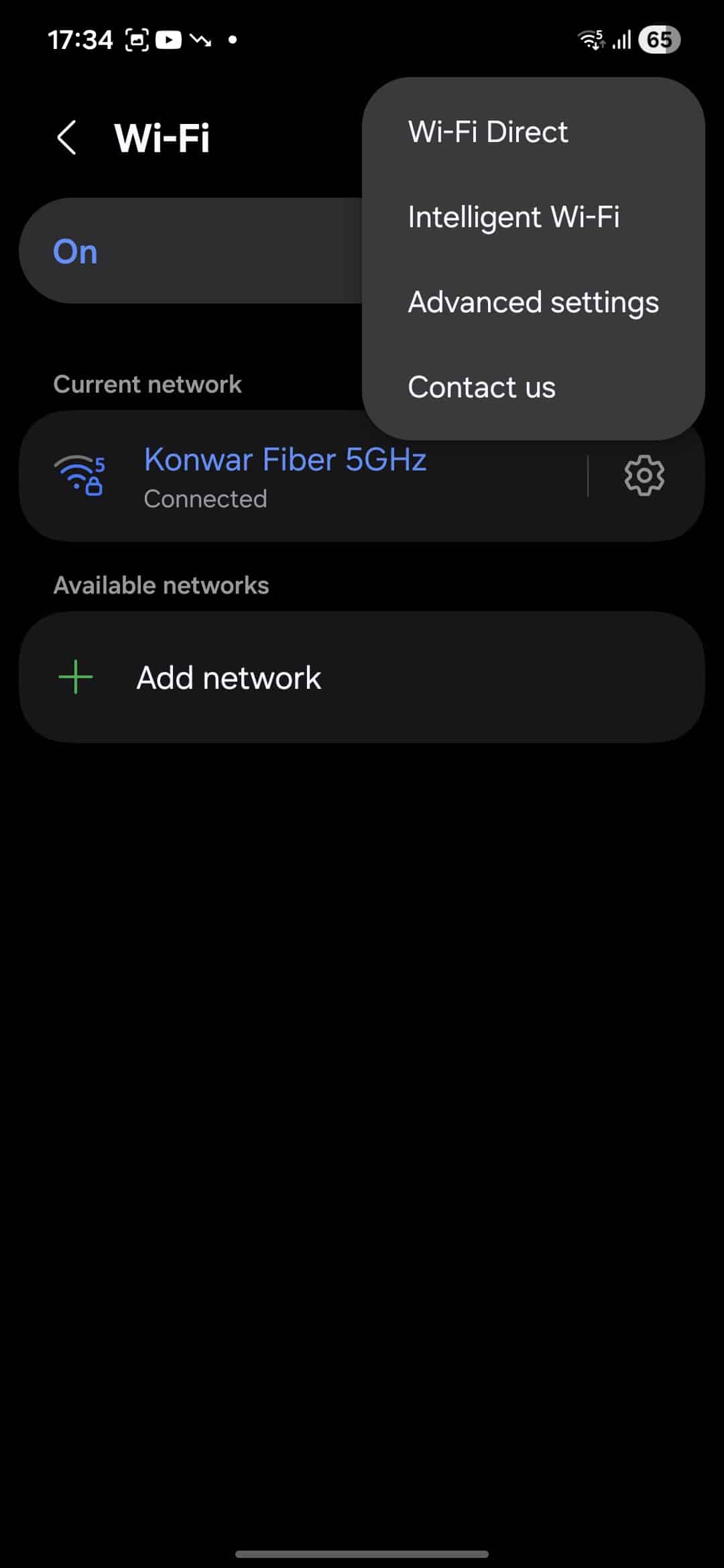
- Now tap the three dots in the top-right corner and select Intelligent Wi-Fi.
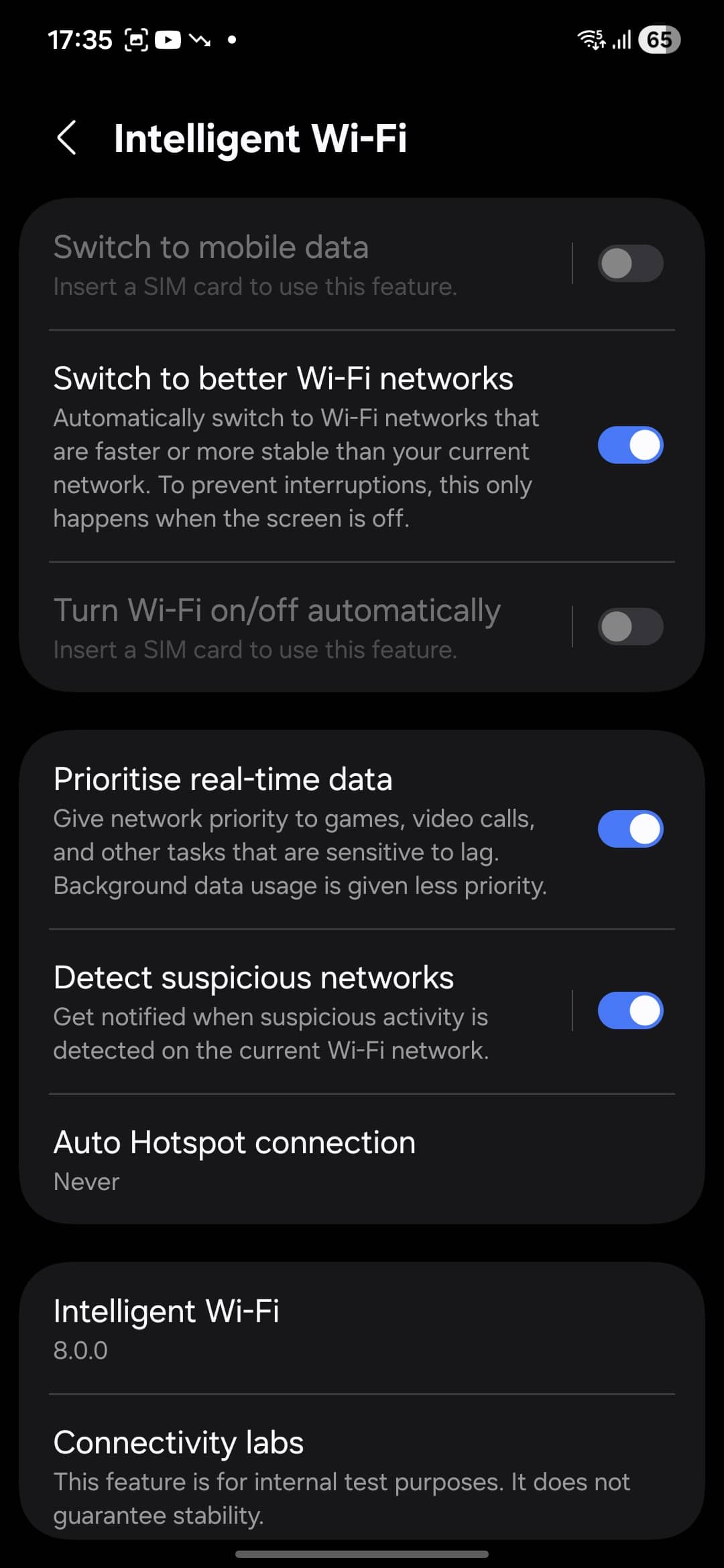
- Scroll to the bottom of the page and look for the Intelligent Wi-Fi 8.0.0.
- Tap this version a few times quickly, and the hidden Connectivity Lab menu will show up at the bottom of the page.
Now you are ready to explore its useful tools. It is worth mentioning that this feature is for internal test purposes, so you might experience stability issues sometimes.
Exploring Connectivity Lab tools
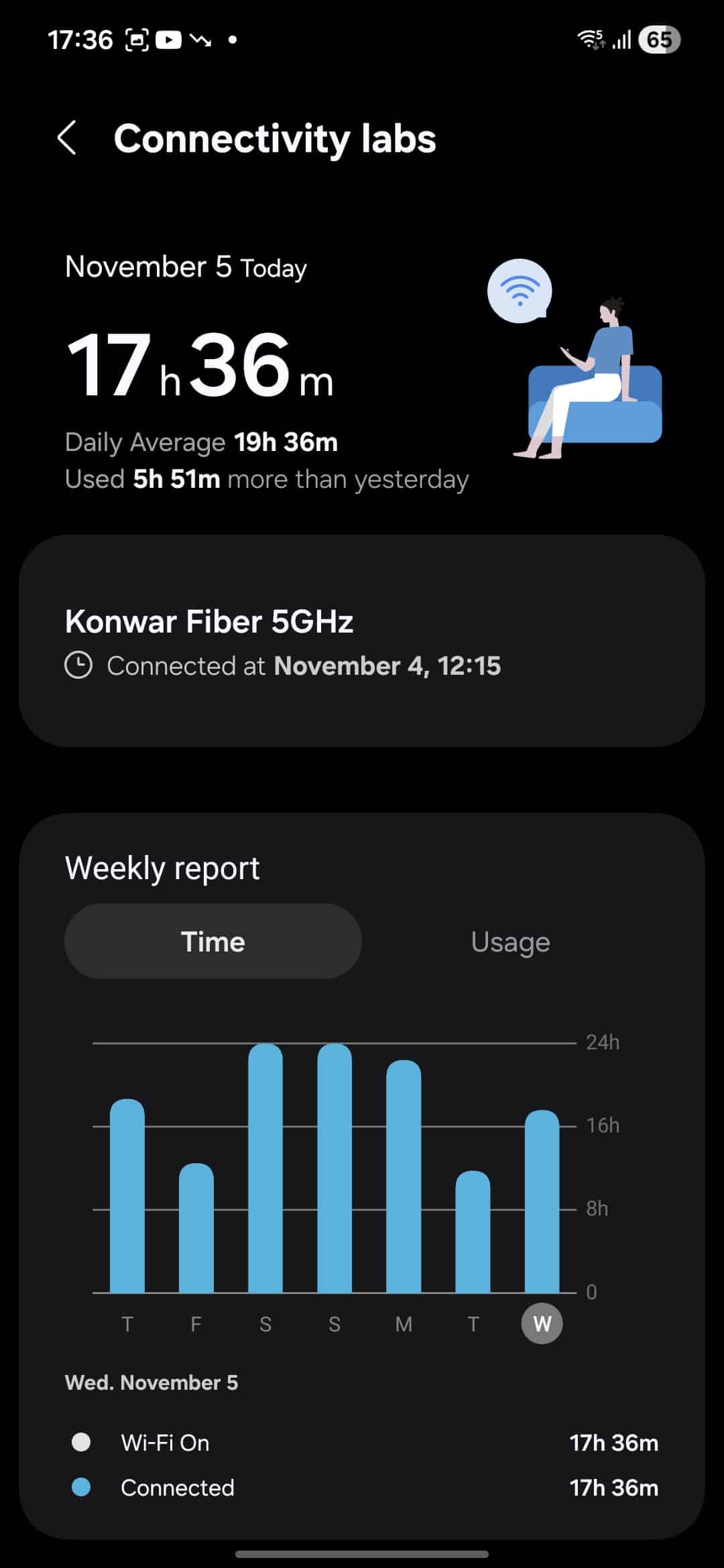
When you access Connectivity Lab, you will see the details of your connected Wi-Fi network. For example, the weekly report shows connection times and data usage. However, the main advantage of Connectivity Lab lies in its tools, which improve your connectivity experience.
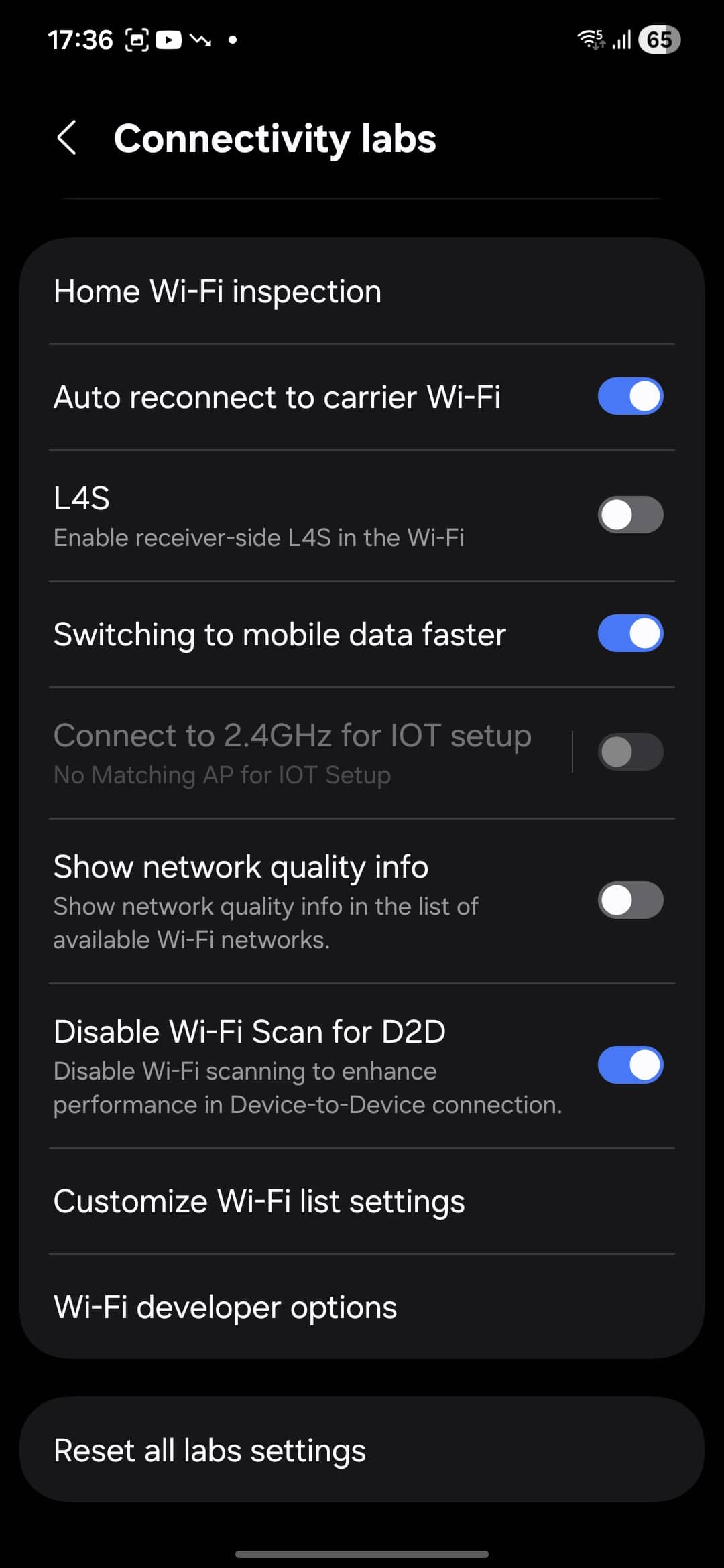
The first helpful tool is “Switching to mobile data faster,” which shifts to mobile data when your Wi-Fi connection becomes weak. This is particularly helpful when you are near the edges of Wi-Fi coverage, or when moving between networks. However, if you don’t have an unlimited mobile data plan, you may want to think twice before enabling this feature.
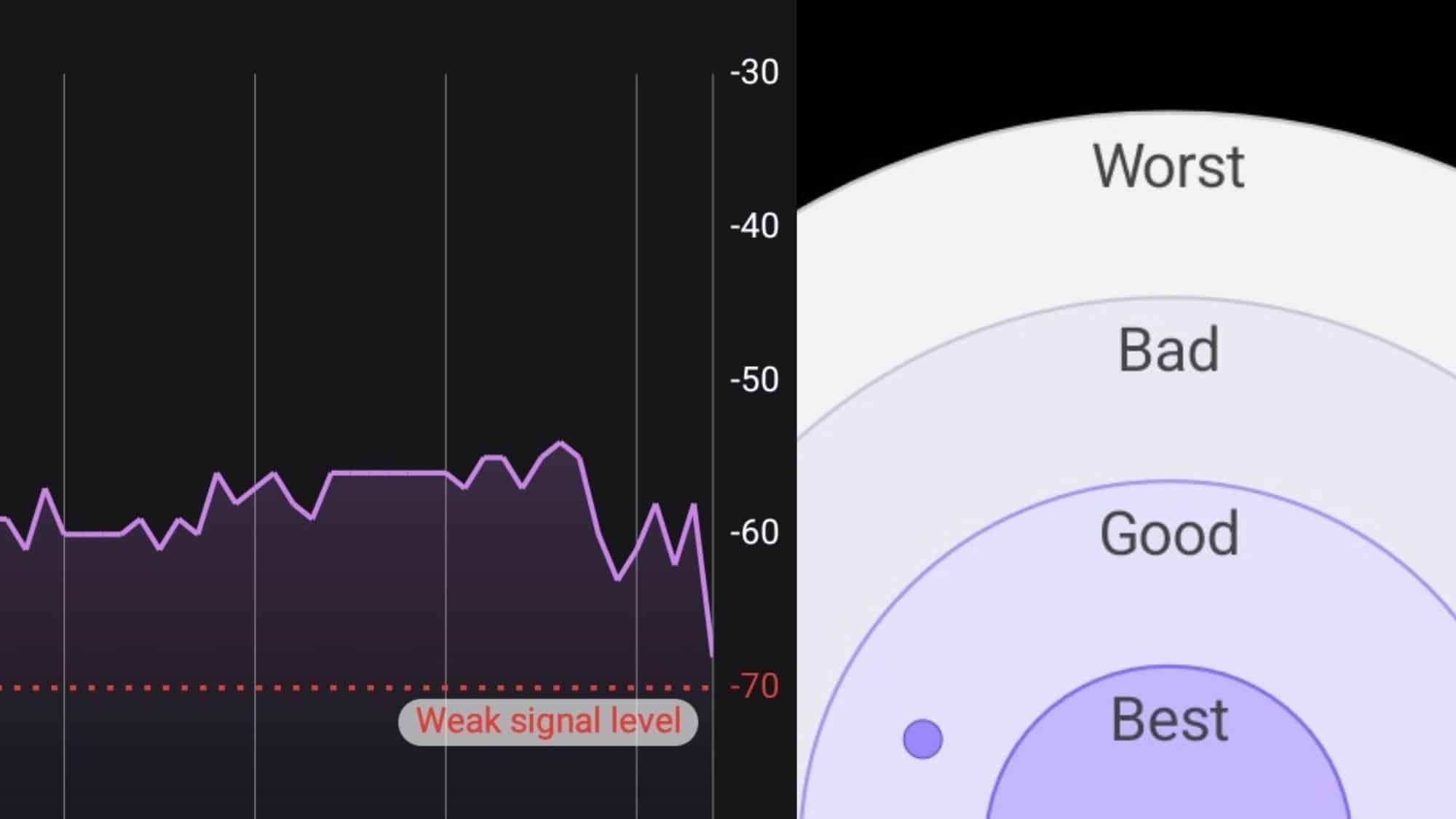
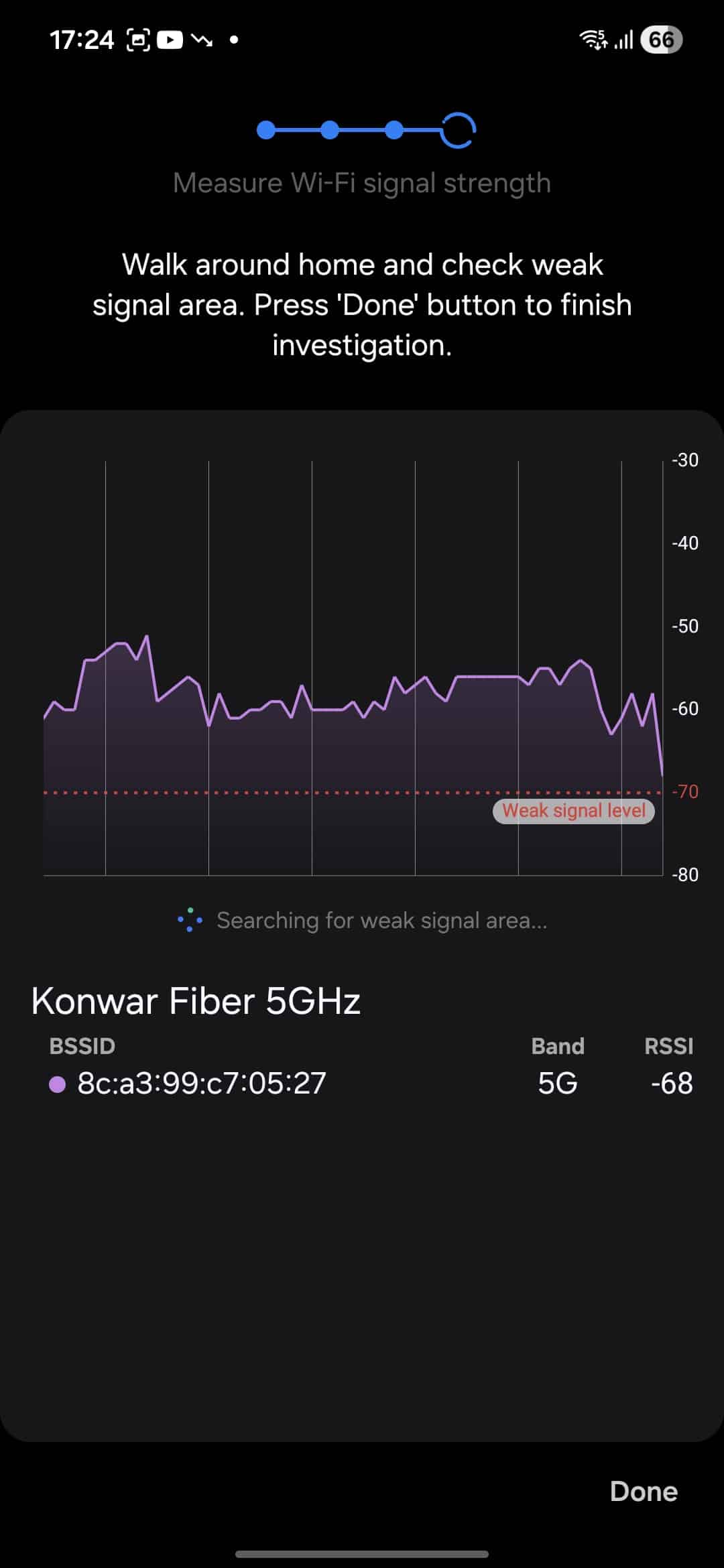
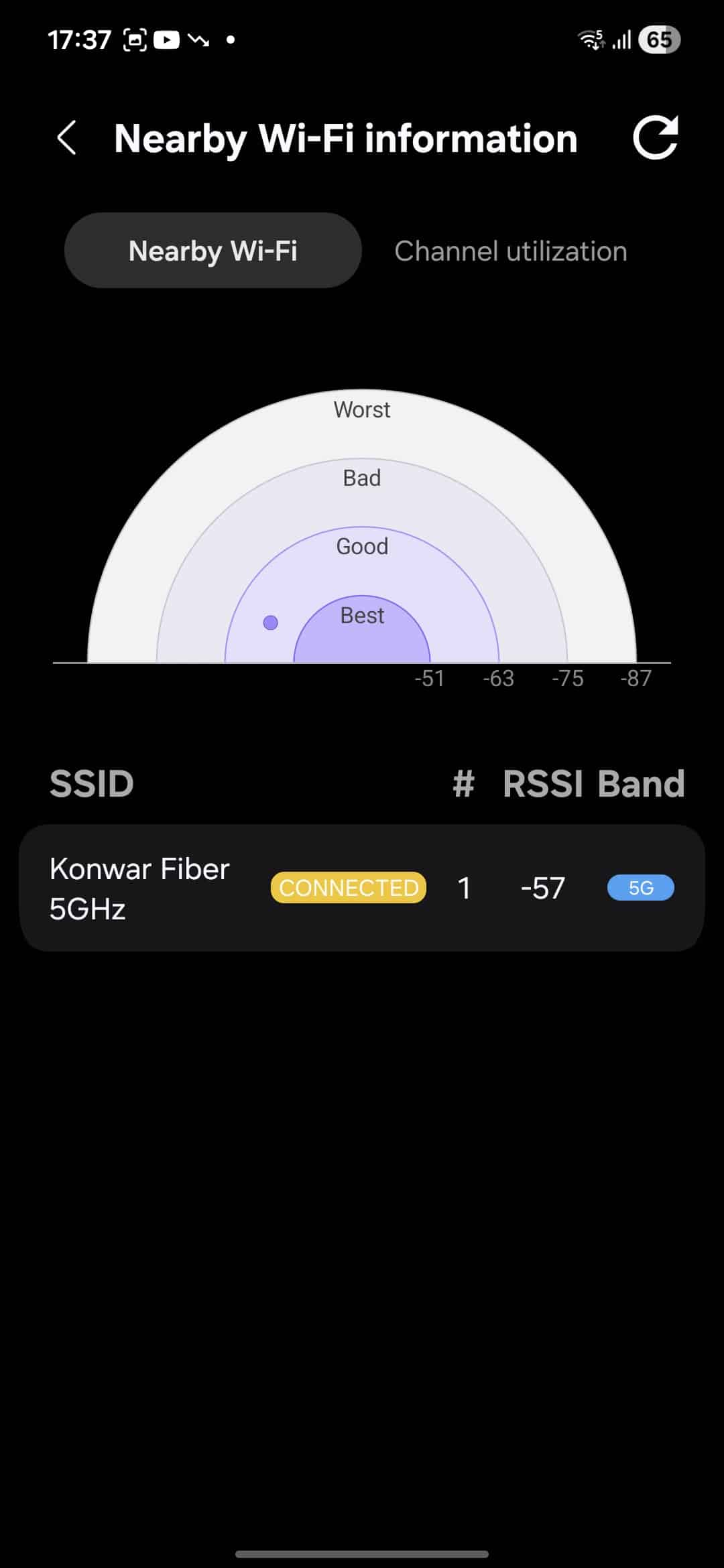
The second helpful tool is Home Wi-Fi Inspection, which measures the strength of your Wi-Fi signal. This helps you to find the best locations to place your router. Finally, Wi-Fi Developer Options shows information about nearby networks, including RSSI (Received Signal Strength Indicator) and frequency bands. So, if you are in crowded places like airports or cafes, this tool helps you pick the most stable network available.

Written by
Binay KonwarBinay Konwar started his blogging journey in 2014 and has since written plenty of tech articles. At present, he is working as a News Writer at SammyGuru, covering everything about Samsung. He holds a Master's degree in Mathematics, but his real passion lies in tech and writing. In his free time, he enjoys playing chess and watching movies.

Follow us on Google Discover & set us as a preferred source in Google News
Share this Post
___________________________


New Blog Posts
___________________________

First Set of Pixel 11 Pro XL Renders Are Here
Pixel 11 Pro XL CAD renders show minimal design changes

Is Samsung Preparing One UI 8.5 Beta for Galaxy Z Fold 5 and Flip 5?
Samsung may launch a One UI 8.5 beta program for its 2023 foldables

Galaxy S25 One UI 8.5 Beta May Run Longer Than Expected
Galaxy S25 series’ One UI 8.5 beta may stretch to 10 rounds







