
How to use Maintenance Mode on Samsung Galaxy Phones

SammyGuru is reader-supported. We have affiliate and sponsored partnerships, so we may earn a commission when you buy through links on our site — at no extra cost to you. Learn more.
Handing your phone over for repairs is always a bit nerve-racking. Beyond the worry about the fix itself, there’s the bigger concern: what if the technician pokes around your private photos, chats, or files? With our phones holding so much personal data these days, that’s a valid fear. Thankfully, Samsung has a solution — Maintenance Mode.
Built into One UI, it locks down your data while still keeping the device fully functional. Technicians can diagnose, repair, and test your Galaxy phone as usual, but without access to your personal files, apps, or accounts. Here’s everything you need to know about how Samsung’s Maintenance Mode works and why it’s a must-use feature before your next service visit.
What is Samsung’s Maintenance Mode?
Maintenance Mode, introduced with One UI 5, creates a secure environment on your Galaxy phone or tablet. Instead of wiping your data with a factory reset, you can activate this mode to hide your apps, accounts, photos, and files from technicians.
Behind the scenes, the feature relies on Android’s guest profile system, but Samsung has refined it for service scenarios. Once enabled, your Galaxy device temporarily switches to a “clean” profile with only preinstalled apps available. Even those are signed out of your accounts. This means the repair technician can still run tests, download apps from the Galaxy Store, and adjust system settings, but they cannot touch your personal data.
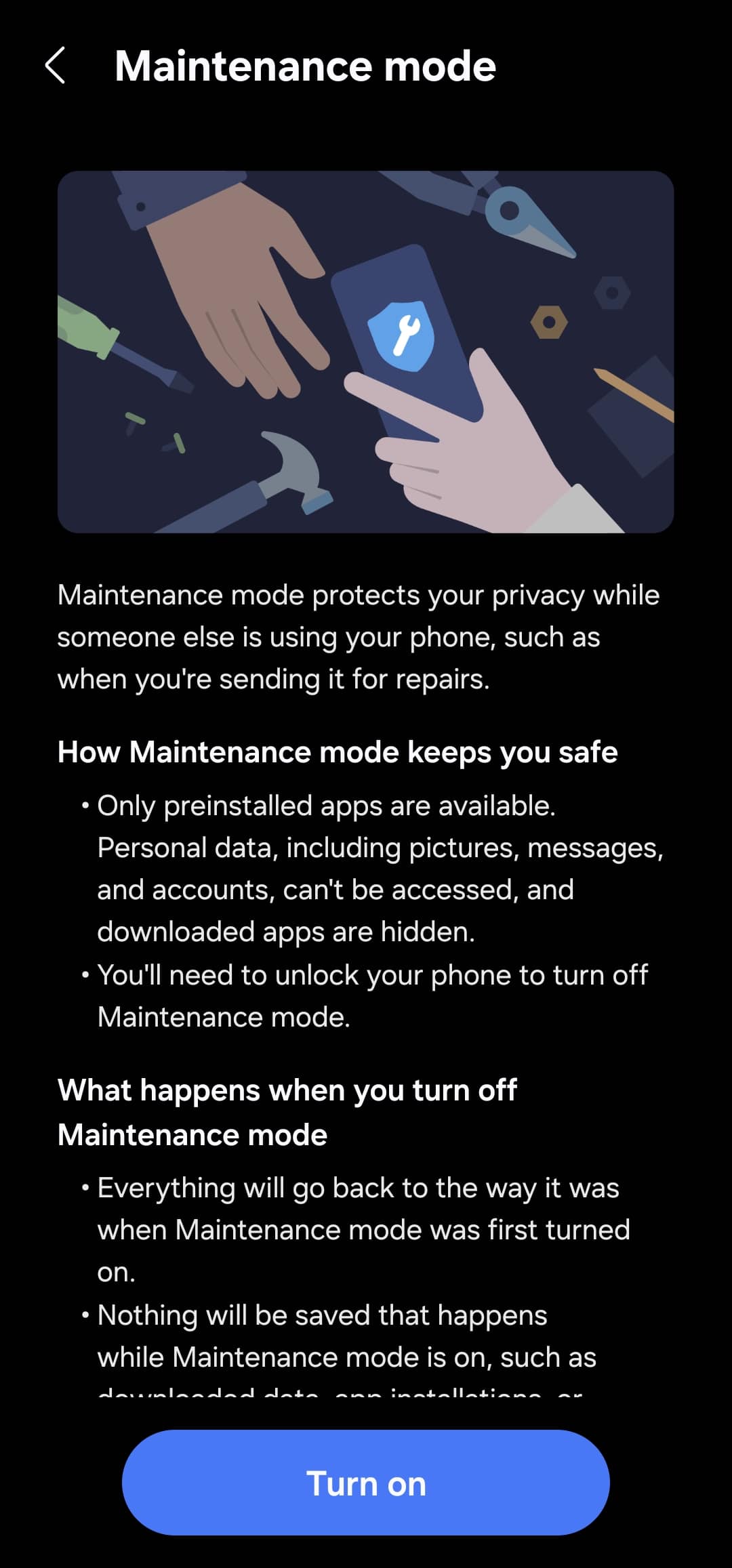
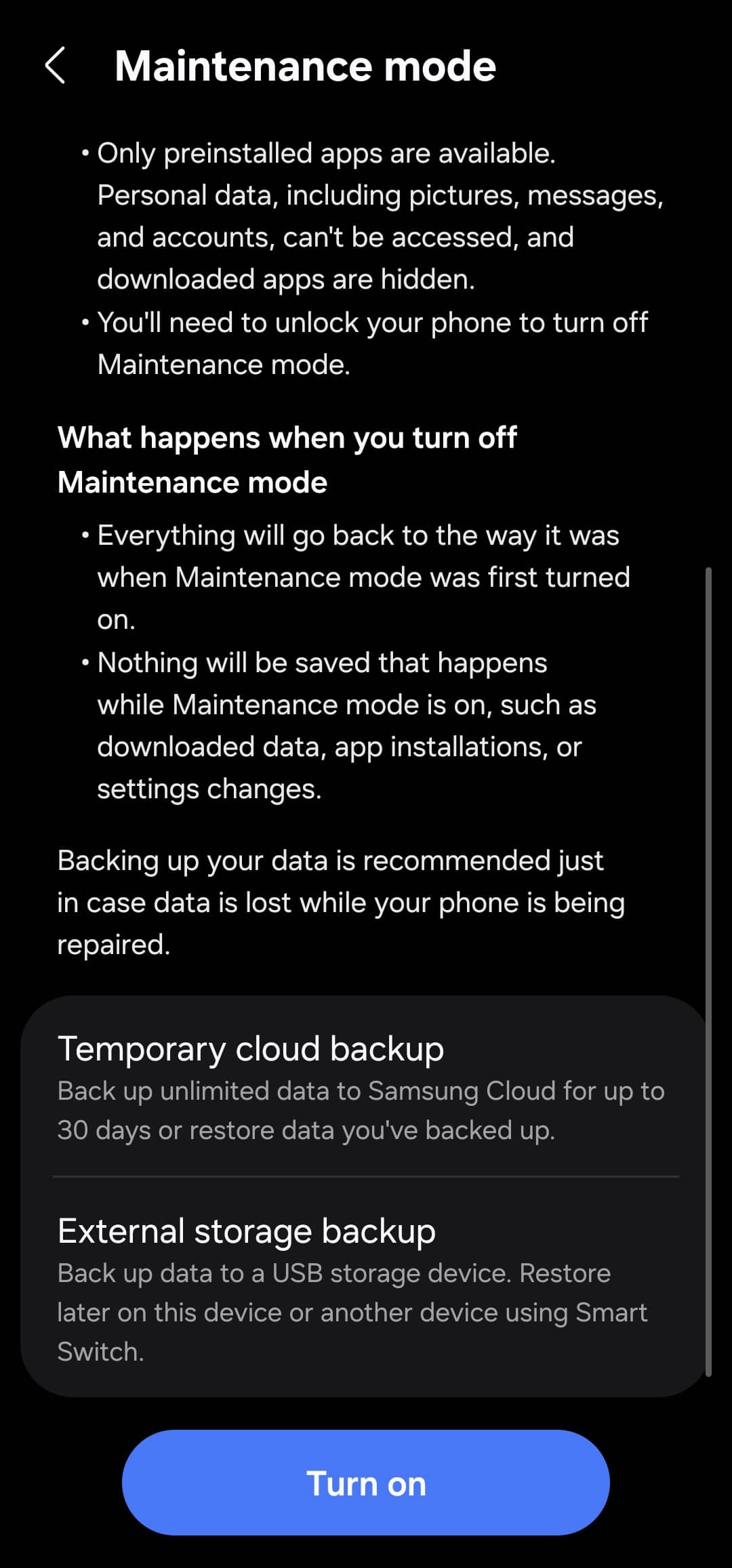
When you activate Maintenance Mode (steps below), your Galaxy phone reboots with a guest profile. Preloaded Samsung and Google apps like Gallery, Play Store, and Messages are available should technicians need them during repairs. System settings and diagnostic tools, Galaxy Store downloads (without your Samsung account), and mobile and Wi-Fi connectivity also remain accessible. The lockscreen is also disabled, so technicians can freely use the phone.
However, your accounts (Google, Samsung, email, etc.), photos, files, and messages, installed apps and their data, and sensitive system data are all hidden. Once Maintenance Mode is disabled, everything reverts back exactly as it was. Apps that technicians download and any other data they generate during repairs and testing are automatically deleted, giving you “your” phone.
How to activate and exit this feature?
Maintenance Mode is perfect when your device needs minor repairs (like a battery replacement, screen fix, or diagnostics). If the repair involves a logic board replacement or full system format, your data may still be erased. In such cases, back up your phone first to avoid losing important information. Here’s how to activate Maintenance Mode on your Samsung Galaxy:
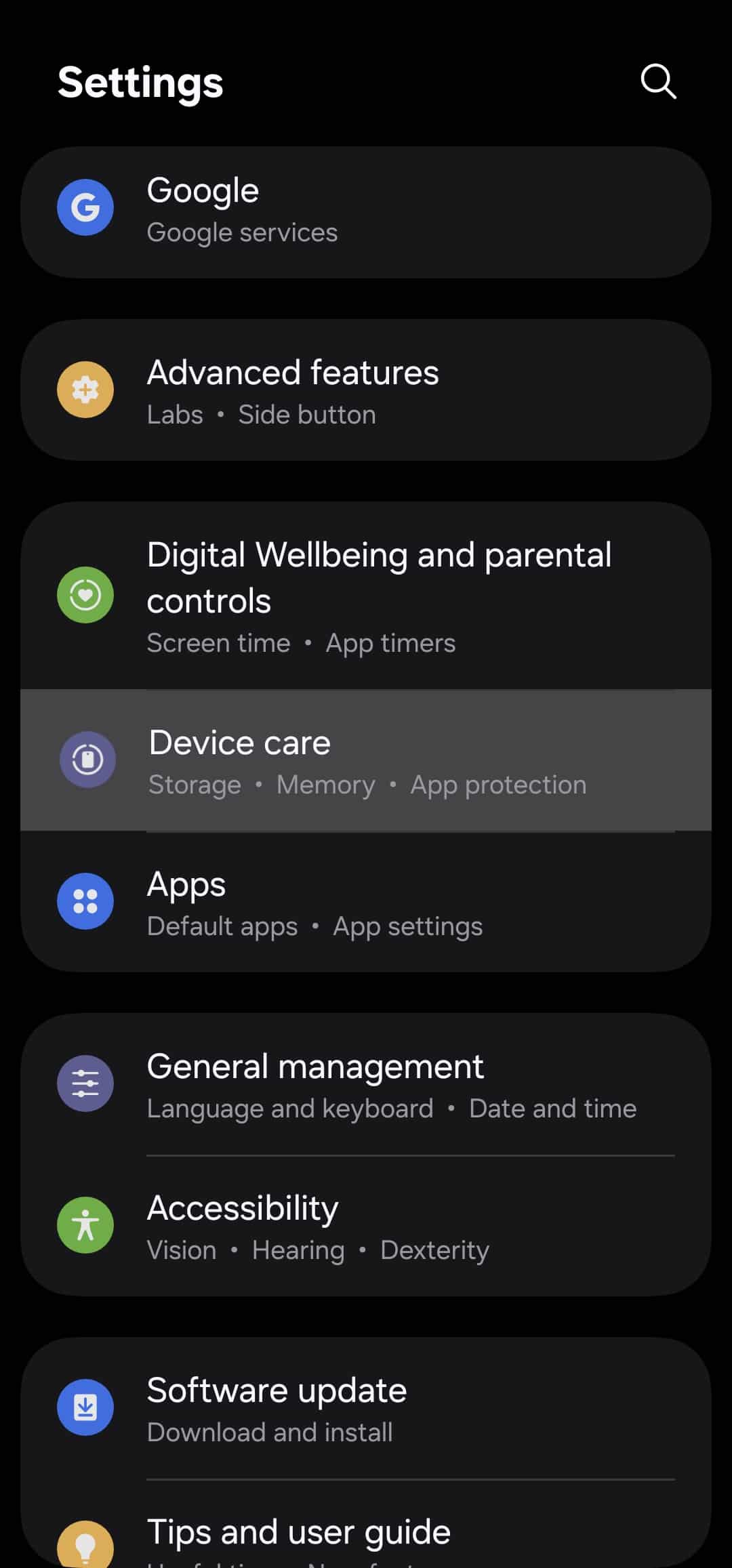
- Open Settings and go to Device care
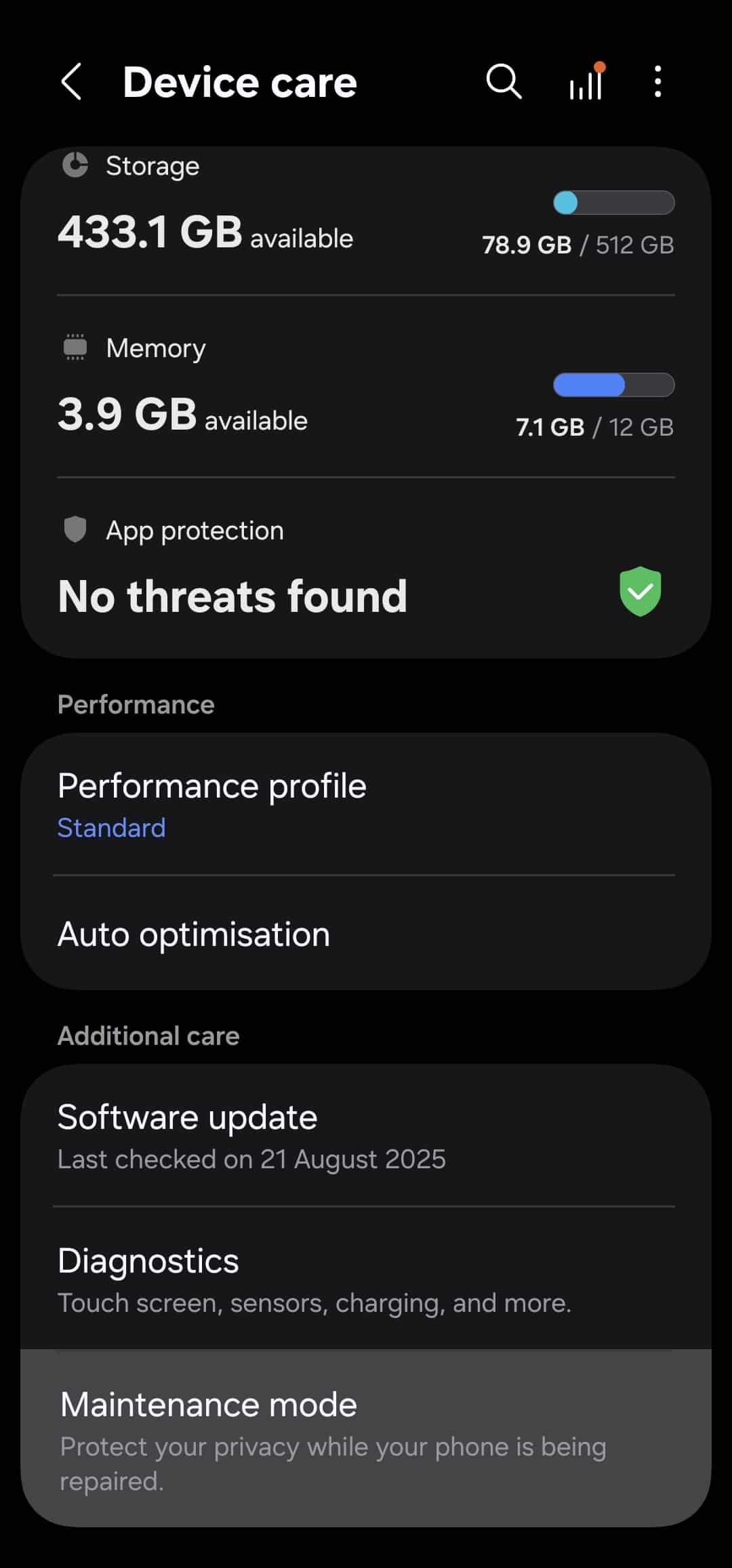
- Scroll down and tap Maintenance mode at the bottom
- Select Turn on — a pop-up will appear with an option to create a system log to help technicians troubleshoot
- System log is created by default, but you can uncheck this option — tap Restart to confirm your choice and enter your lockscreen PIN to proceed (PIN is also required to exit, blocking unauthorized access)
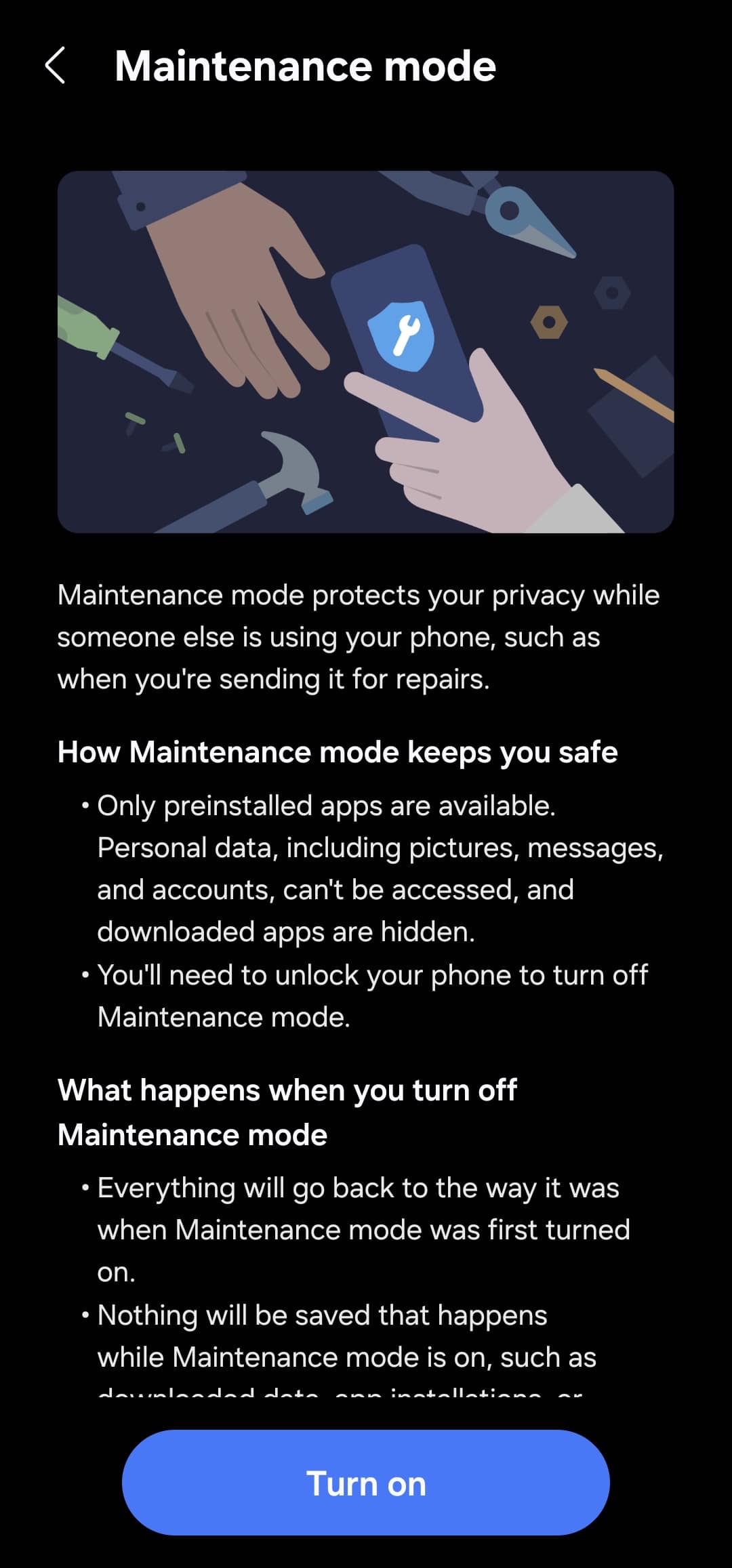
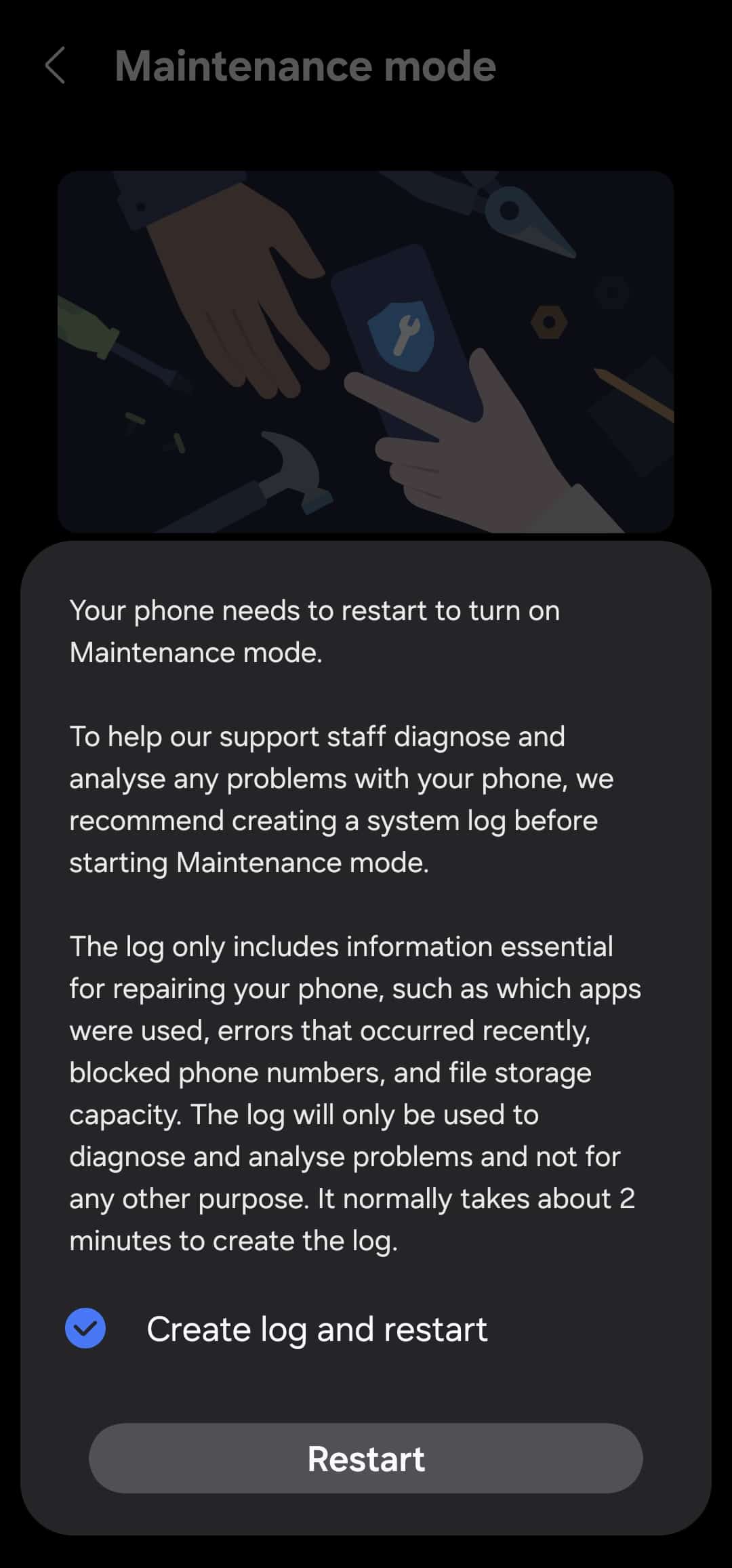
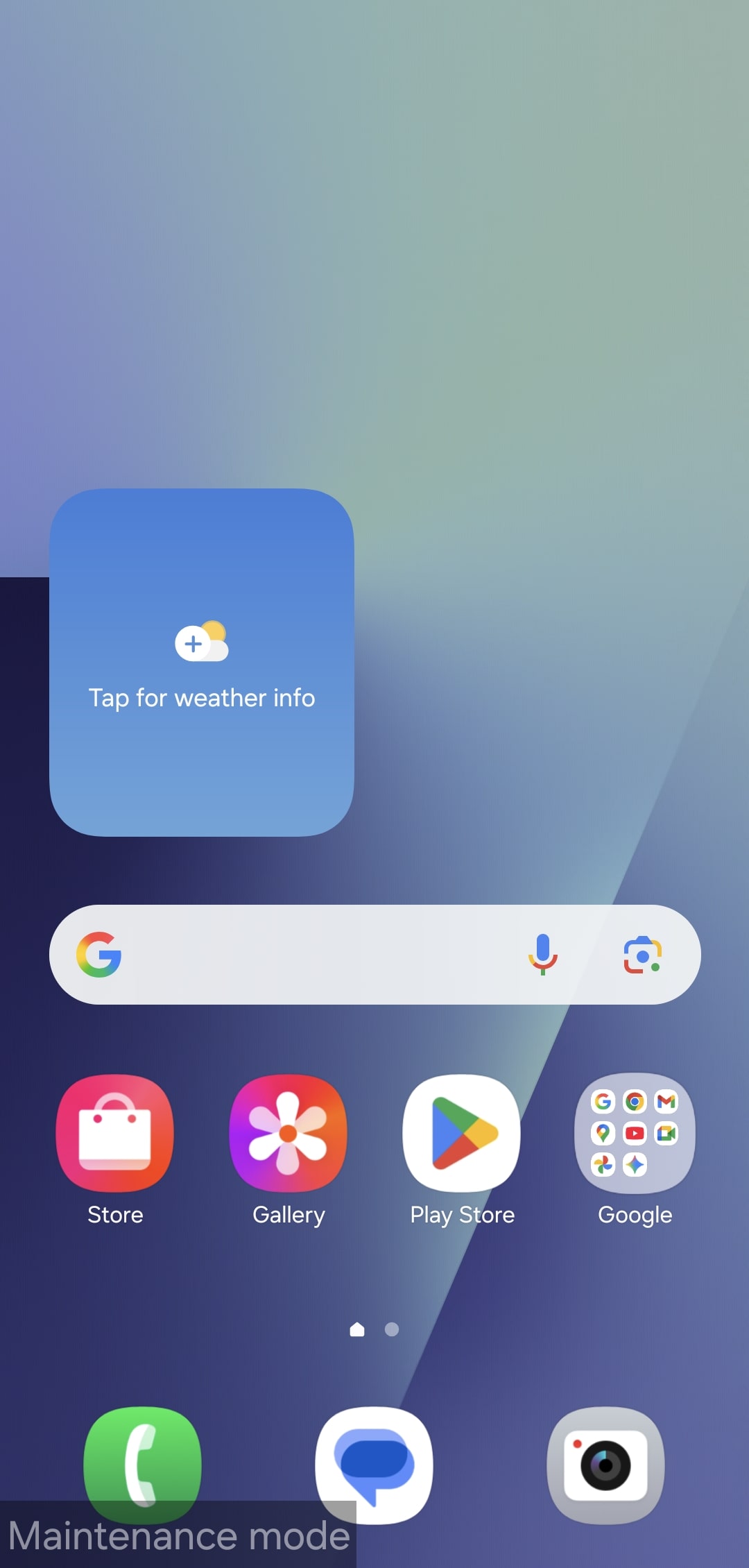
Your phone will now restart in Maintenance Mode, indicated by a small overlay on the bottom left of the screen. At this point, it’s safe to hand over your phone to the technician — they can’t access your data (you can verify yourself before handing it over). Once the repair is complete and you get your phone back, follow the steps below to exit Maintenance Mode.
- Pull down the notification shade
- Tap the “Your phone is in Maintenance mode” banner
- Select Exit and then Restart
- Confirm with your lockscreen PIN — this extra authentication step ensures the technician (or anyone else) can’t exit the mode without your consent
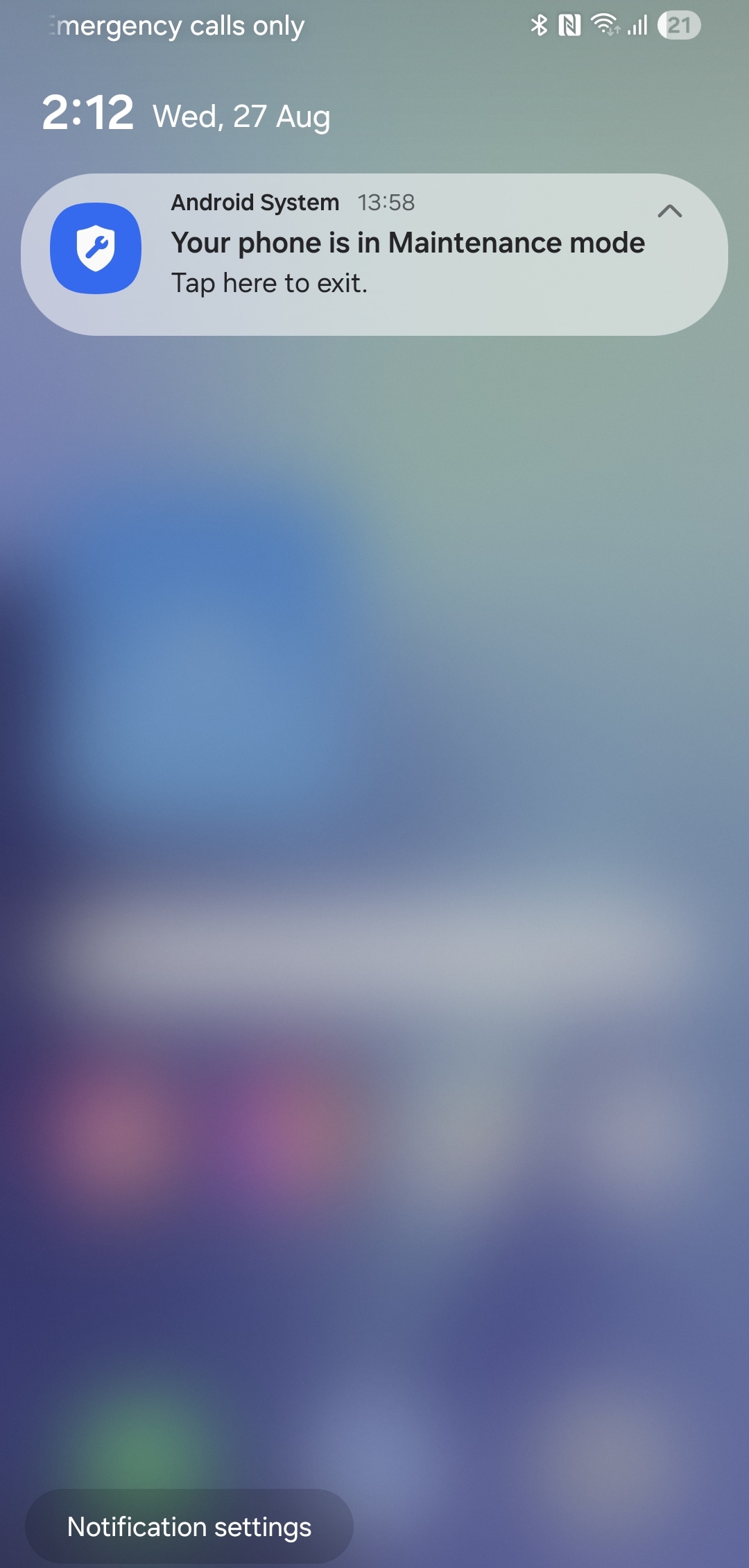
Your phone reboots, restoring everything just as it was. It’s like a regular restart, so you need to enter your lockscreen PIN again. This small but powerful feature gives you real peace of mind when handing over phones for repairs.

Written by
Sumit AdhikariSumit, a life-long Samsung user, is passionate about technology and has been professionally writing on tech since 2017. He’s a mathematics graduate by education and enjoys teaching basic mathematics tricks to school kids in his spare time. Sumit believes in artificial intelligence and dreams of a fully open, intelligent and connected world.

Follow us on Google Discover & set us as a preferred source in Google News
Share this Post
___________________________


New Blog Posts
___________________________

First Set of Pixel 11 Pro XL Renders Are Here
Pixel 11 Pro XL CAD renders show minimal design changes

Is Samsung Preparing One UI 8.5 Beta for Galaxy Z Fold 5 and Flip 5?
Samsung may launch a One UI 8.5 beta program for its 2023 foldables

Galaxy S25 One UI 8.5 Beta May Run Longer Than Expected
Galaxy S25 series’ One UI 8.5 beta may stretch to 10 rounds







