
How to Transfer Music to Your Galaxy Watch for Offline Listening
SammyGuru is reader-supported. We have affiliate and sponsored partnerships, so we may earn a commission when you buy through links on our site — at no extra cost to you. Learn more.
Samsung’s Galaxy Watches are powerful health and fitness companions. They track everything from heart rate and sleep to advanced workout metrics, making them ideal for runs, gym sessions, and outdoor activities. Thanks to Wear OS and a growing app ecosystem, you can even stream music directly from your wrist. You don’t need your phone around, particularly convenient during runs and workouts.
That convenience, however, typically depends on having an LTE-enabled model and an active subscription to a streaming service. But what if you don’t have LTE or don’t want to rely on streaming at all? There’s a simple workaround: you can transfer downloaded music files from your phone to your Galaxy Watch and listen offline. Here’s how to do it.
Transfer music from your phone to your Galaxy Watch with these easy steps
While streaming apps allow in-app downloads for offline listening, they usually require an active subscription. But if you have tracs saved directly on your phone, transferring them to your Galaxy Watch allows you to enjoy music on the go, without needing LTE. Simply follow the steps below:
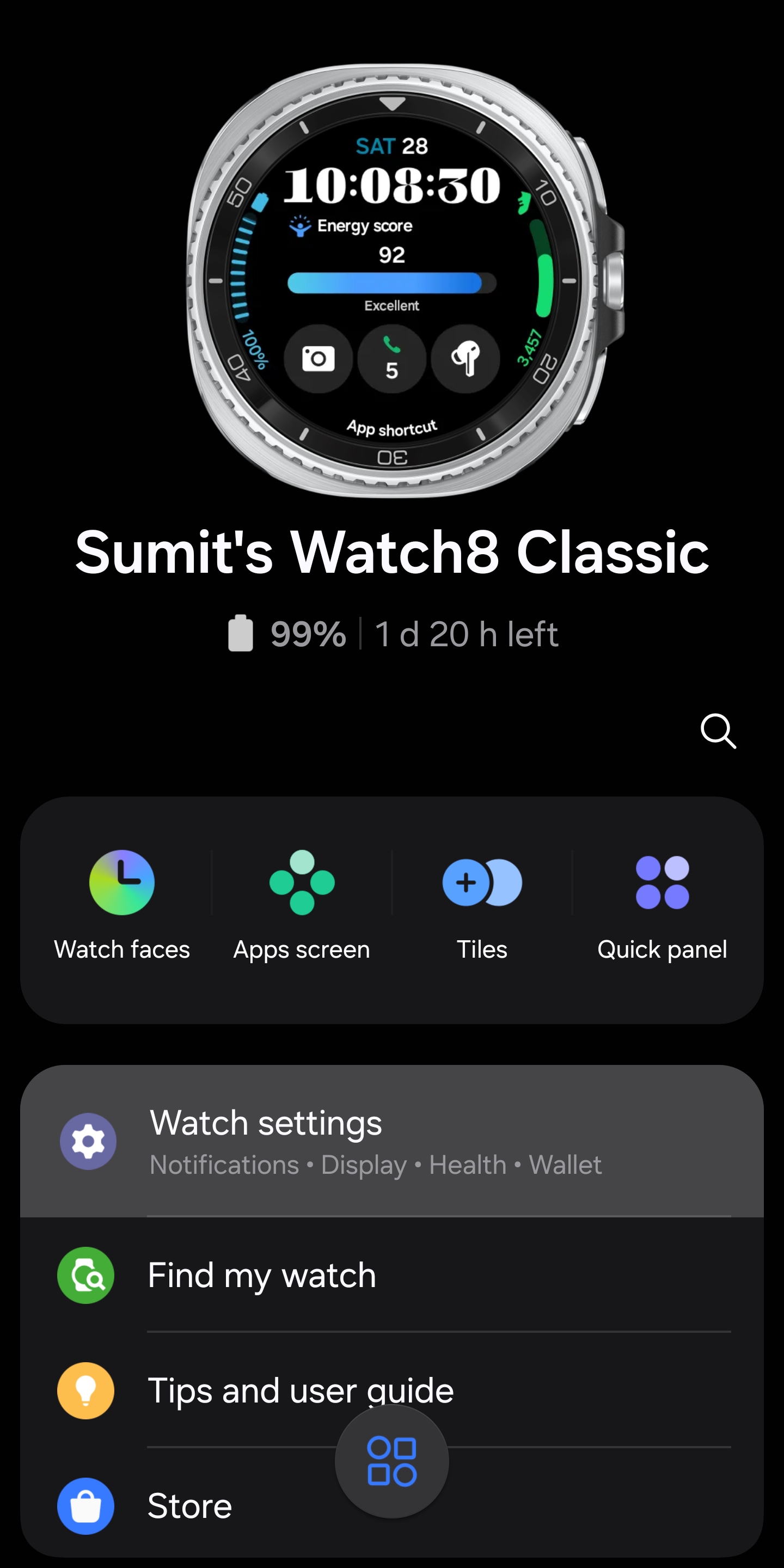
- On your connected phone, launch the Galaxy Wearable app.
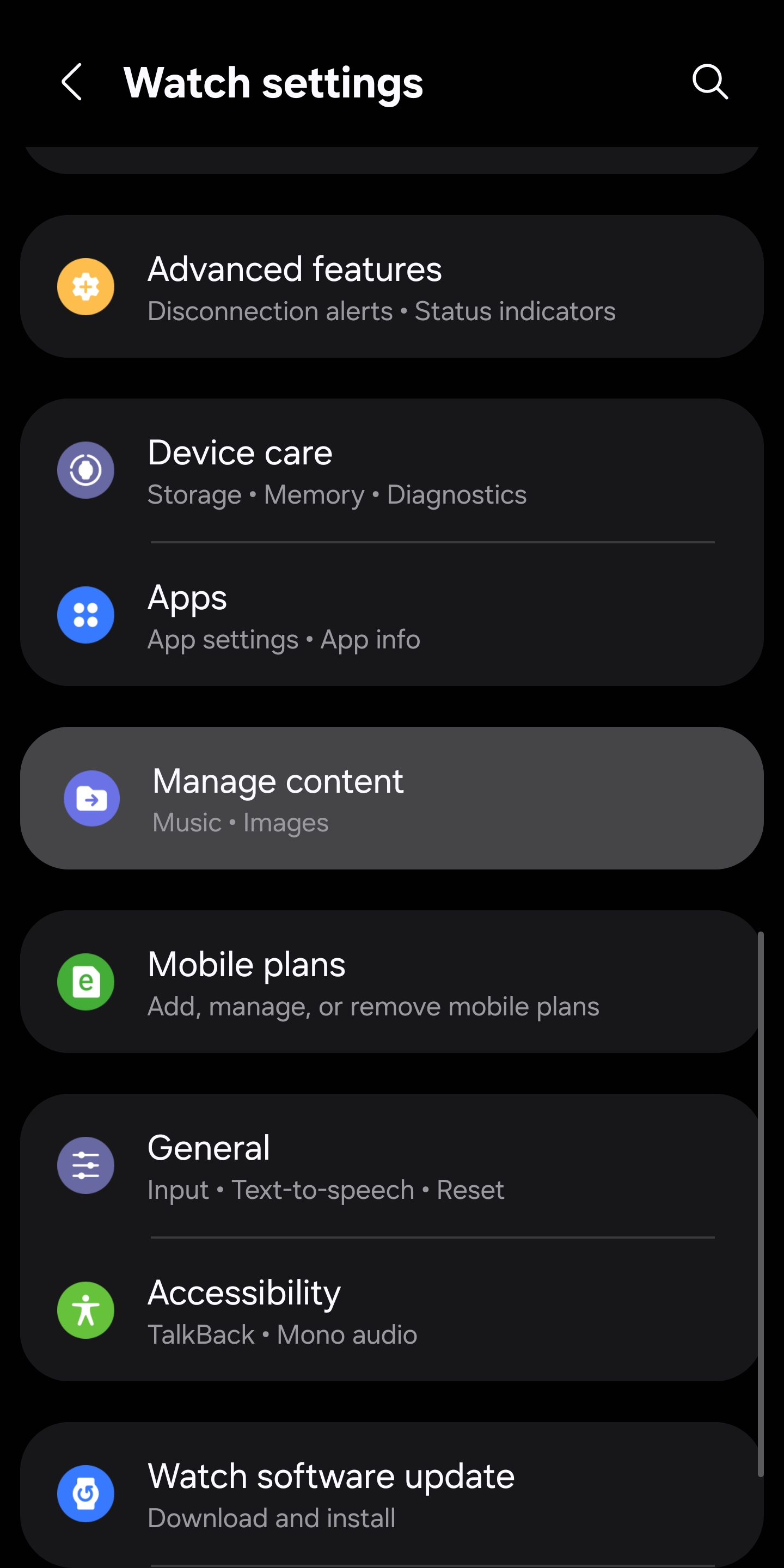
- Tap Watch settings.
- Select Manage content from the menu.
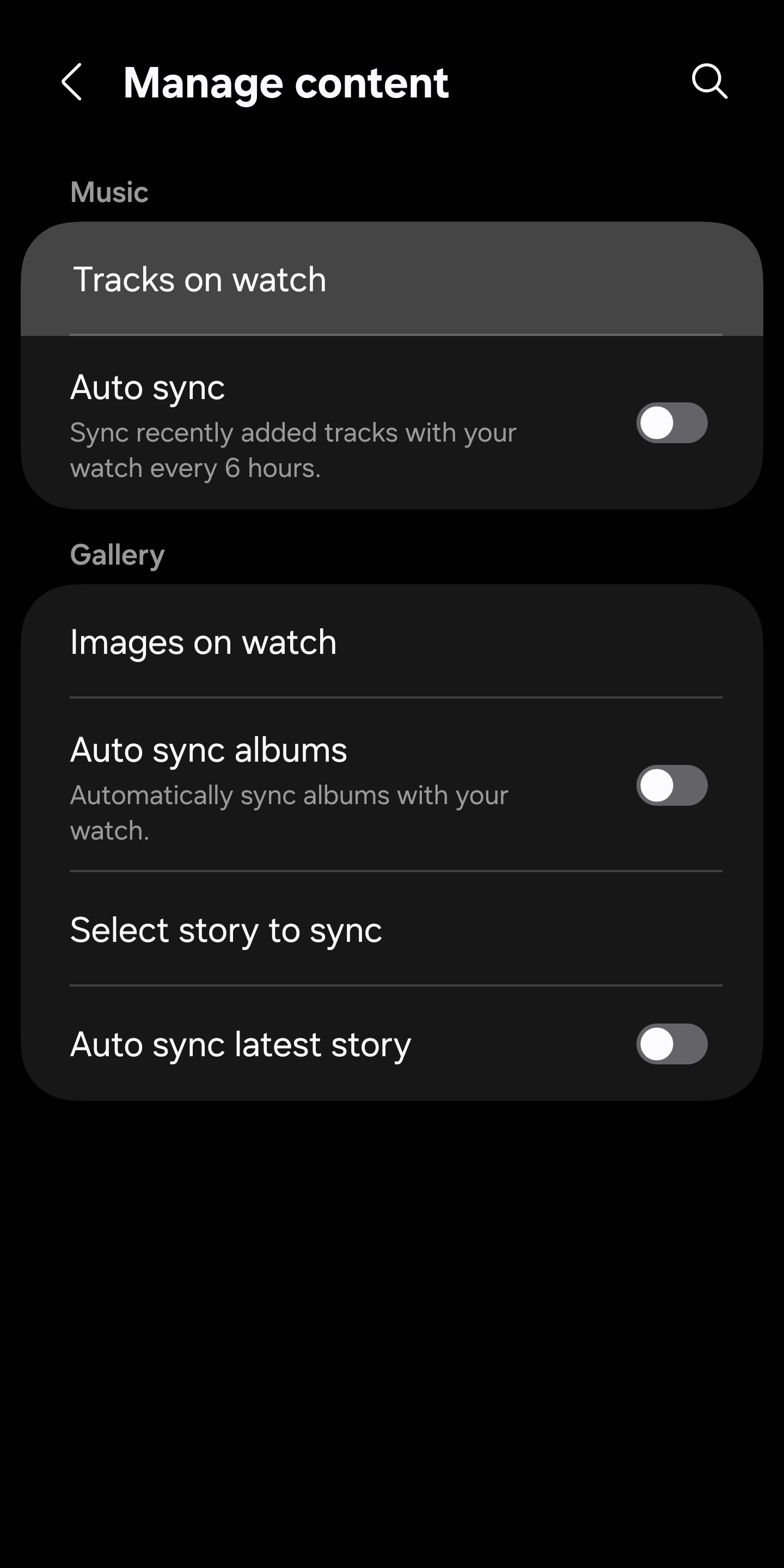
- Tap Tracks on watch.
- In the top-right corner, tap the + icon.
- Select the songs you want to transfer.
- Confirm by tapping Add to watch.
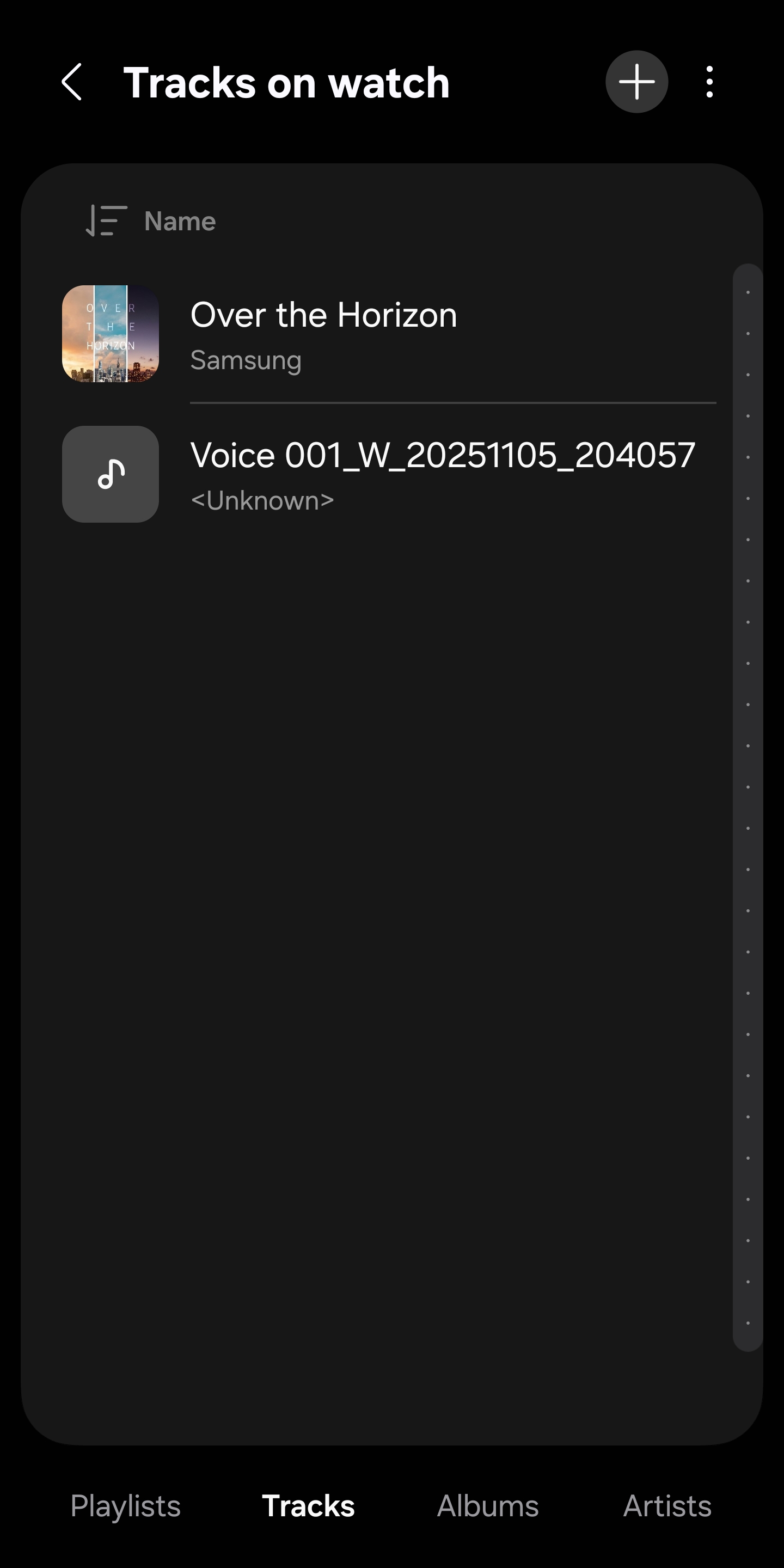
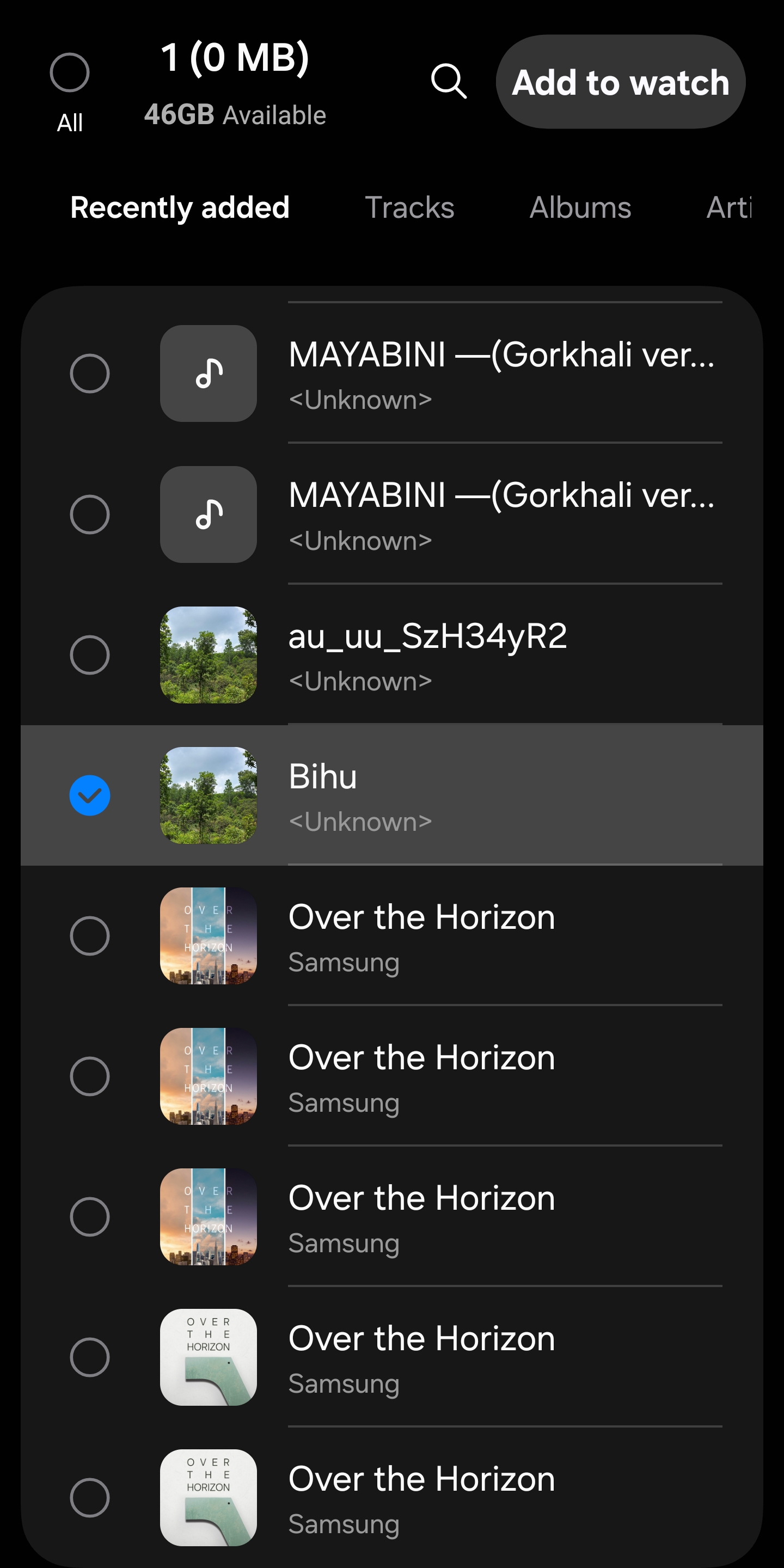
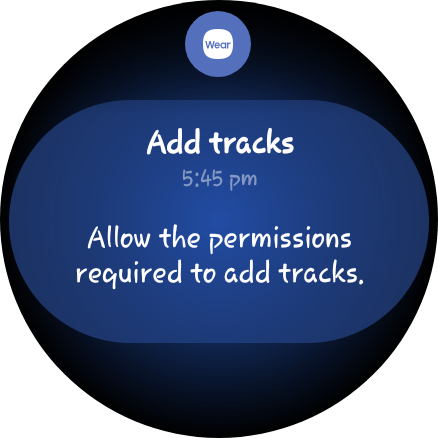
When transferring tracks for the first time, you’ll need to grant a few permissions. On your Galaxy Watch, swipe to Notifications and look for a permission request. Tap on it and grant all necessary permissions.
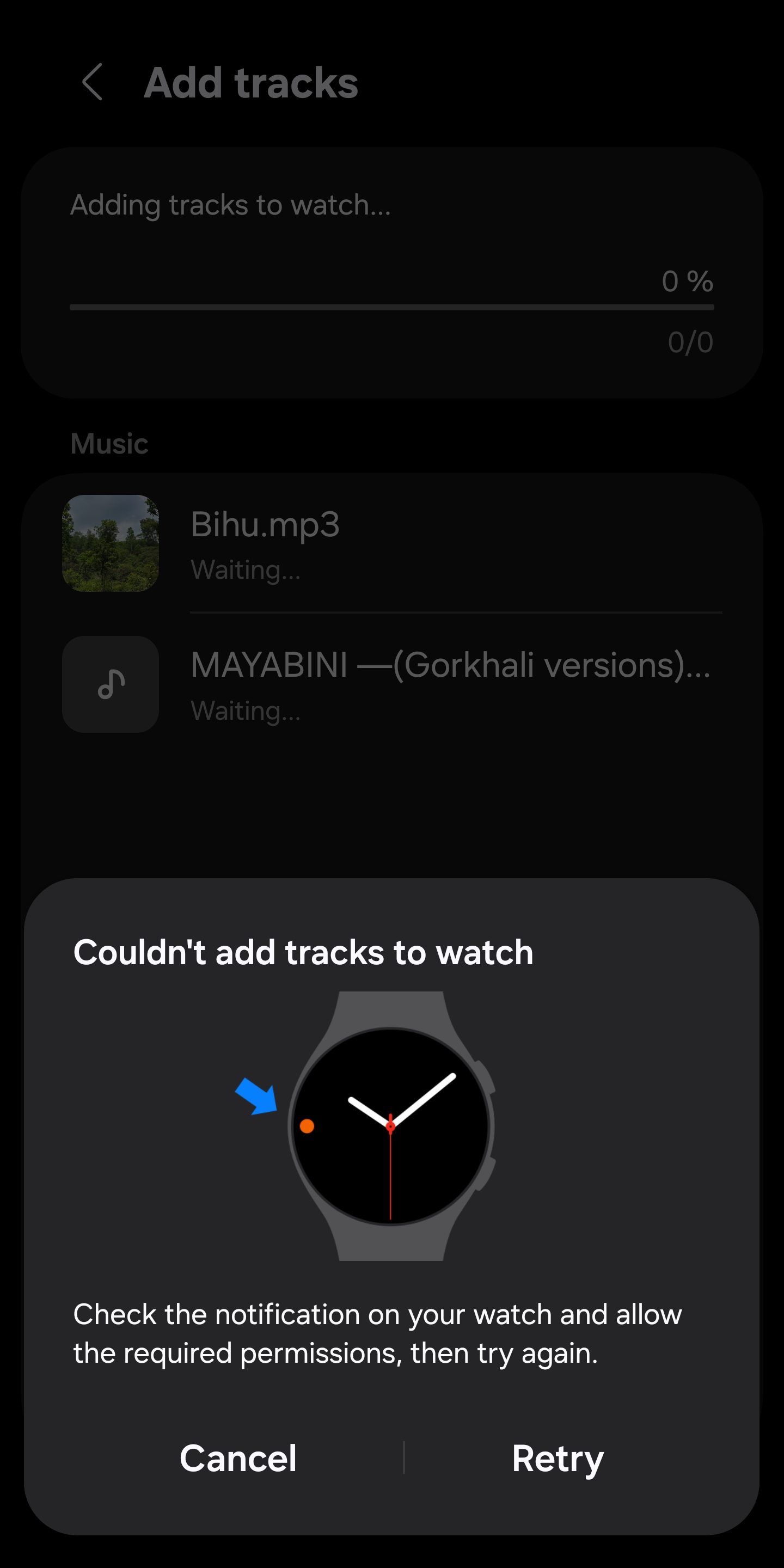
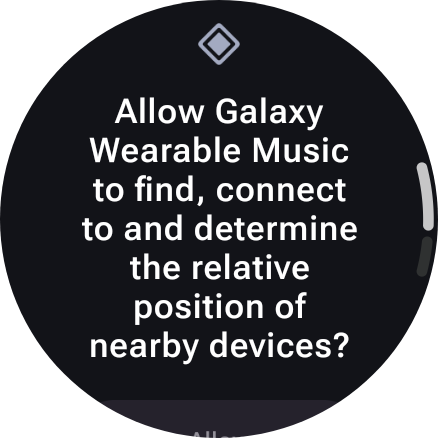
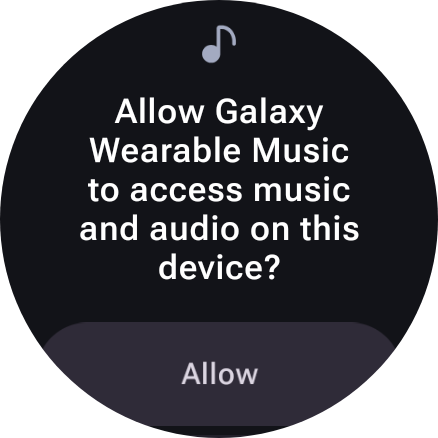
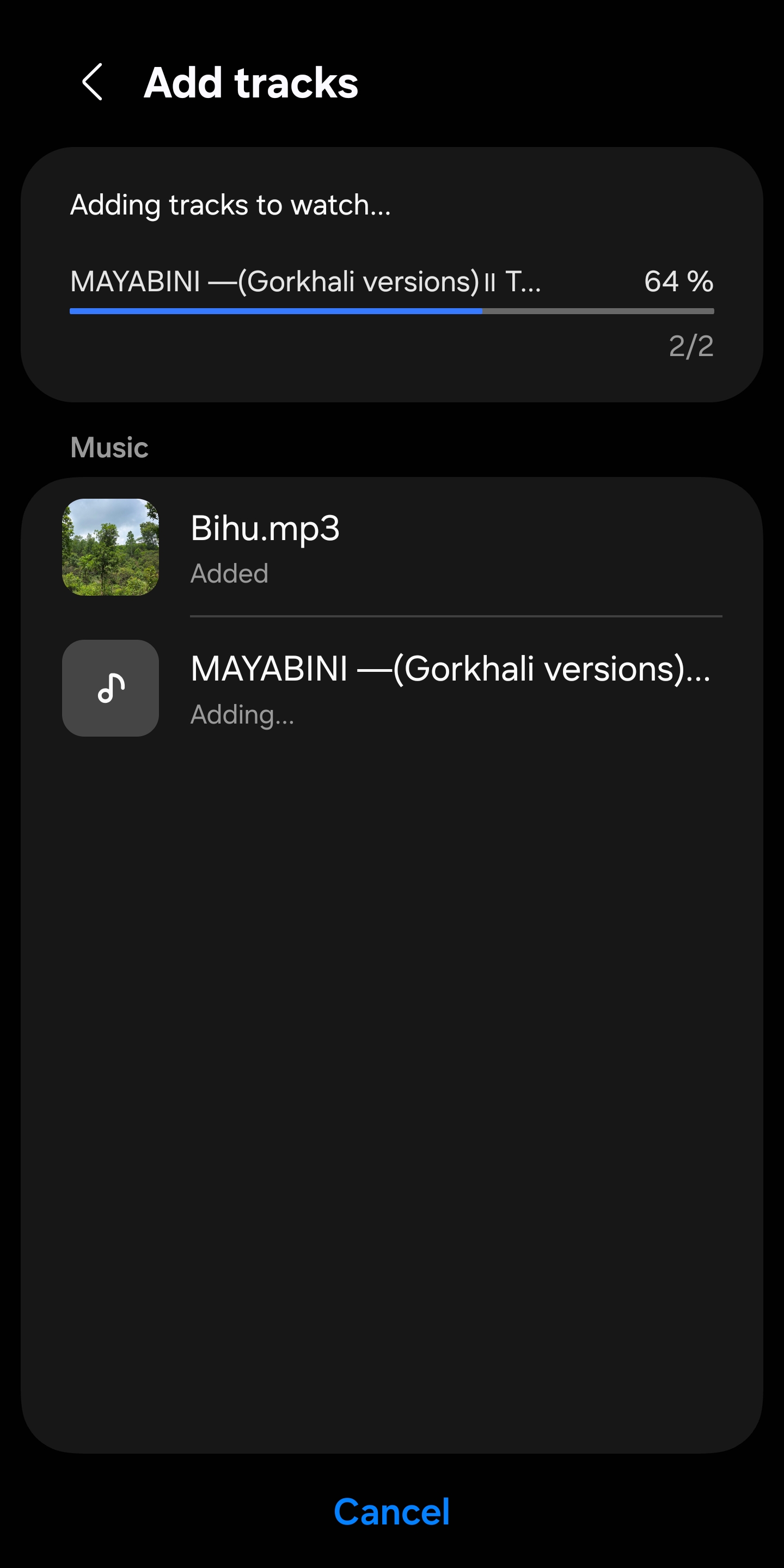
Once permissions are granted, the transfer will complete automatically. You will see a progress bar, as well as the tracks you are transferring. This process takes a few seconds to minutes, depending on the number of tracks and file size.
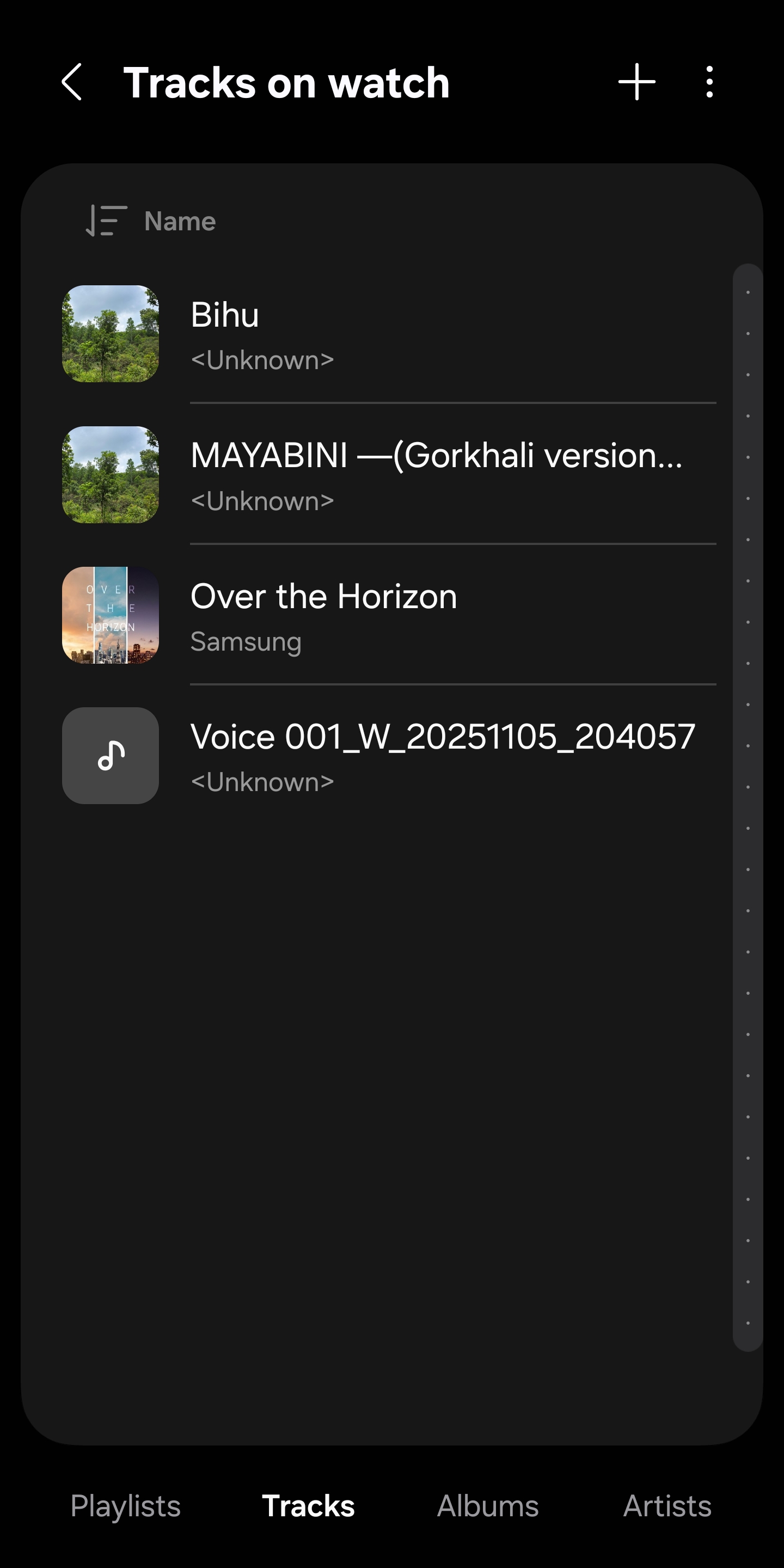
How to access and play music tracks on your watch
After transferring music:
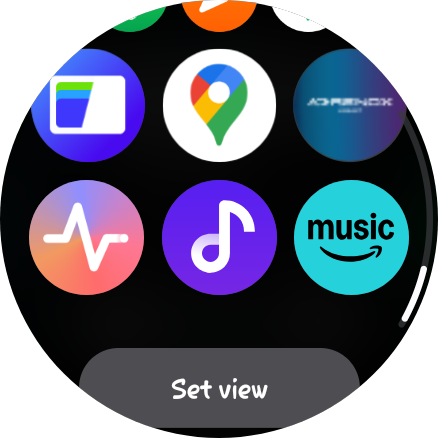
- Open the Music app on your Galaxy Watch.
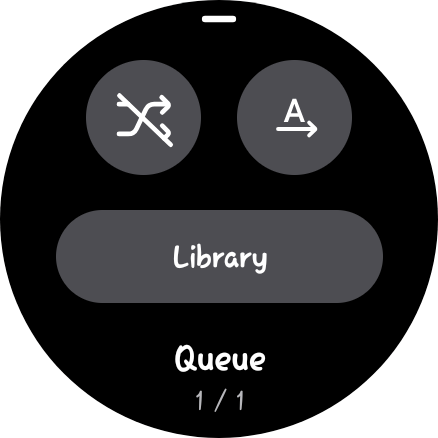
- Swipe up and select Library.
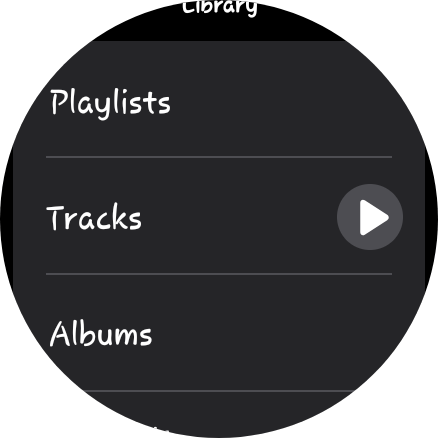
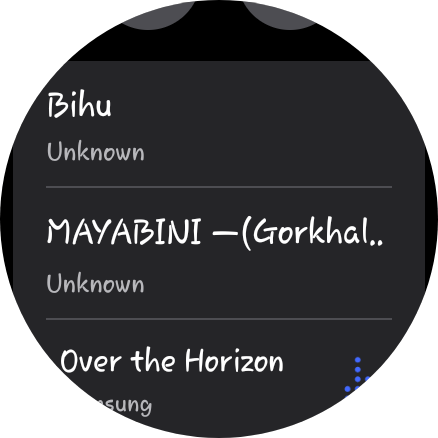
- Go to Tracks and select a file.
- Pair your Bluetooth earbuds directly with the watch and start listening.

Now you’re fully phone-free.
Pro tip: If you regularly refresh your offline music collection on your phone, enable Auto sync, so new tracks are automatically transferred to your watch. You can do that from the Manage content menu in Watch settings on the Galaxy Wearable app.
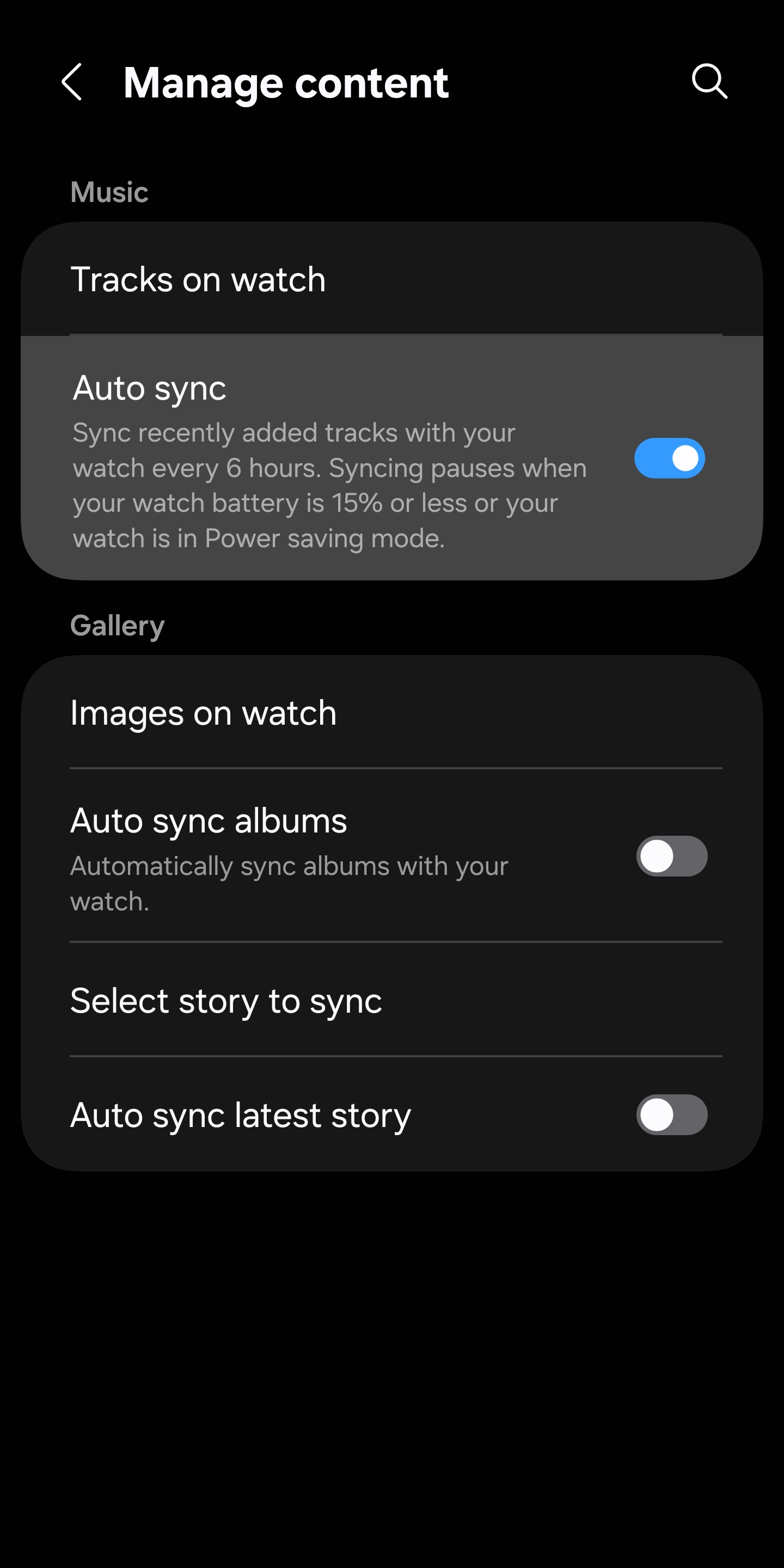
However, keep in mind that Galaxy Watches have limited storage, so if your collection is large, you should transfer only the tracks you actually need. The Galaxy Watch 8 Classic and Watch Ultra (2025) boast 64GB of storage, the highest on any Samsung watch.
If you have questions, feel free to reach out to us.

Written by
Sumit AdhikariSumit, a life-long Samsung user, is passionate about technology and has been professionally writing on tech since 2017. He’s a mathematics graduate by education and enjoys teaching basic mathematics tricks to school kids in his spare time. Sumit believes in artificial intelligence and dreams of a fully open, intelligent and connected world.

Follow us on Google Discover & set us as a preferred source in Google News
Share this Post
___________________________


New Blog Posts
___________________________

First Set of Pixel 11 Pro XL Renders Are Here
Pixel 11 Pro XL CAD renders show minimal design changes

Is Samsung Preparing One UI 8.5 Beta for Galaxy Z Fold 5 and Flip 5?
Samsung may launch a One UI 8.5 beta program for its 2023 foldables

Galaxy S25 One UI 8.5 Beta May Run Longer Than Expected
Galaxy S25 series’ One UI 8.5 beta may stretch to 10 rounds







