
How to Leave One UI 8 Beta and Return to Stable Version
SammyGuru is reader-supported. We have affiliate and sponsored partnerships, so we may earn a commission when you buy through links on our site — at no extra cost to you. Learn more.
Samsung’s One UI 8 beta just expanded to a bunch of Galaxy devices, with more to follow in the coming weeks. Galaxy S25, S24, Fold 6, and Flip 6 users in select markets can now test the Android 16 update early. However, if you’re facing issues or simply want to return to the stable One UI 7 version, Samsung offers a straightforward process to leave the beta program and roll back to the official firmware. Here’s everything you need to know.
Samsung has changed how One UI beta programs work
Starting with One UI 8, Samsung has revamped how it tests and manages beta software. There’s now a central hub for beta programs across all your devices that are signed in with the same Samsung account. Once you enroll in it through the Samsung Members app, you can opt in to test beta updates (provided slots are available when you opt in) on any eligible device without manually registering each device.
Should you decide to leave beta testing of One UI 8 and roll back to the older stable version, you can do that at the device level without completely withdrawing from the beta program. This allows you to re-join beta testing anytime. You can also choose to completely exit the beta program from all your devices at once. We’ll discuss steps for both.
How to leave the One UI 8 beta program on your Galaxy phone?
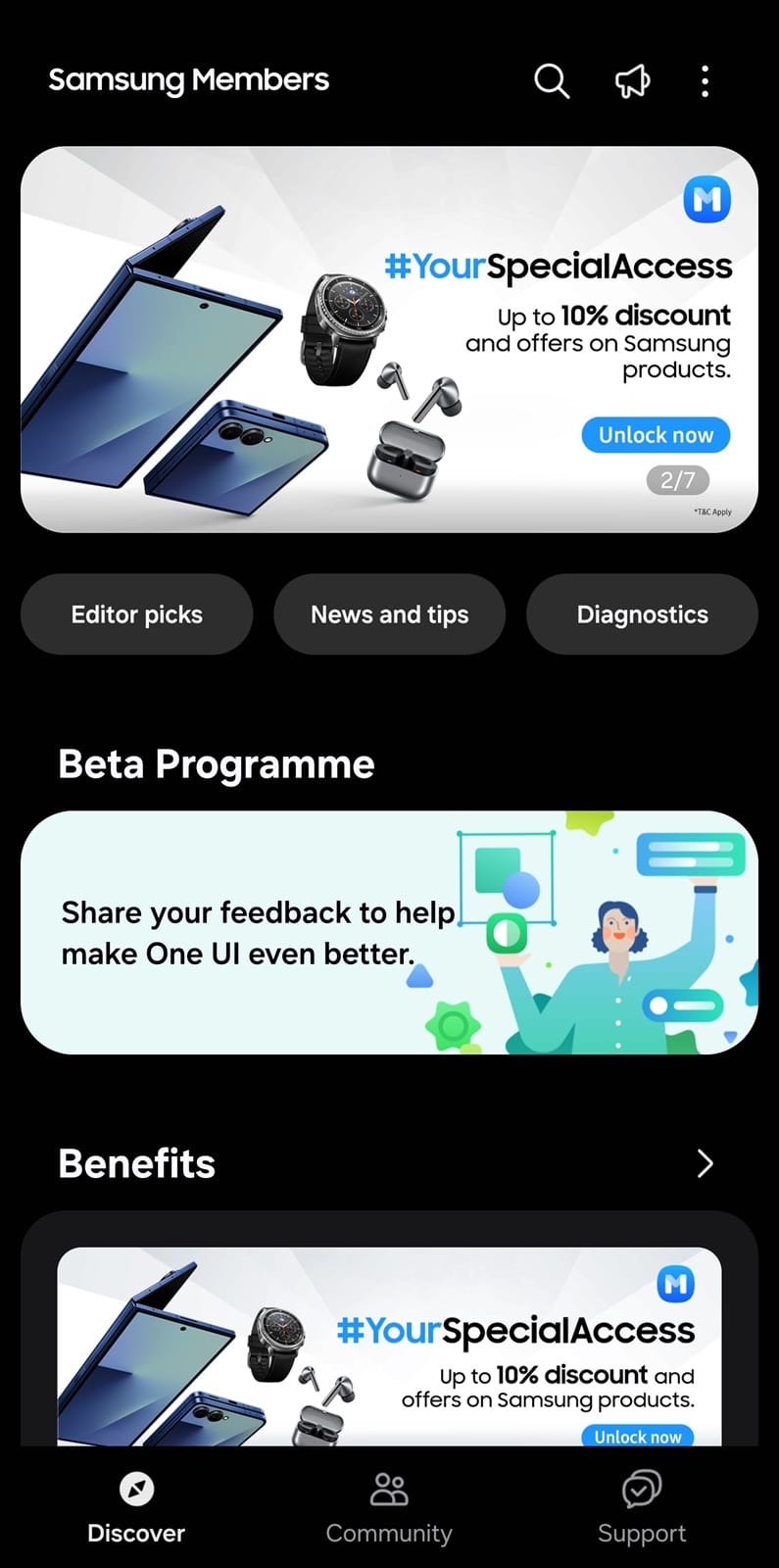
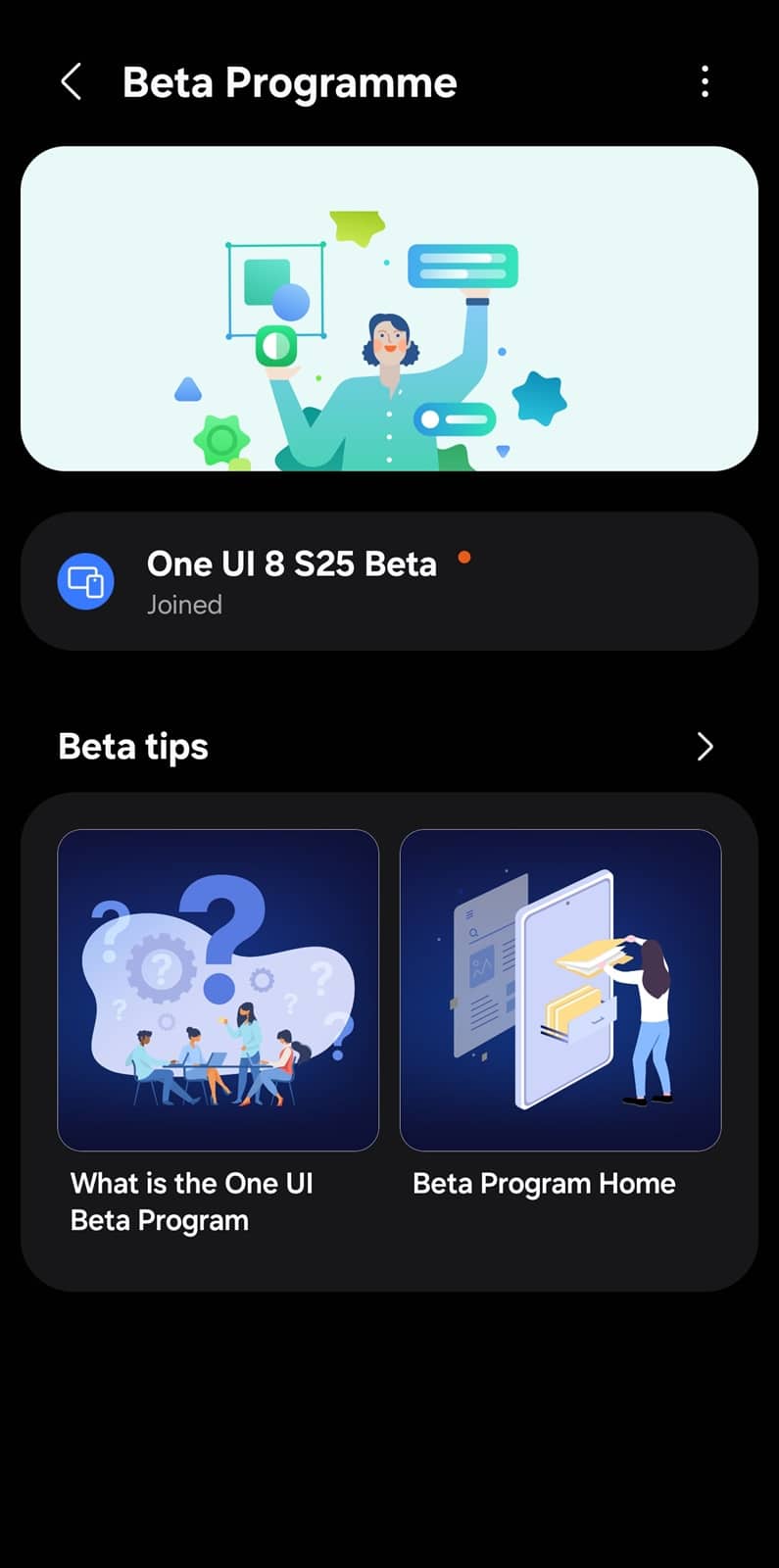
- Open the Samsung Members app and go to the Beta Program section in Discover
- You’ll see all available or joined beta programs for your devices — select the one you want to exit from
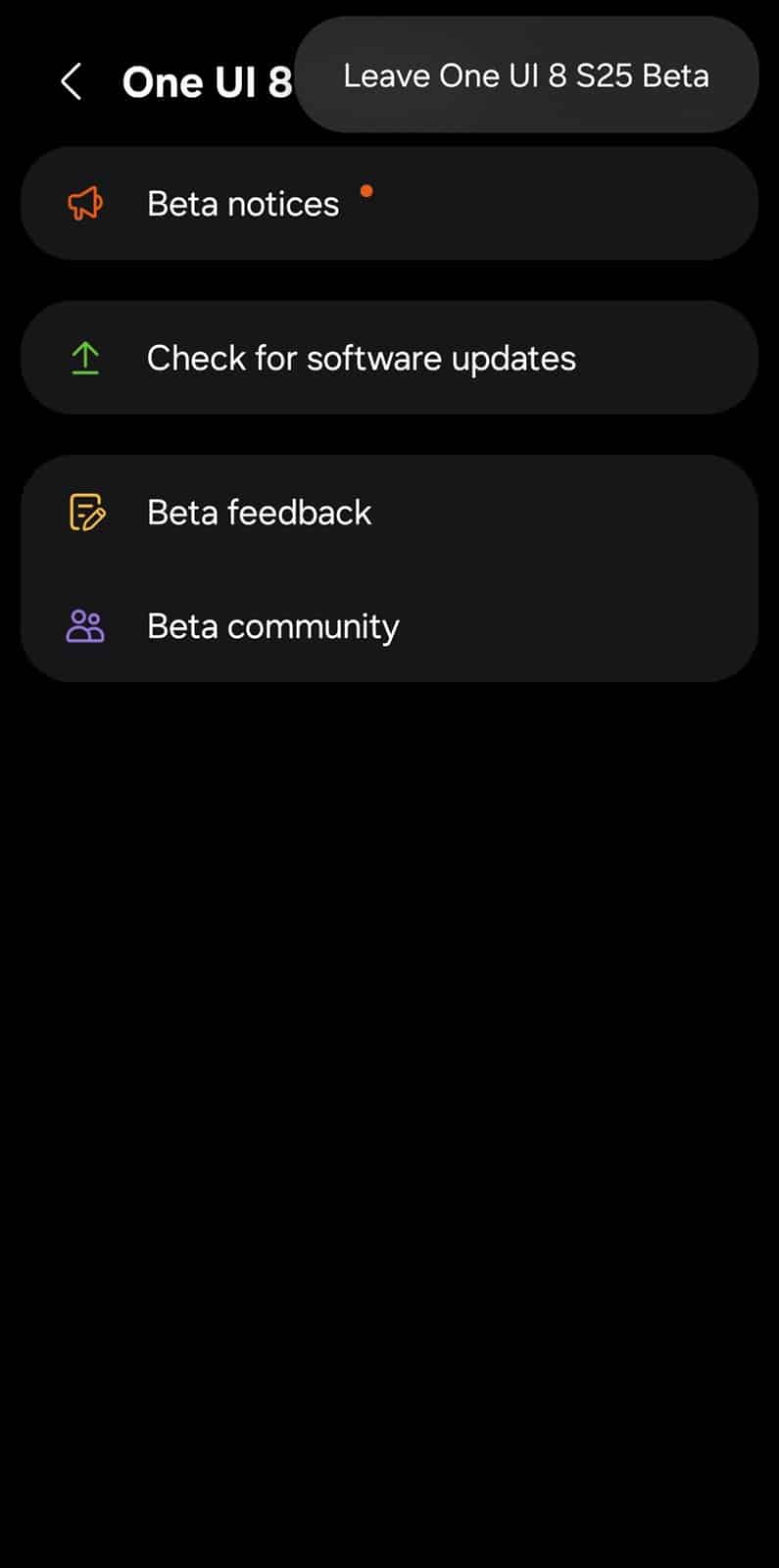
- Tap the Menu (⋮) icon in the top-right corner and select the option to leave the beta
-
- Tap Next, fill out the survey, and click Submit (it’s optional, so you can skip the survey)
- Tap Leave to confirm your decision
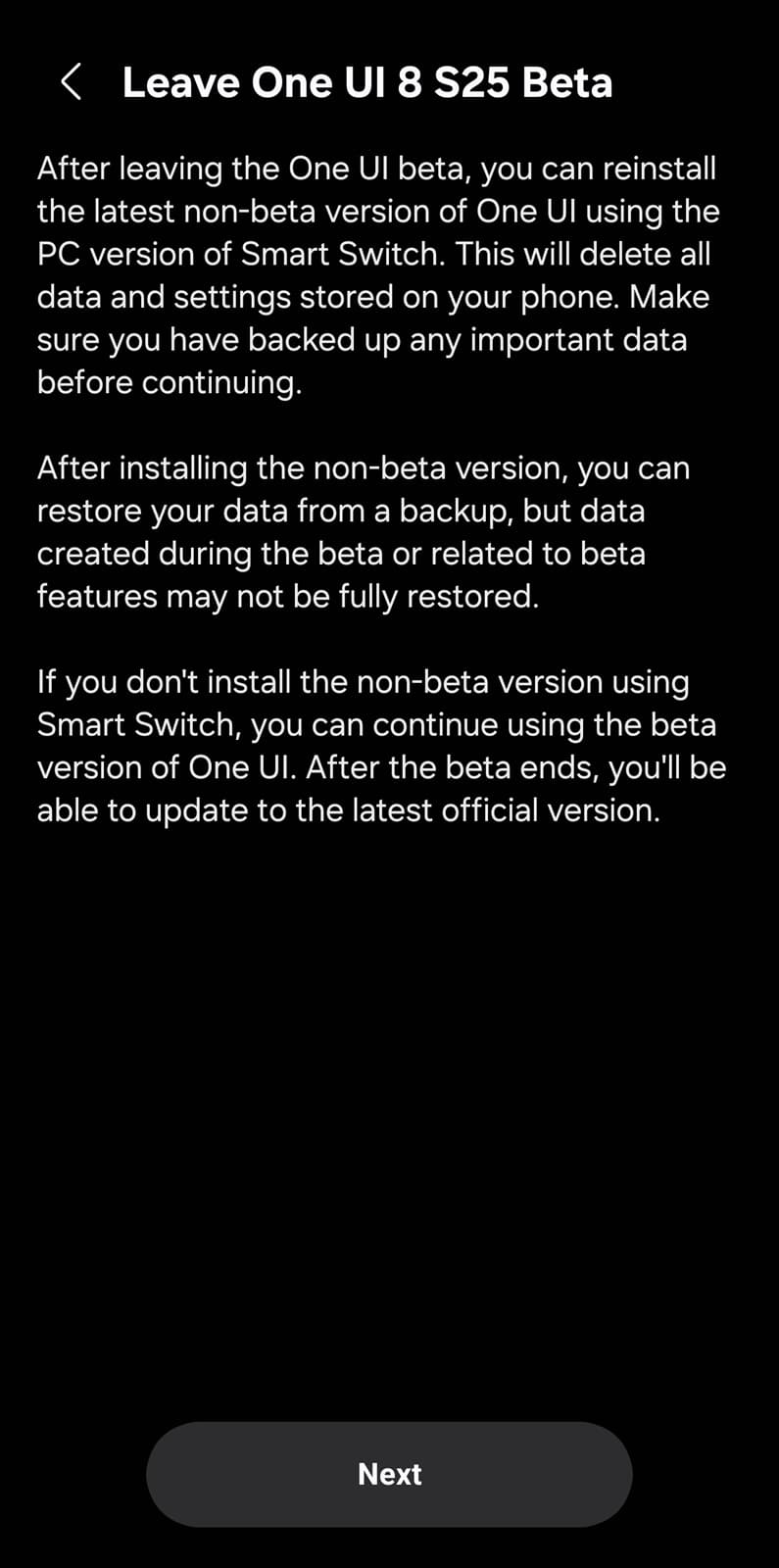
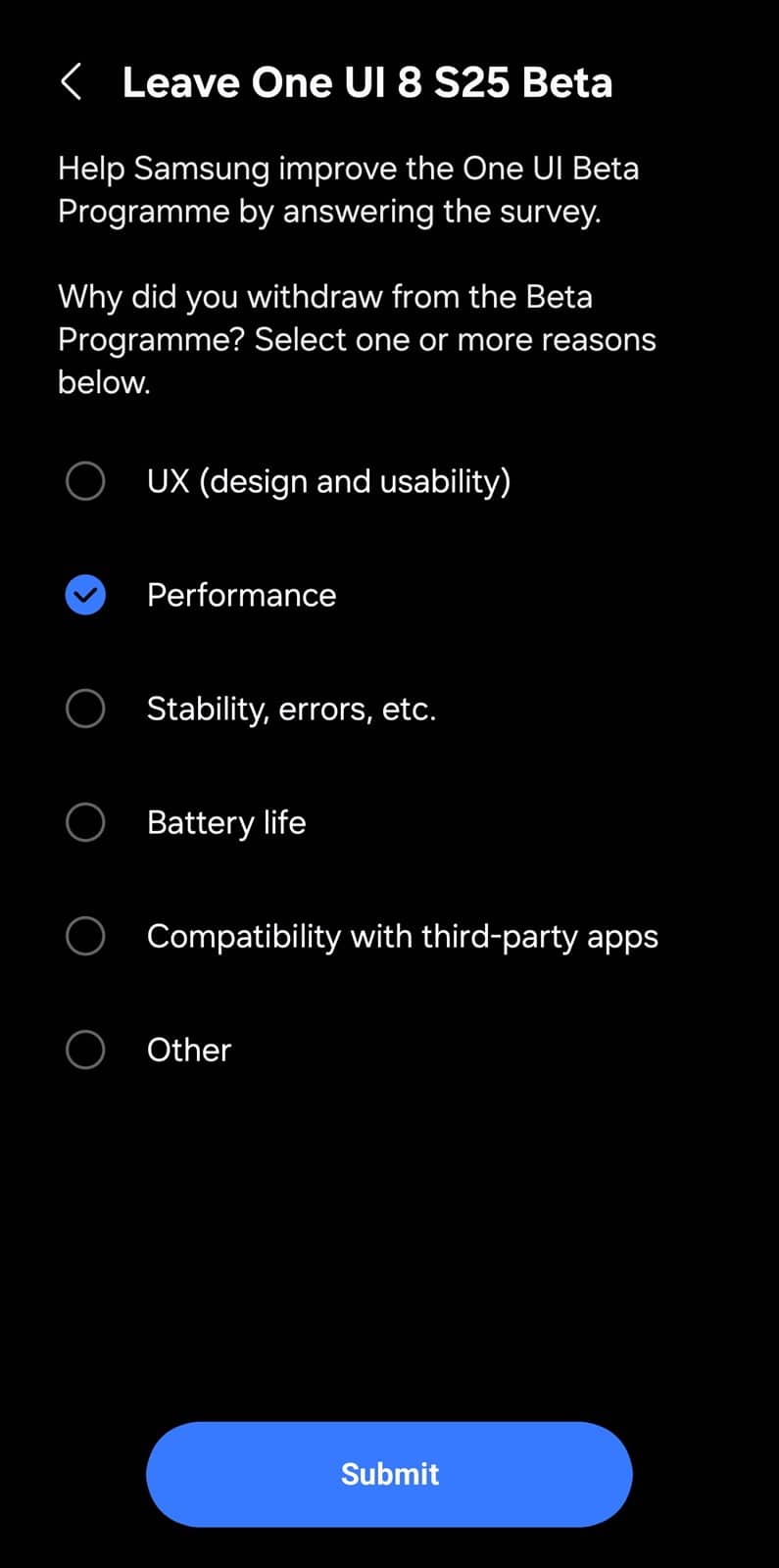
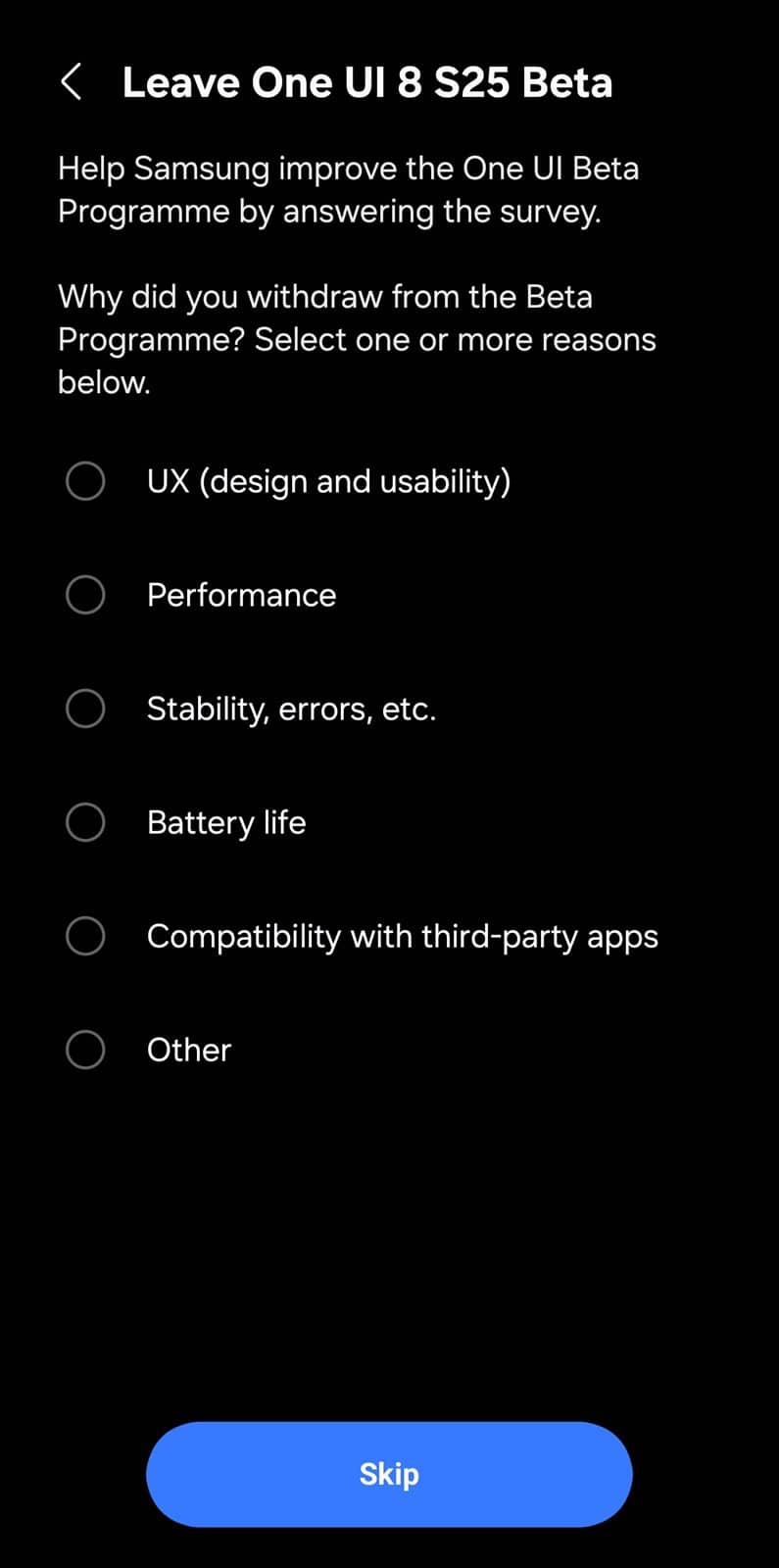
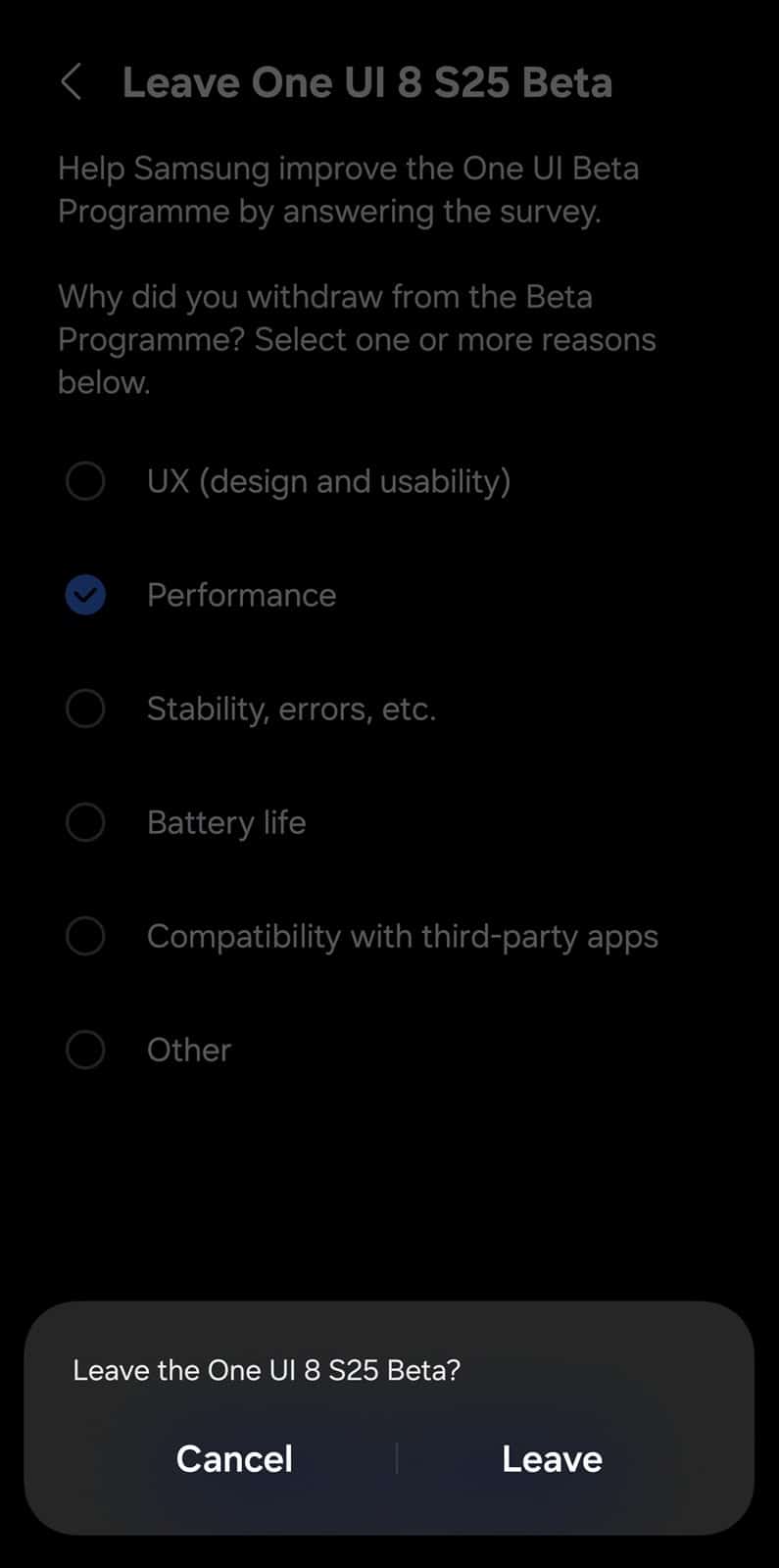
After leaving the beta program, if you continue using the beta software, you will no longer receive updates (including official releases) during the rest of the beta period. While you may receive the stable version once the beta program ends, it’s best to roll back to the older version or re-join the beta program. As mentioned above, you can re-join the beta program at any time unless you completely withdraw from Samsung’s beta hub.
How to withdraw from Samsung’s One UI beta programs?
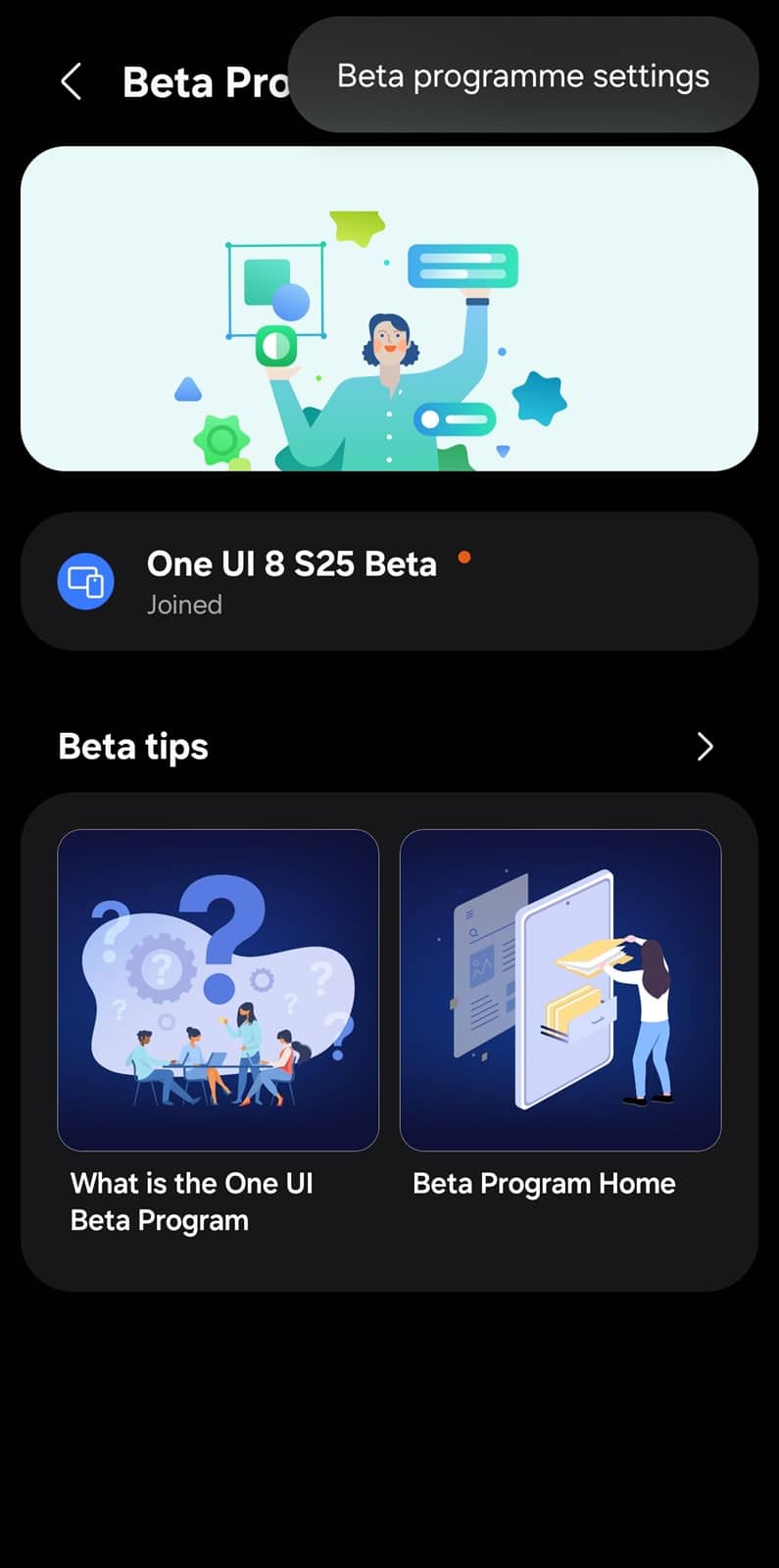
- Open the Samsung Members app and go to the Beta Program section in Discover
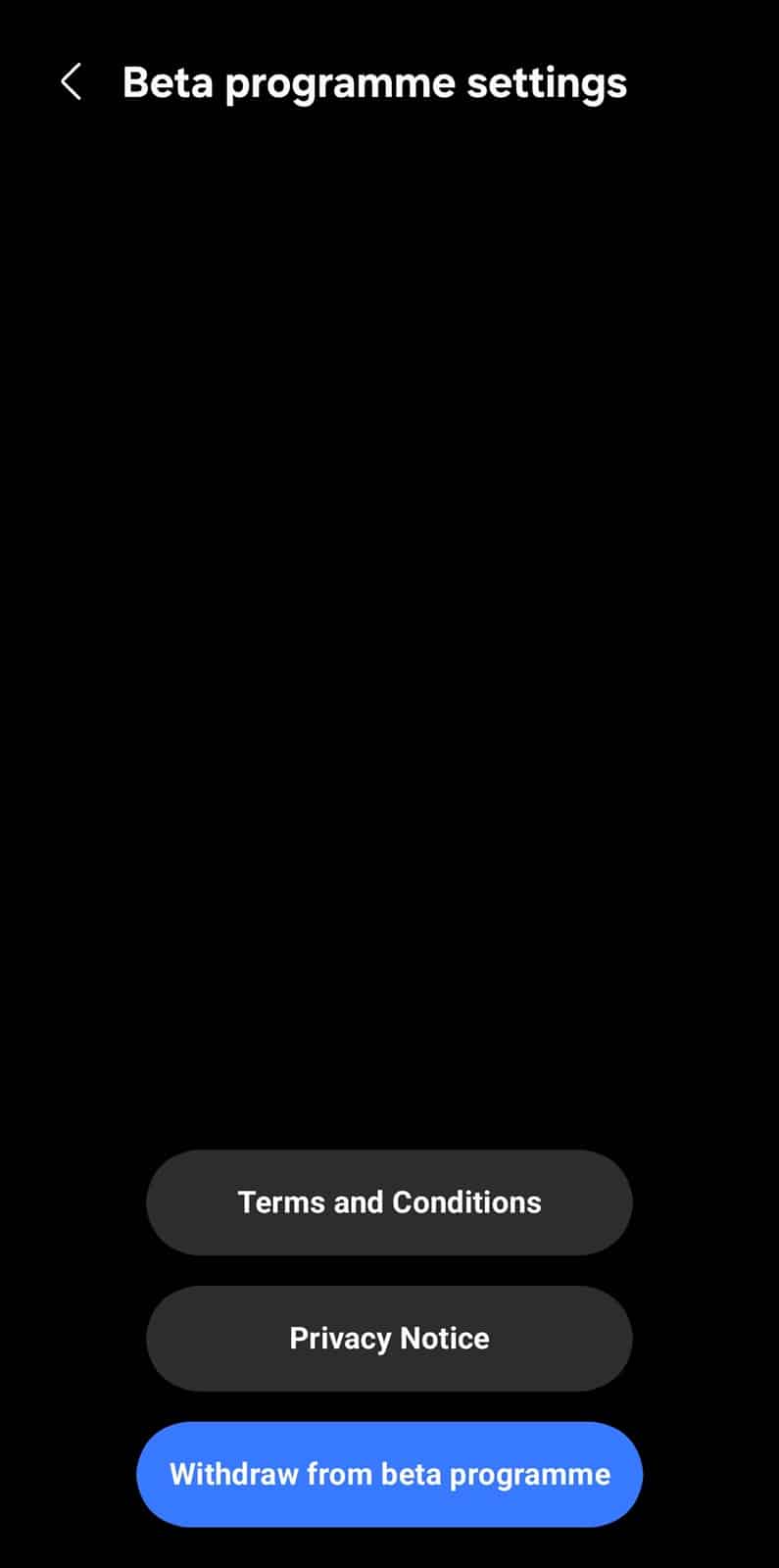
- Tap the Menu (⋮) icon in the top-right corner and select Beta program settings
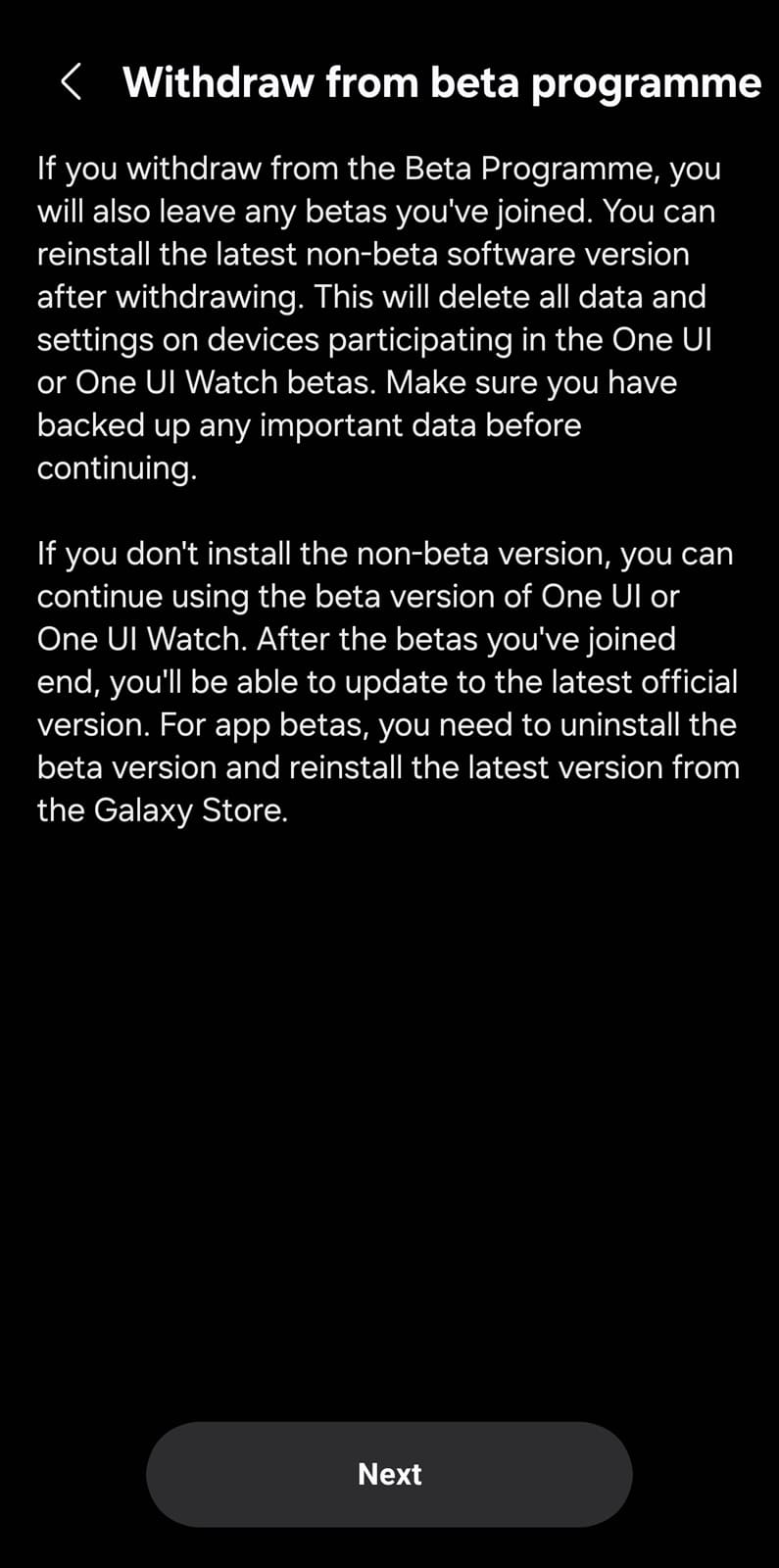
- Tap Withdraw from Beta Program
-
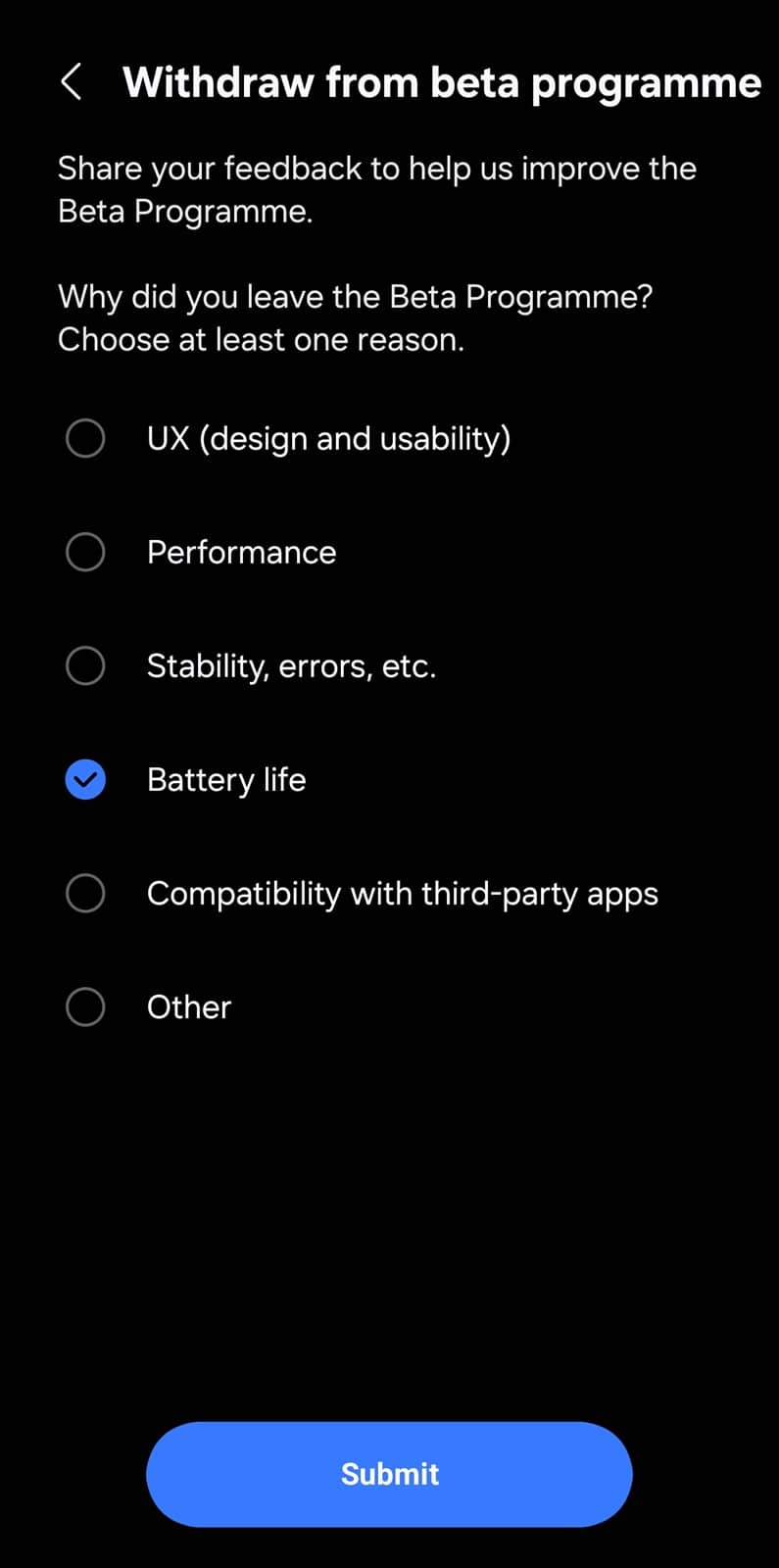
- Tap Next, fill out the survey, and click Submit (it’s optional, so you can skip the survey)
- Tap Withdraw to confirm your decision
-
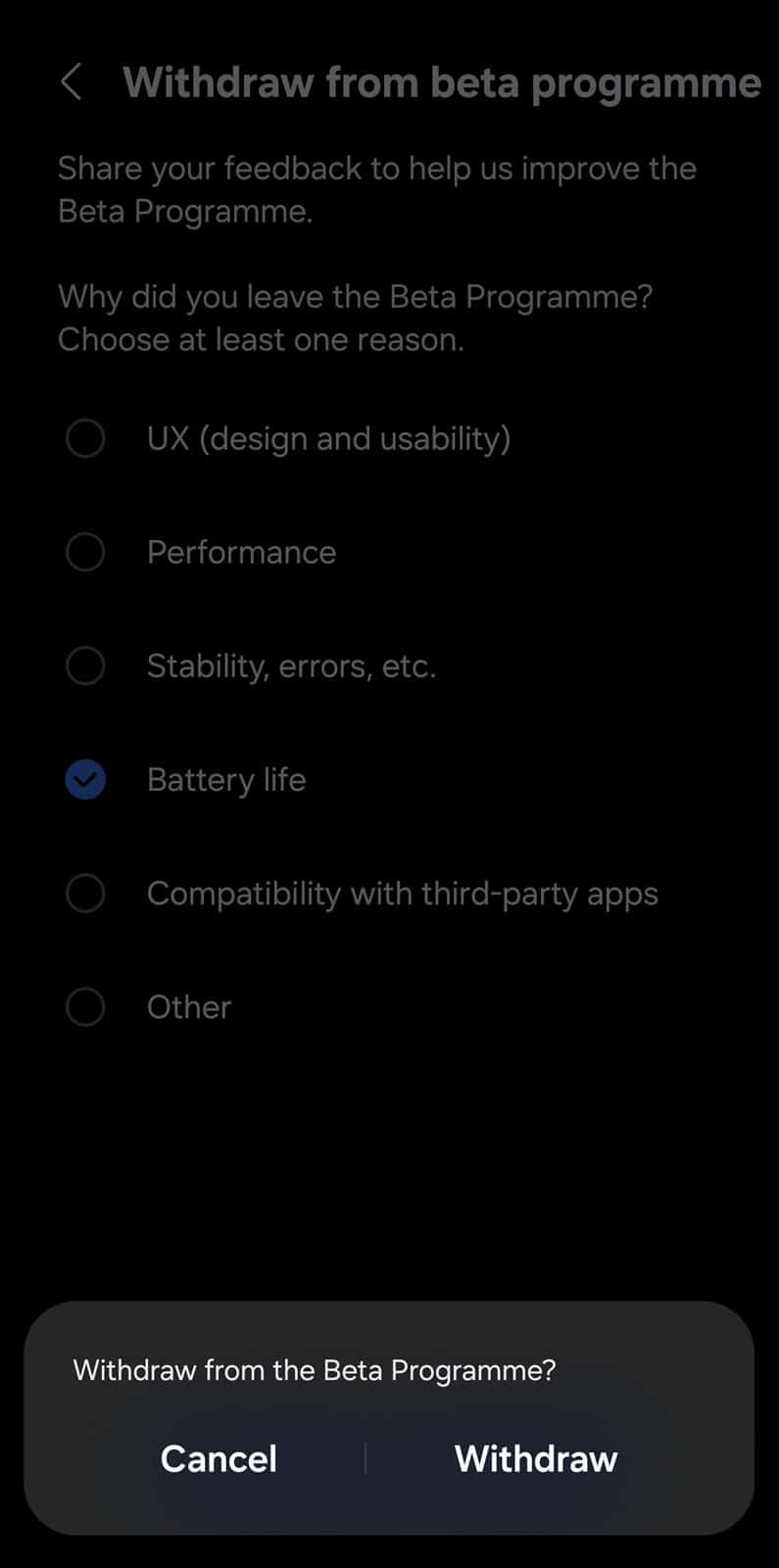
Note that this will pull you out of One UI beta programs across all of your devices. If you want to roll back to the previous version, follow the steps below.
How to roll back to an older version after leaving the One UI 8 beta?
Before we proceed, let us warn you that this process will factory reset your device. Be sure to back up all important data before rolling back from One UI 8 beta to One UI 7.
- Install the Smart Switch app on your PC (Windows or macOS)
- Connect your phone via USB and tap “Allow” on your phone when prompted
- Launch Smart Switch on your PC. Users running a beta version will see a “Downgrade” button, while those on the official version will see an “Update” button
- Click “Downgrade” to begin the rollback from One UI 8 beta
- Once the downgrade is complete, your device will reboot into the official OS (one UI 7)
Note that Smart Switch does not support rollback for watches. You’ll need to visit a Samsung Service Center to downgrade the software on your Galaxy Watch.

Written by
Sumit AdhikariSumit, a life-long Samsung user, is passionate about technology and has been professionally writing on tech since 2017. He’s a mathematics graduate by education and enjoys teaching basic mathematics tricks to school kids in his spare time. Sumit believes in artificial intelligence and dreams of a fully open, intelligent and connected world.

Follow us on Google Discover & set us as a preferred source in Google News
Share this Post
___________________________


New Blog Posts
___________________________

First Set of Pixel 11 Pro XL Renders Are Here
Pixel 11 Pro XL CAD renders show minimal design changes

Is Samsung Preparing One UI 8.5 Beta for Galaxy Z Fold 5 and Flip 5?
Samsung may launch a One UI 8.5 beta program for its 2023 foldables

Galaxy S25 One UI 8.5 Beta May Run Longer Than Expected
Galaxy S25 series’ One UI 8.5 beta may stretch to 10 rounds







