
How To Get Depth Wallpaper on Your Samsung Galaxy Device
SammyGuru is reader-supported. We have affiliate and sponsored partnerships, so we may earn a commission when you buy through links on our site — at no extra cost to you. Learn more.
Many smartphone makers offer a feature called Depth Wallpaper, which lifts the subject of a photo and presents them in front of elements like the clock on the lock screen. While Samsung’s One UI does not have this feature built in, there is a way to get it working. Here’s how to do it on your Galaxy device.
Prerequisites to enable Depth Wallpaper in Samsung One UI
In order to get this cool effect and have a wallpaper that appears to have depth, we need a few things in advance. Your Galaxy device must be running One UI 7 or higher and have the LockStar Good Lock module installed. This app will enable us to customize the lock screen and apply a depth effect (download LockStar here).
Additionally, you should pick a wallpaper with a clear subject for best effects. Apps like One4Wall offer a dedicated Depth category, which is a great place to look. Find a nice wallpaper that has an obvious subject, and save it to your gallery. If you are ready with it all, let’s get started with creating your depth wallpaper.
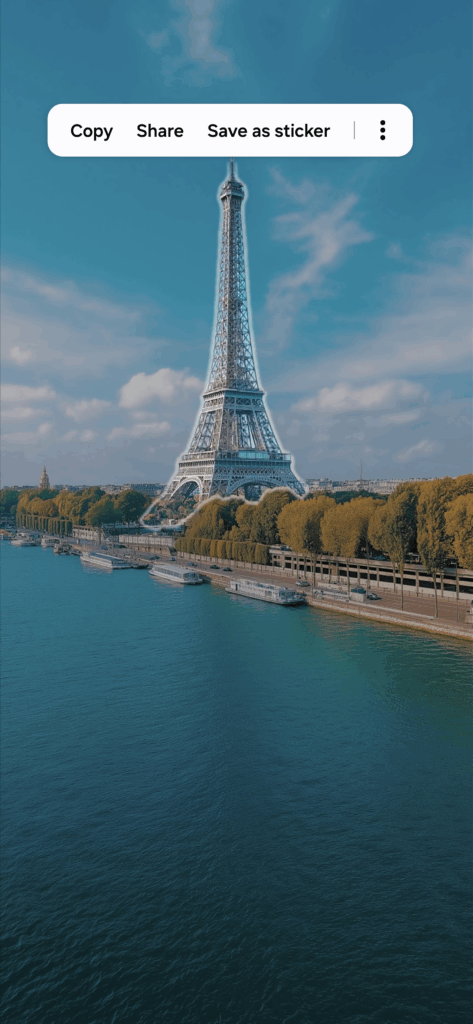
Hop into the Gallery app, find your saved wallpaper, and expand it. Tap and hold on your subject, and select Save as sticker. Select Original when it asks for an outline effect, and it should save.
Now, set your chosen wallpaper as your wallpaper. Tap the three dots in the top right corner, then set as wallpaper. Select either Lock screen or both Home and Lock screens, and continue.
Apply it to the lock screen
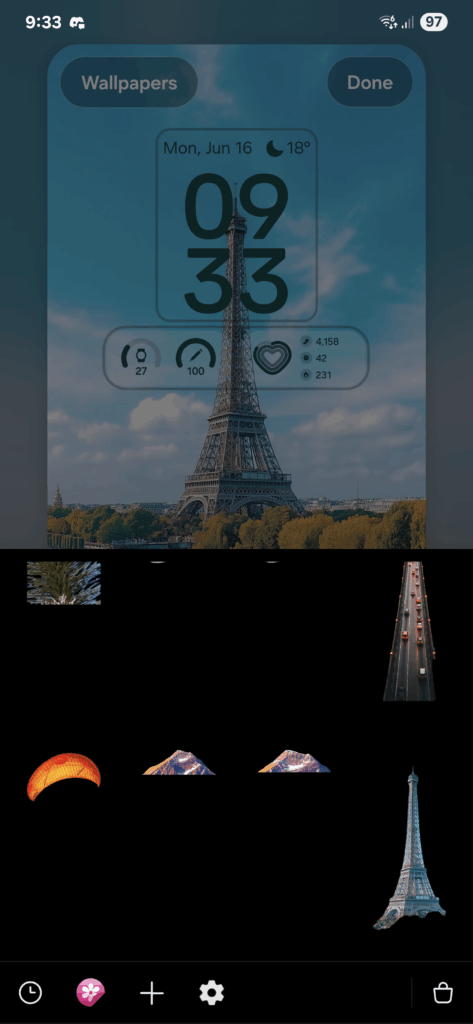
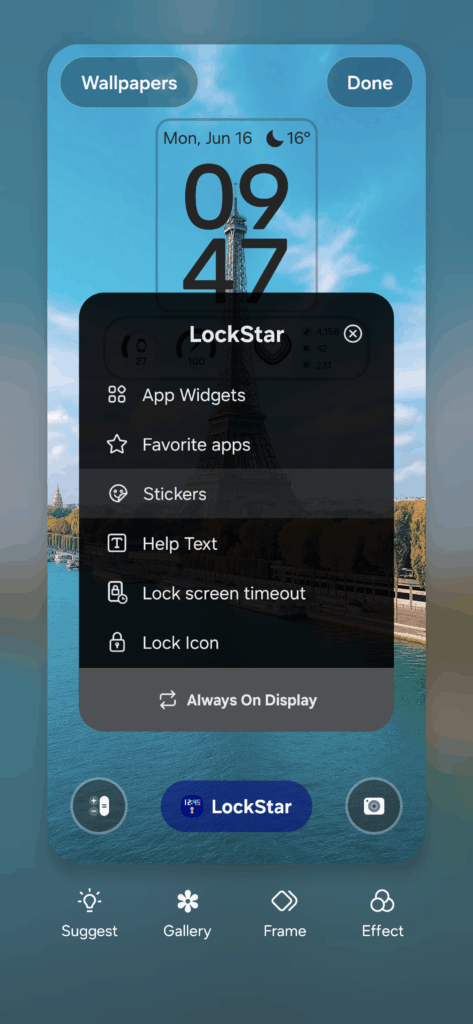
Now that you’re in the lock screen editor, it’s time to add our sticker. With the LockStar module installed, tap the LockStar button on the bottom section of the editor, and select Stickers. Select your sticker, and adjust its size, position, and rotation to fit just right.
Tip – If your subject is too large and does not fit right, try making a copy of your wallpaper, and cropping it to just the area that the clock will be hidden behind. In my example, the top of the Eiffel Tower was cropped, letting me make it large enough to fit perfectly.
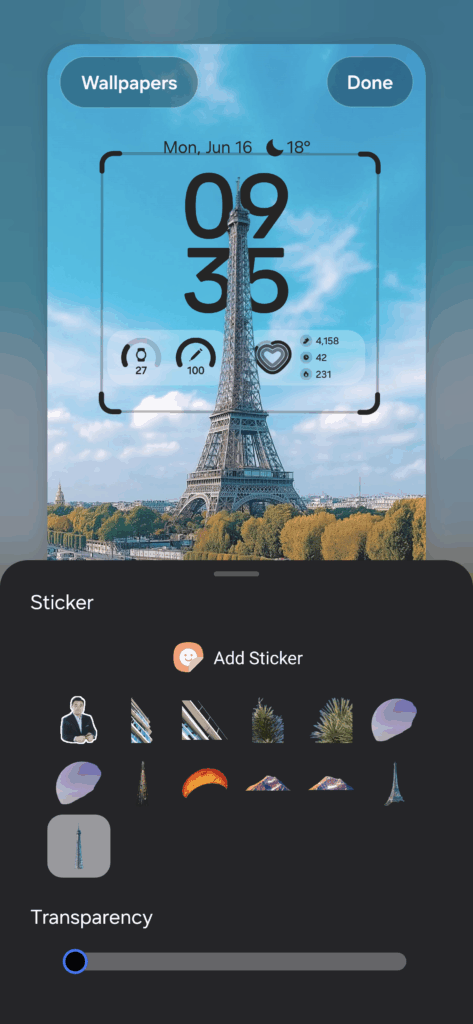
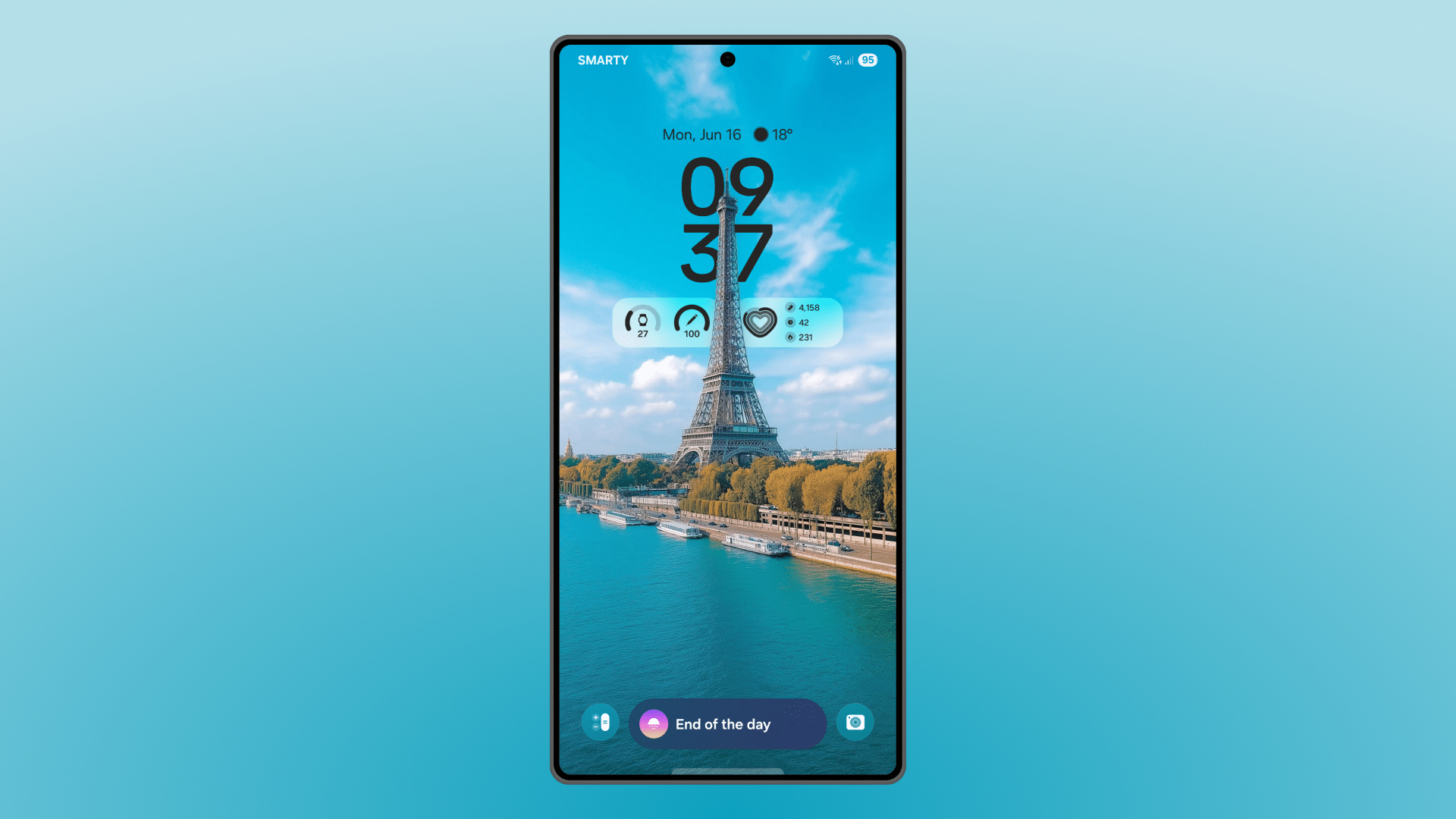
You can move your clock, adjust its font and style, add or remove widgets, and voilá! You now have a depth effect wallpaper. Here’s how mine turned out:
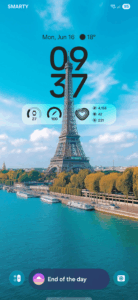
It is a rather long-winded, manual process that we hope will get simplified by Samsung sooner. However, with the sheer number of customization options Samsung gives us through the Good Lock suite, like DIY Home, you can achieve any look you can dream of.

Written by
Josh SkinnerJosh is a freelance writer, graphic and user interface designer, and content creator. He has a sizable following on Twitter/X, with his deep insights, extensive knowledge and design skills attracting audiences. He also loves lego, video games and tech as a whole.

Follow us on Google Discover & set us as a preferred source in Google News
Share this Post
___________________________


New Blog Posts
___________________________

First Set of Pixel 11 Pro XL Renders Are Here
Pixel 11 Pro XL CAD renders show minimal design changes

Is Samsung Preparing One UI 8.5 Beta for Galaxy Z Fold 5 and Flip 5?
Samsung may launch a One UI 8.5 beta program for its 2023 foldables

Galaxy S25 One UI 8.5 Beta May Run Longer Than Expected
Galaxy S25 series’ One UI 8.5 beta may stretch to 10 rounds







