
Google May Bring Emoji Kitchen Favorites, SmartEdit, and More to Gboard
SammyGuru is reader-supported. We have affiliate and sponsored partnerships, so we may earn a commission when you buy through links on our site — at no extra cost to you. Learn more.
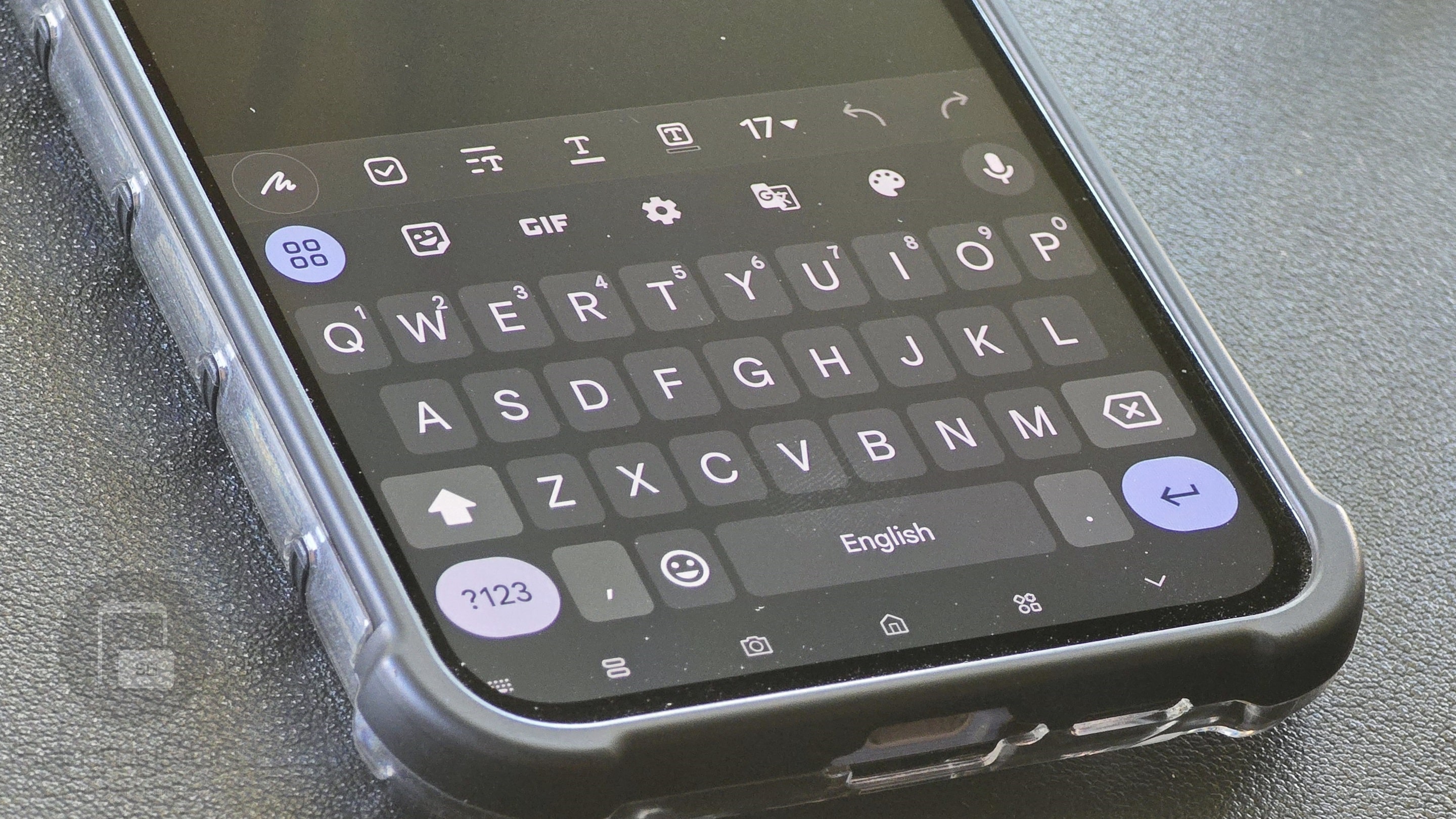
Google will soon introduce several new features and improvements to its Gboard app for Android. These include Emoji Kitchen combos favorites, new animations, SmartEdit, Search bar, and more. So, if you are a Gboard user, get ready for a more personalized typing experience.
What to expect in the future Gboard app update?
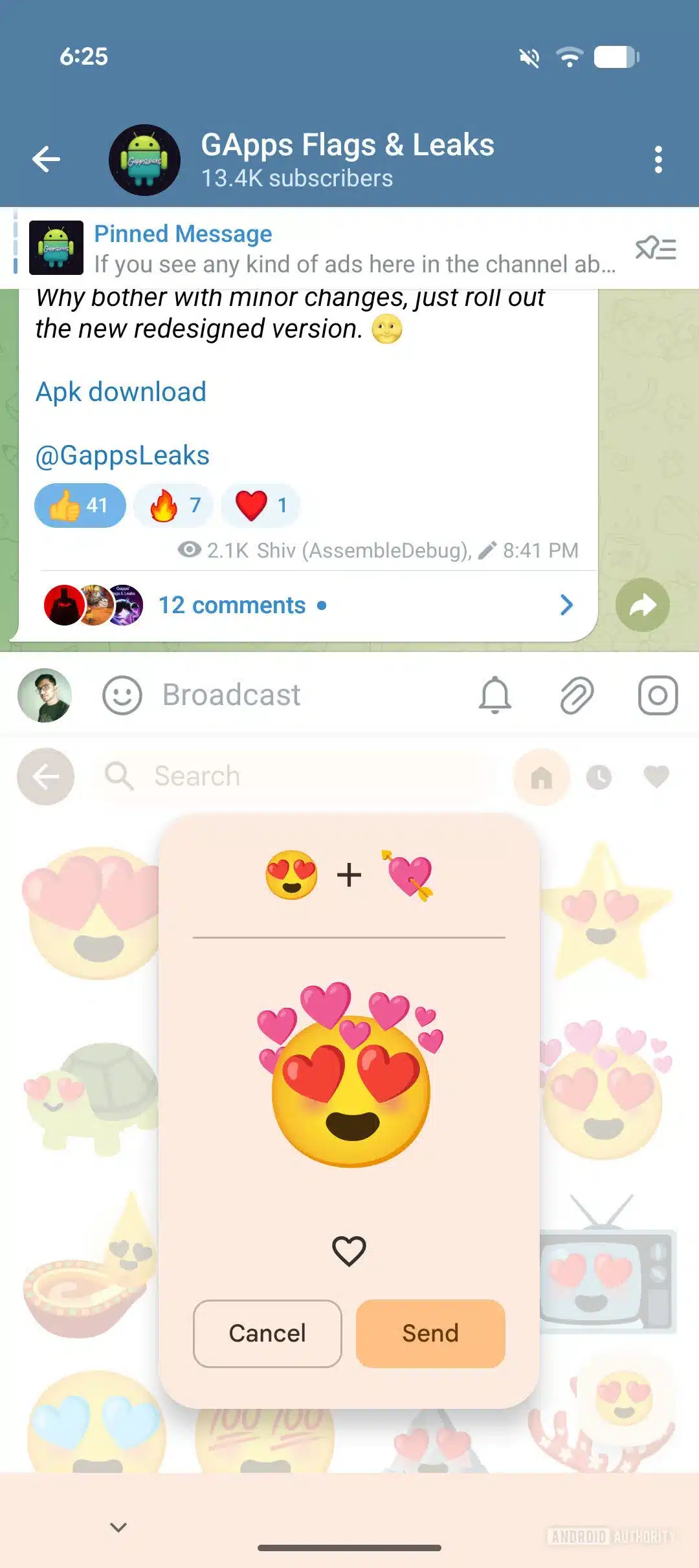
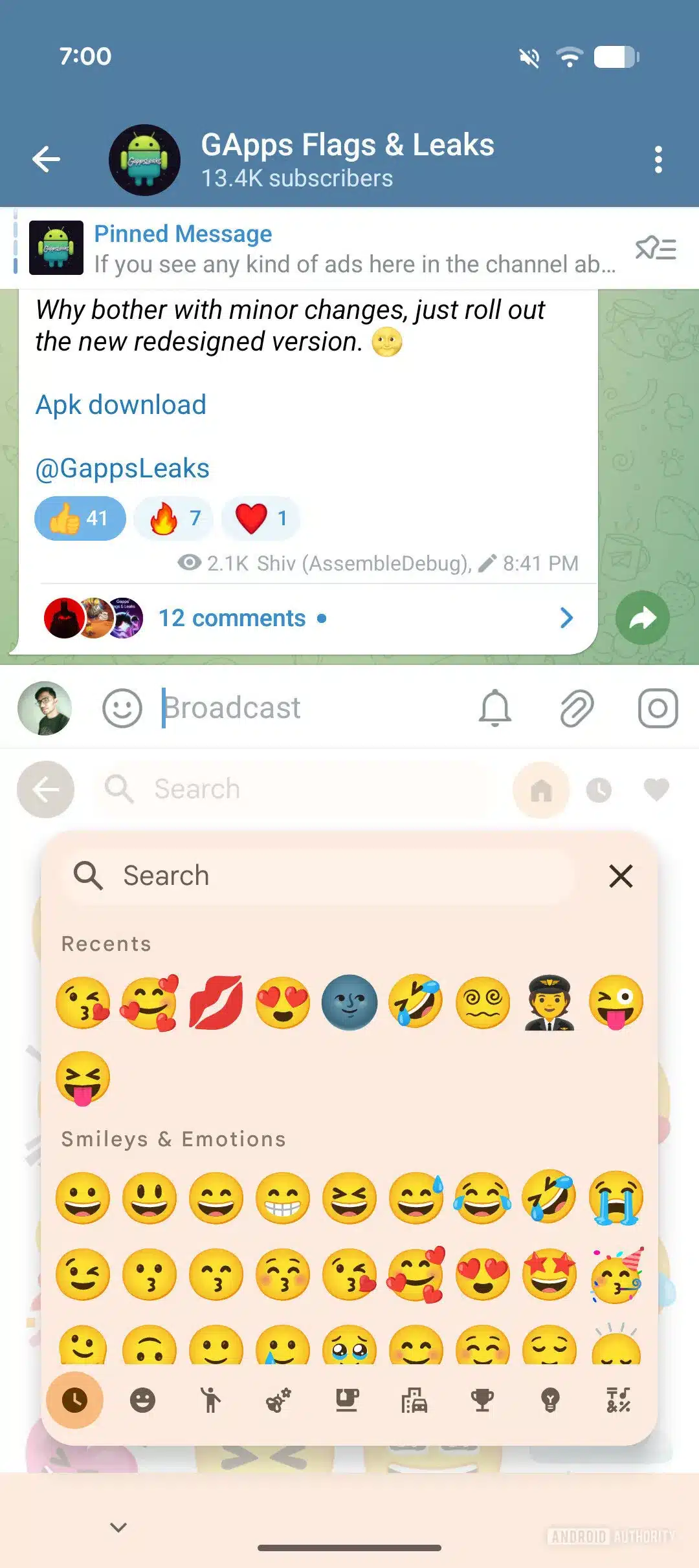
Folks over at Android Authority have recently discovered several new tweaks and additions within the Gboard beta APK. One of the notable features is the ability to save your favorite Emoji Kitchen combinations. Emoji Kitchen lets users combine two emojis into a unique mashup, and soon, you will be able to bookmark your favorites for quicker access. On top of that, the addition of a new search bar within the Emoji Kitchen panel could help you find emojis quickly.
Gboard is also getting a helpful AI feature called SmartEdit that lets you add, remove, or replace words easily with just your voice. While Gboard already supports voice commands for editing text, SmartEdit may introduce more advanced voice controls. If you prefer a hands-free way to make quick edits, this feature will help make the process faster.
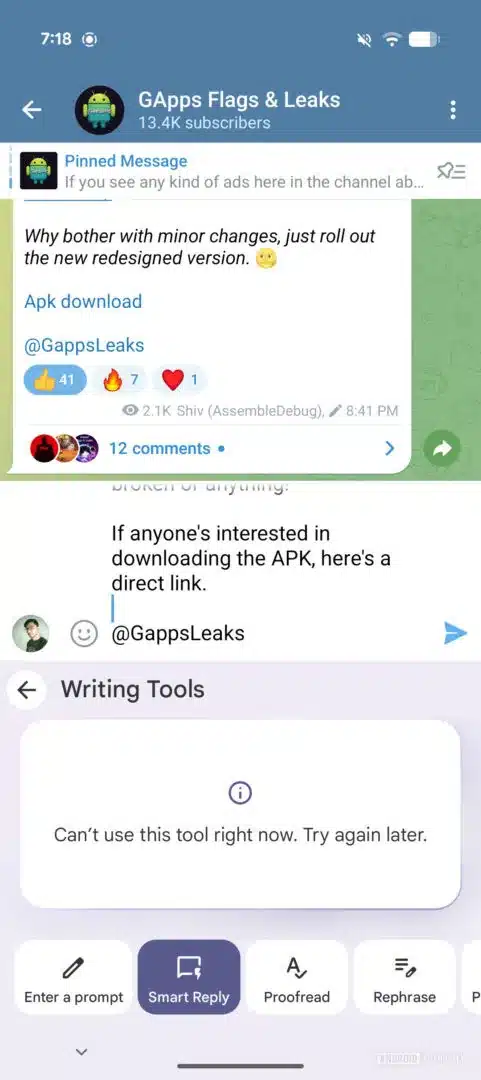
Furthermore, Google is also working on visual enhancements — you will see neat animations in the Writing Tools section. These animations show up when switching between tools like Enter a Prompt, Rephrase, Proofread, and more. On top of that, the app adds a Smart Reply feature within the Writing Tools. Notably, this feature is already available on the Pixel phones that use Gemini Nano to generate suggested replies on-device. So, it’s unclear at the moment how this new version differs from the existing one.
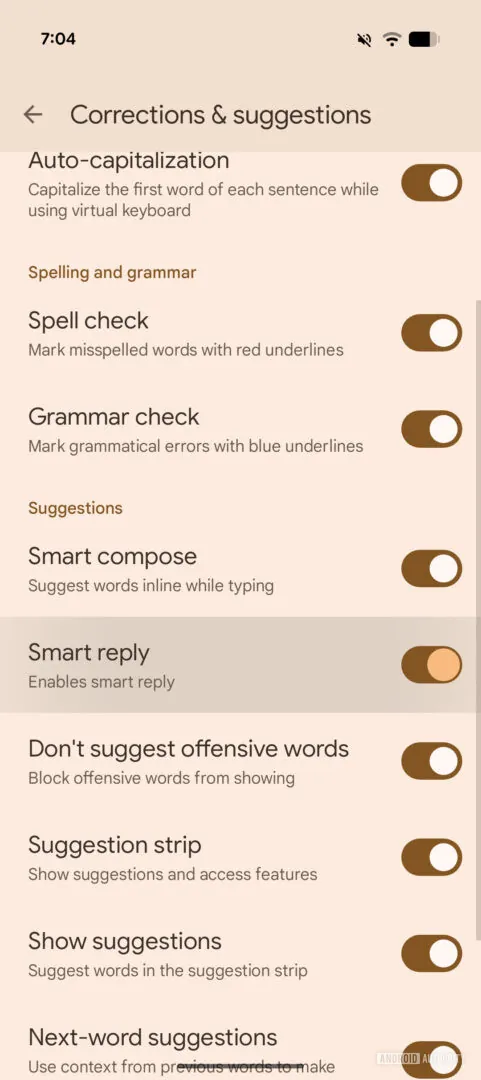
Last but not least, Google now makes it easier to turn off Smart Reply. Right now, you can access it through Settings > Security & Privacy > More Security & Privacy > Android System Intelligence > Keyboard. Since this is quite a lengthy process, Google now allows you to disable it straight from the Gboard app by visiting Settings > Corrections & Suggestions. This will not only save time but also make Gboard more user-friendly.

Written by
Binay KonwarBinay Konwar started his blogging journey in 2014 and has since written plenty of tech articles. At present, he is working as a News Writer at SammyGuru, covering everything about Samsung. He holds a Master's degree in Mathematics, but his real passion lies in tech and writing. In his free time, he enjoys playing chess and watching movies.

Follow us on Google Discover & set us as a preferred source in Google News
Share this Post
___________________________


New Blog Posts
___________________________

First Set of Pixel 11 Pro XL Renders Are Here
Pixel 11 Pro XL CAD renders show minimal design changes

Is Samsung Preparing One UI 8.5 Beta for Galaxy Z Fold 5 and Flip 5?
Samsung may launch a One UI 8.5 beta program for its 2023 foldables

Galaxy S25 One UI 8.5 Beta May Run Longer Than Expected
Galaxy S25 series’ One UI 8.5 beta may stretch to 10 rounds







