
Google Adds Navigation Drawer to Gemini App for Easier Access
SammyGuru is reader-supported. We have affiliate and sponsored partnerships, so we may earn a commission when you buy through links on our site — at no extra cost to you. Learn more.
A few days ago, Google introduced a scheduled actions feature for its Gemini app that lets users automate tasks at specific times. The company is now planning to add a navigation drawer to the app, just like its web version. The updated UI is available through the latest beta release of the Google app, with the stable version expected to pick it up soon.
New Gemini UI brings a web-like navigation experience to mobile and tablets
Google wants to offer a more consistent navigation experience to Gemini users across platforms, including phones, tablets, and the web. The company recently added a new navigation drawer to the Gemini app, enabling quick access to features such as New chat, Gems, and Recent history. Folks over at 9to5Google discovered this change in the Google app beta version 16.23.
If you have used the Gemini app before, you may have noticed that it shows a chat button in the top-left corner. This button opens the Chat & Gems page, which houses your five most recent conversations and Gems. If you want to explore more, you can do so by visiting the Chat page and the Gems page separately. The new navigation drawer simplifies this process.
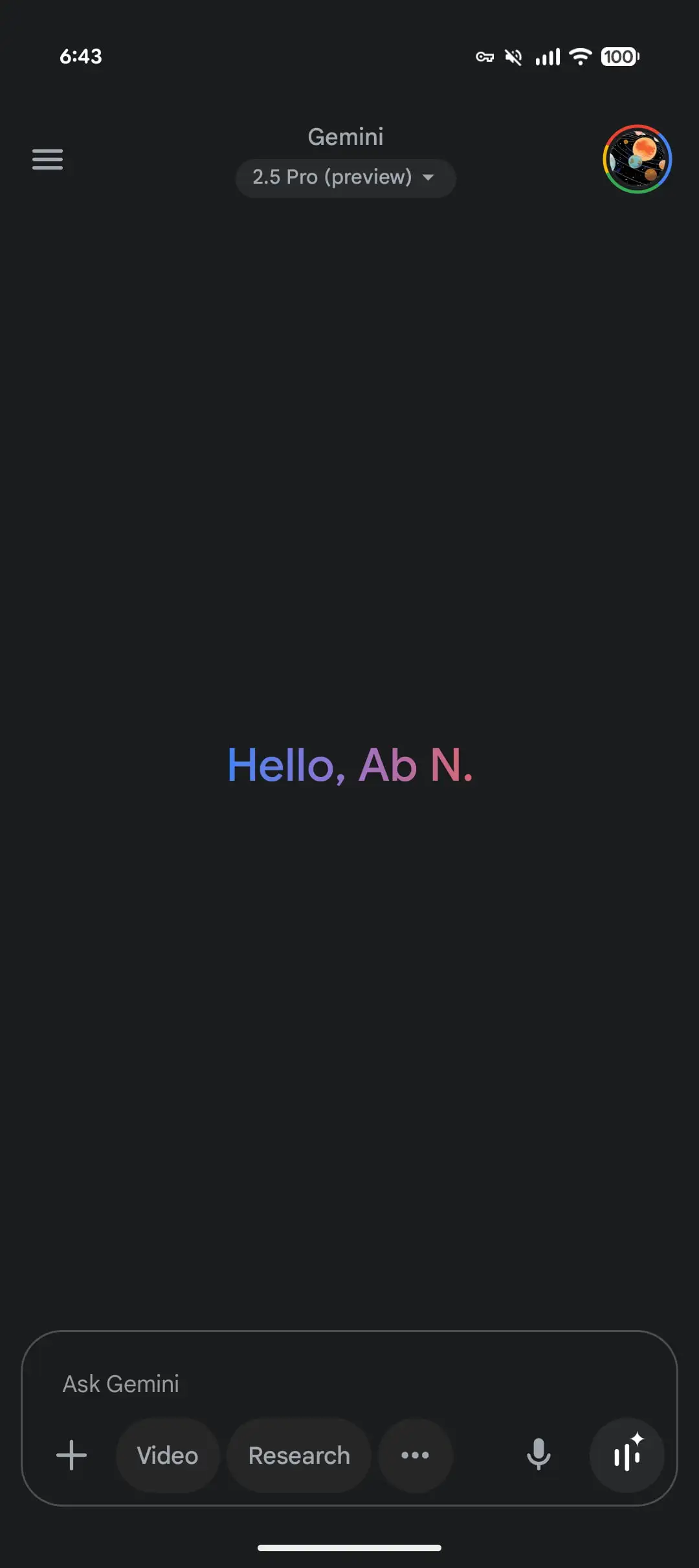
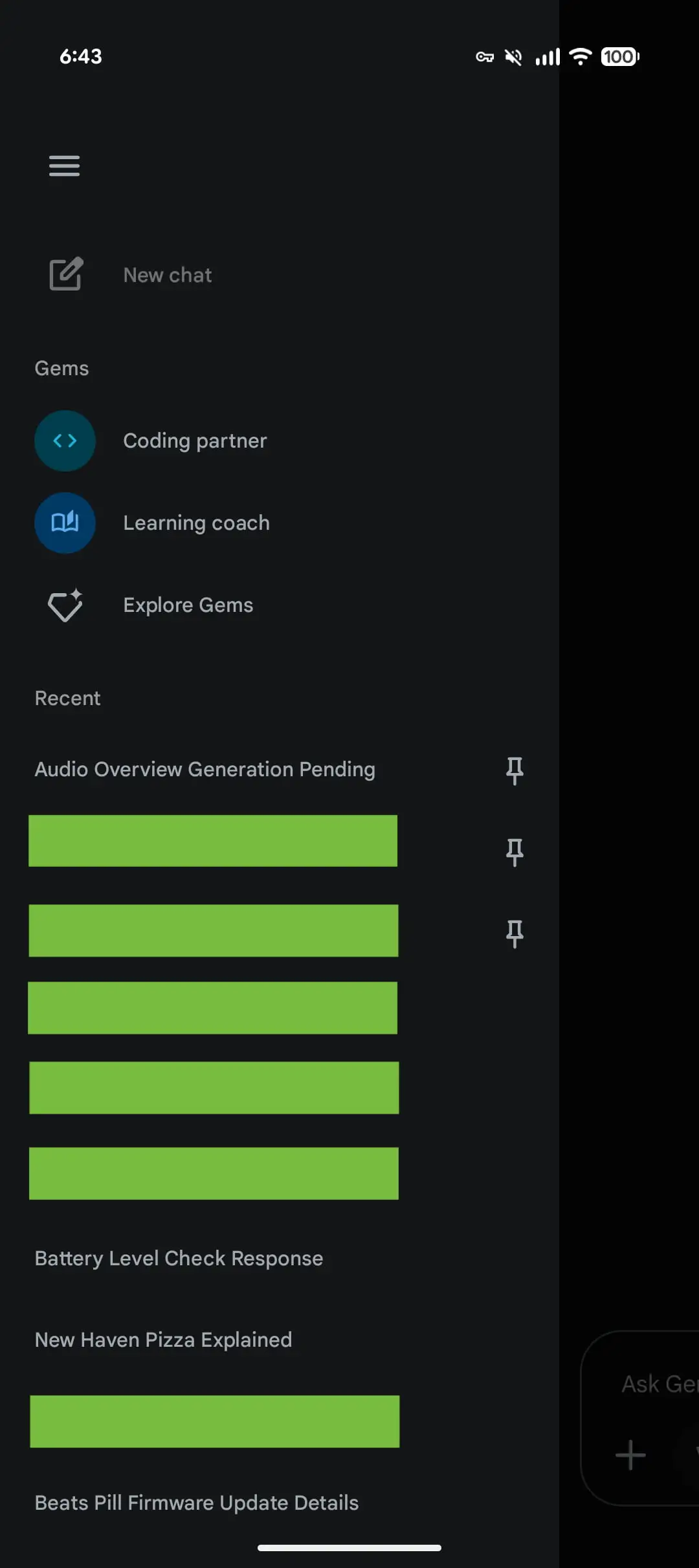
Now, if you tap on the hamburger button, a side menu opens just like on the Gemini website (see images above). The expanded panel shows a New chat button at the top, then two recent Gems, and a link to Explore Gems. Below that, you will see your Recent chats, which offer infinite scrolling. Your pinned chats appear at the top of the list. You can now explore everything from a single sliding menu.
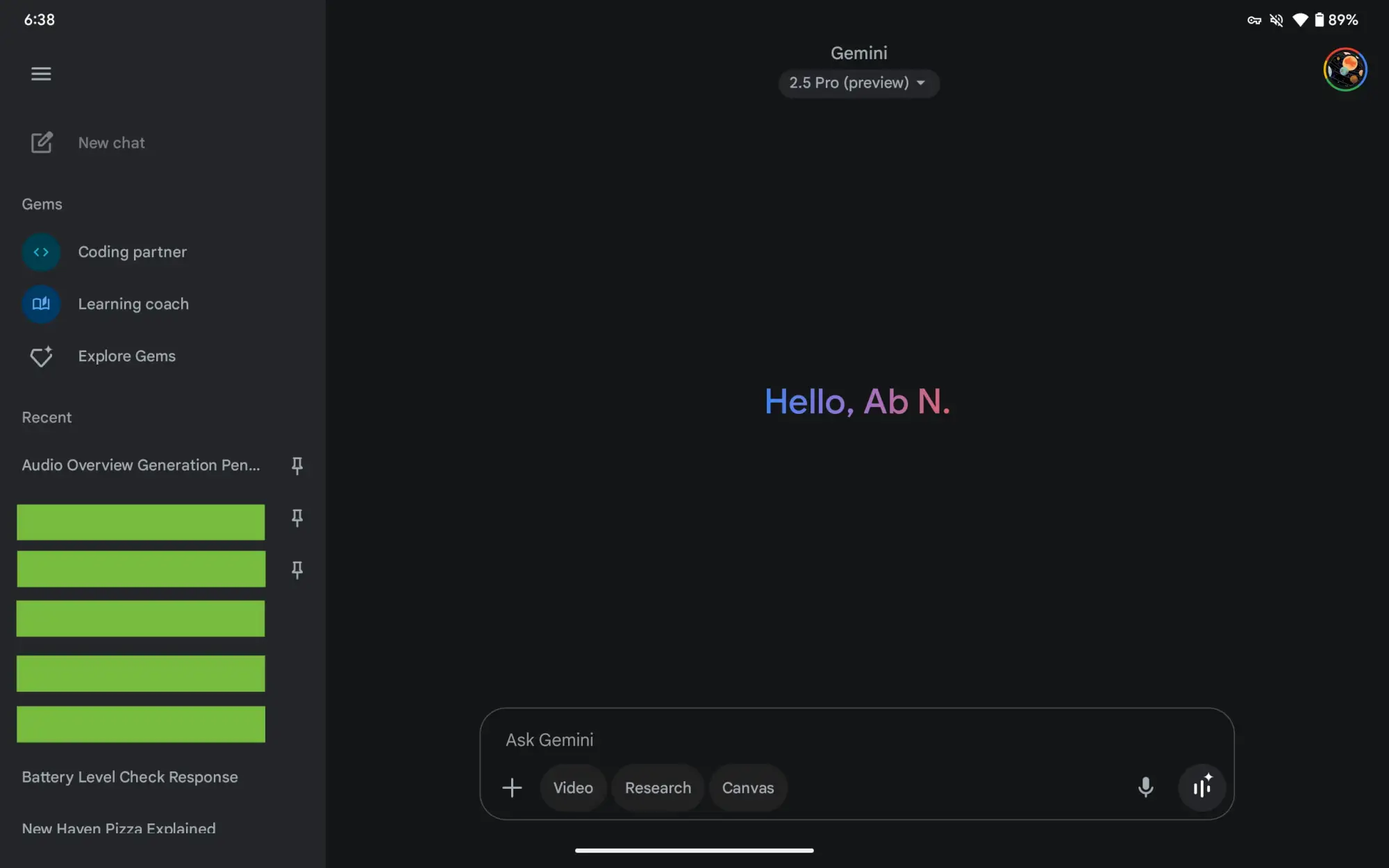
If you are tablet users, you don’t even have to tap on the hamburger button as the side panel opens automatically. This gives you a desktop-like experience, letting you access a bunch of sections at once. If you need a full-screen experience during chatting, you can hide the side panel easily by clicking on the menu option.

Written by
Binay KonwarBinay Konwar started his blogging journey in 2014 and has since written plenty of tech articles. At present, he is working as a News Writer at SammyGuru, covering everything about Samsung. He holds a Master's degree in Mathematics, but his real passion lies in tech and writing. In his free time, he enjoys playing chess and watching movies.

Follow us on Google Discover & set us as a preferred source in Google News
Share this Post
___________________________


New Blog Posts
___________________________

First Set of Pixel 11 Pro XL Renders Are Here
Pixel 11 Pro XL CAD renders show minimal design changes

Is Samsung Preparing One UI 8.5 Beta for Galaxy Z Fold 5 and Flip 5?
Samsung may launch a One UI 8.5 beta program for its 2023 foldables

Galaxy S25 One UI 8.5 Beta May Run Longer Than Expected
Galaxy S25 series’ One UI 8.5 beta may stretch to 10 rounds







