
How to Control AI Processing on Your Galaxy S26 Ultra Camera
SammyGuru is reader-supported. We have affiliate and sponsored partnerships, so we may earn a commission when you buy through links on our site — at no extra cost to you. Learn more.
One subtle but important change on the Galaxy S26 Ultra compared to the S25 Ultra is how Samsung approaches image processing. The new model applies slightly stronger AI-based processing in its default camera pipeline. The goal is to produce images that appear crisper and more detailed straight out of the camera.
For most users, that approach works perfectly. But photographers who prefer a more natural rendering style with less aggressive sharpening and fewer artificial enhancements often look for more control over how the camera processes their photos. Thankfully, Samsung already provides that control. It’s just hidden in a place many users rarely explore.
Special thanks to Swiggah for collaborating on the testing behind this article. We compared results together to ensure accuracy across multiple shooting conditions, and some of the sample images referenced here were provided by him as well.
The Hidden Tool: Photo Softening in Camera Assistant
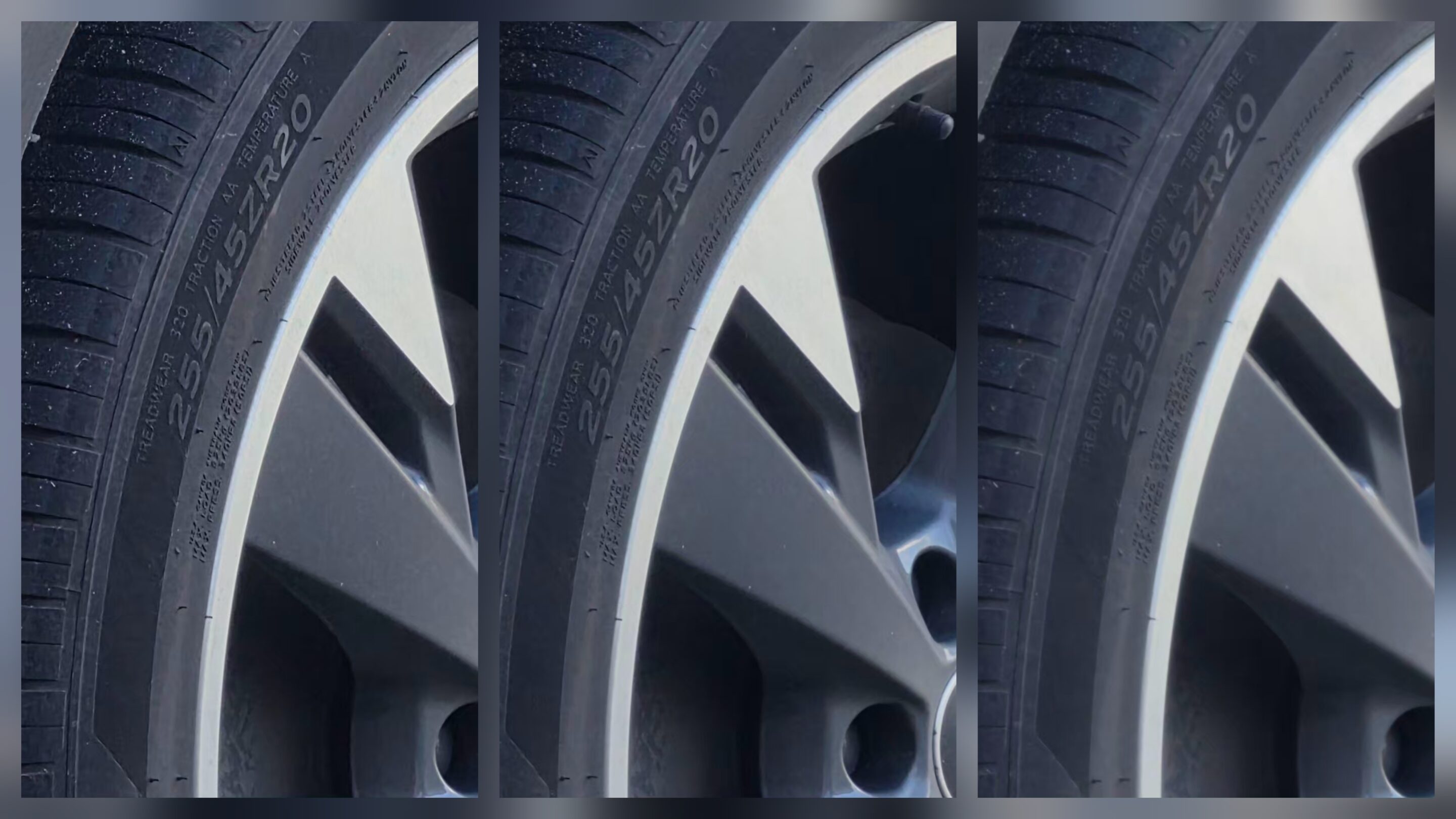
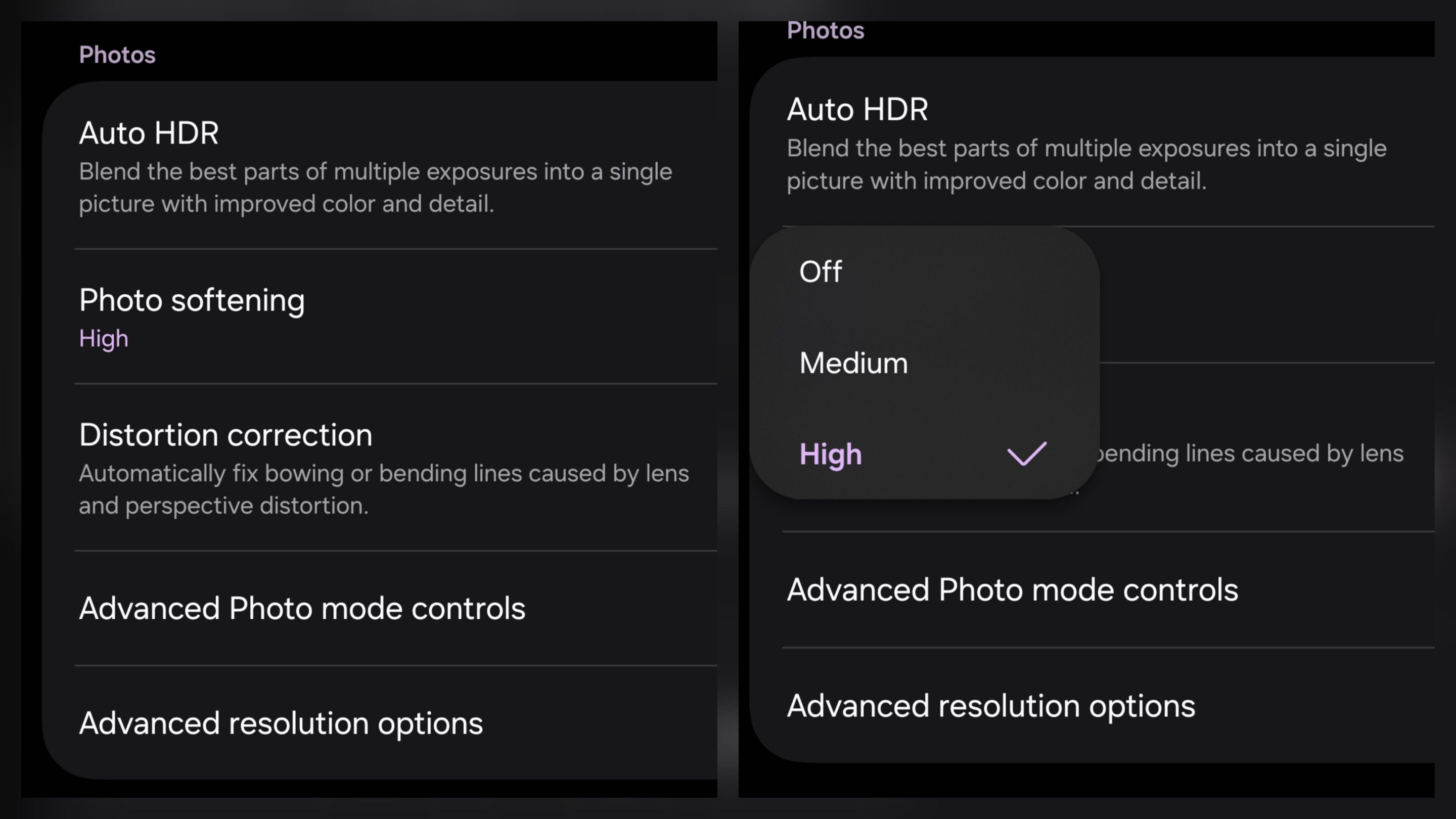
Inside Samsung’s Camera Assistant module, there is a setting called Picture softening. It mainly behaves like a post-processing sharpness reduction. It slightly softens the final image but doesn’t fundamentally change how the camera’s computational pipeline processed the photo. In other words, it reduces sharpness after the fact, but it doesn’t really address over-processing itself.
With the Galaxy S26 Ultra, that behavior appears to have changed. Samsung renamed the tool to Photo softening, and it now functions slightly differently. It acts less like a simple softening filter and more like a control over how aggressively Samsung’s AI enhances edges and textures.
How the Processing Levels Behave
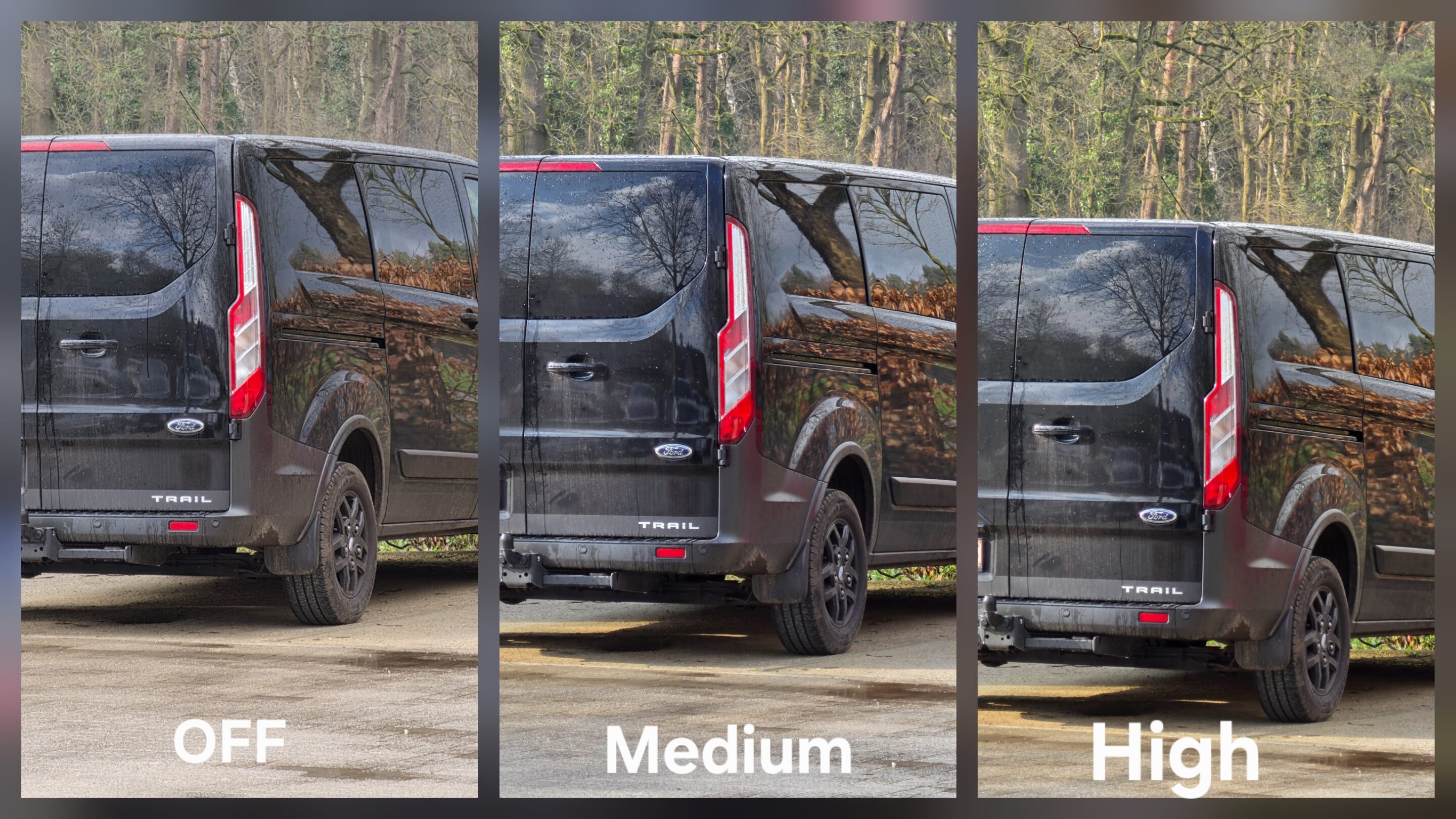
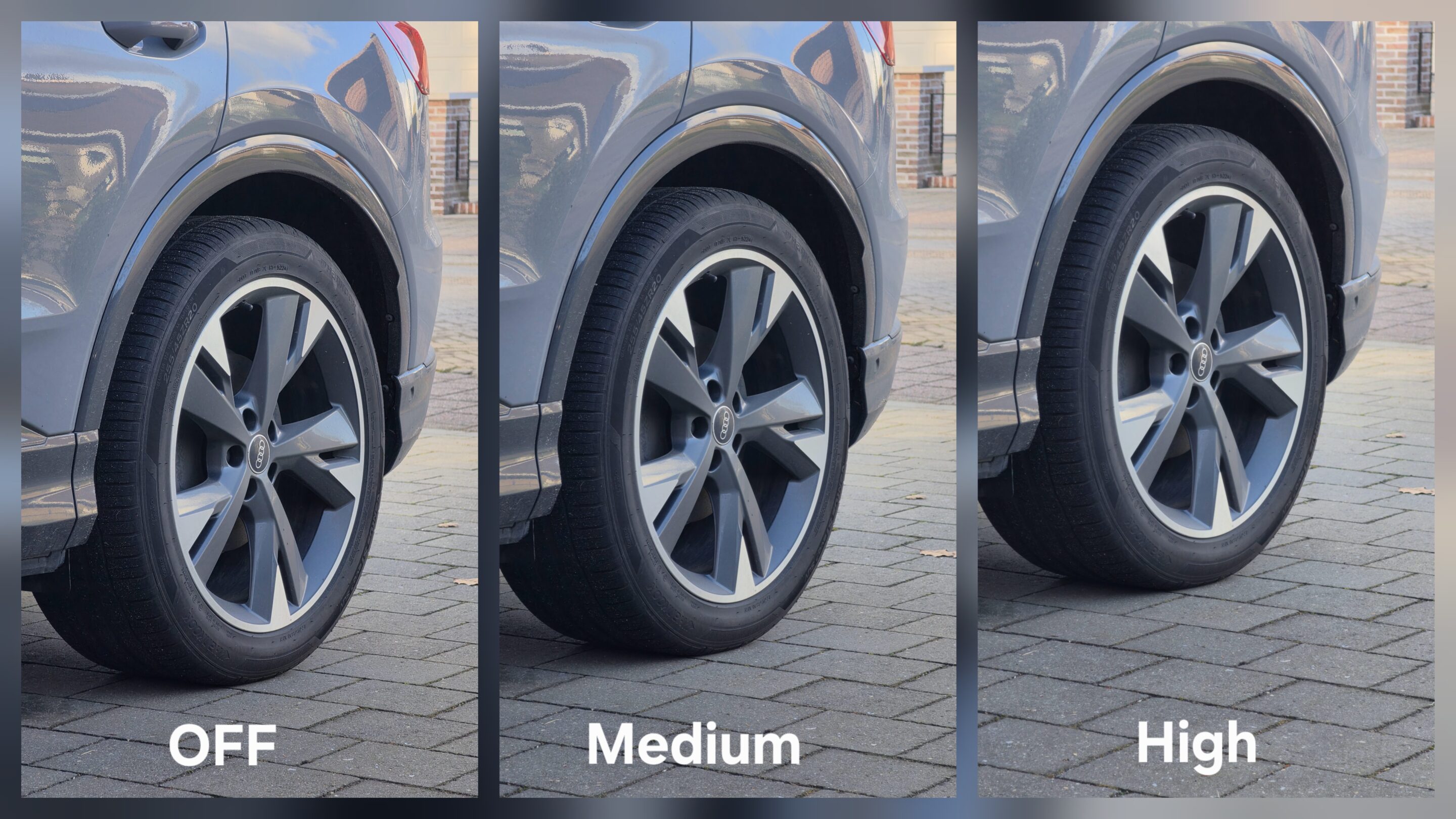
On the Galaxy S26 Ultra, the three Picture Softening levels effectively change how strongly the camera enhances fine detail. The behavior can be summarized like this:
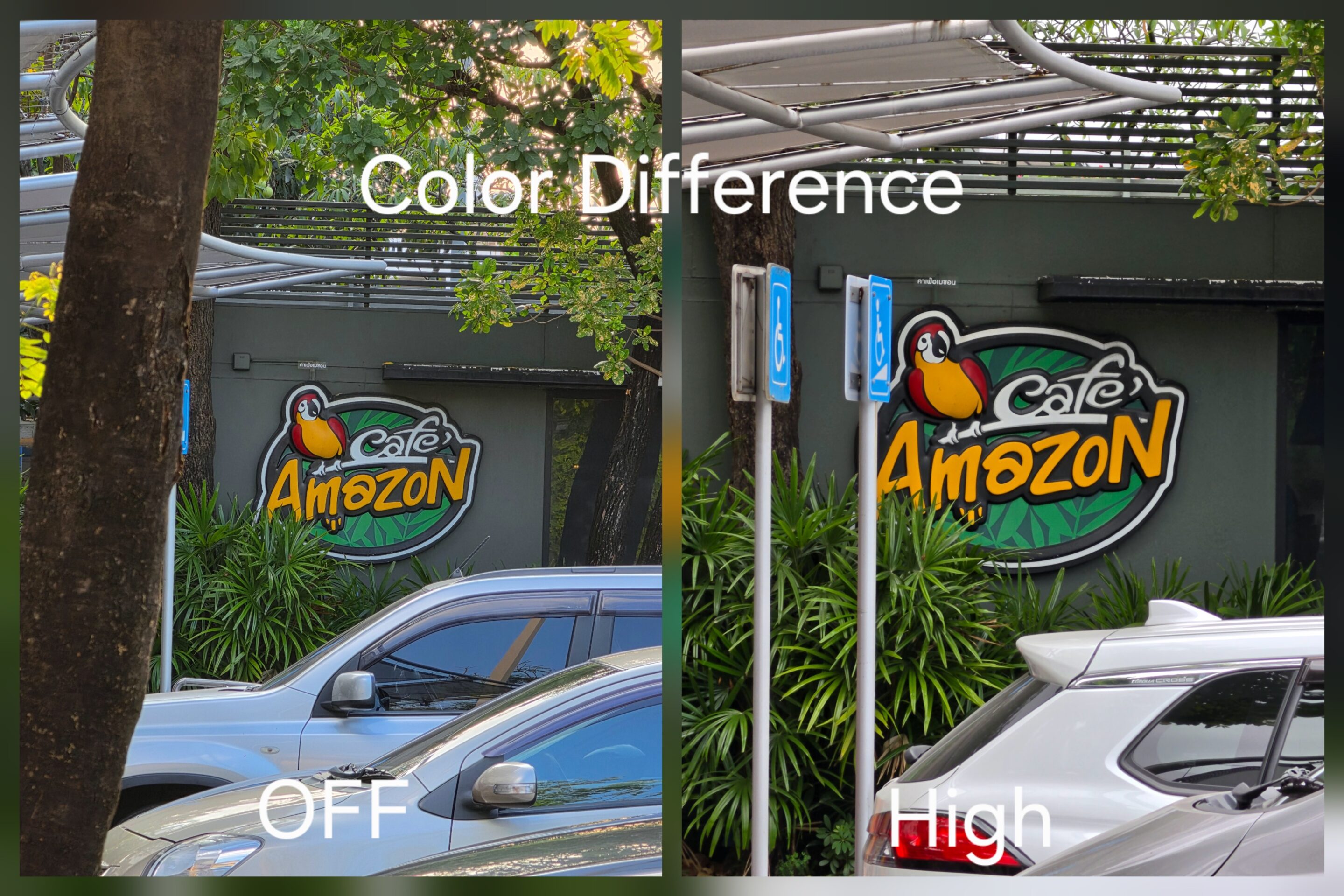
- Off: Full AI processing. The camera applies its complete sharpening and enhancement pipeline.
- Medium: Balanced processing. This reduces some of the more aggressive enhancements while maintaining strong detail.
For most users, Medium is the recommended setting.
- High: Natural rendering. This setting tones down algorithmic enhancement further, producing images that appear closer to traditional photographic rendering.
Galaxy S26 Ultra 10x
Galaxy S26 Ultra 5x
Personally, I prefer High, because it produces a more natural look without making the image appear soft or dull.
Don’t Worry — Your Photos Won’t Look Soft
The name Photo Softening can sound misleading. On older Galaxy devices, stronger softening settings sometimes resulted in photos that looked slightly dull or overly smooth. That’s not really the case on the Galaxy S26 Ultra.
One reason is the introduction of the 24MP capture option, which preserves more native detail from the sensor compared to traditional 12MP binning modes. Because the image already contains strong underlying detail, reducing processing does not remove sharpness; it mainly reduces artificial enhancement.
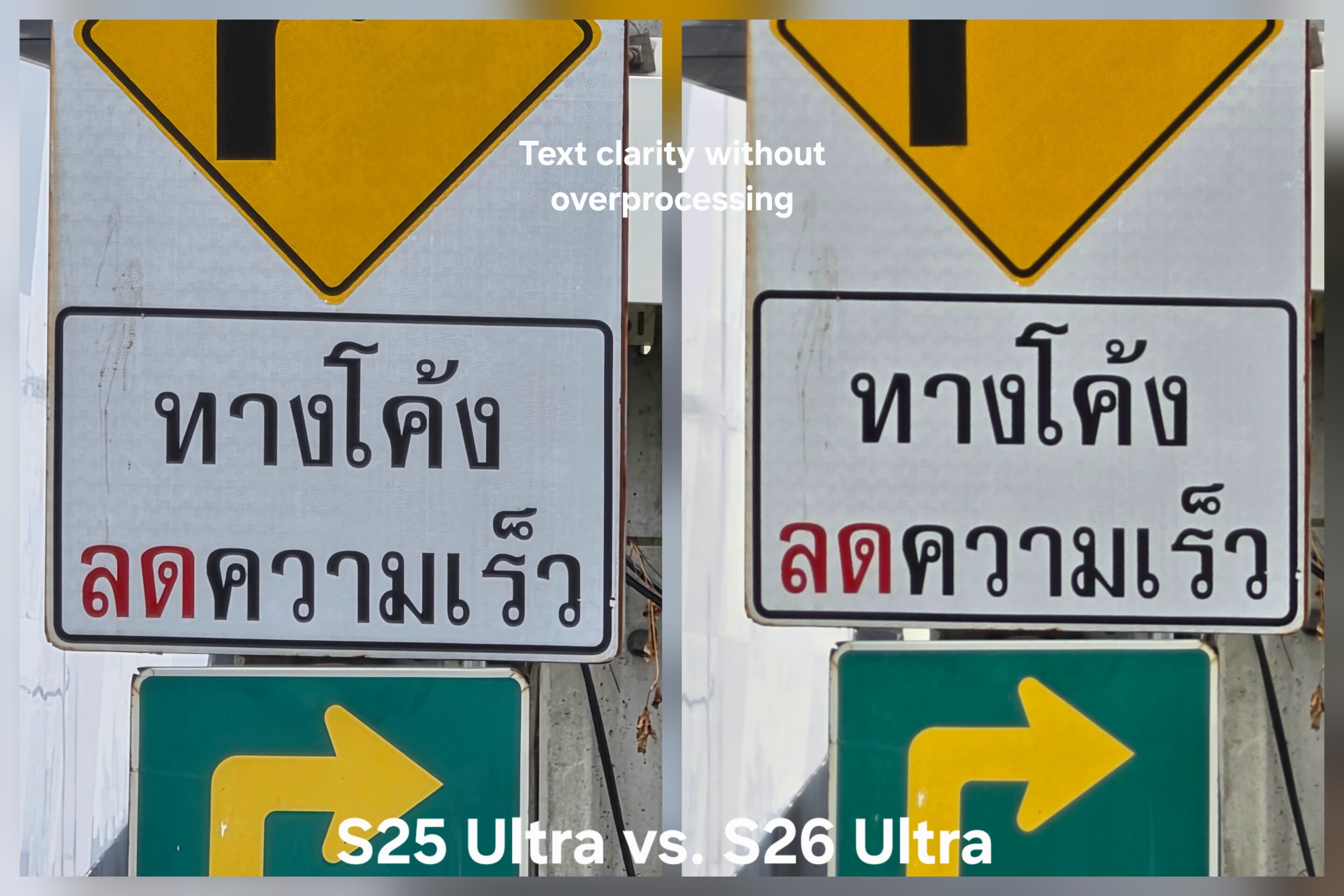
Galaxy S25 Ultra vs S26 Ultra at 30x
Why 24MP Works Best With Natural Processing
If you prefer a more natural image style, pairing 24MP capture with reduced processing works particularly well. At 24MP, the camera retains more of the sensor’s native resolution, which means the image relies less on algorithmic sharpening to appear detailed. The result is a photo that still looks crisp, detailed, vibrant, and more natural in texture.
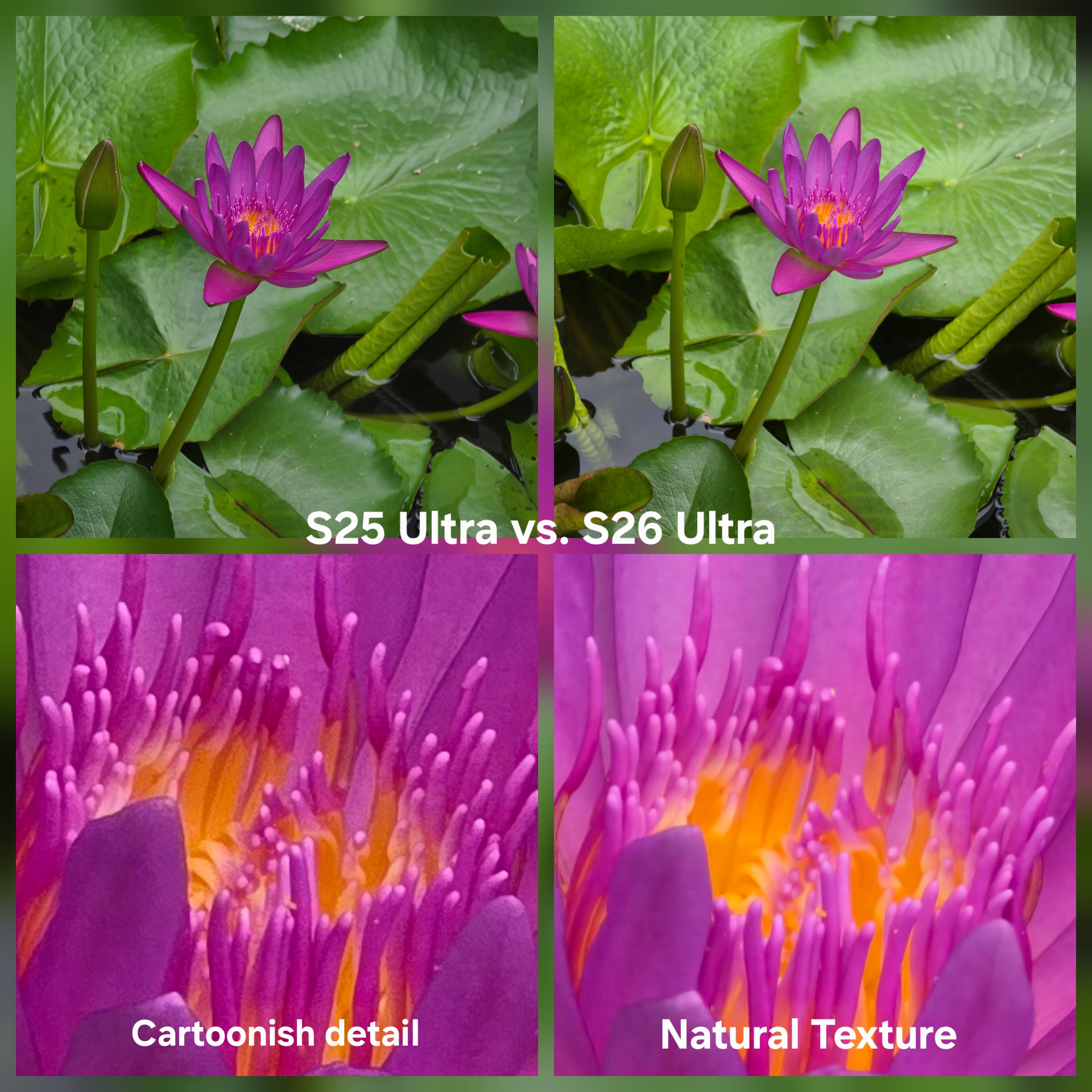
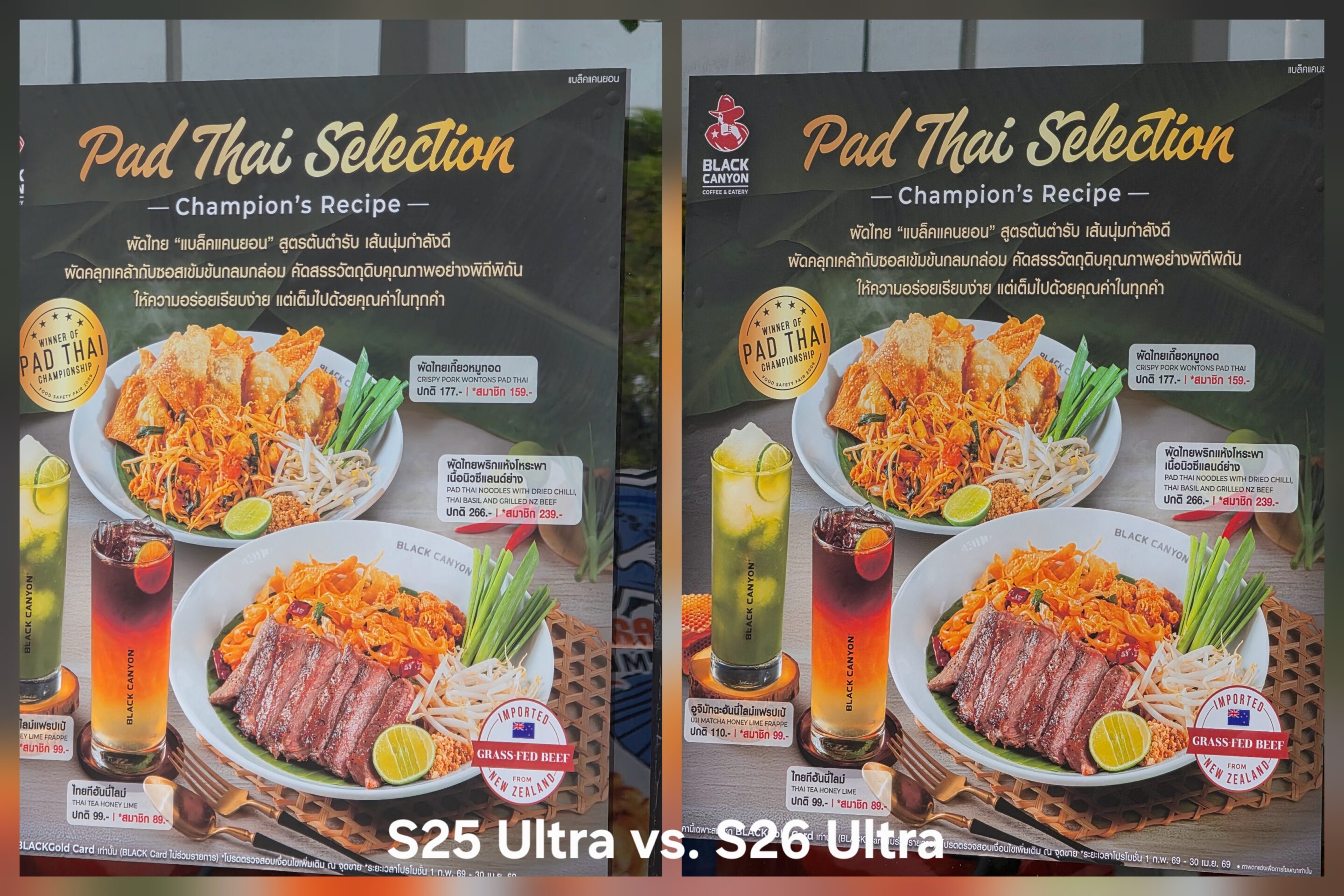
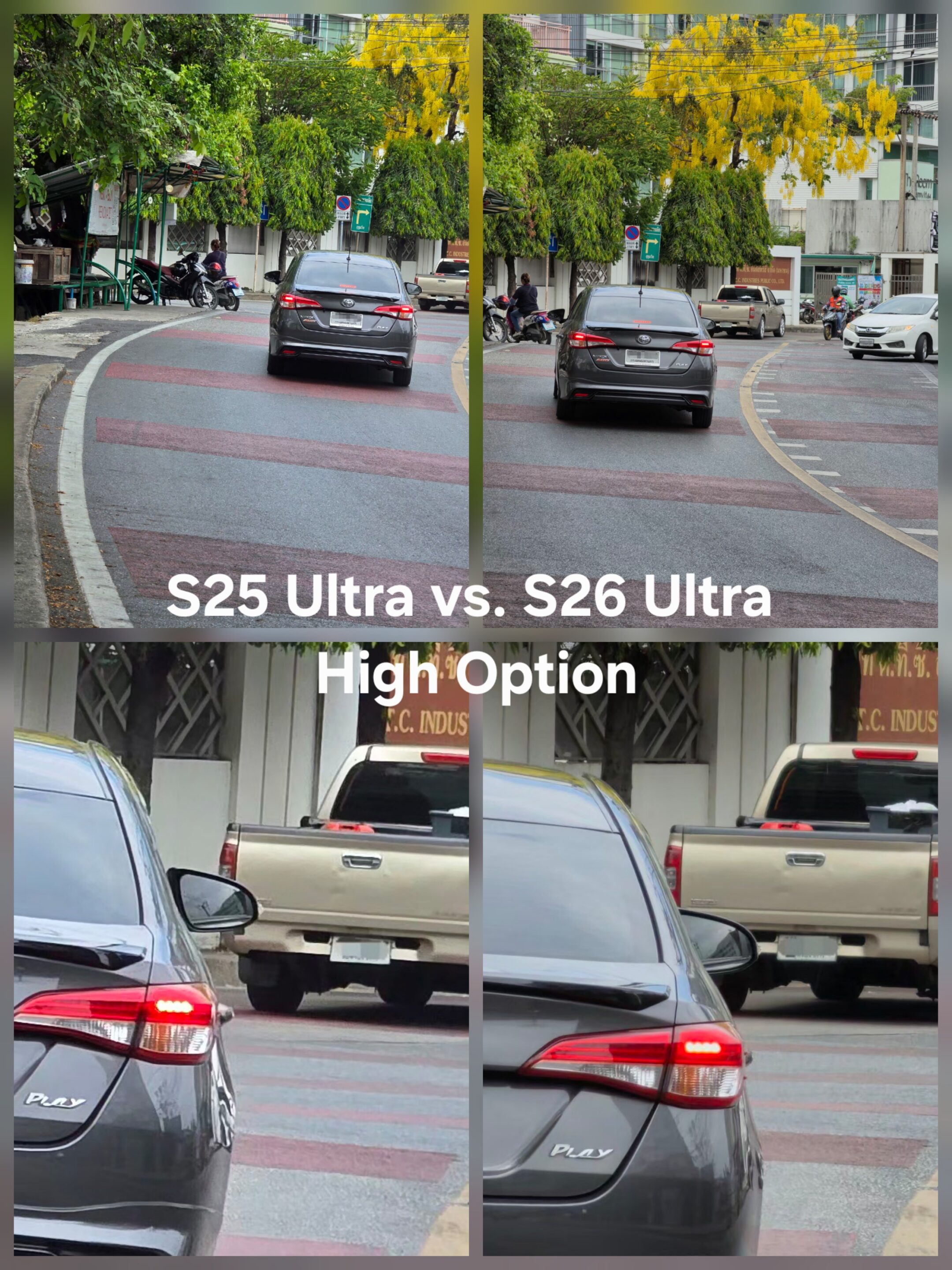
At 12MP, the image can appear slightly more natural in tone, but also less crisp, because the output depends more heavily on pixel binning and computational enhancement. For that reason, 24MP is generally the best balance for everyday photography on the S26 Ultra.
What Happens in Low-Light
Another common concern is how reduced processing affects low-light photography. In darker scenes, the camera already relies heavily on multi-frame stacking, noise reduction, and longer exposures to capture enough light. The Galaxy S26 Ultra also introduces a new Night control directly inside Auto mode, which automatically activates longer exposures when needed. Because of this system, low-light detail is preserved whether you shoot at 12MP or 24MP, even when using reduced processing settings.
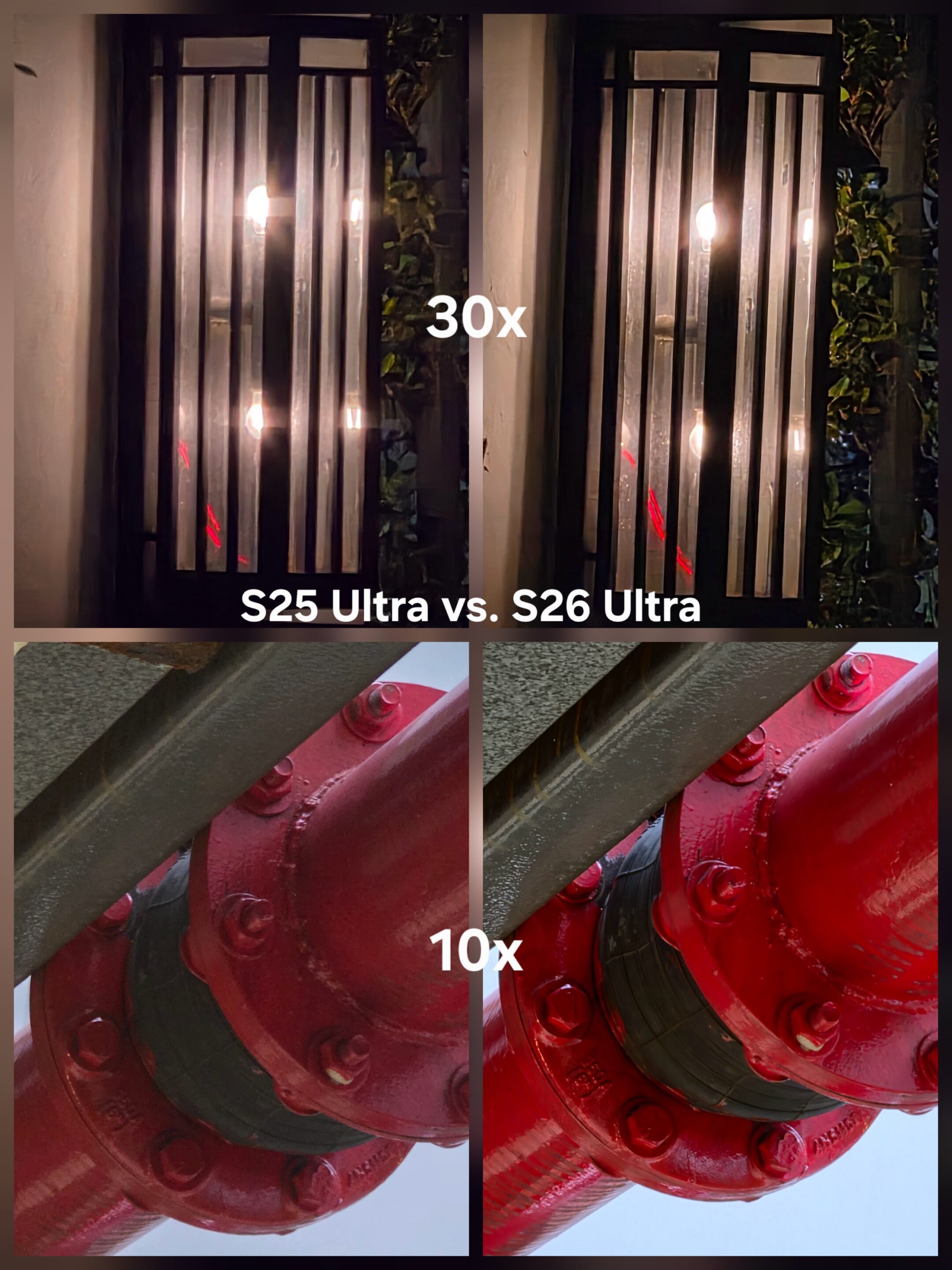
Stay with 24MP if there is enough light and night mode doesn’t kick in.
One of the most common criticisms of modern smartphone cameras is over-processing. Images can sometimes look overly sharpened or artificially enhanced, especially when aggressive computational algorithms try to maximize perceived detail.
What the Galaxy S26 Ultra quietly introduces is a way to dial that behavior back. By adjusting the Photo Softening levels, users can influence how aggressively the camera enhances edges and textures. For photographers who prefer a cleaner, more natural rendering style, this small setting can make a surprisingly big difference.
The Galaxy S26 Ultra introduces many visible camera improvements, but some of the most interesting changes are hidden deeper in the settings. Photo Softening is one of them. What once functioned mainly as a simple sharpness adjustment now behaves more like a practical control over Samsung’s AI-driven image enhancement.
For users who enjoy bold, punchy photos, leaving the setting off will deliver Samsung’s full computational look. But for photographers who prefer cleaner and more natural images, switching to Medium or High can significantly change the rendering style. And that kind of control is something many smartphone cameras still don’t offer.
Author’s Note — This article is part of my ongoing Galaxy S26 Ultra camera analysis series, exploring how Samsung’s imaging system behaves across different shooting conditions and processing pipelines. Stay tuned for more.


Follow us on Google Discover & set us as a preferred source in Google News
Share this Post
___________________________


New Blog Posts
___________________________

First Set of Pixel 11 Pro XL Renders Are Here
Pixel 11 Pro XL CAD renders show minimal design changes

Is Samsung Preparing One UI 8.5 Beta for Galaxy Z Fold 5 and Flip 5?
Samsung may launch a One UI 8.5 beta program for its 2023 foldables

Galaxy S25 One UI 8.5 Beta May Run Longer Than Expected
Galaxy S25 series’ One UI 8.5 beta may stretch to 10 rounds







