
Top 18 Tips to Improve Battery Life on Your Galaxy Smartphone
SammyGuru is reader-supported. We have affiliate and sponsored partnerships, so we may earn a commission when you buy through links on our site — at no extra cost to you. Learn more.
In this article
- 1. Enable Dark Mode
- 2. Lower display brightness and adjust sleep settings
- 3. Disable or uninstall unused apps
- 4. Force stop power-hungry apps
- 5. Turn off Always-On Display or set a schedule
- 6. Switch to the Light performance profile
- 7. Enable Power Saving mode
- 8. Turn off Wi-Fi and Bluetooth when not in use
- 9. Reduce app notifications
- 10. Turn off keyboard sounds and haptics
- 11. Turn off “Hey Google” detection
- 12. Reduce screen refresh rate and resolution
- 13. Remove unused accounts
- 14. Check network signal strength
- 15. Avoid extreme temperatures
- 16. Avoid full discharges
- 17. Keep your software up to date
- 18. Download offline content before traveling
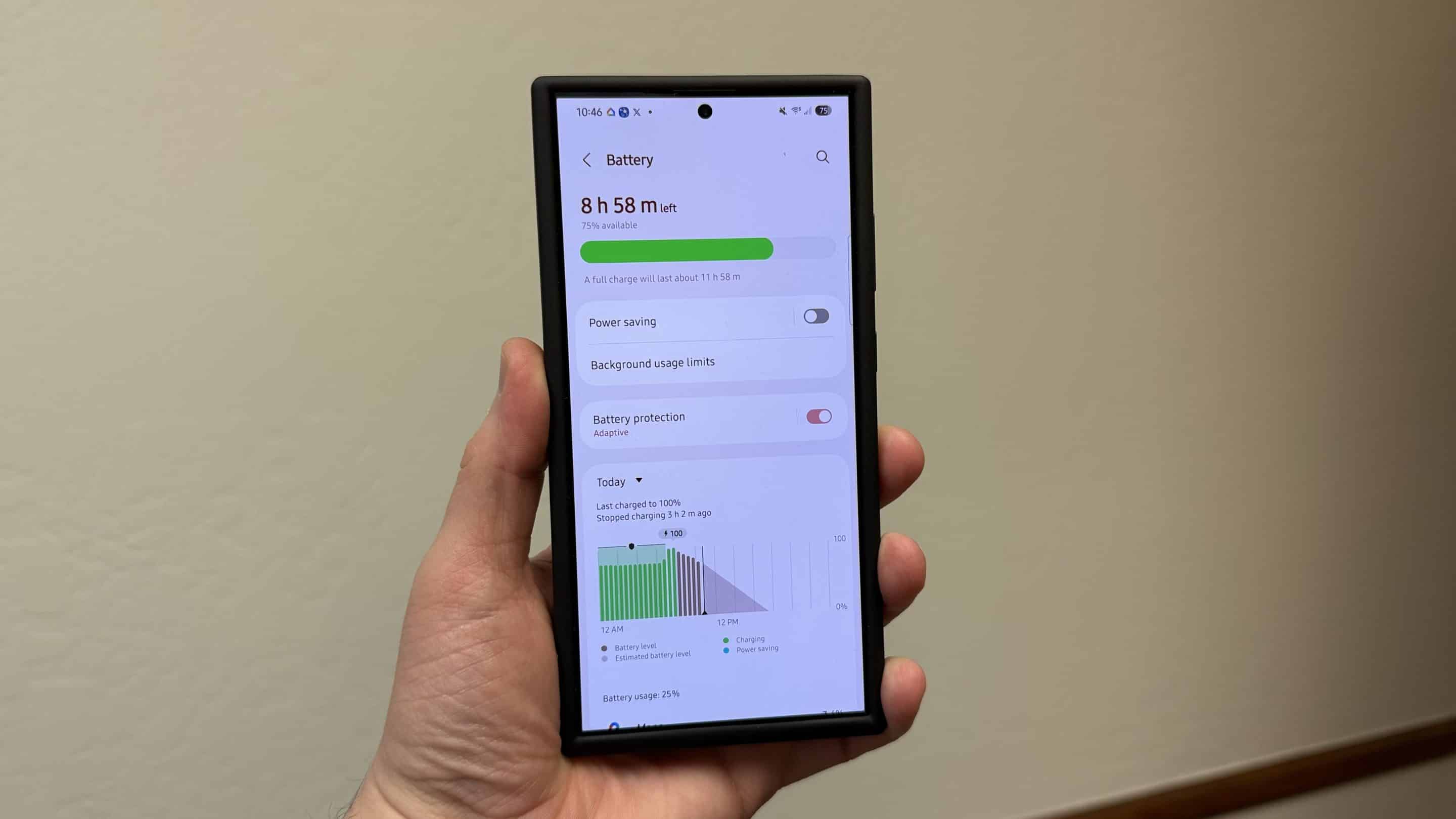
Are you trying to make your Galaxy phone last longer between charges? Whether you’re out for the day or just want to reduce how often you reach for the charger, there are plenty of simple ways to improve battery life without sacrificing too much functionality. From adjusting display settings to using built-in power-saving modes, these tips will help you get the most out of every charge. Let’s dive into the best ways to save battery on your Galaxy phone.
1. Enable Dark Mode
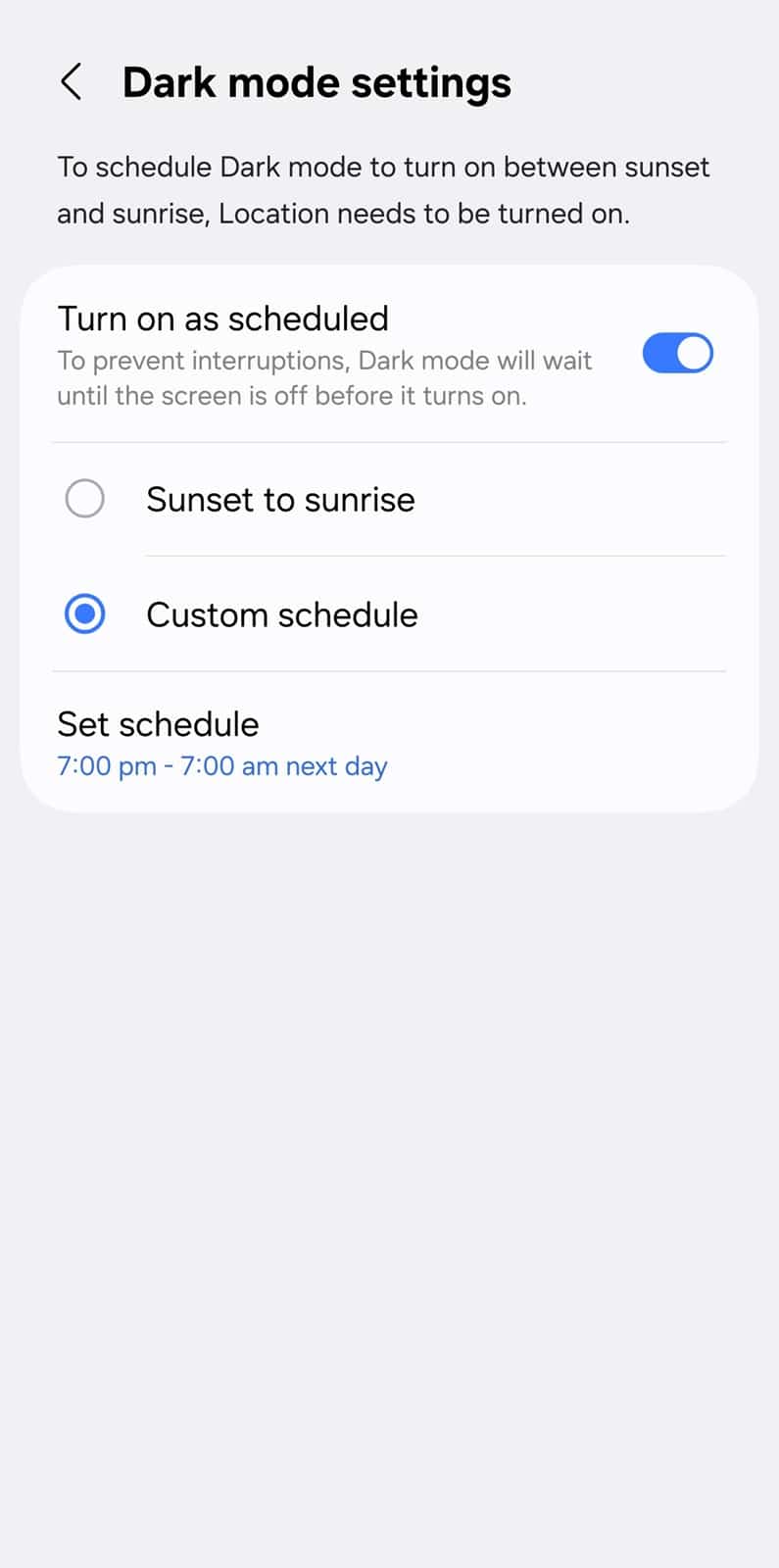
Dark mode can help extend battery life, especially on Galaxy phones with AMOLED displays. Unlike LCD screens, AMOLED panels light up individual pixels, which means black or dark areas on the screen use significantly less power because the pixels are essentially turned off. By switching to dark mode, your phone draws less power to display content. Over time, this can lead to noticeable savings in battery life.
- Go to Settings > Display > choose Dark mode
- If you prefer Light mode during the day, you can go to Dark mode settings and schedule it for evenings
2. Lower display brightness and adjust sleep settings
One of the easiest ways to save battery on your Galaxy phone is by lowering the screen brightness and adjusting the sleep timer. Since the display is one of the biggest power consumers, keeping it dimmer and turning it off sooner when idle can significantly reduce battery drain.
- Go to Settings > Display > drag the brightness slider to the left
- Enable Adaptive Brightness so your device automatically adjusts the screen brightness according to the ambient light
- Scroll down and change Screen timeout to 30 seconds or less

3. Disable or uninstall unused apps
Apps running in the background can quietly drain your battery, even if you’re not using them. Disabling or uninstalling apps you rarely use helps reduce background activity, frees up system resources, and can lead to better battery performance overall.
- Long-press an app on your home screen or app drawer > tap Uninstall or Disable (for system apps that can’t be uninstalled)
Pro tip: You can sort apps by battery usage in Settings > Battery > View details
4. Force stop power-hungry apps
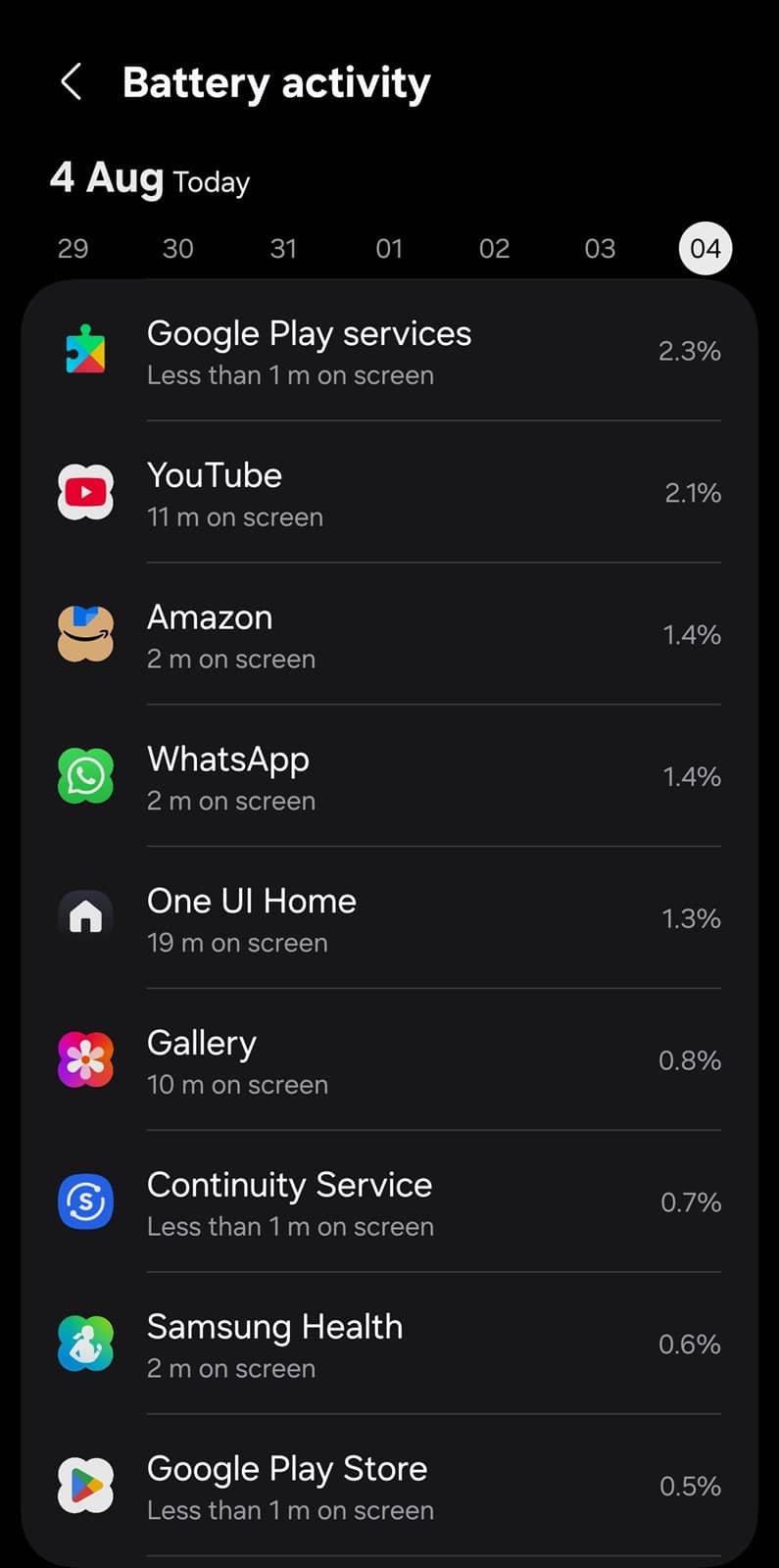
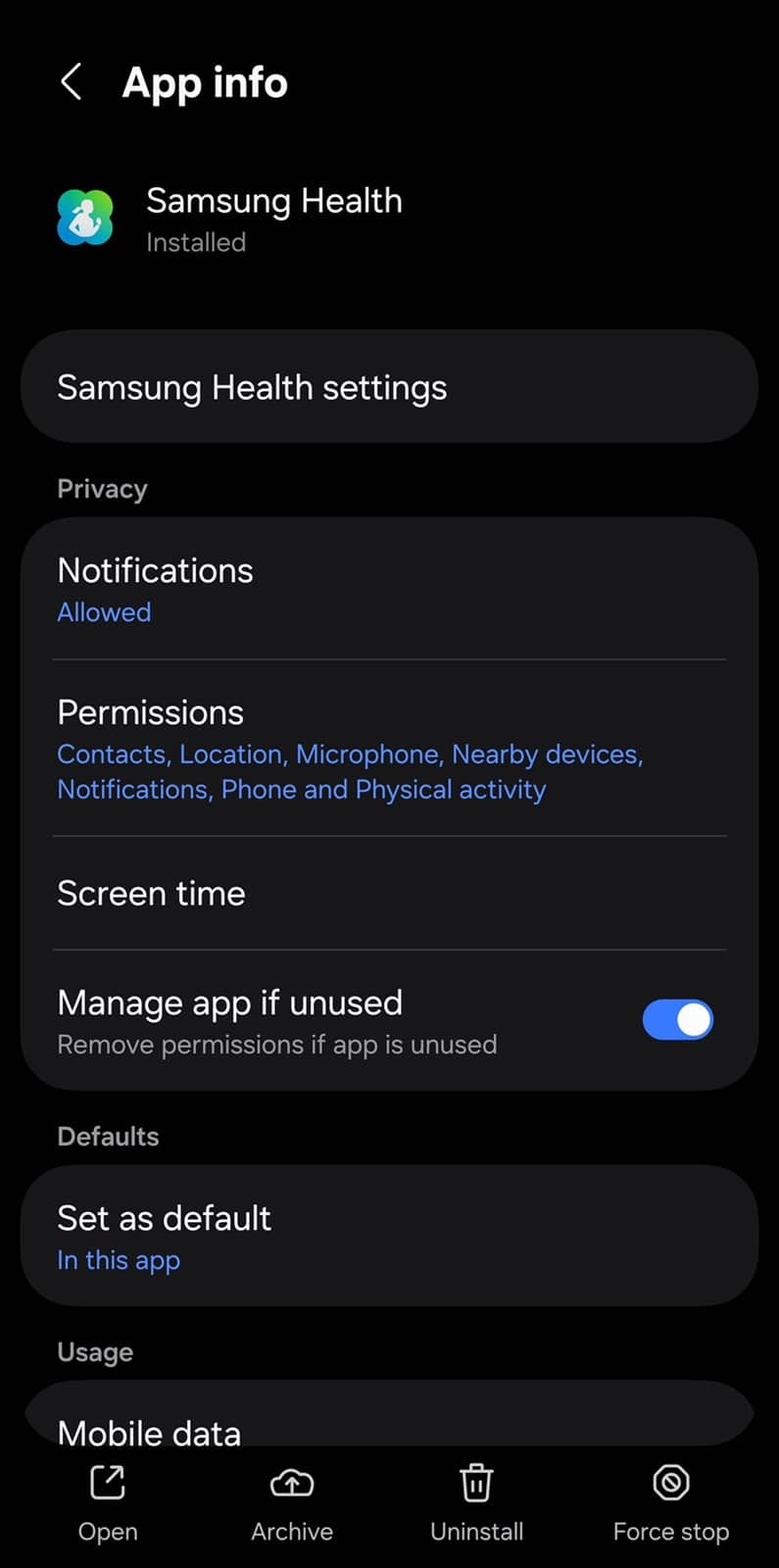
Some apps can continue running in the background and use up battery even when you’re not actively using them. If you notice certain apps consuming more power than usual, you can force stop them to immediately cut off their background activity. This helps conserve battery and keeps your phone running more efficiently. You shouldn’t force stop critical system apps such as Google Play Services.
- Go to Settings > Battery > View details to see which apps are draining power
- Go to Settings > Apps > select apps that you want to force stop > Force stop
5. Turn off Always-On Display or set a schedule
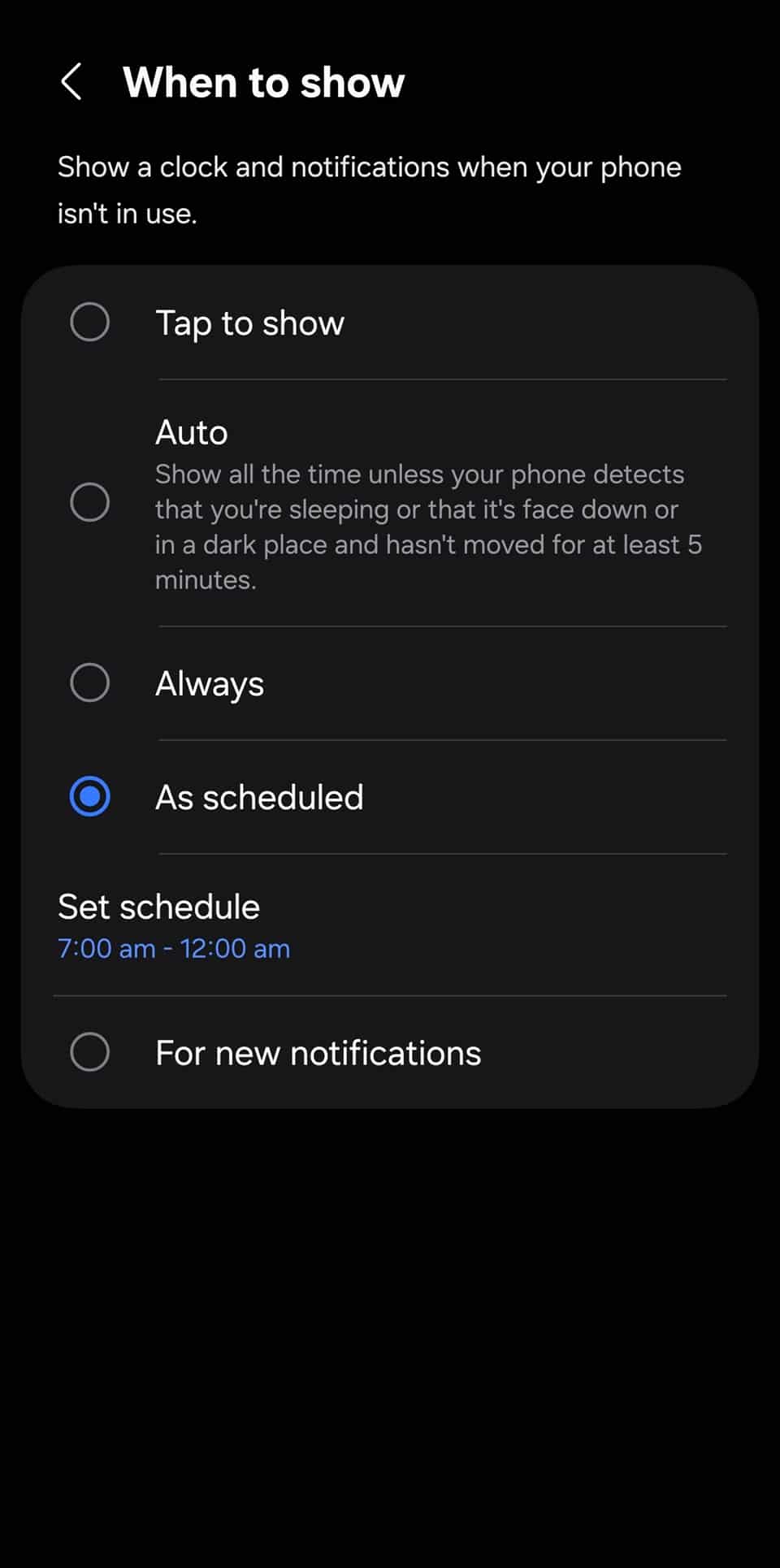
Always-On Display is a handy feature, but it can consume battery by keeping part of the screen active at all times. Turning it off completely or setting a schedule to limit when it’s active — like during work hours or while charging — can help save battery without giving up convenience entirely.
- Turn off: Settings > Lock Screen and AOD > Always On Display > toggle off
- Set a schedule: Settings > Lock Screen and AOD > Always On Display (text) > When to show > As scheduled
6. Switch to the Light performance profile
If you don’t need maximum performance all the time, switching to the Light performance profile can help. This mode reduces CPU power draw, which not only extends battery life but also helps keep your device cooler during everyday tasks like browsing, messaging, or streaming. It’s a great way to balance efficiency and performance.
- Go to Settings > Device care > Performance profile
- Choose Light to reduce power draw and device heating

7. Enable Power Saving mode
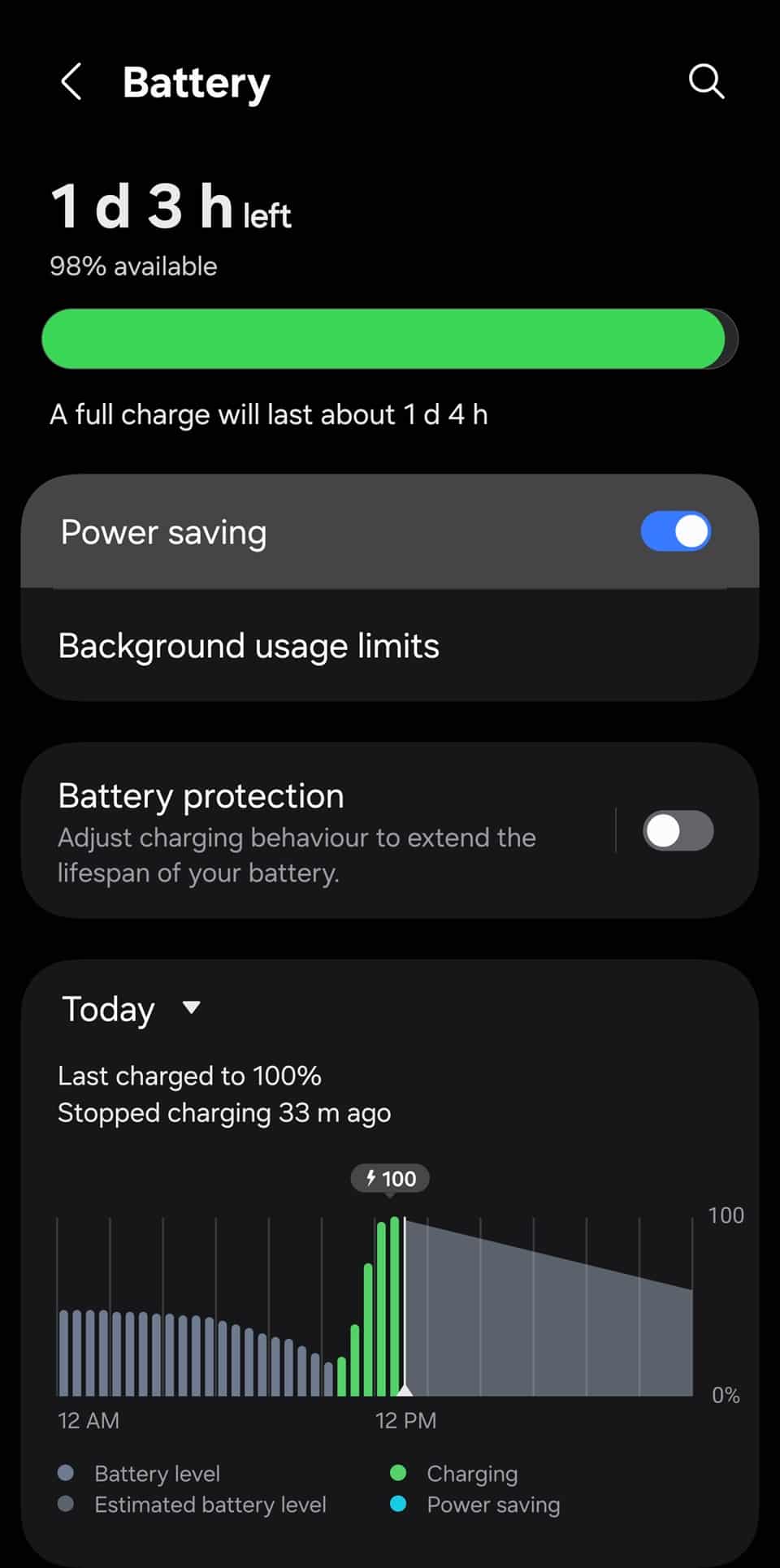
Power Saving mode is a quick and effective way to extend your phone’s battery life. It reduces background activity, limits performance, and disables non-essential features to help your device last longer on a single charge. It’s perfect for when you’re running low and need your phone to stay on longer.
- Go to Settings > Battery > toggle Power Saving on
8. Turn off Wi-Fi and Bluetooth when not in use
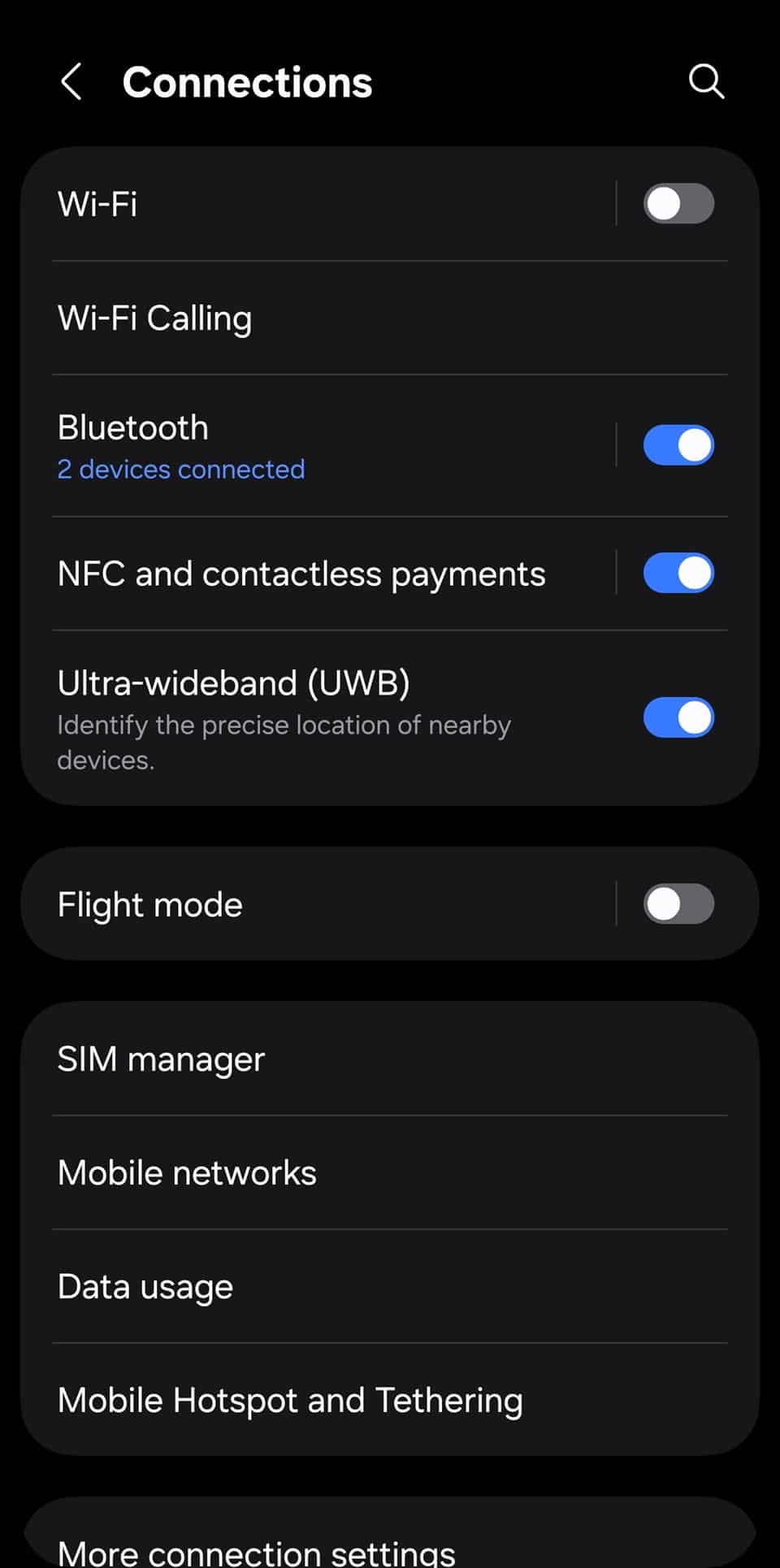
These services scan for signals regularly, so keeping them on constantly can drain your battery, even if you’re not actively using them. Turning Wi-Fi and Bluetooth off when you don’t need them helps conserve power and keeps your phone running longer throughout the day.
- Go to Settings > Connections
- Disable Wi-Fi and Bluetooth
9. Reduce app notifications
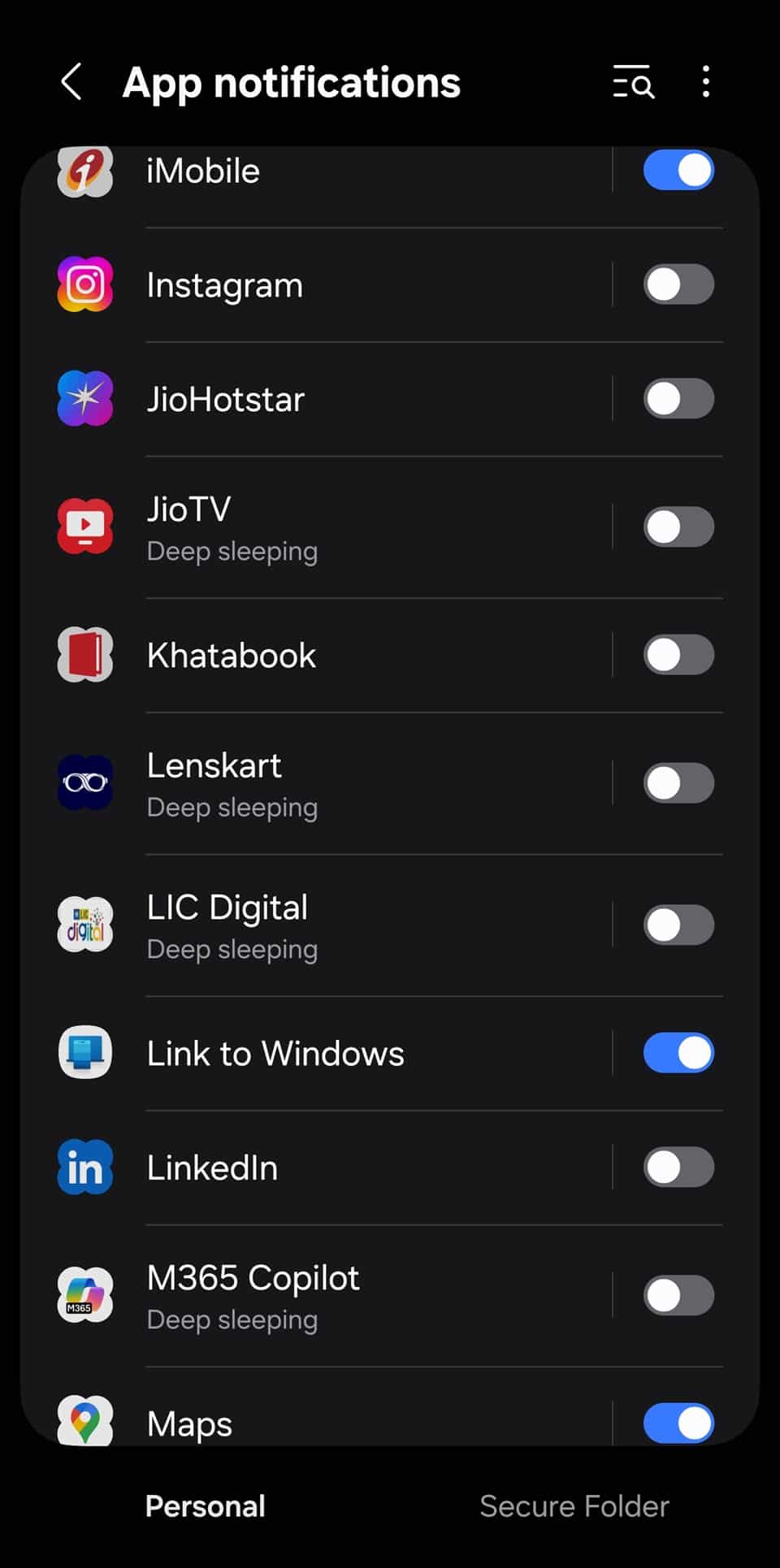
Constant notifications can wake your screen and keep apps running in the background, draining your battery over time. By limiting non-essential app alerts, you not only cut distractions but also help your phone conserve energy.
- Go to Settings > Notifications > App notifications
- Disable unnecessary alerts for non-critical apps
10. Turn off keyboard sounds and haptics
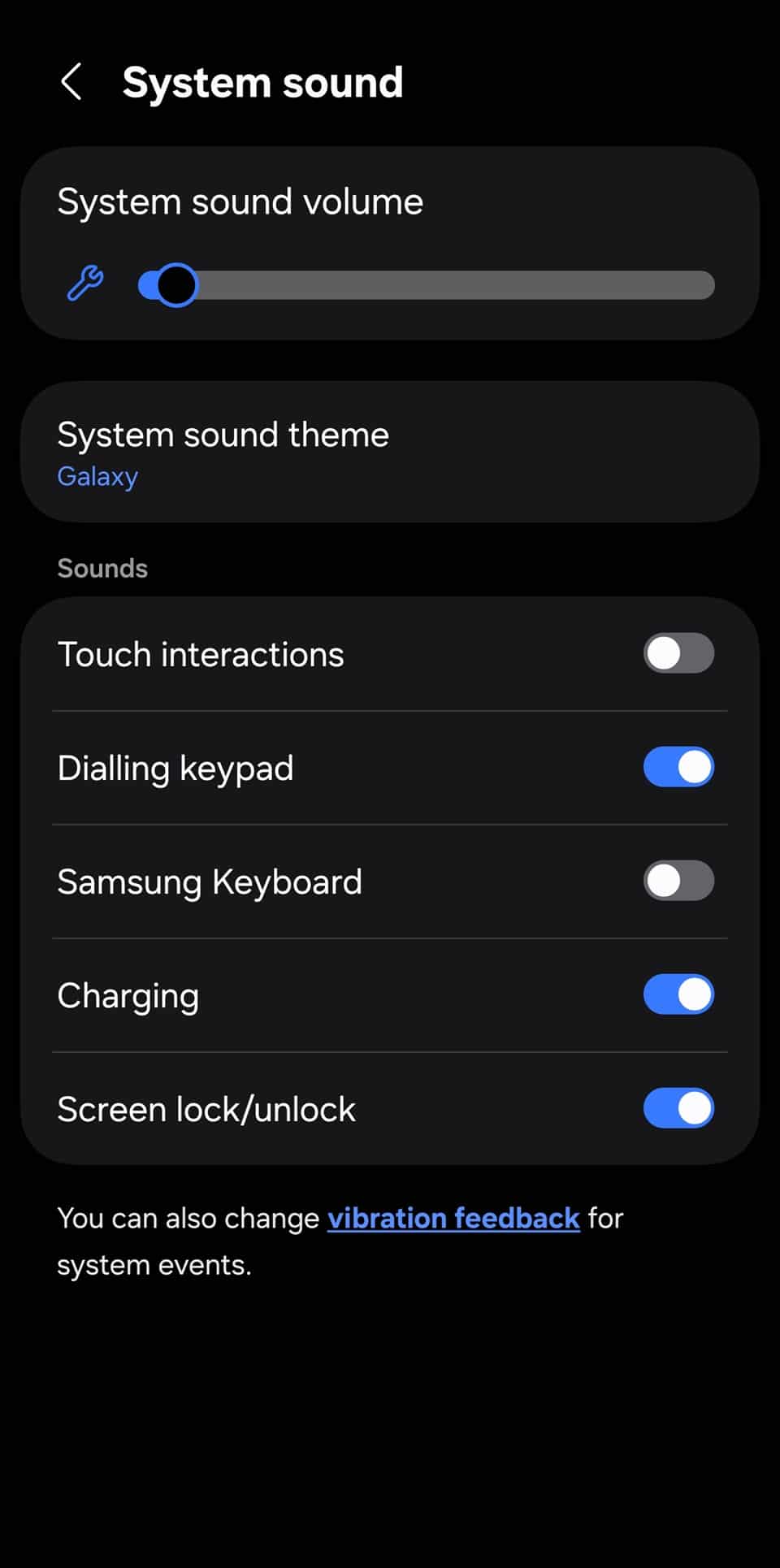
Keyboard sounds and vibration feedback (haptics) may seem minor, but they use extra power with every tap. Disabling them can slightly reduce battery drain, especially if you type a lot throughout the day.
- Go to Settings > Sounds and vibration > System sound > Toggle Samsung Keyboard off
- Go to Settings > Sounds and vibration > System vibration > Toggle Samsung Keyboard off
11. Turn off “Hey Google” detection
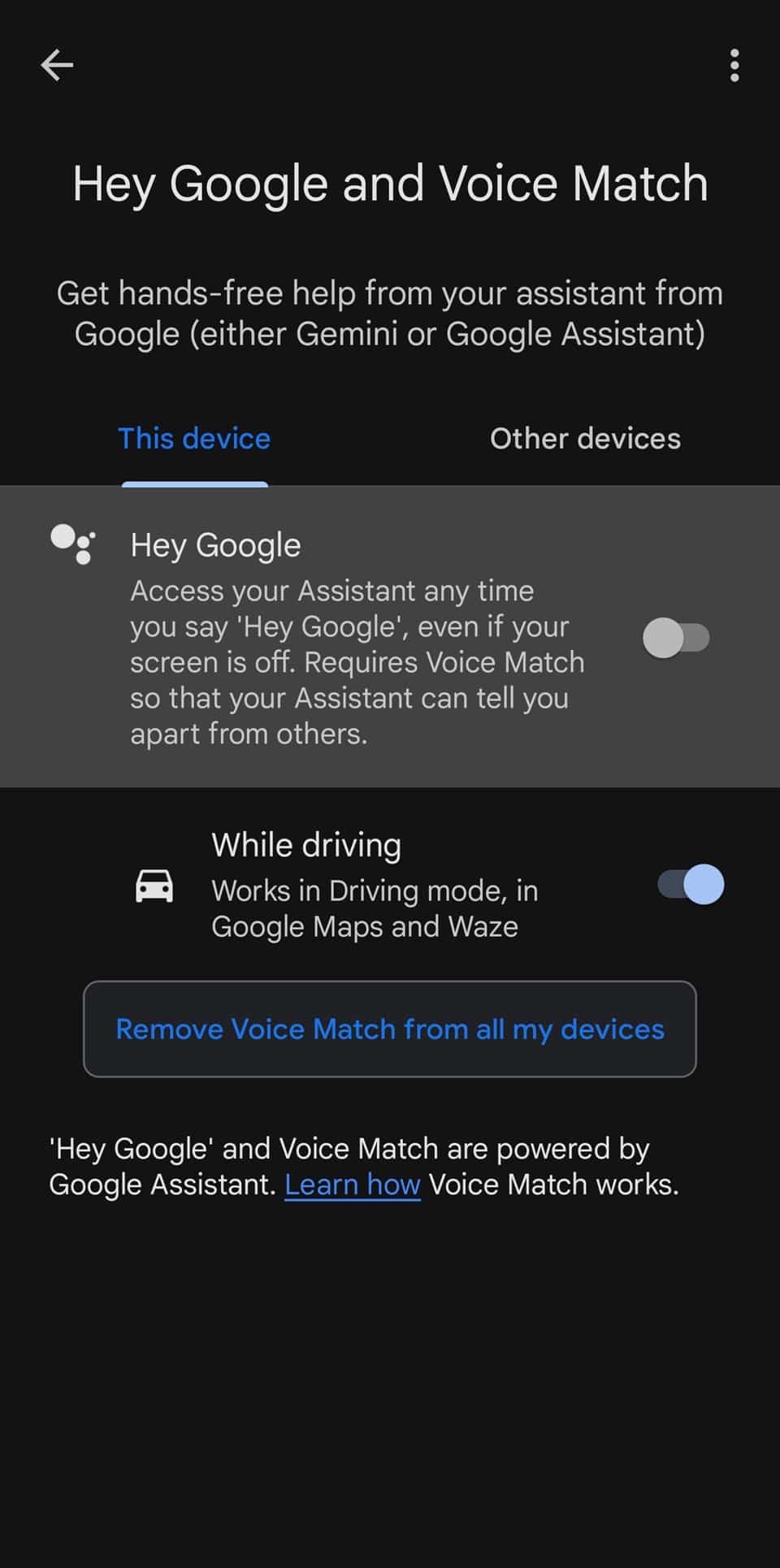
Unless you frequently use Google Assistant or Gemini AI, disable the “Hey Google” voice detection feature. It keeps your microphone active in the background, which can slowly drain your battery. Turning it off helps conserve power.
- Open the Google app > Tap your profile > Settings > Google Assistant
- Go to Voice Match > toggle Hey Google off
12. Reduce screen refresh rate and resolution
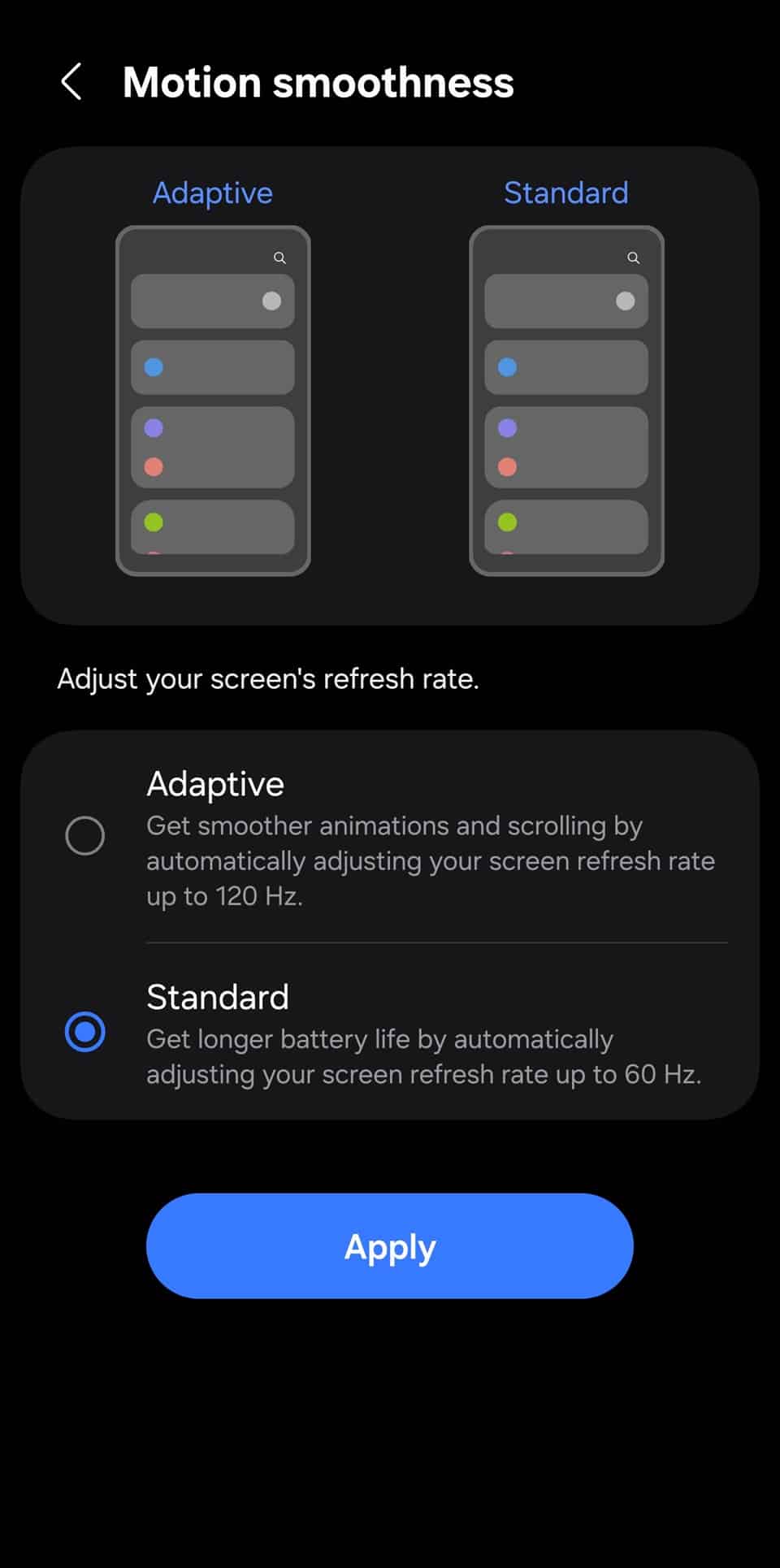
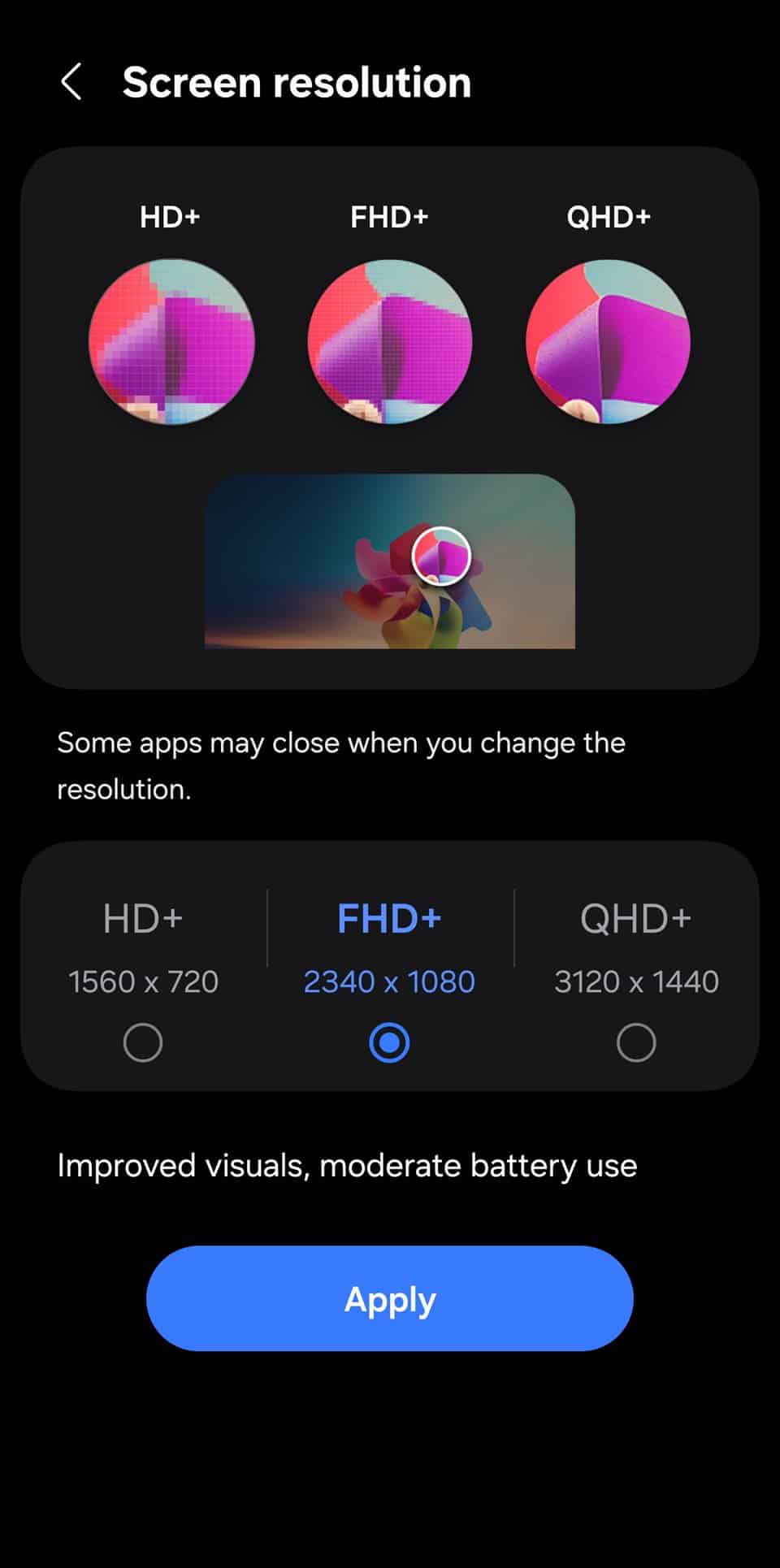
High refresh rates (like 120Hz) and resolutions (like QHD+) make your display look smoother and sharper, but also consume more battery. Lowering these settings can significantly extend battery life without drastically affecting day-to-day use.
- Go to Settings > Display > Screen resolution > select a lower resolution
- Go to Settings > Display > Motion smoothness > select Standard
13. Remove unused accounts
Unused accounts like old emails or cloud services can keep syncing in the background, quietly draining your battery. Removing them reduces background activity and helps your phone run more efficiently.
- Go to Settings > Accounts and backup > Manage accounts
- Tap the unused account > Remove account

14. Check network signal strength
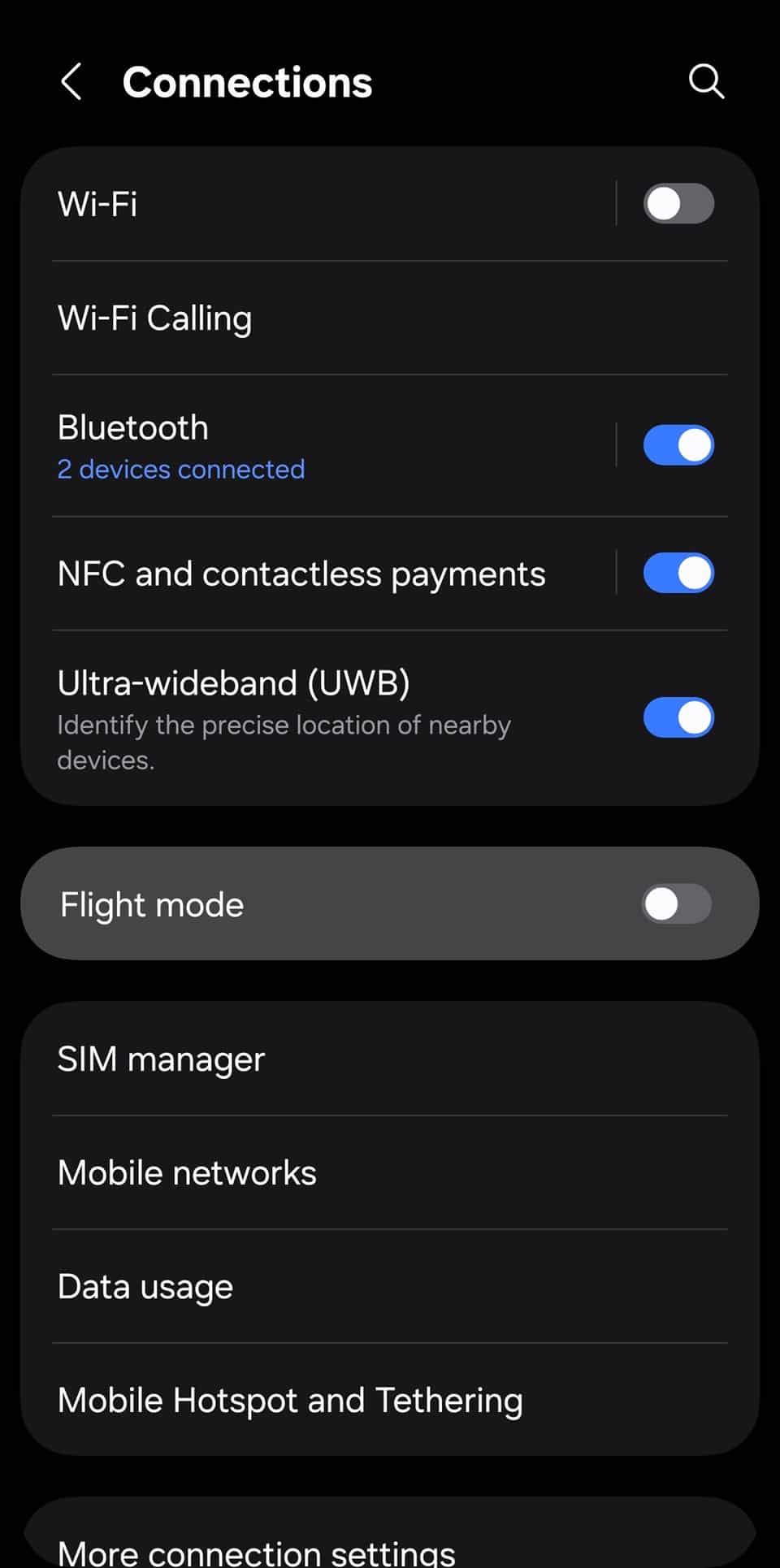
Poor signal strength can cause your phone to work harder to stay connected, which drains the battery faster. If you’re often in low-signal areas, consider switching to Airplane mode temporarily or connecting to Wi-Fi to reduce power consumption. Avoid extended use in areas with low signal.
- Go to Settings > Connections > enable Flight mode toggle
15. Avoid extreme temperatures
Exposing your phone to very hot or cold environments can damage the battery and reduce its efficiency. To preserve battery life and health, keep your device in a moderate temperature range. Never store it in a hot car or a cold freezer.
16. Avoid full discharges
Letting your phone battery drop to 0% frequently can shorten its lifespan over time. For better battery health, try to keep the charge between 20% and 80% whenever possible, and avoid letting it fully drain before recharging.
17. Keep your software up to date
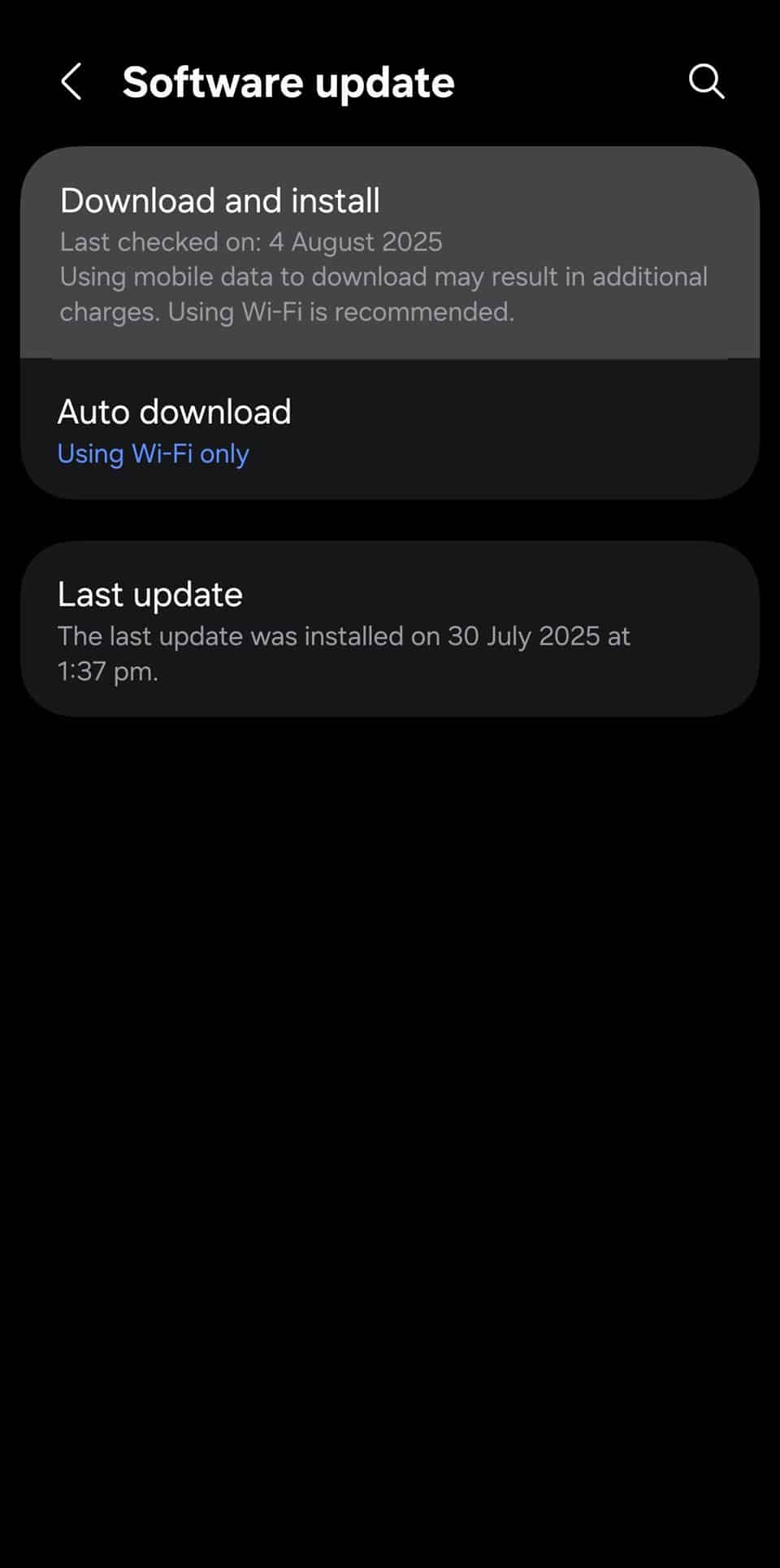
Regular software updates often include battery optimization improvements and bug fixes that help your device run more efficiently. Keeping your phone updated ensures you’re getting the best possible performance and battery life.
- Go to Settings > Software update > Download and install
18. Download offline content before traveling
Streaming or downloading media on the go can quickly drain your battery, especially in areas with poor network coverage. To save power, download music, videos, maps, or documents ahead of time while you’re on Wi-Fi.
By applying these battery-saving tips to your Galaxy smartphone, you can drastically extend your phone’s uptime and reduce wear on your battery over time. Just a few smart habits and settings tweaks can make a big difference. If you have questions, reach out to us on X.

Written by
Sumit AdhikariSumit, a life-long Samsung user, is passionate about technology and has been professionally writing on tech since 2017. He’s a mathematics graduate by education and enjoys teaching basic mathematics tricks to school kids in his spare time. Sumit believes in artificial intelligence and dreams of a fully open, intelligent and connected world.

Follow us on Google Discover & set us as a preferred source in Google News
Share this Post
___________________________


New Blog Posts
___________________________

First Set of Pixel 11 Pro XL Renders Are Here
Pixel 11 Pro XL CAD renders show minimal design changes

Is Samsung Preparing One UI 8.5 Beta for Galaxy Z Fold 5 and Flip 5?
Samsung may launch a One UI 8.5 beta program for its 2023 foldables

Galaxy S25 One UI 8.5 Beta May Run Longer Than Expected
Galaxy S25 series’ One UI 8.5 beta may stretch to 10 rounds







