
How To Run Any App on Galaxy Z Flip 6, Flip 7, Flip 7 FE Cover Screen
SammyGuru is reader-supported. We have affiliate and sponsored partnerships, so we may earn a commission when you buy through links on our site — at no extra cost to you. Learn more.
The Galaxy Z Flip line has finally matured. The new Z Flip 7 delivers its biggest upgrade yet with a full-size cover screen that makes previous models seem outdated. Despite this clever enhancement, Samsung still restricts which apps can run on the cover display. That limitation prevents the hardware from reaching its full potential, especially since the screen is big enough to support more than just basic functions.
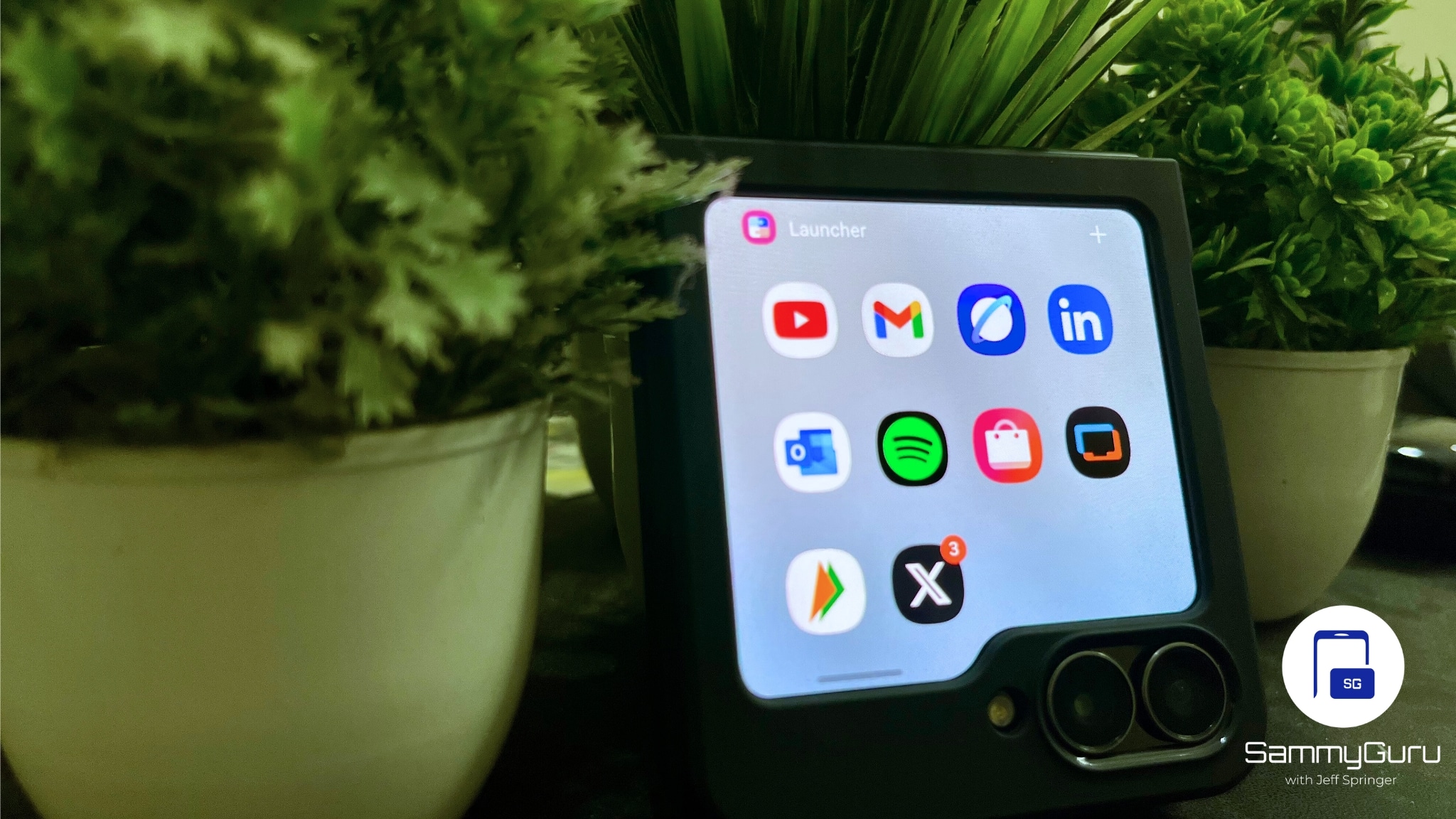
With MultiStar, luckily, you can run almost any app on the cover screen of your Galaxy Z Flip 7. This plugin expands functionality beyond Samsung’s default restrictions, allowing you to access far more than what Samsung normally offers. It’s compatible with the latest models, including the Z Flip 5.
How to run any app on the Galaxy Z Flip 6, Flip 7 FE, Flip 7’s cover screen
- Open the Galaxy Store or Play Store, search for Good Lock, and install it.
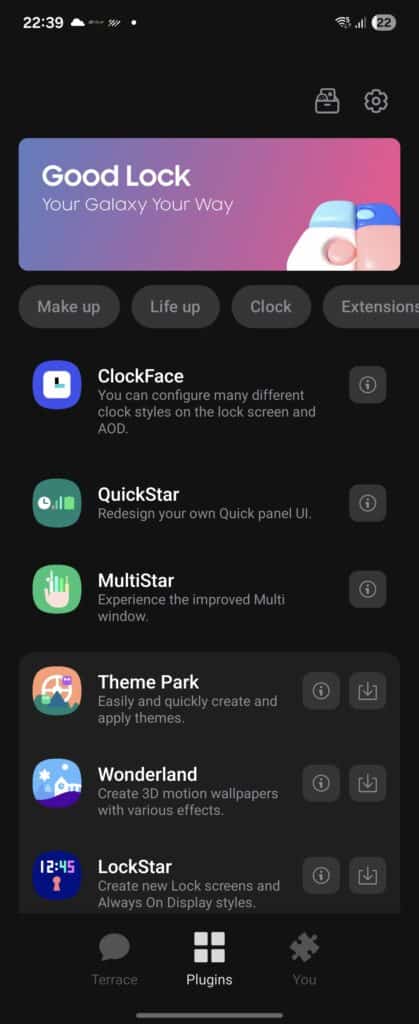
- Launch Good Lock, go to the Plugins tab, find MultiStar, and install it.
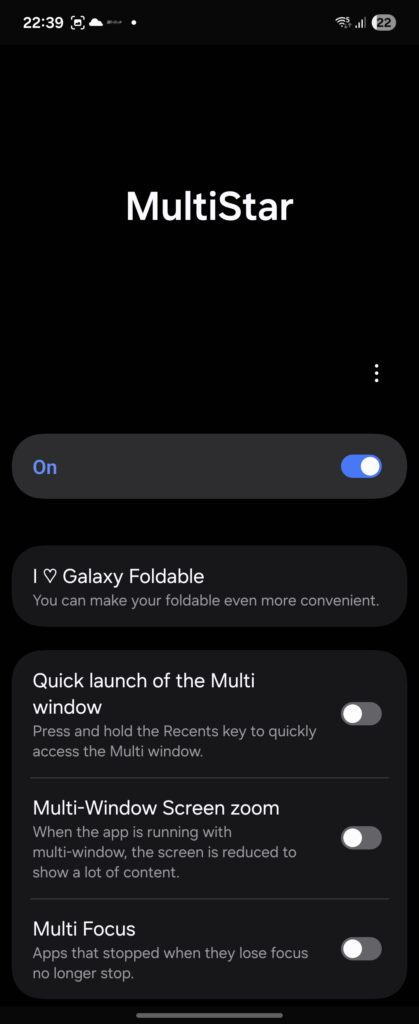
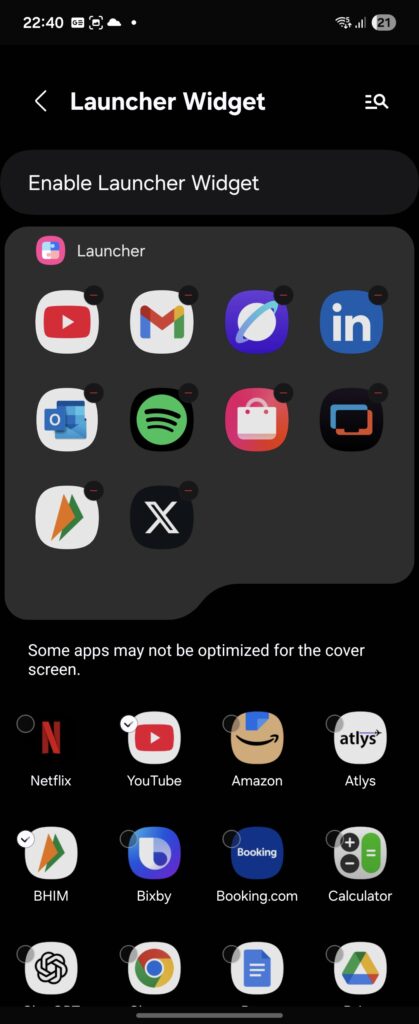
- Open MultiStar, tap I ♡ Galaxy Foldable, then select Launcher Widget. Choose the apps you want to appear on the cover screen.
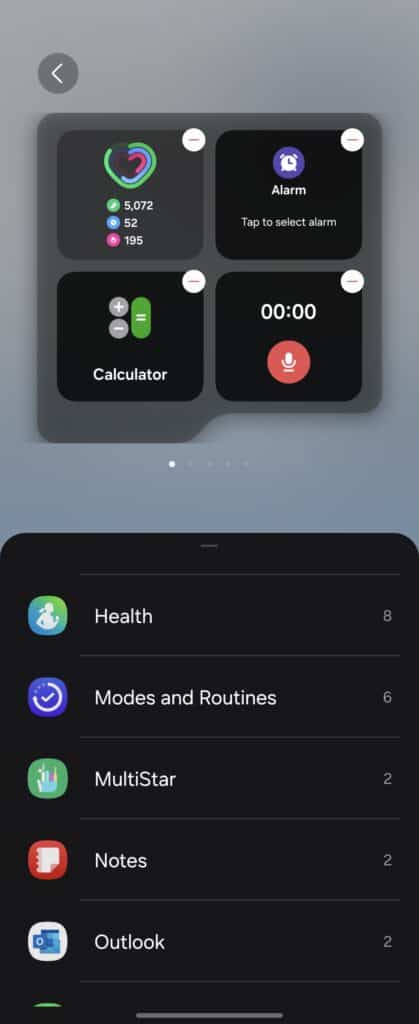
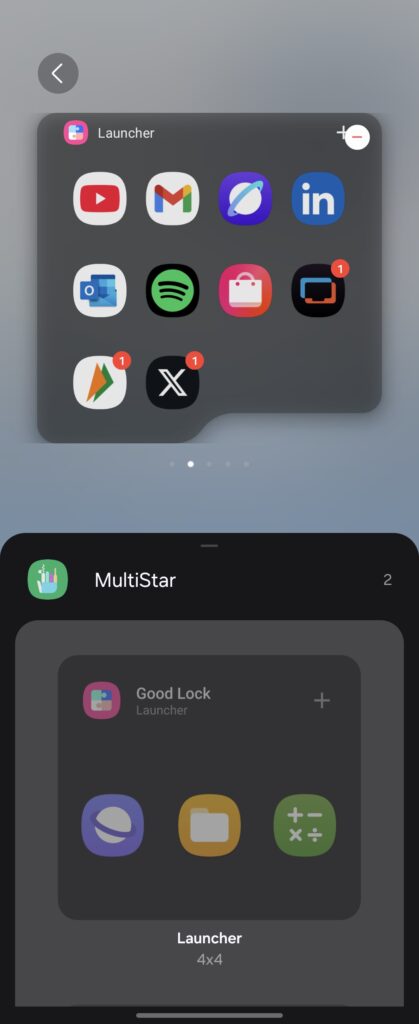
- Tap Enable Launcher Widget, scroll down to MultiStar, and tap the + button.
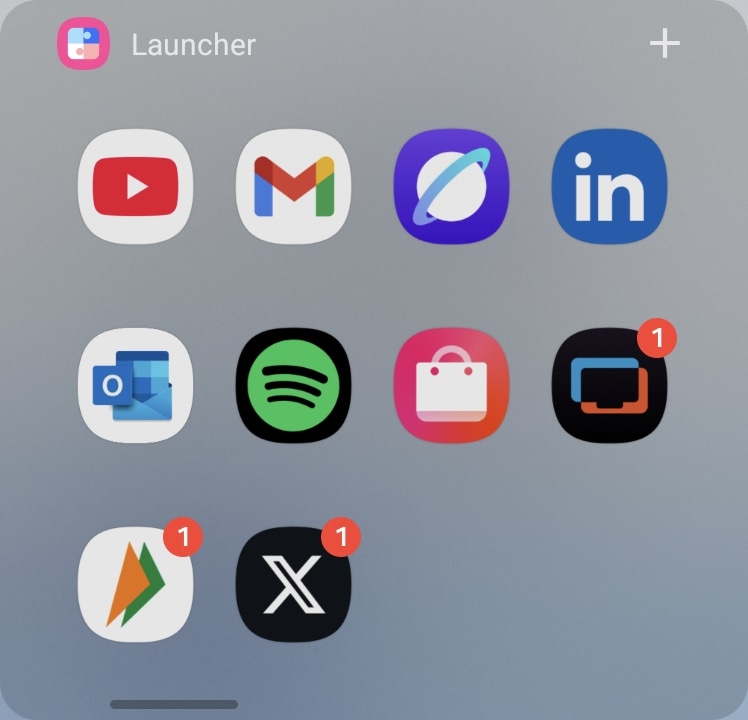
- Fold your phone, swipe left on the cover screen until you see the Launcher widget, then tap any app to open it.
Of course, even after following all these steps, there are still some limitations. Some apps won’t work as intended, mainly because of the unusual aspect ratio. Most apps aren’t designed for a 1:1 aspect ratio, which can be a bit frustrating. Still, it’s a handy trick for anyone curious to try apps on the smaller screen.
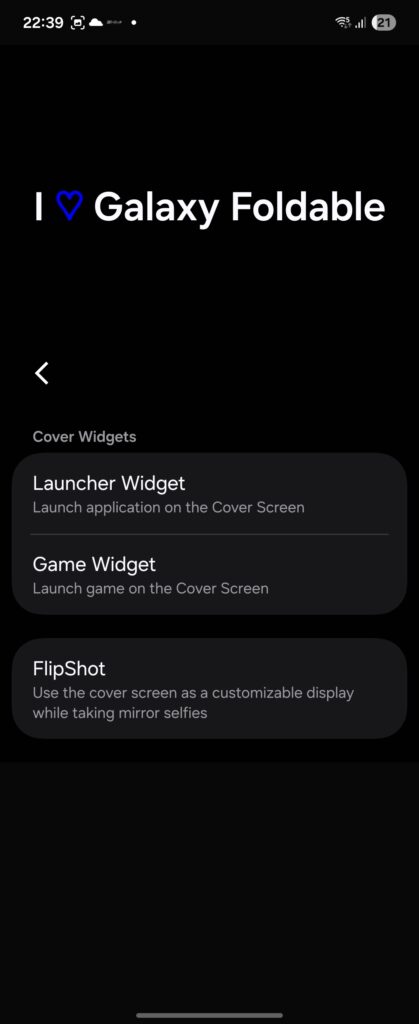
Besides that, you can also enjoy some mini games on the cover screen, included with the Good Lock package. They’re not the best, but they’re perfect for passing the time. To enable them, just follow steps (1–3) above and select the Game Widget instead. Then add it to the cover screen like any other widget.

Written by
Abhinav AnandAbhinav Anand is the News Editor at SammyGuru and a technology journalist based in New Delhi. Before joining SammyGuru, he contributed to numerous outlets, including Android Headlines, ExtremeTech, The Mac Observer, Financial Express, Economic Times, iGeeksBlog, KnowTechie, PhonesWiki, SlashGear, and more. You can reach him at abhinav@sammyguru.com.

Follow us on Google Discover & set us as a preferred source in Google News
Share this Post
___________________________


New Blog Posts
___________________________

First Set of Pixel 11 Pro XL Renders Are Here
Pixel 11 Pro XL CAD renders show minimal design changes

Is Samsung Preparing One UI 8.5 Beta for Galaxy Z Fold 5 and Flip 5?
Samsung may launch a One UI 8.5 beta program for its 2023 foldables

Galaxy S25 One UI 8.5 Beta May Run Longer Than Expected
Galaxy S25 series’ One UI 8.5 beta may stretch to 10 rounds







