
5 Tips to Make Samsung Wallet Faster — Don’t Miss #3
SammyGuru is reader-supported. We have affiliate and sponsored partnerships, so we may earn a commission when you buy through links on our site — at no extra cost to you. Learn more.
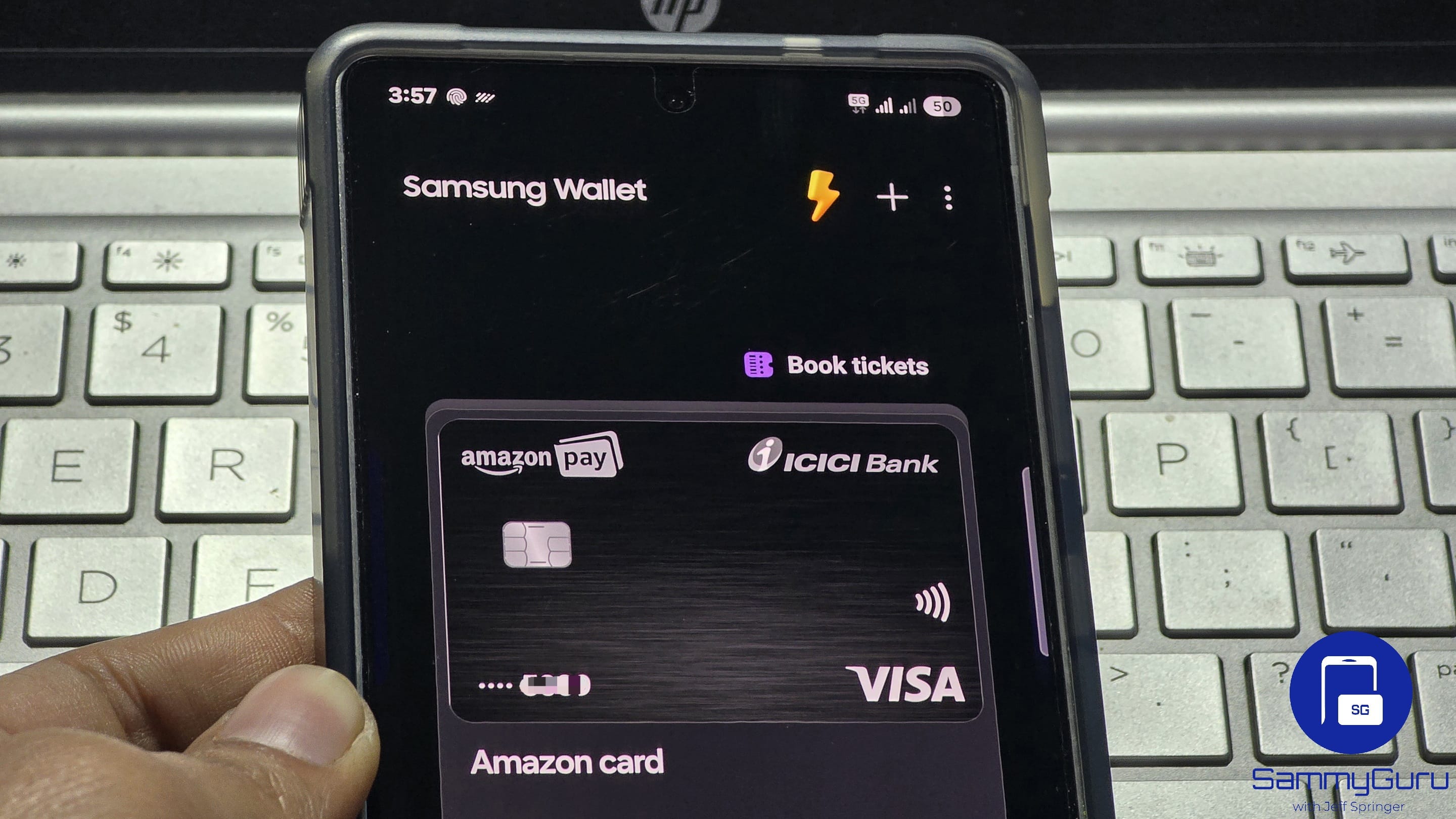
Samsung Wallet is one of the most reliable and responsive payment apps in the Android ecosystem. Besides handling payments, it can store your travel tickets, passwords, digital keys, IDs, vouchers, and more. Its versatility makes Samsung Wallet the default digital wallet for most Galaxy users. But even if the app works well for you today, you can make it significantly faster and more seamless with a few smart tweaks. Here are five tips that could enhance your experience — and yes, #3 is absolutely critical.
Tips to improve your Samsung Wallet experience
Digital payments should be fast, simple, and headache-free. The less time you spend fumbling with your phone at the checkout counter, the better. With these tips, you can take your Samsung Wallet experience to the next level, enjoying seamless digital payments everywhere.
1. Set a default payment card
If you keep more than one card stored in Samsung Wallet, scrolling through them at the terminal wastes precious seconds. You can use the swipe-down gesture to view all your cards at once, but the fastest method is to set a default payment card. Samsung Wallet will always open to this card first, regardless of what you used last time. To set one:
- Open Samsung Wallet
- Go to the All tab and Cards
- Pick your card and tap the three dots at the top right
- Choose Set as default payment card
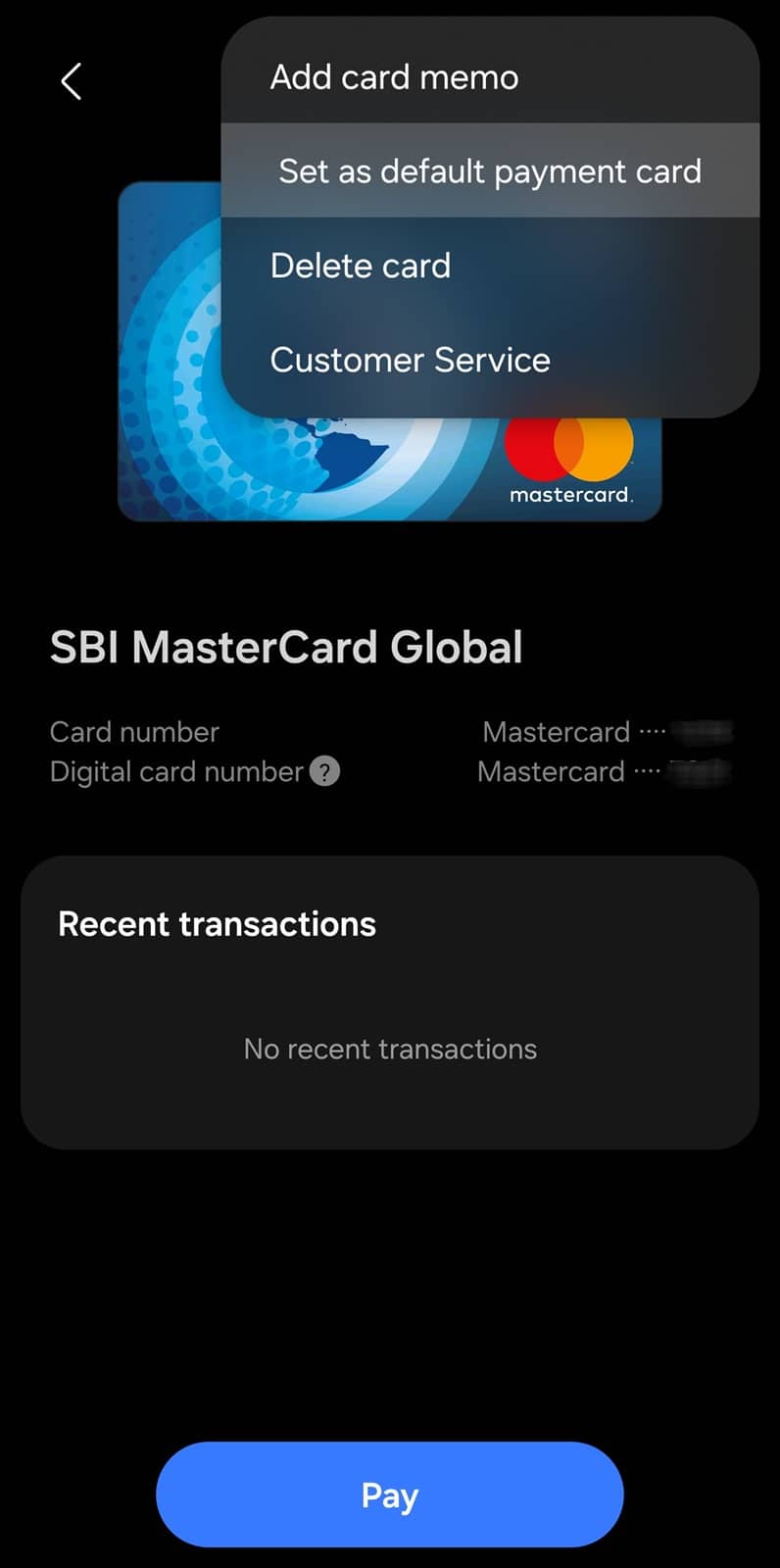
Switching defaults later is just as easy. Of course, this doesn’t apply to you if you have stored only one card in Samsung Wallet.
2. Set Samsung Wallet as your default payment app
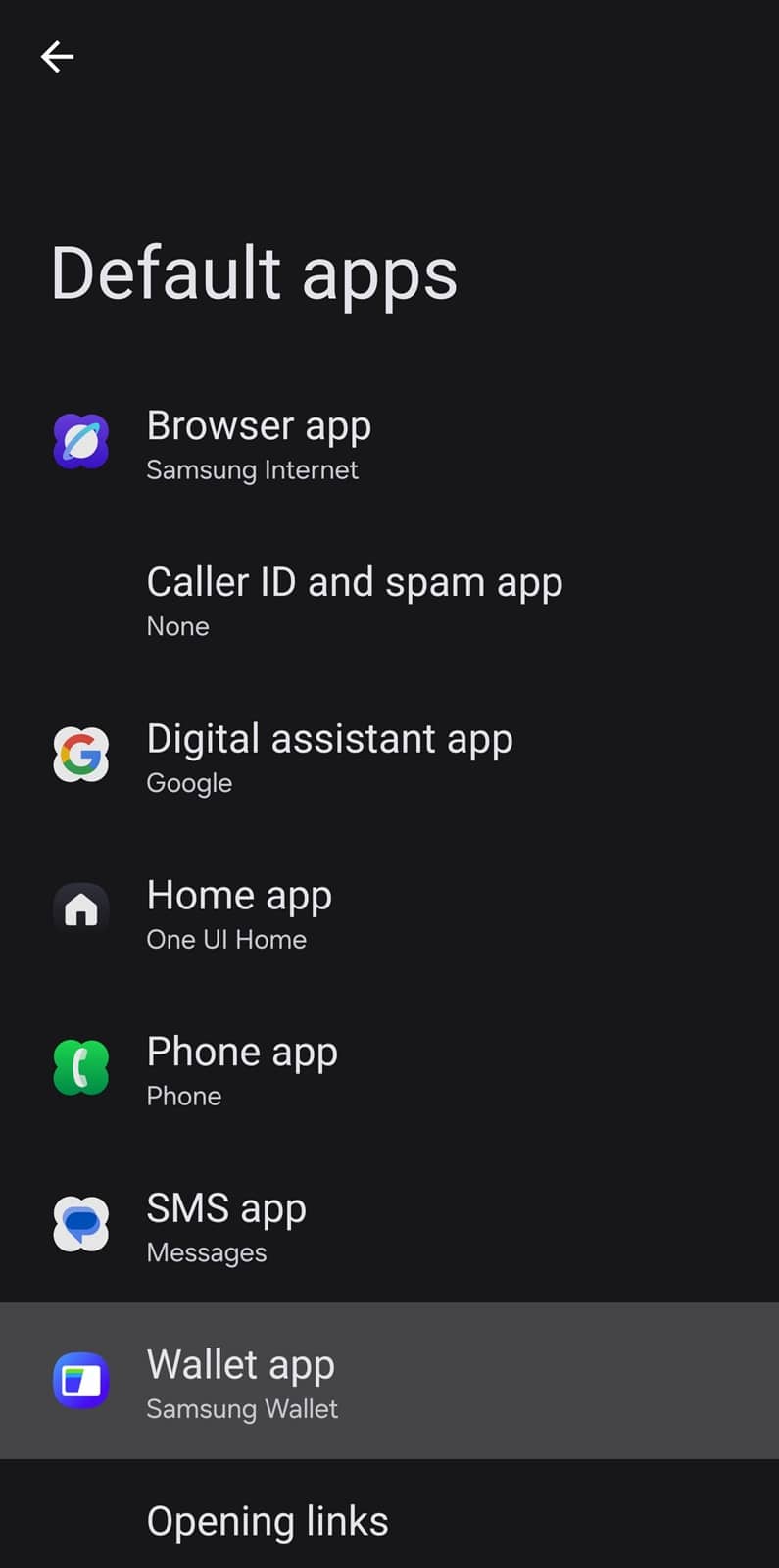
Many of us have more than one payment app installed on our phones. It’s often a necessity. However, if you primarily use Samsung Wallet, set it as the default payment app to speed things up. If another wallet app is set as the default, your phone may prompt you every time you tap a terminal, slowing everything down. To avoid this:
- Go to Settings > Apps > Choose default apps > Wallet app
- Select Samsung Wallet
3. Know exactly where your phone’s NFC coil is
This is the step most people overlook, and the one that makes the biggest difference. Payments may fail or slow down, not because of the app, but because the NFC coil isn’t aligned properly with the terminal. To find your phone’s optimal alignment:
- Go to Settings > Connections > NFC and contactless payments
- View the built-in positioning demo
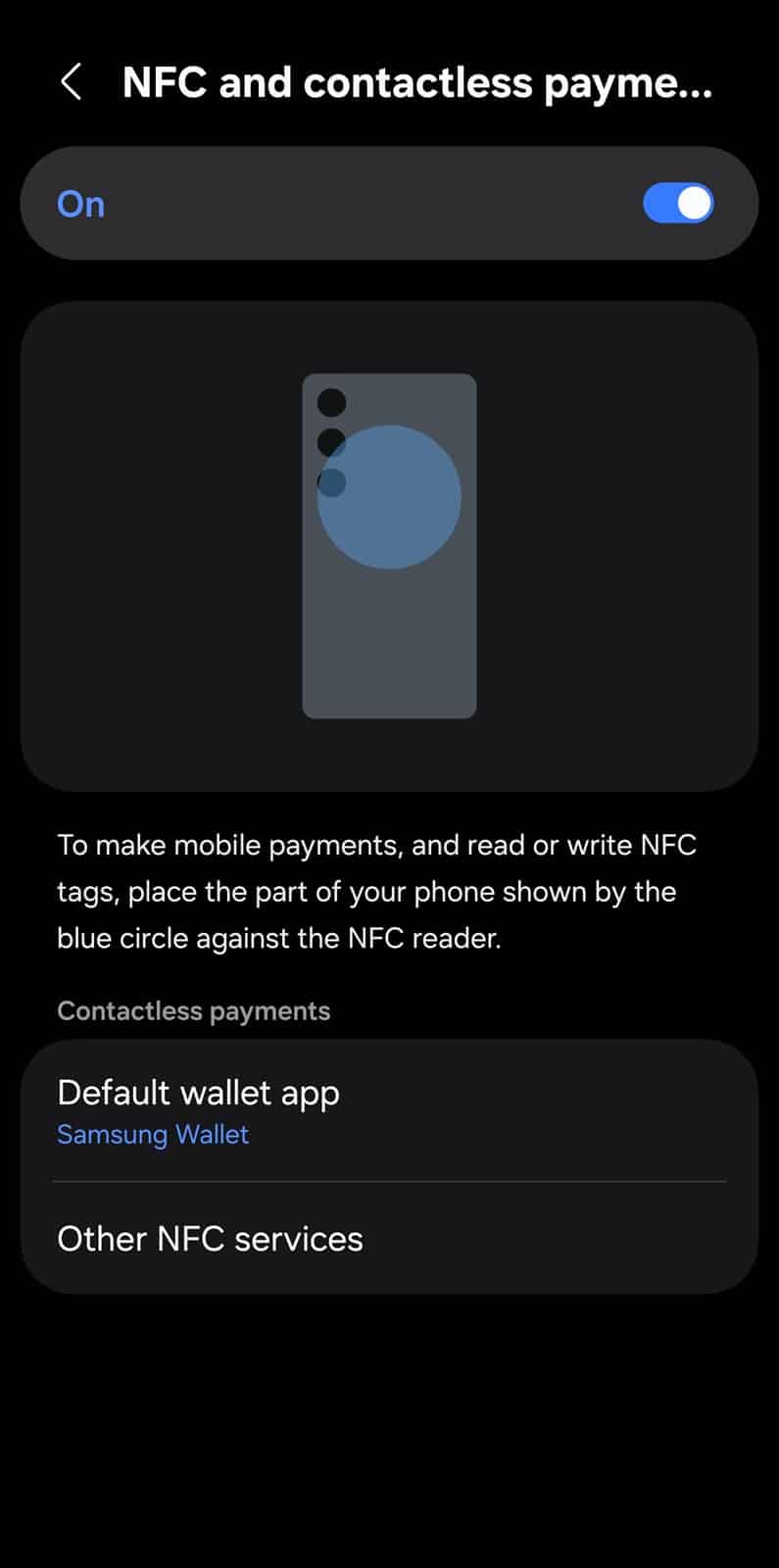
Every Galaxy model places the coil slightly differently, so check again if you switch devices. Correct alignment makes your phone read the terminal instantly.
4. Customize Quick Access
If you have a lot of cards, IDs, and other stuff stored in Samsung Wallet, your Quick Access panel may be crowded. Customize it to keep the most important stuff within easy reach. Follow these steps:
- Open Samsung Wallet
- Tap the three dots at the top right and select Edit Quick Access
- Remove less important stuff (tap the minus icon)
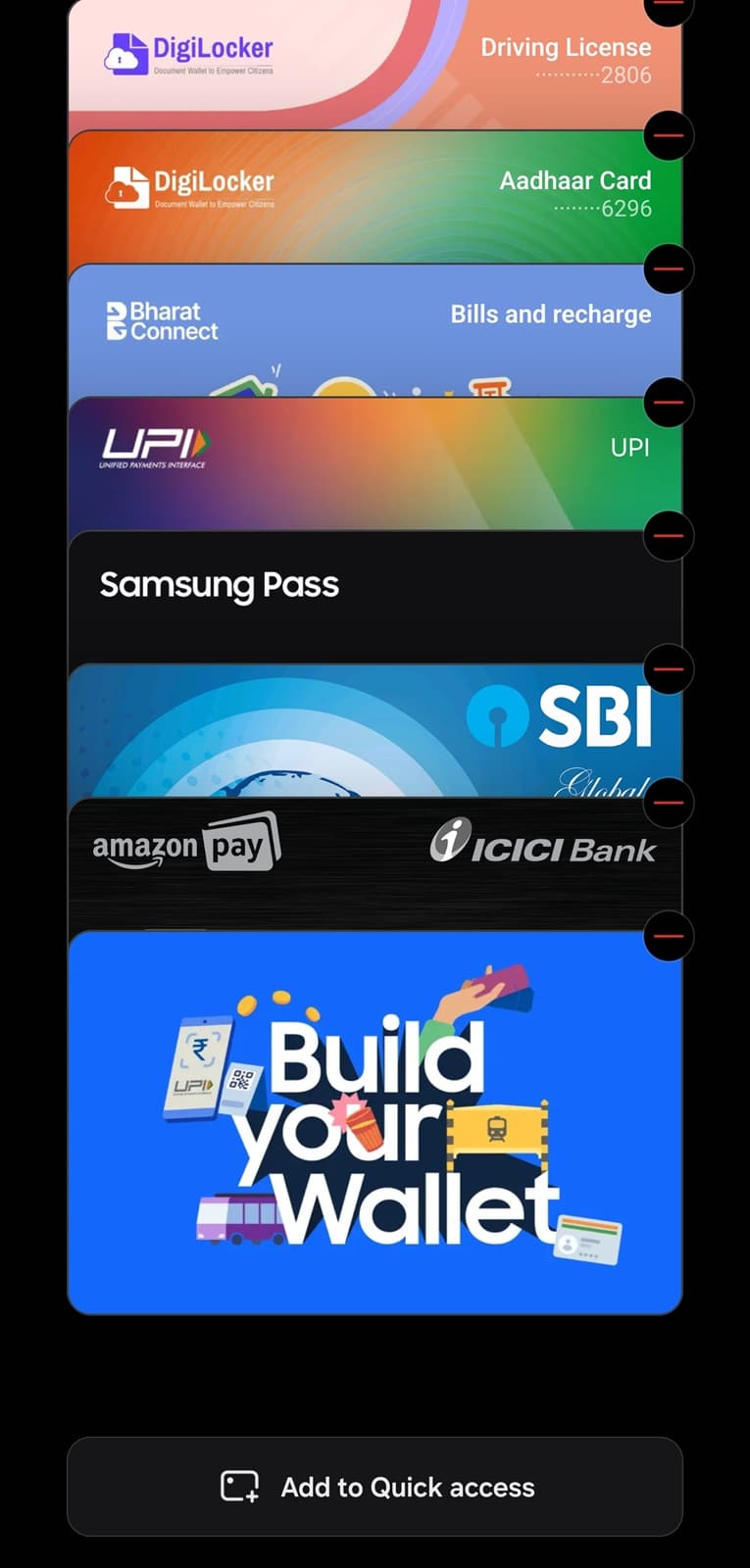
You can also press and hold any card or ID to rearrange its position. By reordering your items, you can keep your essential cards at the top, reduce scrolling, and speed up your overall Samsung Wallet experience.
5. Use shortcuts for instant launching
Setting Samsung Wallet as the default and selecting a default card is half the battle. Use your phone’s built-in shortcuts to launch the app in a jiffy. To do that:
- Open Samsung Wallet
- Tap the three dots at the top right and select Settings
- Go to Quick access
- Enable Swipe up gesture, so you can launch the app by swiping up from the bottom of the screen
- Set Side button to Quick launch Samsung Wallet to launch the app with a double-press of the power button
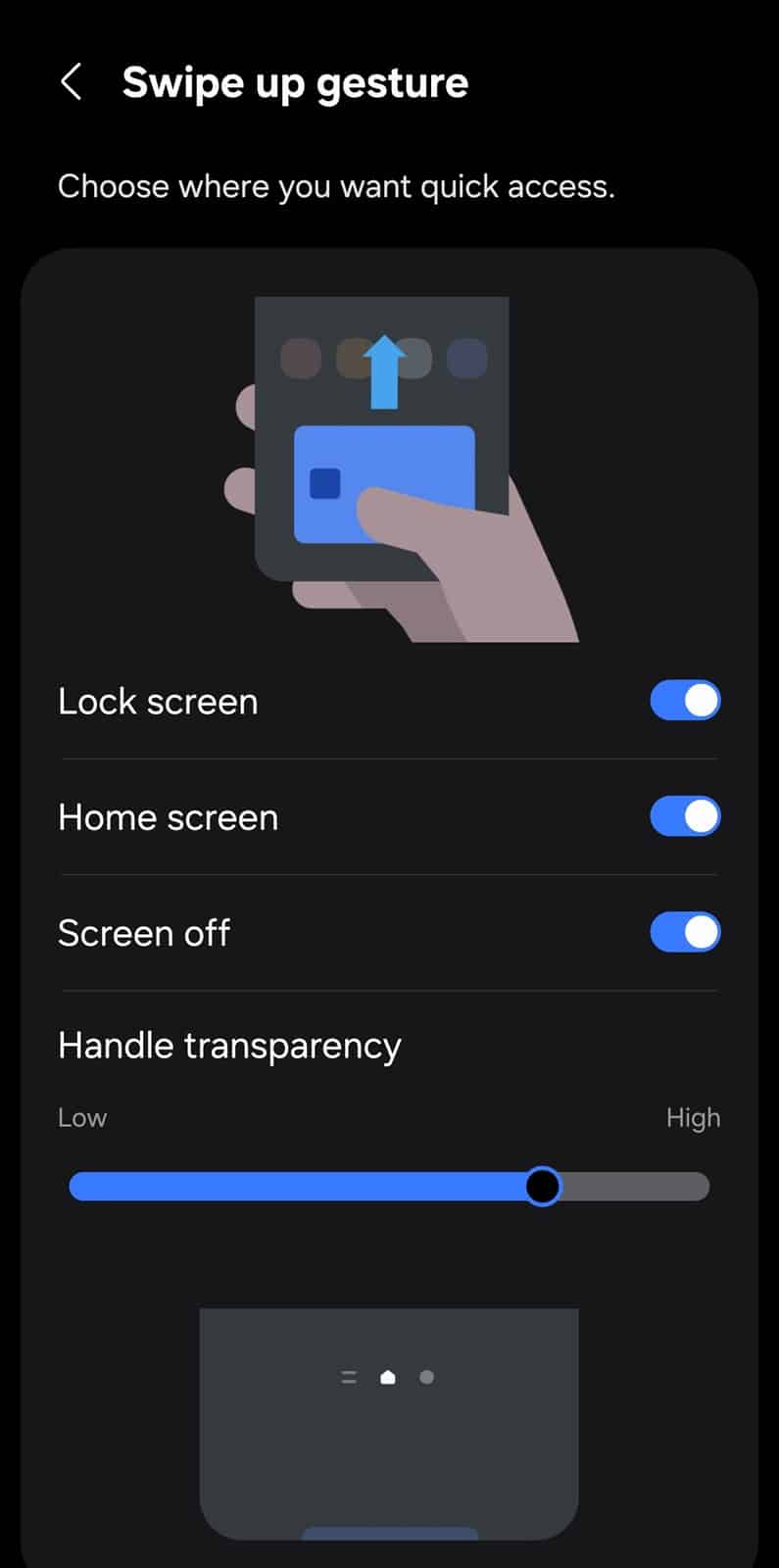
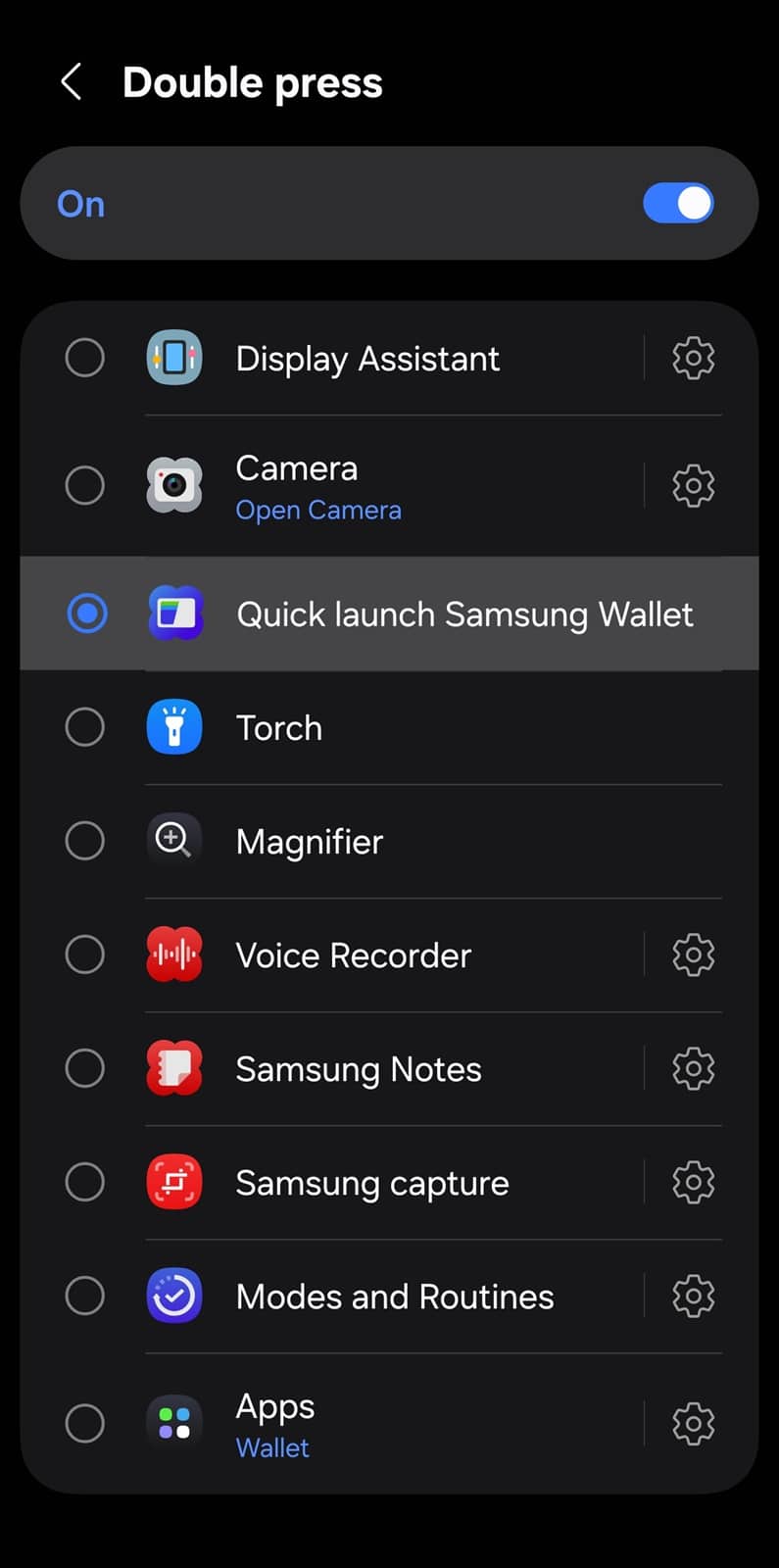
You can enable both at once. The swipe gesture is particularly useful because it can be configured to work even when the screen is off. Just be mindful of accidental triggers.
Bonus tip: While Samsung Wallet excels at fast, hassle-free digital payments, it’s just as powerful when it comes to storing your passes, IDs, digital keys, and other essentials. On top of that, Samsung frequently runs promotional offers, giving users access to discount coupons and vouchers from partner merchants. To check current promotions, head to the All tab in the app and scroll down to Promotions.

Written by
Sumit AdhikariSumit, a life-long Samsung user, is passionate about technology and has been professionally writing on tech since 2017. He’s a mathematics graduate by education and enjoys teaching basic mathematics tricks to school kids in his spare time. Sumit believes in artificial intelligence and dreams of a fully open, intelligent and connected world.

Follow us on Google Discover & set us as a preferred source in Google News
Share this Post
___________________________


New Blog Posts
___________________________

First Set of Pixel 11 Pro XL Renders Are Here
Pixel 11 Pro XL CAD renders show minimal design changes

Is Samsung Preparing One UI 8.5 Beta for Galaxy Z Fold 5 and Flip 5?
Samsung may launch a One UI 8.5 beta program for its 2023 foldables

Galaxy S25 One UI 8.5 Beta May Run Longer Than Expected
Galaxy S25 series’ One UI 8.5 beta may stretch to 10 rounds







