
4 Easy Ways to Take Screenshots on Your Galaxy Phone (#3 Will Surprise You)
SammyGuru is reader-supported. We have affiliate and sponsored partnerships, so we may earn a commission when you buy through links on our site — at no extra cost to you. Learn more.
Taking a screenshot is one of the most common actions on a smartphone, but Samsung gives you far more options than you might realize. Whether you’re saving a conversation, capturing a funny meme, or keeping a record of something important, you can take a screenshot on your Galaxy phone in more ways than just the default button combo. Here are four clever methods — and #3 might just blow your mind.
Galaxy users can use these methods to take screenshots on their phones
There are plenty of moments when you might need to capture what’s on your screen. While the default method works fine, it’s not always the most convenient for everyone. Fortunately, your Galaxy phone offers several alternatives that can make the process faster or more comfortable, depending on your preference. Here are four easy ways to take a screenshot, starting with the classic button combo for those who might not be familiar with it.
1. The standard button combo (fast and familiar)
The most common way to take screenshots on Galaxy phones is still the simplest: pressing the volume down and power buttons together. It’s quick, reliable, and works on almost every Galaxy device right out of the box. But if that’s not your preferred method, there are several handy alternatives worth trying.
2. Navigation bar shortcut via NavStar (always within reach)
If you’d rather tap than press buttons, the NavStar module in Samsung’s Good Lock app lets you add a screenshot shortcut directly to your navigation bar. One tap and you’ve got your shot — no finger gymnastics required. Here’s how to do it:
- Launch Good Lock and go to the NavStar module (Download Good Lock here)
- Click on New configuration
- Switch to the Button layout tab and select Add button
- Select the Screen capture button (you can add up to two additional shortcuts to the navigation bar)
-
- On the top preview, your added shortcuts appear on the left of the default navigation bar — press and hold the buttons to move them to the desired location
- Once ready, tap Done
- If you want to customize the icons, switch to the Icons tab — hit Save when done
- Your newly created navigation bar appears at the bottom — select to apply
- If you want to customize it further, press and hold the bar and select Edit
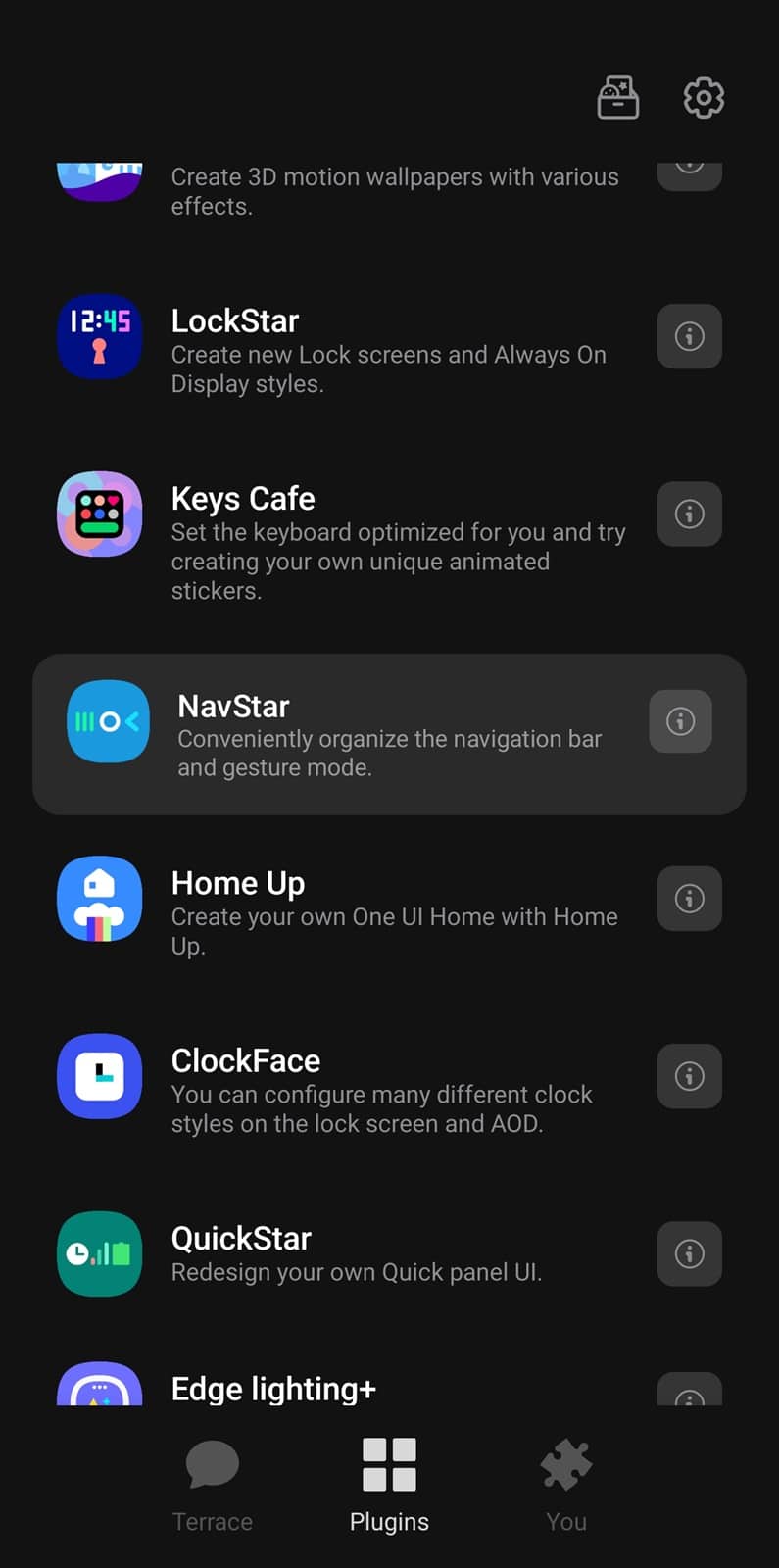
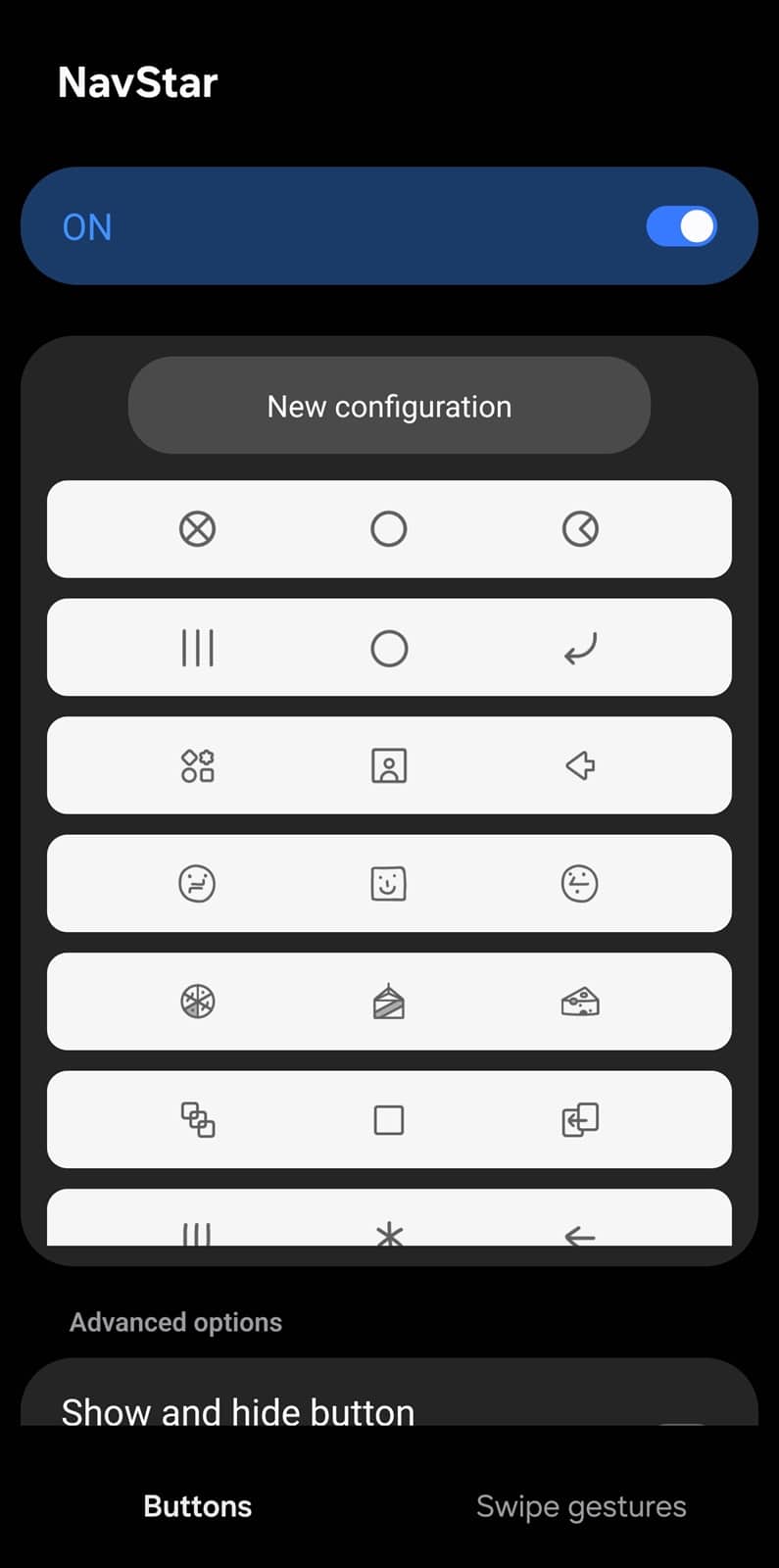
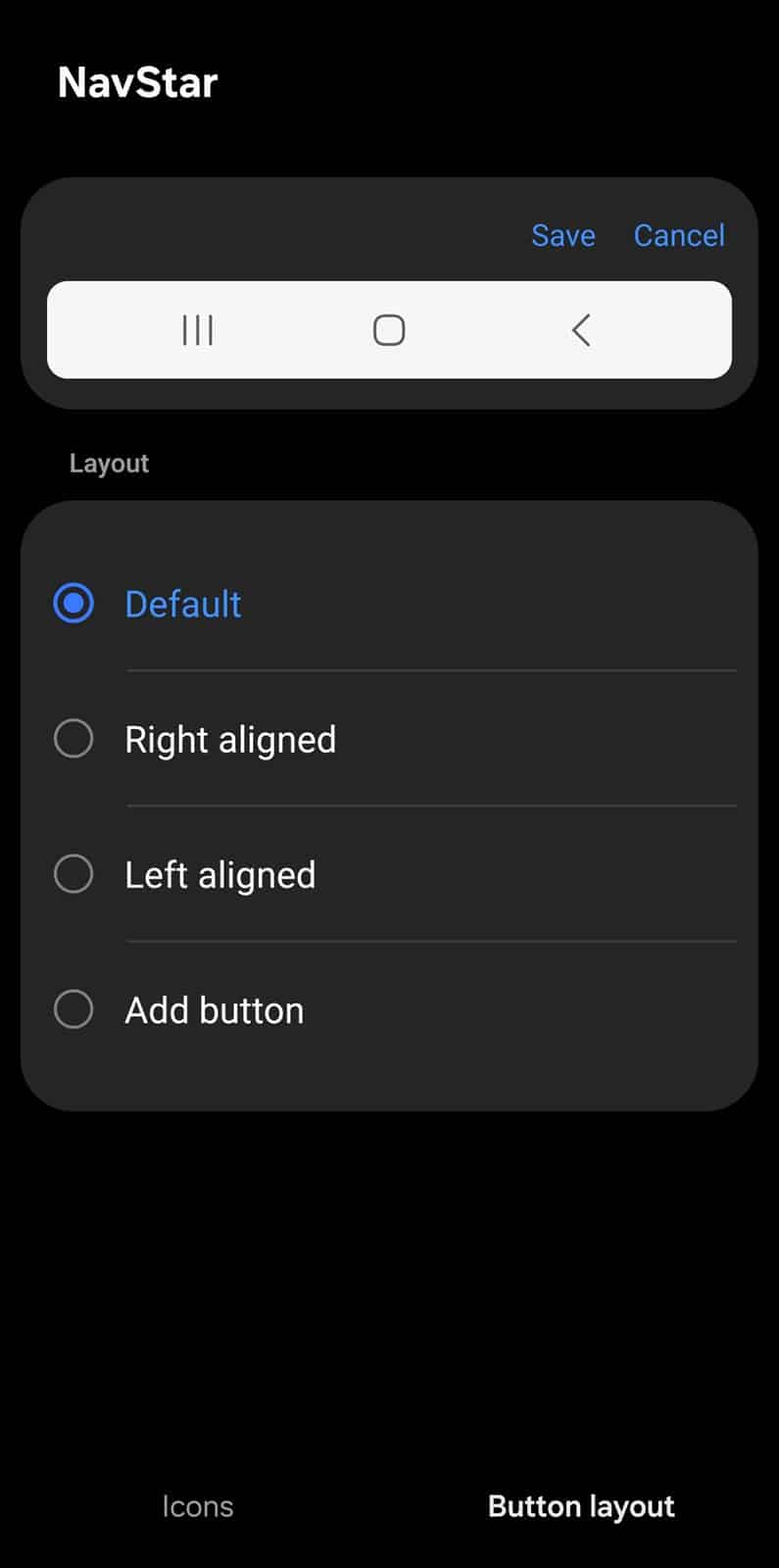
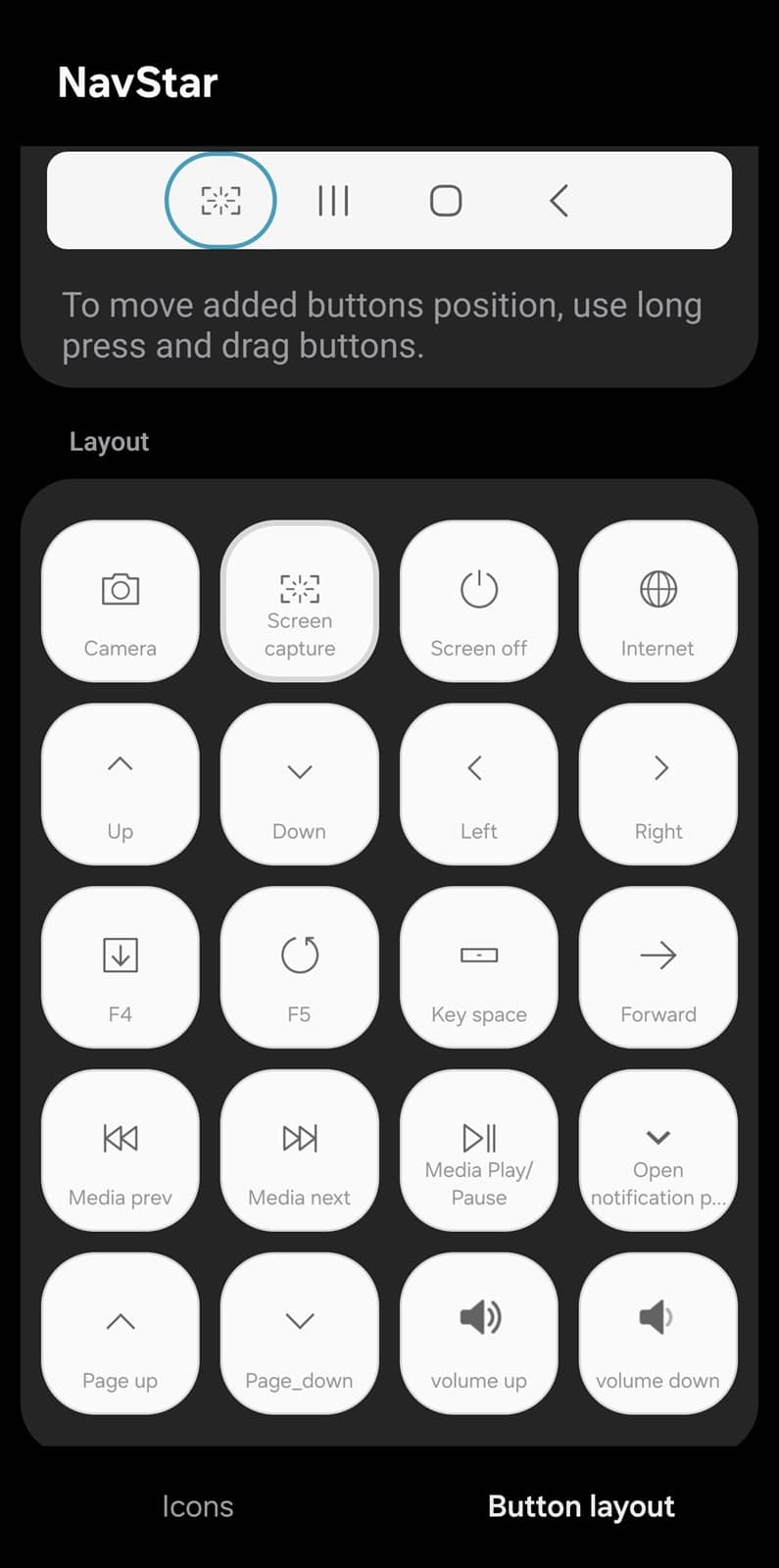
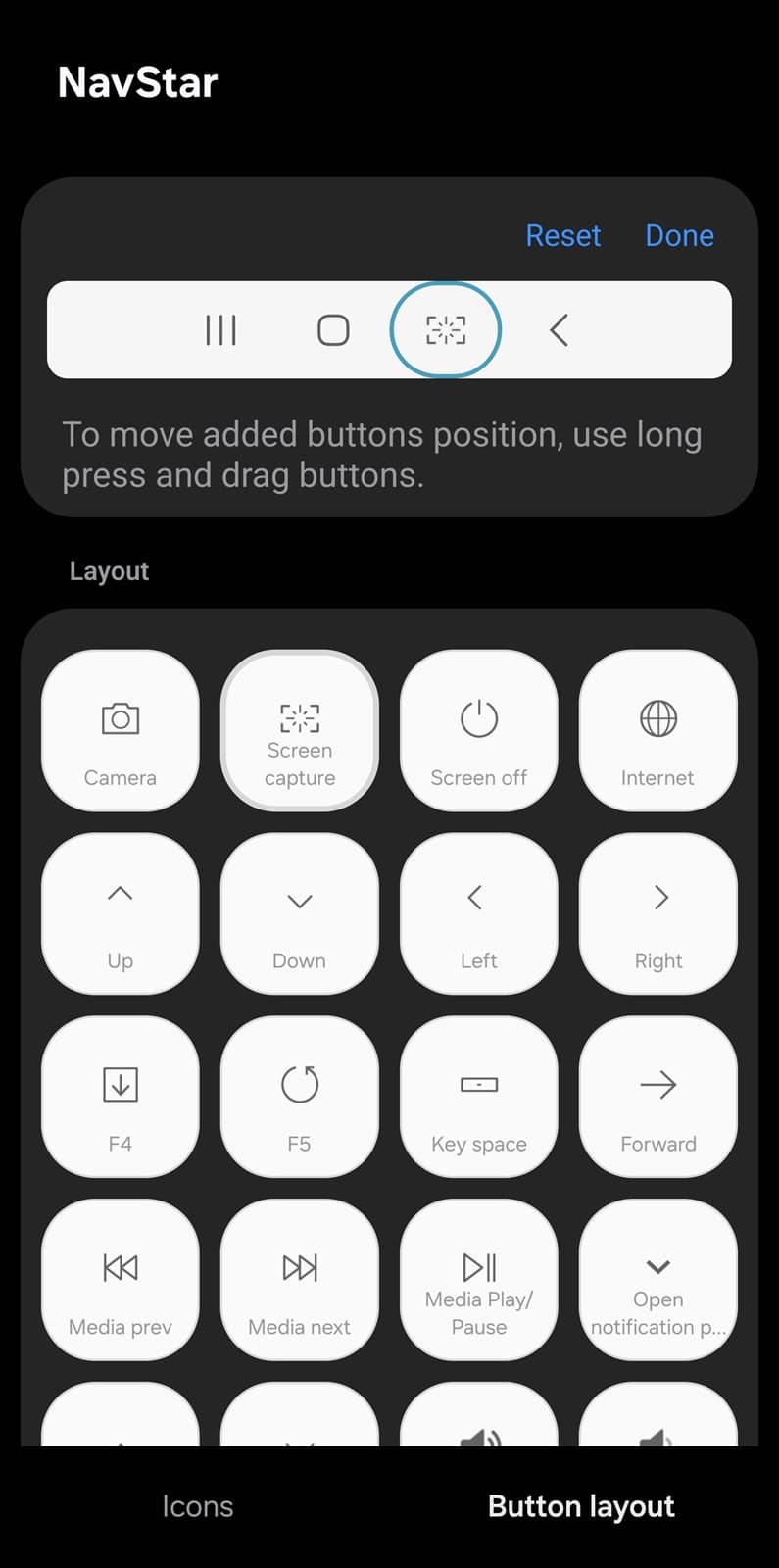
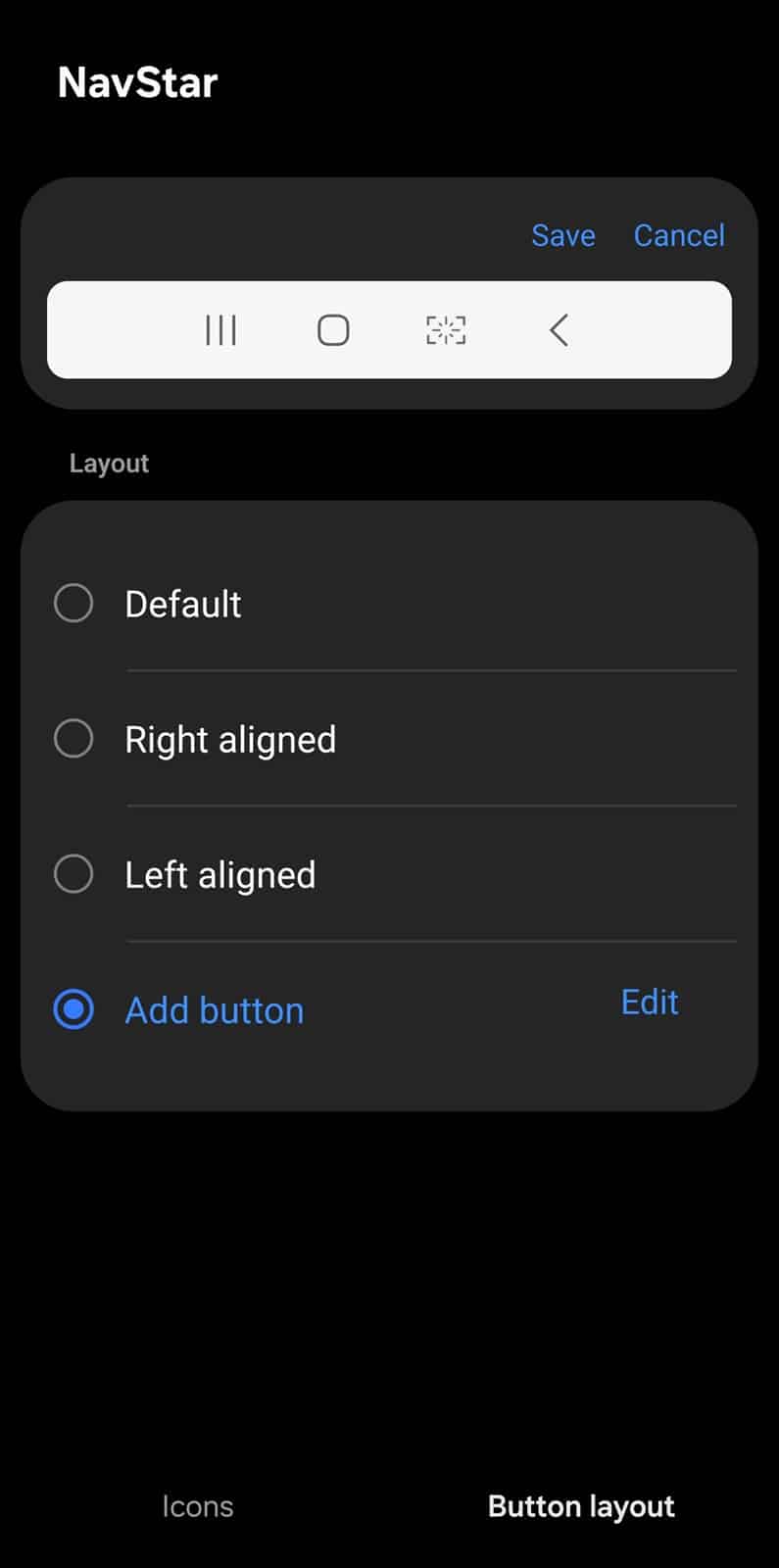
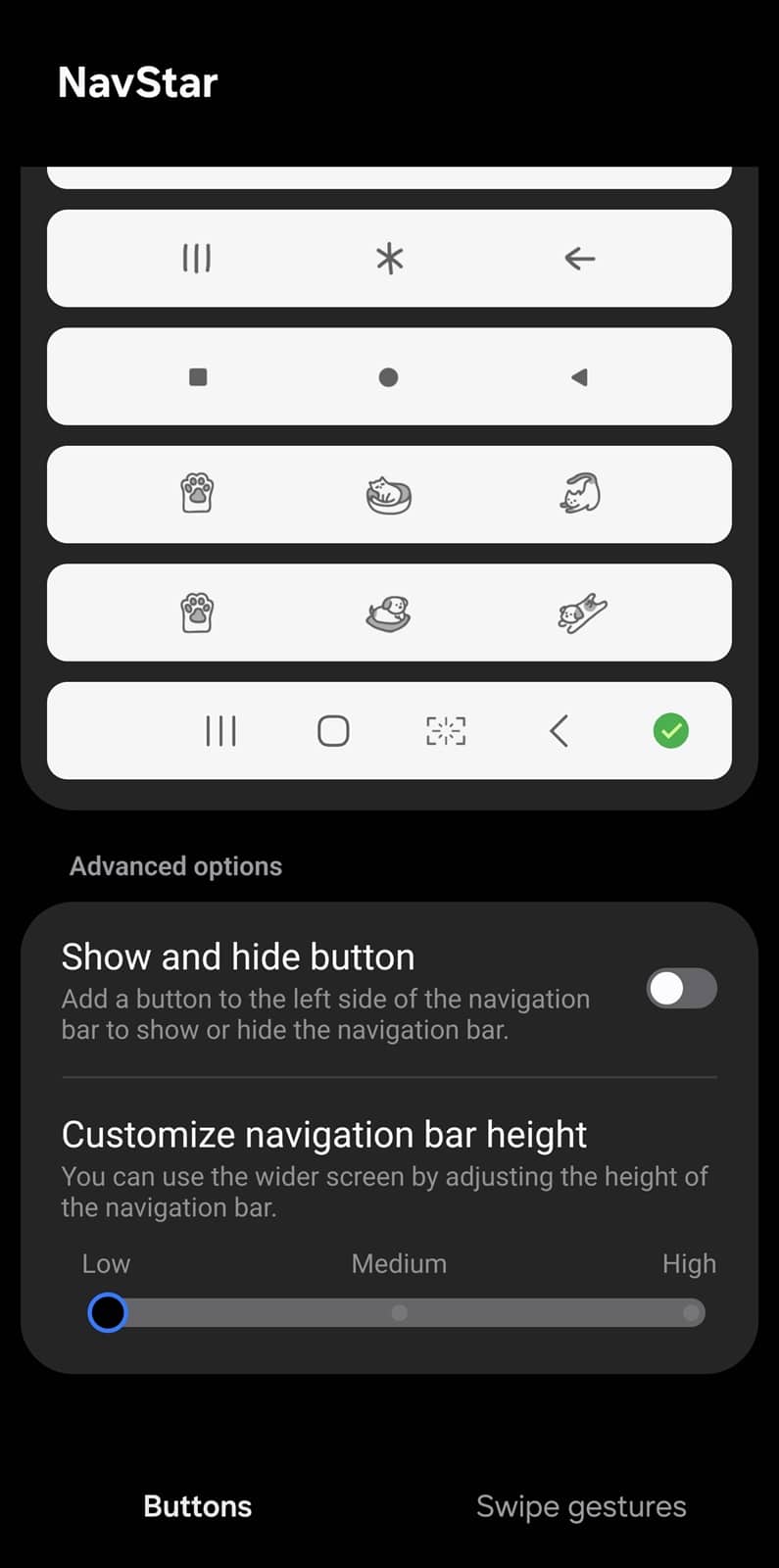
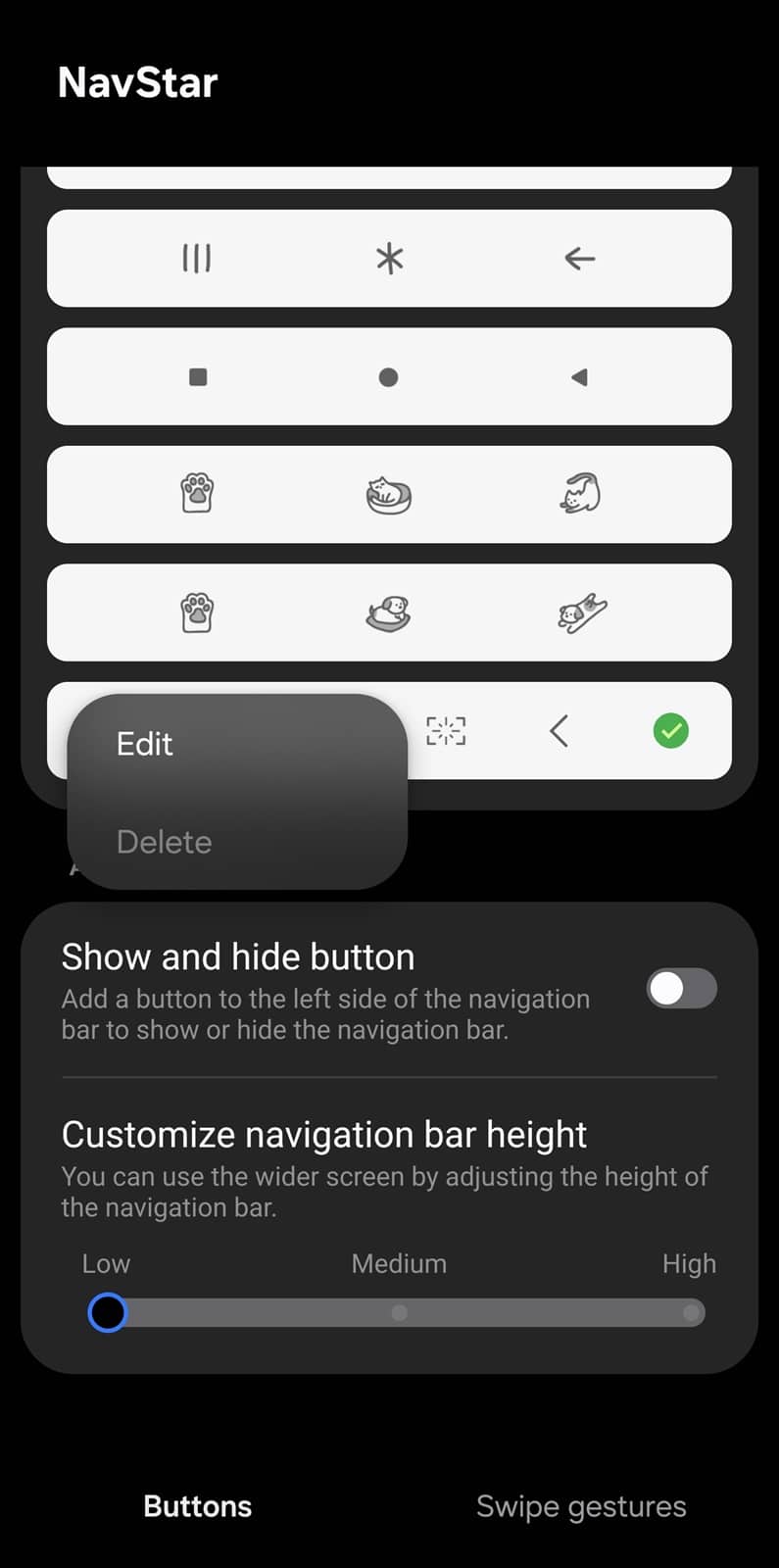
Now, you have a screenshot shortcut on your navigation bar. Simply tap it to grab your screen anytime.
3. Back tap with RegiStar (the surprising gesture)
Here’s where things get interesting: you can set a double-tap or triple-tap on the back of your phone to take a screenshot. Using the RegiStar Good Lock module, you can turn your phone’s back panel into a hidden shortcut. It feels almost magical the first time you try it. Here’s how to set it up:
- Launch Good Lock and go to the RegiStar module
- Select Back-Tap action and toggle it On
-
- Go to Double Tap and select Take and share screenshot — you can further customize the action from the Gear icon next to this option (Basic gives you the regular screenshot menu after capturing the screen, while Share pulls up the full share sheet so you can instantly share your screenshot)
- If you wish, you can set this action to the Triple Tap gesture, or both
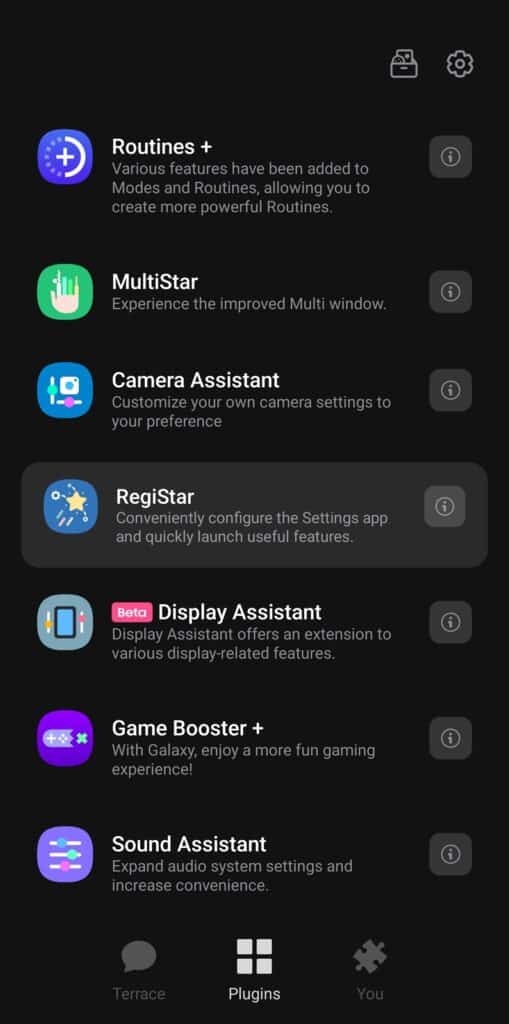
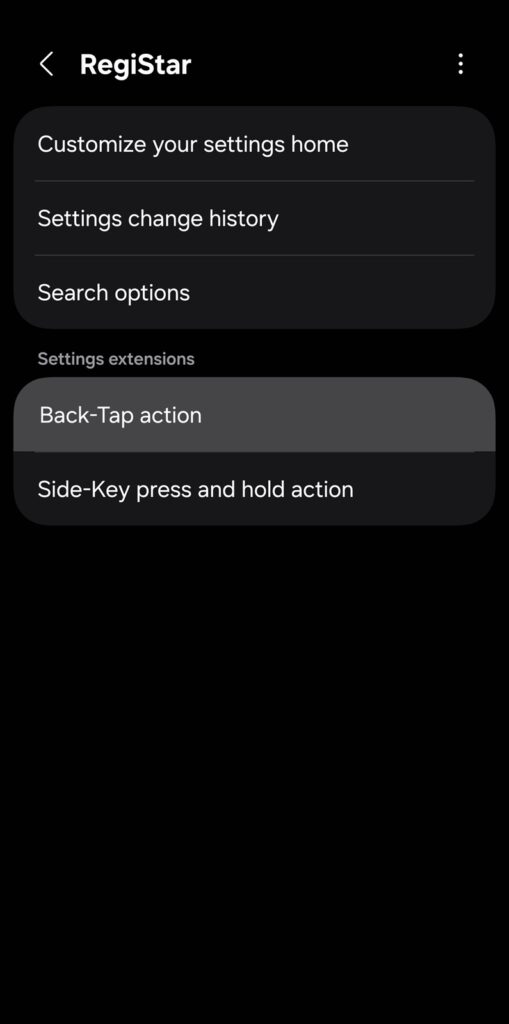
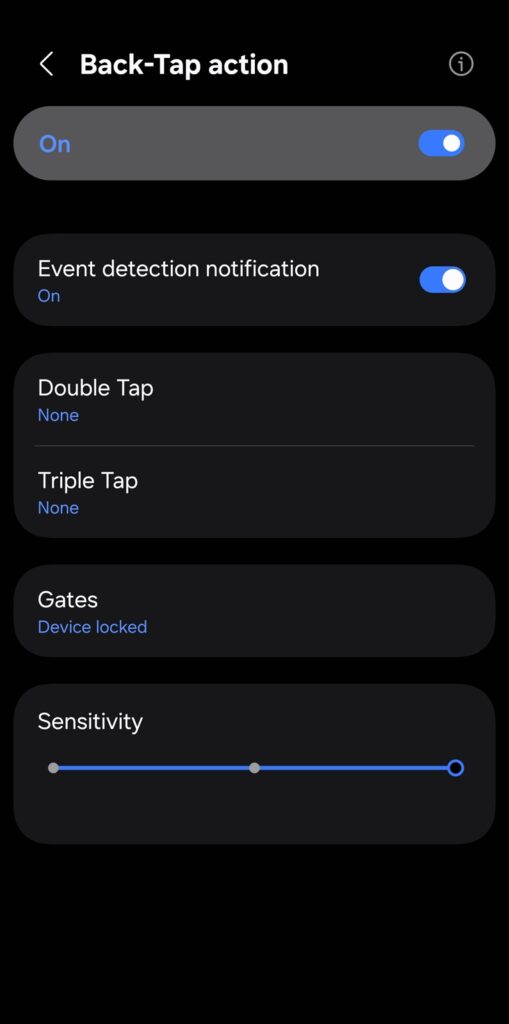
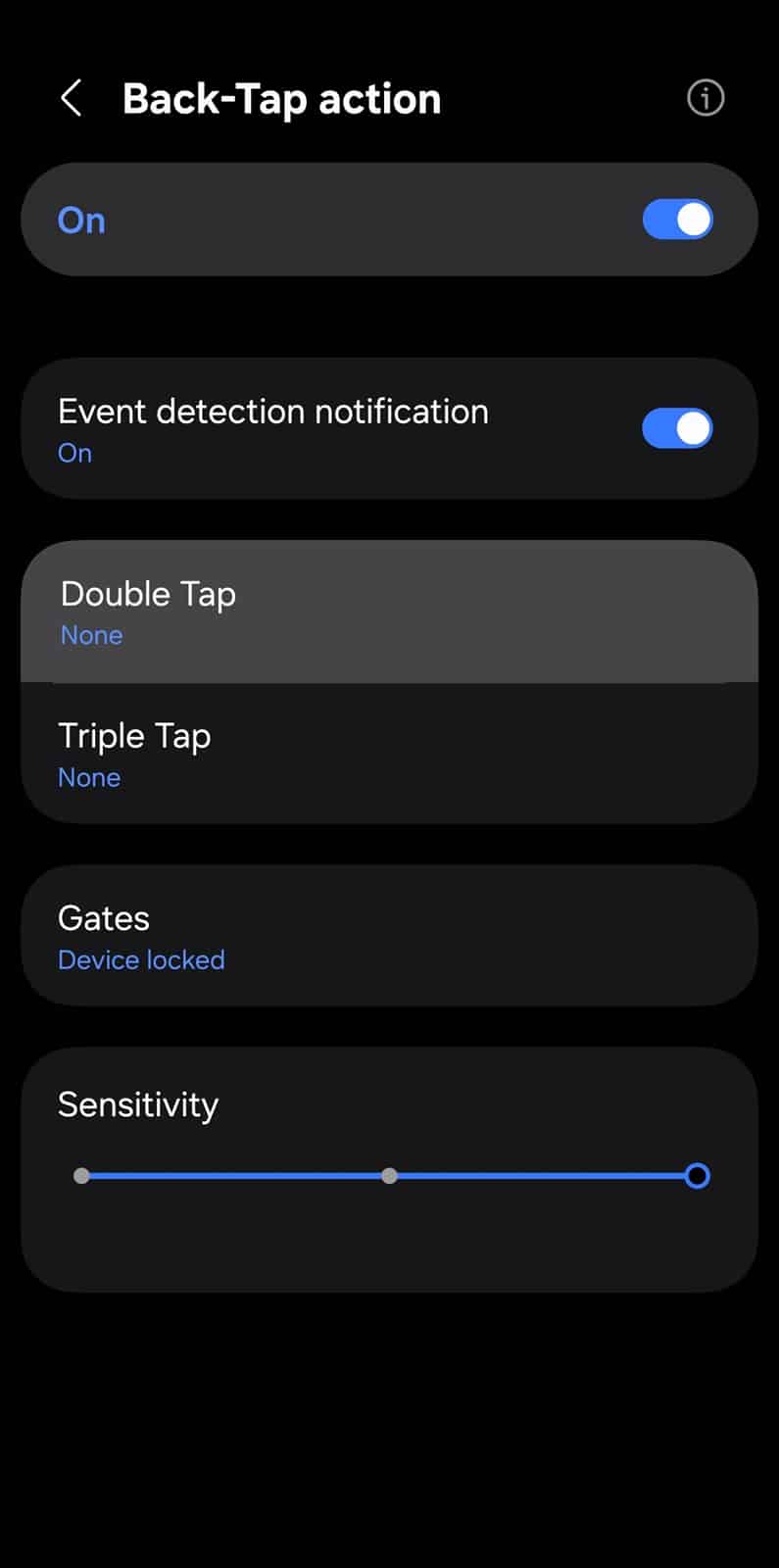
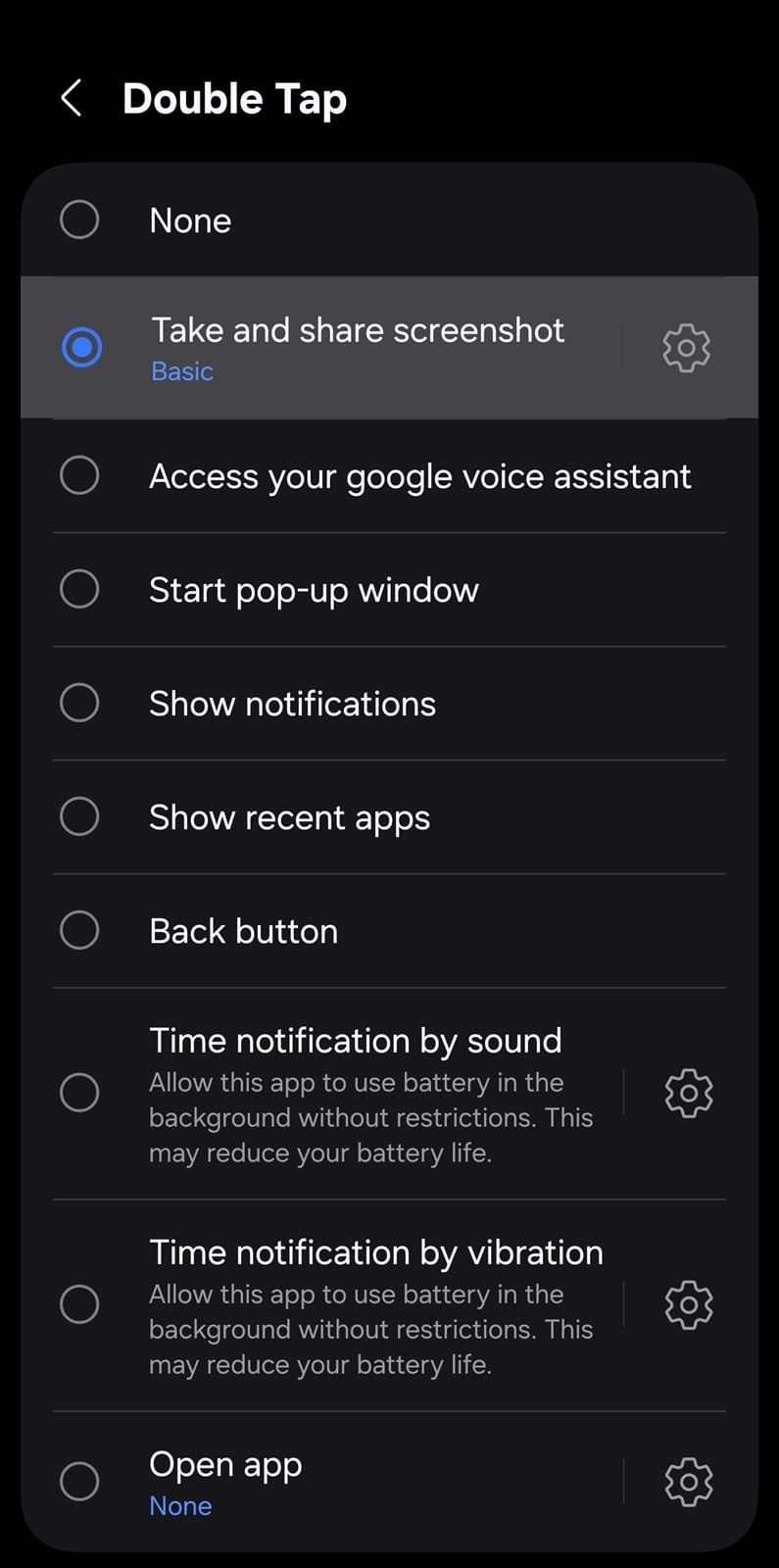
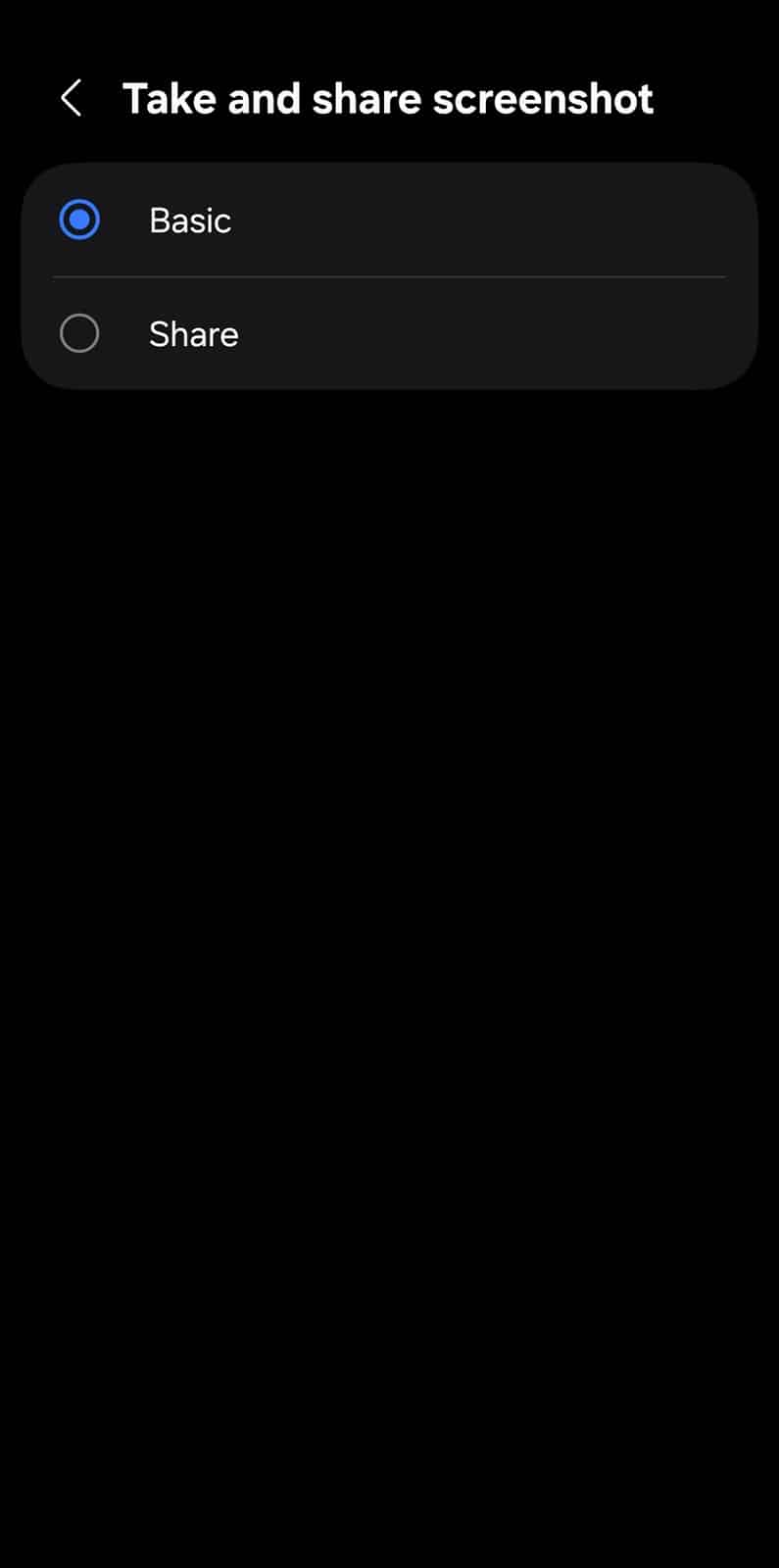
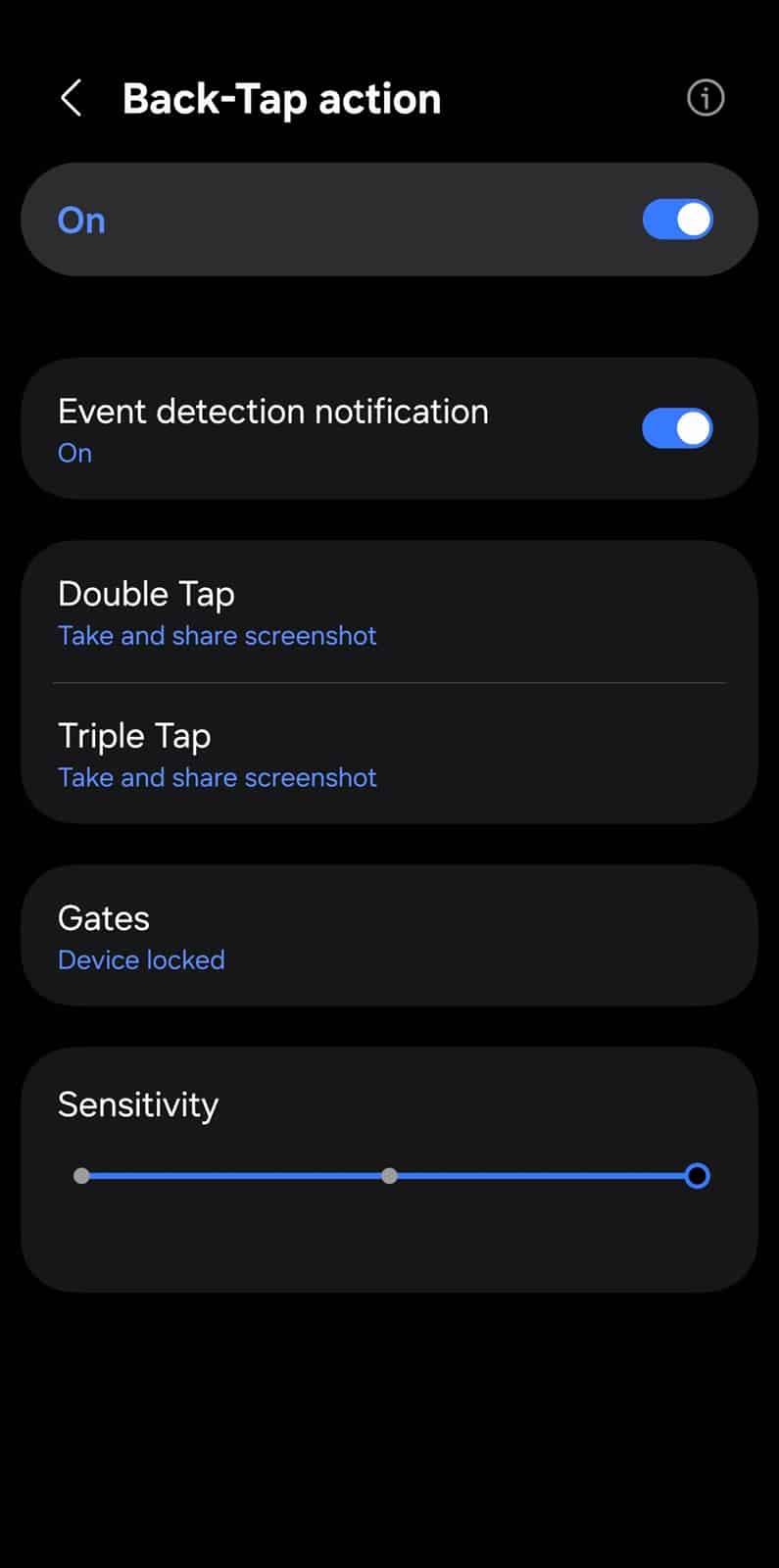
That’s it! Now every time you need to take a screenshot on your Galaxy phone, double tap on the back and boom! Your screenshot is ready.
4. One Hand Operation+ handle (swipe to snap)
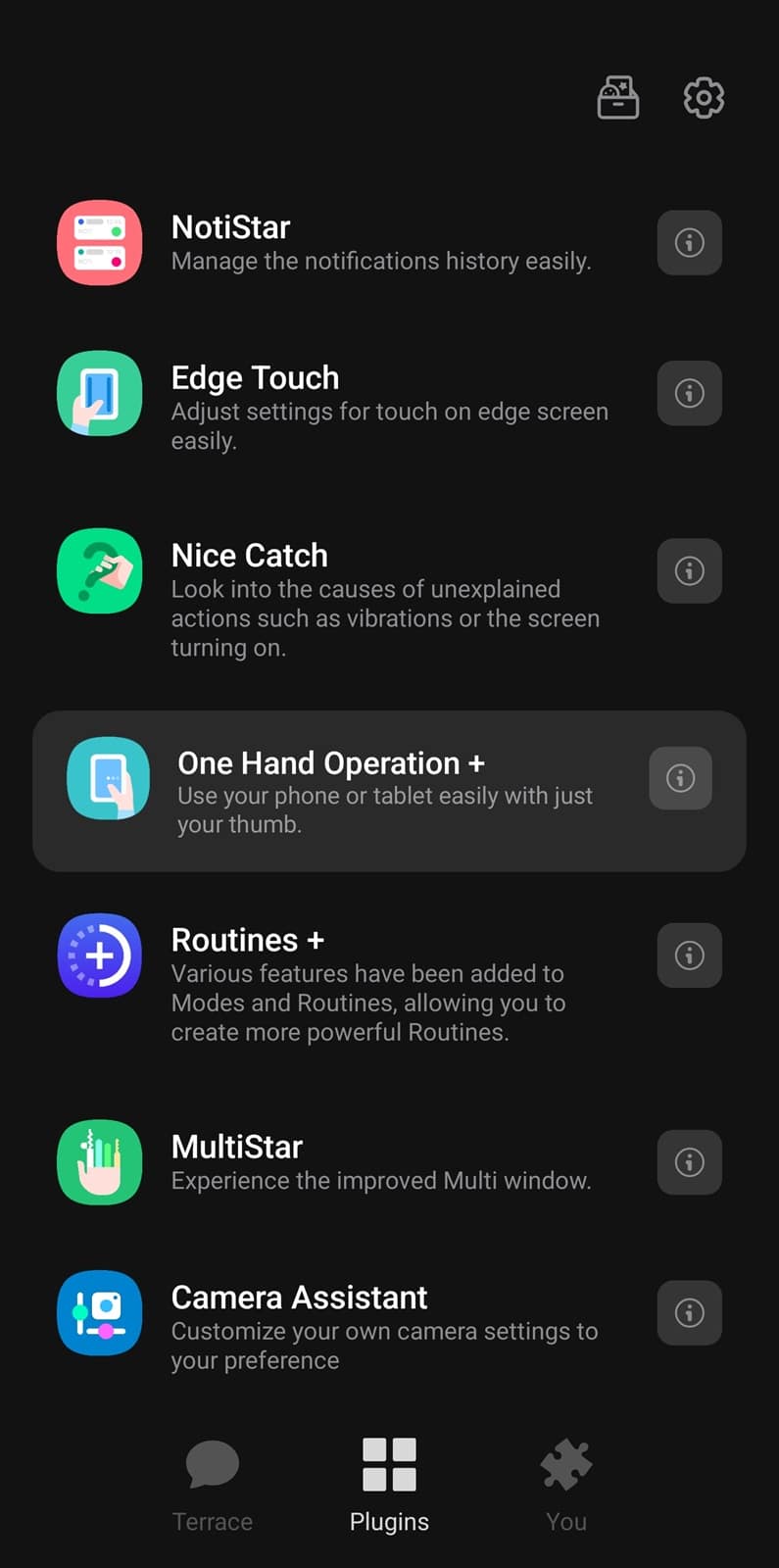
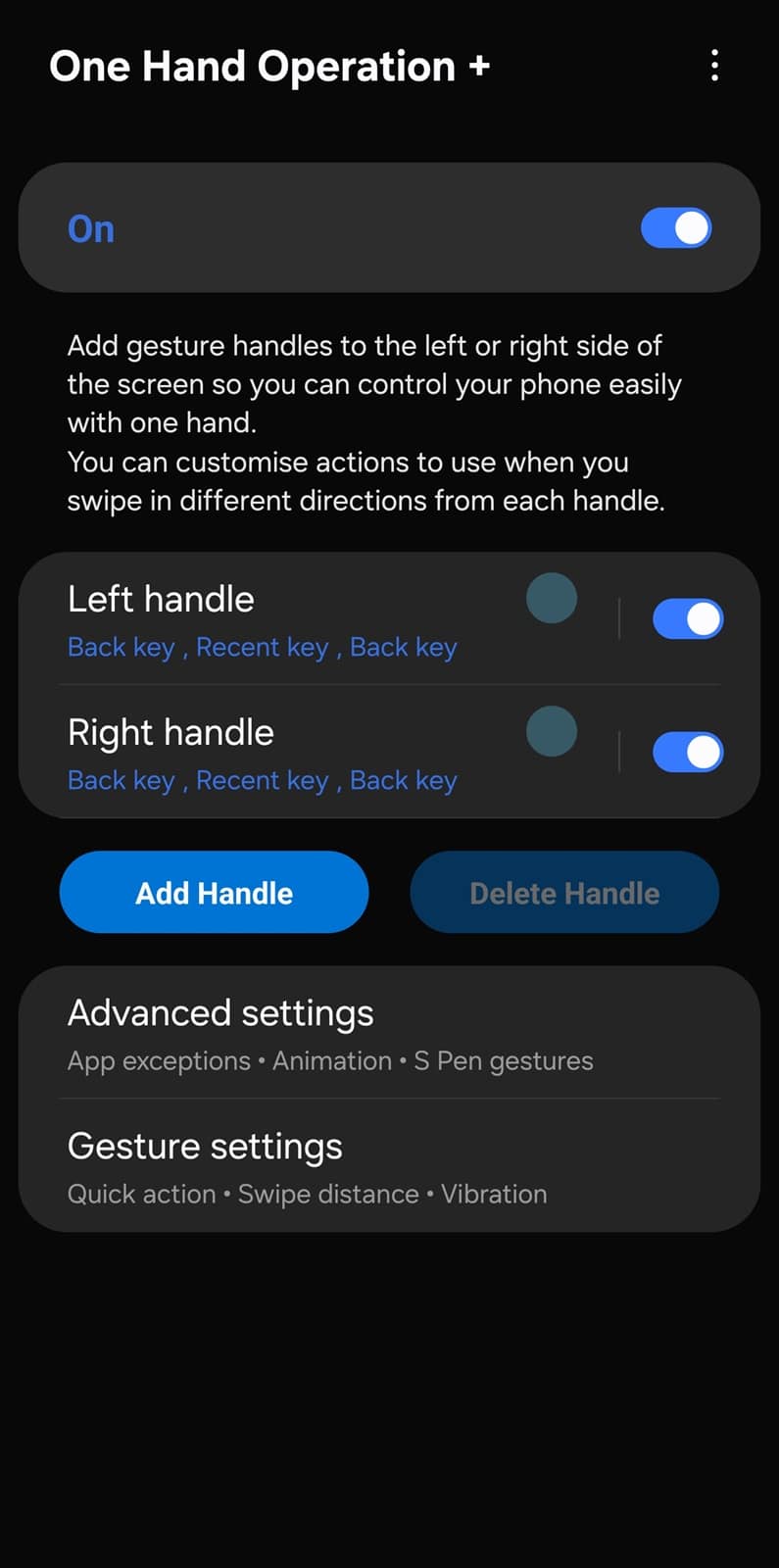
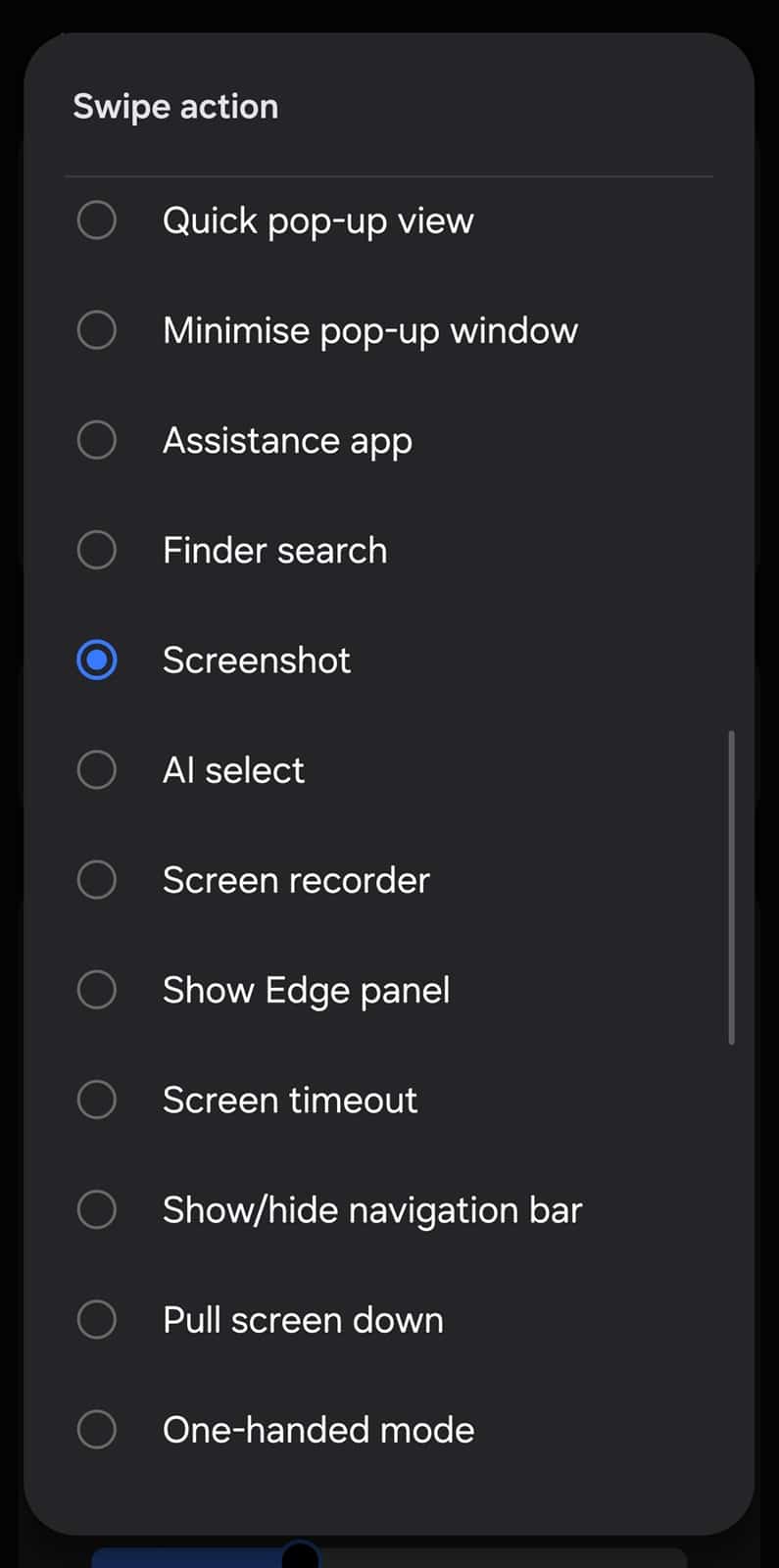
For the gesture fans, One Hand Operation+ lets you assign a swipe from the side handle to instantly capture your screen. It’s perfect if you’re holding something in your other hand or want a smooth, one-handed action. Follow these steps to enable it:
- Launch Good Lock and go to the One Hand Operation+ module
- You can customize the existing handle or create a new one by tapping Add Handle
- Now, select the side you want to add a screenshot shortcut to — Left or Right
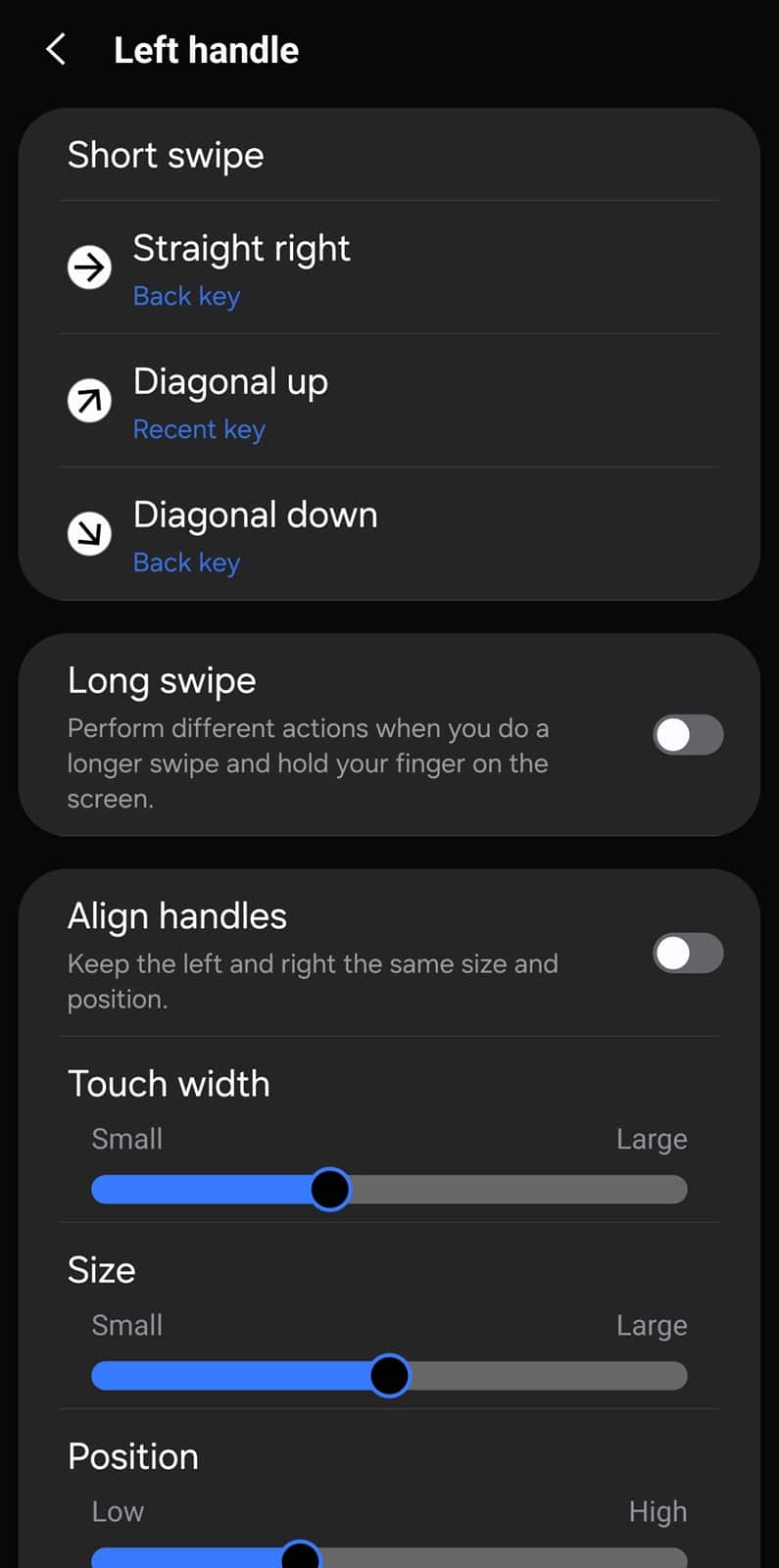
- You can then assign the screenshot action to one or all three gestures — Straight right, Diagonal up, and Diagonal down
- You can also enable the Long swipe function to assign a different action to a longer form of the same gesture
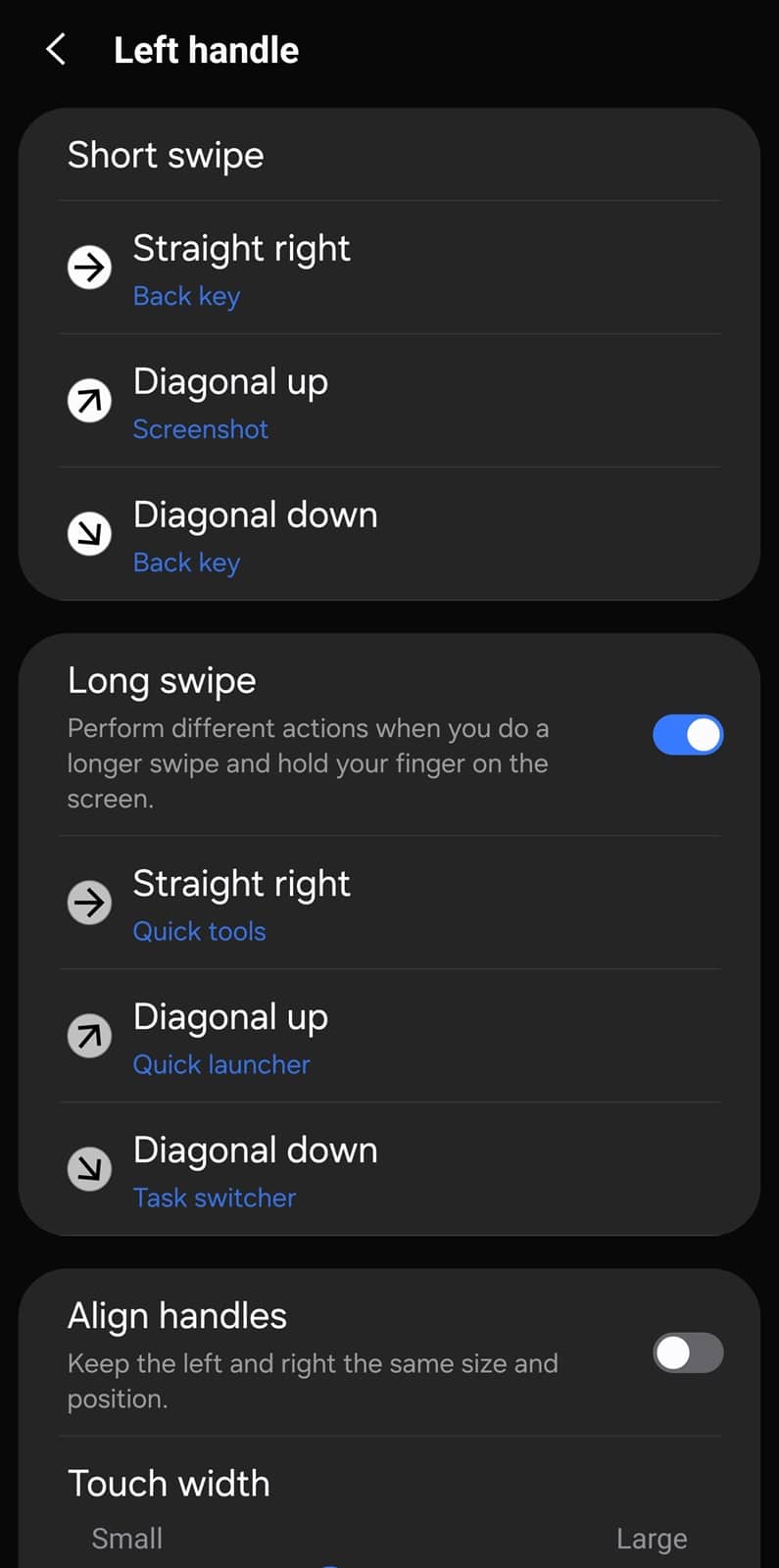
With these four methods at your disposal, capturing your Galaxy phone’s screen can be as simple and creative as you want it to be. Whether you stick to the classic button combo, add a shortcut to your navigation bar, tap the back of your device, or swipe in from the side, there’s an option to match every preference. If you have questions, reach out to us on X.
Note that these aren’t the only ways to take screenshots on Galaxy devices. You can also use the palm swipe gesture (swipe across the screen with the side of your palm) or set up a Quick Panel button. However, we believe these methods are more cumbersome and require extra effort.
Additionally, you can use RegiStar to remap the press-and-hold gesture for the power button to take a screenshot, but that means giving up a handy Gemini shortcut. You can also use a Gemini voice command to take screenshots. However, it ignores your “hide status and navigation bars” setting, so that’s something you need to be wary of.

Written by
Sumit AdhikariSumit, a life-long Samsung user, is passionate about technology and has been professionally writing on tech since 2017. He’s a mathematics graduate by education and enjoys teaching basic mathematics tricks to school kids in his spare time. Sumit believes in artificial intelligence and dreams of a fully open, intelligent and connected world.

Follow us on Google Discover & set us as a preferred source in Google News
Share this Post
___________________________


New Blog Posts
___________________________

First Set of Pixel 11 Pro XL Renders Are Here
Pixel 11 Pro XL CAD renders show minimal design changes

Is Samsung Preparing One UI 8.5 Beta for Galaxy Z Fold 5 and Flip 5?
Samsung may launch a One UI 8.5 beta program for its 2023 foldables

Galaxy S25 One UI 8.5 Beta May Run Longer Than Expected
Galaxy S25 series’ One UI 8.5 beta may stretch to 10 rounds







