
Samsung Internet Tip: Use Grid Layout for a Cleaner Tab Manager
SammyGuru is reader-supported. We have affiliate and sponsored partnerships, so we may earn a commission when you buy through links on our site — at no extra cost to you. Learn more.
Samsung Internet has built a reputation as one of the best mobile browsers for Android devices, thanks to its balance of speed, privacy features, and customization options. Samsung regularly updates its browser app with new features and enhancements. One of the more useful recent additions is the grid layout for tabs, which strikes a nice balance between convenience and style when managing tabs.
Note: This feature is available in both the stable and beta versions of Samsung Internet. However, only the beta version currently shows two tabs per row in the grid view.
Grid layout makes managing tabs easier, and it looks nicer too
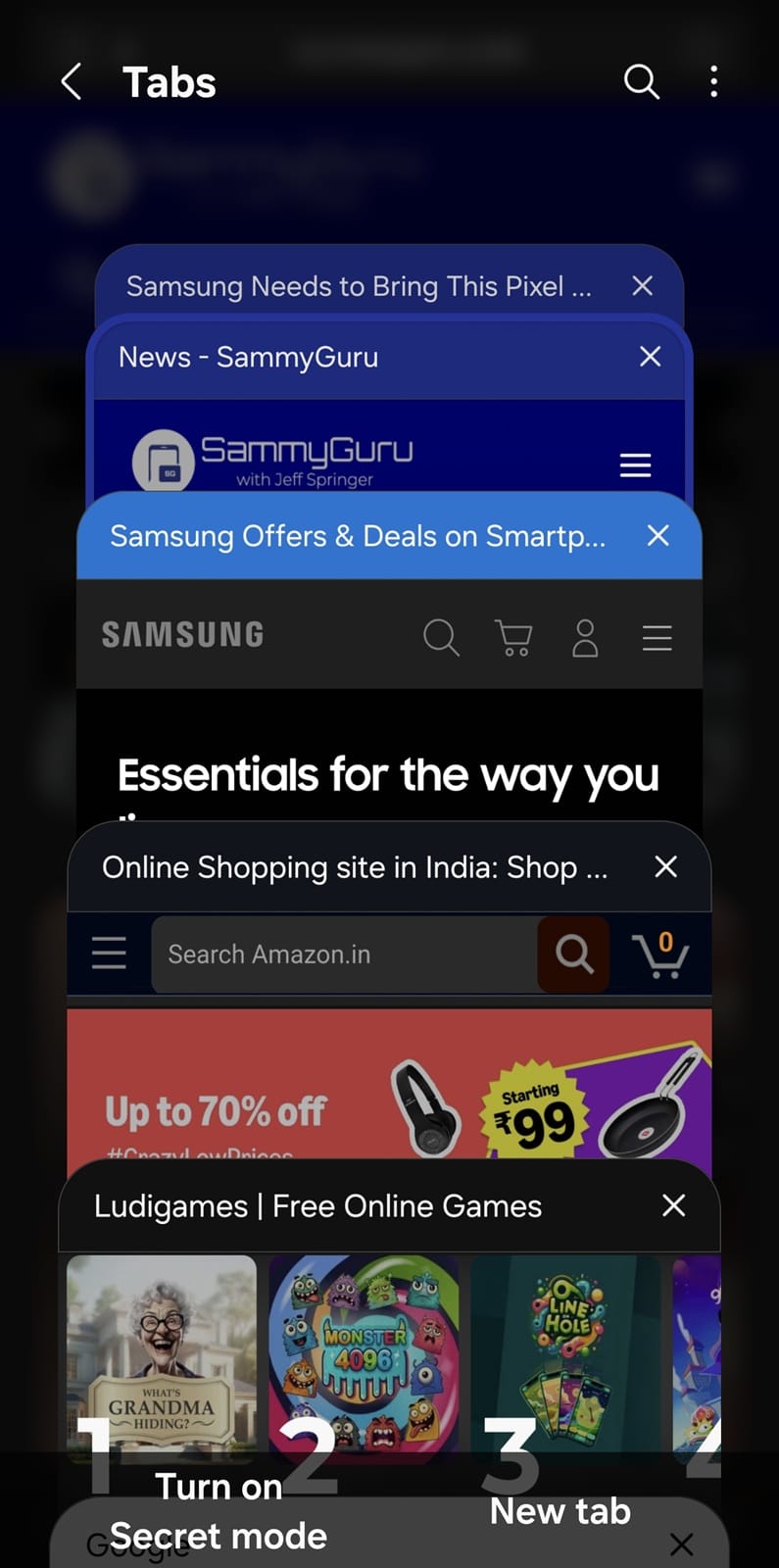
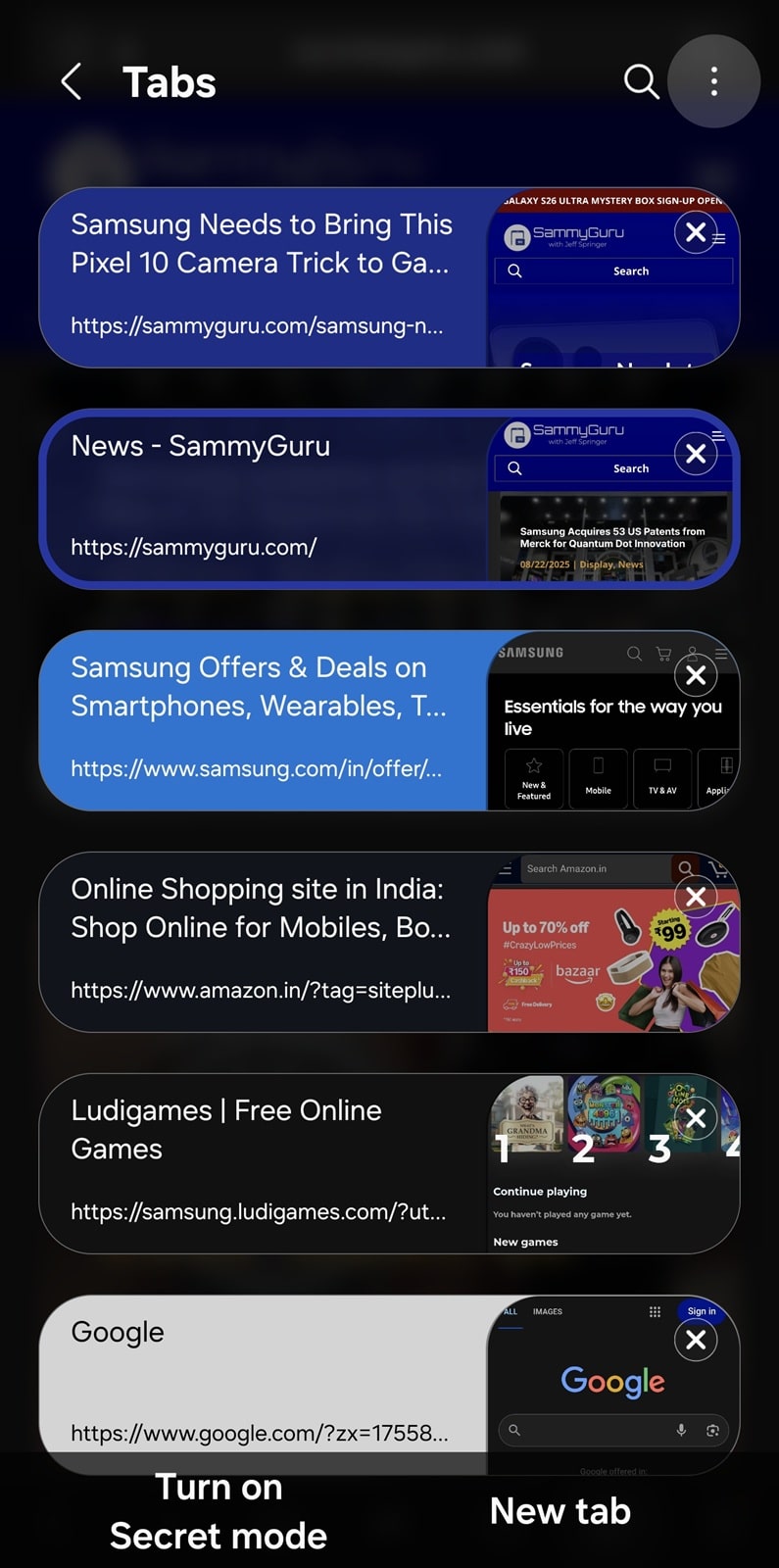
By default, Samsung Internet displays your open tabs in a list view. This layout shows the full webpage title along with a small preview, and you can view up to six tabs on the screen without scrolling. It’s straightforward and practical, but not exactly the most visually appealing option.
Thankfully, Samsung offers more ways to manage tabs. The stack view takes a different approach, offering larger previews of each page. While it looks stylish, the stacked arrangement can make it harder to quickly locate the tab you need, especially if you’re juggling a large number of open pages.
That’s where the grid layout comes in. Instead of a vertical list or layered stack, it arranges your tabs neatly in rows, with two tabs per row. This means you can see six open pages at a glance, each with a clear and decently sized thumbnail preview. The result is a layout that feels cleaner than the list view and more functional than the stack view.
How to turn on grid layout
Switching to a grid layout for tabs in Samsung Internet takes just a few steps:
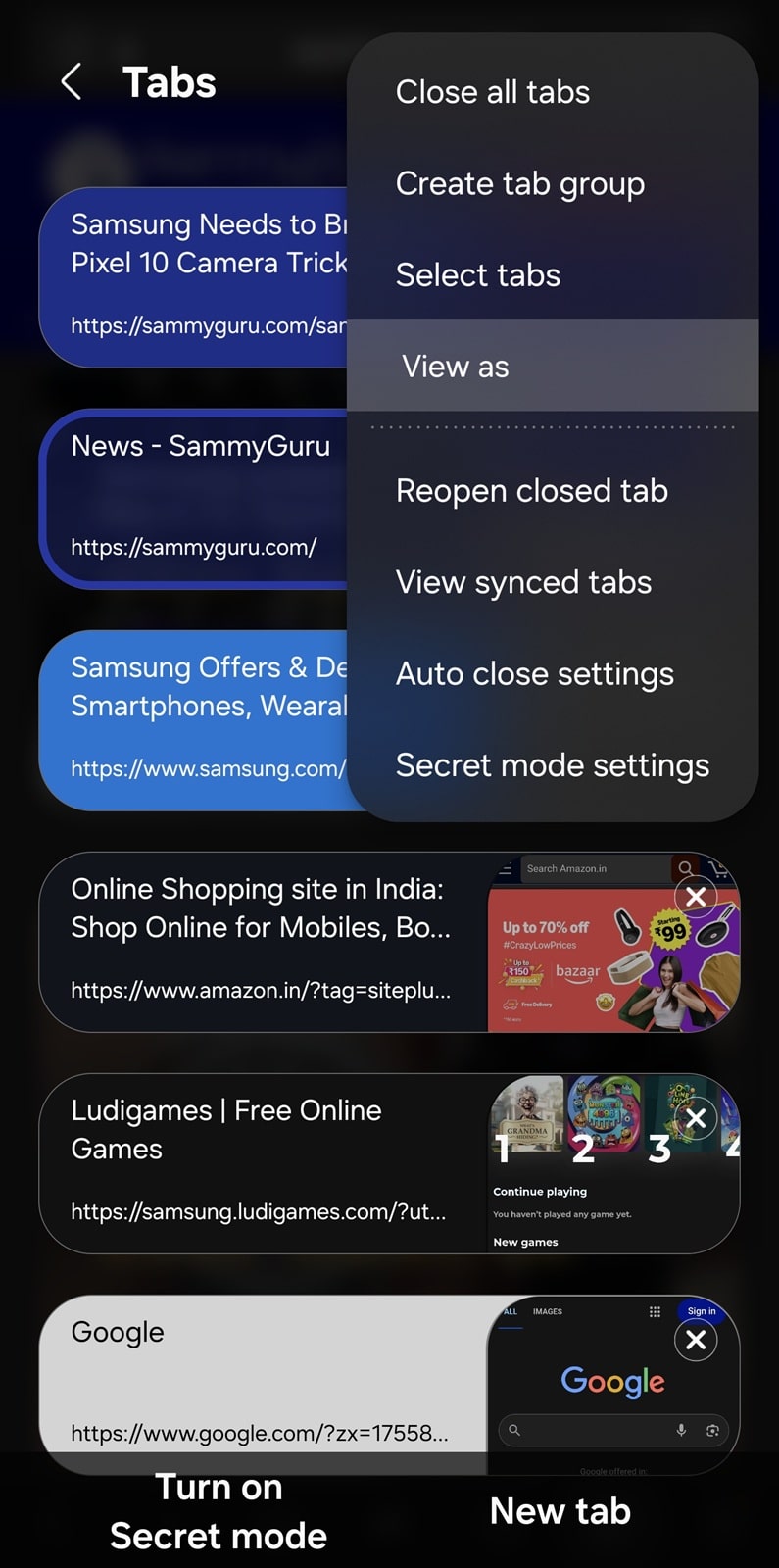
- Tap the tabs button in the bottom toolbar to open the tab manager
- Tap the three-dot menu in the top right corner and select View as
- Now, choose Grid from the options (or Stack if that’s more your style)
- Tap OK to confirm your choice

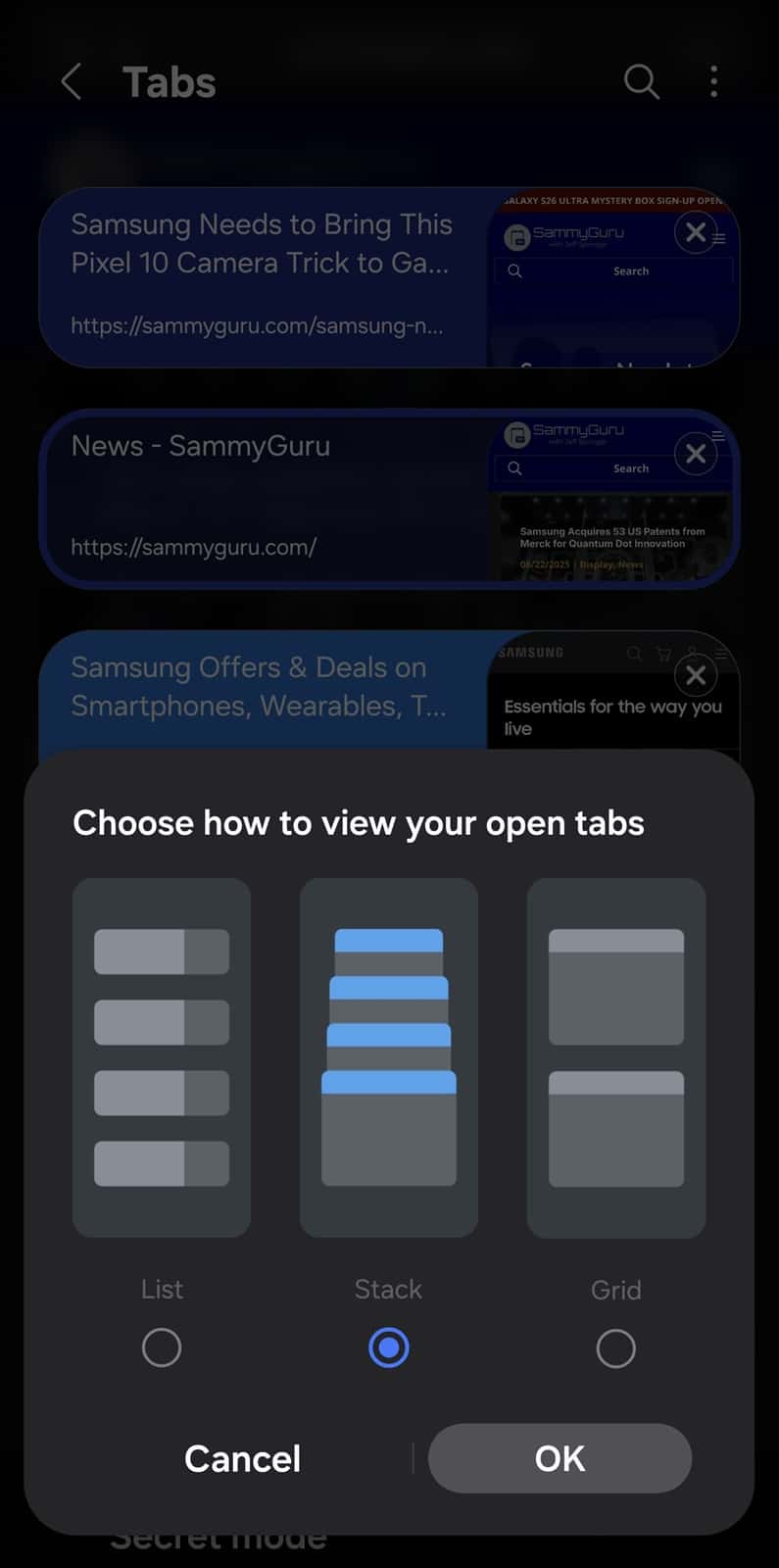
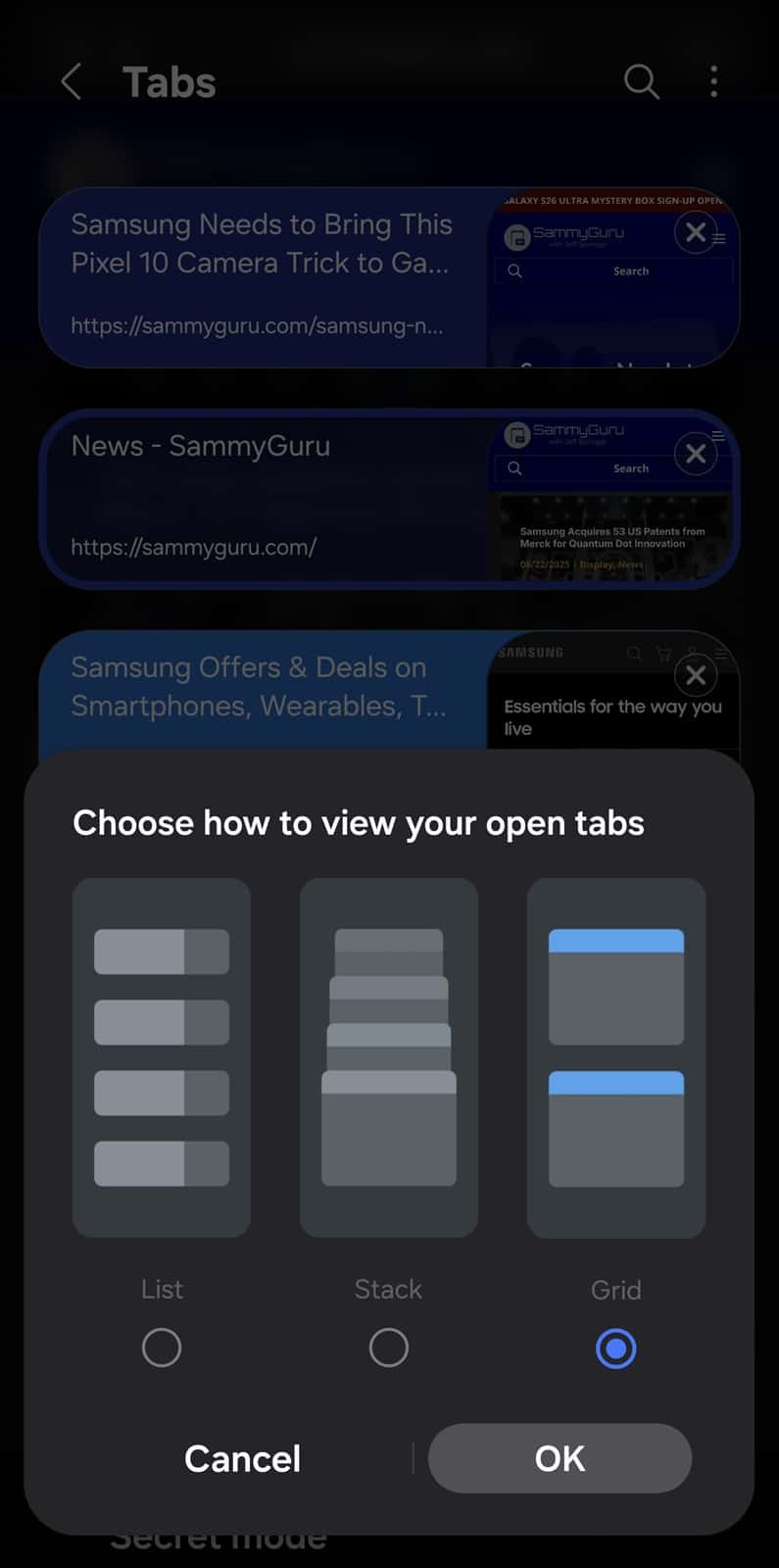
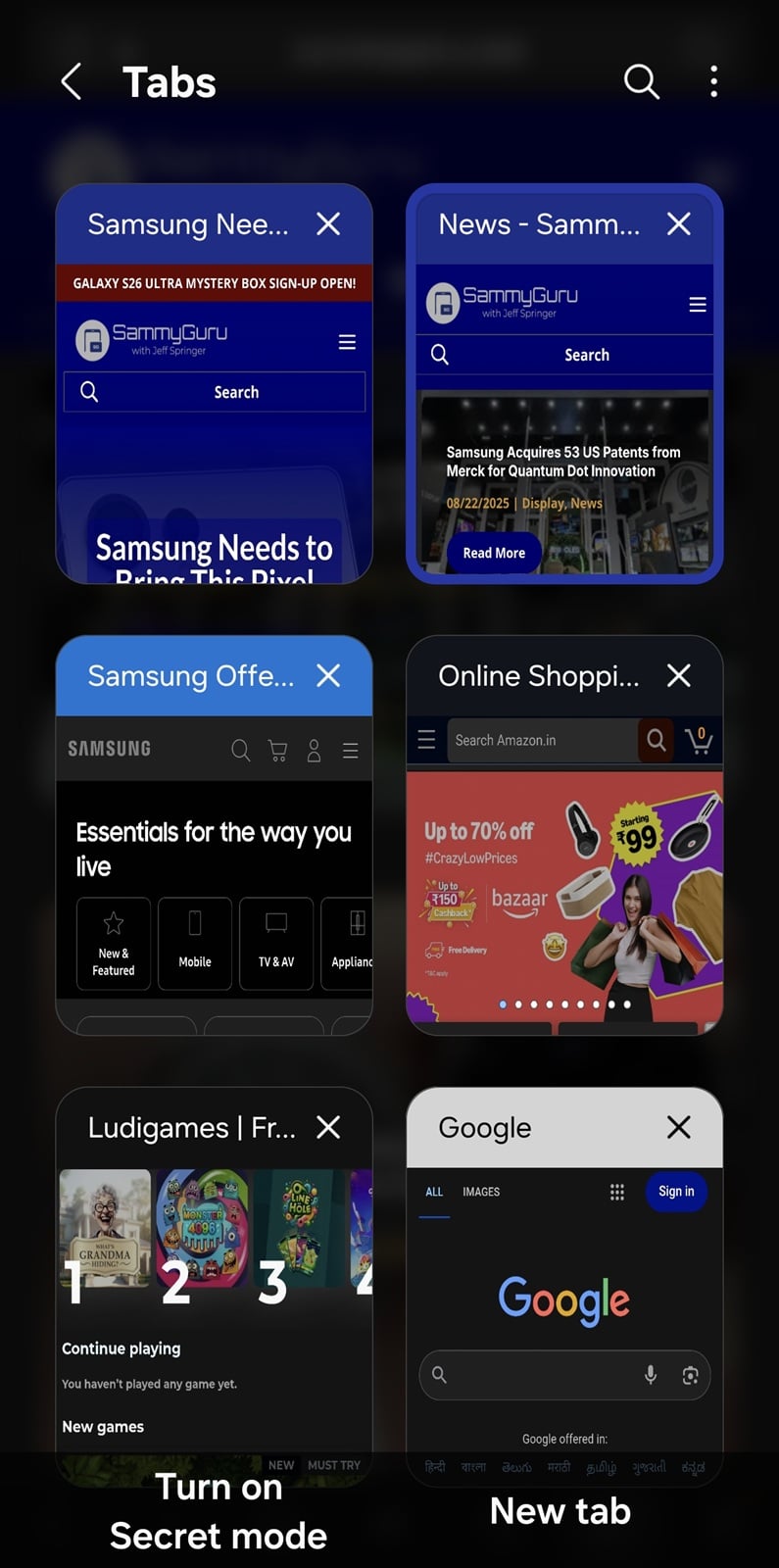
Your open tabs will immediately appear in the selected style. If you haven’t tried it yet, give the grid layout a spin — you might find it quickly becomes your preferred way to manage tabs in Samsung Internet.

Written by
Sumit AdhikariSumit, a life-long Samsung user, is passionate about technology and has been professionally writing on tech since 2017. He’s a mathematics graduate by education and enjoys teaching basic mathematics tricks to school kids in his spare time. Sumit believes in artificial intelligence and dreams of a fully open, intelligent and connected world.

Follow us on Google Discover & set us as a preferred source in Google News
Share this Post
___________________________


New Blog Posts
___________________________

First Set of Pixel 11 Pro XL Renders Are Here
Pixel 11 Pro XL CAD renders show minimal design changes

Is Samsung Preparing One UI 8.5 Beta for Galaxy Z Fold 5 and Flip 5?
Samsung may launch a One UI 8.5 beta program for its 2023 foldables

Galaxy S25 One UI 8.5 Beta May Run Longer Than Expected
Galaxy S25 series’ One UI 8.5 beta may stretch to 10 rounds







