
Did You Know Your Galaxy Phone Can Play Audio from Two Apps at Once?

SammyGuru is reader-supported. We have affiliate and sponsored partnerships, so we may earn a commission when you buy through links on our site — at no extra cost to you. Learn more.
Smartphones usually allow only one app to play audio at a time. The moment audio starts in one app, sound from any other app instantly stops. This behavior has been part of mobile operating systems since the early days of smartphones and remains the default even today. However, if you’re using a Samsung Galaxy device, there’s a little-known feature that can break this limitation and bring PC-like audio multitasking to your phone.
How to enable multi-app sound output on Galaxy devices?
On computers, you can play sound from multiple apps simultaneously. You could have music playing in one app while a video plays in another. While smartphones do not typically offer this capability, Samsung Galaxy devices do. A feature called Separate app sound allows audio from different apps to play through different outputs at the same time.
Now, if you’re wondering where this feature is actually useful, there are plenty of everyday situations where it can come in handy. Here are a few examples:
- If you’re listening to music on Bluetooth earbuds, someone else can watch a video on the phone, with the audio playing through the device’s speakers instead of interrupting your music. The setup can also work the other way around.
- You can listen to music through your Bluetooth headphones or car stereo while navigation instructions from Google Maps play through the phone’s speakers, so everyone in the car can hear the directions. Again, you can reverse the outputs if needed.
- You can also play a mobile game while listening to music. The game’s sound effects can play through your connected earphones, while your music continues through the phone’s speakers.
For this, you have to first configure which app plays sound through the phone’s speakers and which app gets routed through a connected Bluetooth device. Here’s how to do it on your Galaxy smartphone or tablet:
- Open Settings and go to Sounds and vibration
- Select Separate app sound and turn it on
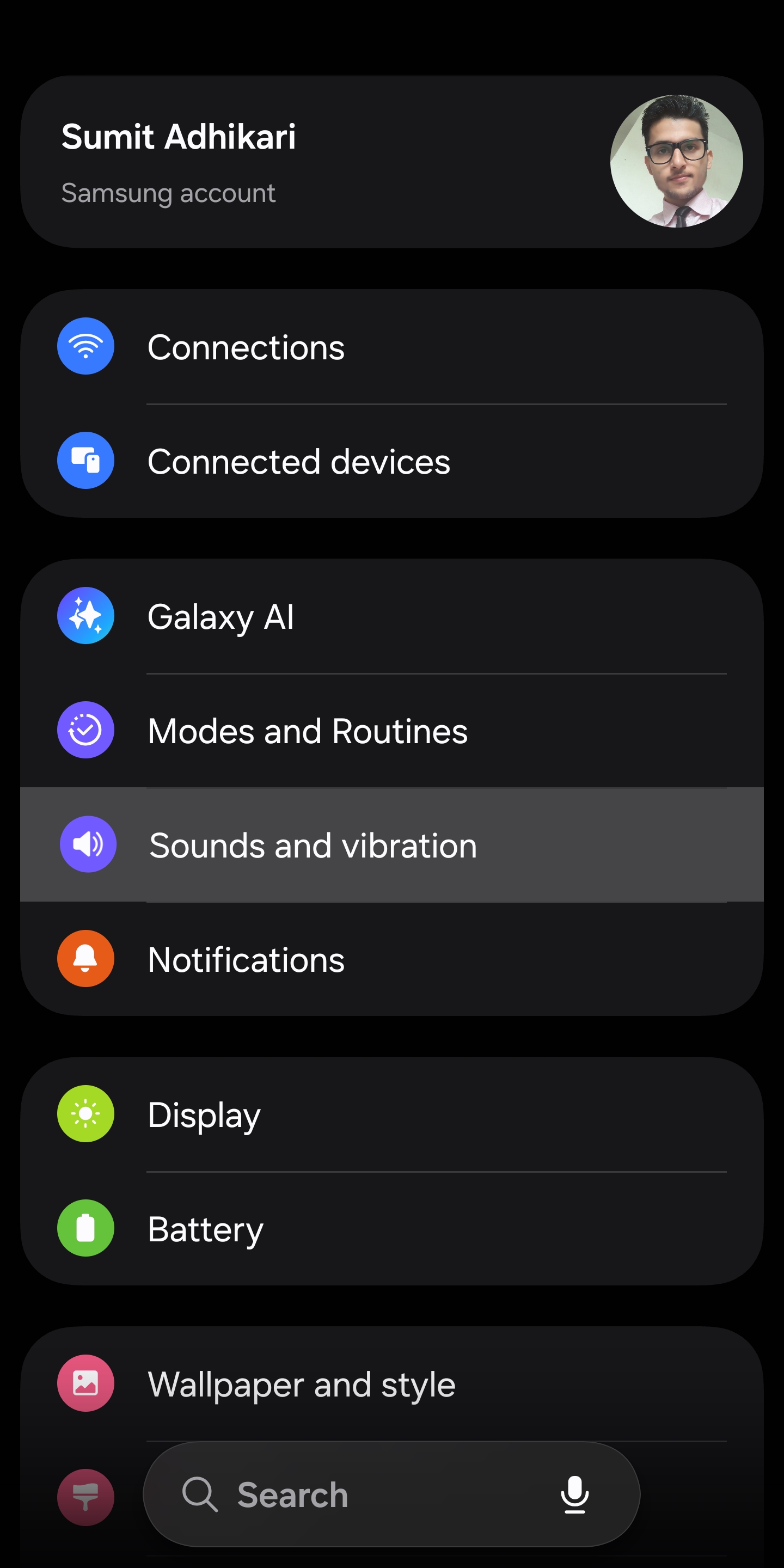
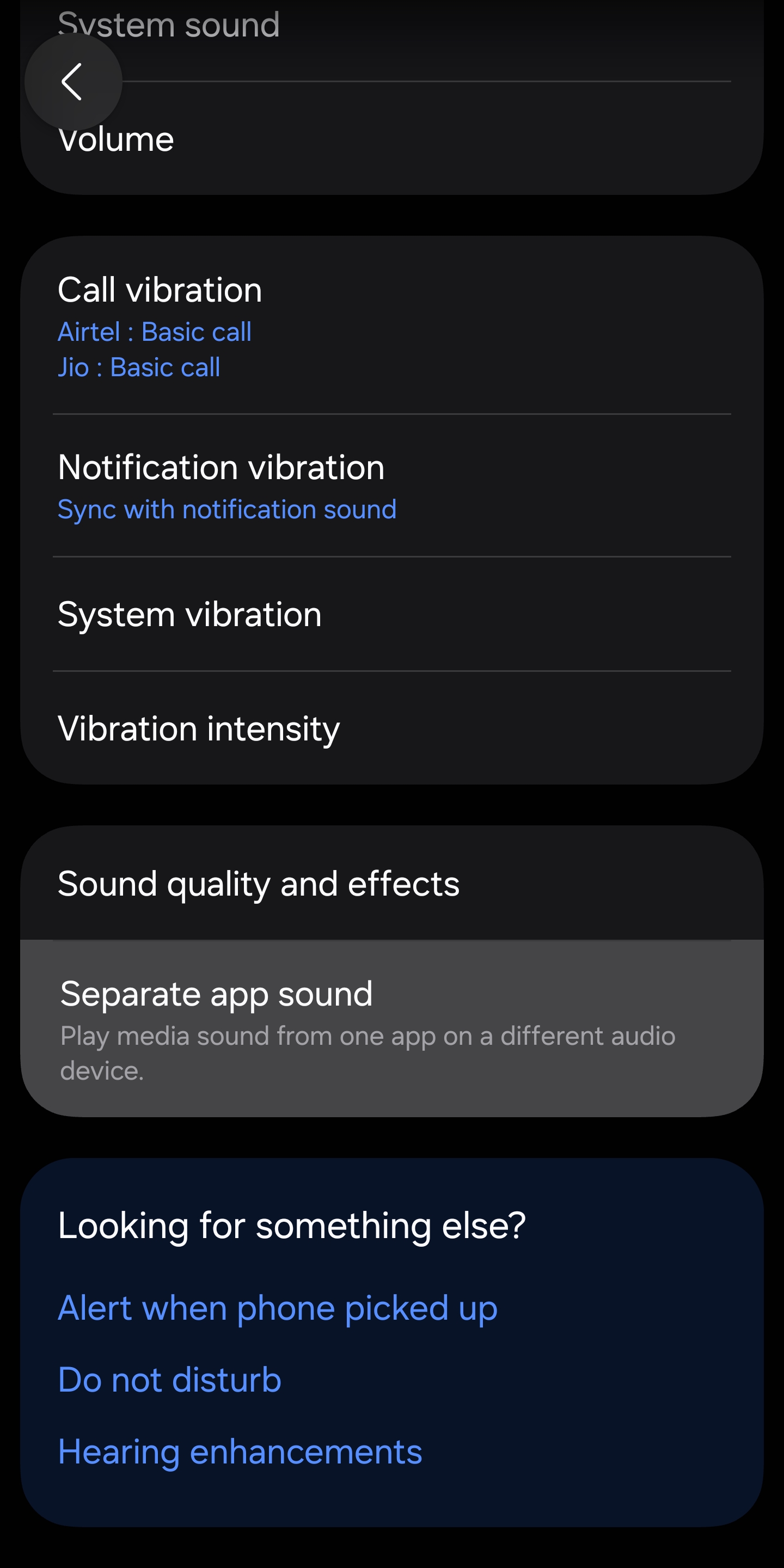
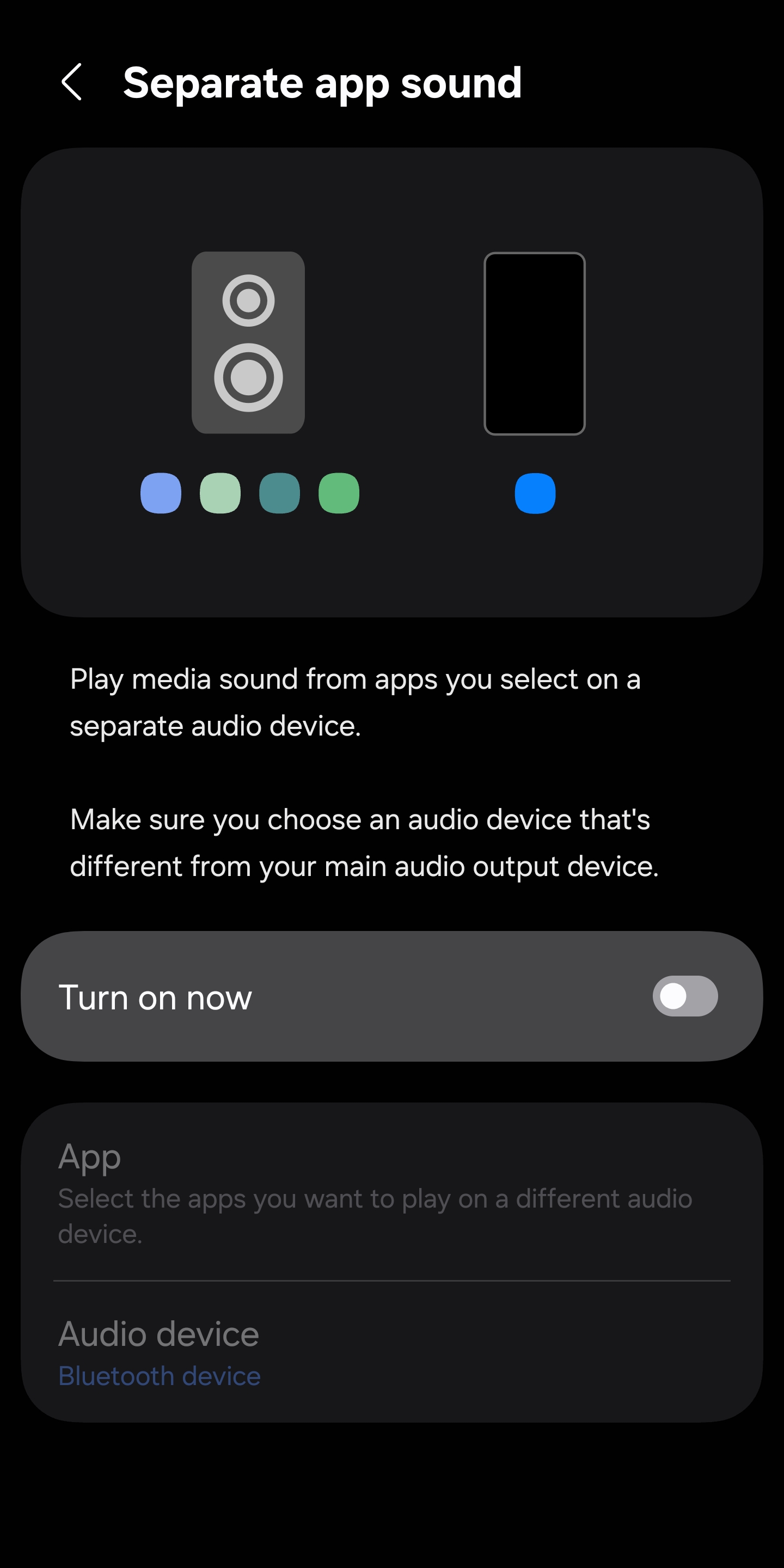
Once enabled, you can select the app you want to control. For example, if you want YouTube to play sound through your connected buds, simply select YouTube from the App list and set it to Bluetooth device.
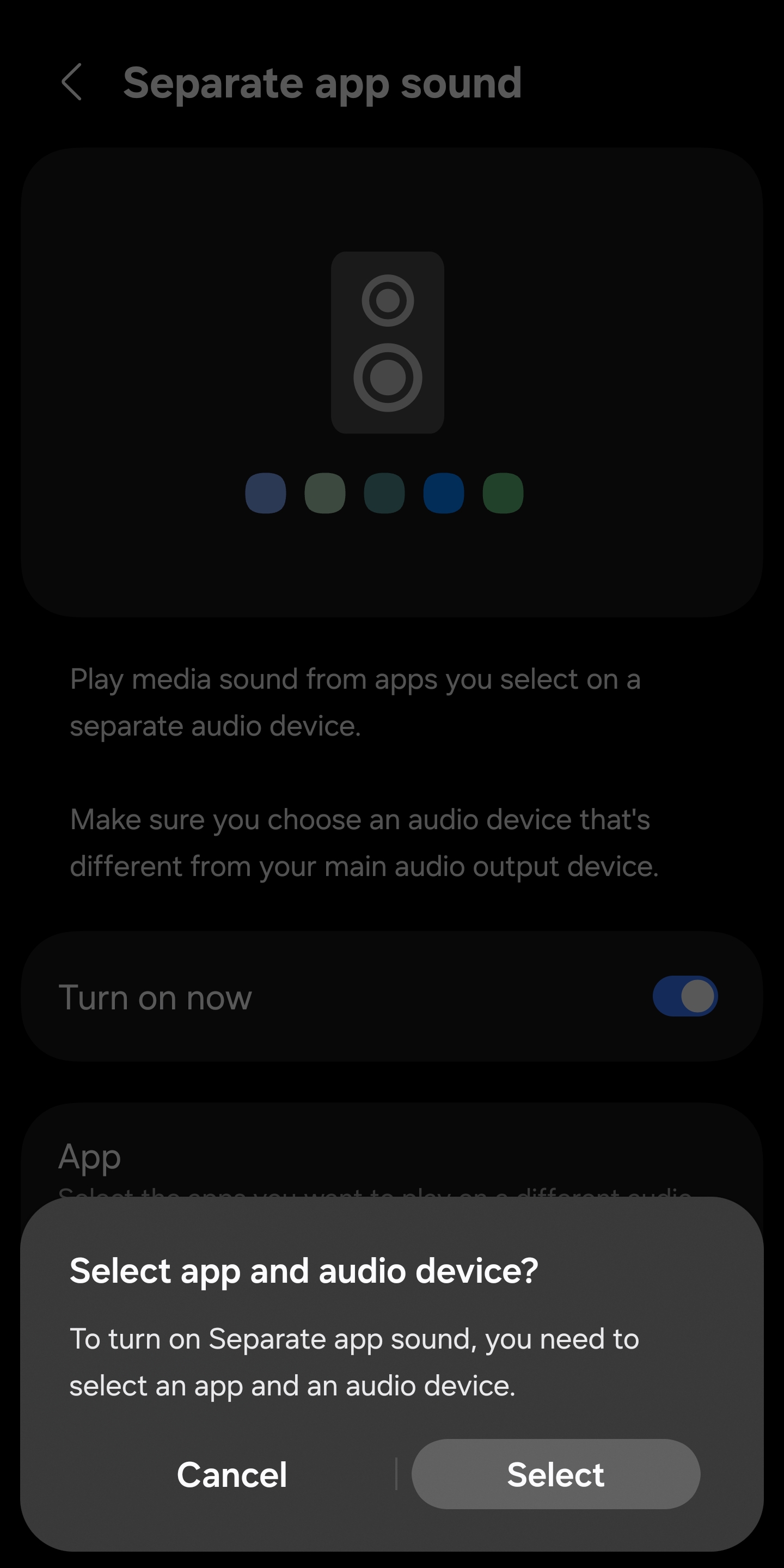
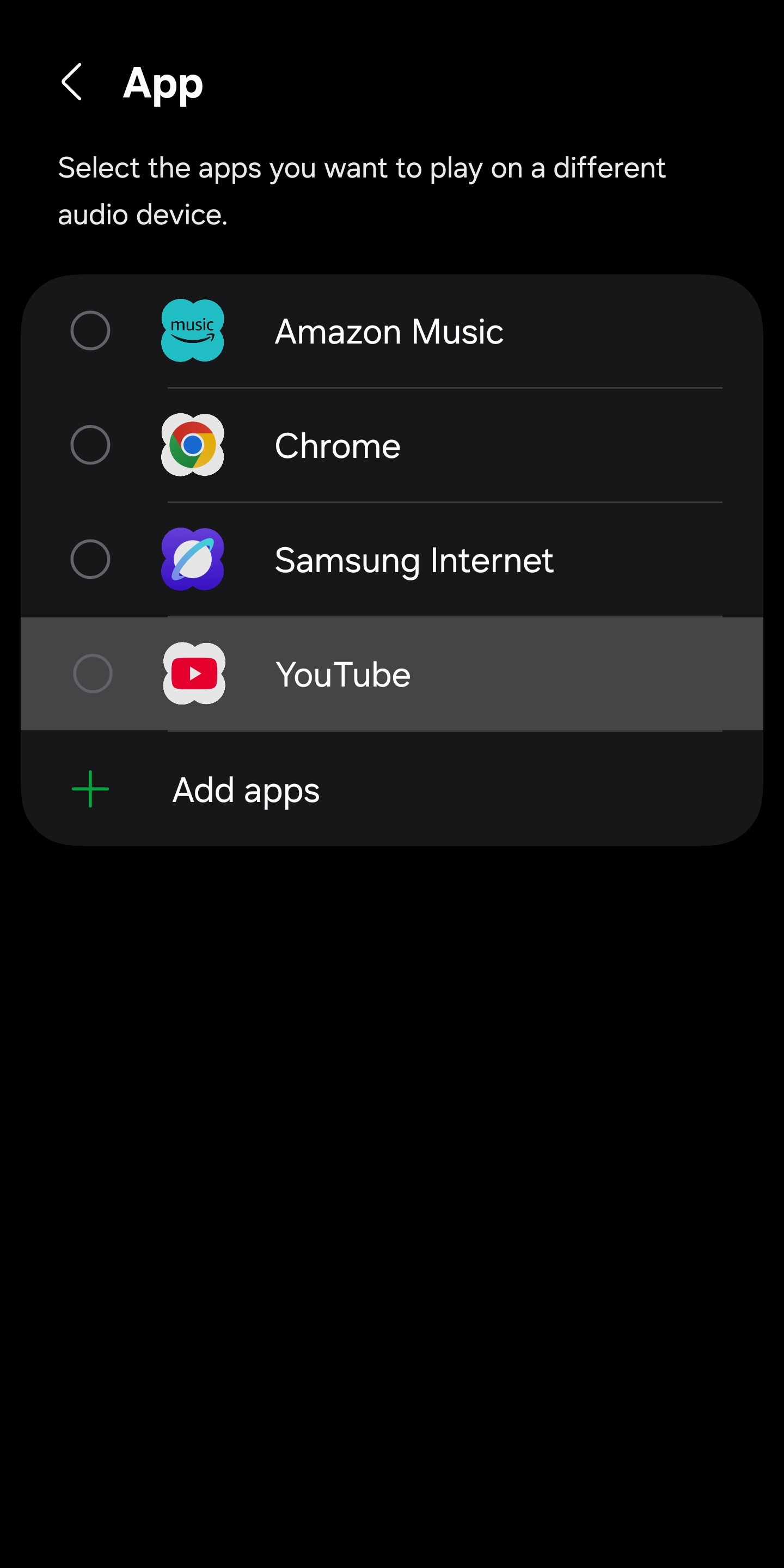
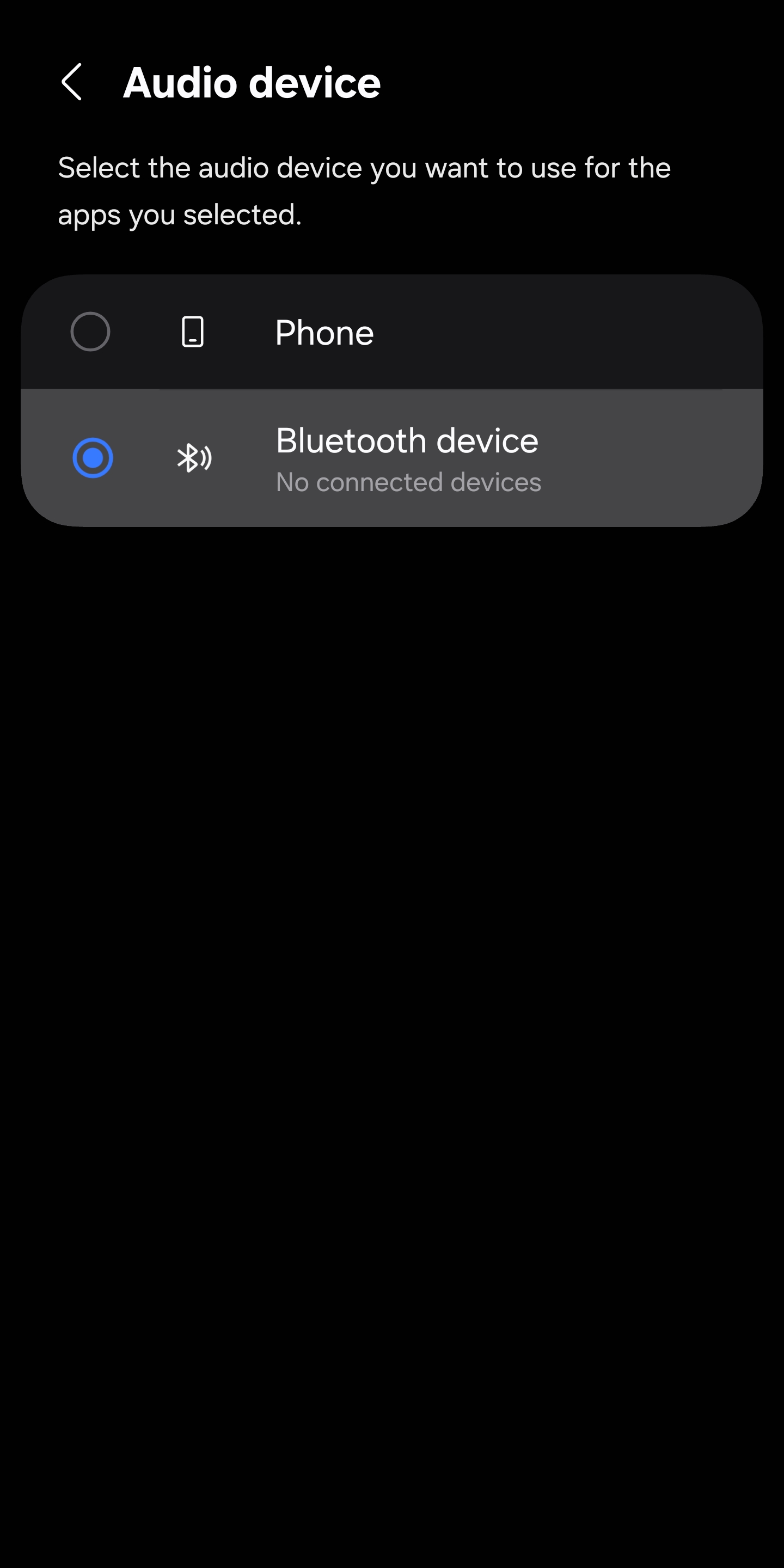
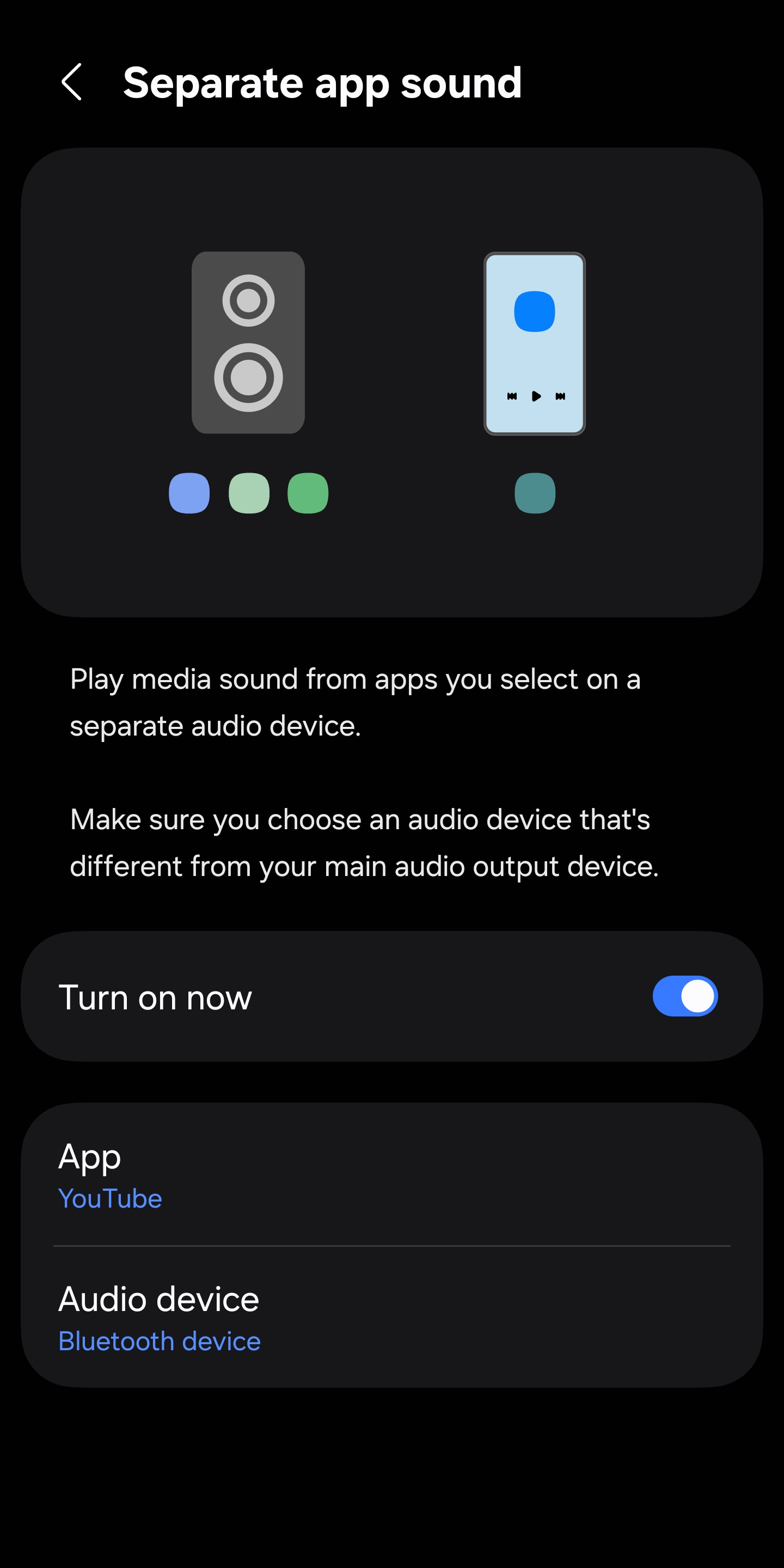
Now, whenever you watch a video on YouTube, your buds will be the default sound output device. If buds are not connected, audio will play through your phone’s speakers. However, when you connect buds, your phone’s speakers are free to play sound from another source/app. That’s not possible if Separate app sound is not configured.
Note that you can’t assign different apps to different Bluetooth devices. Separate app sound only lets you choose between your phone’s built-in speakers and a Bluetooth device. You cannot have different apps playing audio through multiple Bluetooth devices at once.
Nonetheless, it’s a handy feature that can make everyday situations more convenient, especially if you frequently use Bluetooth headphones, speakers, or your car’s audio system. It’s one of those small One UI features that can quietly improve how you use your Galaxy device every day.

Written by
Sumit AdhikariSumit, a life-long Samsung user, is passionate about technology and has been professionally writing on tech since 2017. He’s a mathematics graduate by education and enjoys teaching basic mathematics tricks to school kids in his spare time. Sumit believes in artificial intelligence and dreams of a fully open, intelligent and connected world.

Follow us on Google Discover & set us as a preferred source in Google News
Share this Post
___________________________


New Blog Posts
___________________________

First Set of Pixel 11 Pro XL Renders Are Here
Pixel 11 Pro XL CAD renders show minimal design changes

Is Samsung Preparing One UI 8.5 Beta for Galaxy Z Fold 5 and Flip 5?
Samsung may launch a One UI 8.5 beta program for its 2023 foldables

Galaxy S25 One UI 8.5 Beta May Run Longer Than Expected
Galaxy S25 series’ One UI 8.5 beta may stretch to 10 rounds







