
First Look: QuickStar’s Next Level Quick Settings on One UI 8.5
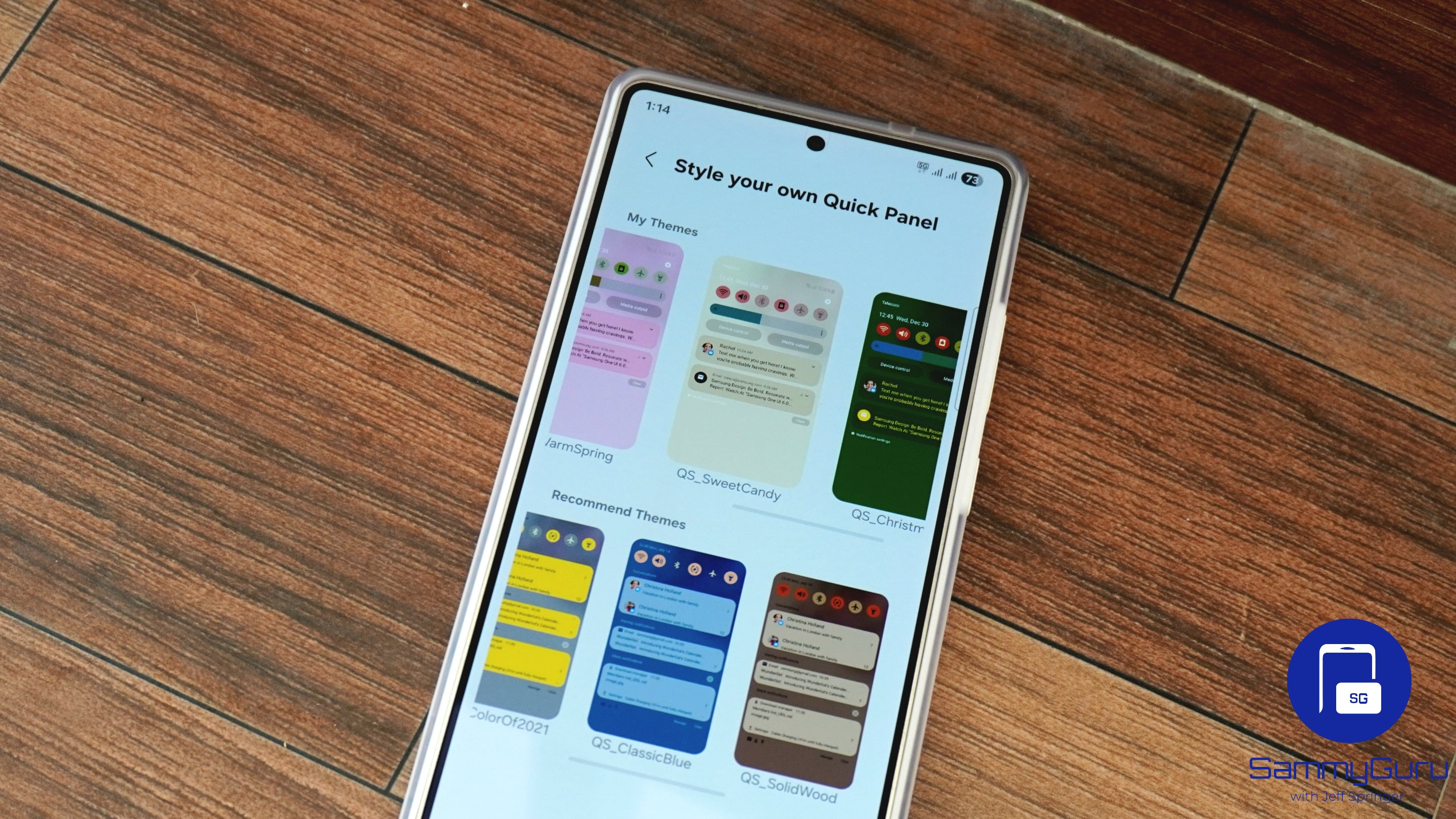
One UI 8.5 brought along a huge change to the quick settings, allowing every slider, toggle and menu to be added, removed or reorganized. But there were still some limits on how elements could be laid out. Not anymore. We’ve managed to enable an upcoming QuickStar feature that allows much more customization in Quick Settings.
QuickStar will soon bring deeper Quick Settings control to One UI 8.5
This update lets you change how many elements are shown and how they’re sized. Want a smaller expandable menu? Want a more compact media player? You get much more flexibility in how you lay out your Quick Settings.
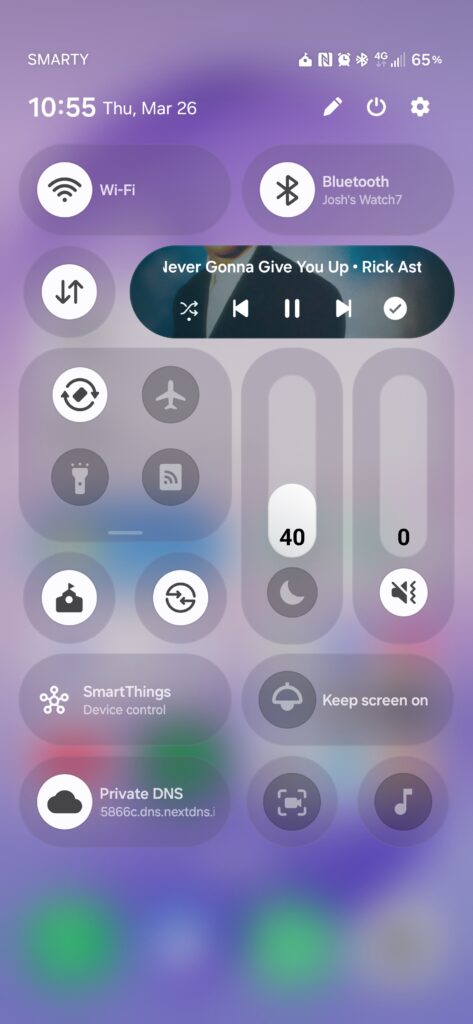
Here’s a video demo showing off the flexibility of this upcoming feature.
First Look – QuickStar’s customisable quick settings on One UI 8.5!
This goes beyond the stock QS and lets you resize media player, expandable area, as well as make normal tiles and sliders. larger.
This isn’t live yet, I’ll share steps soon. pic.twitter.com/Zqx6yVtACR
— That Josh Guy (@thatjoshguy69) March 26, 2026
You can enable these Quick Settings tweaks right now
This feature was previously announced to be rolling out with a future QuickStar update, which as of writing still hasn’t arrived. But it isn’t actually needed and can be force-enabled. Here’s how to do it:
- Download SetEdit from the Play Store.
- Once it’s installed, plug into your computer and run this ADB command:
adb shell pm grant by4a.setedit22 android.permission.WRITE_SECURE_SETTINGS - Enter SetEdit, tap the System table dropdown and then switch to Secure table.
- Scroll until you see QS, and change the values in the image below from 0 to 1.

Then swipe into the quick settings, tap edit, and go wild. There will be some visual bugs, but you can make a clean setup using these new options.
Keep in mind these settings reset after a reboot. Your layout will stay, but the extra edit options will revert to how they were before. To enable them again, just change the values in SetEdit.

Follow us on Google Discover & set us as a preferred source in Google News
Share this Post
___________________________


New Blog Posts
___________________________

First Set of Pixel 11 Pro XL Renders Are Here
Pixel 11 Pro XL CAD renders show minimal design changes

Is Samsung Preparing One UI 8.5 Beta for Galaxy Z Fold 5 and Flip 5?
Samsung may launch a One UI 8.5 beta program for its 2023 foldables

Galaxy S25 One UI 8.5 Beta May Run Longer Than Expected
Galaxy S25 series’ One UI 8.5 beta may stretch to 10 rounds


