
KWGT Widgets on Samsung Galaxy Phones – The Ultimate Guide
SammyGuru is reader-supported. We have affiliate and sponsored partnerships, so we may earn a commission when you buy through links on our site — at no extra cost to you. Learn more.
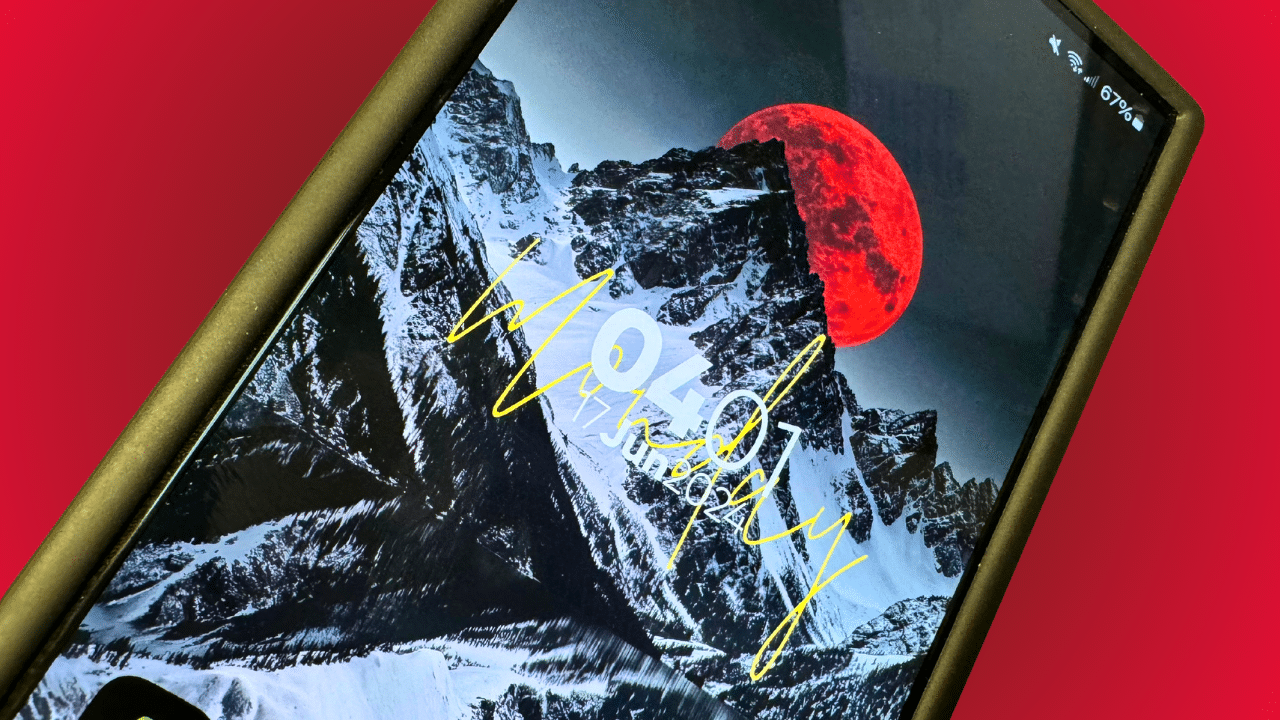
KWGT (Kustom Widget Maker) is a powerful tool that allows you to create custom widgets for your Android home screen. With KWGT, you can craft unique widgets that display weather information, calendars, clocks, and much more, tailored exactly to your preferences. This tutorial will guide you through the basics of using KWGT on your Samsung Galaxy phone, from setting up pre-made widget packs to creating your own widgets from scratch. In fact, you can use this guide to setup KWGT widgets on any Android phone.
Getting Started with KWGT
1. Install KWGT and KWGT Pro:
• First, download and install KWGT Kustom Widget Maker and KWGT Pro Key from the Google Play Store. The Pro version is necessary for unlocking all features and functionalities.
2. Add KWGT to Your Home Screen:
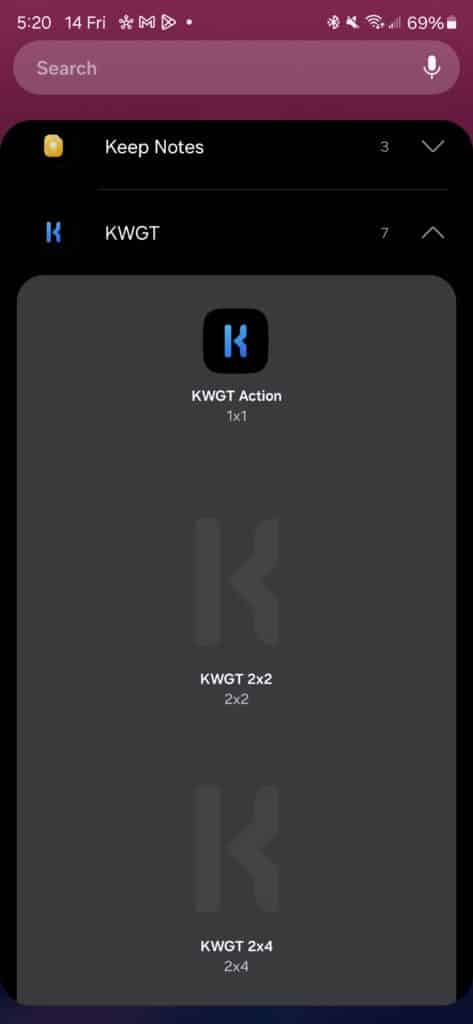
• Long-press on your home screen and select “Widgets.”
• Scroll down to find KWGT, and drag and drop the widget size you prefer onto your home screen.
• Tap on the KWGT widget to open the KWGT app for customization.
Using Pre-Made Widget Packs
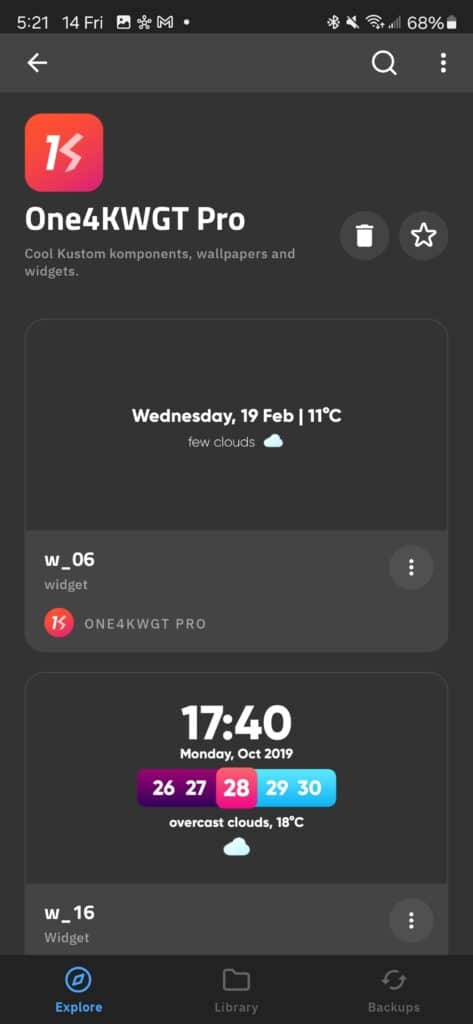
For those who want to get up and running quickly, using pre-made widget packs is the best option. One highly recommended widget pack is the One4KWGT Pro pack, which offers a wide variety of beautifully designed widgets.
1. Install One4KWGT Pro:
• Download and install One4KWGT Pro from the Google Play Store.
2. Apply a Pre-Made Widget:
• Open KWGT and select the empty widget you added to your home screen.
• Tap on “Installed” and select One4KWGT Pro from the list.
• Browse through the available widgets and select one you like.
• Adjust the size and position as needed, then save and return to your home screen.
Creating Widgets from Scratch
For those who enjoy a more hands-on approach, creating widgets from scratch allows for endless customization possibilities.
1. Open KWGT Editor:
• Tap on the KWGT widget on your home screen to open the KWGT editor.
• Select “Create” to start a new widget.
2. Add Objects:
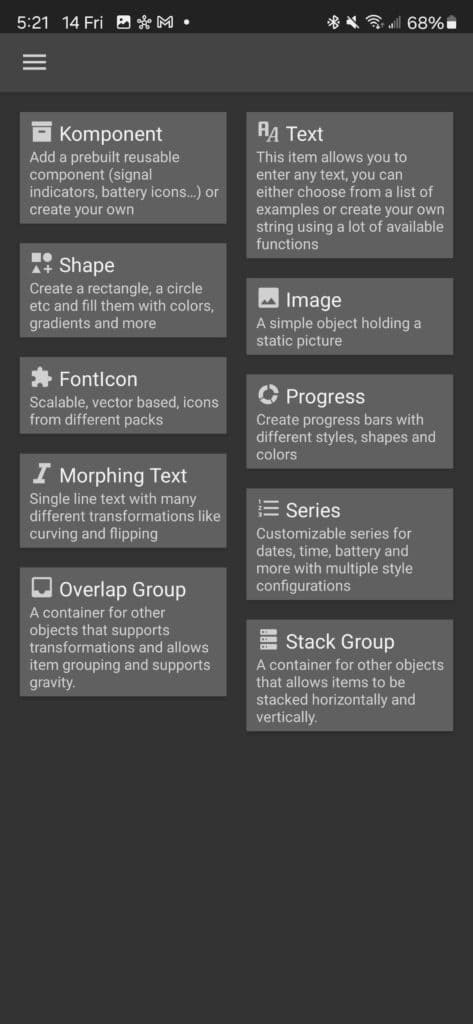
• Use the “+” button to add objects such as text, shapes, images, and more to your widget.
• Each object can be customized with various properties like size, color, position, and animation.
3. Customize Text:
• To add a clock, tap “Text” and enter a time format (e.g., hh:mm for hours and minutes).
• Customize the font, size, and color to match your style.
4. Add Shapes and Images:
• Use the “Shape” option to add circles, rectangles, and other shapes to your widget.
• Insert images or icons to enhance the visual appeal.
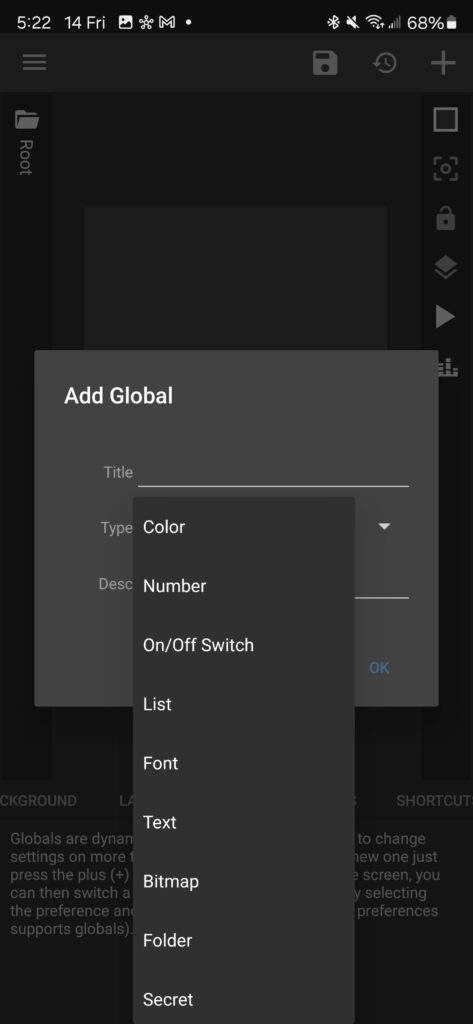
5. Apply Global Settings:
• Adjust the overall size and positioning of your widget using the “Layer” and “Position” options.
• Utilize global settings to create uniform themes across multiple widgets.
6. Save and Apply:
• Once you’re satisfied with your design, save your widget.
• Return to your home screen to see your custom widget in action.
Tips for KWGT
• Experiment with Layers: Use layers to manage the arrangement of different elements within your widget.
• Utilize Global Variables: Global variables can help maintain consistency across multiple widgets.
• Backup Your Widgets: Regularly backup your custom widgets to avoid losing your designs.
Conclusion
KWGT provides a robust platform for both quick setup with pre-made widgets and deep customization with creating widgets from scratch. By leveraging packs like One4KWGT Pro, you can enhance the functionality and aesthetics of your Samsung Galaxy home screen with ease. Whether you’re a beginner or an advanced user, KWGT opens up a world of possibilities for personalizing your smartphone experience.
For more inspiration and to download the One4KWGT Pro widget pack, visit the Google Play Store. Happy customizing!
If you’re planning to purchase a new Galaxy phone from the next Unpacked event, head over and sign up for our mystery box program and early access to preorder links to beat the rush on Samsung’s site on launch day!

Written by
Jeff SpringerJeff Springer is the Founder and Managing Editor at SammyGuru. Pursuing his passion for mobile tech, he started covering Samsung and Android on his Youtube channel in 2014 and continues to post daily Samsung tutorial videos. As a past staff writer at XDA Developers and Android Police, Jeff has a wealth of experience managing written content as well. In 2023, Jeff started SammyGuru to offer a different type of Samsung news site. He firmly believes that providing great value to readers is the core mission of our coverage. Jeff lives in Phoenix, AZ with his wife and two kids. In his small amount of free time, he collects fountain pens, stationery, and Pokémon cards.

Follow us on Google Discover & set us as a preferred source in Google News
Share this Post
___________________________


New Blog Posts
___________________________

First Set of Pixel 11 Pro XL Renders Are Here
Pixel 11 Pro XL CAD renders show minimal design changes

Is Samsung Preparing One UI 8.5 Beta for Galaxy Z Fold 5 and Flip 5?
Samsung may launch a One UI 8.5 beta program for its 2023 foldables

Galaxy S25 One UI 8.5 Beta May Run Longer Than Expected
Galaxy S25 series’ One UI 8.5 beta may stretch to 10 rounds







