
How to Use Lock Screen Widgets in One UI 7 on Your Galaxy Phone
SammyGuru is reader-supported. We have affiliate and sponsored partnerships, so we may earn a commission when you buy through links on our site — at no extra cost to you. Learn more.
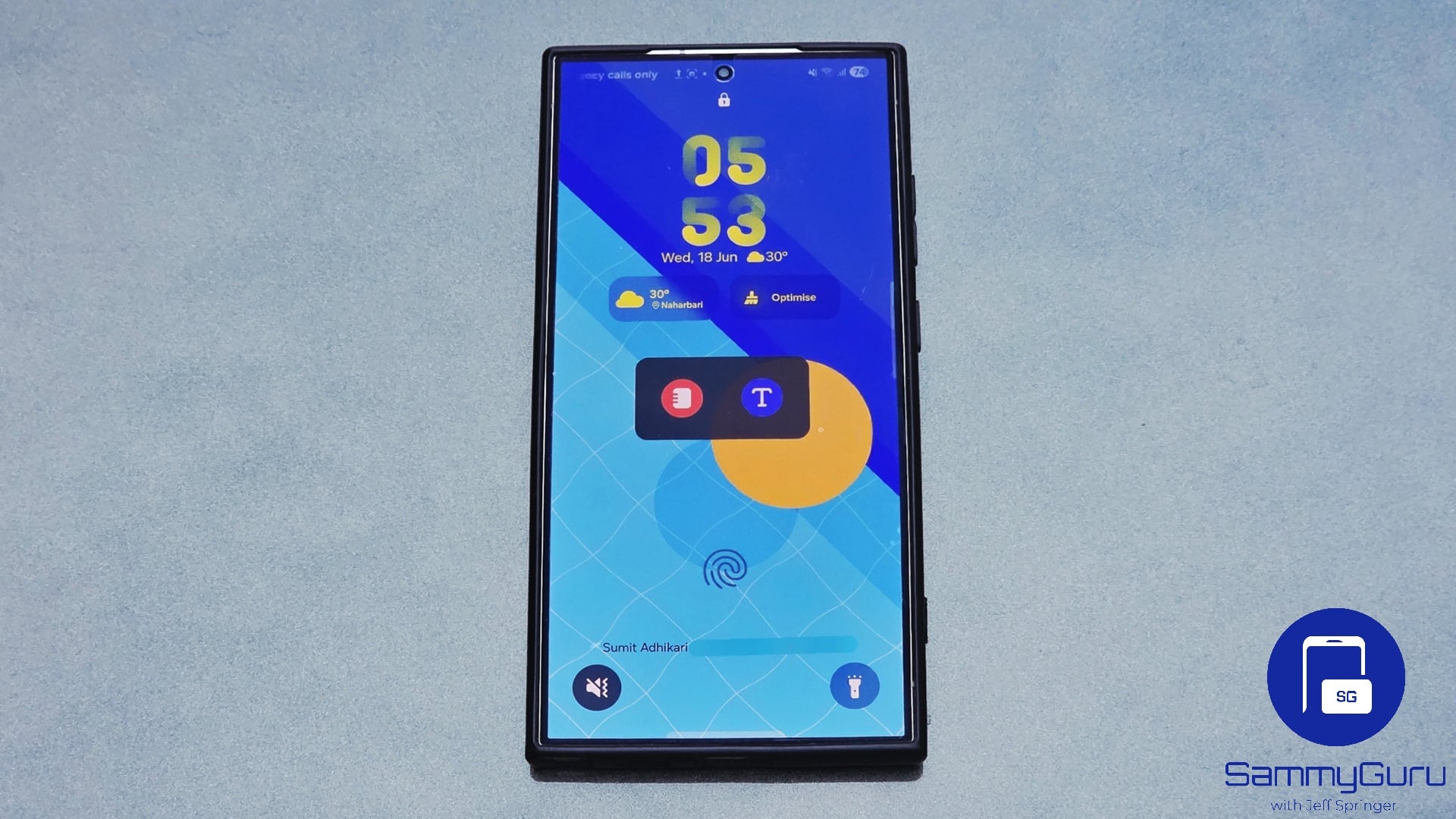
Samsung’s One UI 7 update introduced not just redesigned home screen widgets but also a bunch of lock screen widgets. These brief, glanceable widgets offer useful information and quick actions without even unlocking your phone. If you’re using a Galaxy smartphone running One UI 7 or higher, here’s how you can make the most of these new lock screen widgets.
What are lock screen widgets, and how to enable them?
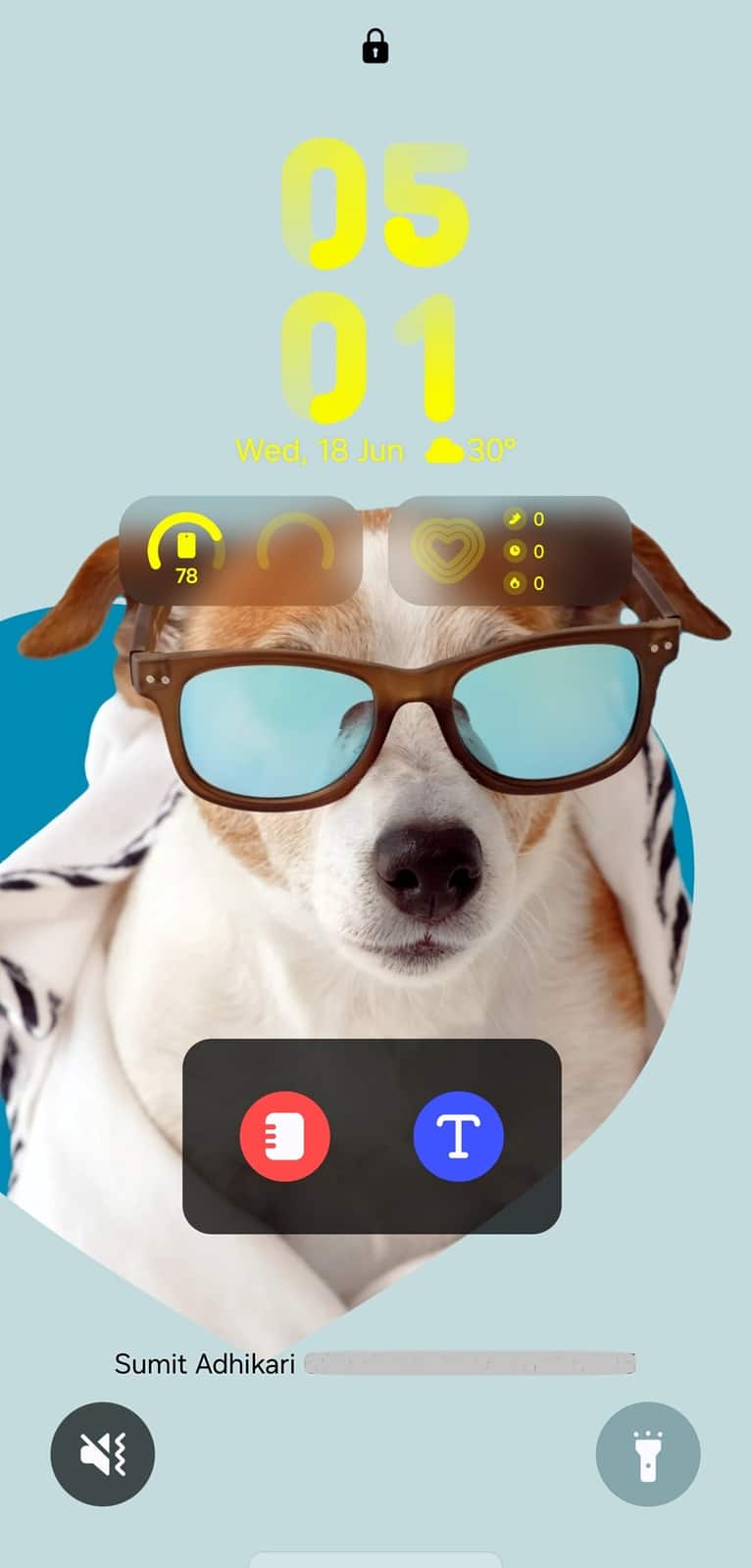
Lock screen widgets are compact versions of regular widgets that appear below the clock on your device’s lock screen. These widgets provide information like battery percentage or weather conditions, quick access to your calendar events, shortcuts to the camera or gallery, glanceable health data, and more. You also get widgets for fast actions such as voice recording or launching specific apps.
You can add up to four widgets to your Galaxy phone’s lock screen, and they’re accessible at a glance — ideal for productivity and convenience. These widgets appear when you wake the phone (via Always-On Display or tapping the screen). Follow the steps below to enable lock screen widgets on One UI 7 or higher.
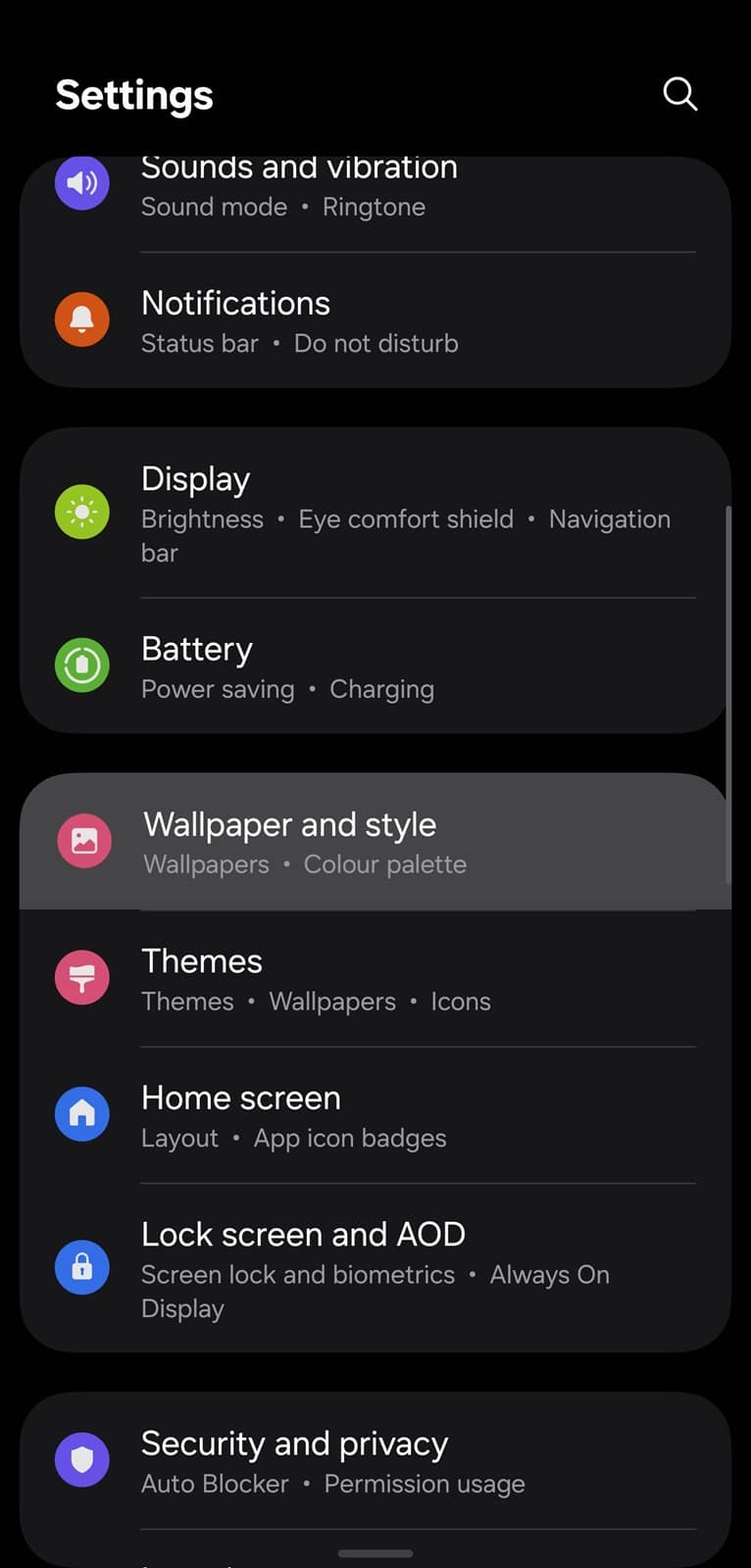
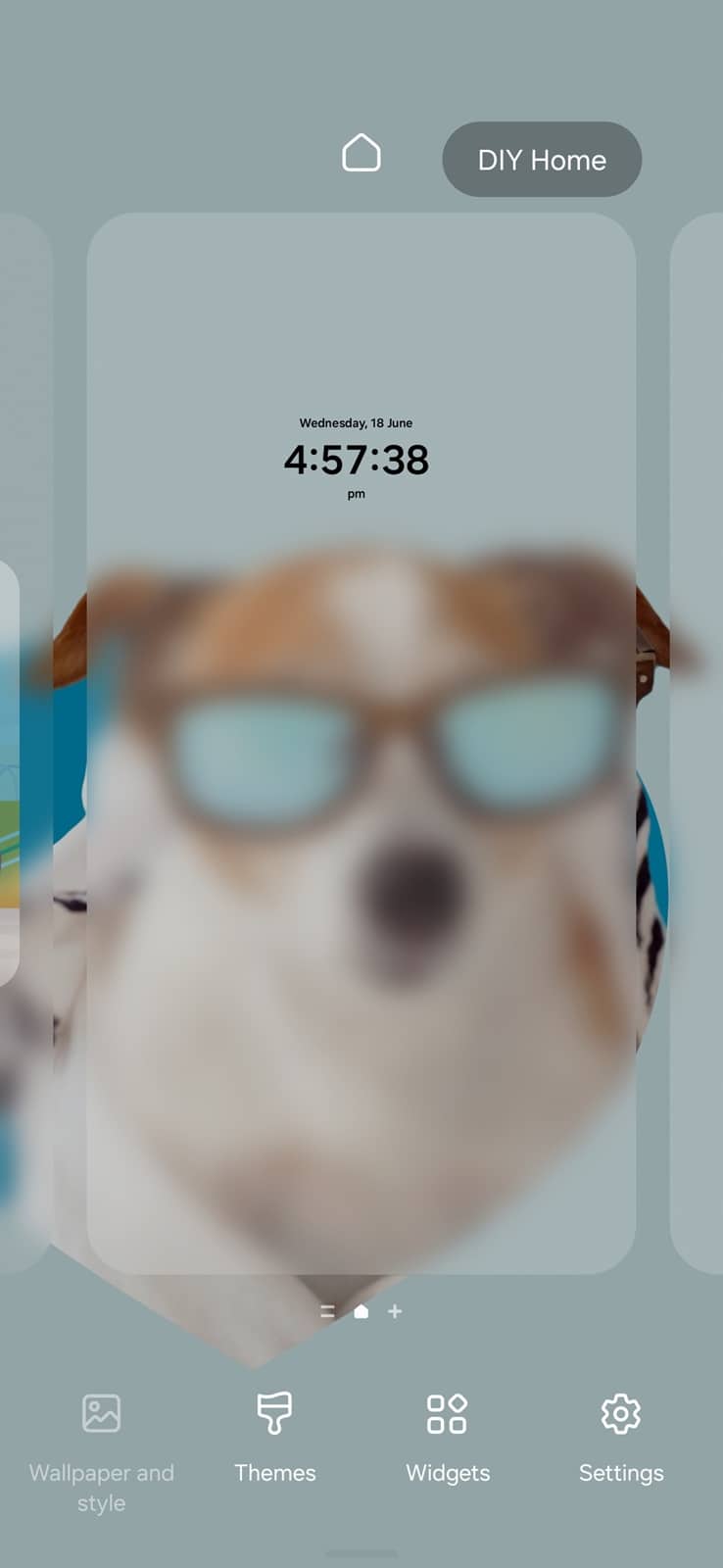
- Open Settings and go to Wallpaper and style (you can also long-press on the home screen and select Wallpaper and style on the bottom toolbar)
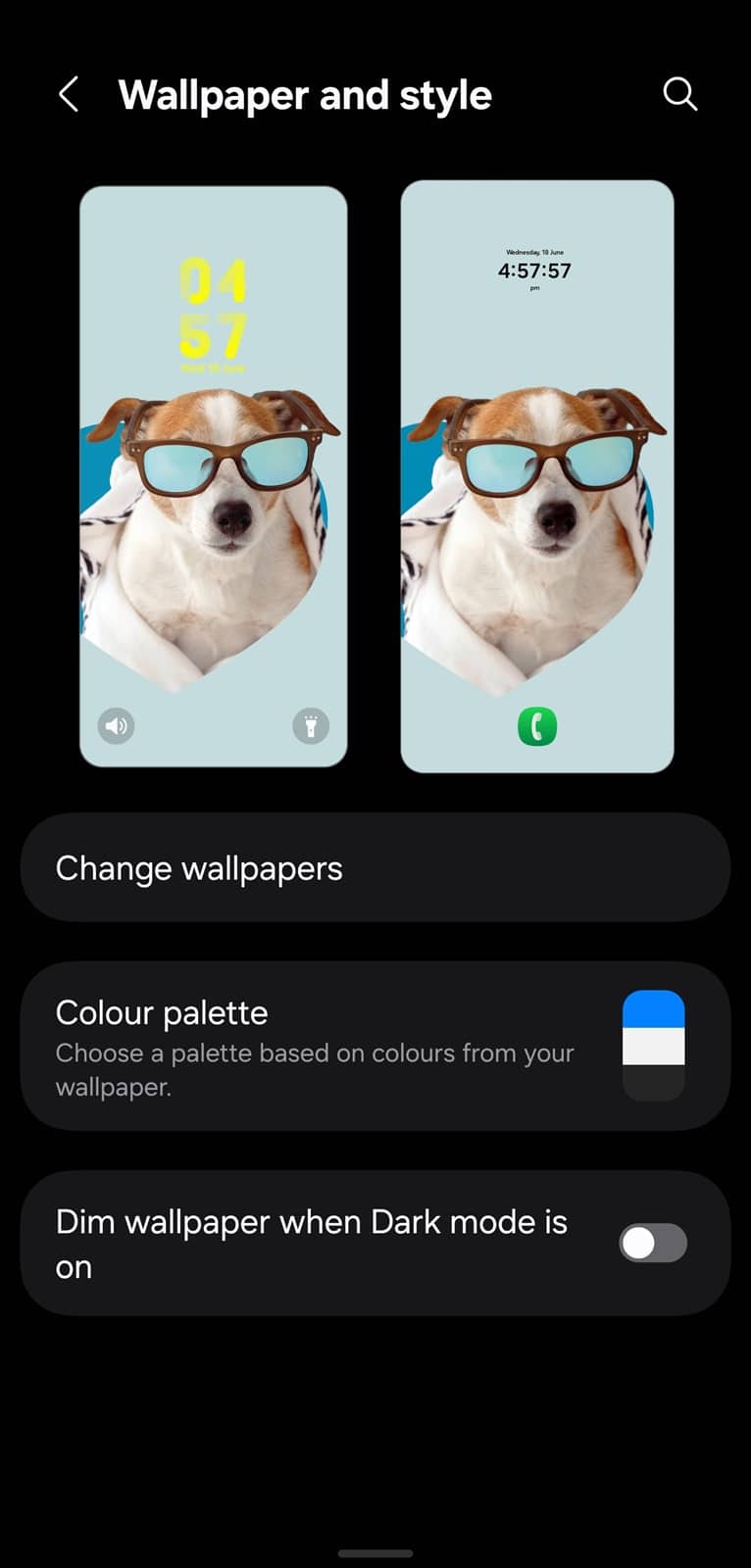
- You will see your current lock screen and home screen at the top. Select the lock screen, which is on the left
- Under the clock preview, tap Add widgets
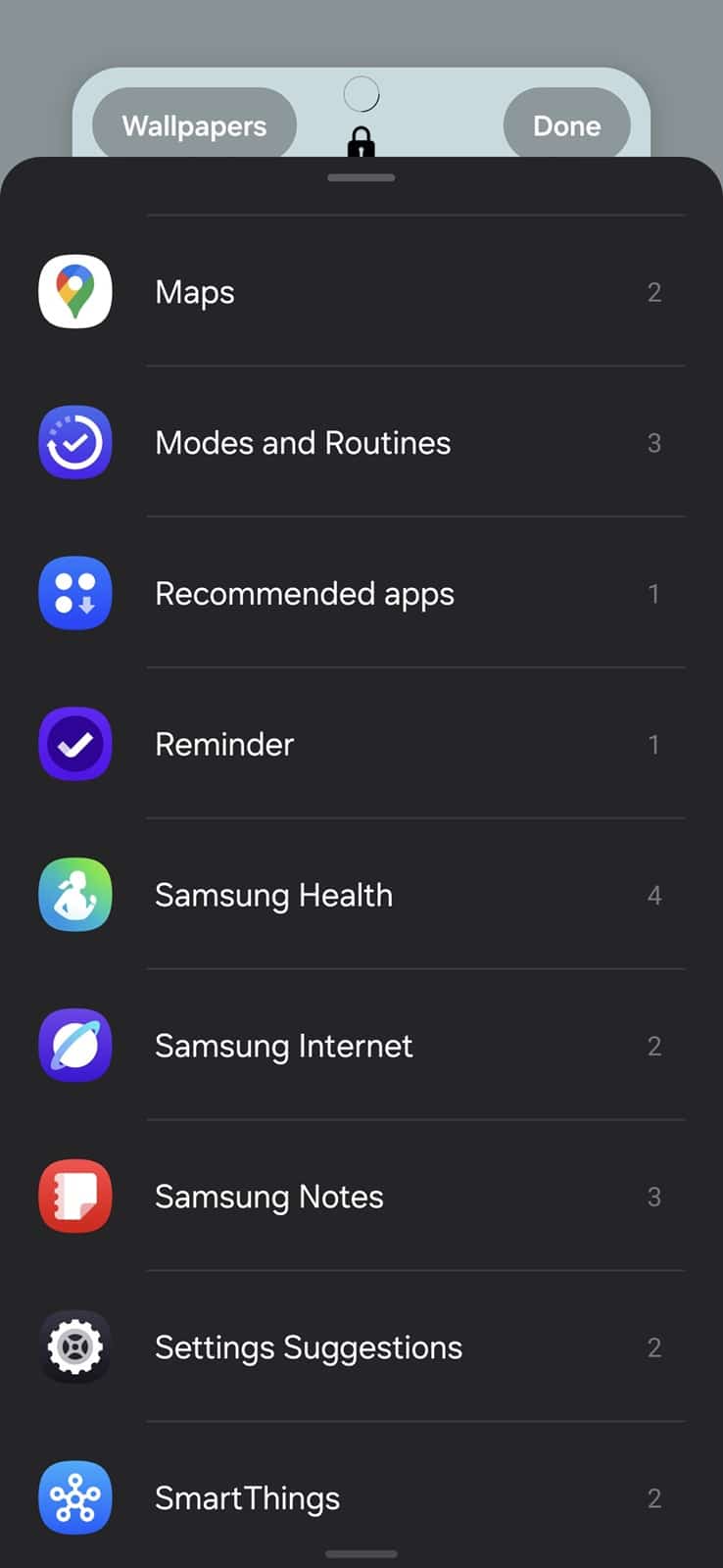
- A widget selection panel will appear. Browse and select the widgets you want to display (e.g., Battery, Camera, Weather, Voice Recorder)
- Tap Done in the top right corner to confirm your selection
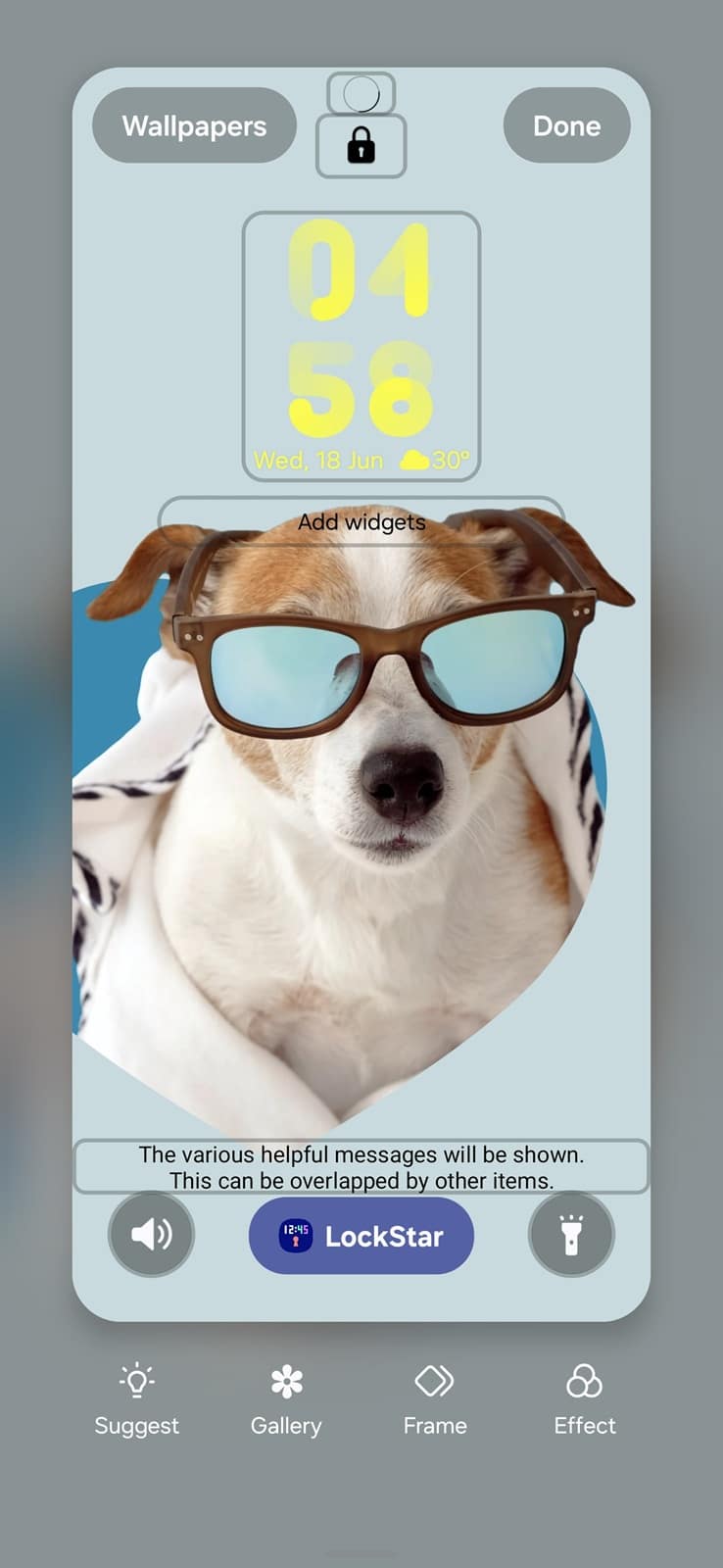
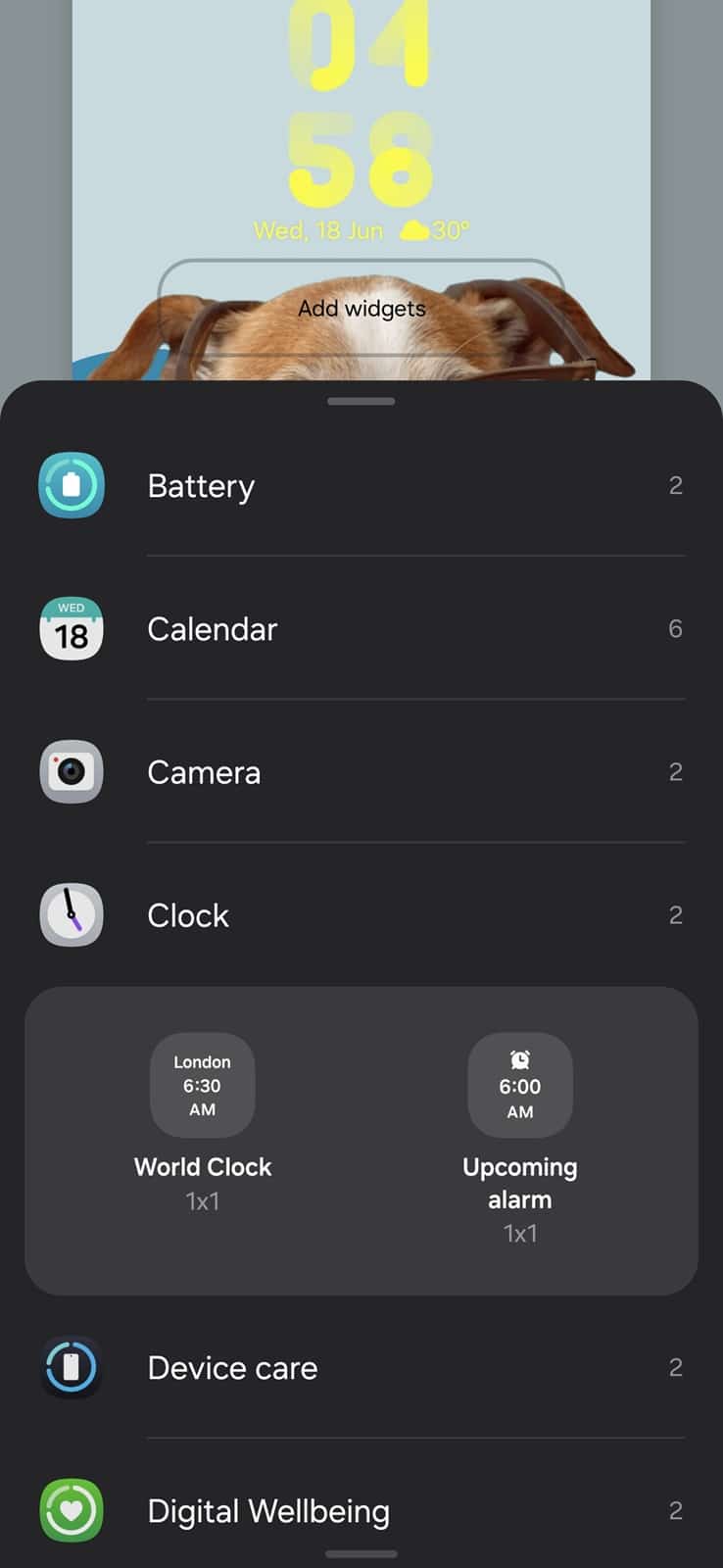
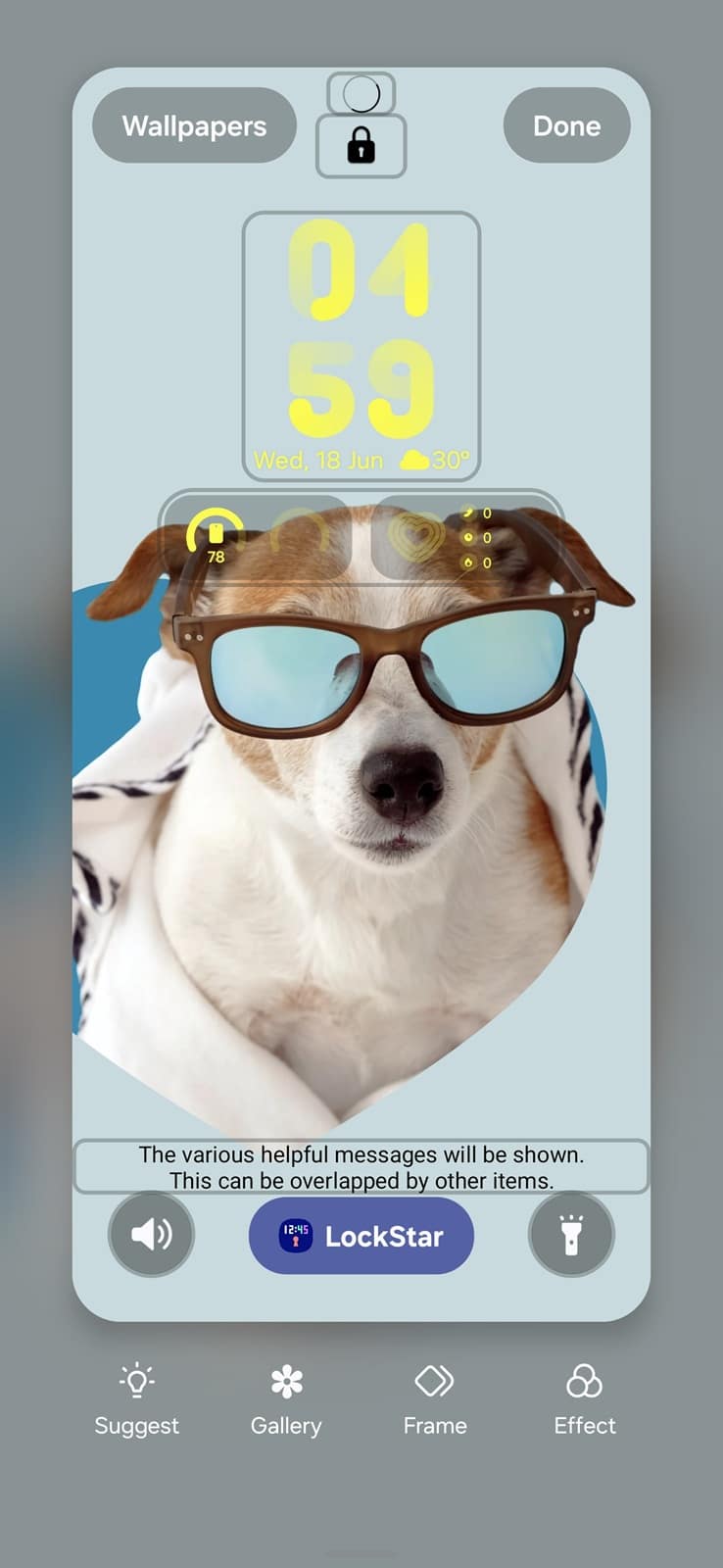
That’s it! The widgets will now appear just below the clock when you tap your screen in standby or on the lock screen. As mentioned earlier, you can add up to four 1×1 widgets. If you select a 2×1 widget, it will count as two separate widgets.
You can add more widgets with LockStar
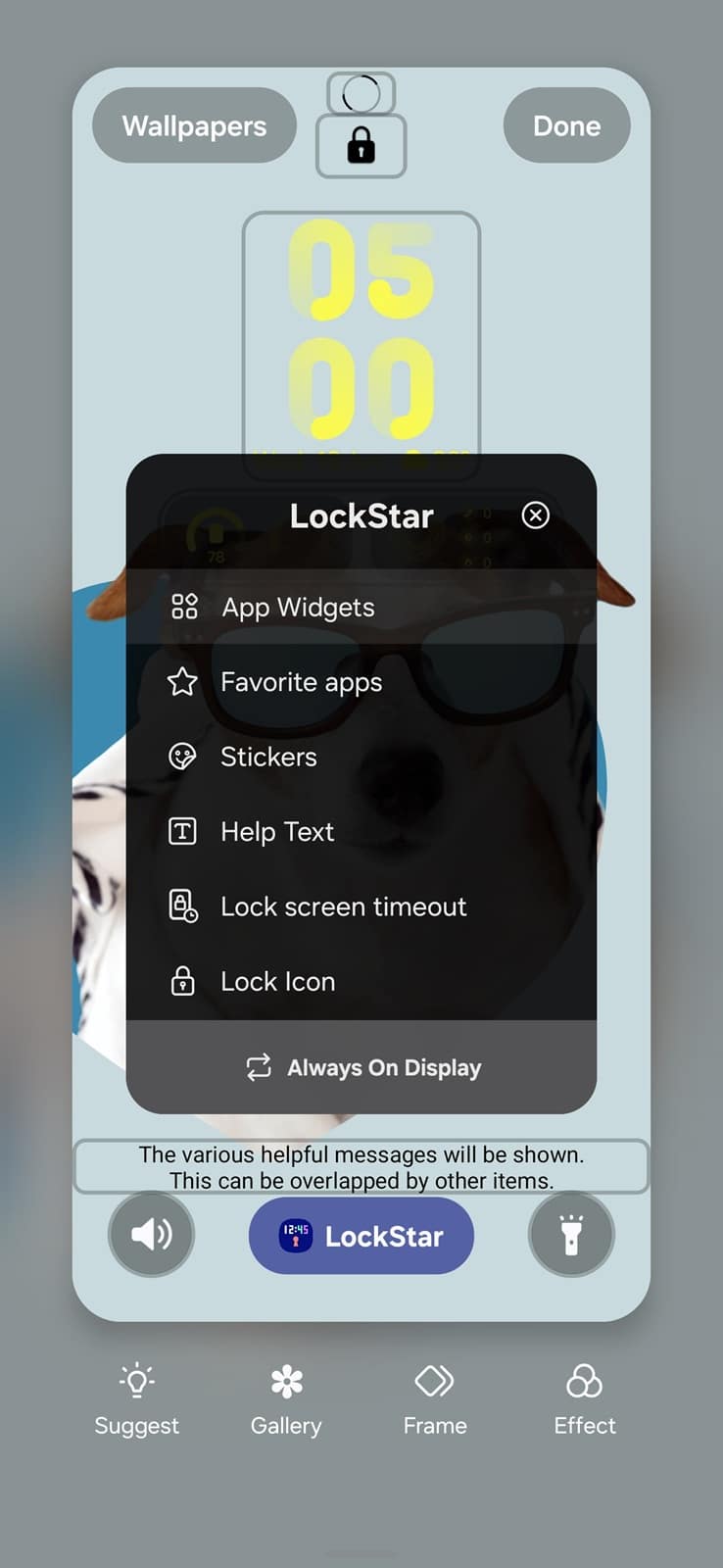
While the One UI system supports up to four lock screen widgets, you can add more widgets with LockStar. For the uninitiated, LockStar is a Good Lock module for customizing your lock screen. Besides widgets, it lets you add app shortcuts, stickers, and help text to your lock screen. You can also customize the lock screen timeout and lock icon. But let’s learn about app widgets via LockStar (download the app here).
- When on the lock screen editor, tap LockStar at the bottom
- Select App widgets and pick your widgets
- Once added, tap Done to confirm
How to edit lock screen widgets?
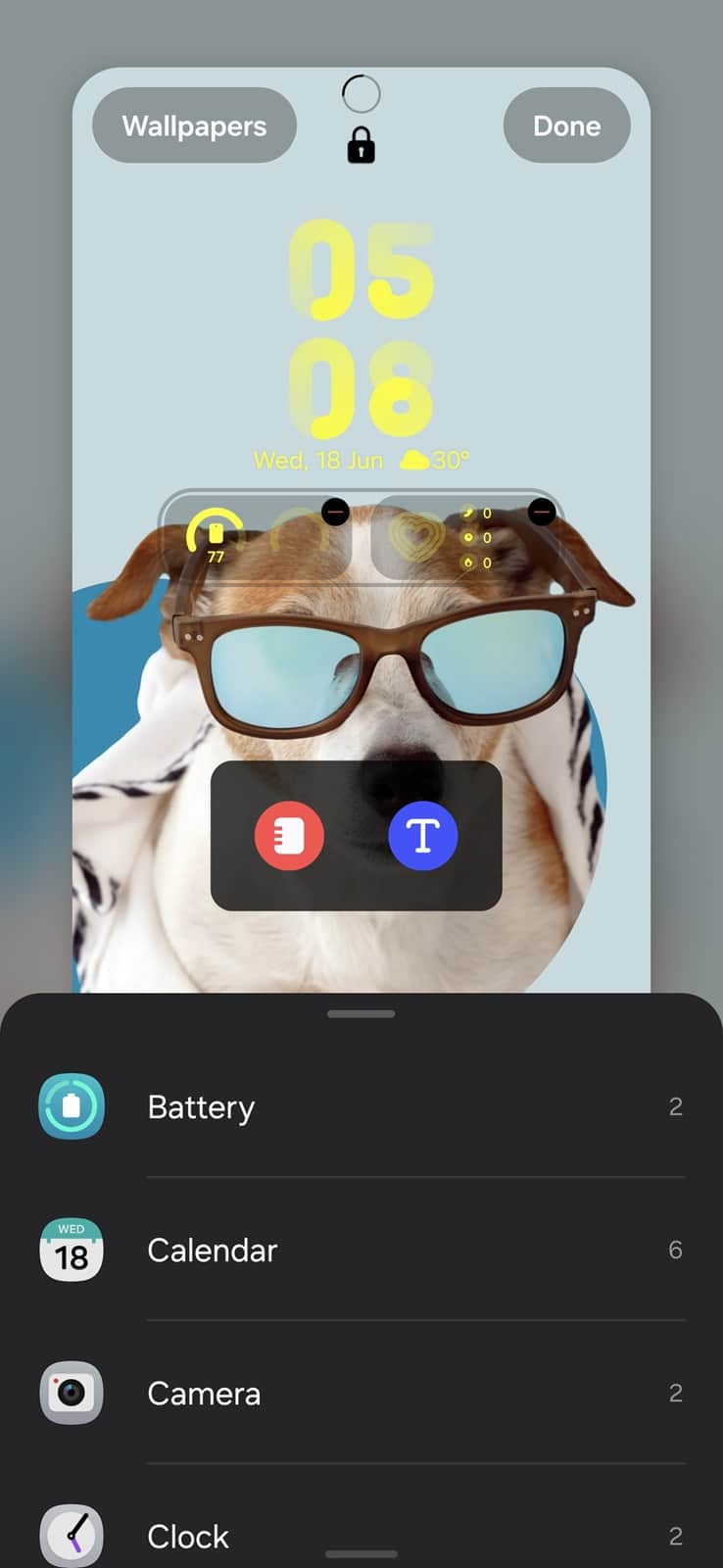
You can change your lock screen widget selection anytime. Follow the same steps as above to enter the lock screen editor (alternatively, you can long-press on your lock screen and unlock the device when prompted to enter the lock screen editor). Now, you can customize the system default widgets as well as LockStar widgets.
Tap the tiny “Minus” button in the top right corner of the system widgets to remove them. To remove LockStar widgets, drag them to the “Bin” at the bottom. Tap Done to confirm your selection.

Whether you’re checking the weather before heading out or quickly recording a thought, lock screen widgets make everyday tasks faster and more seamless. Be sure to try them out and customize your lock screen to your style and needs.

Written by
Sumit AdhikariSumit, a life-long Samsung user, is passionate about technology and has been professionally writing on tech since 2017. He’s a mathematics graduate by education and enjoys teaching basic mathematics tricks to school kids in his spare time. Sumit believes in artificial intelligence and dreams of a fully open, intelligent and connected world.

Follow us on Google Discover & set us as a preferred source in Google News
Share this Post
___________________________


New Blog Posts
___________________________

First Set of Pixel 11 Pro XL Renders Are Here
Pixel 11 Pro XL CAD renders show minimal design changes

Is Samsung Preparing One UI 8.5 Beta for Galaxy Z Fold 5 and Flip 5?
Samsung may launch a One UI 8.5 beta program for its 2023 foldables

Galaxy S25 One UI 8.5 Beta May Run Longer Than Expected
Galaxy S25 series’ One UI 8.5 beta may stretch to 10 rounds







