
How to Move Camera Controls on the Galaxy Z Flip 7 Cover Screen
SammyGuru is reader-supported. We have affiliate and sponsored partnerships, so we may earn a commission when you buy through links on our site — at no extra cost to you. Learn more.
Have you ever struggled to reach on-screen buttons with one hand while using your phone? It’s a common frustration, especially on larger displays where key controls often sit just out of thumb’s reach. With the Galaxy Z Flip 7, Samsung addresses this pain point, at least when it comes to the cover screen camera controls.
By default, buttons like Zoom, Quick Controls, and Quick View appear on the left side of the 4.1-inch cover display. That can be tricky to use one-handed if you’re holding the phone in your right hand. Thankfully, Samsung lets you reposition the controls to the other side of the screen, making it easier and more intuitive depending on your dominant hand. It’s a small but smart tweak that adds a welcome layer of personalization to the Flip 7’s user experience.
How to move the camera controls on the Galaxy Z Flip 7’s cover screen
It’s literally a two-step process — here’s how:
- When using the camera on the cover screen, tap and hold the vertical camera controls bar (with the three icons)
- When the edit mode activates, drag the bar to the opposite side of the screen and release it
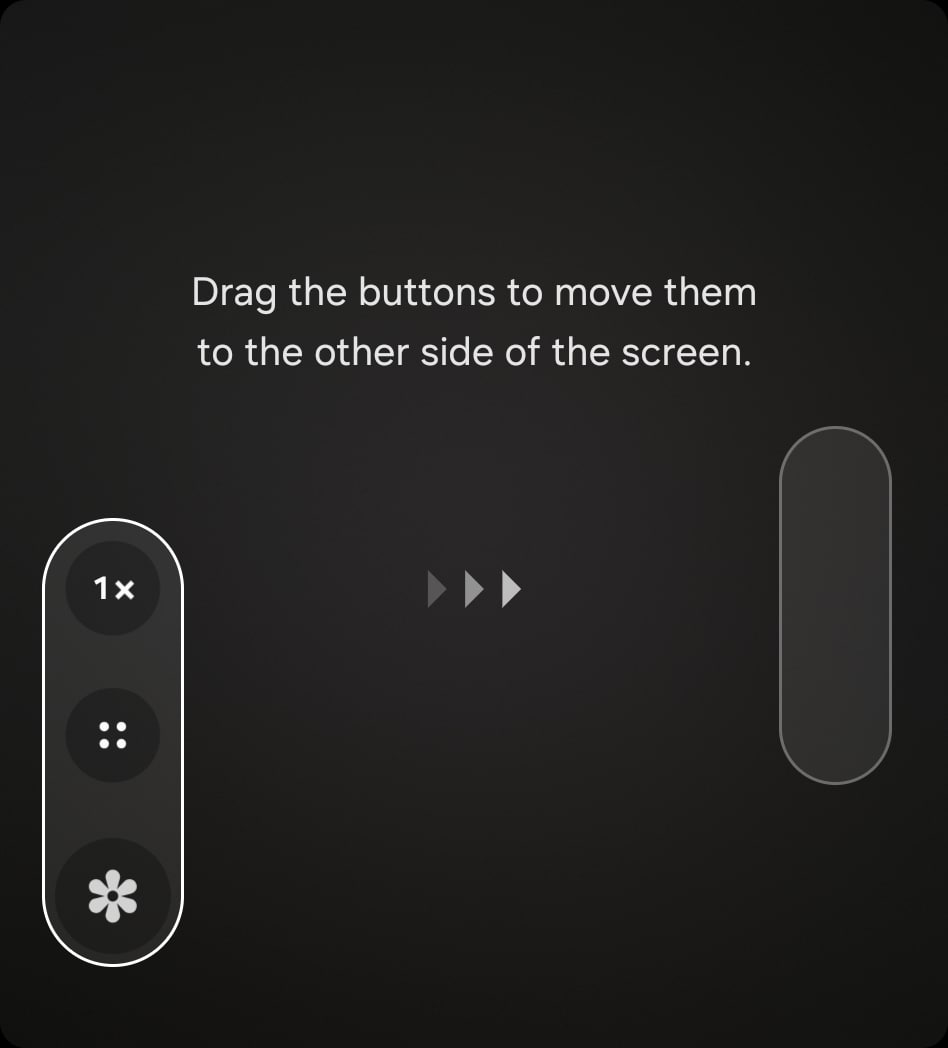
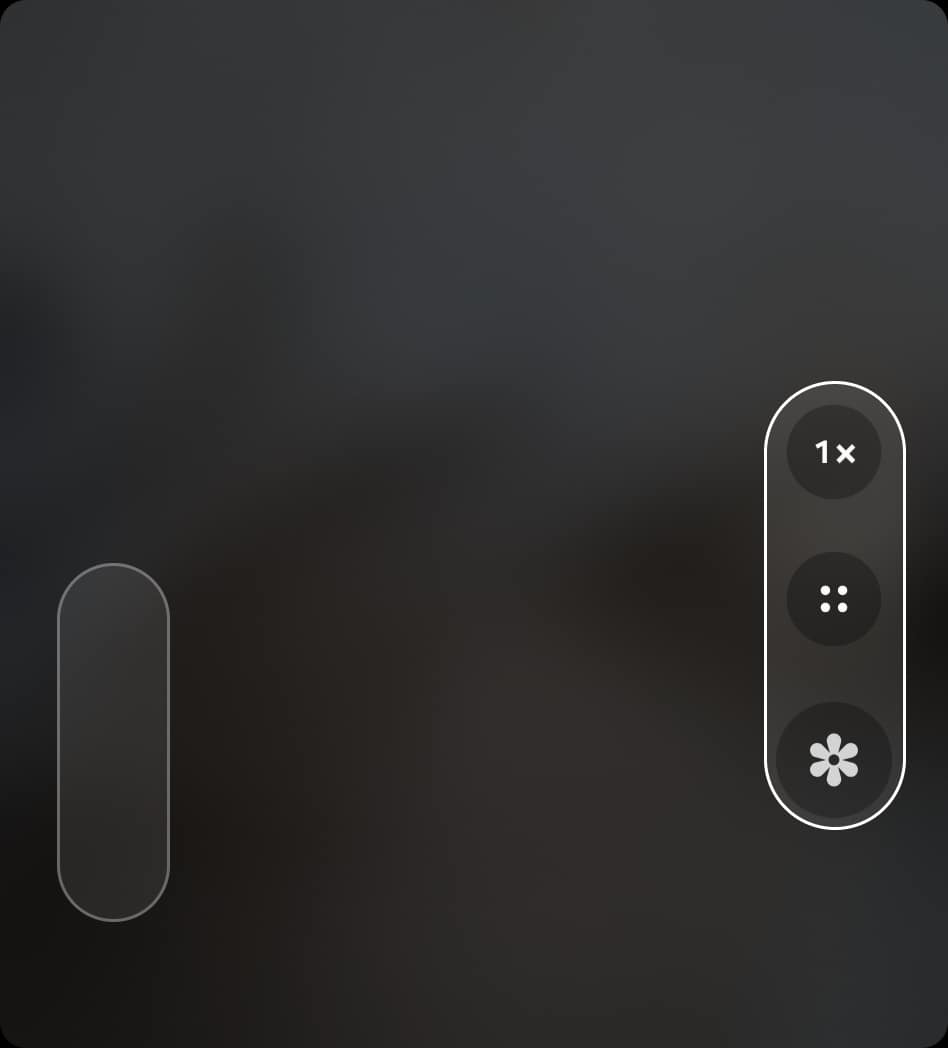
Note that the controls will sit slightly higher when you move them to the right side. This is to accommodate the position of the two rear-facing cameras on the Galaxy Z Flip 7. Nonetheless, the buttons are now much easily reachable with one hand if you’re holding the phone in your right hand.
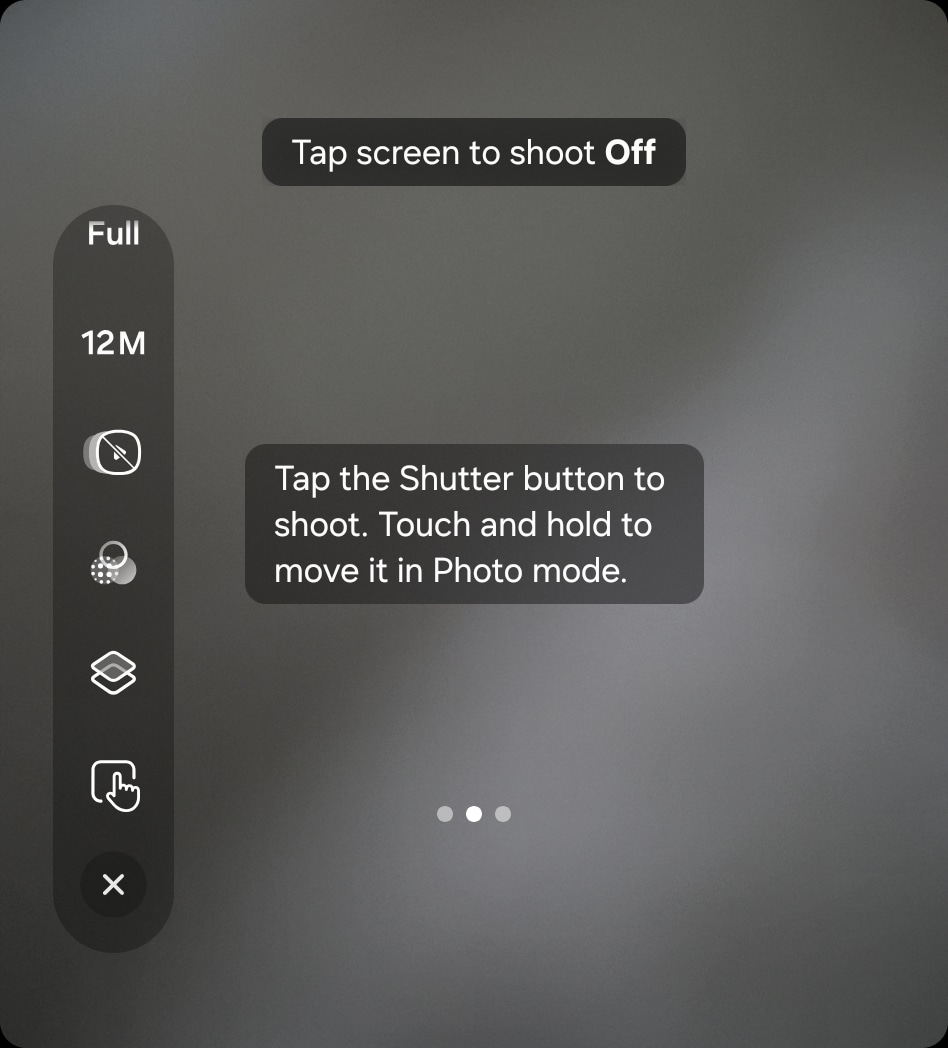
Unfortunately, Samsung doesn’t let you place the shutter button and these controls on the same side. If you move one, the other automatically switches to the opposite side. It’s not an issue if you do not use a shutter button, which is the default setting anyway (by default, you tap on the screen to shoot). If you prefer a shutter button, tap on the Quick Controls button (the middle one) and set the “Tap screen to shoot” option at the bottom to Off.
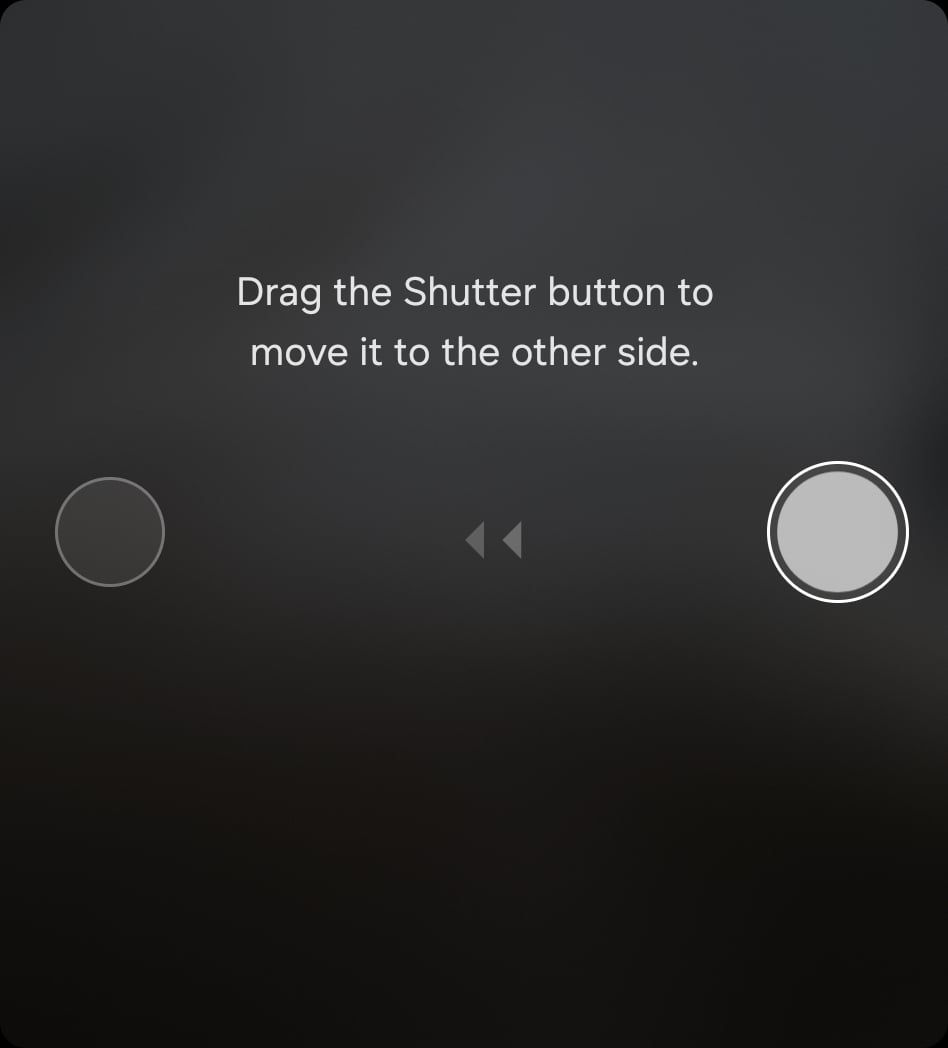
This flexibility makes the Galaxy Z Flip 7’s cover camera experience not just convenient, but customizable to how you shoot. Whether you’re snapping quick selfies or framing group shots, the controls move your way. If you have more questions about the Flip 7, you can reach out to us on X.
Sign up for our Mystery Box program and pre-order the Galaxy Z Flip 7 today to get a $50 credit and a FREE Mystery Box! Every Mystery Box includes a premium phone case, screen protector, cleaning kit, and desktop phone stand — all absolutely free.

Written by
Sumit AdhikariSumit, a life-long Samsung user, is passionate about technology and has been professionally writing on tech since 2017. He’s a mathematics graduate by education and enjoys teaching basic mathematics tricks to school kids in his spare time. Sumit believes in artificial intelligence and dreams of a fully open, intelligent and connected world.

Follow us on Google Discover & set us as a preferred source in Google News
Share this Post
___________________________


New Blog Posts
___________________________

First Set of Pixel 11 Pro XL Renders Are Here
Pixel 11 Pro XL CAD renders show minimal design changes

Is Samsung Preparing One UI 8.5 Beta for Galaxy Z Fold 5 and Flip 5?
Samsung may launch a One UI 8.5 beta program for its 2023 foldables

Galaxy S25 One UI 8.5 Beta May Run Longer Than Expected
Galaxy S25 series’ One UI 8.5 beta may stretch to 10 rounds







