
Your Samsung TV Can Access Your Phone’s Storage — Here’s How
SammyGuru is reader-supported. We have affiliate and sponsored partnerships, so we may earn a commission when you buy through links on our site — at no extra cost to you. Learn more.
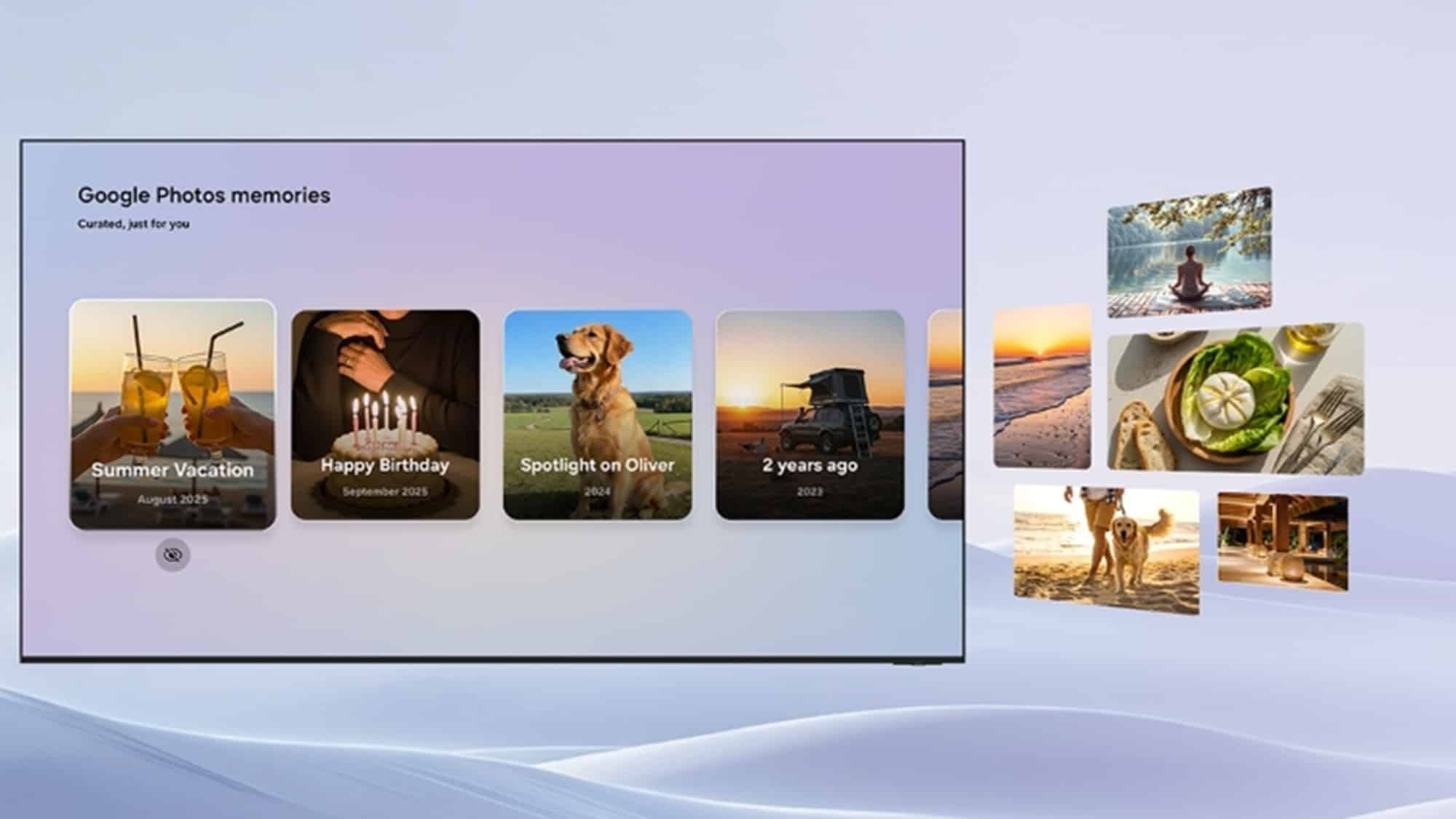
If you own a Galaxy smartphone and a Samsung TV, sharing content between them just got a lot easier. Samsung now lets its TVs wirelessly access and browse the storage on your Galaxy phone or tablet, so you can view photos and videos on the big screen instantly. There’s no need for cables, casting apps, or manual file transfers. Here’s how it works.
Samsung ecosystem gets stronger with Storage Share between TVs and mobile devices
This functionality is enabled by a new feature called Storage Share. It allows your TV to directly access your phone’s storage over Wi-Fi, essentially turning it into a large-screen file browser for your mobile device. Instead of mirroring your screen or uploading files to the cloud, the TV simply reads your device’s content in real time, so you can view photos and videos with family or friends.
To use Storage Share, you need a Samsung TV running Tizen 9 and a Galaxy phone or tablet running One UI 7 or later. Both devices must be connected to the same Wi-Fi network and signed in with the same Samsung account. You also need to enable Storage Share on your phone/tablet and add your TV to the SmartThings app. To enable Storage Share, go to Settings > Connected devices > Storage Share (turn it on).
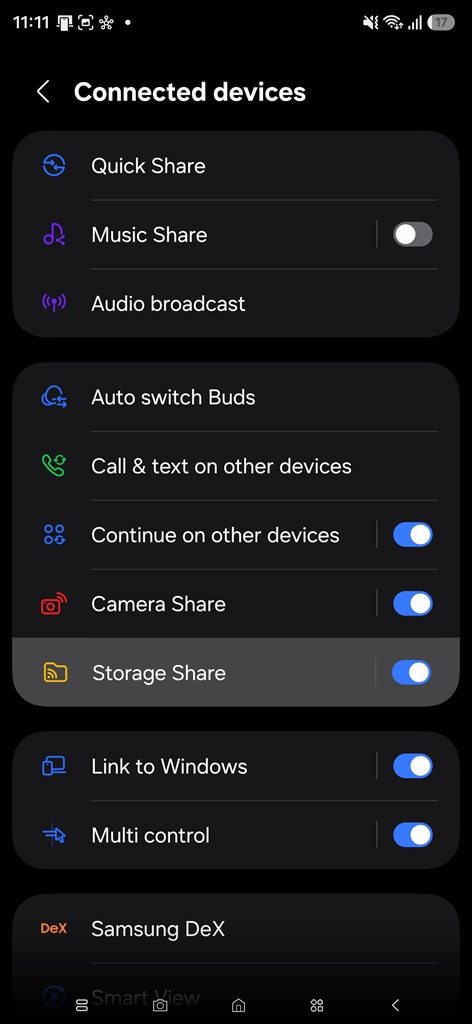
How to browse your Galaxy phone’s storage on a Samsung TV
Once everything is ready, the setup process is straightforward:
- Pair your devices via Bluetooth: On your Galaxy phone or tablet, scan for your TV, select it, and confirm the pairing request.
- Open Connected Devices on your TV: Use your remote to navigate to the Connected Devices section from the home screen.
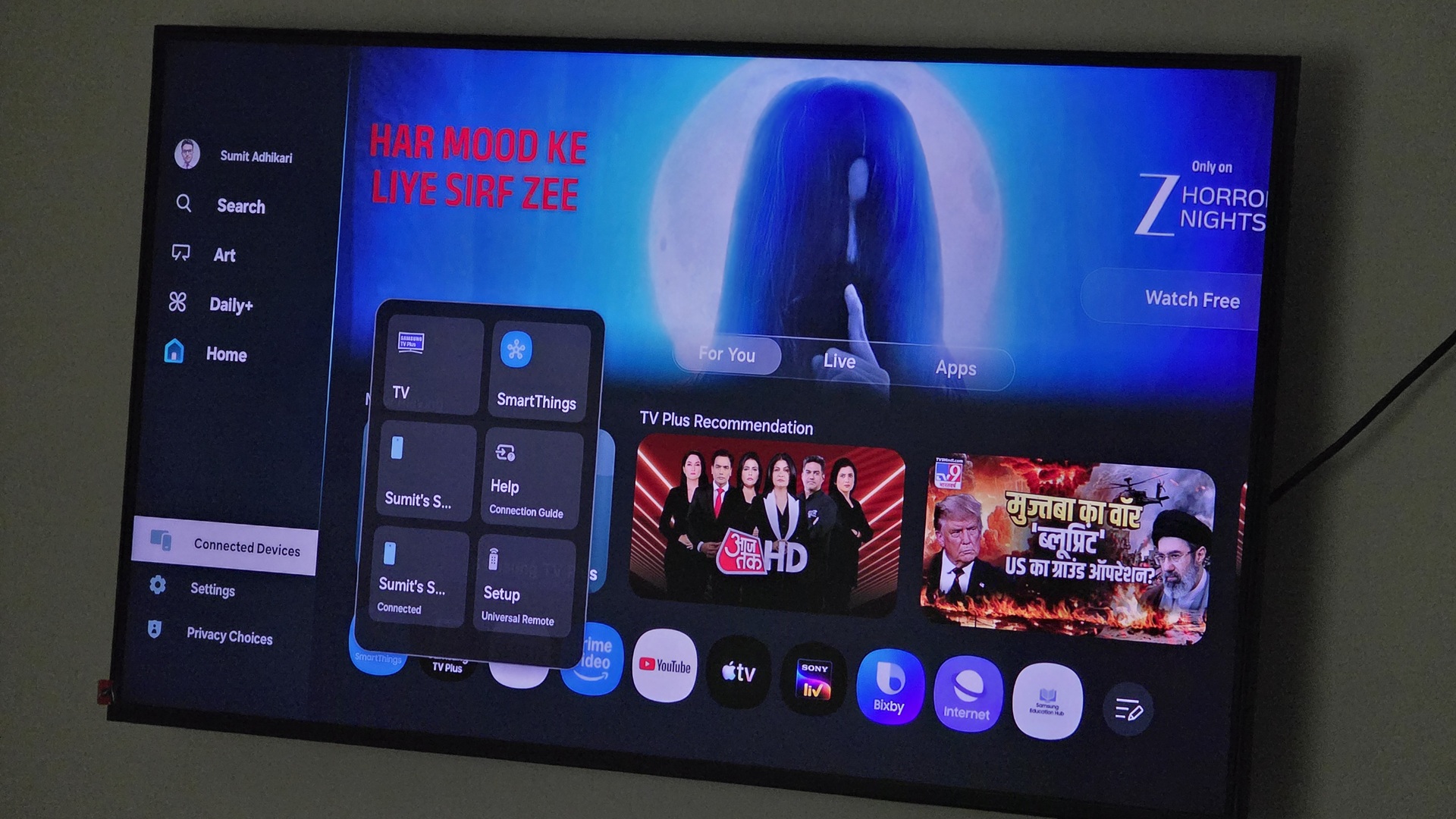
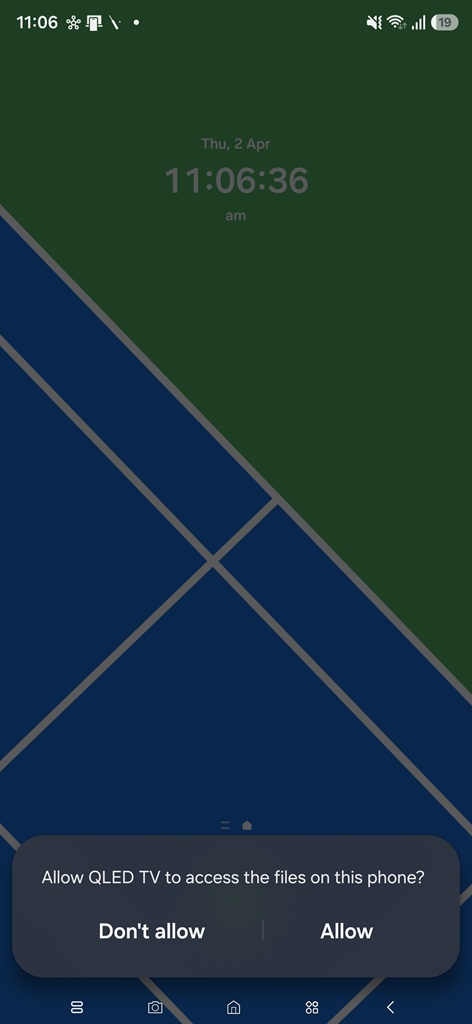
- Select your Galaxy device: Your phone or tablet should appear in the list — select it to establish the connection. When prompted, tap Allow to let the TV access your files.
- Start browsing files: The TV will open a file manager interface where you can explore your phone’s storage.
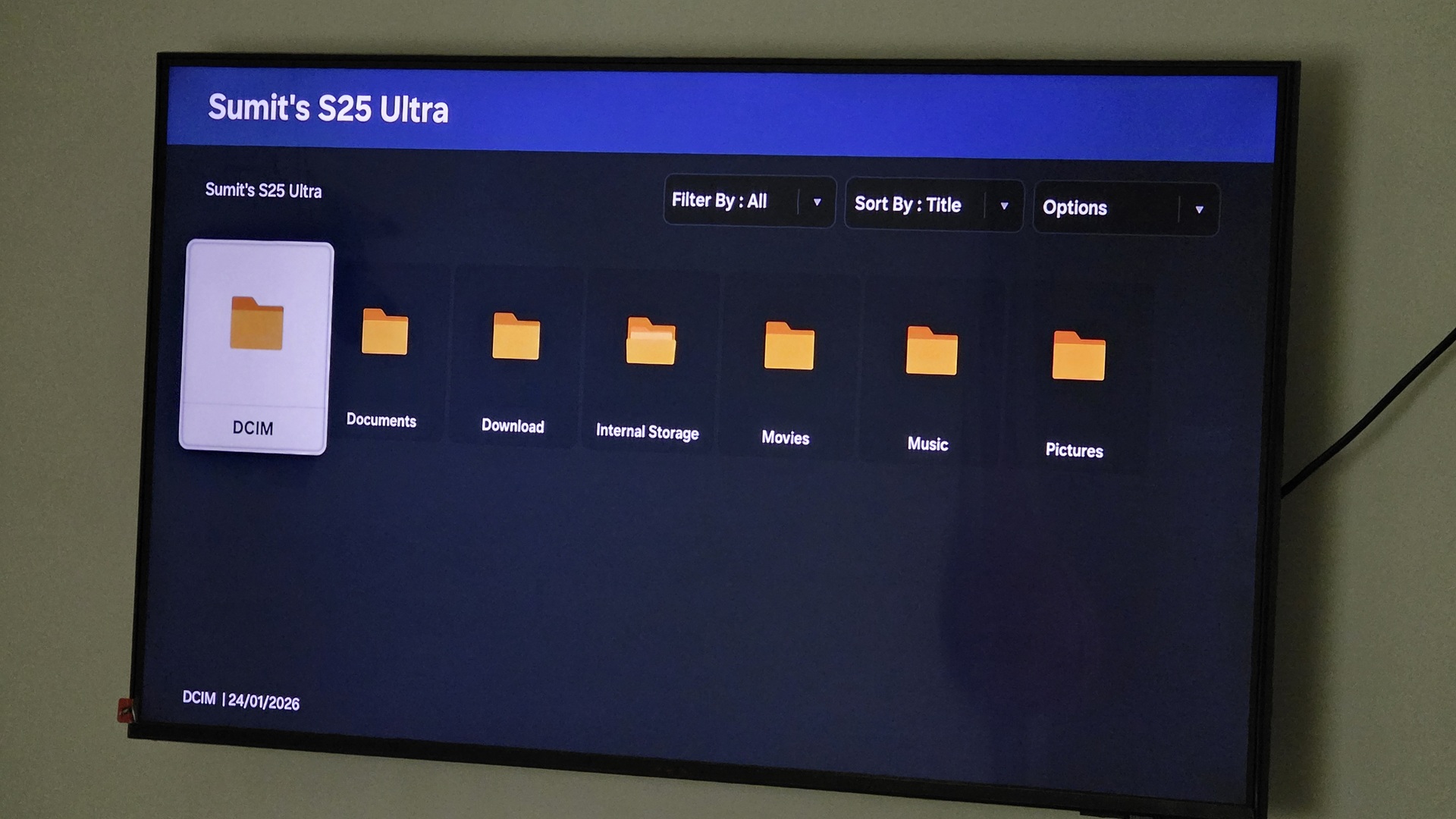
From there, you can view photos and play videos directly on the TV. It’s fast, simple, and doesn’t require duplicating files or using third-party apps. You can quickly view photos and videos on the big screen. However, you cannot open documents or transfer files.
Storage Share is a simple yet powerful feature for anyone invested in the Samsung ecosystem. When you’re finished, you can disconnect your phone from the TV via the Bluetooth menu.

Written by
Sumit AdhikariSumit, a life-long Samsung user, is passionate about technology and has been professionally writing on tech since 2017. He’s a mathematics graduate by education and enjoys teaching basic mathematics tricks to school kids in his spare time. Sumit believes in artificial intelligence and dreams of a fully open, intelligent and connected world.

Follow us on Google Discover & set us as a preferred source in Google News
Share this Post
___________________________


New Blog Posts
___________________________

First Set of Pixel 11 Pro XL Renders Are Here
Pixel 11 Pro XL CAD renders show minimal design changes

Is Samsung Preparing One UI 8.5 Beta for Galaxy Z Fold 5 and Flip 5?
Samsung may launch a One UI 8.5 beta program for its 2023 foldables

Galaxy S25 One UI 8.5 Beta May Run Longer Than Expected
Galaxy S25 series’ One UI 8.5 beta may stretch to 10 rounds







