
Here’s How You Can Enable Hidden Frame Watermarks in Gallery Assistant
Samsung recently introduced a new app called Gallery Assistant in Korea. At first glance it looks like a simple companion to the stock Gallery app, but it does a lot more than you’d expect. There are helpful shortcuts, small utilities, and hidden tricks sprinkled inside.
The real surprise comes from a feature Samsung didn’t even advertise. Buried inside Gallery Assistant is a tool that lets you add vintage-style frames to your photos, giving them the look of instant film. For anyone who misses the charm of old-school photography, this is the feature that makes the app worth trying.
Make your photos look old school
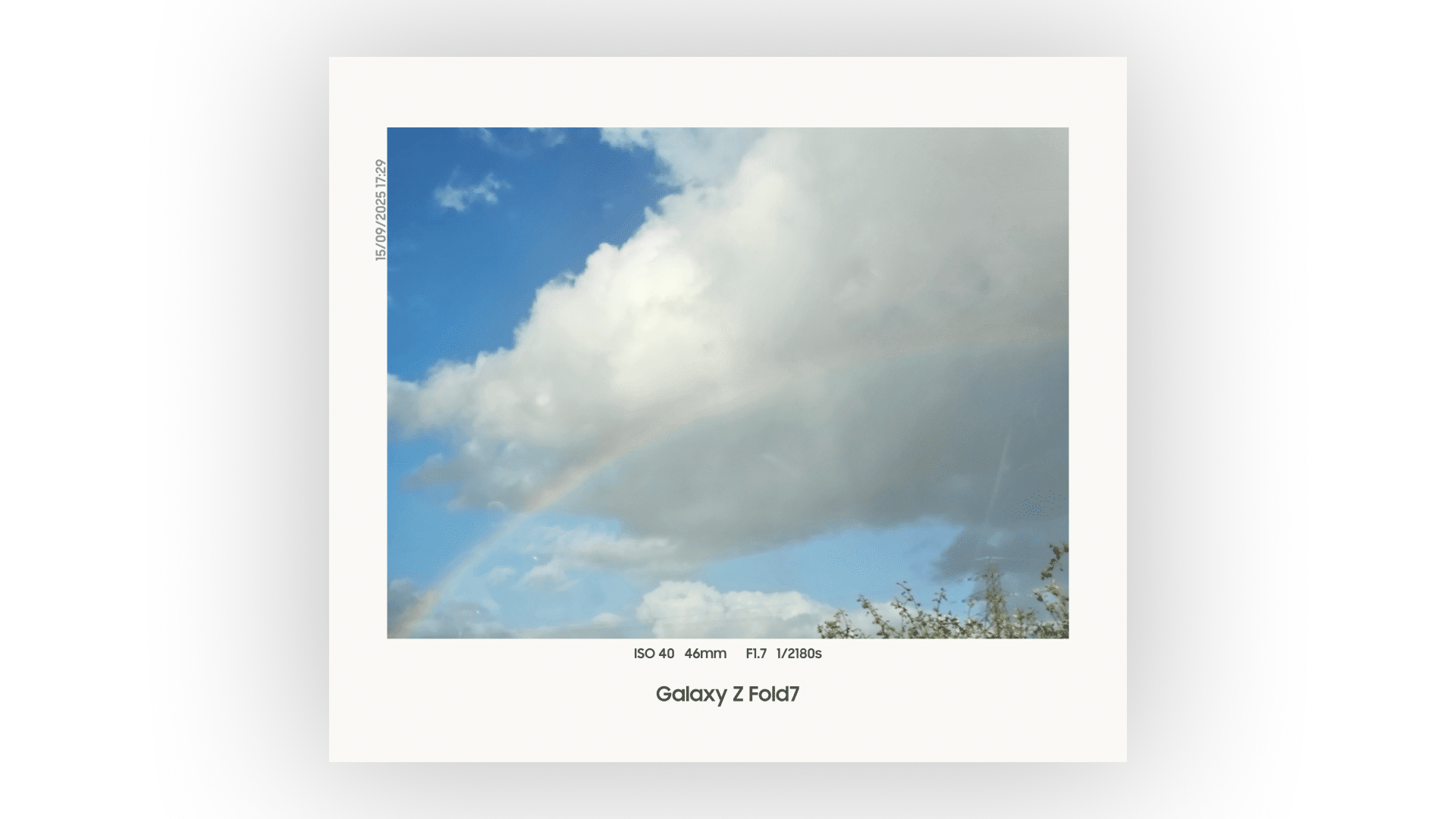
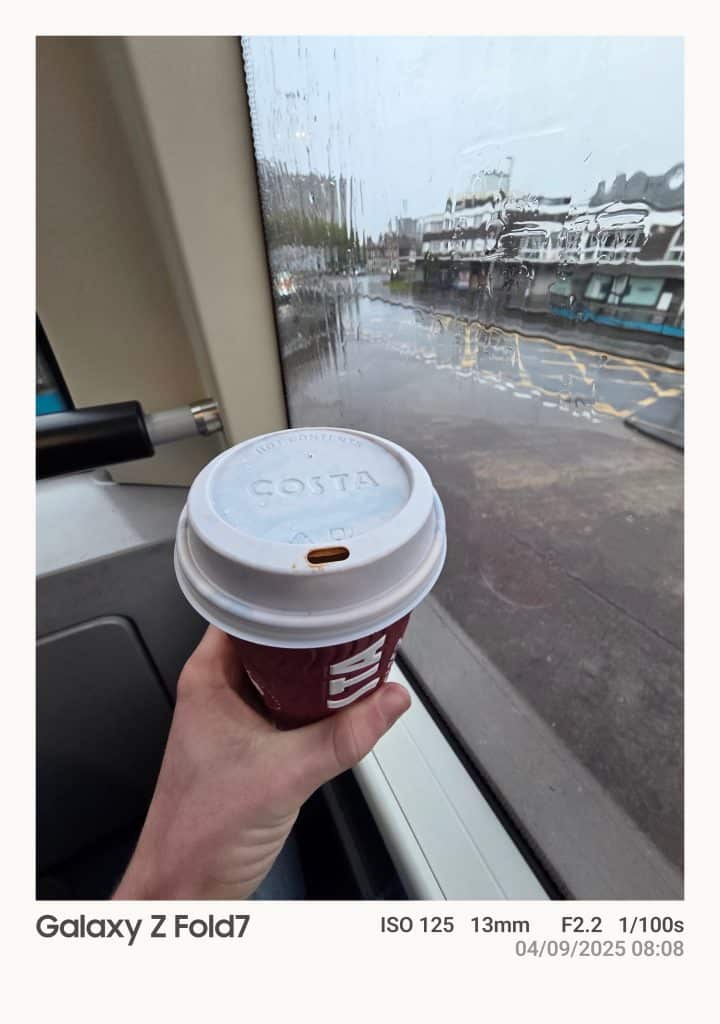
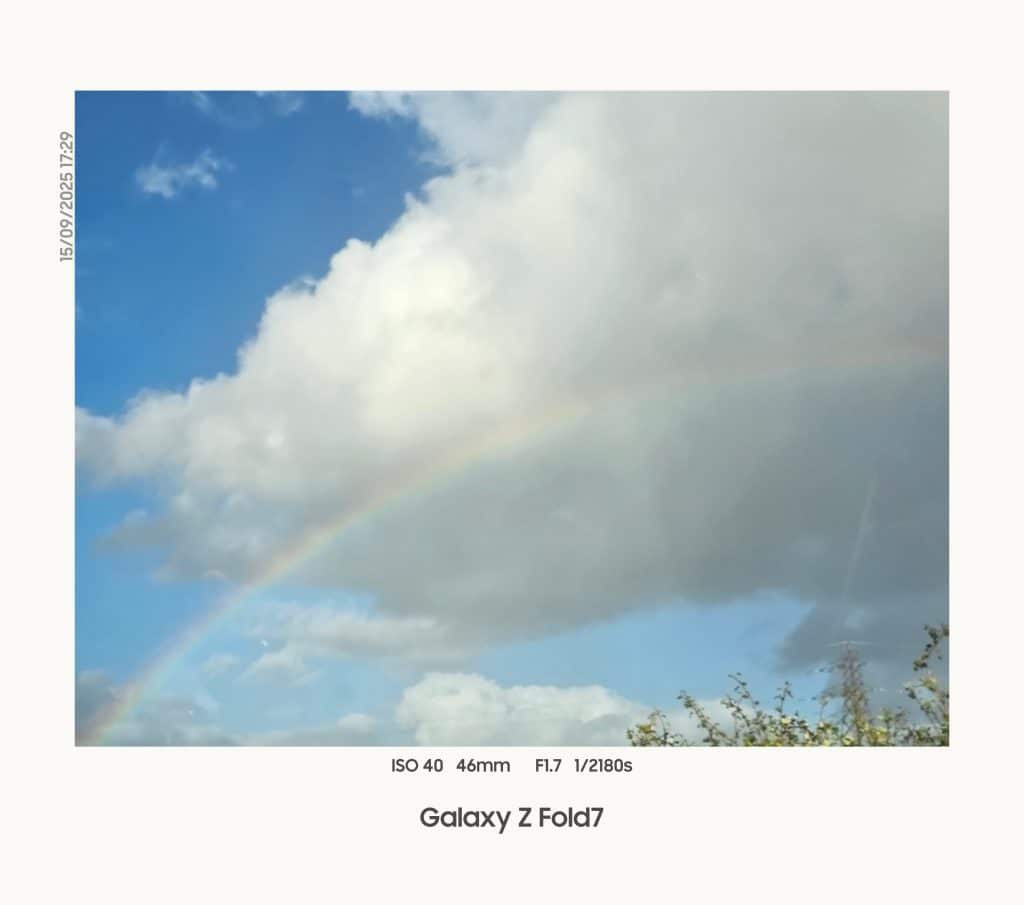
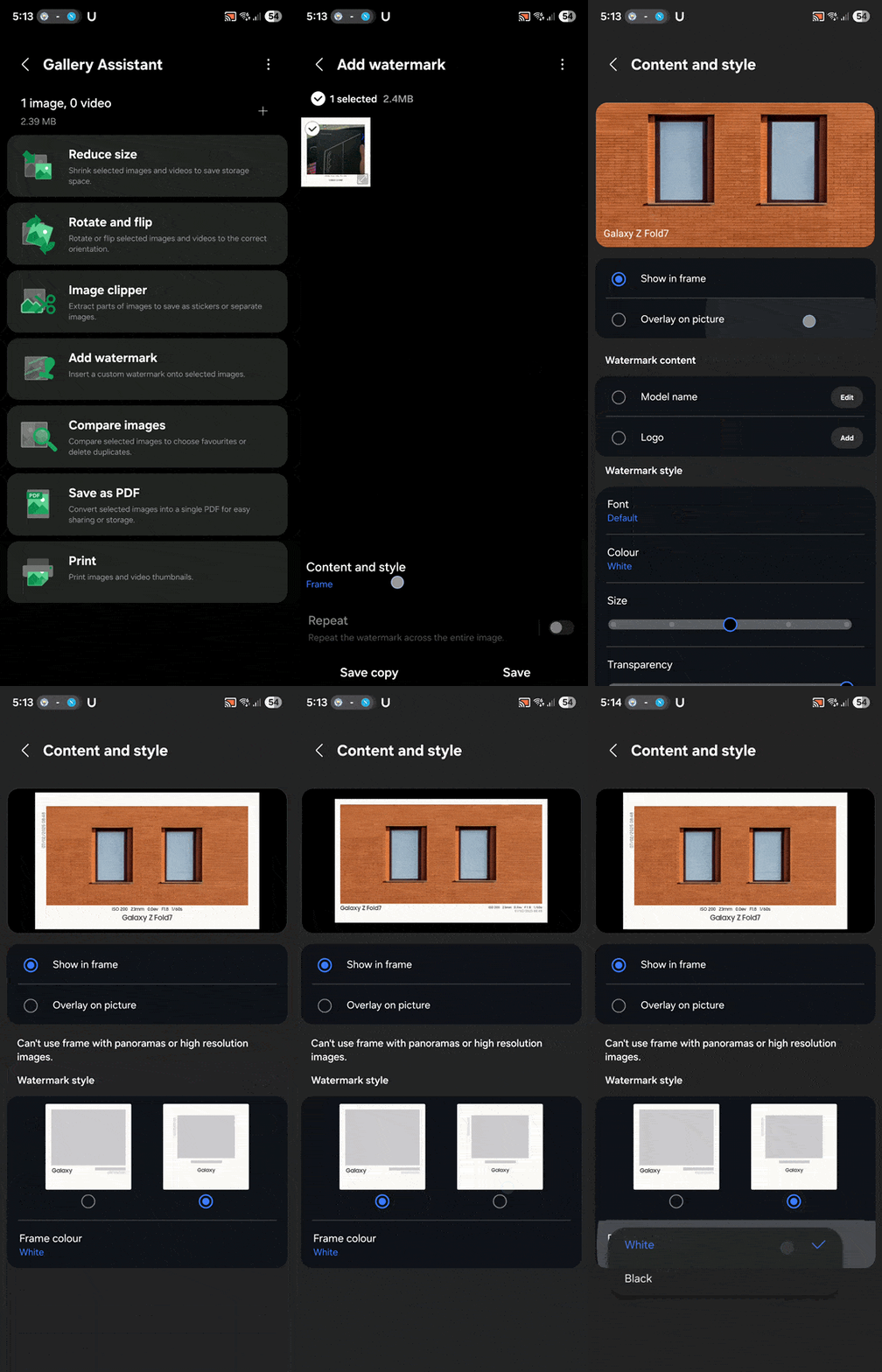
There are two frame styles available. The first stretches text across the frame’s width, combining a thin outline with bold lettering. The second centers the text, makes it smaller, and thickens the outer border. Both options deliver a convincing retro look, similar to what you’d see on a Polaroid print.
How to enable these Frame Watermarks in Gallery Assistant
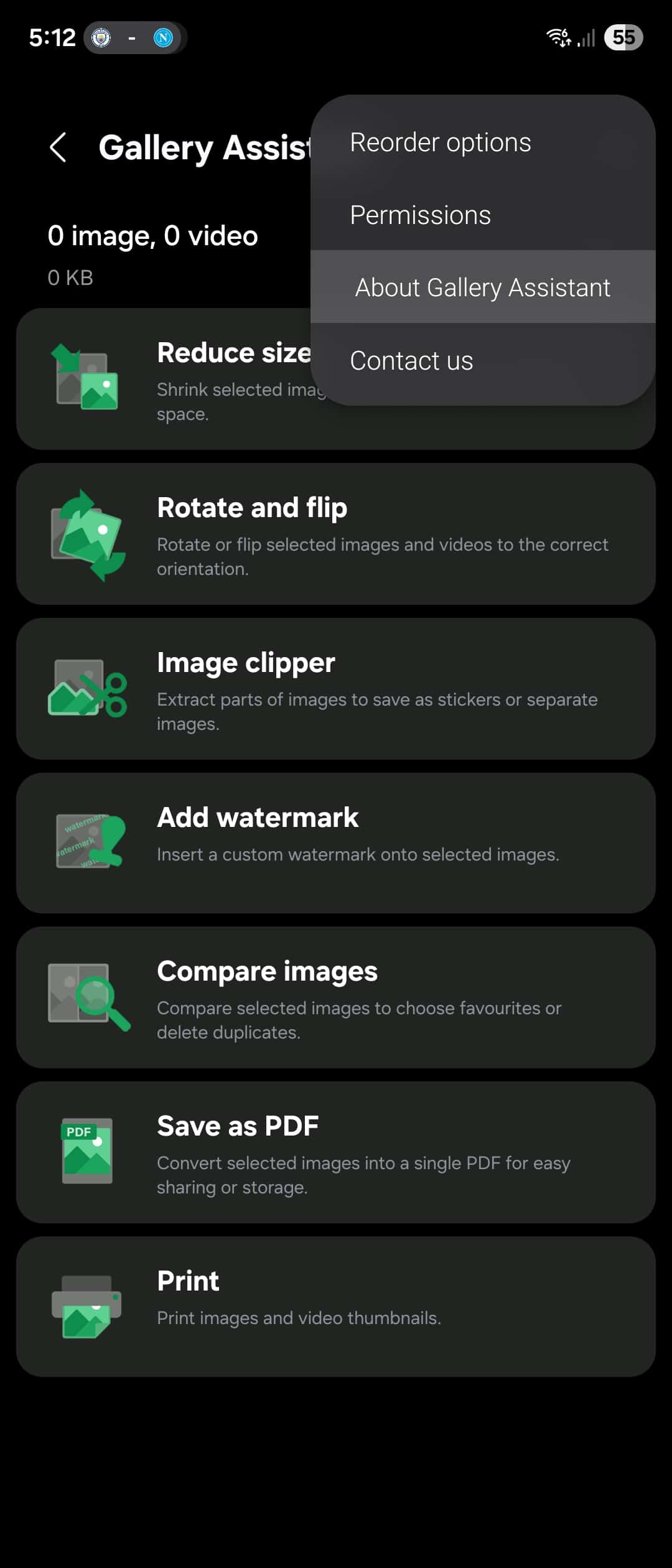
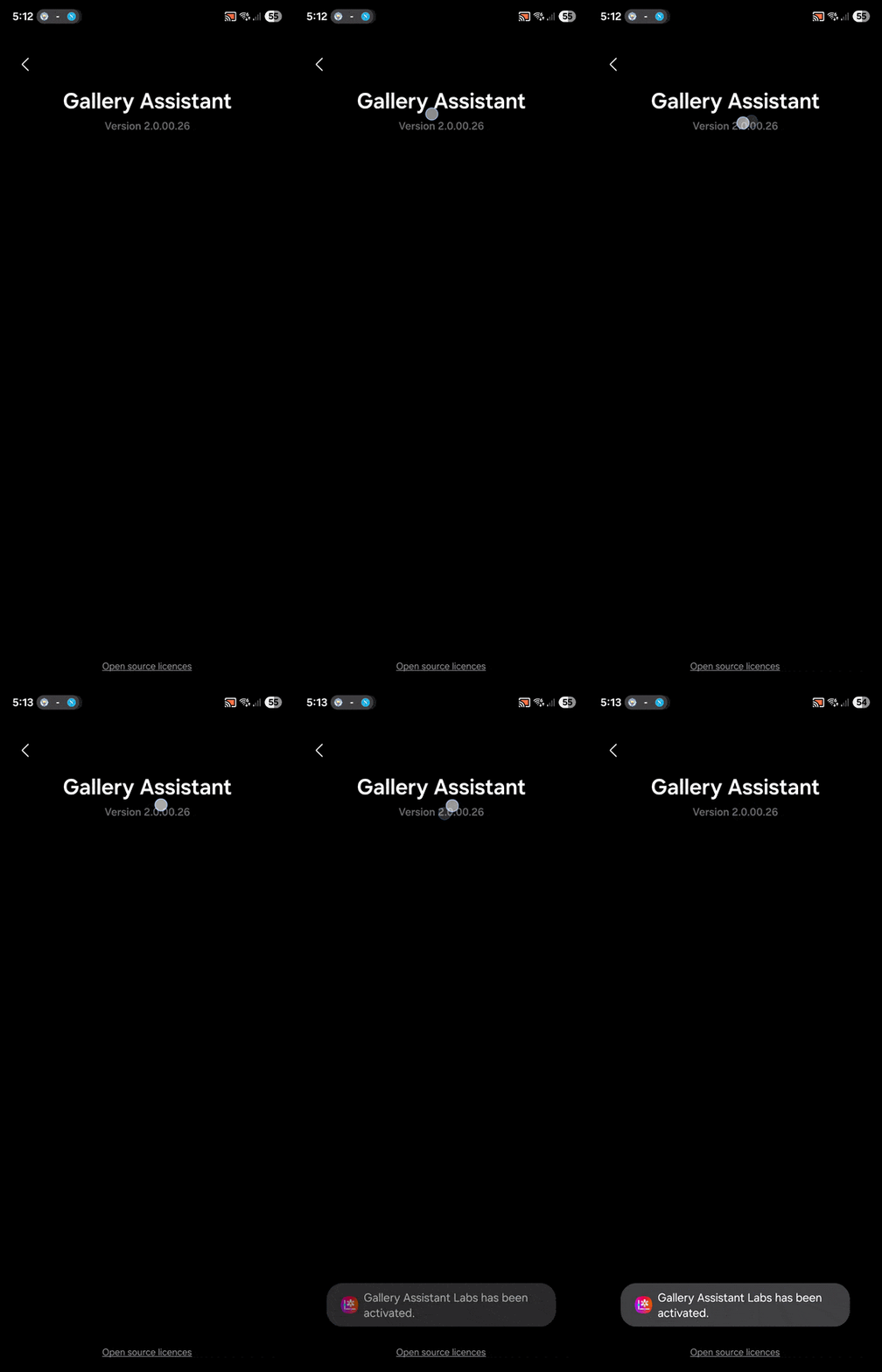
It’s incredibly easy to get this feature up and running. First, make sure you have Gallery Assistant v2.0.00.26 or higher. Open the app, tap the three dots in the top-right corner, and select About Gallery Assistant. Quickly tap the version number several times until a toast messaging appears confirming that Labs features are enabled.
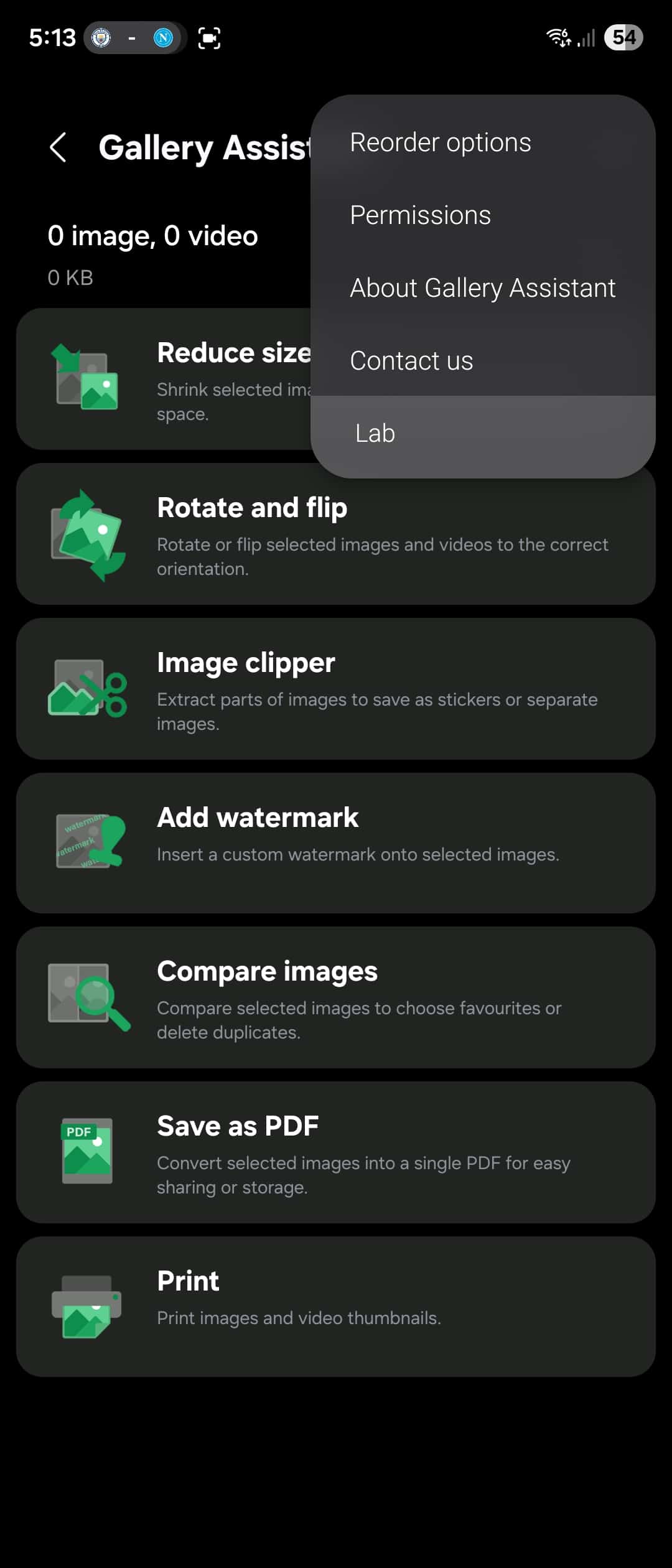
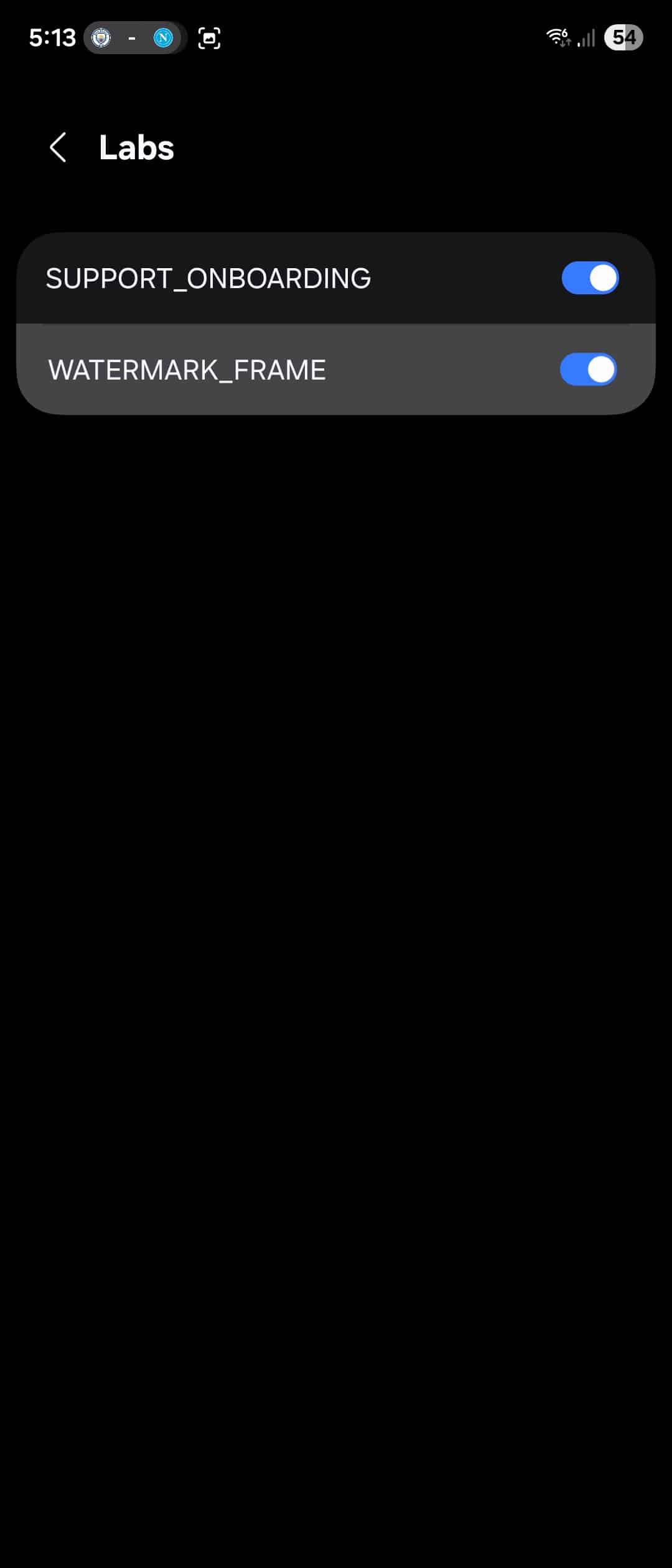
Head back to the main menu, tap the three dots again, and a new Labs option will appear. Go into Labs and enable the Watermark feature.
Now pick a photo from your gallery. Tap Add watermark followed by Show in frame. You can switch between the two frame styles and change the frame color from white to black. Once you’re happy with the result, save the photo to your device.
Samsung has a long history of adding hidden features across its apps, and Gallery Assistant continues that trend. This feature is also expected to ship natively within the pre-installed Camera app with One UI 8.5, so it could be a taste of what’s to come.

Follow us on Google Discover & set us as a preferred source in Google News
Share this Post
___________________________


New Blog Posts
___________________________

First Set of Pixel 11 Pro XL Renders Are Here
Pixel 11 Pro XL CAD renders show minimal design changes

Is Samsung Preparing One UI 8.5 Beta for Galaxy Z Fold 5 and Flip 5?
Samsung may launch a One UI 8.5 beta program for its 2023 foldables

Galaxy S25 One UI 8.5 Beta May Run Longer Than Expected
Galaxy S25 series’ One UI 8.5 beta may stretch to 10 rounds


