
Have Galaxy S26 Ultra? These S Pen Tricks Will Make Your Life Easier
SammyGuru is reader-supported. We have affiliate and sponsored partnerships, so we may earn a commission when you buy through links on our site — at no extra cost to you. Learn more.
In this article
- Your Galaxy S26 Ultra’s S Pen can do a bunch of quick tricks
- Use Screen Off Memo to capture notes instantly
- Customize the S Pen with Pentastic
- Grab precise screenshots with AI Select
- Circle anything on the screen to search it
- Magnify small text for easier reading
- Translate text instantly with the S Pen
- Turn sketches into AI-powered artwork
- Solve handwritten math problems more easily
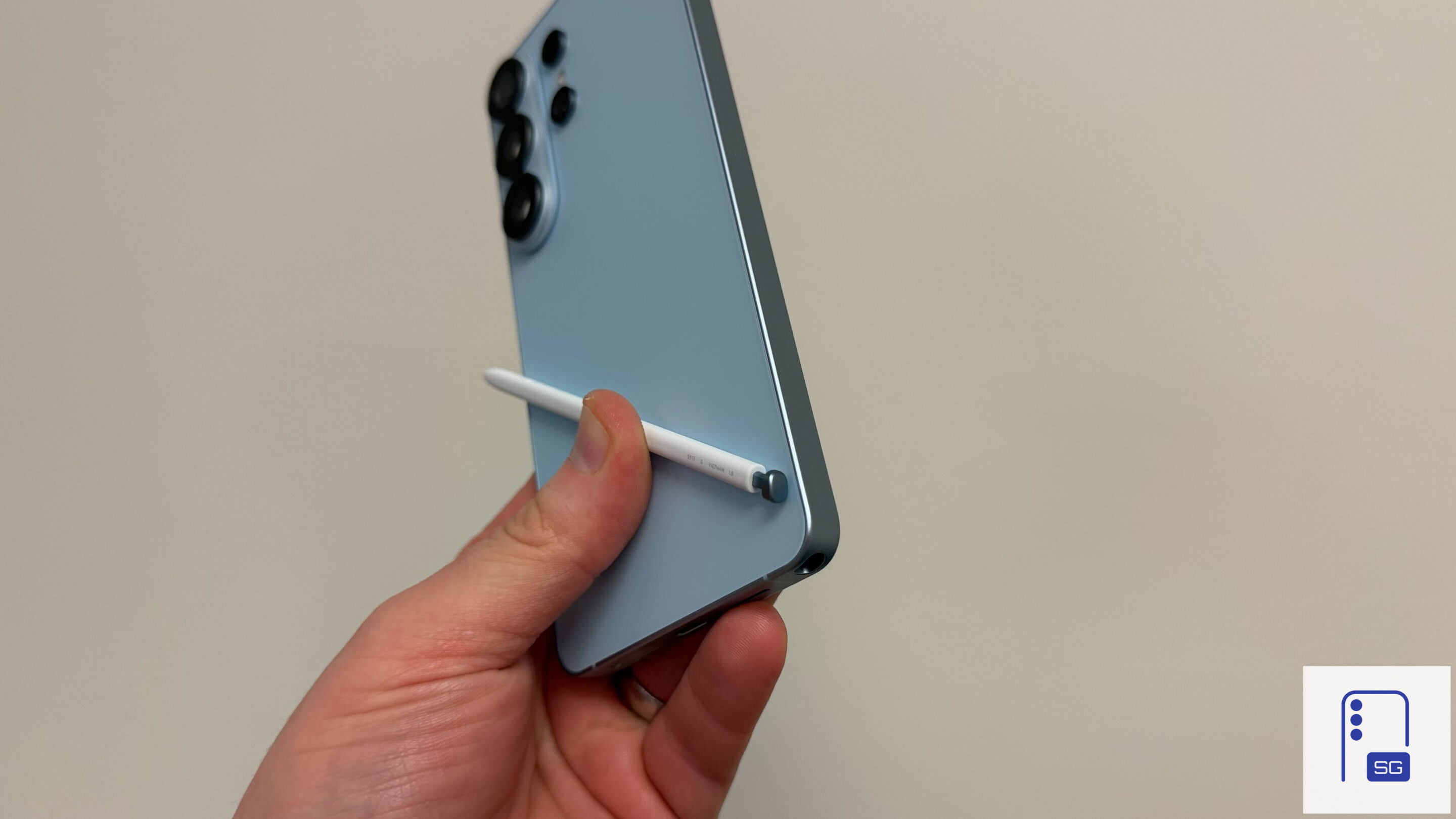
If you have a Galaxy S26 Ultra, you already have one of the most useful tools Samsung offers built right into the phone. The S Pen is much more than a stylus for writing notes or drawing on screenshots. It can help you work faster, and get things done without constantly tapping the screen.
Your Galaxy S26 Ultra’s S Pen can do a bunch of quick tricks
Many Galaxy S26 Ultra users only use the S Pen for basic tasks, but it can do much more if you know where to look. You can quickly capture notes, use Air Actions, and select text or images with precision. These features can make everyday phone use much more convenient. Here are some S Pen tricks to help you get more out of your Galaxy S26 Ultra.
Use Screen Off Memo to capture notes instantly
One of the most practical things you can do with the S Pen on your Galaxy S26 Ultra is use Screen Off Memo. You don’t even need to unlock the phone to start writing. Just take out the S Pen and press the S Pen button while hovering over the display, and the note screen appears instantly.
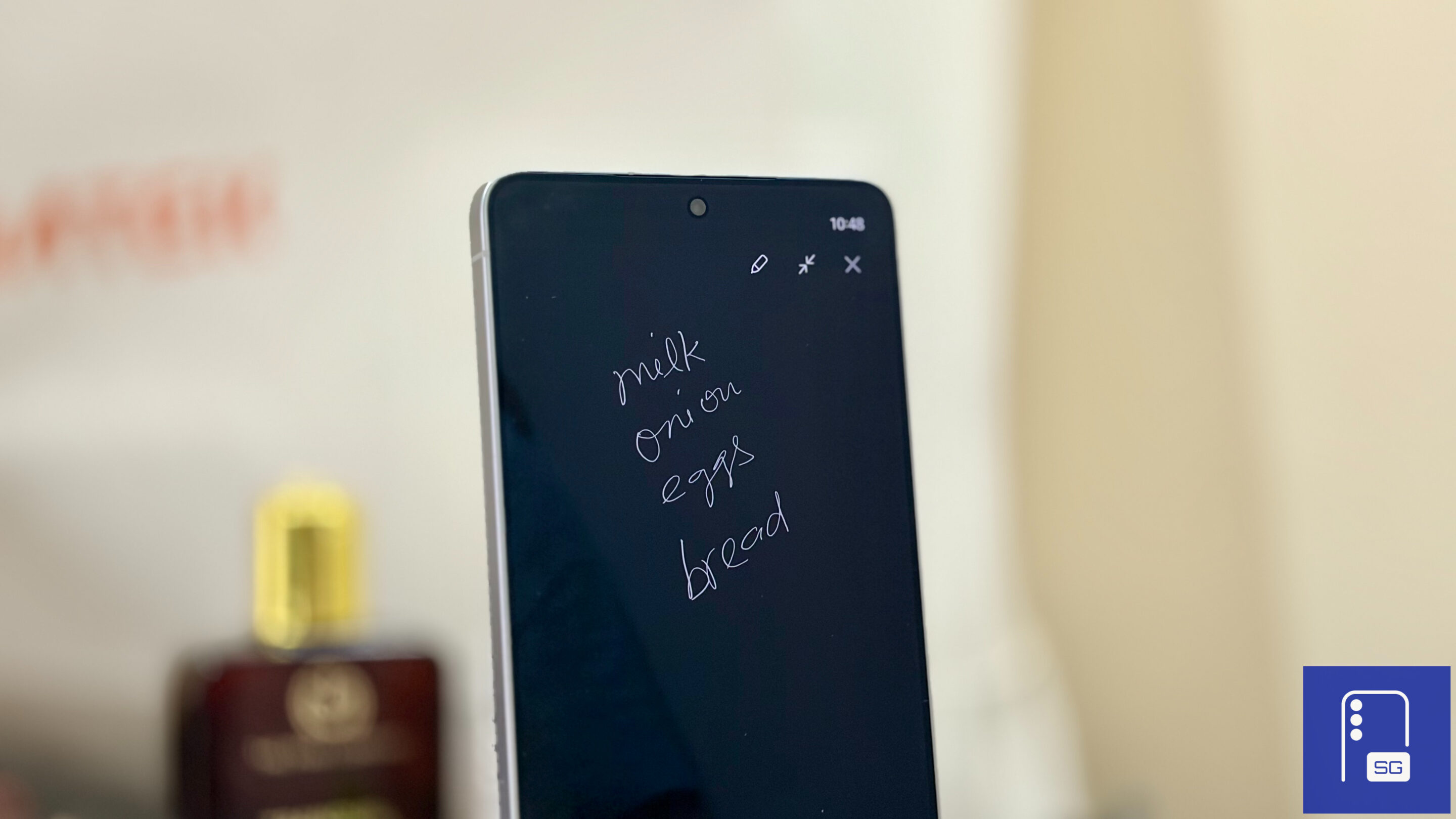
This feature is perfect for small reminders like groceries, phone numbers, or tasks you need to finish later. You can even pin the memo to the Always On Display, so the note stays visible whenever the screen turns off. All the notes you create this way are automatically saved to Samsung Notes.
Customize the S Pen with Pentastic
If you like tweaking your phone, the Good Lock’s Pentastic module gives you a lot of ways to personalize the S Pen experience. It lets you change the Air Command interface, the pointer style, and even the sound that plays when you remove the pen.
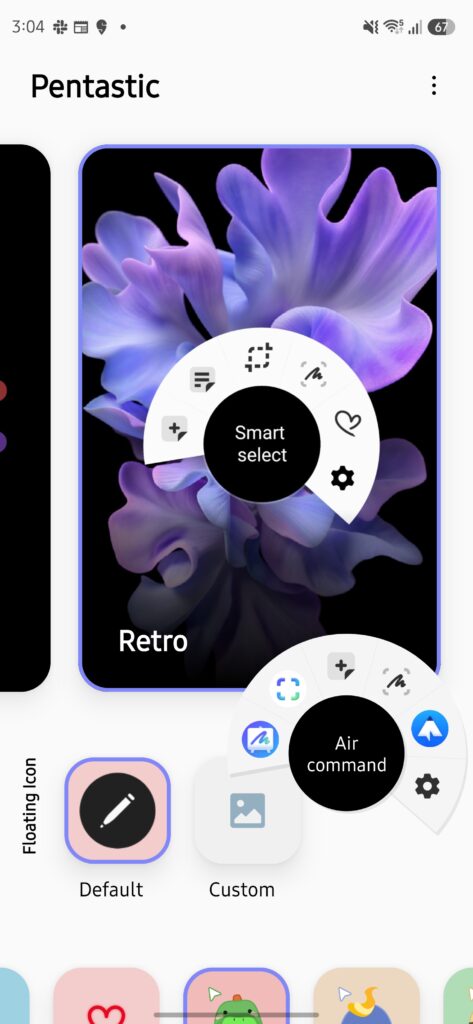
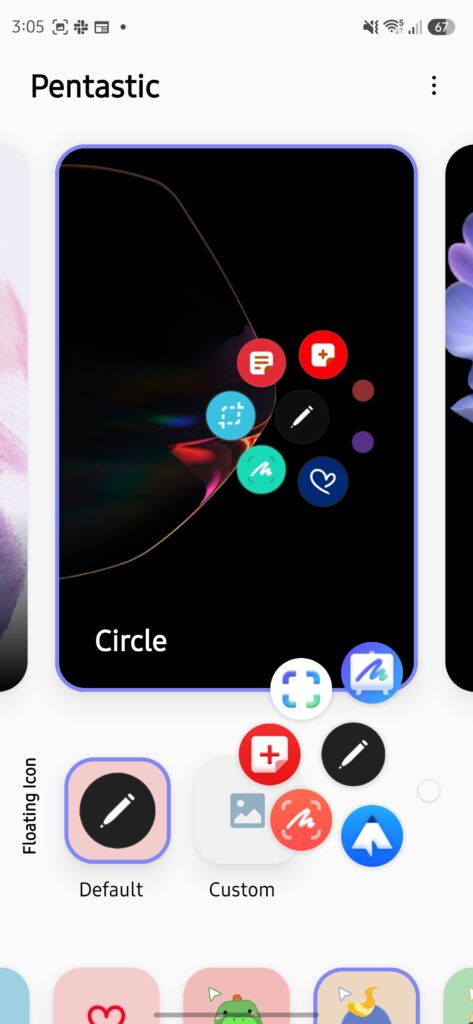
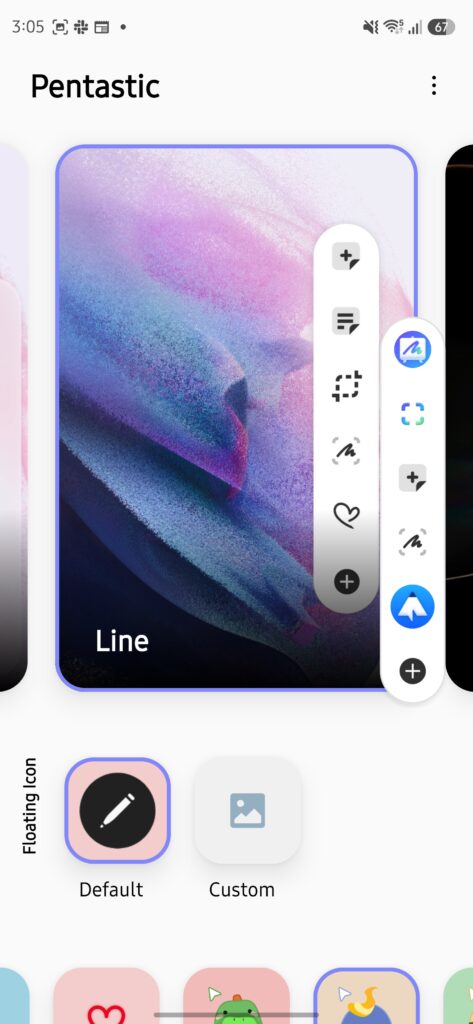
Pentastic also allows you to set up custom shortcuts. For example, you can assign a double-tap gesture to quickly launch a feature you use often. It’s a small tweak, but once you set it up the way you like, the S Pen becomes even more convenient to use.
Grab precise screenshots with AI Select
Sometimes you don’t want to capture the whole screen, just a specific part of it. That’s where AI Select comes in handy. The feature lets you highlight a portion of the screen using the S Pen, making it easy to capture exactly what you need.
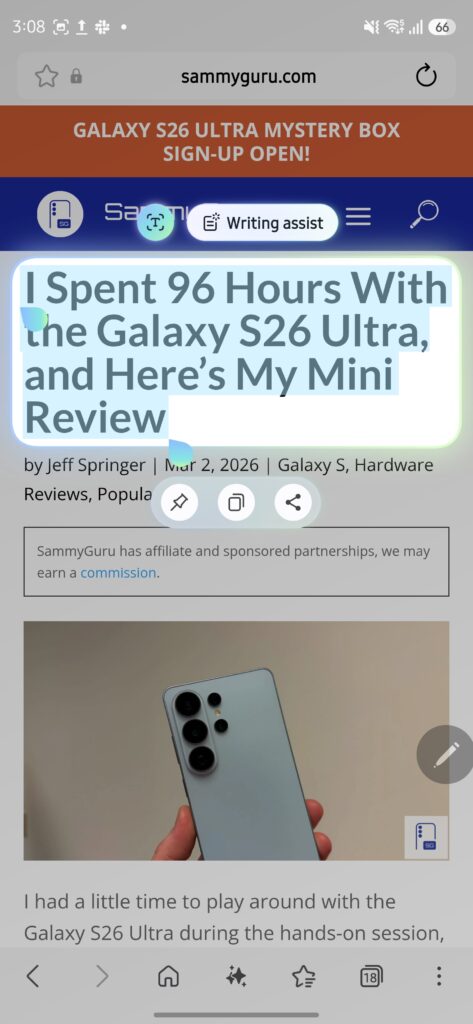
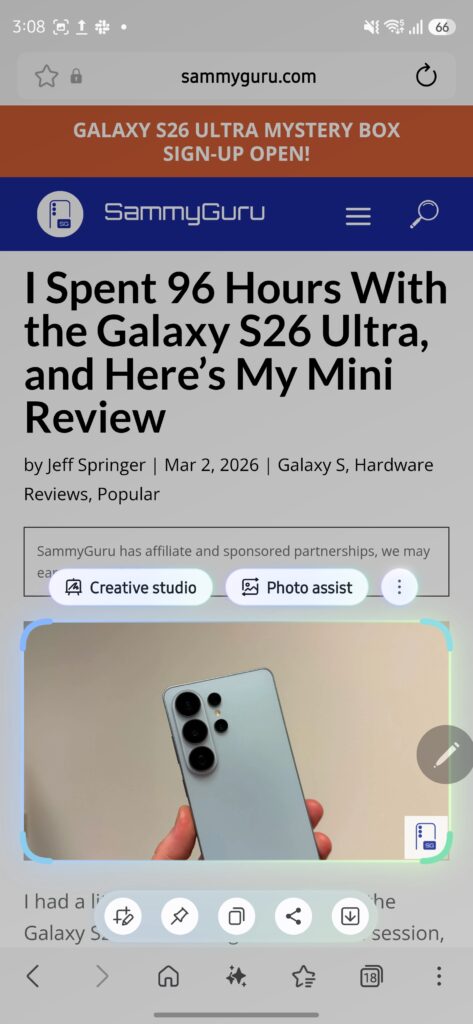
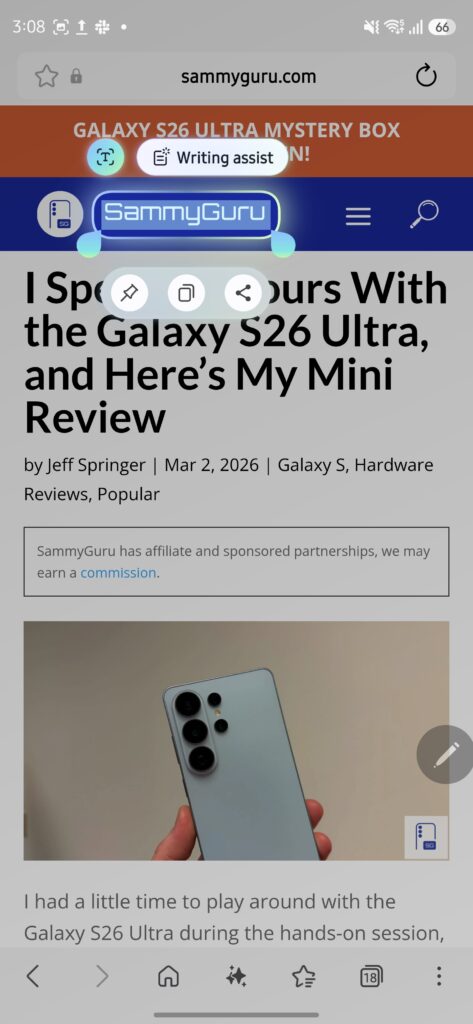
It works especially well when browsing social media or websites. Instead of saving an entire image or post, you can select only the part that matters and quickly share or save it. Using the S Pen also gives you far better precision compared to using your finger.
Circle anything on the screen to search it
The S Pen also works perfectly with Circle to Search, which lets you quickly look up anything on your screen. All you have to do is activate the feature and draw a circle around the item you’re curious about.
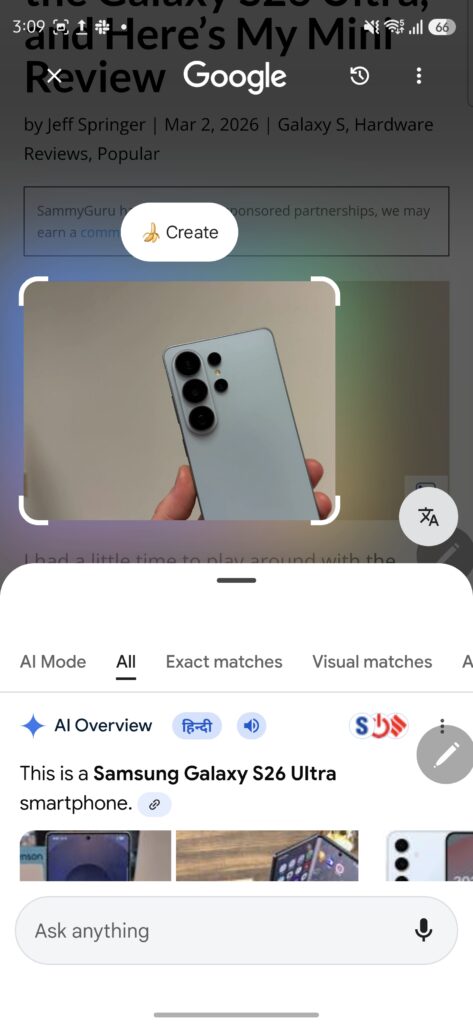
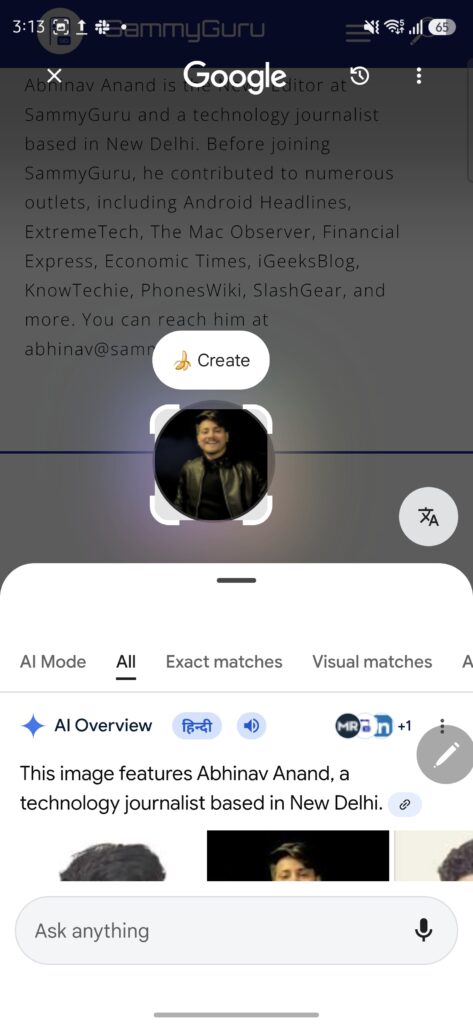
Whether it’s a logo, product, photo, or text, the phone will instantly show related search results. It’s a simple feature, but it can save you a lot of time when you want to learn more about something without leaving the app you’re using.
Magnify small text for easier reading
Another handy S Pen feature is Magnify, which acts like a digital magnifying glass. When you hover the S Pen over the screen, it enlarges the content so you can see small text or details more clearly.
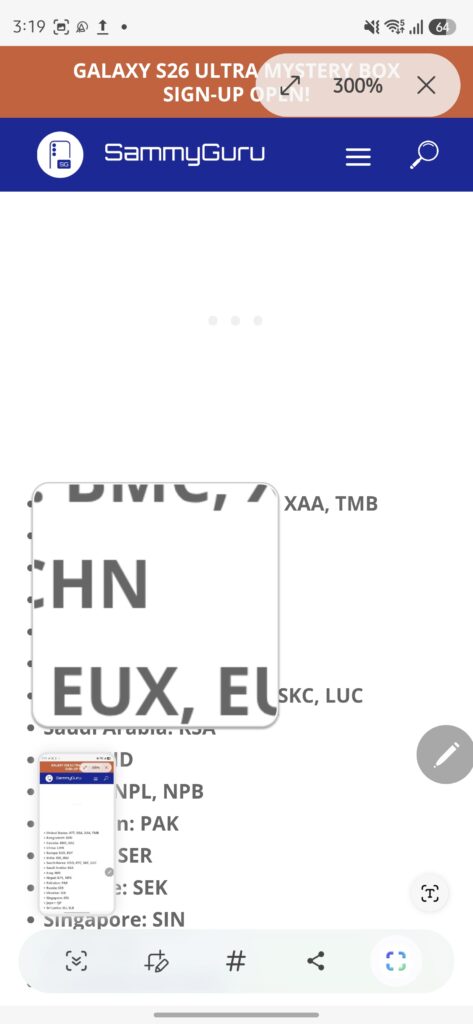
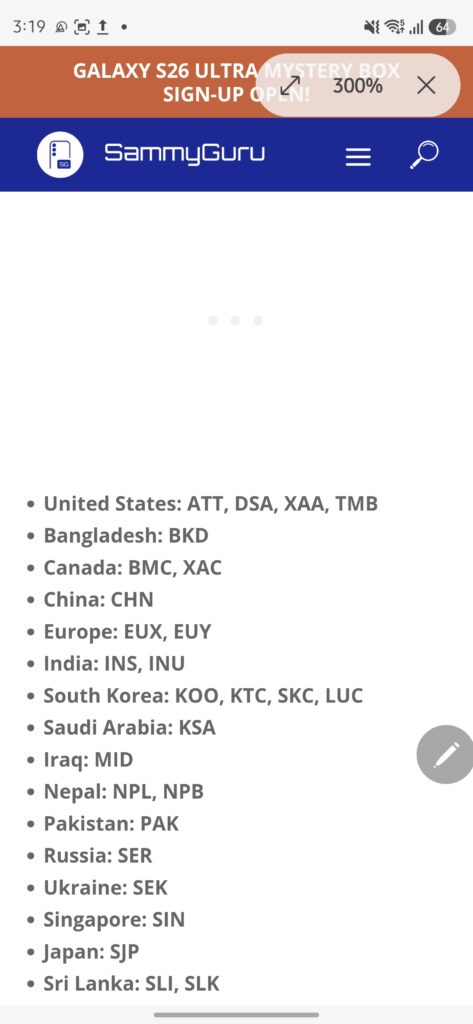
You can increase magnification up to 300%, which can be useful when reading dense web pages or small interface elements. It’s a small feature, but one that can make a big difference when you’re trying to read something quickly on your phone.
Translate text instantly with the S Pen
The S Pen also includes a built-in Translate tool that can translate text directly on the screen. Simply hover the pen over the text you want to understand and the translation appears instantly.
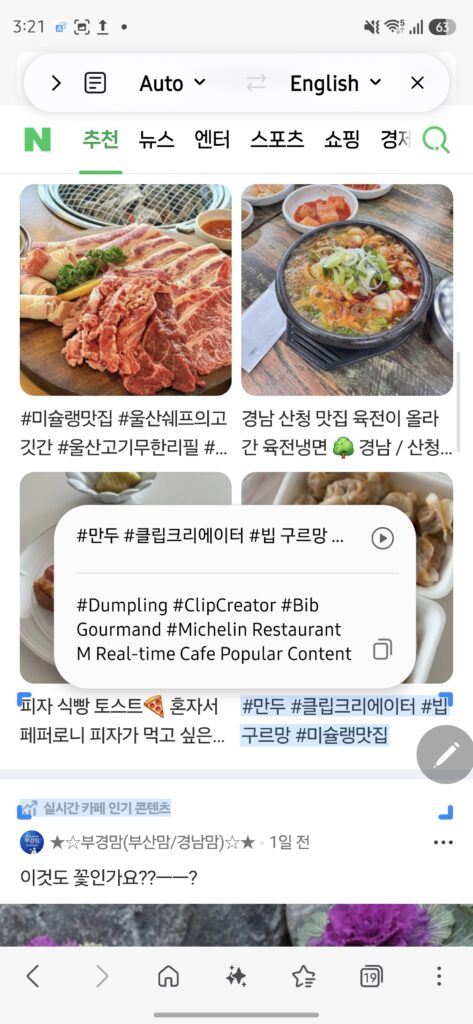
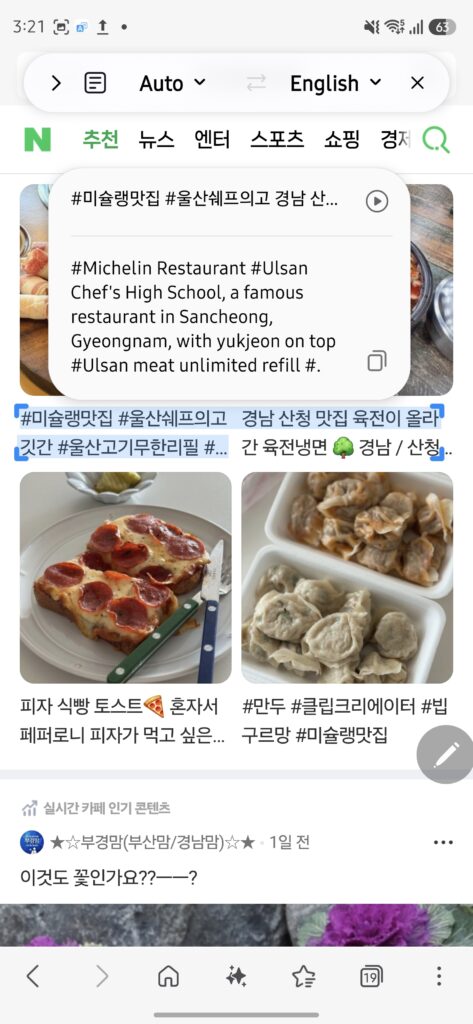
This works well when you’re reading articles, documents, or even screenshots in another language. While browsers like Chrome can auto-translate entire pages, the S Pen’s translation tool is useful when automatic translation doesn’t kick in or when you only need to translate a specific section.
Turn sketches into AI-powered artwork
Creative Studio takes advantage of the S Pen for creative tasks. You can start with a simple sketch or drawing and let AI transform it into something more polished.
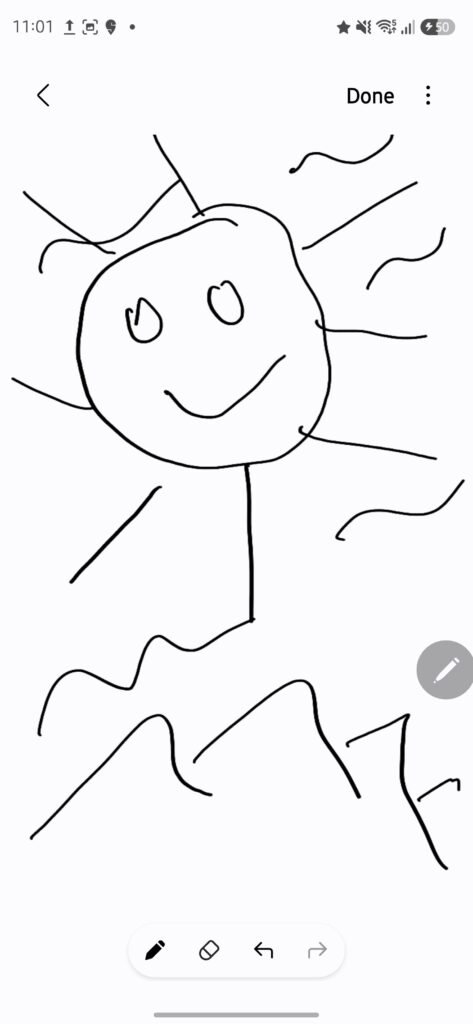
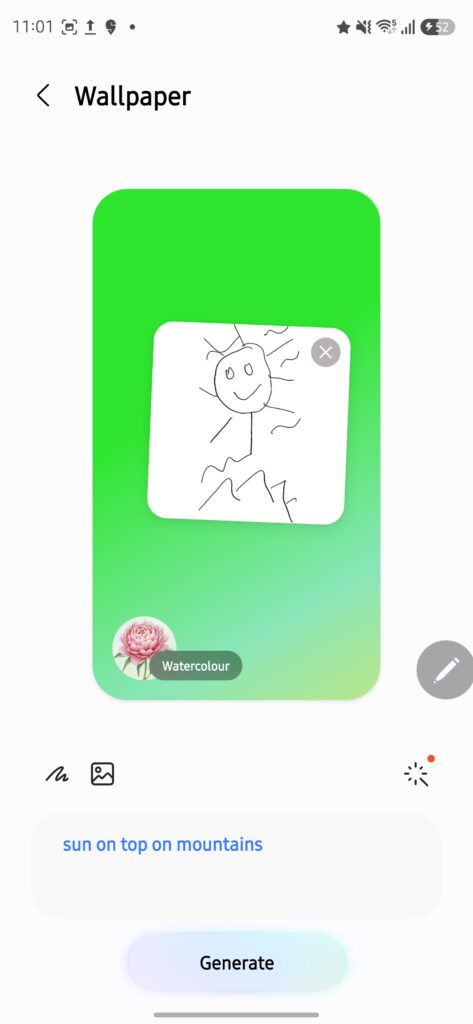
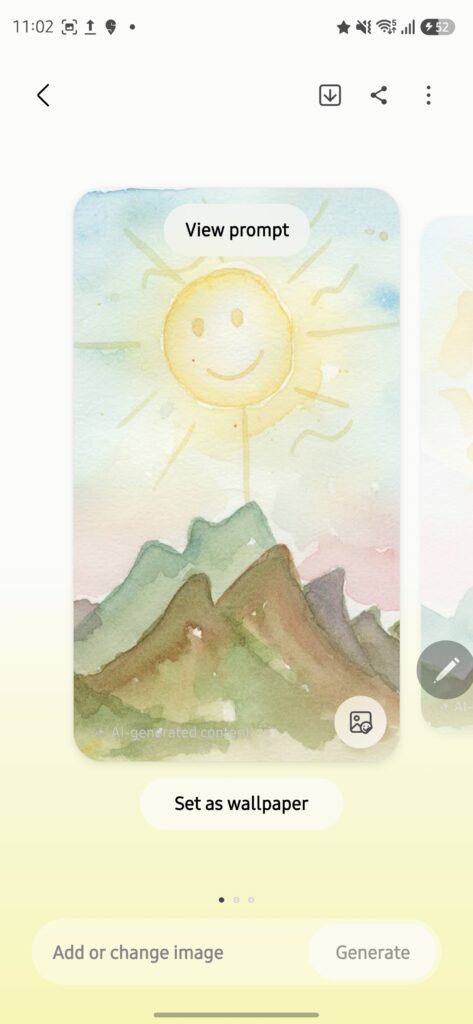
The tool supports multiple styles such as illustrations, stickers, wallpapers, and greeting cards. You can even combine a drawing with a text prompt to guide the AI. In other words, your rough sketch becomes the starting point and the AI does the heavy lifting.
Solve handwritten math problems more easily
Writing equations with the S Pen can sometimes be easier than typing them out. That’s particularly true when dealing with complex formulas or multi-step problems that would be tedious to enter using a keyboard.
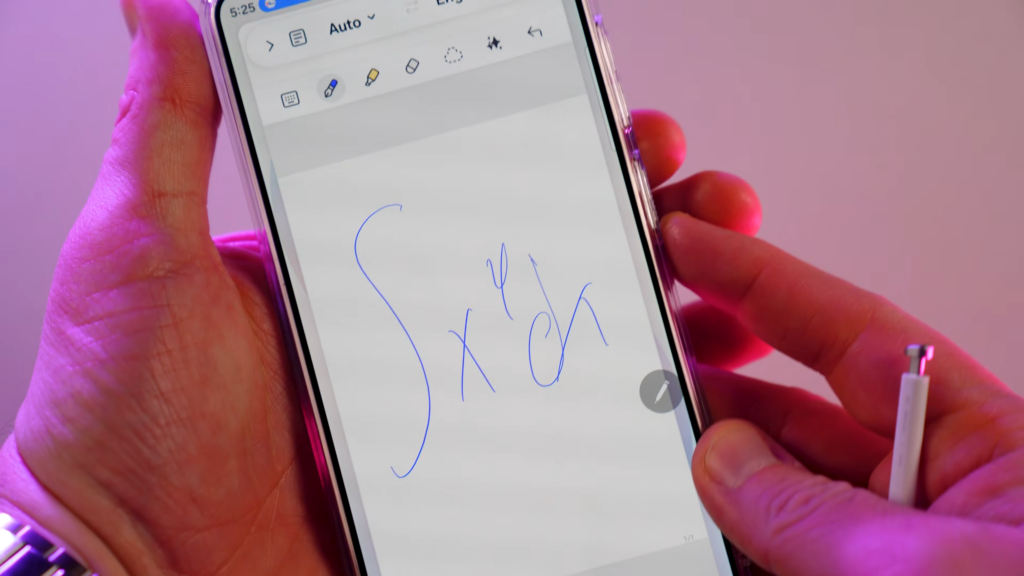
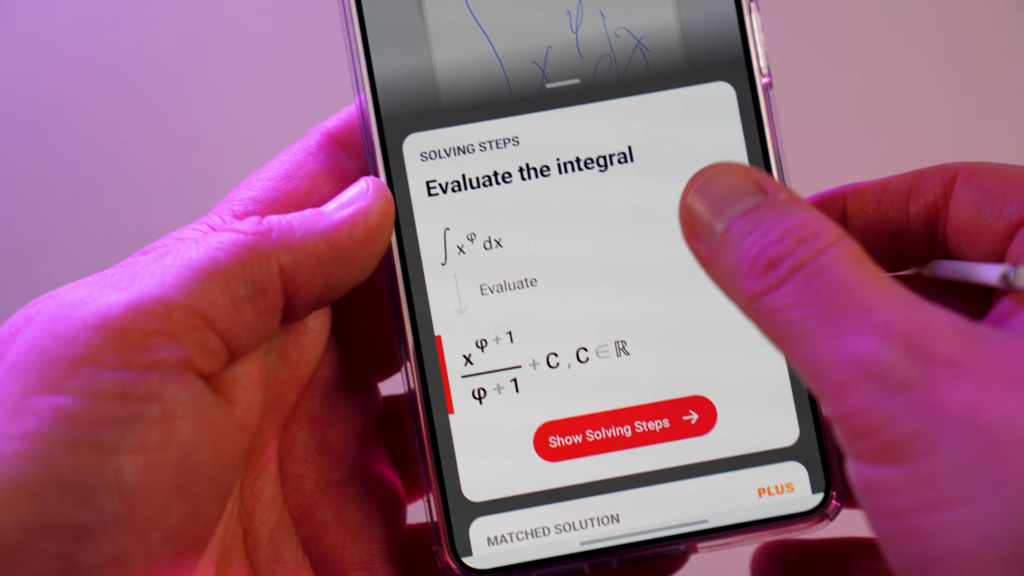
You can write the equation in Samsung Notes and then use tools like Gemini or Photomath to analyze it and provide a solution. These apps can even show step-by-step explanations, which makes the S Pen surprisingly useful for students working through math problems.
How many of these S Pen features did you already know about? Once you start using them regularly, you’ll realize the S Pen is one of the most useful tools built into the Galaxy S26 Ultra. If you’d rather see every trick in action, you can also watch the video below.

Written by
Abhinav AnandAbhinav Anand is the News Editor at SammyGuru and a technology journalist based in New Delhi. Before joining SammyGuru, he contributed to numerous outlets, including Android Headlines, ExtremeTech, The Mac Observer, Financial Express, Economic Times, iGeeksBlog, KnowTechie, PhonesWiki, SlashGear, and more. You can reach him at abhinav@sammyguru.com.

Follow us on Google Discover & set us as a preferred source in Google News
Share this Post
___________________________


New Blog Posts
___________________________

First Set of Pixel 11 Pro XL Renders Are Here
Pixel 11 Pro XL CAD renders show minimal design changes

Is Samsung Preparing One UI 8.5 Beta for Galaxy Z Fold 5 and Flip 5?
Samsung may launch a One UI 8.5 beta program for its 2023 foldables

Galaxy S25 One UI 8.5 Beta May Run Longer Than Expected
Galaxy S25 series’ One UI 8.5 beta may stretch to 10 rounds







