
This Galaxy Notification Trick is so Seamless I forgot it Existed
SammyGuru is reader-supported. We have affiliate and sponsored partnerships, so we may earn a commission when you buy through links on our site — at no extra cost to you. Learn more.
In today’s post, I’m sharing a sweet notification trick for Samsung Galaxy phones that allows you to manage your notifications seamlessly without disrupting your current app experience. This is a feature I’ve been using for quite some time, but it recently came to my attention that not many people are aware of it. Let’s dive into how you can make the most of this trick and improve your smartphone experience.
The Notification Trick
Here’s how it works, this is so simple yet beautiful. If you’re in an application and receive a notification, you can open it in a pop-up view without interrupting your current app. Here’s how it works:
1. Accessing the Notification:
• When you receive a notification while using an app, swipe down from the top to access the notification panel.
2. Opening in Pop-Up View:
• Long press the notification and drag it to the center of the screen. This will open the notification in a pop-up view, allowing you to interact with it without leaving your current app.
3. Additional Options:
• You can minimize the pop-up view, maximize it, or close it using the ‘X’ button.
• The three-dot menu provides additional contextual options for the pop-up window.
4. Split-Screen View:
• If you prefer, you can drag the pop-up notification to the top or bottom of the screen to enable split-screen view. This way, you can have both your current app and the app from your notification open simultaneously.
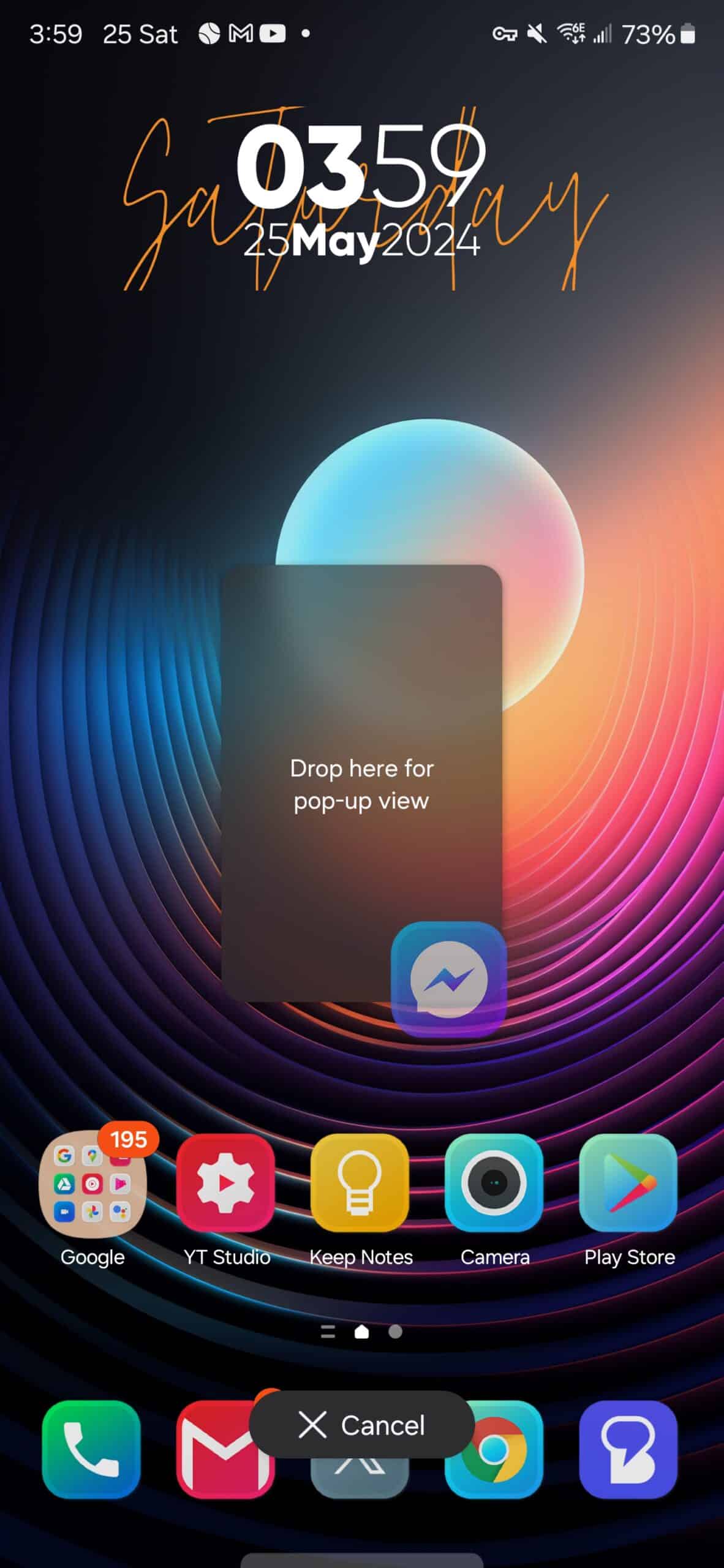
pop up view
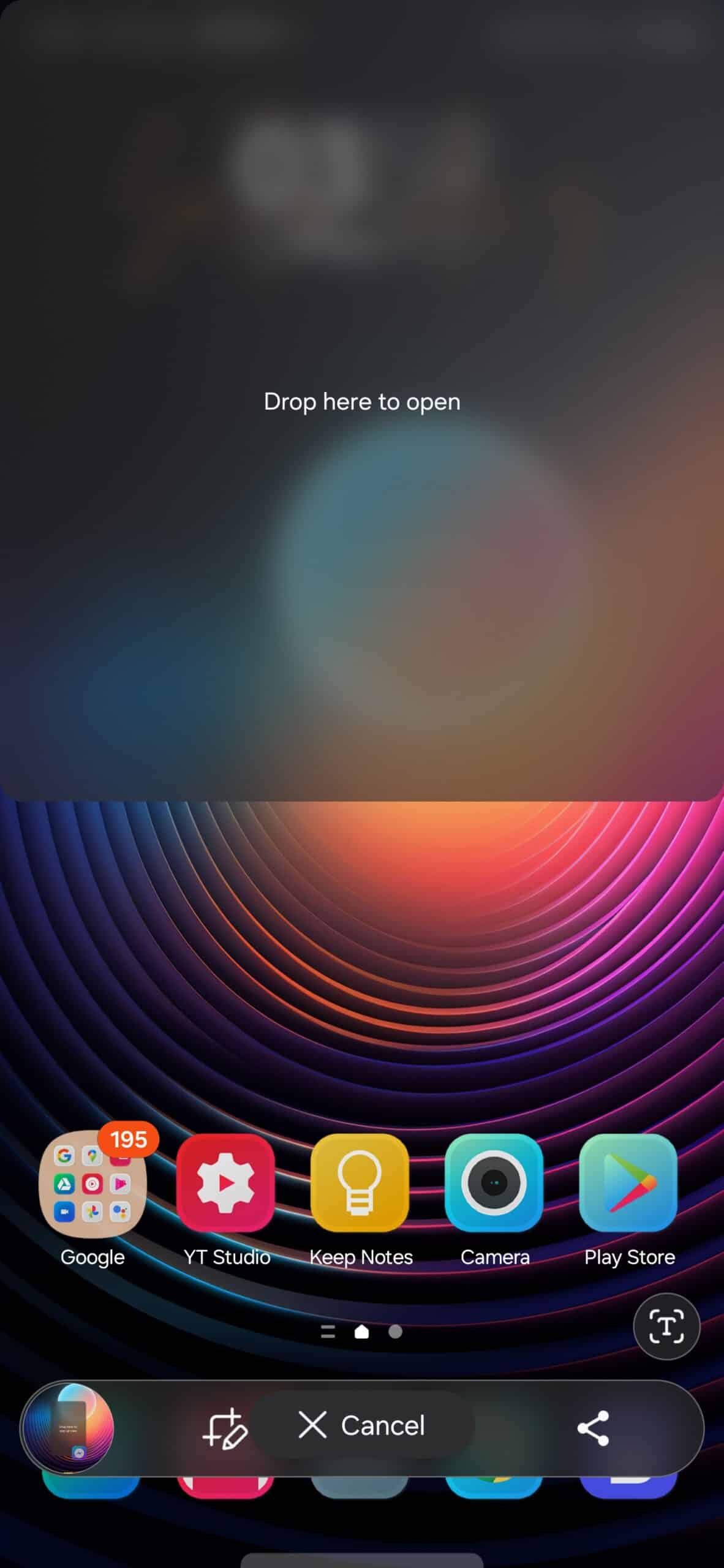
split screen view
This feature is particularly useful for managing notifications efficiently. For example, if you’re browsing Twitter and receive a message on WhatsApp, you can quickly respond to the message in a pop-up window without interrupting your Twitter browsing.
Another handy tip is to swipe down on an incoming notification toast to open it directly in a pop-up window. This feature streamlines your workflow, keeping interruptions to a minimum.
This simple yet powerful feature can significantly enhance your multitasking capabilities on your Samsung Galaxy phone. Give it a try and see how it improves your daily smartphone usage. If you found this post helpful, feel free to share your experience in the comments below.
Also, make sure to sign up for our Galaxy smartphone mystery box program to get some sweet free accessories the next time you purchase a Galaxy phone or the new Galaxy Watch 7 Ultra.

Written by
Jeff SpringerJeff Springer is the Founder and Managing Editor at SammyGuru. Pursuing his passion for mobile tech, he started covering Samsung and Android on his Youtube channel in 2014 and continues to post daily Samsung tutorial videos. As a past staff writer at XDA Developers and Android Police, Jeff has a wealth of experience managing written content as well. In 2023, Jeff started SammyGuru to offer a different type of Samsung news site. He firmly believes that providing great value to readers is the core mission of our coverage. Jeff lives in Phoenix, AZ with his wife and two kids. In his small amount of free time, he collects fountain pens, stationery, and Pokémon cards.

Follow us on Google Discover & set us as a preferred source in Google News
Share this Post
___________________________


New Blog Posts
___________________________

First Set of Pixel 11 Pro XL Renders Are Here
Pixel 11 Pro XL CAD renders show minimal design changes

Is Samsung Preparing One UI 8.5 Beta for Galaxy Z Fold 5 and Flip 5?
Samsung may launch a One UI 8.5 beta program for its 2023 foldables

Galaxy S25 One UI 8.5 Beta May Run Longer Than Expected
Galaxy S25 series’ One UI 8.5 beta may stretch to 10 rounds







