
Fix Common Samsung TV Issues Using Built-in Self Diagnosis Tool
SammyGuru is reader-supported. We have affiliate and sponsored partnerships, so we may earn a commission when you buy through links on our site — at no extra cost to you. Learn more.
Much like Galaxy phones and tablets, modern Samsung smart TVs come with Device Care, which includes a powerful Self Diagnosis feature that can help you quickly identify common problems. This tool lets you troubleshoot minor problems on your own, without needing to contact customer support. Here’s how to use it and what it can do for you.
How to use built-in diagnostics to troubleshoot Samsung TVs
Samsung’s newer smart TVs running One UI for TV include a Device Care suite designed to keep the system healthy. It helps manage memory, monitor performance, and suggest maintenance actions. You can run diagnostic checks when something doesn’t feel right. The Self Diagnosis tool is part of this suite and lets you test individual components of your TV without any extra equipment or apps.
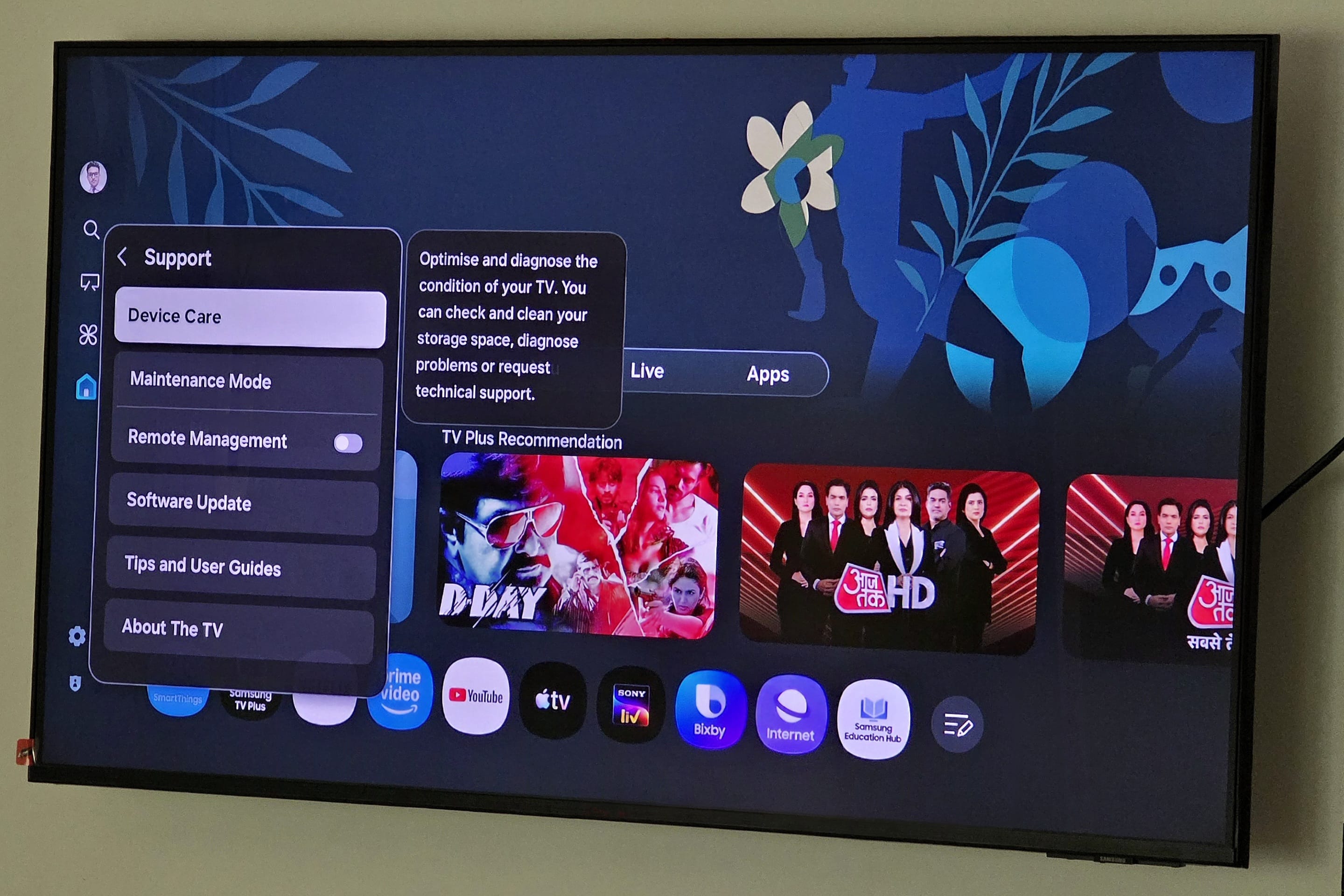
Getting started only takes a few steps using your TV remote. Press the Settings button on your remote and select All settings. Now go to Support, and enter Device Care. Once you open this page, the TV will automatically run a quick system check. This only takes a few seconds. If it detects an error, you can perform some recommended actions.
But if this automatic step doesn’t detect any issues and you still feel something’s amiss, you can try troubleshooting using the built-in diagnostics. Simply use the remote to select Self Diagnosis on the bottom bar. You get a new menu where you can manually test a wide range of TV functions and hardware components. These tests can help you pinpoint whether an issue is software-related, hardware-related, or caused by an external connection.
The exact set of options may vary depending on your TV model and software version, but available tests typically include:
- Power status
- Picture, video, microphone, and sound tests
- Smart Hub functionality
- Bluetooth and Wi-Fi connectivity
- Broadcasting and tuner tests
- Software version check
- Remote control test
- Light sensor
- HDMI port checks
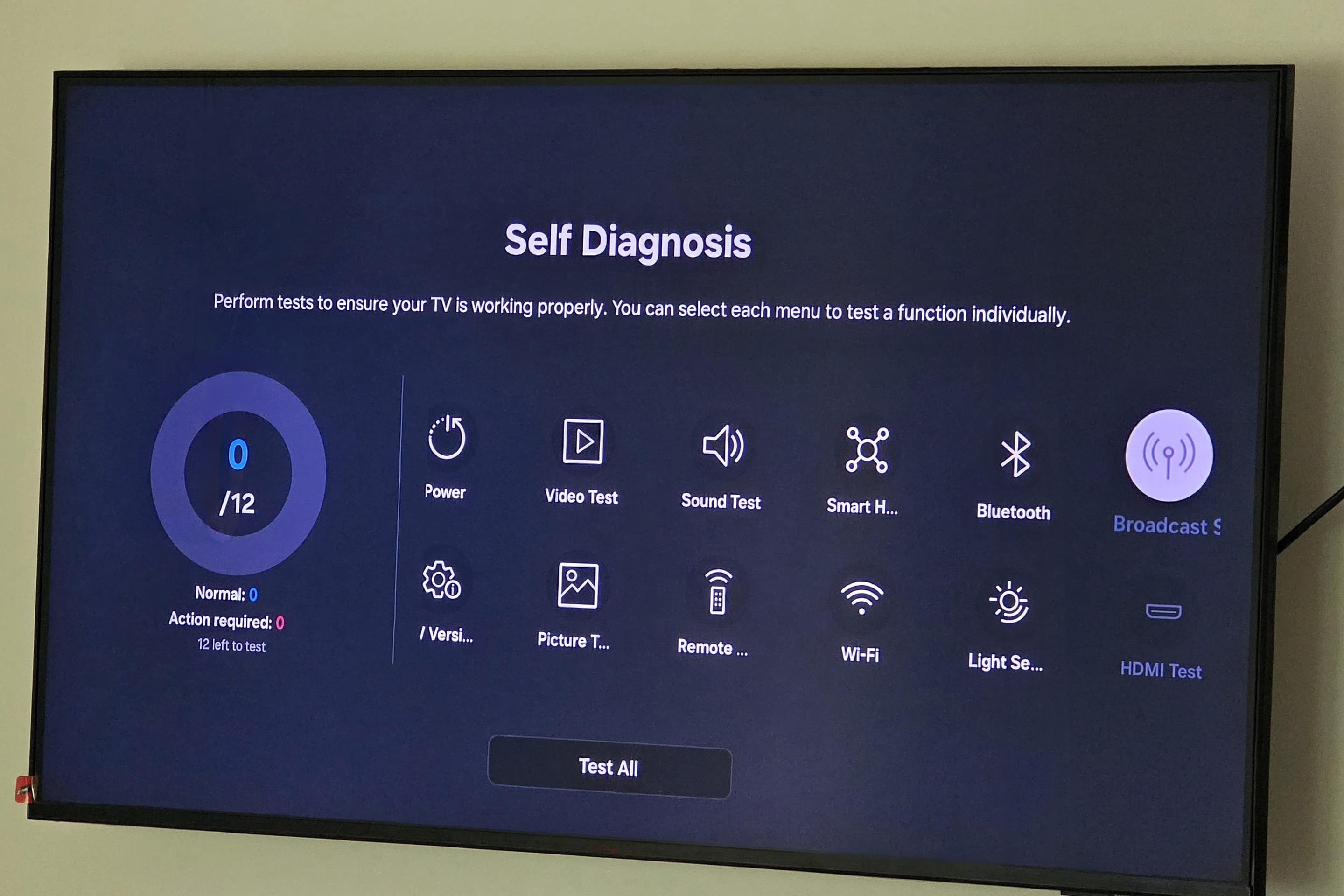
Each test can be run individually, allowing you to focus only on the problem area instead of guessing what might be wrong. Using this built-in Self Diagnosis tool can save you time, money, and frustration. In many cases, it’s all you need to get your TV back on track. So, the next time your Samsung TV starts acting up, try these troubleshooting options before calling customer support or booking a service visit.

Written by
Sumit AdhikariSumit, a life-long Samsung user, is passionate about technology and has been professionally writing on tech since 2017. He’s a mathematics graduate by education and enjoys teaching basic mathematics tricks to school kids in his spare time. Sumit believes in artificial intelligence and dreams of a fully open, intelligent and connected world.

Follow us on Google Discover & set us as a preferred source in Google News
Share this Post
___________________________


New Blog Posts
___________________________

First Set of Pixel 11 Pro XL Renders Are Here
Pixel 11 Pro XL CAD renders show minimal design changes

Is Samsung Preparing One UI 8.5 Beta for Galaxy Z Fold 5 and Flip 5?
Samsung may launch a One UI 8.5 beta program for its 2023 foldables

Galaxy S25 One UI 8.5 Beta May Run Longer Than Expected
Galaxy S25 series’ One UI 8.5 beta may stretch to 10 rounds







