
Apply One UI Sans System-Wide on One UI 8 with This Simple Trick
SammyGuru is reader-supported. We have affiliate and sponsored partnerships, so we may earn a commission when you buy through links on our site — at no extra cost to you. Learn more.
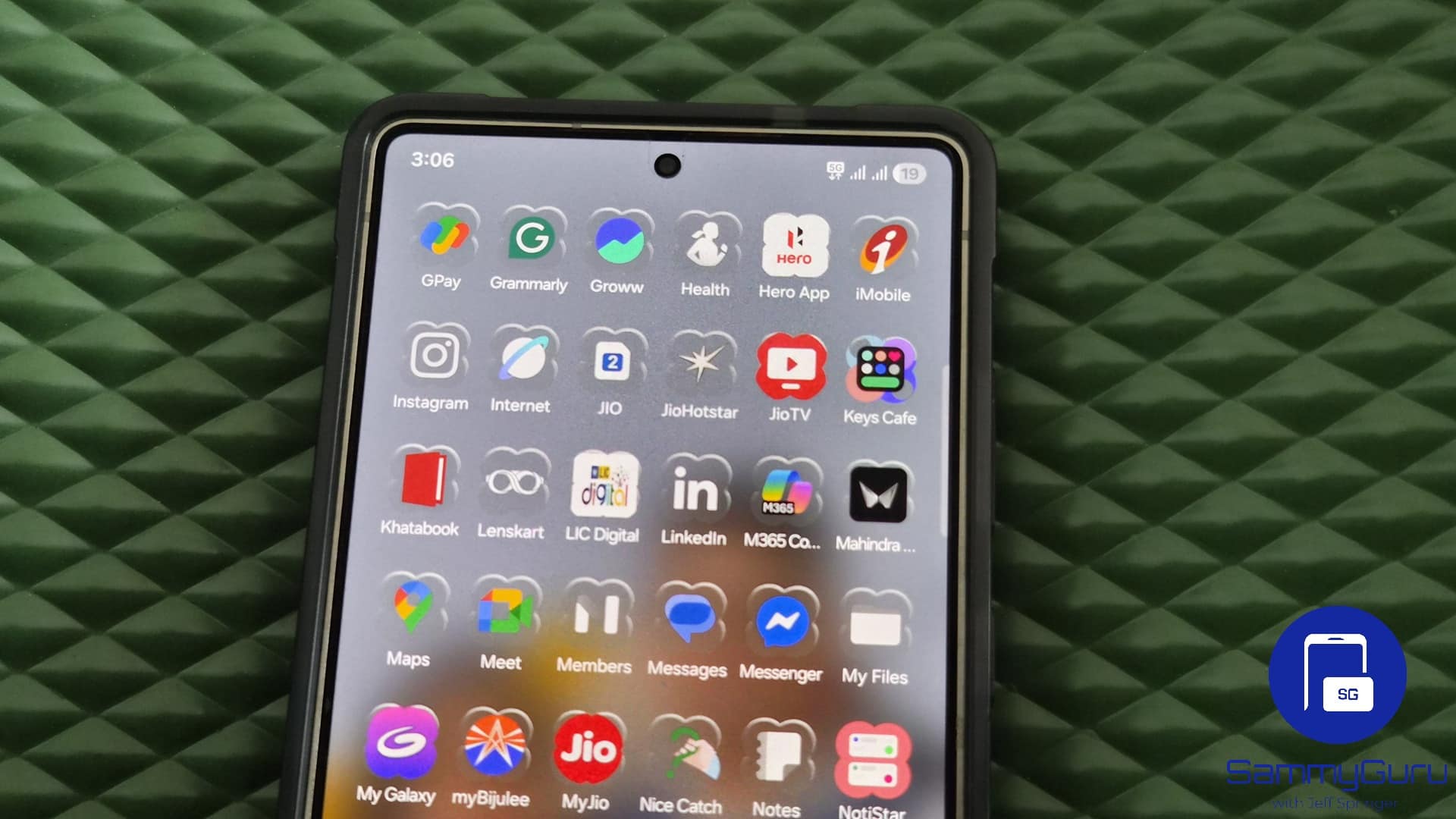
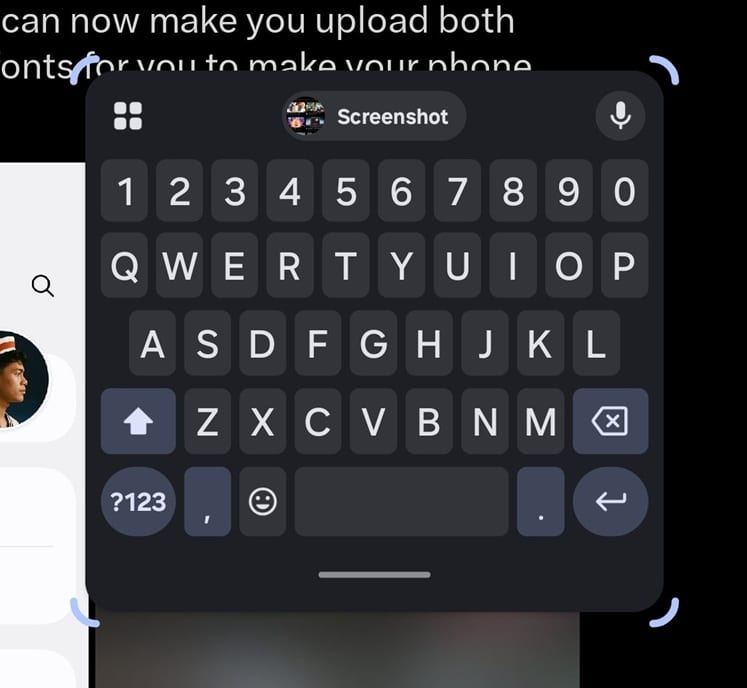
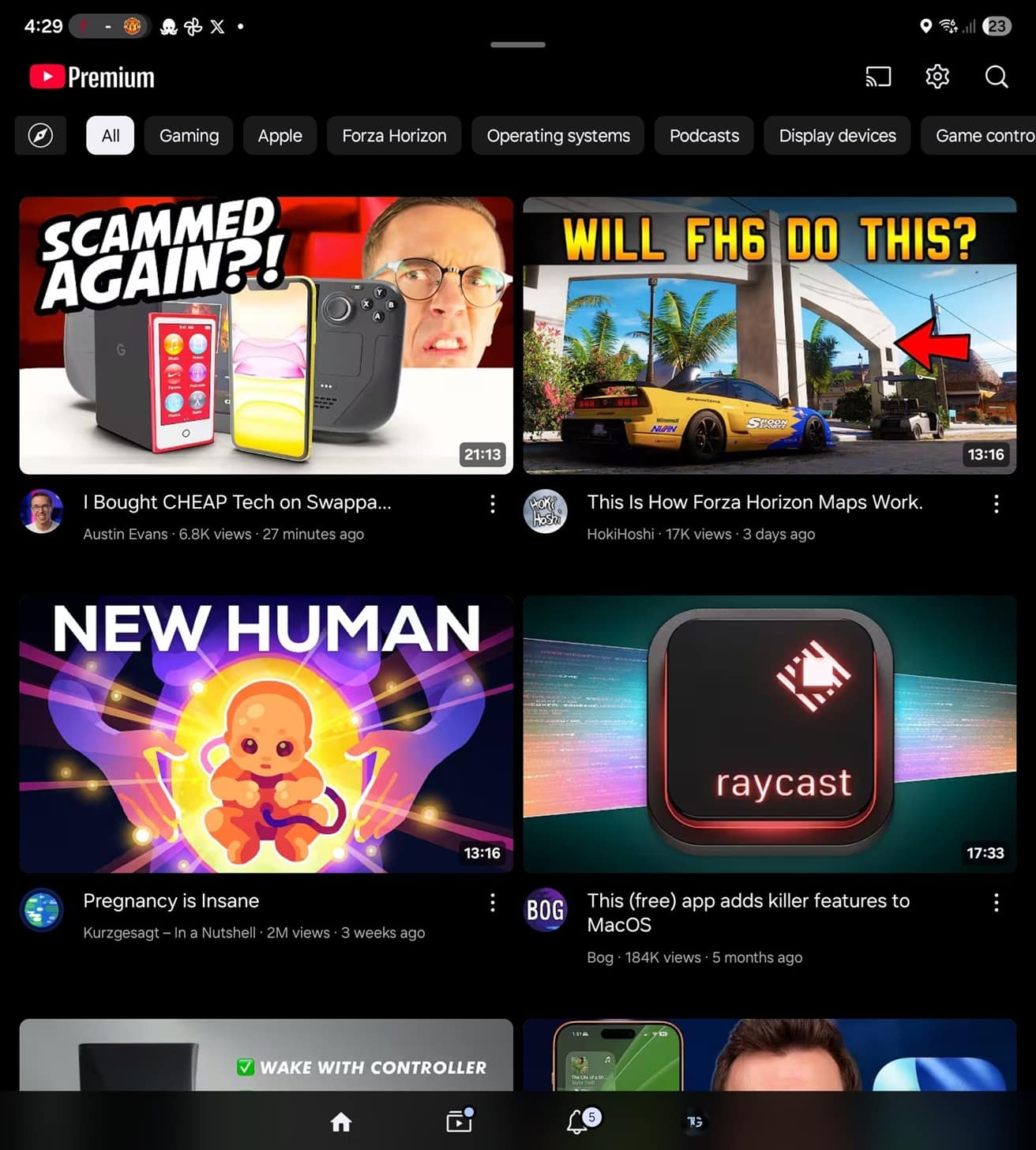
If you’ve always loved the One UI Sans font but felt frustrated that you couldn’t apply it system-wide, we have good news for you. You can now apply One UI Sans everywhere — not officially, but through a clever third-party workaround. Thanks to some resourceful users, you can finally enjoy your favorite font (both regular and bold weights) across the entire interface on your Galaxy device.
How to apply One UI Sans everywhere on your Galaxy device
To do this, you’ll need the zFont 3 app, the Shizuku, and the proper font files. Here’s the simple process:
- Download the zFont 3 app from the Google Play Store.
- Get both font files — the regular One UI Sans 400 and the bold 700 — from this link (provided by the ever-reliable @thatjoshguy69).
- Open zFont 3, go to the Downloads tab, tap the Plus icon, select File, and load the Regular 400 file.
- Once loaded, select the file, tap Apply (tick mark at the bottom right), and select One UI 8.
- If you are using zFont 3 for the first time, you may be prompted to set up Shizuku. Download the app and follow the on-inscreen instructions to configure the settings.
- You will get prompted to select a bold font to go alongside the regular. Select the Bold 700 file and hit create.
And that’s it. Your Galaxy device will now consistently display One UI Sans across menus, apps, and system text. Anywhere Roboto would’ve appeared previously will now be replaced with the much more modern One UI Sans. This zFont workaround isn’’t an official solution, and might break in a future update, but it works surprisingly well for those who want this modern typography everywhere. If you’ve updated to One UI 8, it’s one of the easiest customizations you can try to make your device feel even more polished.

Written by
Sumit AdhikariSumit, a life-long Samsung user, is passionate about technology and has been professionally writing on tech since 2017. He’s a mathematics graduate by education and enjoys teaching basic mathematics tricks to school kids in his spare time. Sumit believes in artificial intelligence and dreams of a fully open, intelligent and connected world.

Follow us on Google Discover & set us as a preferred source in Google News
Share this Post
___________________________


New Blog Posts
___________________________

First Set of Pixel 11 Pro XL Renders Are Here
Pixel 11 Pro XL CAD renders show minimal design changes

Is Samsung Preparing One UI 8.5 Beta for Galaxy Z Fold 5 and Flip 5?
Samsung may launch a One UI 8.5 beta program for its 2023 foldables

Galaxy S25 One UI 8.5 Beta May Run Longer Than Expected
Galaxy S25 series’ One UI 8.5 beta may stretch to 10 rounds







