
How to Improve Fingerprint Accuracy on Galaxy Phones
SammyGuru is reader-supported. We have affiliate and sponsored partnerships, so we may earn a commission when you buy through links on our site — at no extra cost to you. Learn more.
Samsung’s latest flagship lineup, including the Galaxy S26, Galaxy S26+, and Galaxy S26 Ultra, ships with One UI 8.5 out of the box. Alongside new features, the update also brings a small but meaningful improvement to Galaxy phones: an option to improve fingerprint recognition accuracy.
Most premium Galaxy phones use an ultrasonic in-display fingerprint sensor. Unlike optical sensors found in many mid-range devices, ultrasonic sensors create a 3D map of your fingerprint beneath the panel. Yet, no system is perfect. Factors like dry skin, screen protectors, or inconsistent finger placement can lead to errors. Here’s how you can improve fingerprint accuracy on your Galaxy phone.
Follow these steps to improve fingerprint accuracy on One UI 8.5
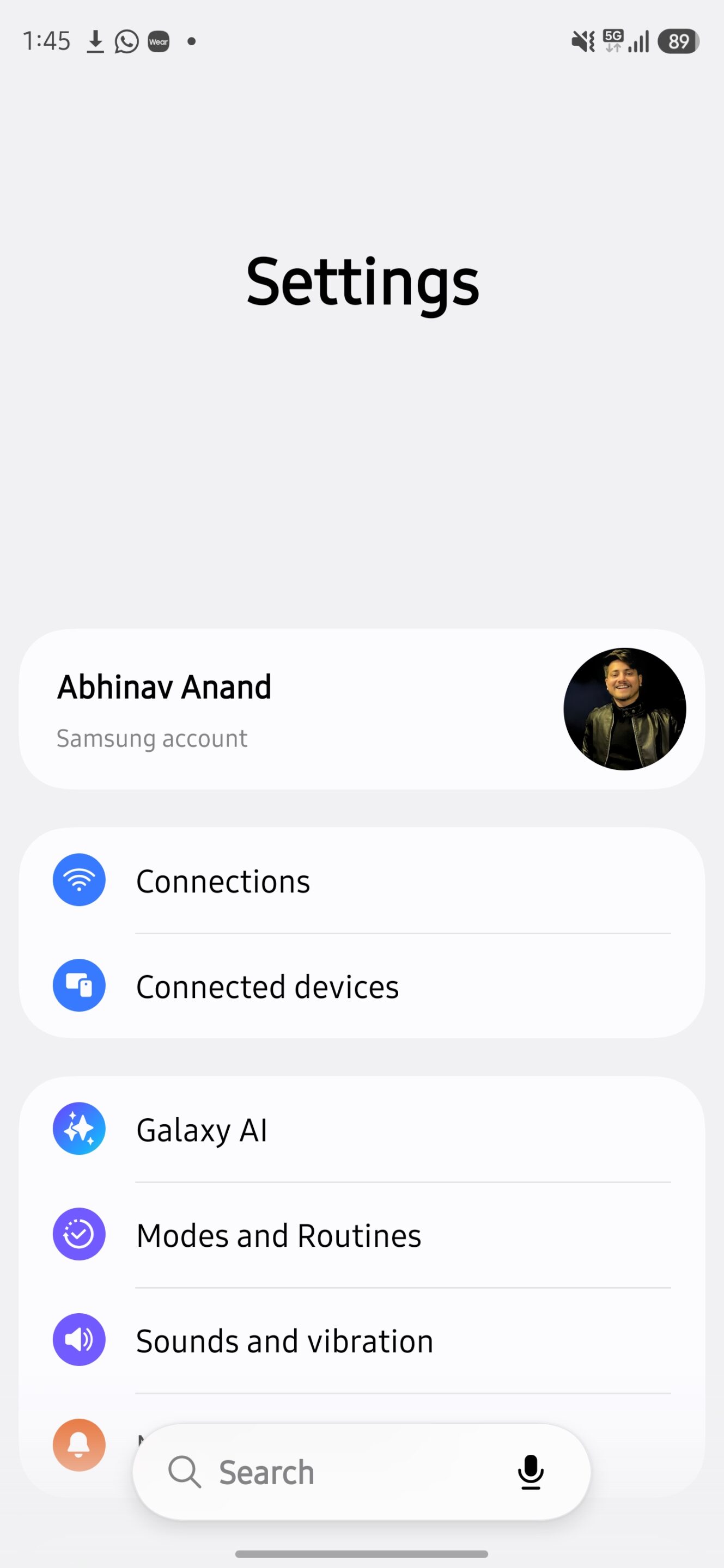
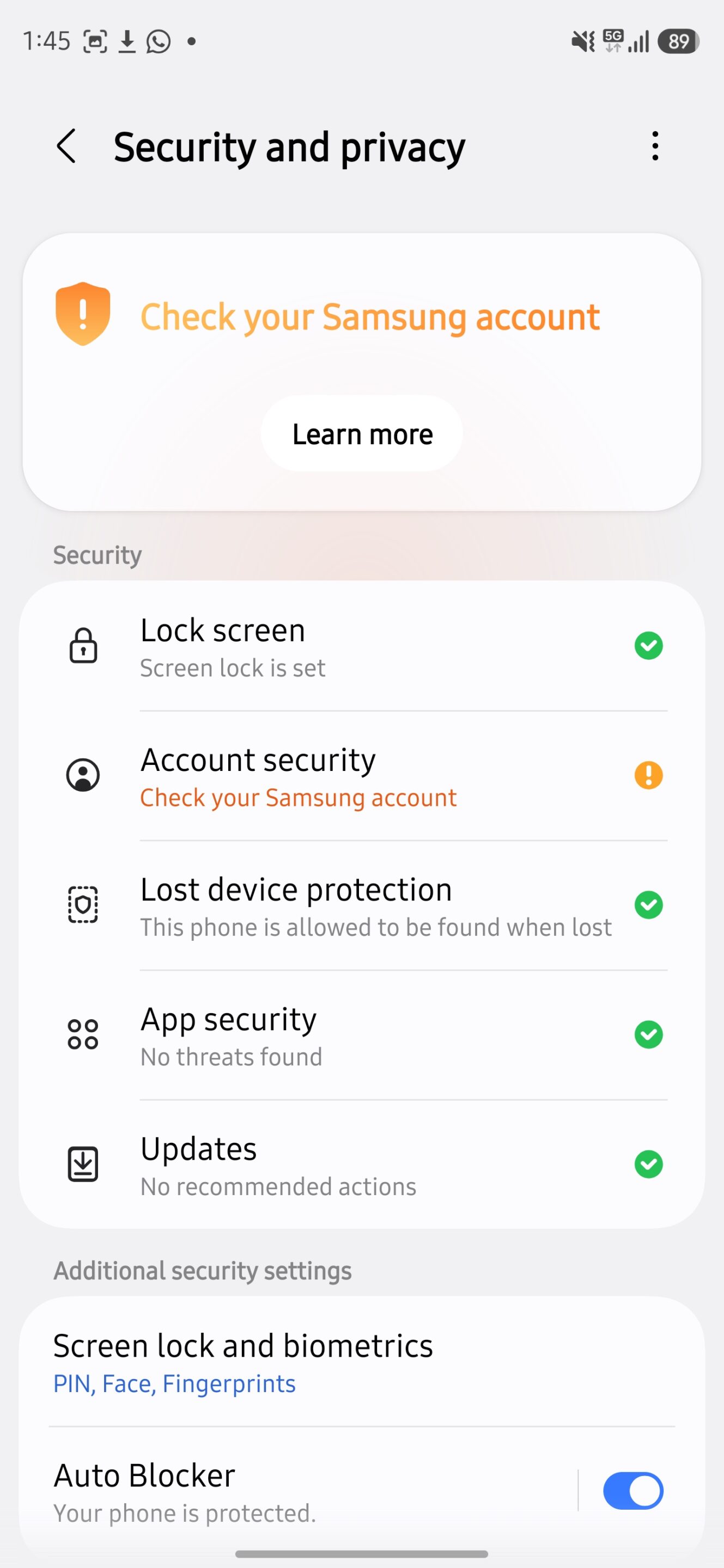
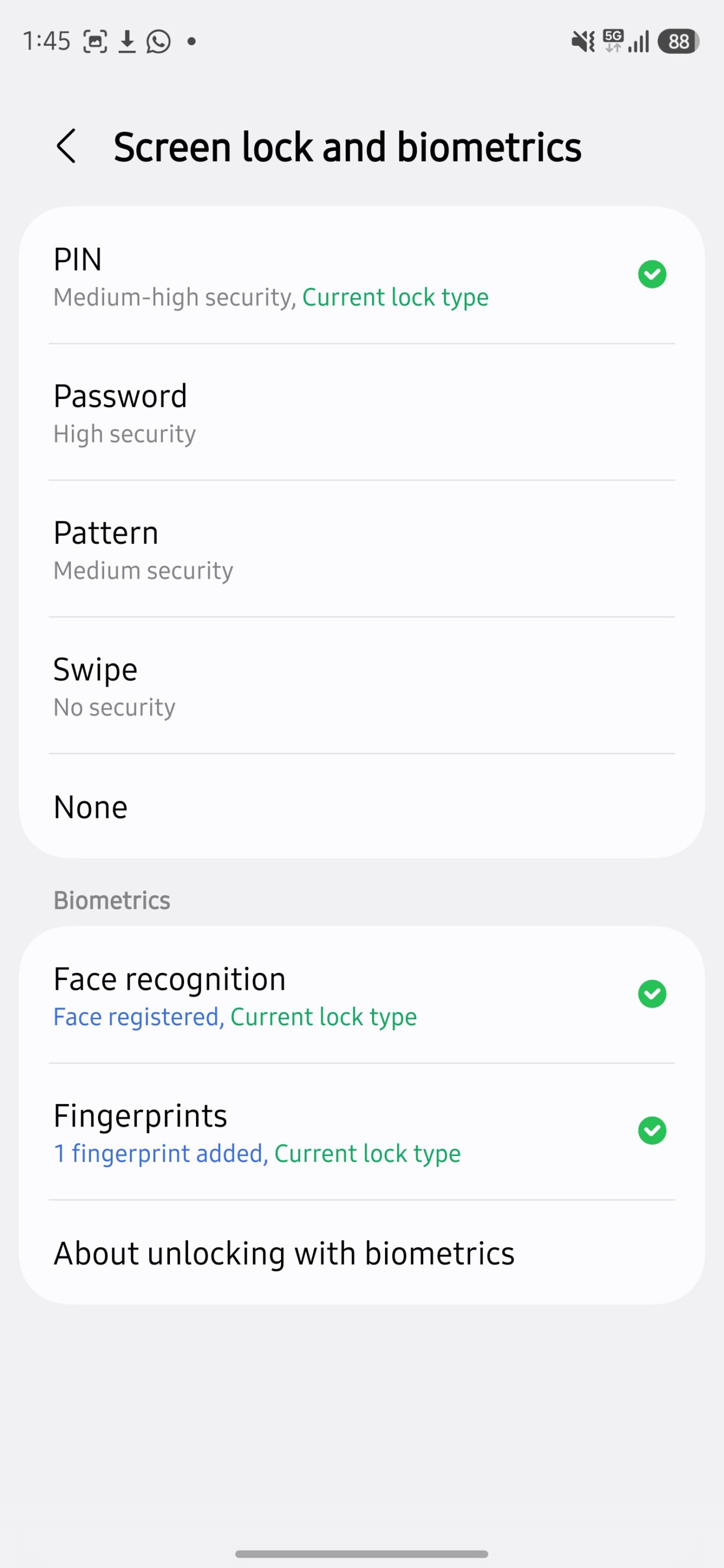
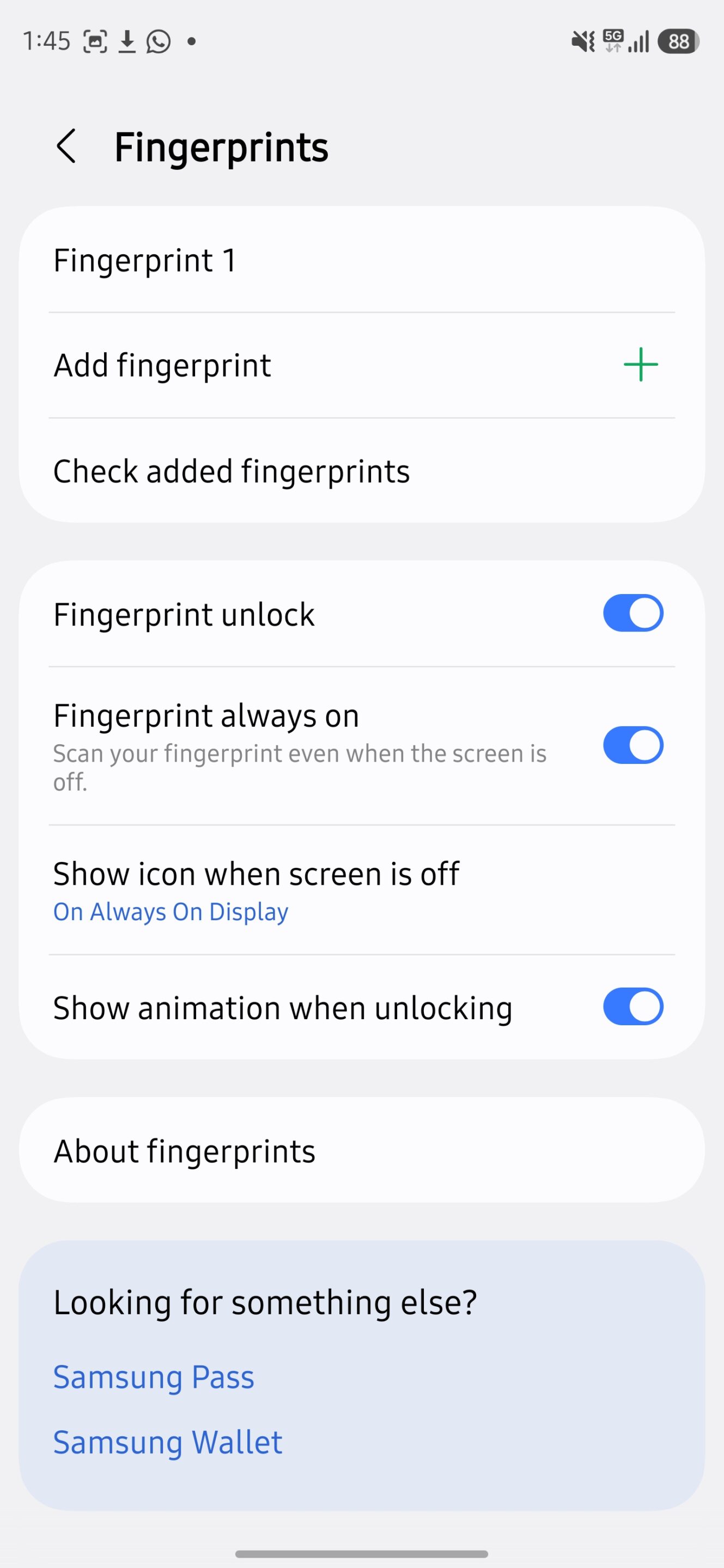
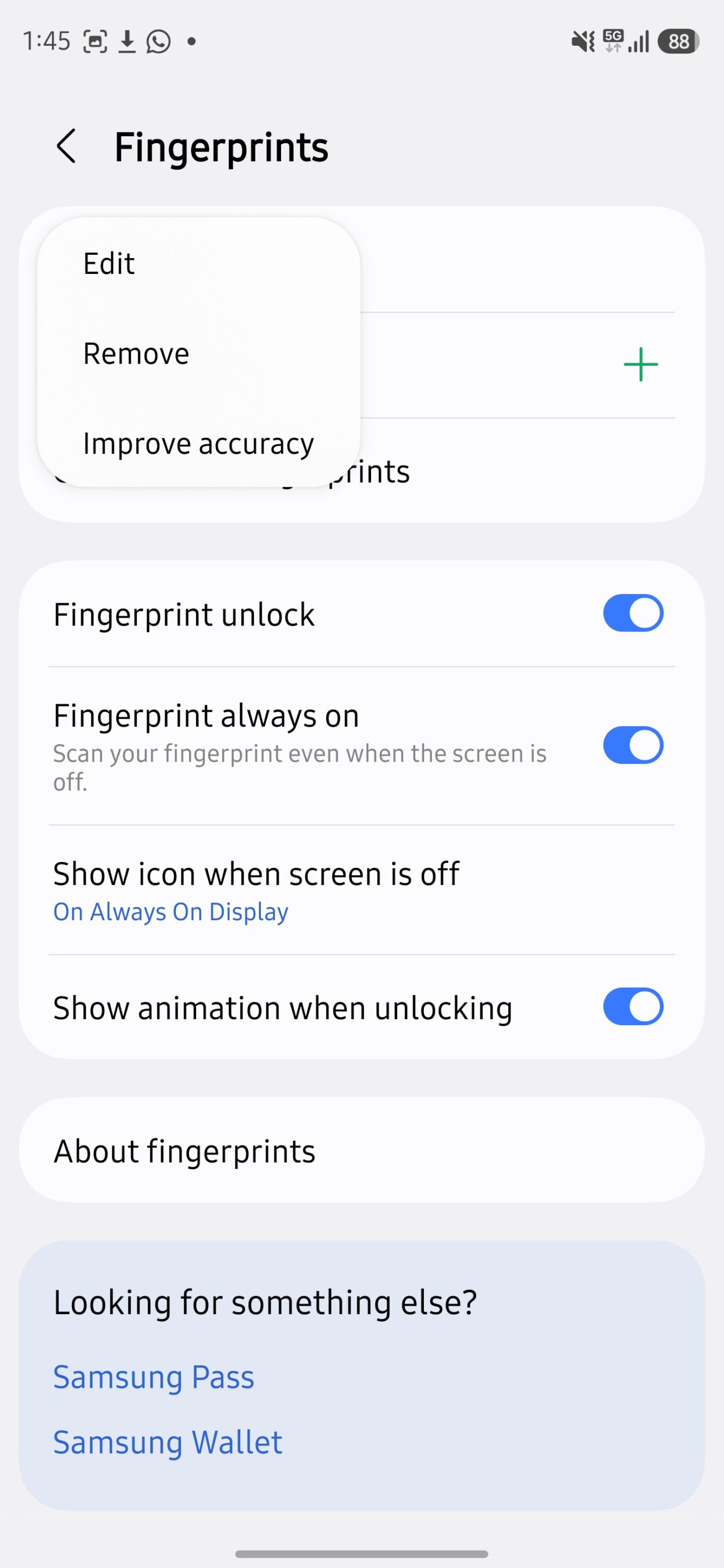
On One UI 8.5, Samsung has added a dedicated option to improve fingerprint recognition without deleting and re-adding prints manually. Follow these steps:
- Open Settings
- Go to Security and privacy
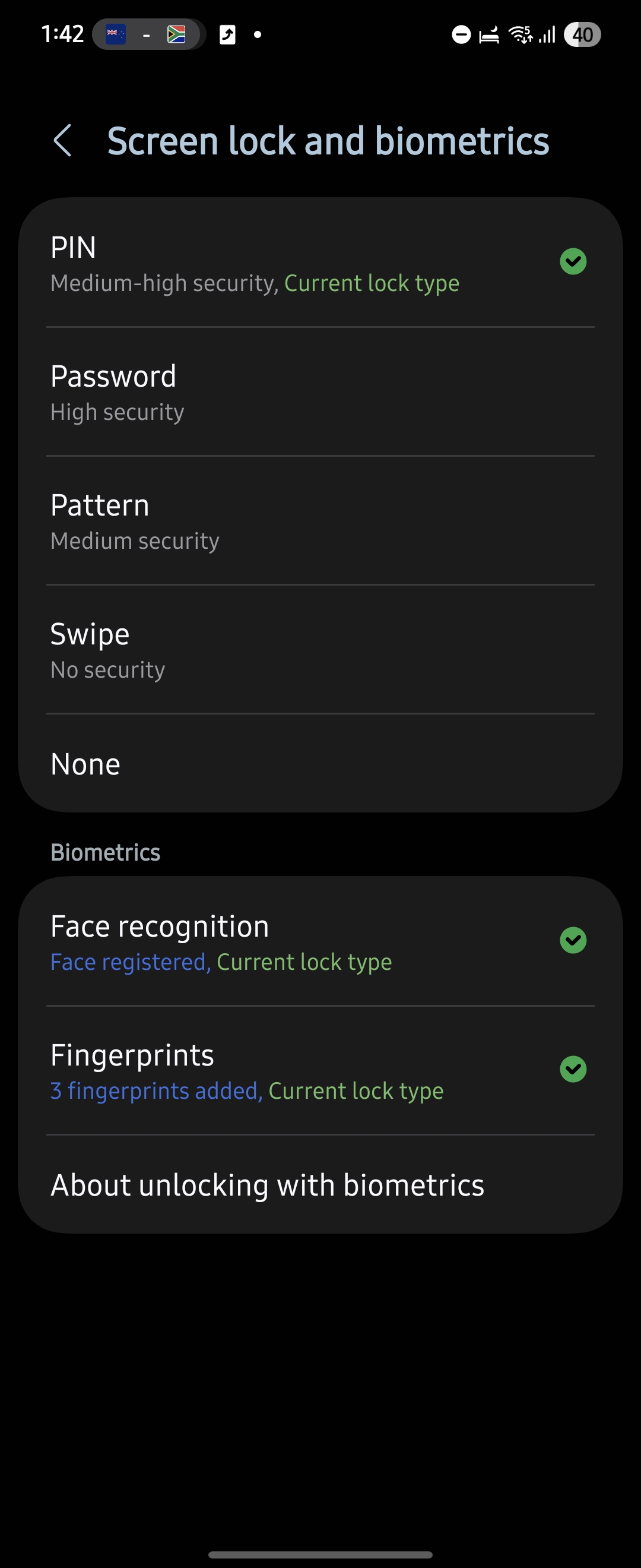
- Tap Screen lock and biometrics
- Enter your PIN/password
- Select Fingerprints
- Tap on a saved fingerprint
- Choose Improve accuracy and follow the on-screen instructions


Here’s how you can improve fingerprint accuracy on One UI 8
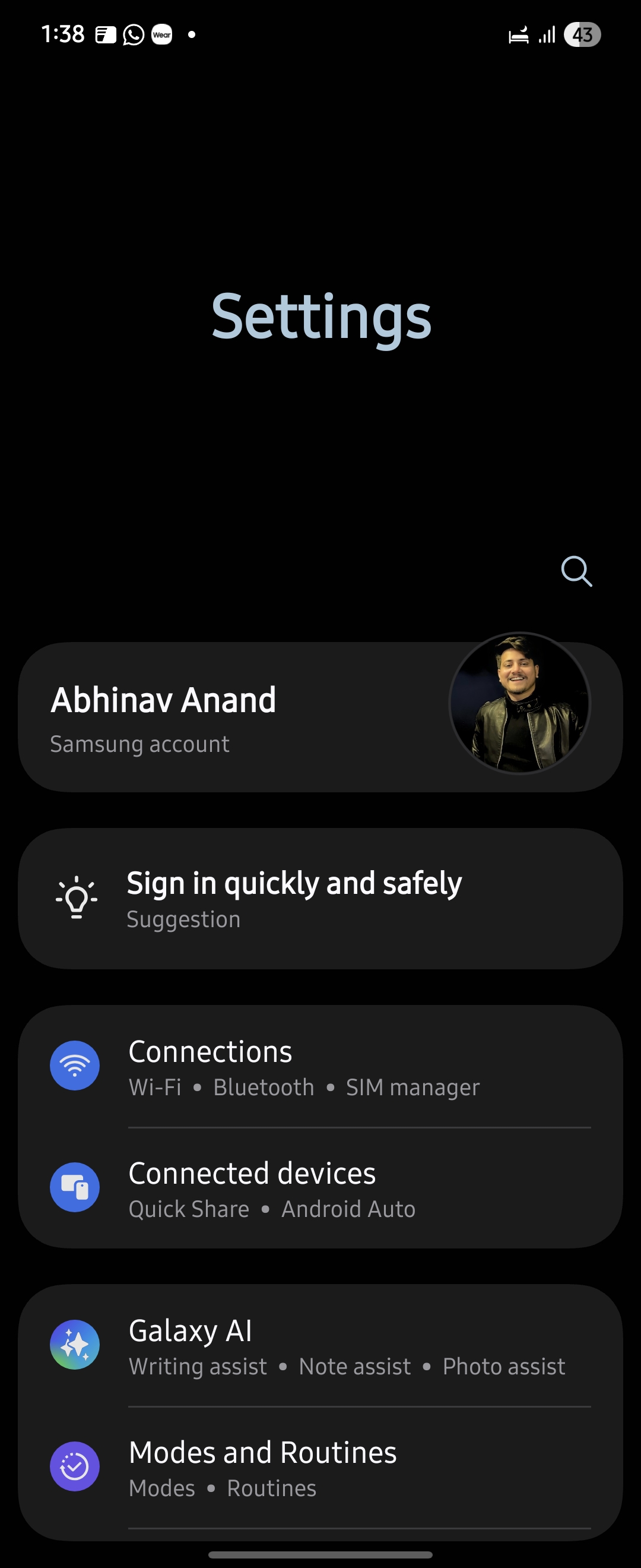
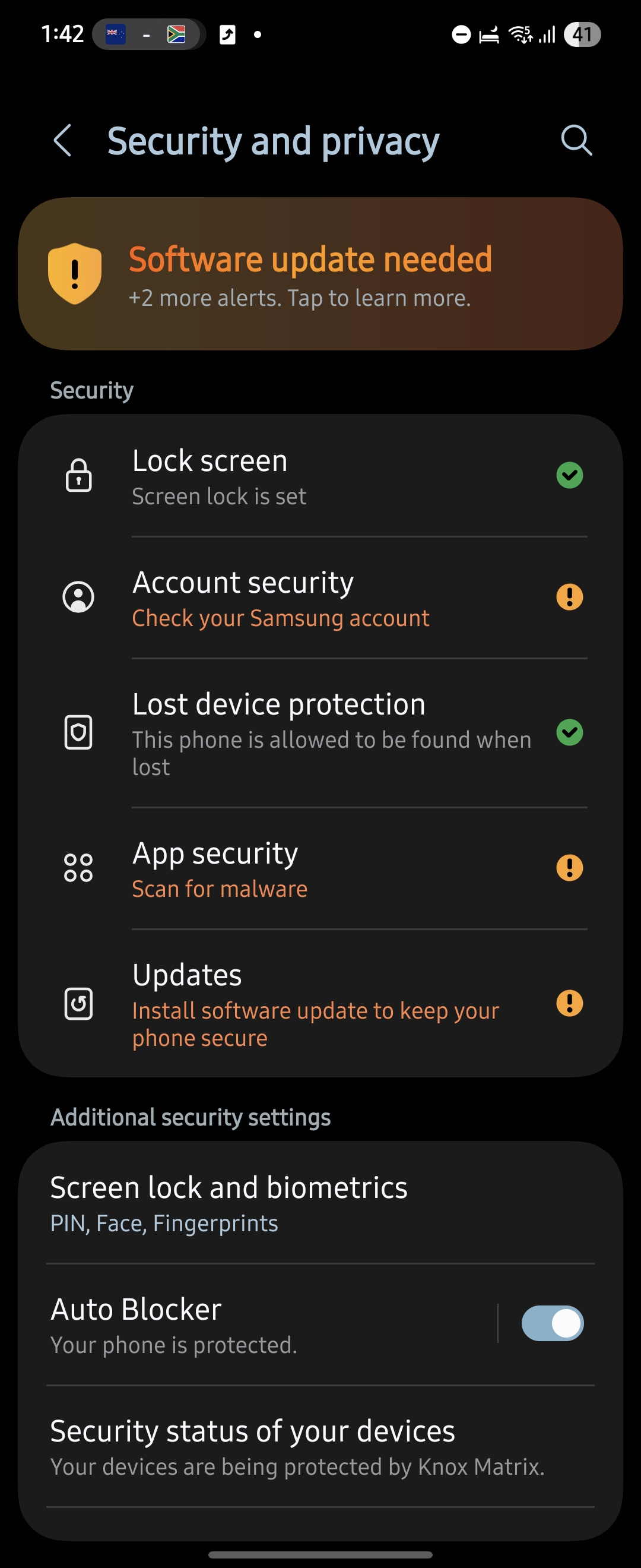
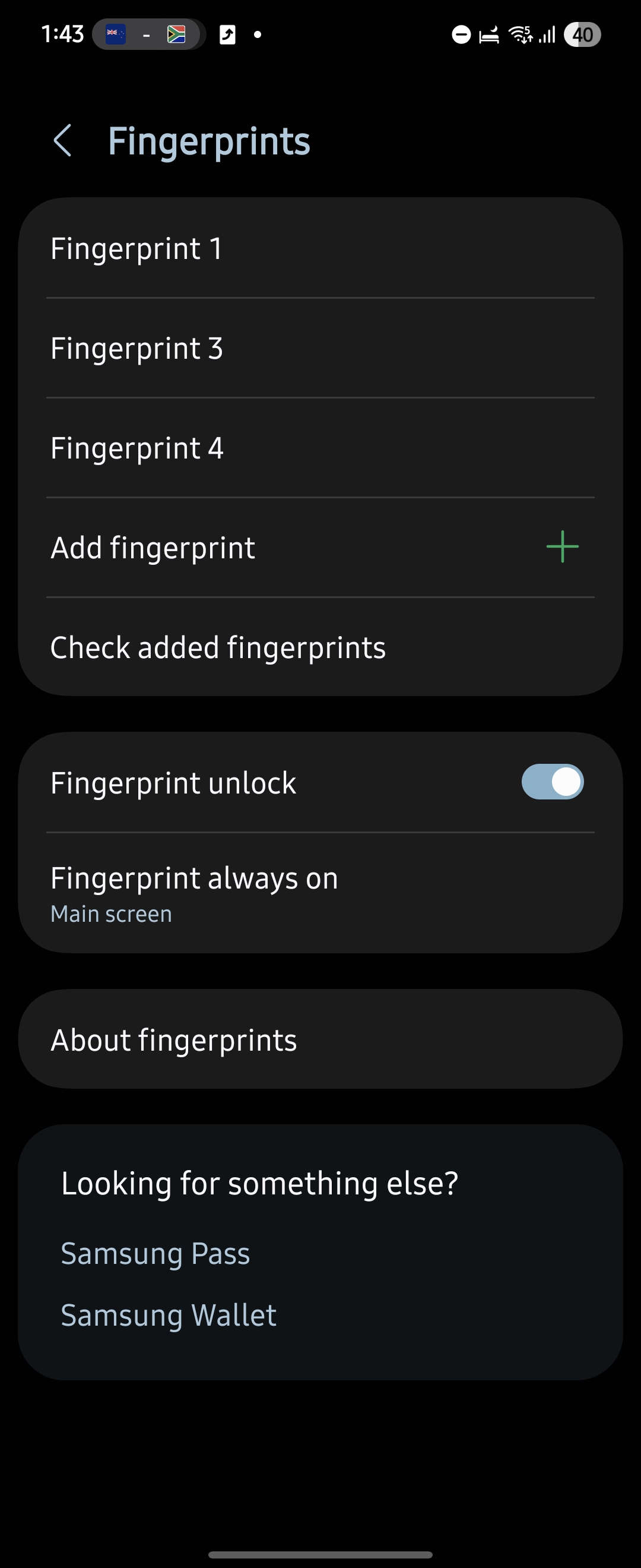
If your Galaxy phone is running One UI 8 or an earlier version, you won’t find a dedicated “Improve accuracy” option. However, most Galaxy phones allow you to register up to four fingerprints. You can use this to your advantage by adding the same finger more than once.
- Open Settings
- Go to Security and privacy
- Tap Fingerprints
- Enter your PIN/password
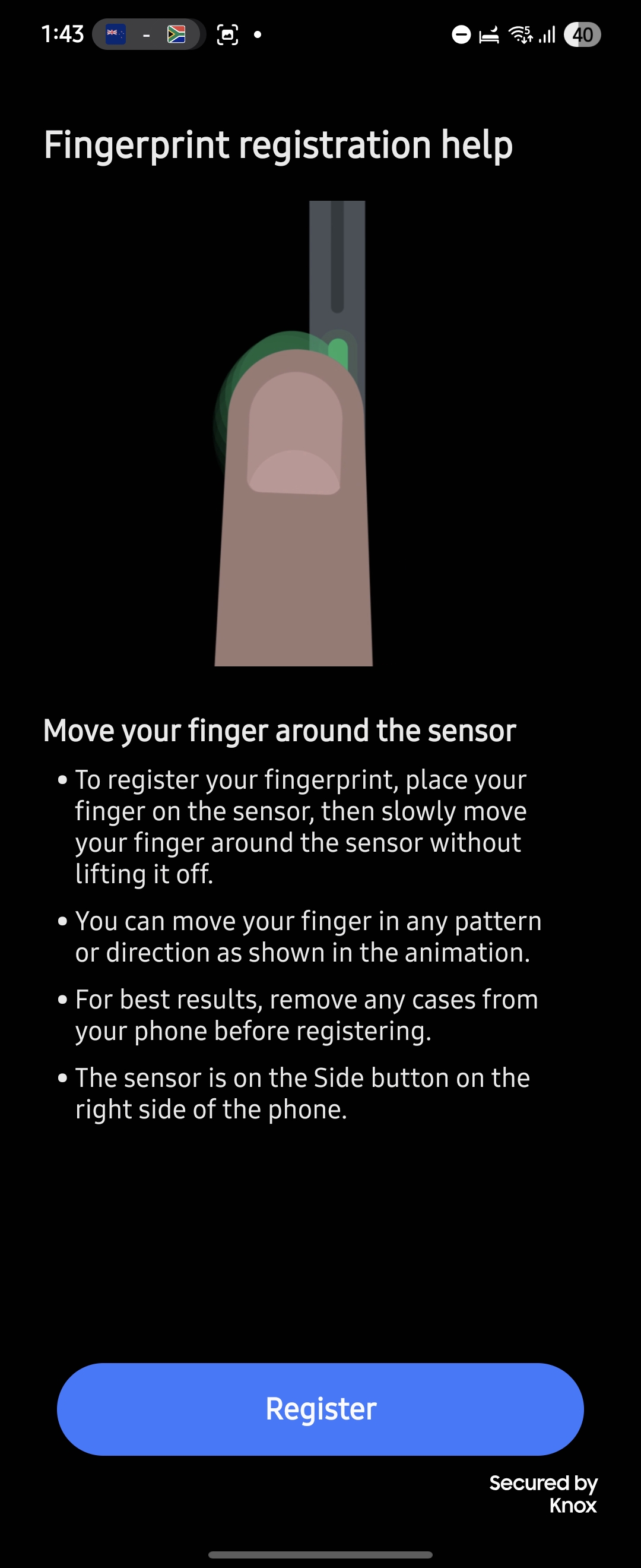
- Tap Add fingerprint
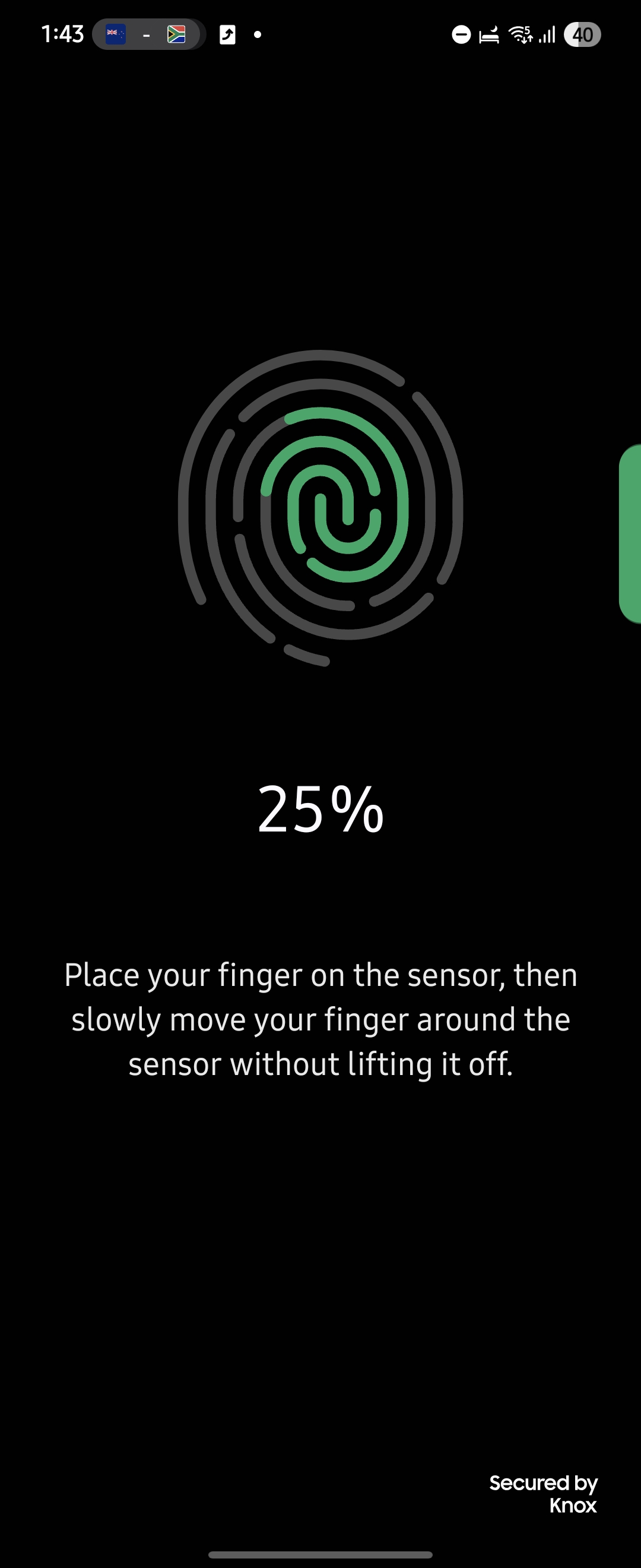
- Scan the same finger again, focusing on slightly different angles and positions
By doing this, you effectively give the system more data to work with, which improves recognition speed and accuracy.
Bonus Tips
- Register your finger properly: During setup, scan edges and different angles, not just the center.
- Avoid very dry or wet fingers: Moisture levels can affect ultrasonic readings.
- Use a compatible screen protector: Thick protectors can interfere with the sensor.
- Clean the screen regularly: Dirt and smudges can reduce accuracy.
- Enable Touch sensitivity (if using a protector): Head to Settings and turn on Touch sensitivity.
At the end of the day, Samsung’s ultrasonic fingerprint sensors are already among the most reliable you’ll find on any smartphone. But small tweaks like these can make a noticeable difference in everyday use. Did this help you improve fingerprint accuracy on your Galaxy phone?

Written by
Abhinav AnandAbhinav Anand is the News Editor at SammyGuru and a technology journalist based in New Delhi. Before joining SammyGuru, he contributed to numerous outlets, including Android Headlines, ExtremeTech, The Mac Observer, Financial Express, Economic Times, iGeeksBlog, KnowTechie, PhonesWiki, SlashGear, and more. You can reach him at abhinav@sammyguru.com.

Follow us on Google Discover & set us as a preferred source in Google News
Share this Post
___________________________


New Blog Posts
___________________________

First Set of Pixel 11 Pro XL Renders Are Here
Pixel 11 Pro XL CAD renders show minimal design changes

Is Samsung Preparing One UI 8.5 Beta for Galaxy Z Fold 5 and Flip 5?
Samsung may launch a One UI 8.5 beta program for its 2023 foldables

Galaxy S25 One UI 8.5 Beta May Run Longer Than Expected
Galaxy S25 series’ One UI 8.5 beta may stretch to 10 rounds







