
This Galaxy S26 Ultra Camera Setting Lets You Take Photos Faster
SammyGuru is reader-supported. We have affiliate and sponsored partnerships, so we may earn a commission when you buy through links on our site — at no extra cost to you. Learn more.
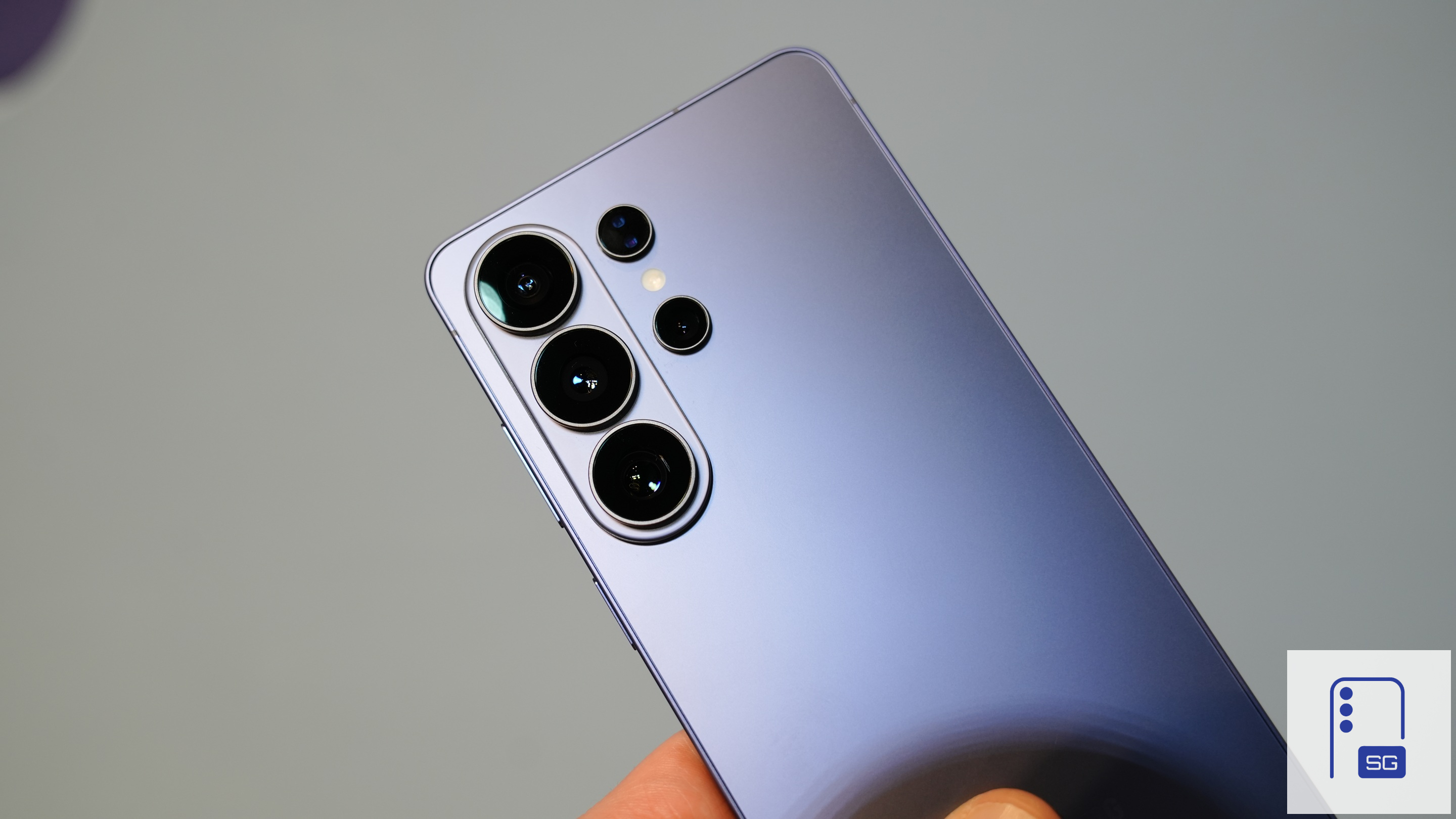
Samsung’s new Galaxy S26 Ultra offers some of the most advanced camera features available on a Galaxy phone. However, if you frequently take multiple shots in quick succession, you might notice a slight delay between photos. Fortunately, Samsung includes a setting that lets you speed up camera capture time. Here’s how you can reduce processing time and take photos much faster.
Speed up your Galaxy S26 Ultra’s camera shutter time with this trick
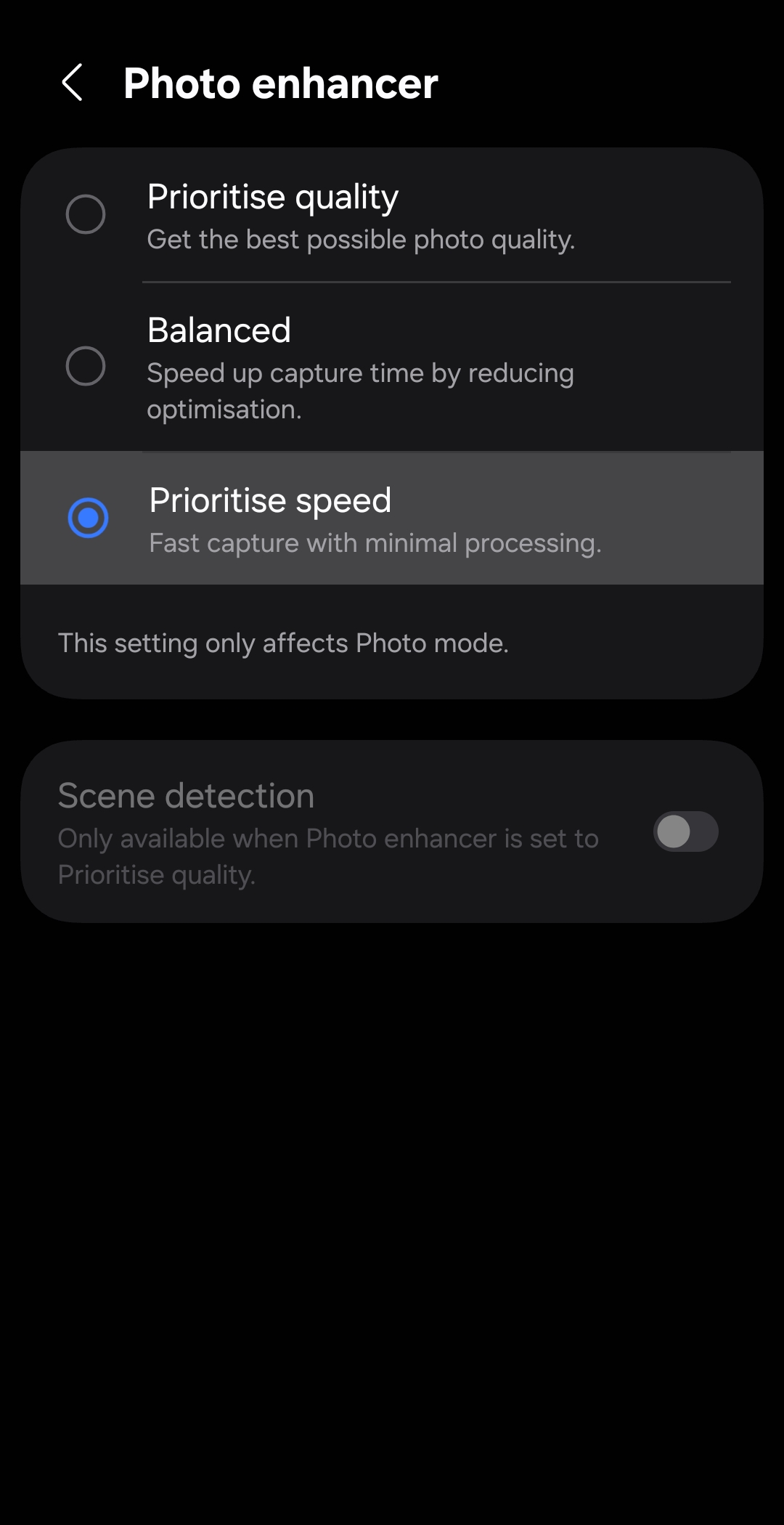
The stock camera app on the Galaxy S26 Ultra comes with a setting that lets you improve the capture speed. Labeled “Photo enhancer,” it is primarily designed to enhance the image quality when you capture a photo. The system analyzes the image and performs additional processing to enhance details, colors, and clarity.
While this extra processing helps produce better-looking photos, it can also create a short delay before the camera is ready to take the next shot. Thankfully, Samsung lets you prioritise speed over quality if you need to capture multiple shots in quick succession. The Galaxy S26 Ultra offers three levels of optimization:
- Prioritise quality – Prioritizes image quality with the most processing. This may slow down the time between shots.
- Balanced – Reduces some processing to balance photo quality and capture speed.
- Prioritise speed – Disables most post-processing so the camera can take photos almost instantly.
If you prefer faster shooting, switching to the Prioritise speed option can noticeably reduce the delay between pictures. Simply follow the steps below to configure the settings.
- Open the Camera app on your Galaxy S26 Ultra.
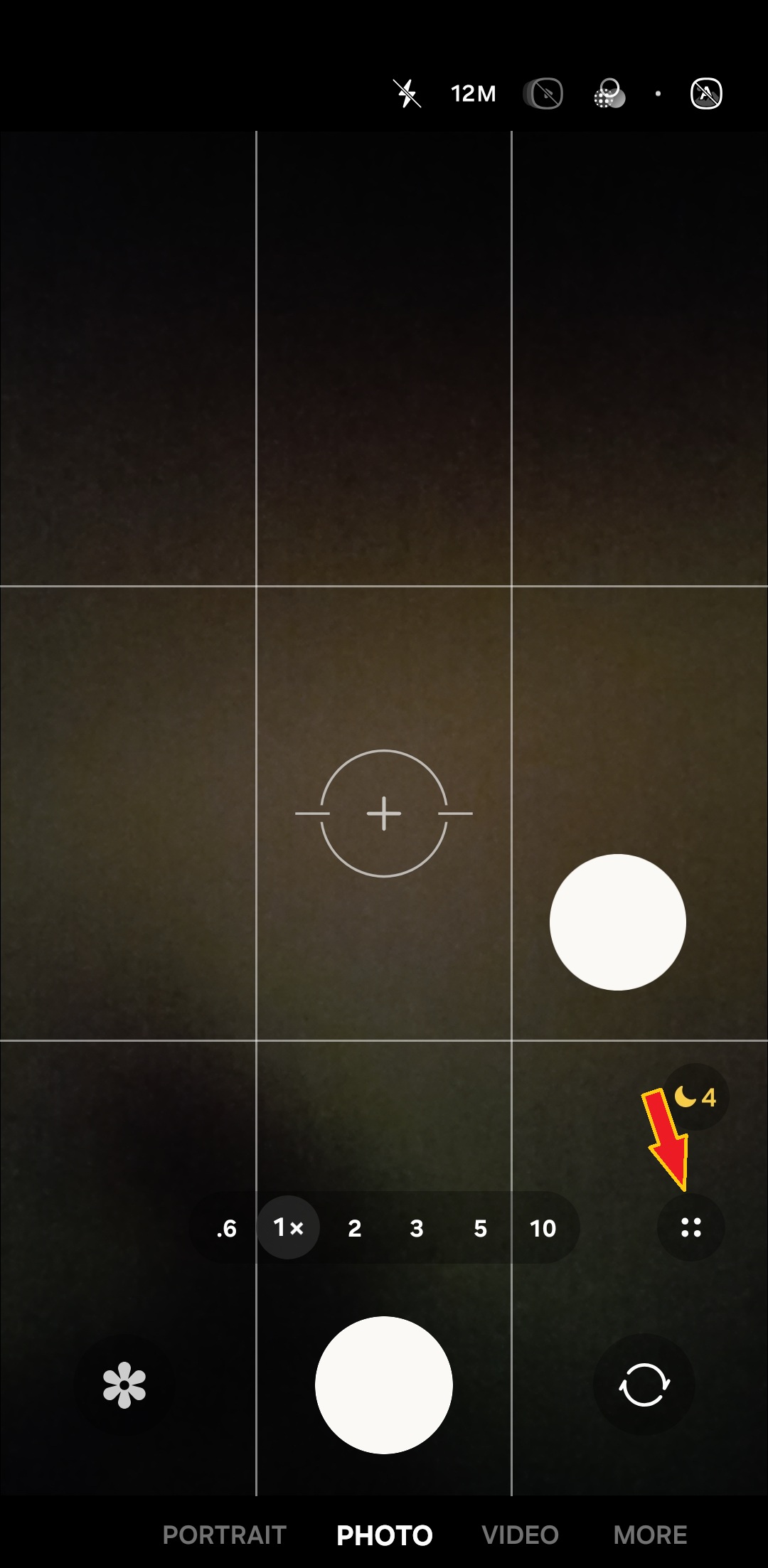
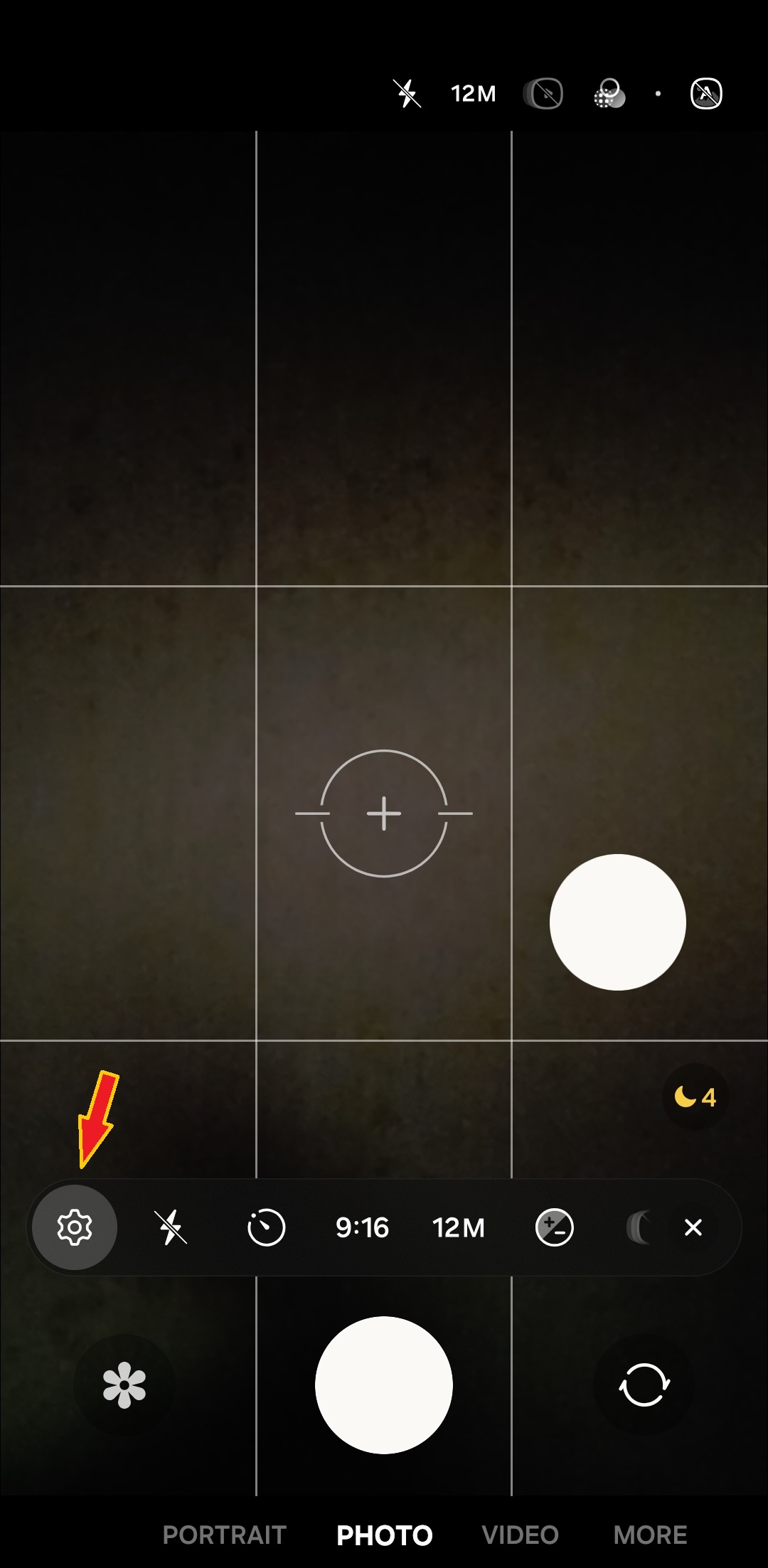
- Tap the “four dots” button in the bottom right corner and select Settings (gear icon) from the expanded tray.
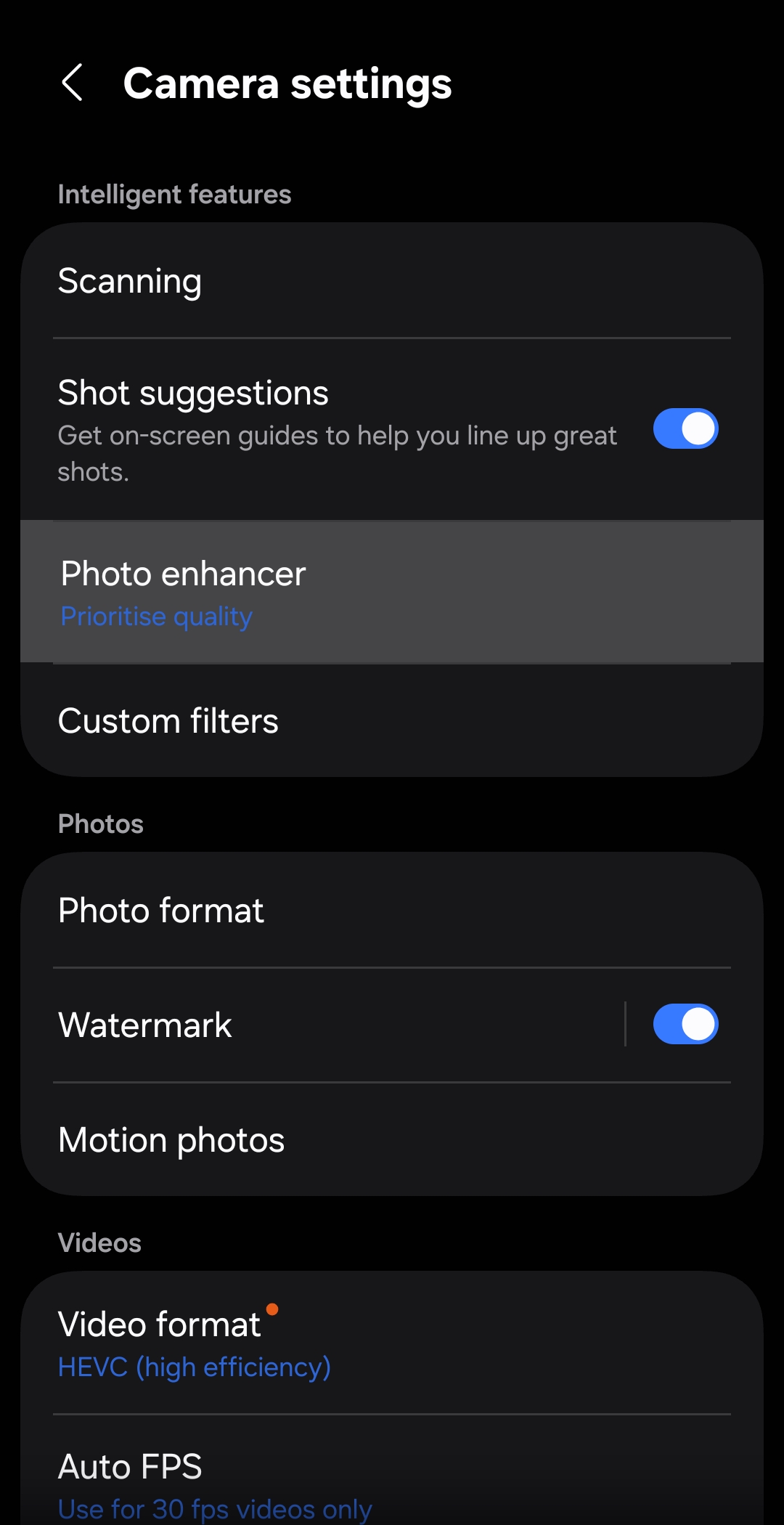
- Select Photo enhancer.
- Choose one of the three options.
For most regular use cases, you may want to prioritise quality to get better photos. However, in certain situations, where you’d be repeatedly hitting the shutter button to capture multiple shots, prioritising speed may come in handy. You can also select Balanced to balance speed and quality.

Written by
Sumit AdhikariSumit, a life-long Samsung user, is passionate about technology and has been professionally writing on tech since 2017. He’s a mathematics graduate by education and enjoys teaching basic mathematics tricks to school kids in his spare time. Sumit believes in artificial intelligence and dreams of a fully open, intelligent and connected world.

Follow us on Google Discover & set us as a preferred source in Google News
Share this Post
___________________________


New Blog Posts
___________________________

First Set of Pixel 11 Pro XL Renders Are Here
Pixel 11 Pro XL CAD renders show minimal design changes

Is Samsung Preparing One UI 8.5 Beta for Galaxy Z Fold 5 and Flip 5?
Samsung may launch a One UI 8.5 beta program for its 2023 foldables

Galaxy S25 One UI 8.5 Beta May Run Longer Than Expected
Galaxy S25 series’ One UI 8.5 beta may stretch to 10 rounds







