
15 Samsung Galaxy Tips and Tricks to Use Your Phone Like a Pro
SammyGuru is reader-supported. We have affiliate and sponsored partnerships, so we may earn a commission when you buy through links on our site — at no extra cost to you. Learn more.
In this article
- 1. Super-charge the Side Key
- 2. Automate daily tasks with Modes & Routines
- 3. Use Galaxy AI Writing Assist anywhere you type
- 4. Translate calls and conversations in real time
- 5. Master Edge Panels for fast multitasking
- 6. Use split screen and pop-up view like a power user
- 7. Use Samsung DeX for desktop-style work
- 8. Customize the Quick Panel for faster access
- 9. Extend battery life with smart controls
- 10. Turn the lock screen into a dashboard
- 11. Extract text and pin content with AI Select
- 12. Share Wi-Fi and files without hassle
- 13. Use AI tools in Gallery for smarter photo editing
- 14. Unlock Developer options (carefully)
- 15. Follow Samsung’s official One UI feature hubs
Samsung’s Galaxy phones are packed with powerful features, many of which aren’t obvious right away. From hidden system tools to clever productivity hacks and Galaxy AI automations, here are the top 15 tips and tricks to help you use your phone smarter and faster. Some features may not be available on certain Galaxy models or older One UI versions.
1. Super-charge the Side Key
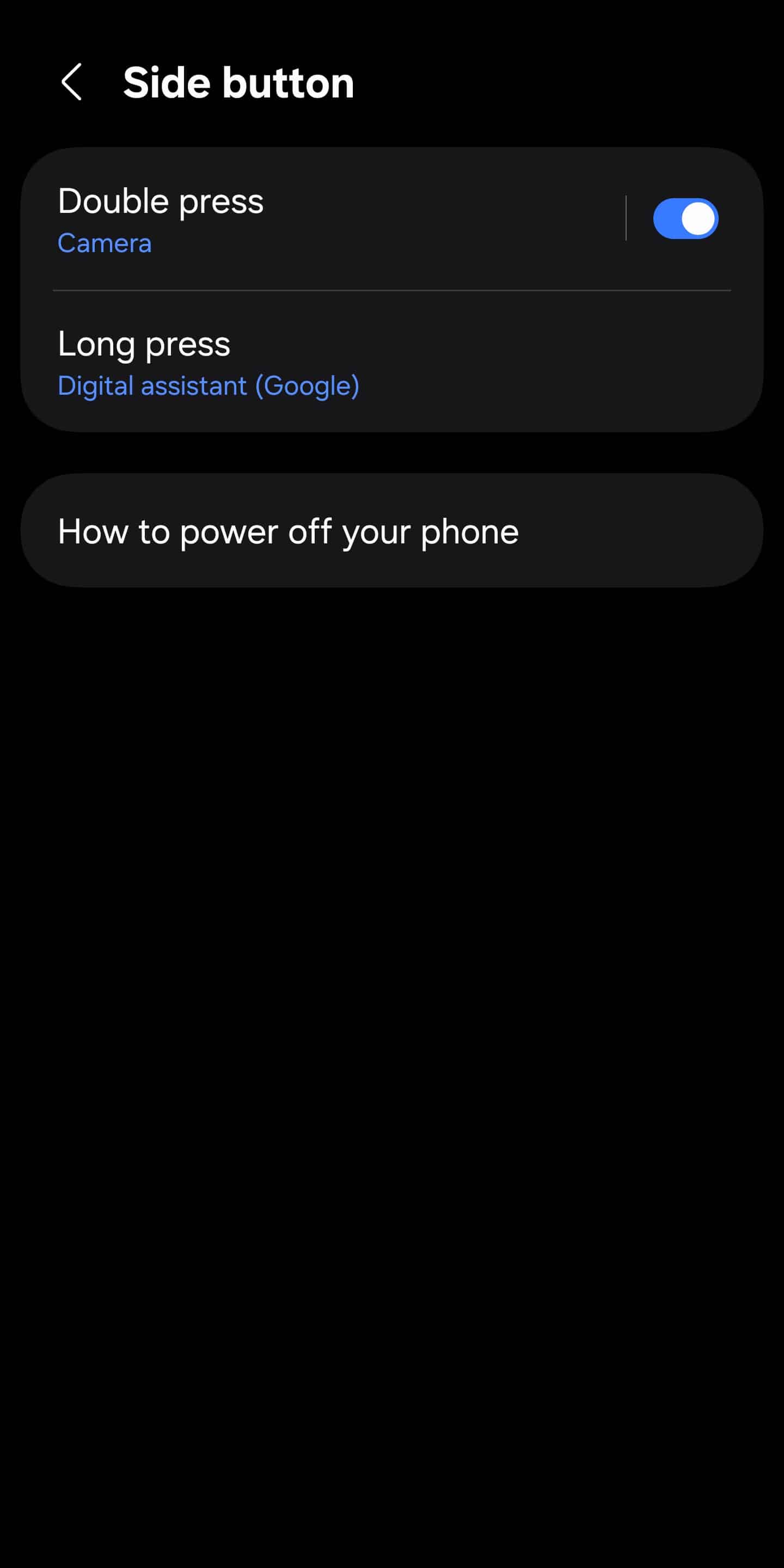
Samsung’s Side Key is not just a power button. You can turn it into a shortcut for your most-used actions.
- Open Settings > Advanced features > Side button
- Set Double press to launch the Camera or any app you use often
- Change Press and hold (long press) to show the power menu instead of the digital assistant (if you prefer)
This is one of the quickest ways to reduce taps and speed up daily use.
2. Automate daily tasks with Modes & Routines
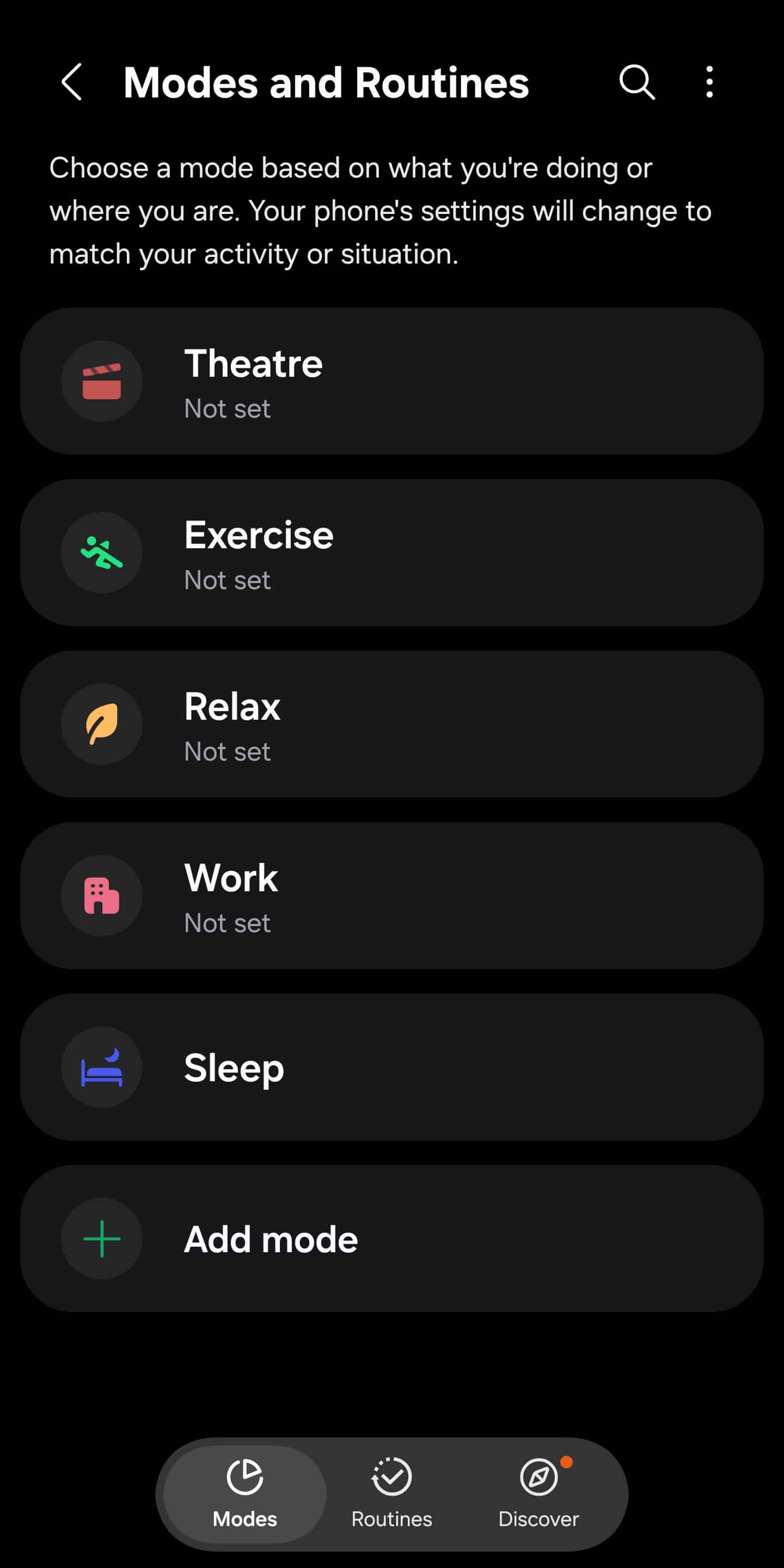
Modes & Routines can automate your phone based on time, location, or activity. For example:
- A Work mode that enables Wi-Fi, silences notifications, and opens Outlook
- A Sleep mode that turns on Dark mode, lowers brightness, and enables Do Not Disturb
- Advanced routines like enabling 5G only for streaming apps or limiting charging to 80% at home
To set up a routine, go to Settings > Modes & Routines. Once set up, these automations run quietly in the background and save real time.
3. Use Galaxy AI Writing Assist anywhere you type
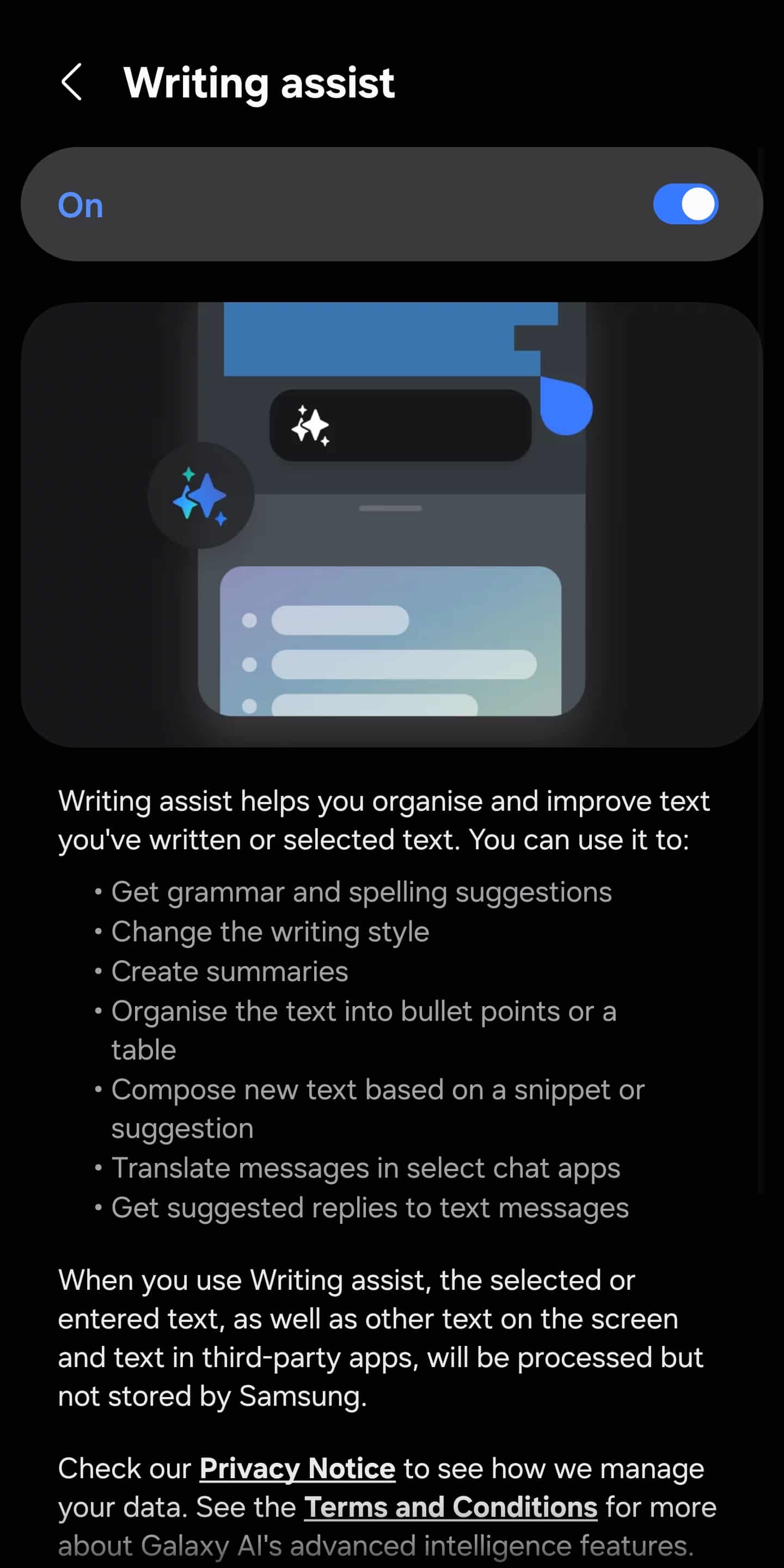
On One UI 7 and newer, Galaxy AI Writing Assist is built directly into the Samsung Keyboard. It can fix grammar and spelling, rewrite text in different tones (formal, casual, concise), summarize long messages, and translate text instantly.
- Go to Settings > Galaxy AI > Writing assist
- Enable it (you can choose on-device processing for better privacy, but some features require online processing)
- Open any app using the Samsung Keyboard and tap the Galaxy AI icon
It works across messaging apps, email, notes, and browsers.
4. Translate calls and conversations in real time
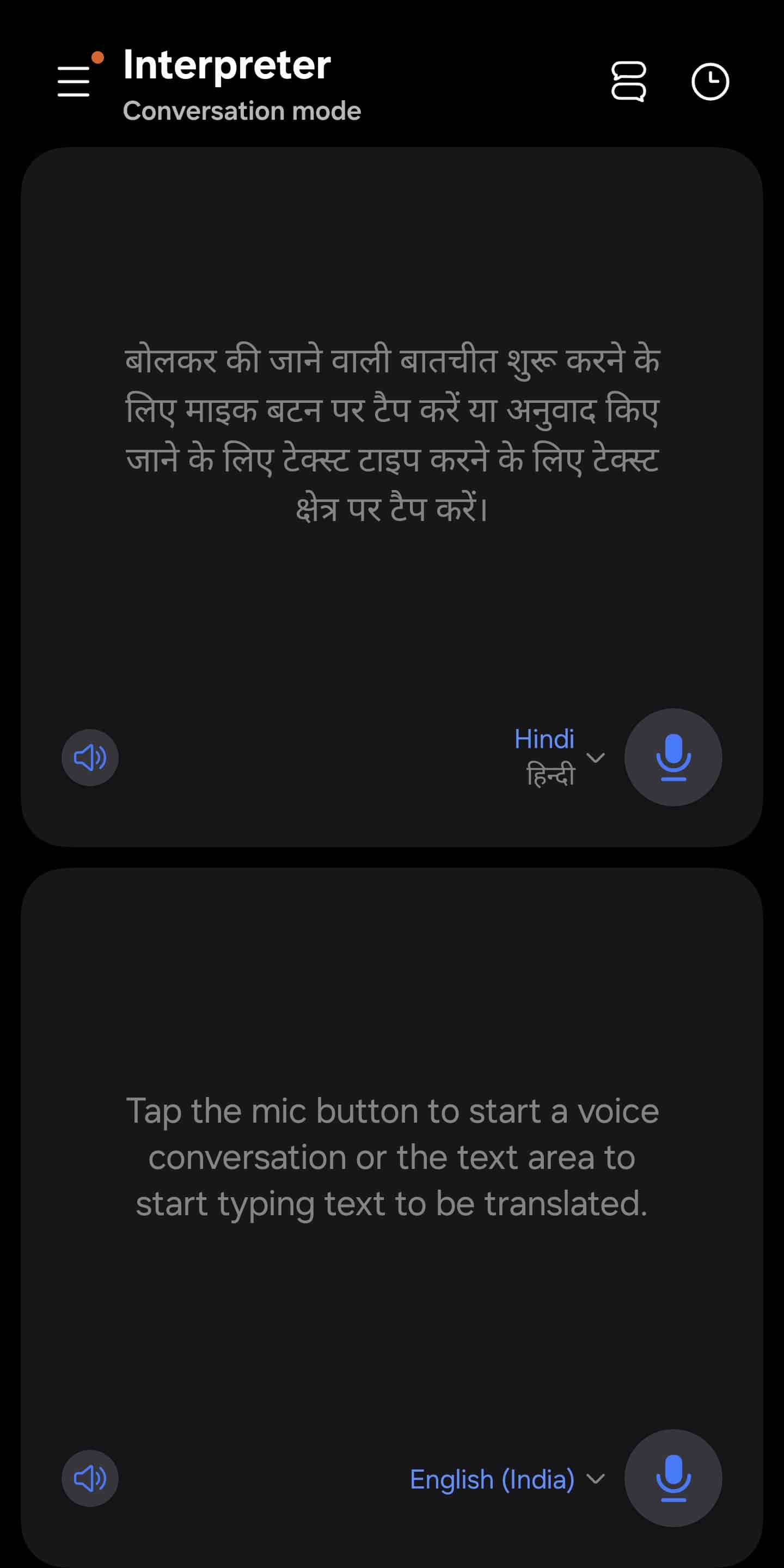
Galaxy AI also handles live voice translation, which is especially useful for travel or work. Call Assist translates phone calls in real time, so each person hears their own language, while Interpreter mode displays side-by-side translations on screen for face-to-face conversations.
- Enable via Settings > Galaxy AI
- Add Interpreter to the Quick Panel for fast access
5. Master Edge Panels for fast multitasking
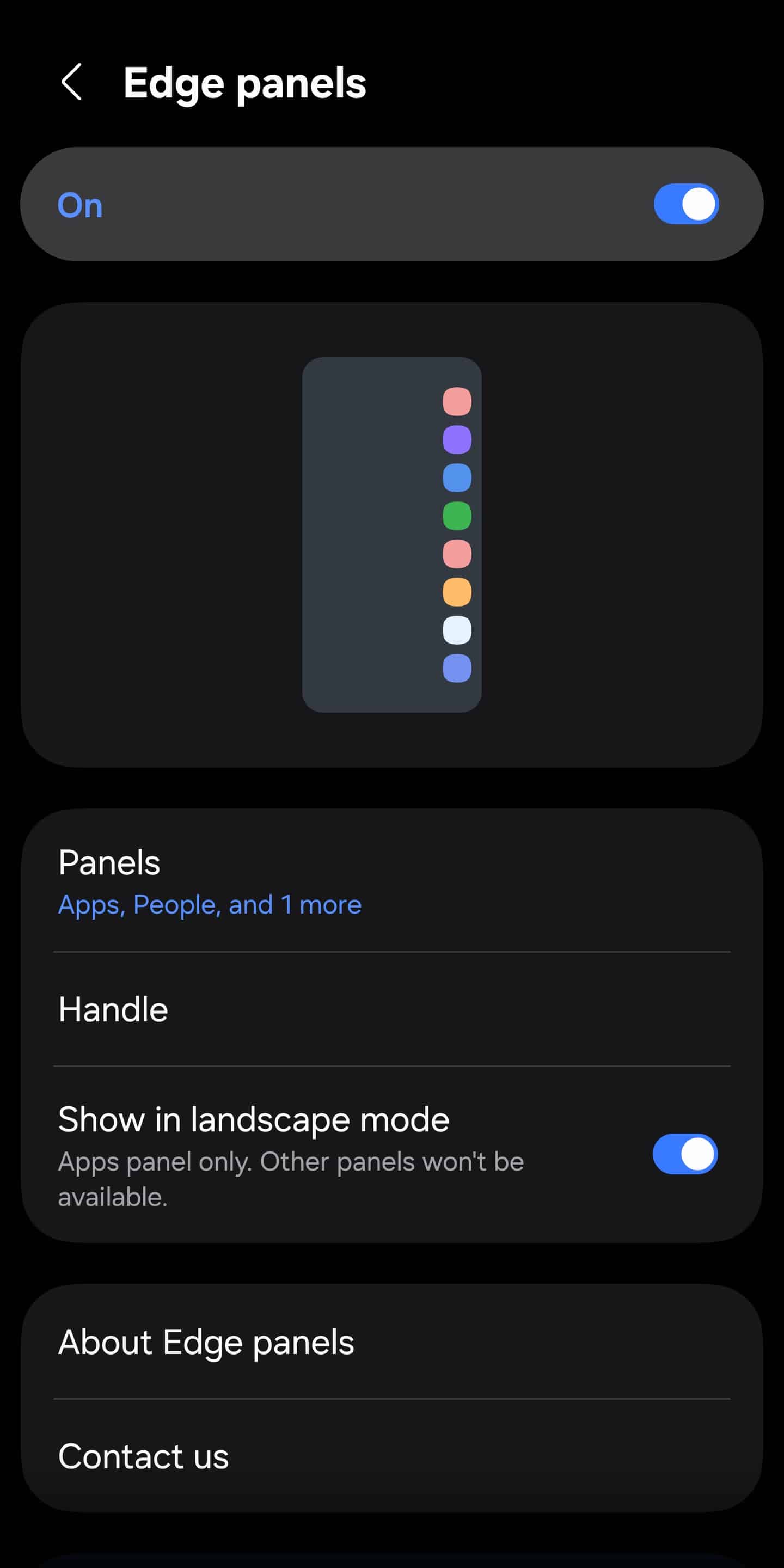
Edge Panels are one of Samsung’s most underrated productivity features. To enable, go to Settings > Display > Edge panels. You can use:
- Apps panel for instant app launching
- Tasks panel for screenshots, screen recording, and pinning content
- Smart Select for capturing and extracting parts of the screen
You can even create app pairs that launch two apps in split-screen with one swipe.
6. Use split screen and pop-up view like a power user
Samsung’s multitasking is far more flexible than stock Android.
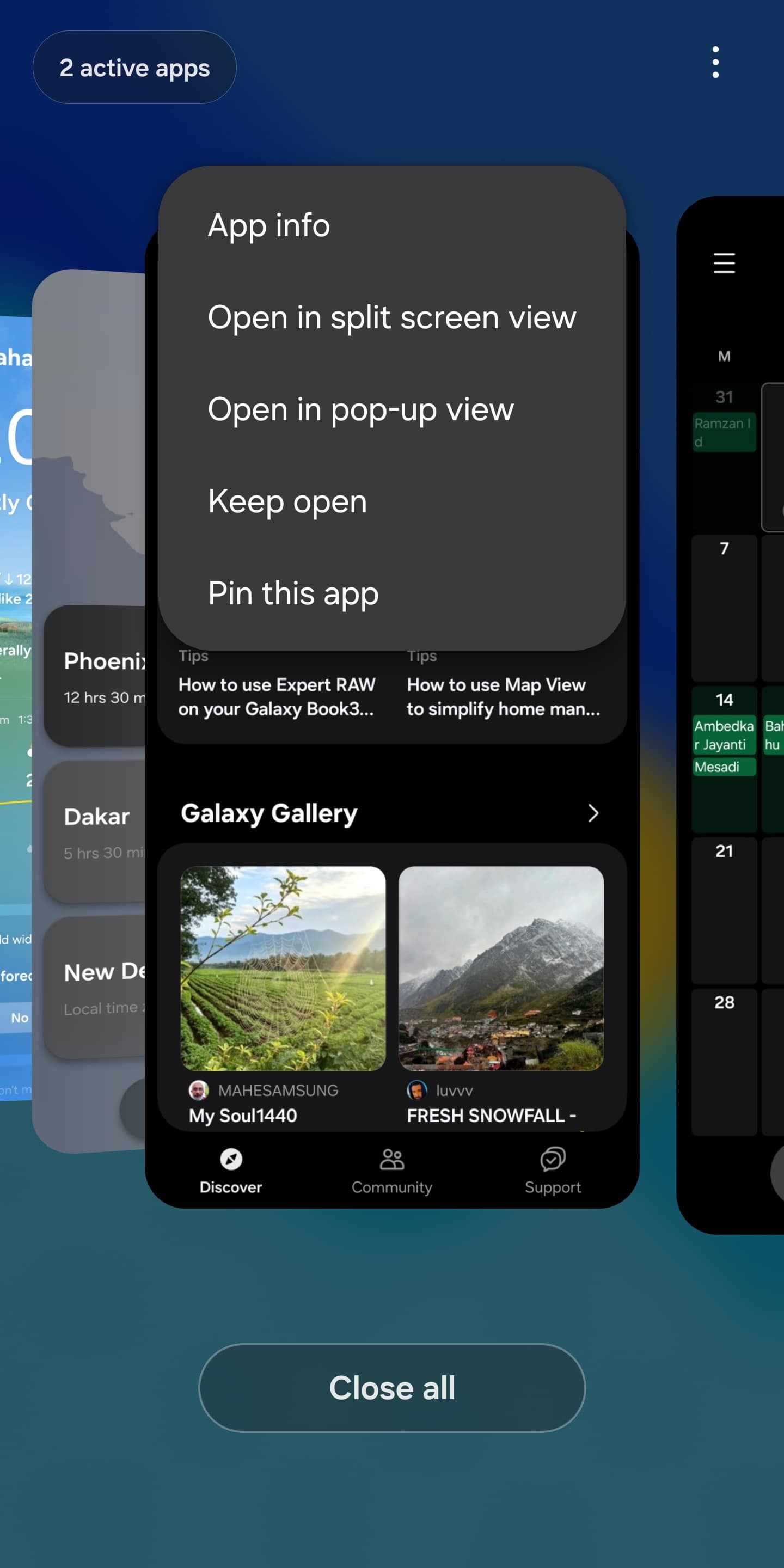
- Open Recent apps
- Tap the app icon at the top
- Choose Split screen view or Pop-up view
On Fold devices, you can drag and drop text, images, and links between apps, making large screens genuinely useful.
7. Use Samsung DeX for desktop-style work
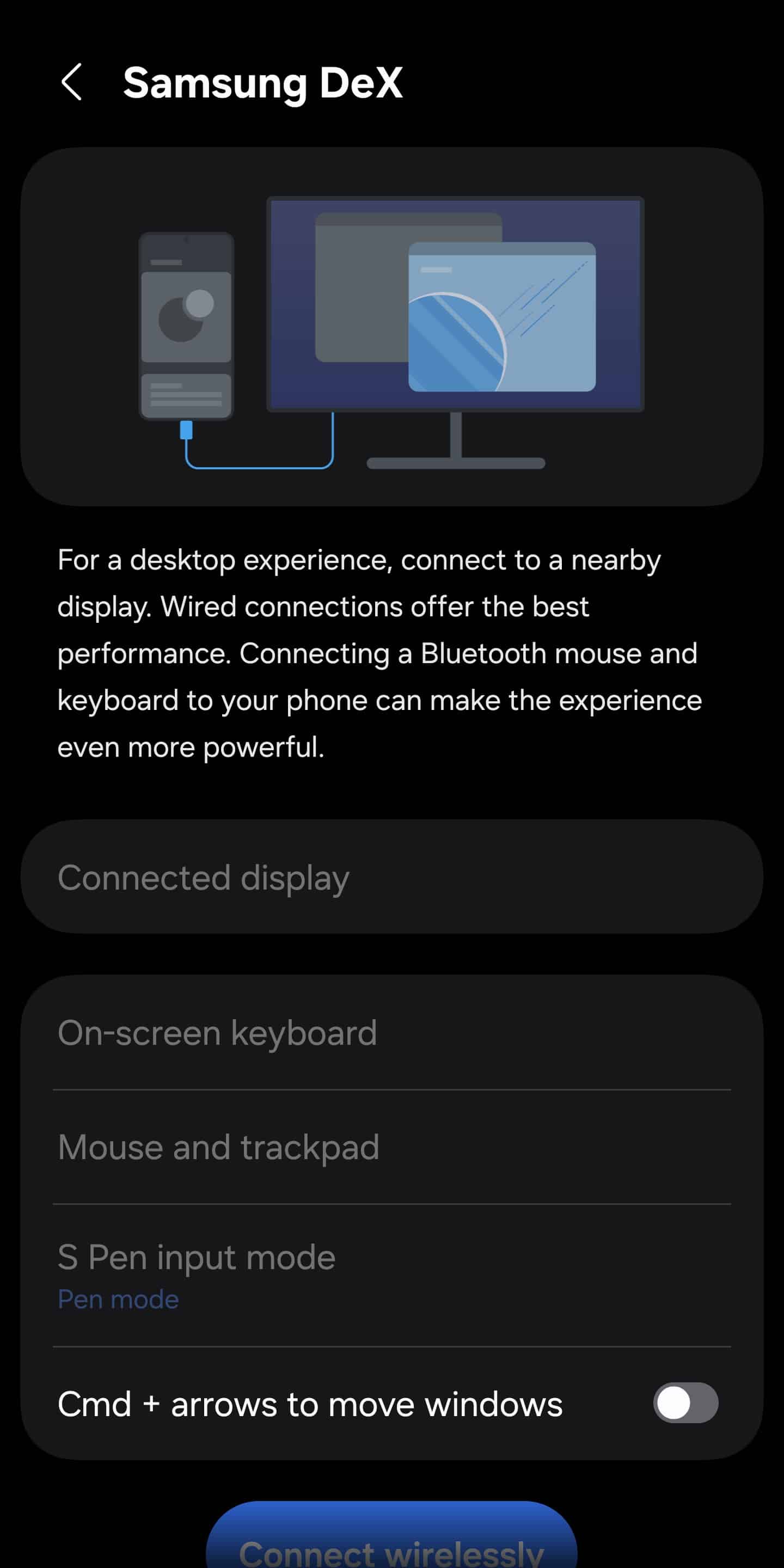
Samsung DeX turns your phone into a PC-like environment. How:
- Connect to a monitor via cable or wireless DeX
- Pair a keyboard and mouse
It’s surprisingly effective for writing, browsing, and light productivity.
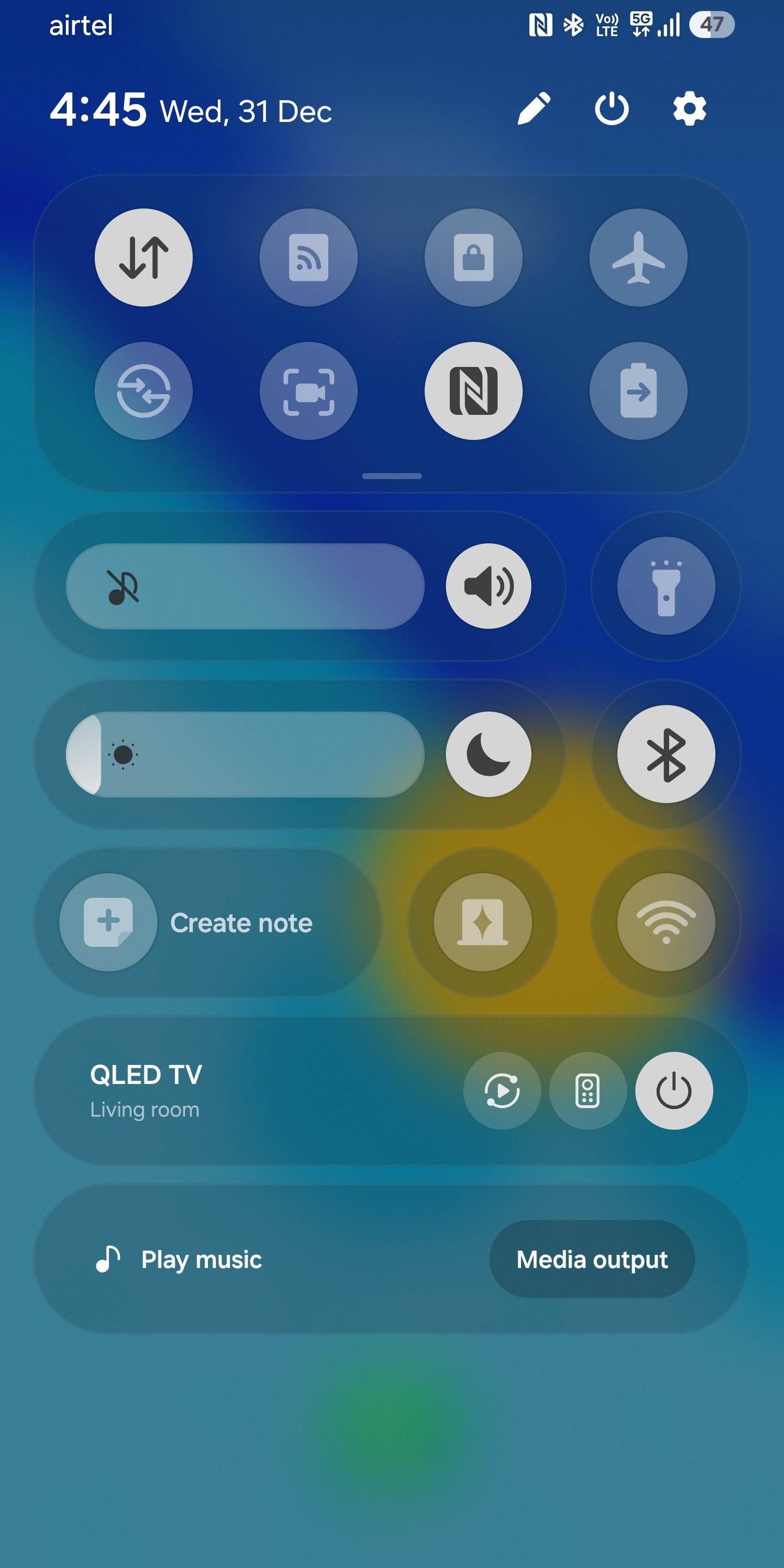
8. Customize the Quick Panel for faster access
Samsung’s Quick Panel is highly customizable.
- Swipe down from the top-right corner for Quick Settings, elsewhere for notifications
- Tap the pencil icon to reorder tiles
- Move useful toggles to the top (pro tip: place frequently used toggles closer to where you can reach with a single hand)
A few minutes of customization here saves countless swipes later.
9. Extend battery life with smart controls
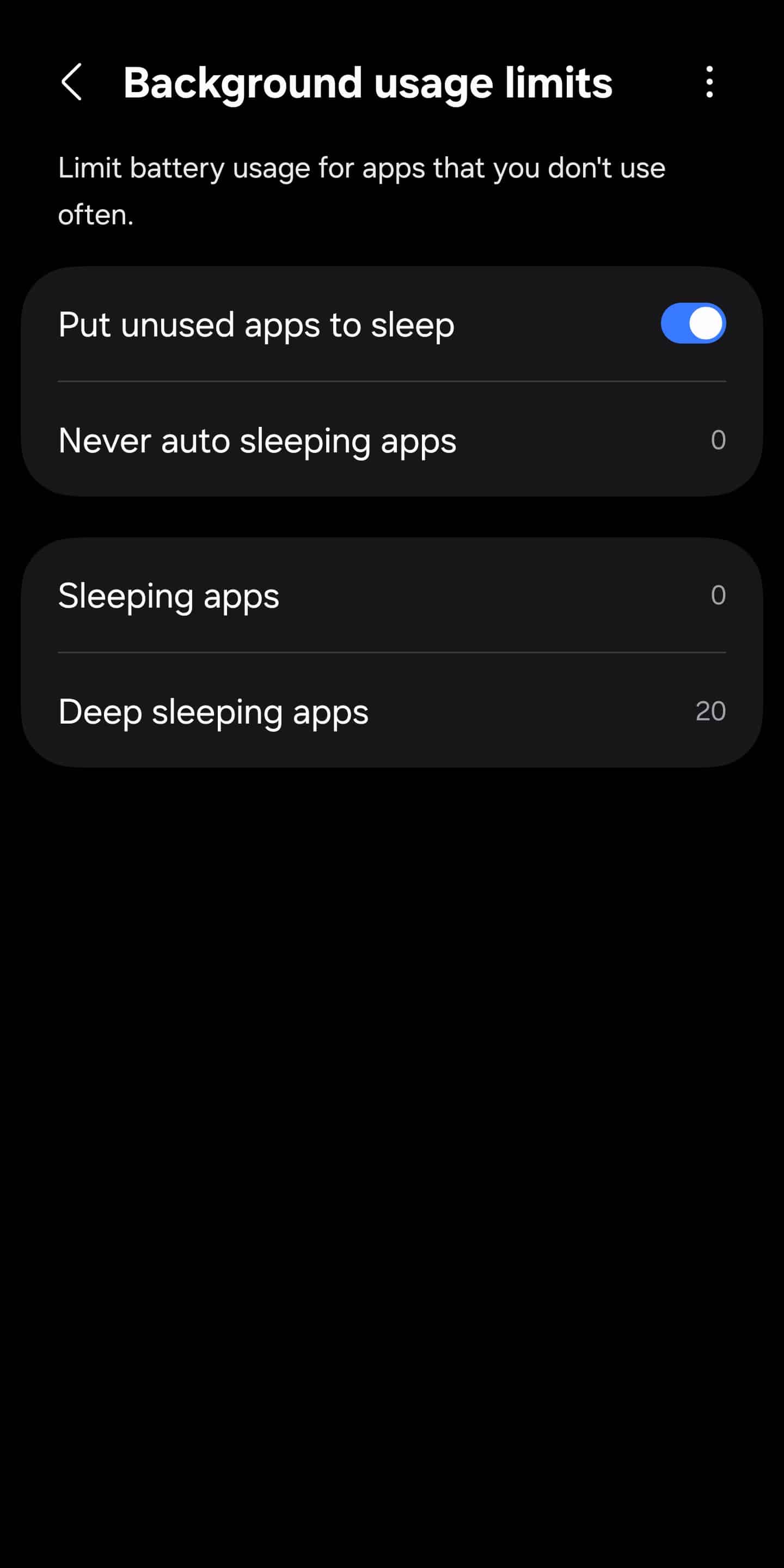
Samsung gives you granular battery management tools. What to do:
- Enable Adaptive battery under Settings > Battery
- Move rarely used apps into Sleeping or Deep sleeping apps
This prevents background drain without affecting apps you actually rely on.
10. Turn the lock screen into a dashboard
Modern One UI lock screens support widgets. Add:
- Calendar, Weather, Battery, Alarm, and more
With Good Lock (Lockstar), you can even create layered depth effects where the clock blends into the wallpaper.
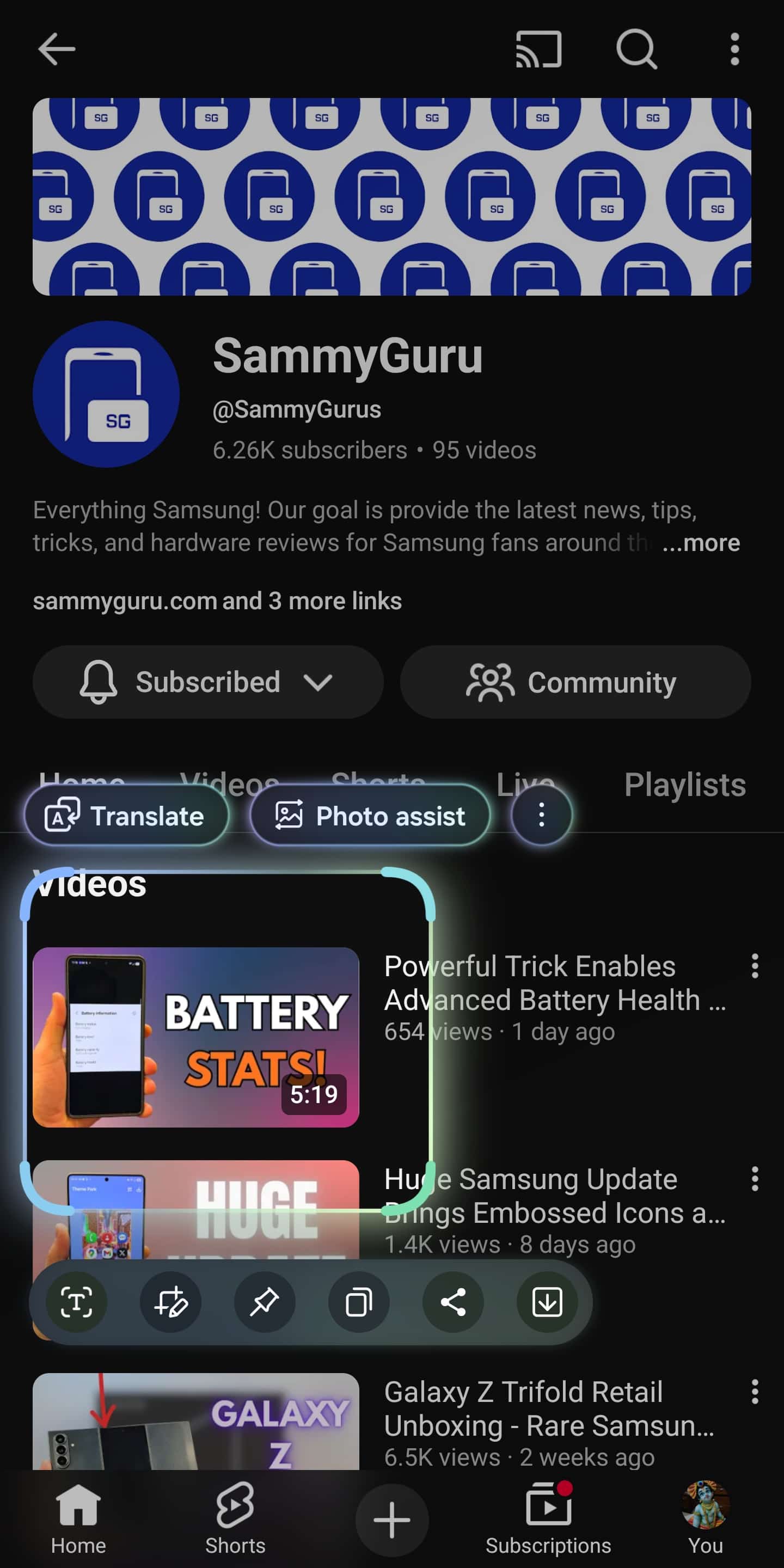
11. Extract text and pin content with AI Select
AI Select turns screenshots into usable data. How:
- Open Edge Panel > AI Select
- Capture any part of the screen
- Extract text, save GIFs, or Pin to screen for quick reference
Perfect for OTPs, addresses, and receipts.
12. Share Wi-Fi and files without hassle
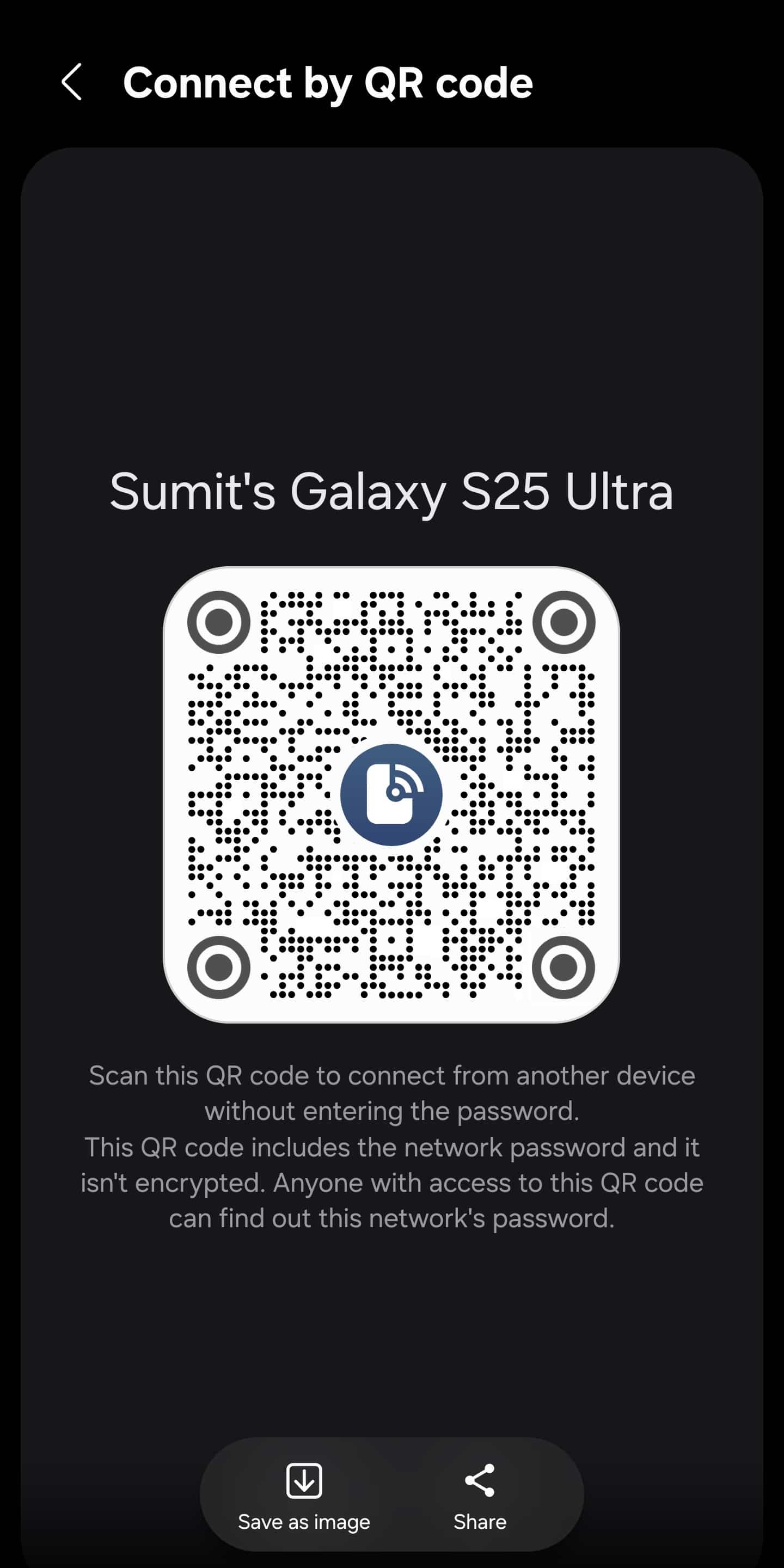
Samsung makes sharing painless. Features:
- Share Wi-Fi via QR code (no password typing)
- Use Quick Share to send large files wirelessly to nearby devices
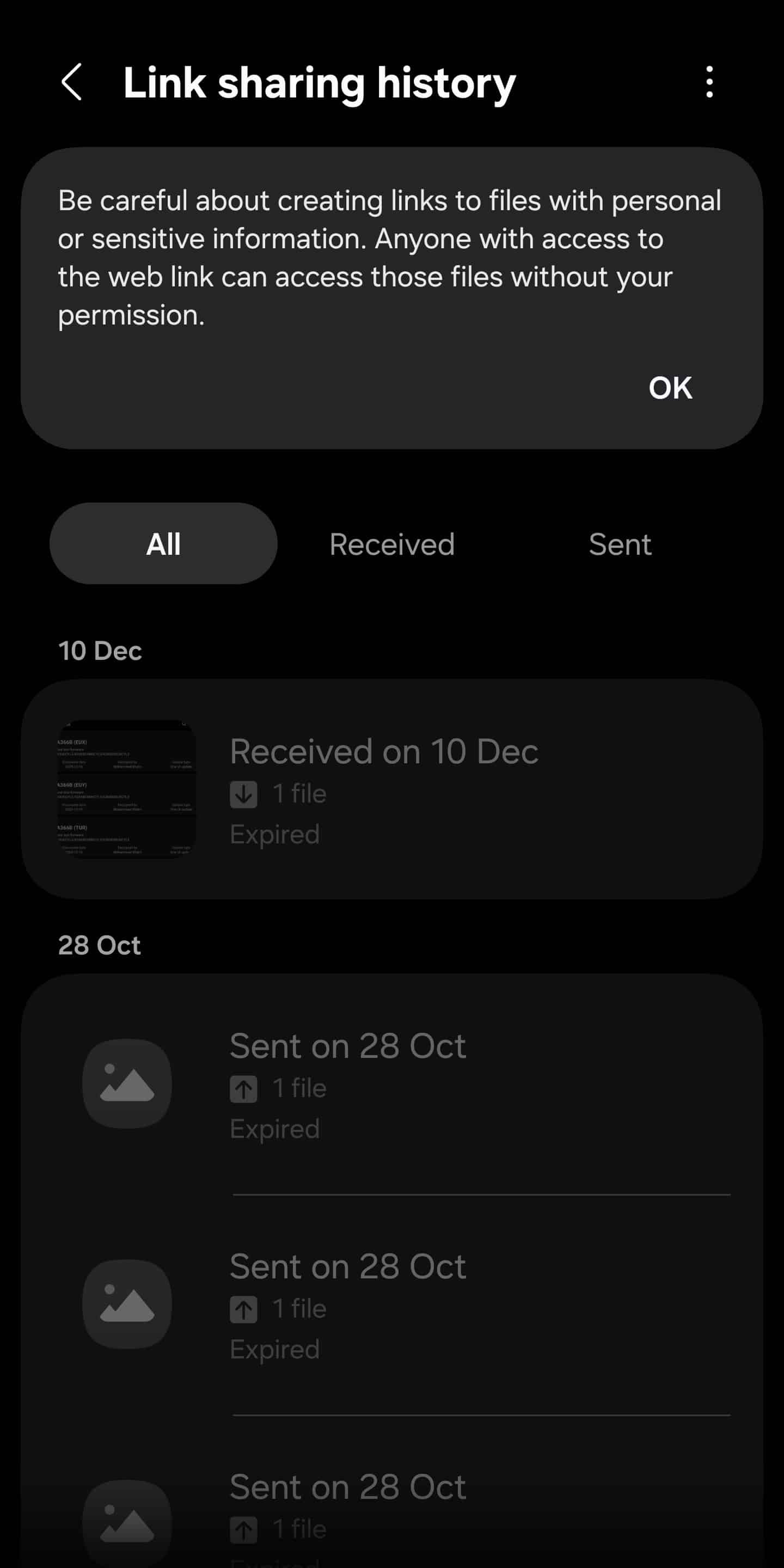
- You can also share files remotely via Quick Share by creating links
13. Use AI tools in Gallery for smarter photo editing
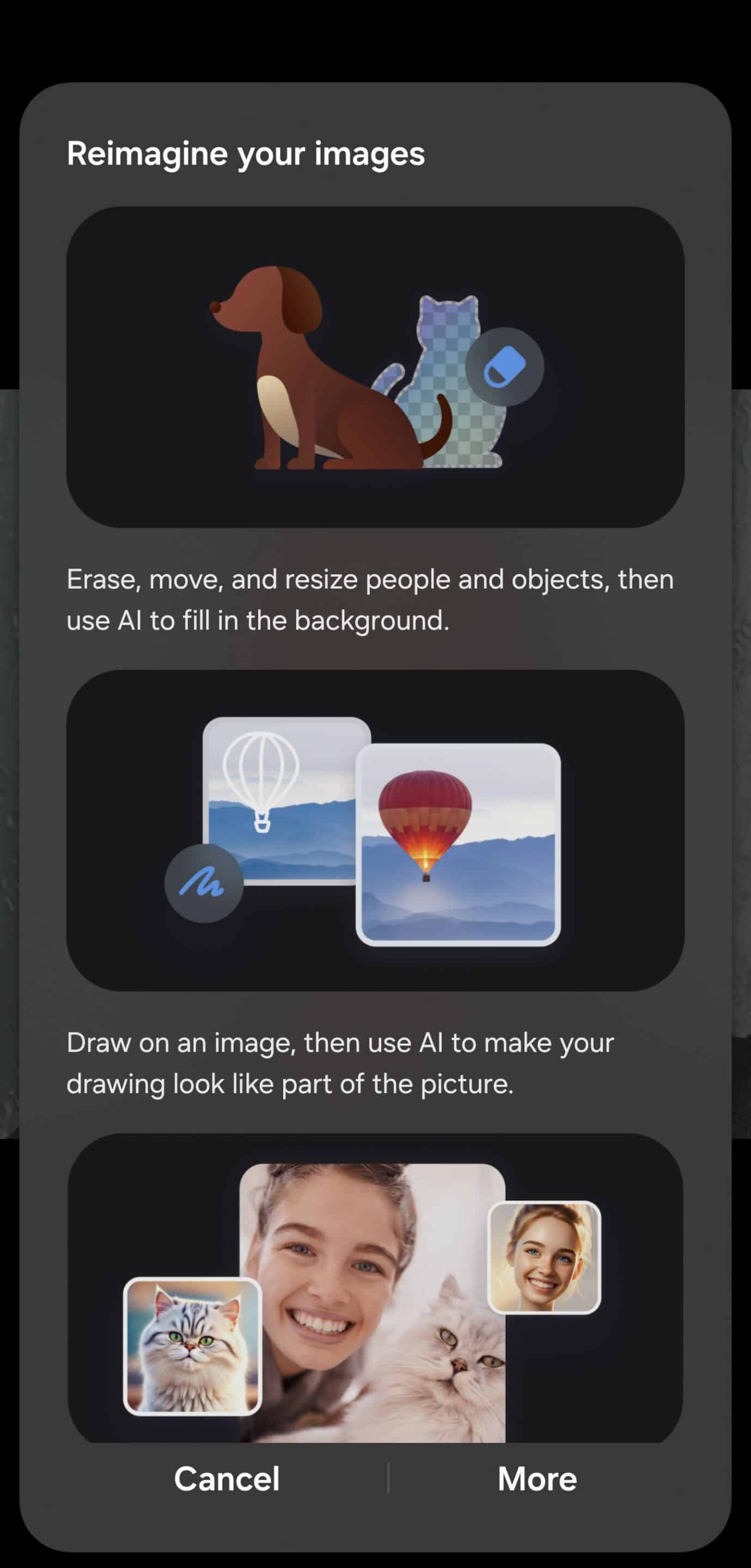
Samsung Gallery now includes serious AI tools. Features:
- Object Eraser removes unwanted elements
- Generative Edit fills or reshapes areas using AI
These tools are built-in, no third-party apps needed.
14. Unlock Developer options (carefully)
Developer Options still matter. How:
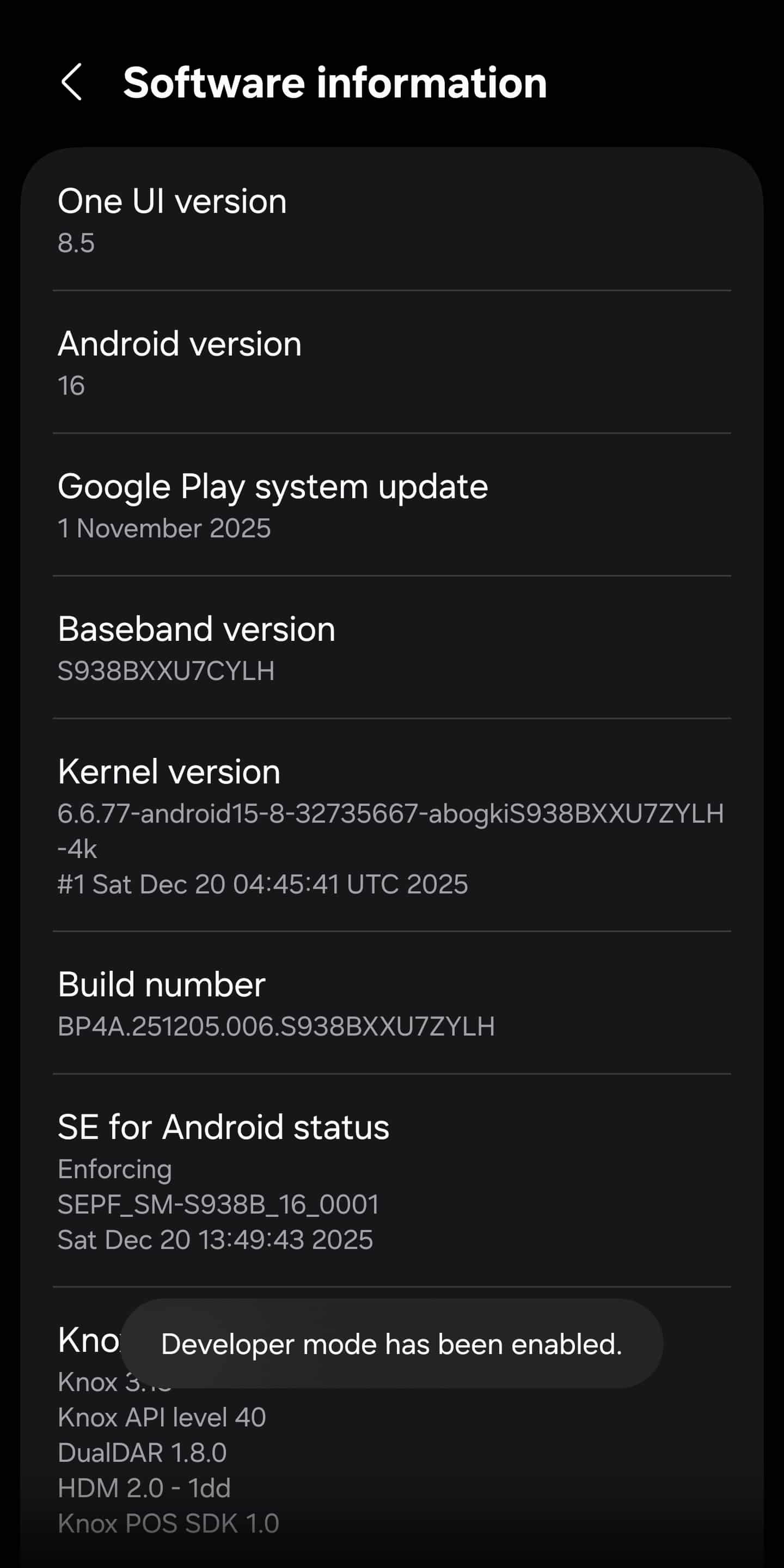
- Go to Settings > About phone > Software information
- Tap Build number repeatedly until Developer Options is enabled
Use it to adjust animations, USB behavior, and debugging tools; just avoid changing options you don’t understand.
15. Follow Samsung’s official One UI feature hubs
Samsung quietly documents many useful features. Where:
- One UI feature pages
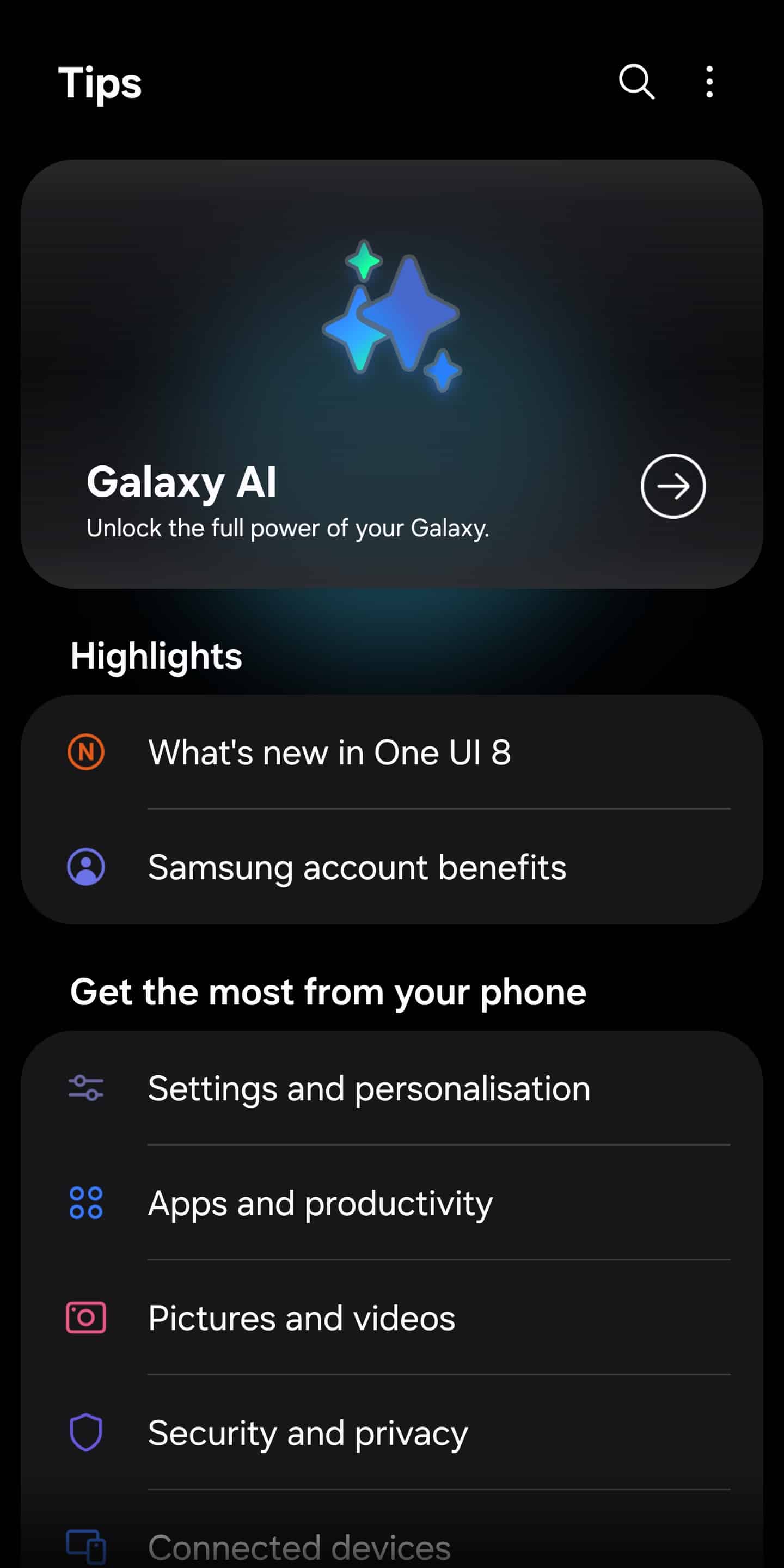
- Tips app
- Samsung Members app
- Official support guides
These often reveal small but impactful tools that never get marketing attention.
Samsung’s Galaxy phones reward exploration. With the right settings, One UI becomes faster, smarter, and far more personal. Whether you’re using a Galaxy S25, Z Fold, or a mid-range A-series device, these tips unlock real value, not just hidden gimmicks. If you have questions, reach out to us on X.

Written by
Sumit AdhikariSumit, a life-long Samsung user, is passionate about technology and has been professionally writing on tech since 2017. He’s a mathematics graduate by education and enjoys teaching basic mathematics tricks to school kids in his spare time. Sumit believes in artificial intelligence and dreams of a fully open, intelligent and connected world.

Follow us on Google Discover & set us as a preferred source in Google News
Share this Post
___________________________


New Blog Posts
___________________________

First Set of Pixel 11 Pro XL Renders Are Here
Pixel 11 Pro XL CAD renders show minimal design changes

Is Samsung Preparing One UI 8.5 Beta for Galaxy Z Fold 5 and Flip 5?
Samsung may launch a One UI 8.5 beta program for its 2023 foldables

Galaxy S25 One UI 8.5 Beta May Run Longer Than Expected
Galaxy S25 series’ One UI 8.5 beta may stretch to 10 rounds







