
How to Track Your Galaxy Phone Even When Mobile Data Is Off
SammyGuru is reader-supported. We have affiliate and sponsored partnerships, so we may earn a commission when you buy through links on our site — at no extra cost to you. Learn more.
Losing your phone can be stressful, especially when mobile data is turned off, which makes it harder to track. But here’s a clever trick every Samsung Galaxy user should know. Using the Modes and Routines feature, you can set up an automated routine that remotely enables mobile data and location. You don’t need the latest One UI 8 update — any Galaxy device that supports Modes and Routines can do it. Here’s how.
Use this Modes and Routines trick to track your Galaxy device when it is offline
This trick involves sending a text message to your lost phone with a specific pre-set keyword. It automatically enables mobile data and location as long as your device has a SIM card inserted and message notifications are enabled. Follow the step-by-step process below carefully to make sure this routine is active. It must be set up beforehand so that it works if you ever lose your Galaxy phone.
Steps to create the routine
- Unlock your Galaxy device and open Settings.
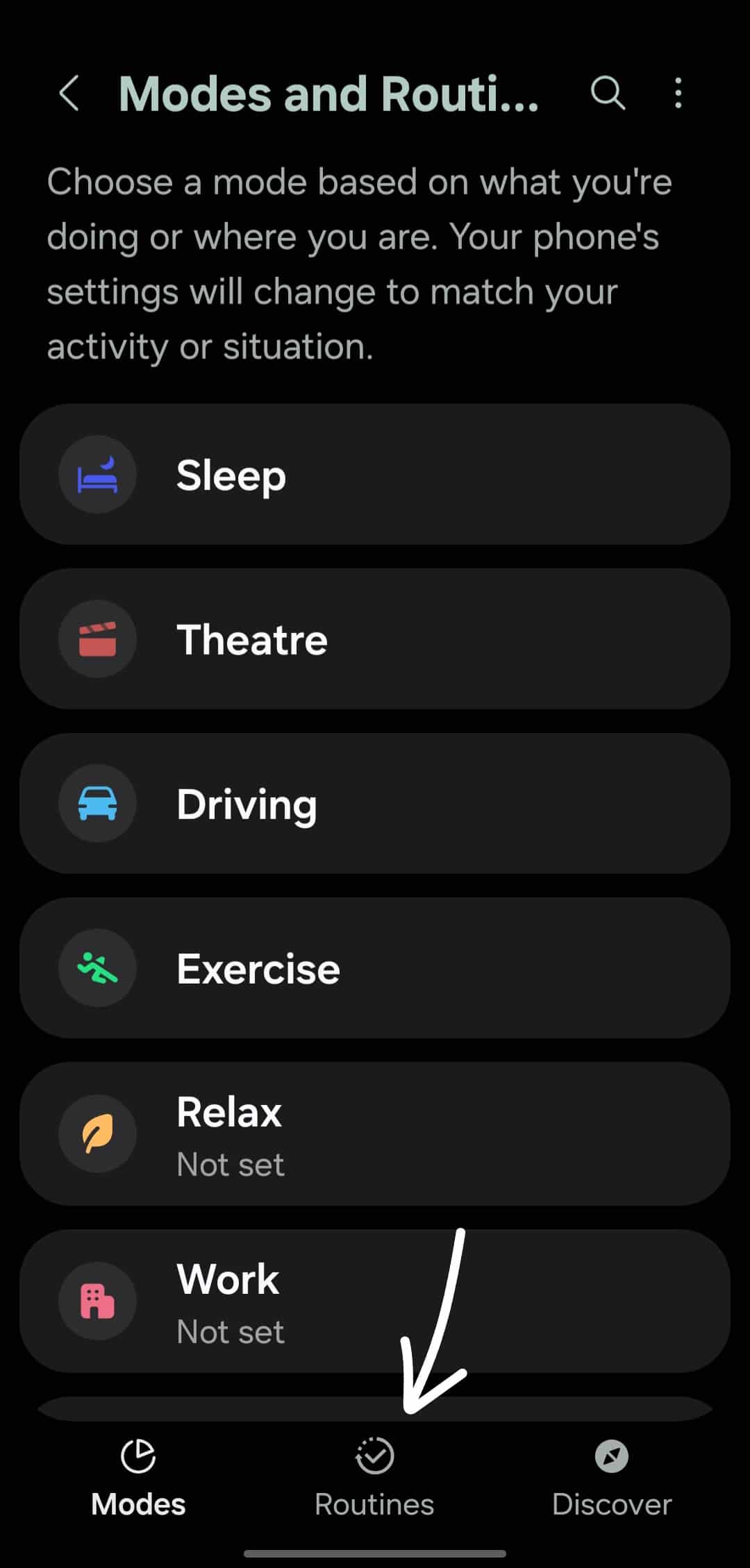
- Tap on Modes and Routines.
- Go to the Routines tab at the bottom.
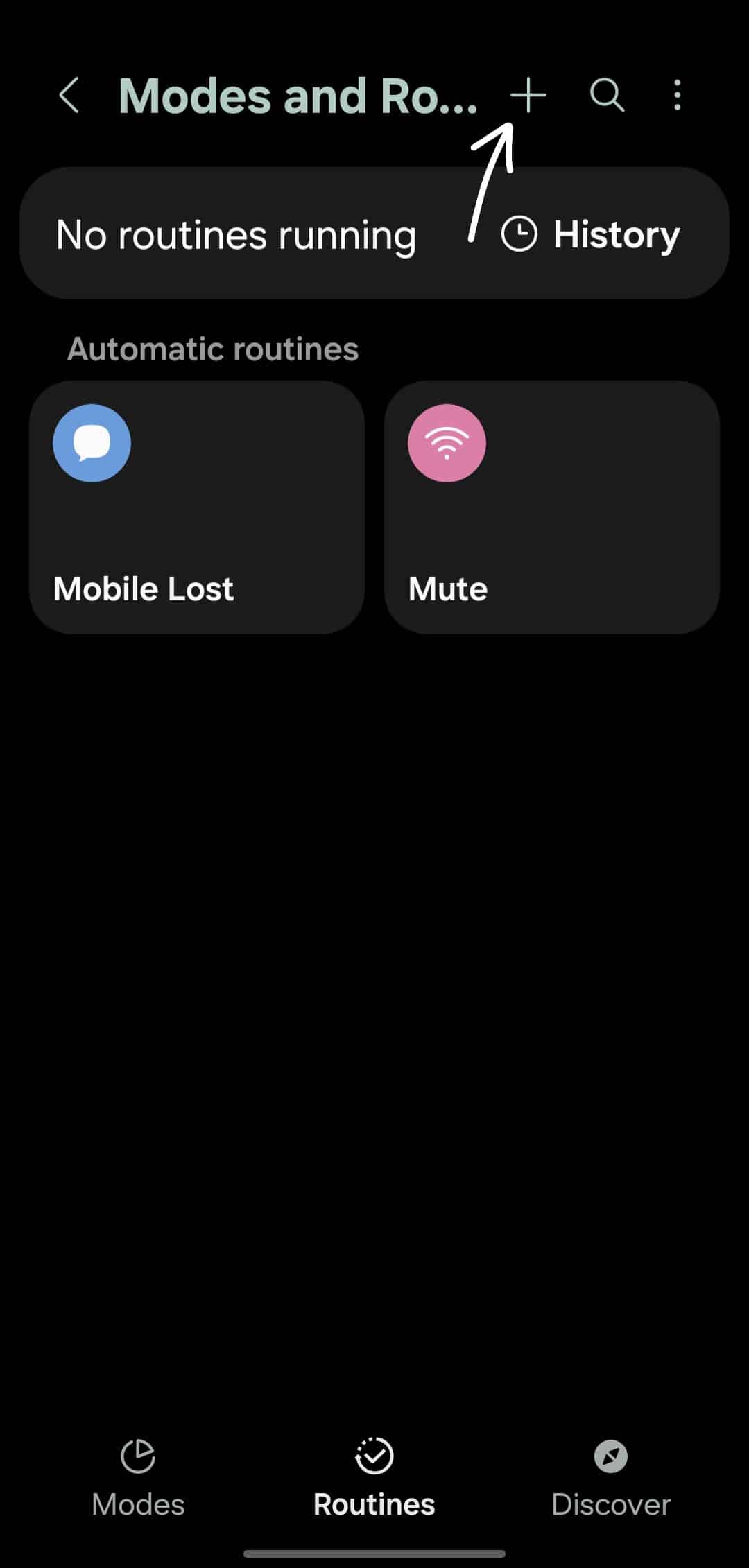
- Tap on the ‘+’ icon to create a new routine.
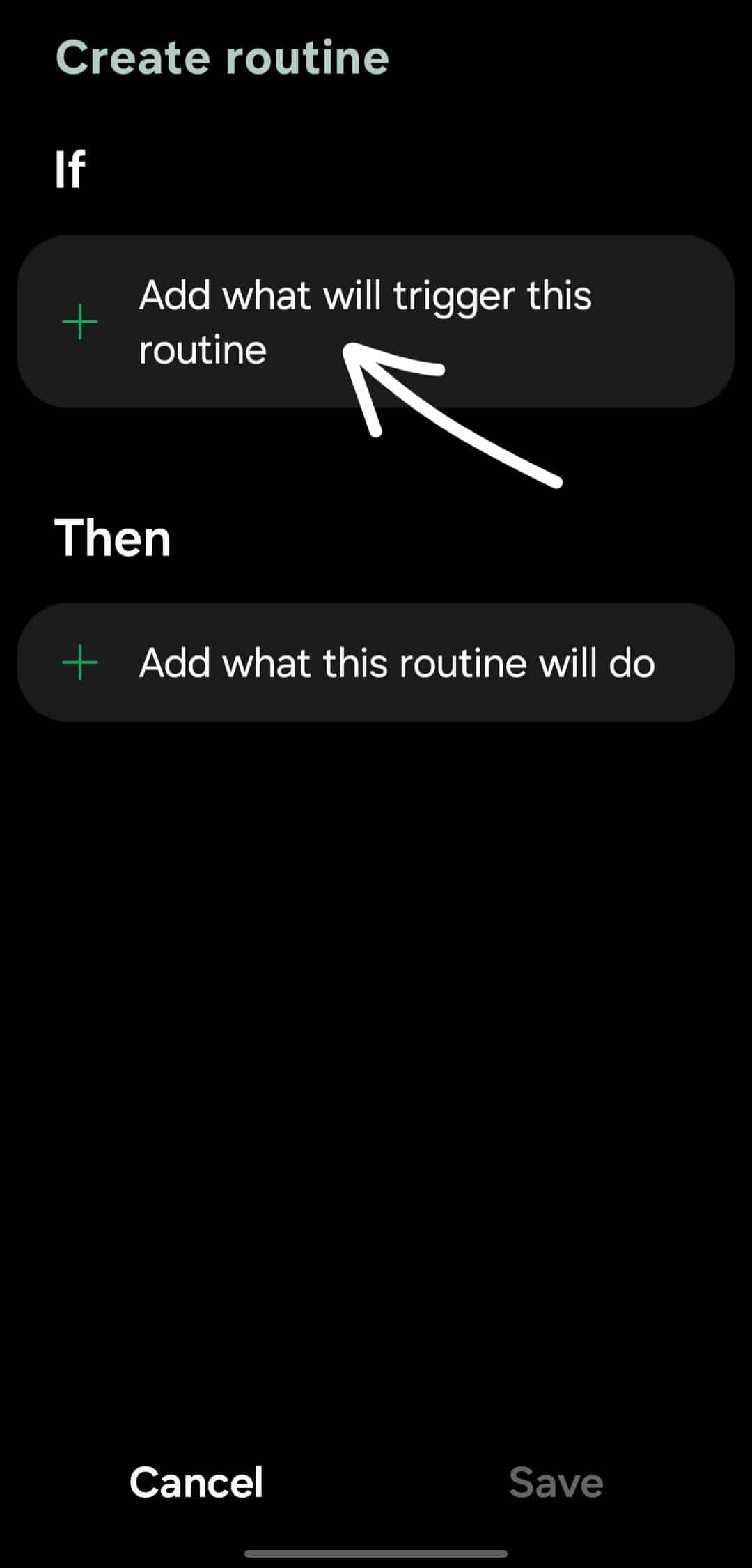
- Tap on ‘Add what will trigger this routine.’
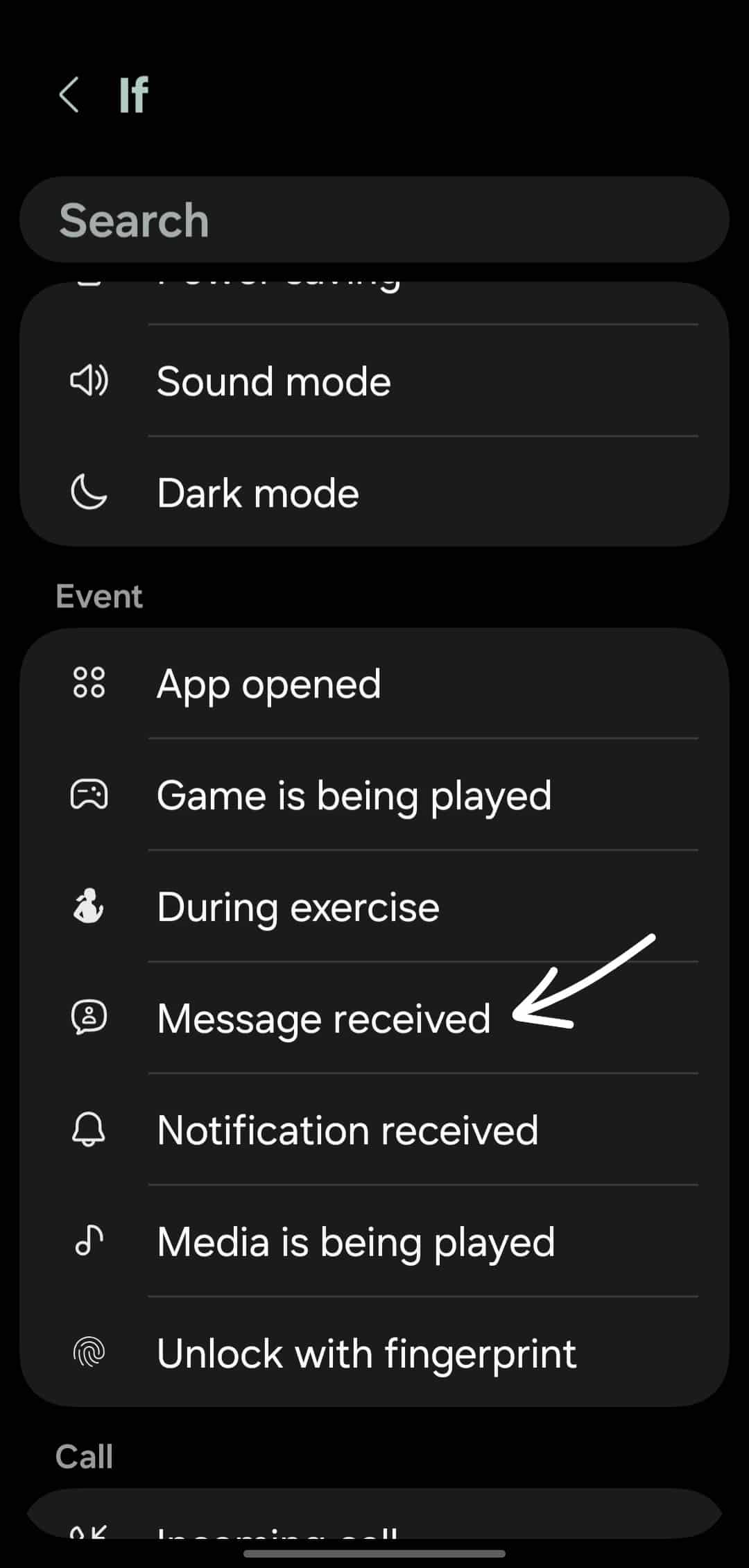
- Scroll down and select ‘Message received.’ If you don’t see this option, select ‘Notification received’ and pick your messaging app.
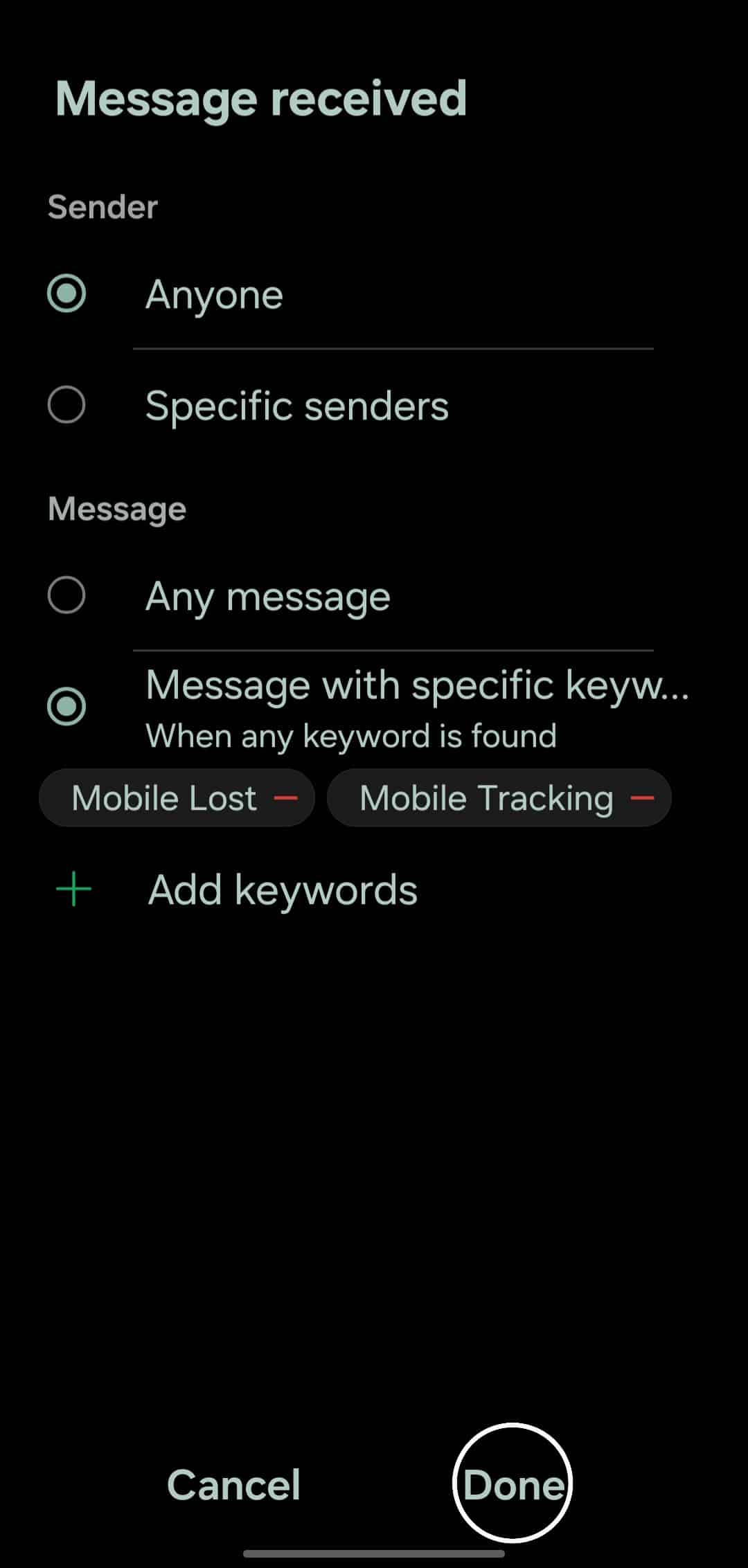
- Under Sender, choose ‘Anyone’. Under Message or Notification, choose ‘Message with specific keyword’ or ‘Notification with specific keyword.’
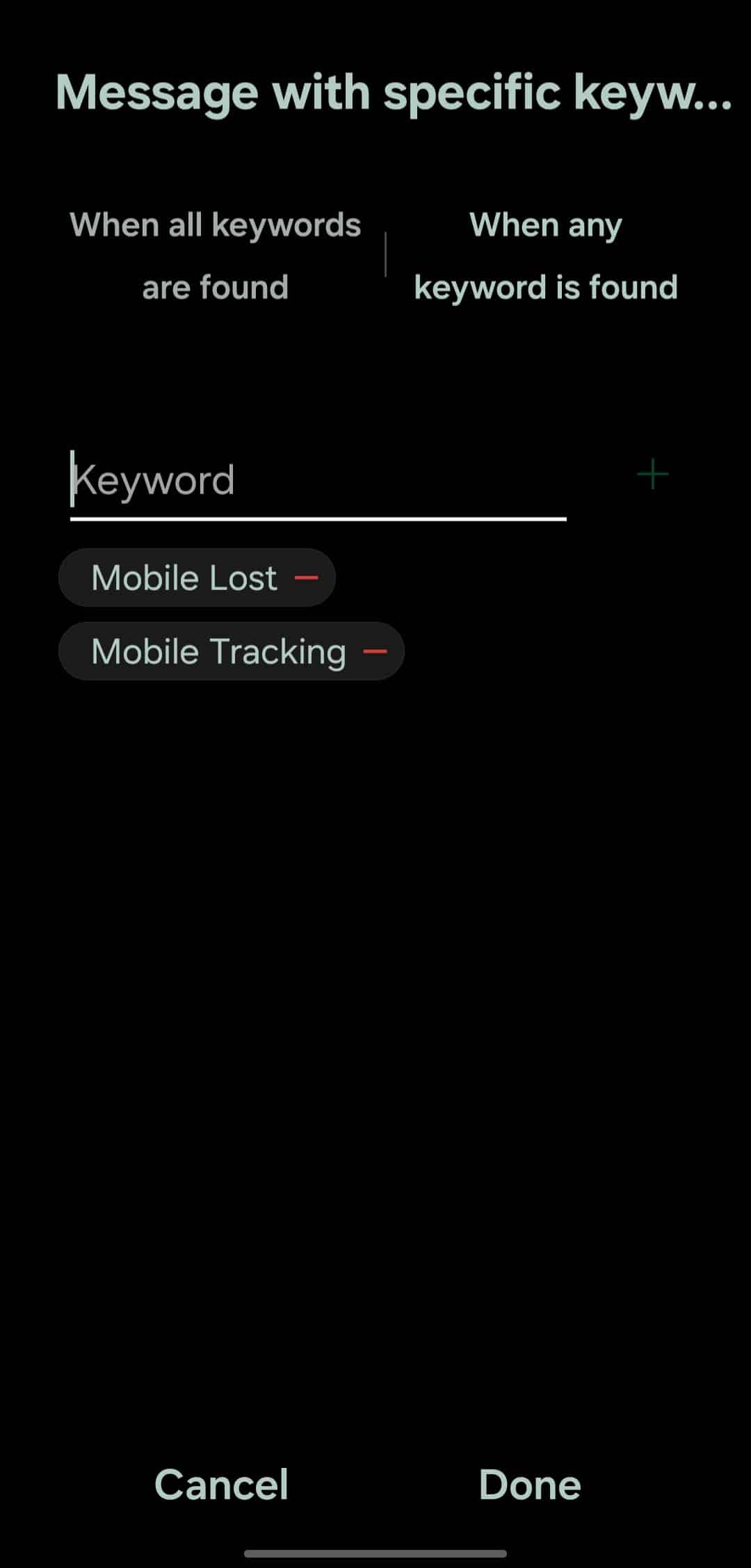
- Add the text or keyword that will trigger the routine, for example, “Mobile Lost” or “Mobile Tracking.” Write it down somewhere so you don’t forget it.
- Tap ‘+’ next to the text field to add the keyword, then hit Done (you can add multiple keywords).
- Tap Done again.
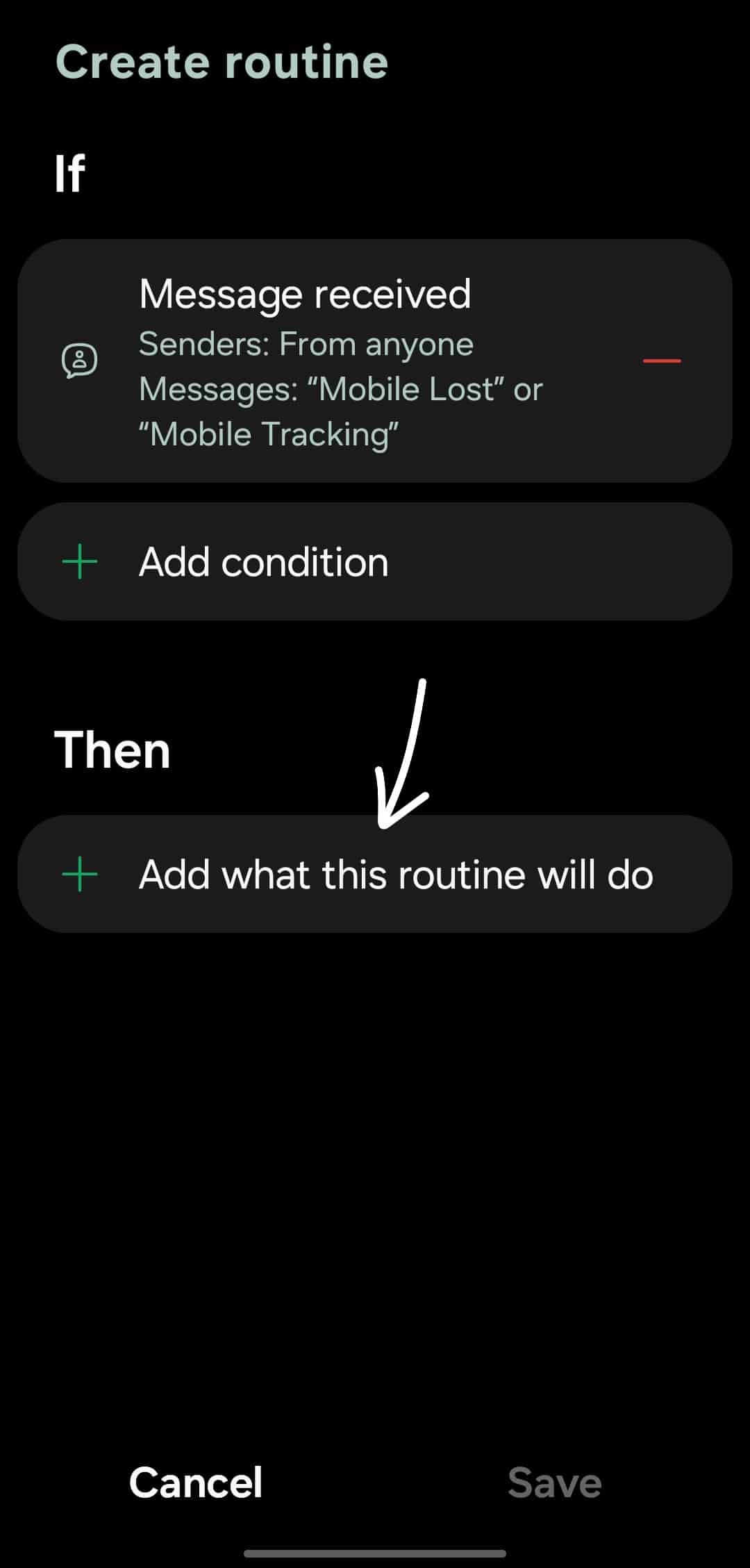
- You will return to the Create routine page. Tap on ‘Add what this routine will do.’
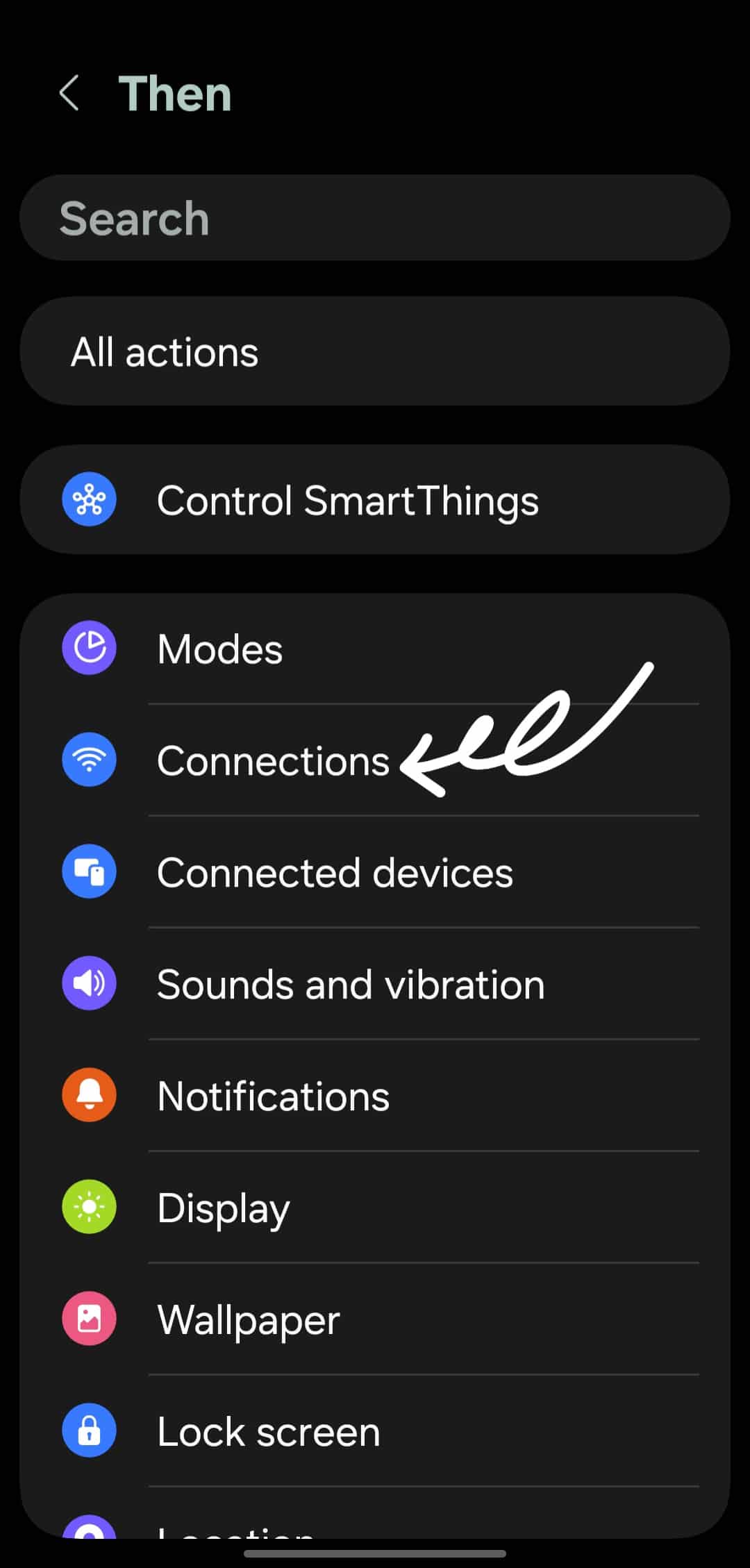
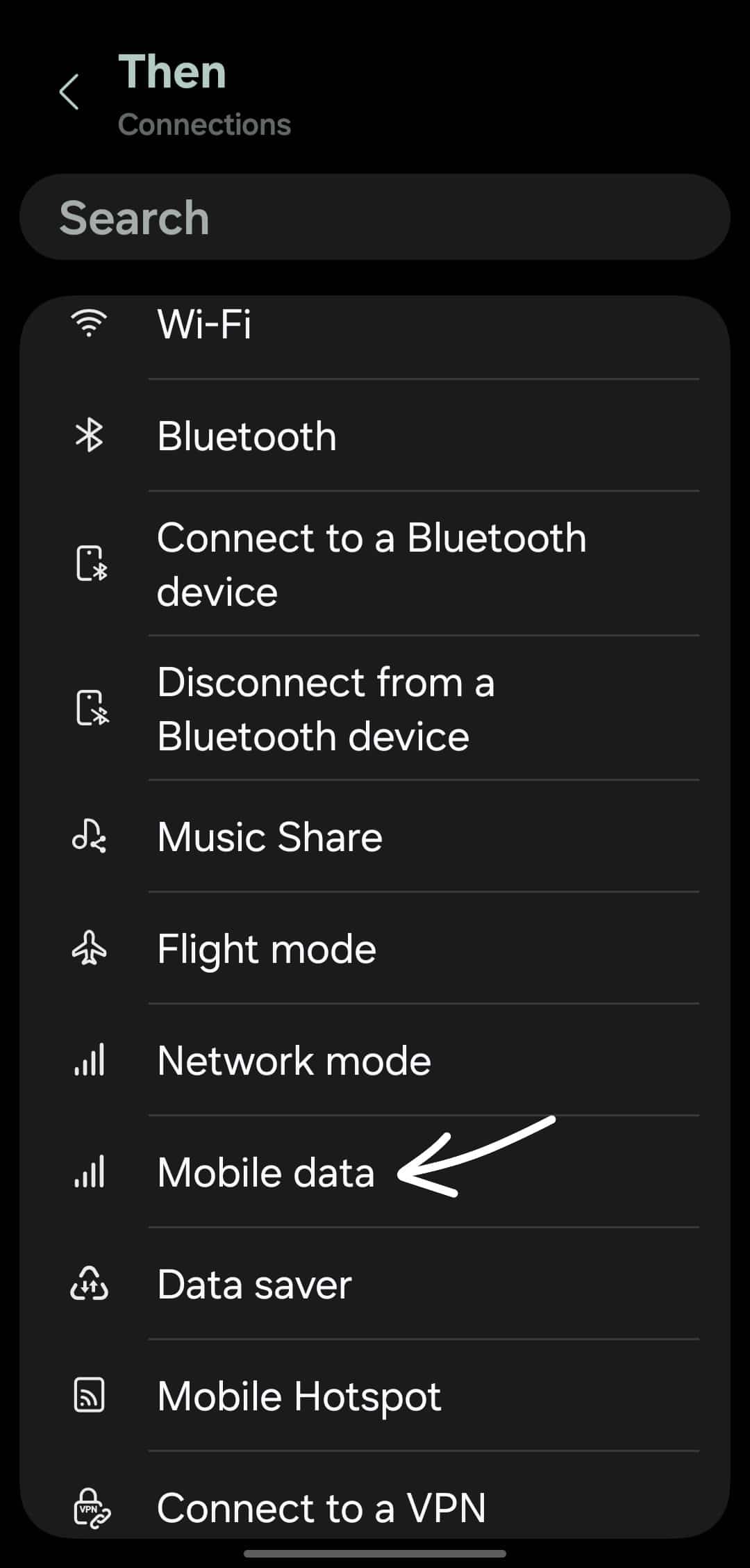
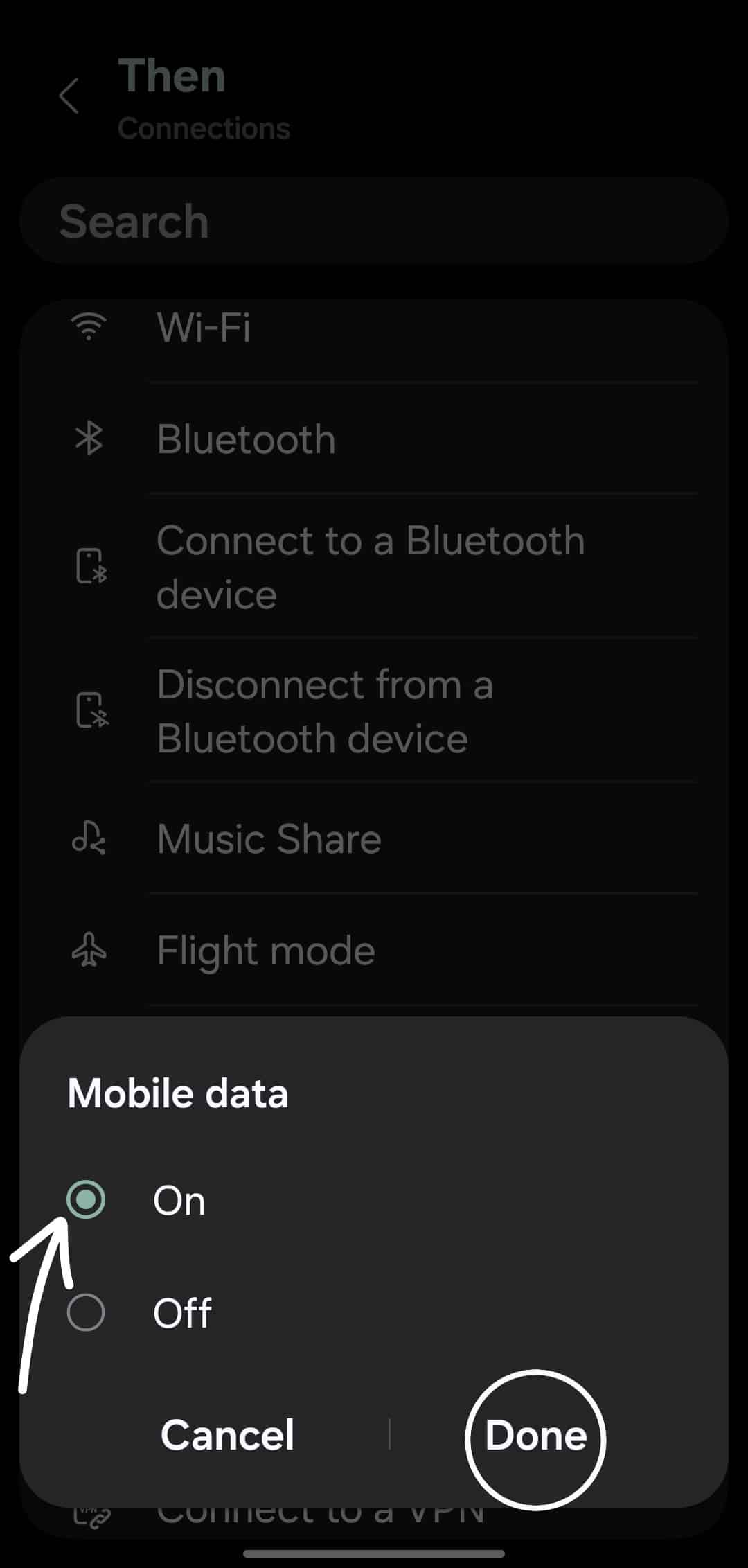
- Select Connections, then tap on Mobile data, select ON, and tap Done.
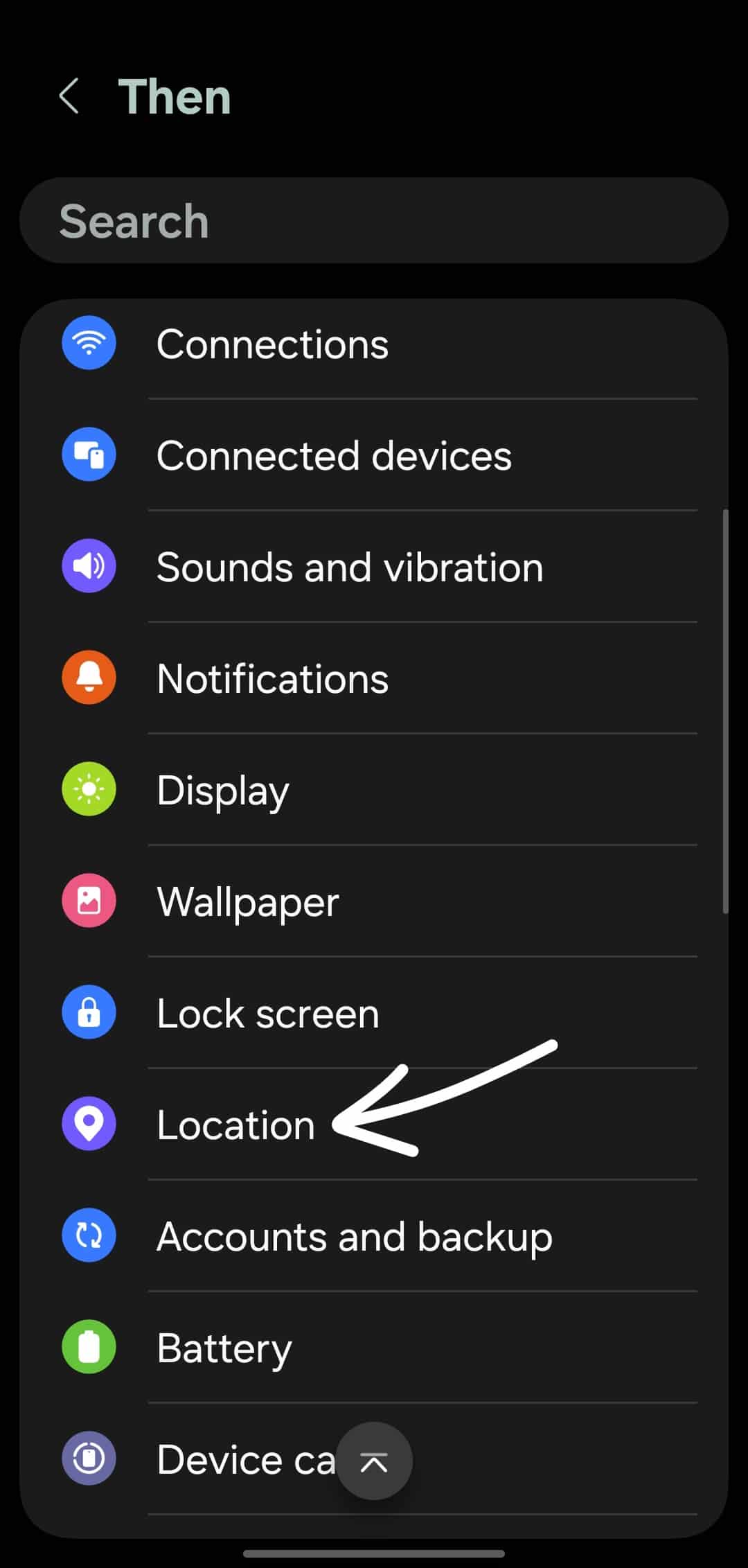
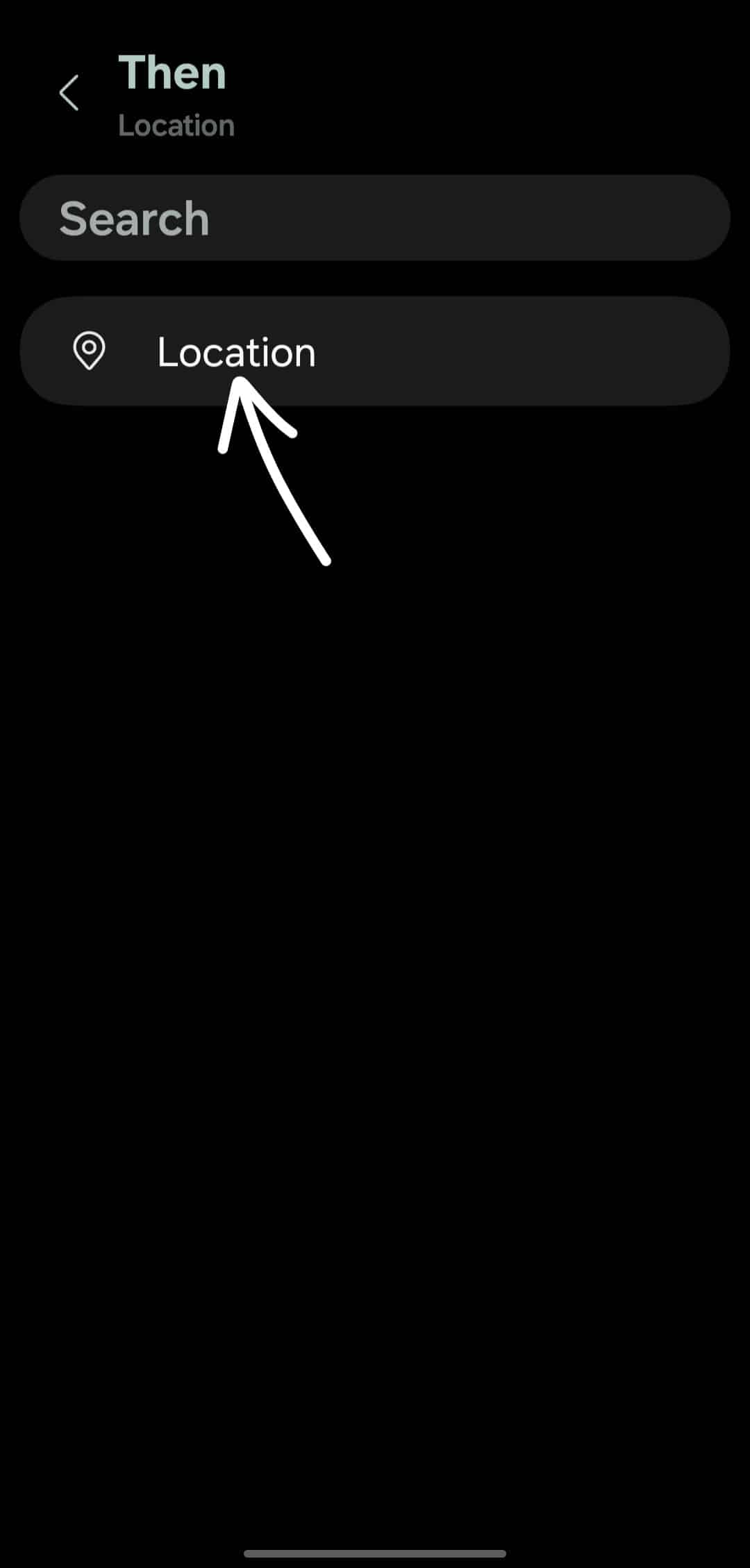
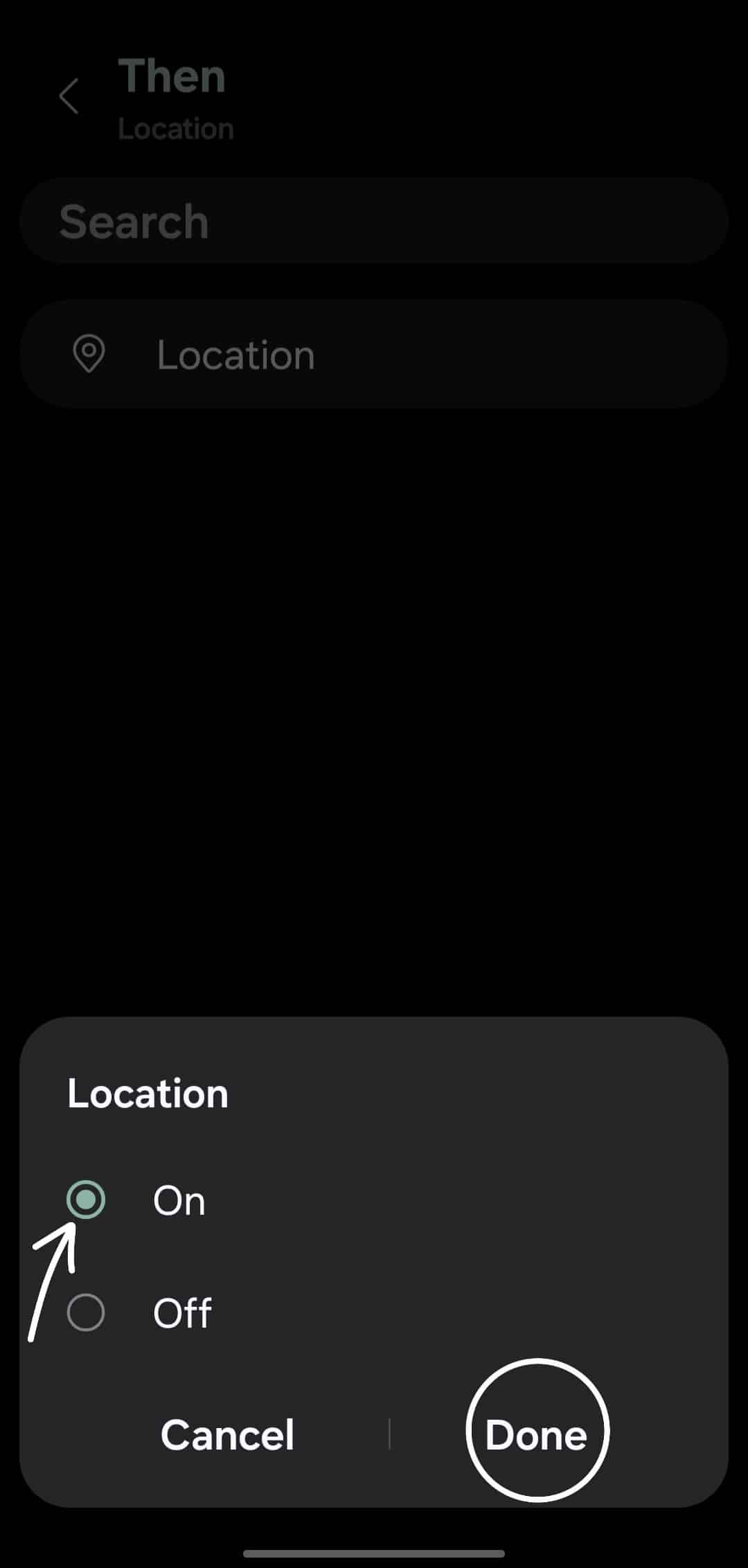
- Tap Add action, select Location, tap on Location again, set it to ON, and hit Done.
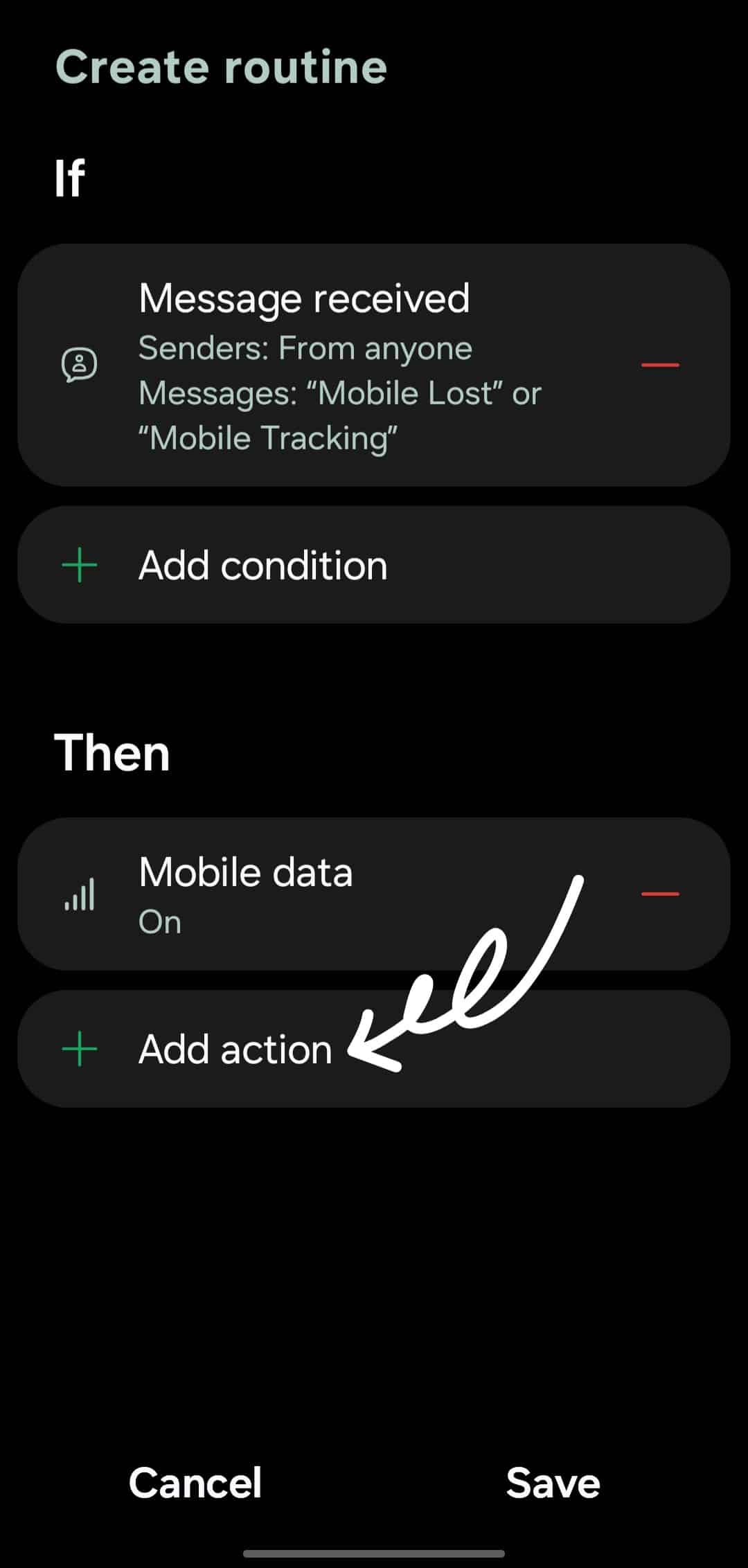
- Tap Save to save your routine.
- If prompted, select an icon for the routine and name it something meaningful, like “Mobile Tracking,” and hit Done again.
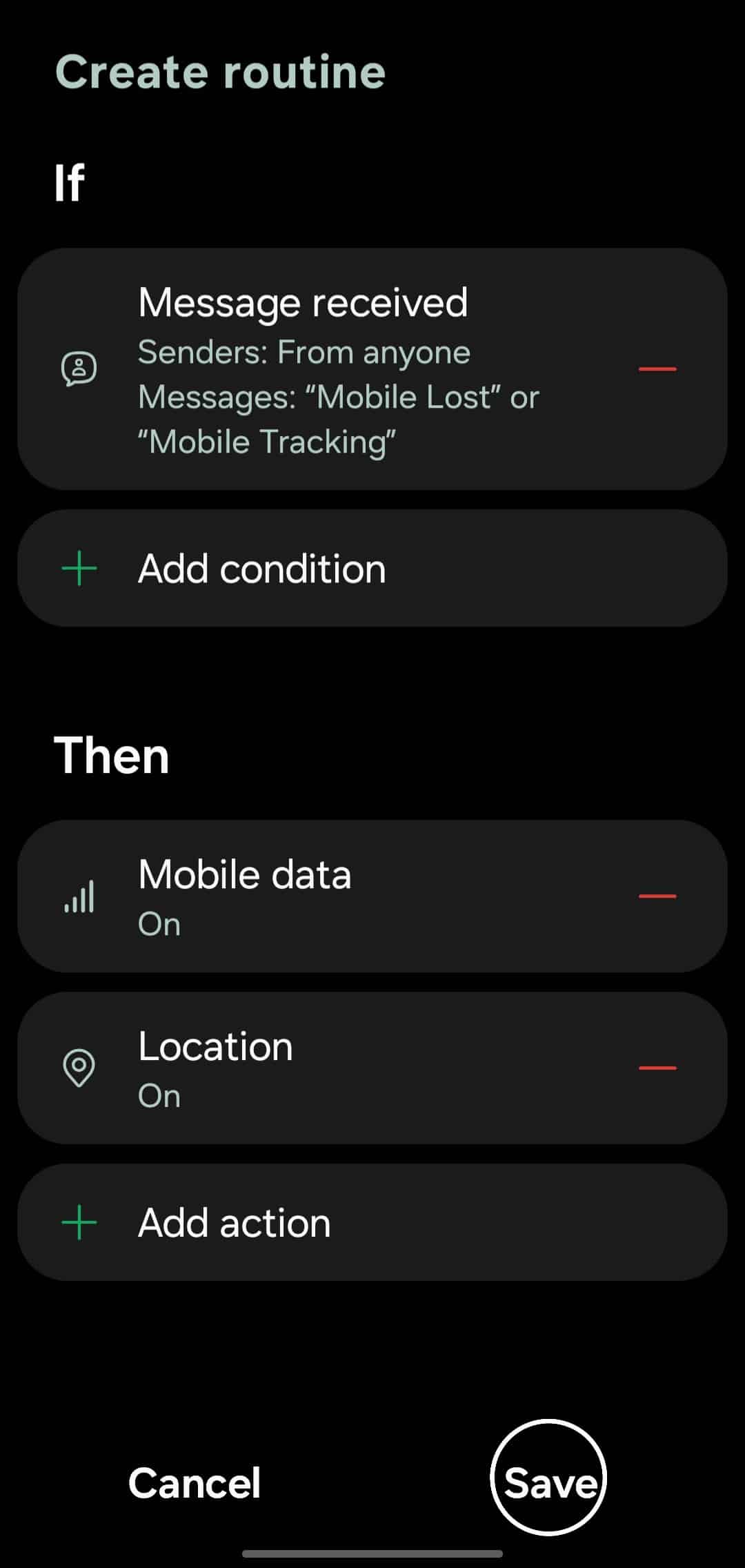
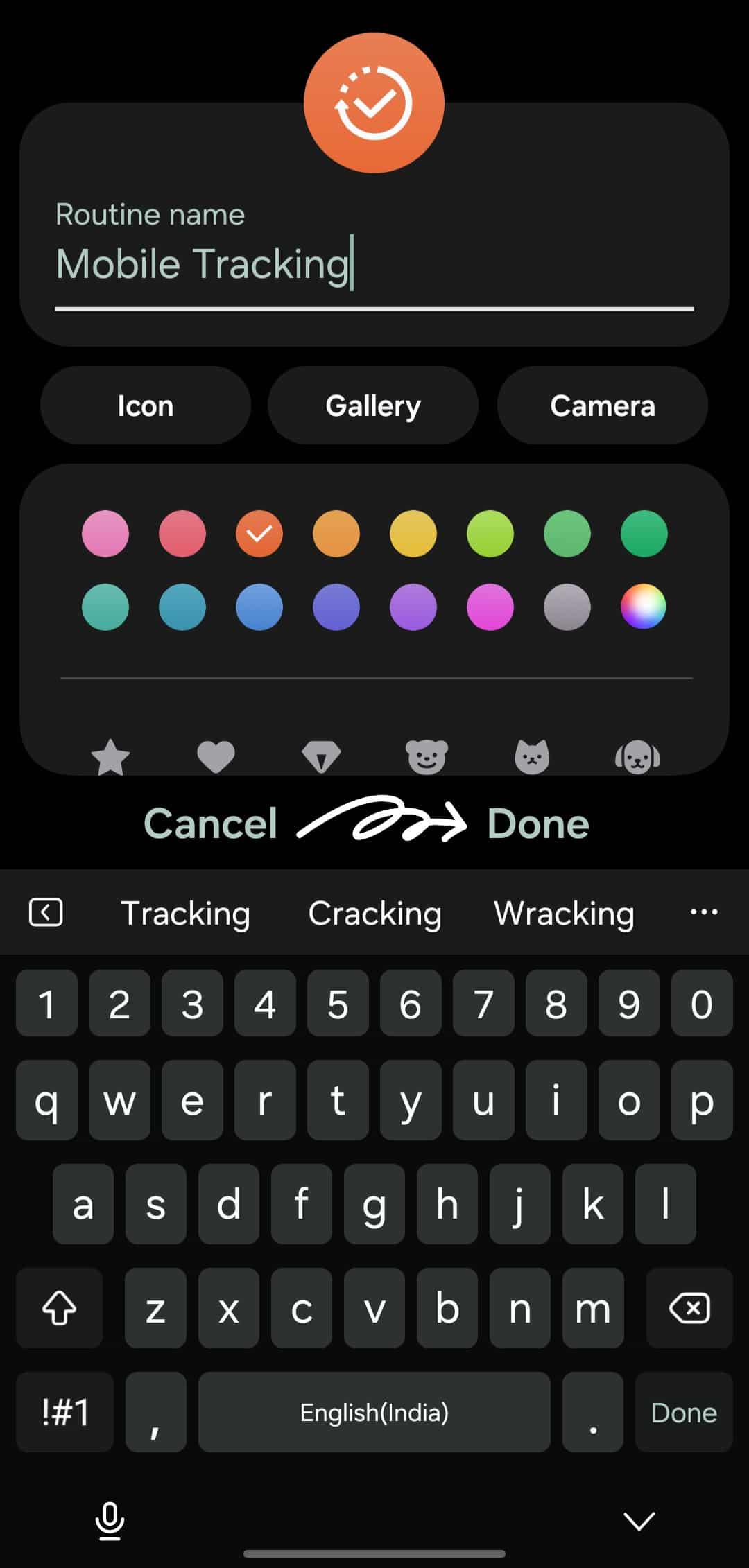
Now your routine is ready! Whenever you send the chosen keyword via SMS to your phone number, it will automatically turn on mobile data and location, even if they were off. Once that happens, you can use Samsung SmartThings Find or Google Find My Device to locate your phone. Also, make sure that Find My Mobile and related tracking settings are enabled on your Galaxy device.

Written by
Mohammed KhatriOne UI lover, actively tracking One UI 8.5 builds, global firmware rollouts, certifications, and Geekbench scores.

Follow us on Google Discover & set us as a preferred source in Google News
Share this Post
___________________________


New Blog Posts
___________________________

First Set of Pixel 11 Pro XL Renders Are Here
Pixel 11 Pro XL CAD renders show minimal design changes

Is Samsung Preparing One UI 8.5 Beta for Galaxy Z Fold 5 and Flip 5?
Samsung may launch a One UI 8.5 beta program for its 2023 foldables

Galaxy S25 One UI 8.5 Beta May Run Longer Than Expected
Galaxy S25 series’ One UI 8.5 beta may stretch to 10 rounds







