
Here’s How to Add OpenAI’s ChatGPT-5 to Galaxy Phone’s Quick Settings
SammyGuru is reader-supported. We have affiliate and sponsored partnerships, so we may earn a commission when you buy through links on our site — at no extra cost to you. Learn more.
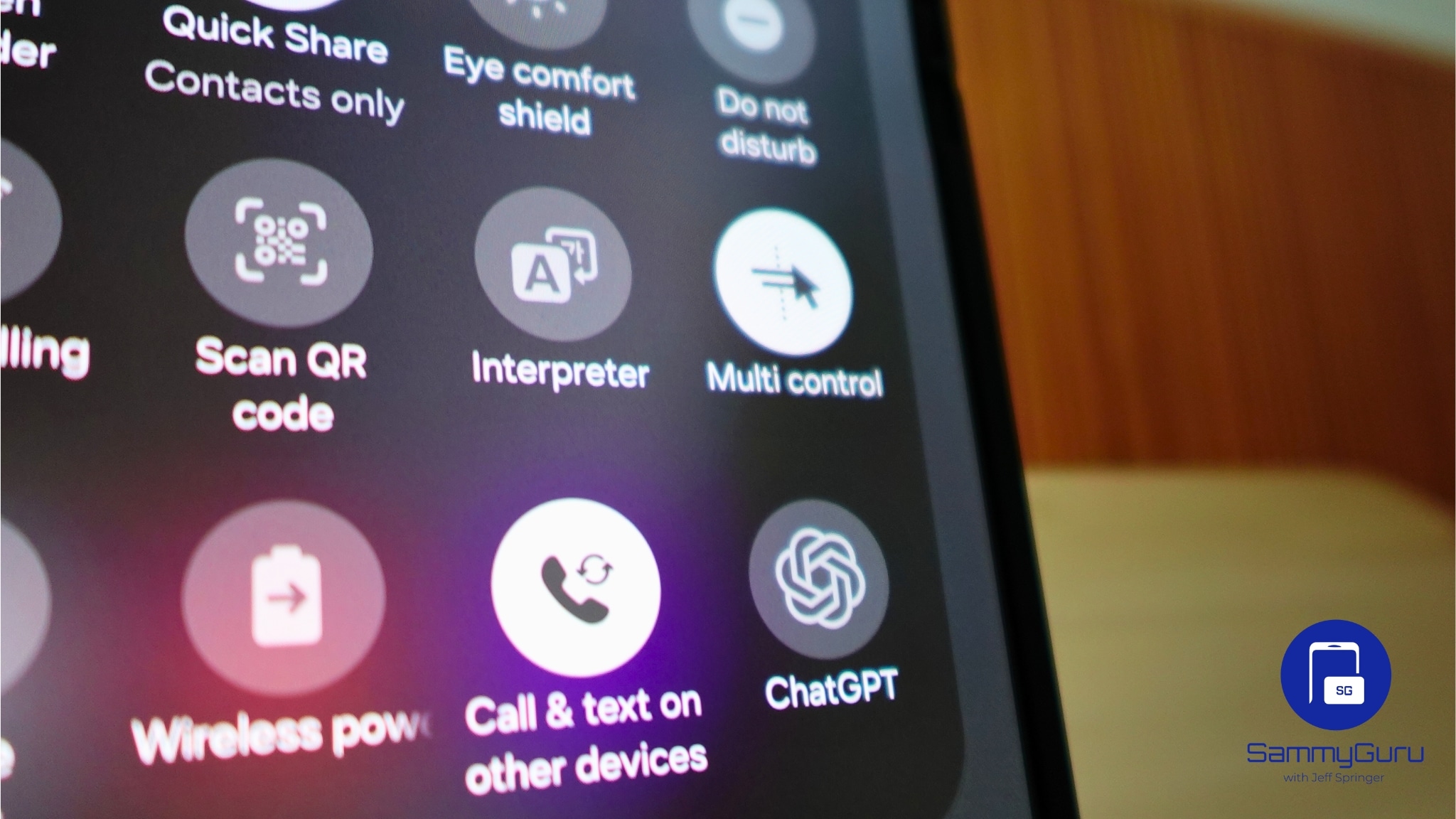
OpenAI just released GPT-5, touted as its most advanced AI model yet, and the best part is you don’t need a subscription to try it out. It’s available to all users for free. The new model promises to be faster, smarter, and more useful than any version before it. So, you might be wondering how to add ChatGPT-5 to your Galaxy phone’s Quick Settings.
The steps are simple and straightforward. It takes about 30 seconds to a minute, and once set up, you’ll be able to launch ChatGPT using the latest GPT-5 model. After adding the shortcut, you can even access the app by voice, which is pretty cool, and you don’t need to go through the app manually.
Add ChatGPT-5 to your Galaxy phone’s Quick Settings and start chatting
Before you begin, make sure the ChatGPT app is installed and updated on your Galaxy phone so you can access GPT-5. You can download the app from Play Store.
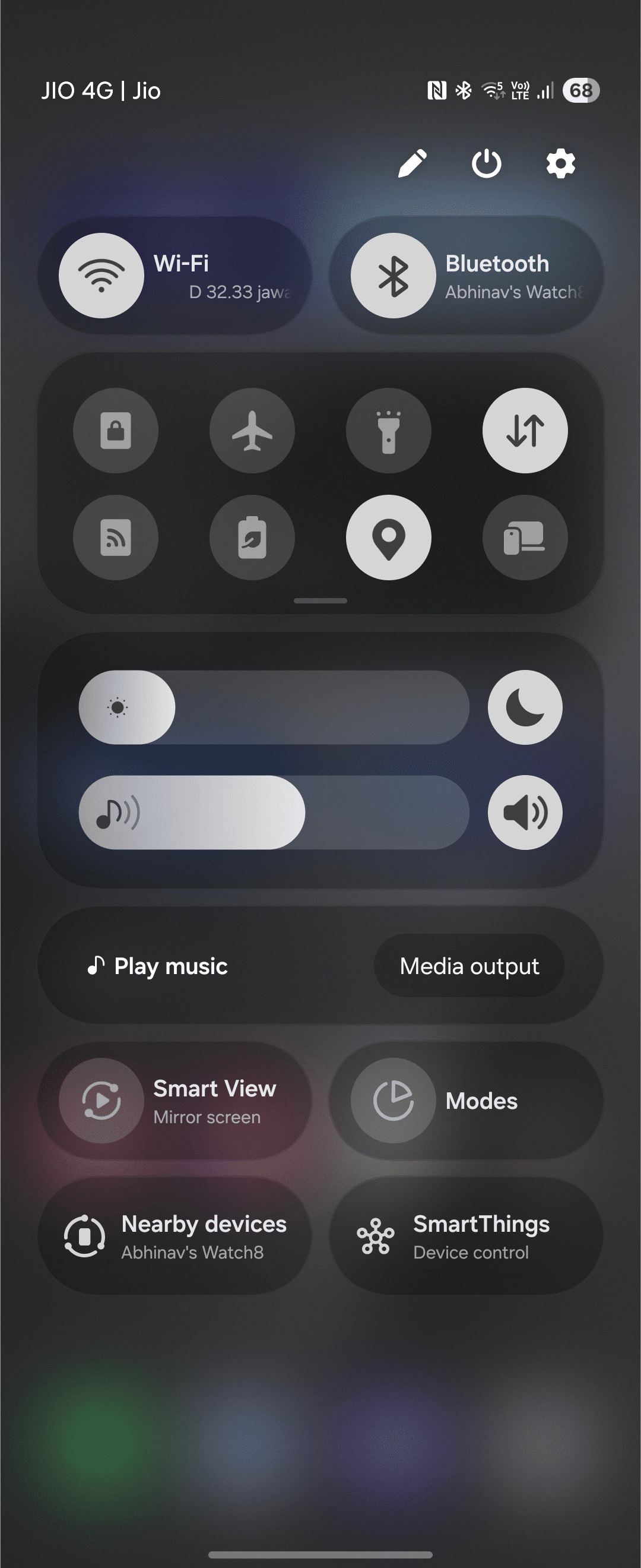
- Open the Quick Settings panel by swiping down from the top of your screen once to see notifications, then swipe down again to reveal the full Quick Settings.
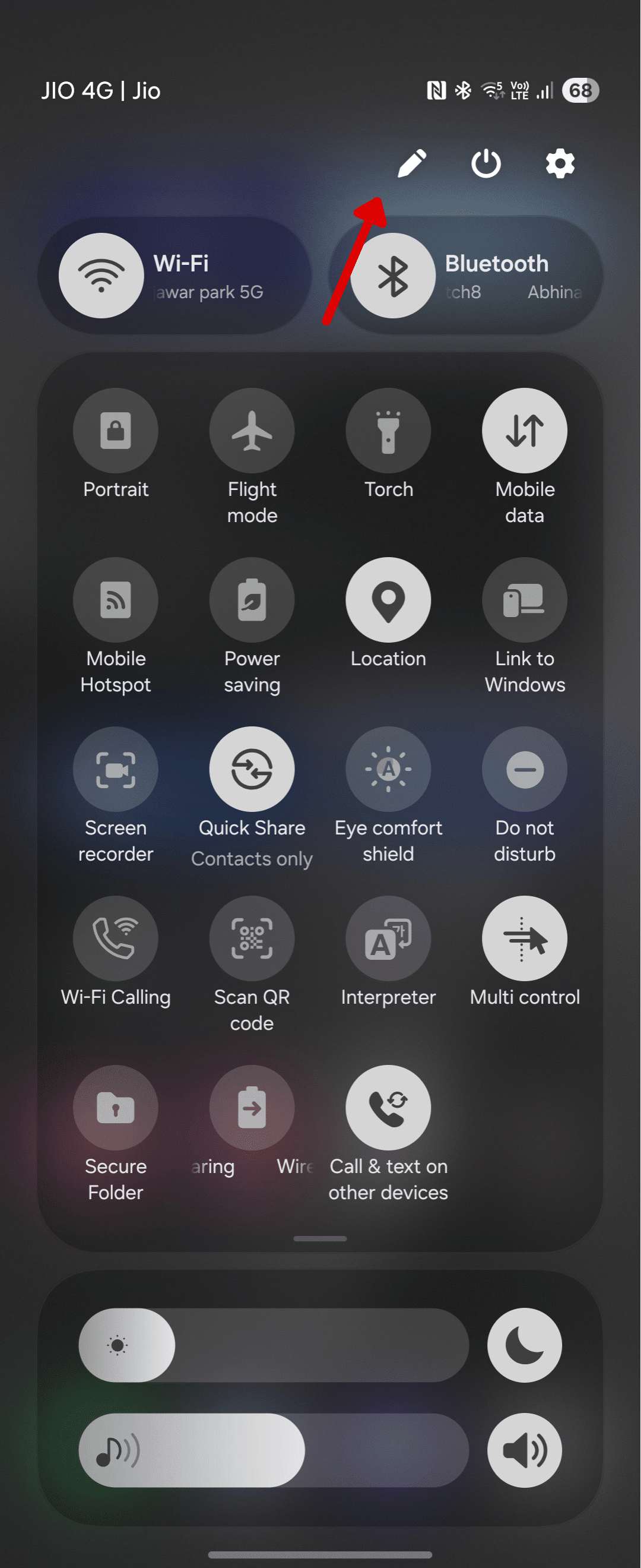
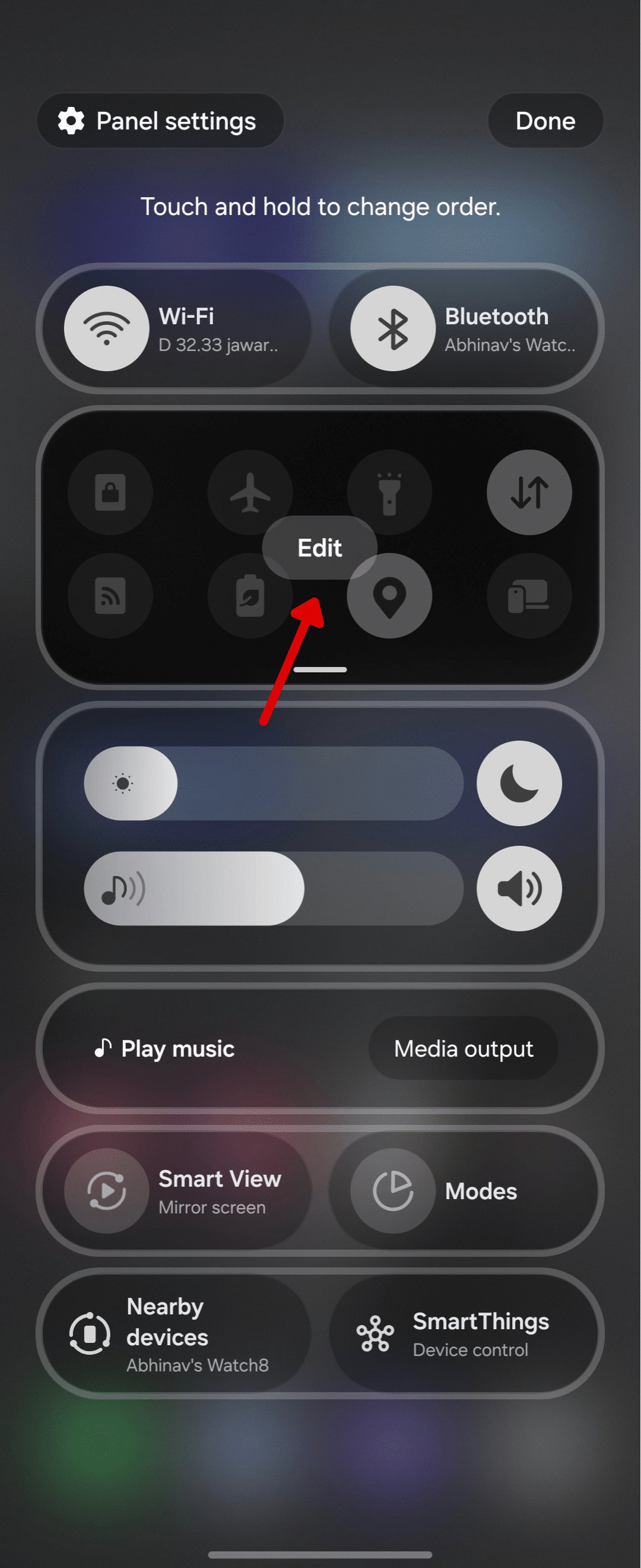
- Tap the pencil icon, usually located in the top corner. This will open the customization menu where you can rearrange or add tiles. Then, tap the Edit option to enter the area where you can add the ChatGPT tile.
- Scroll through the list of available tiles that aren’t currently in your Quick Settings. Find the ChatGPT tile and drag it to your preferred spot. Once you’re done, tap Done or exit the editor to save your changes.
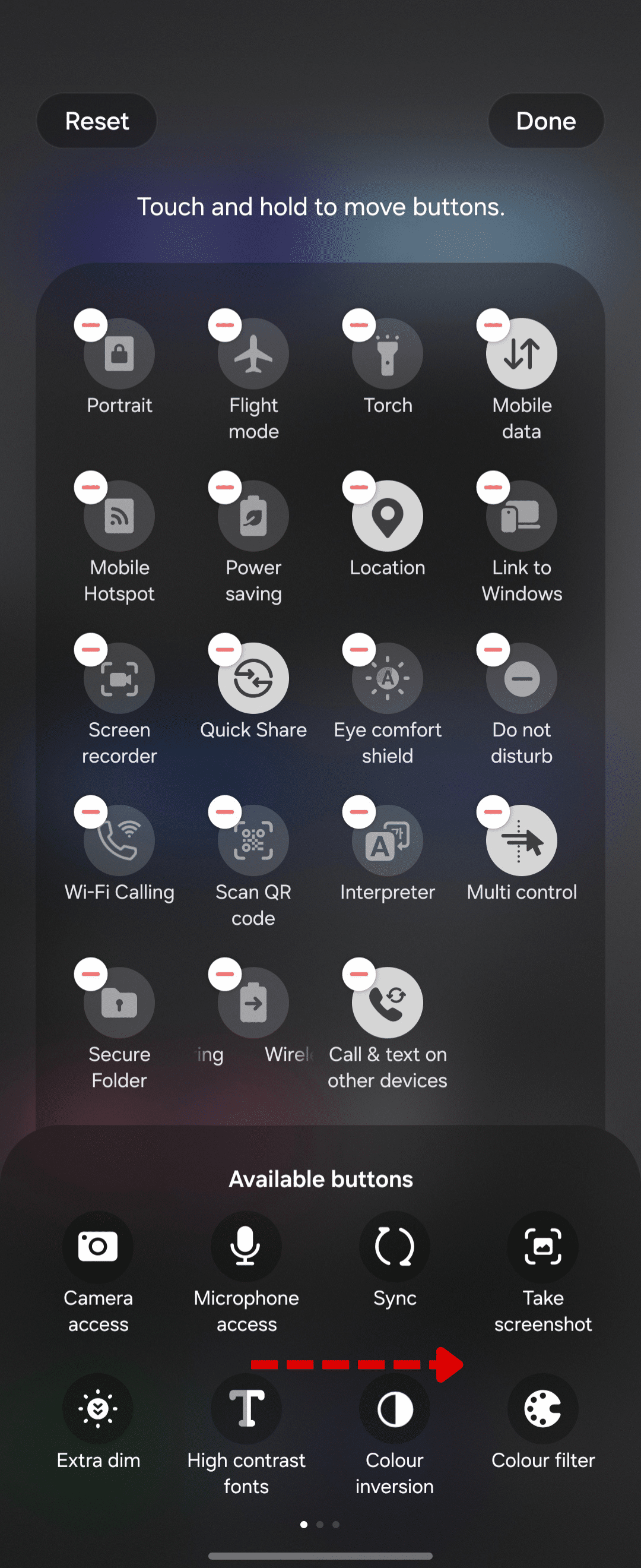
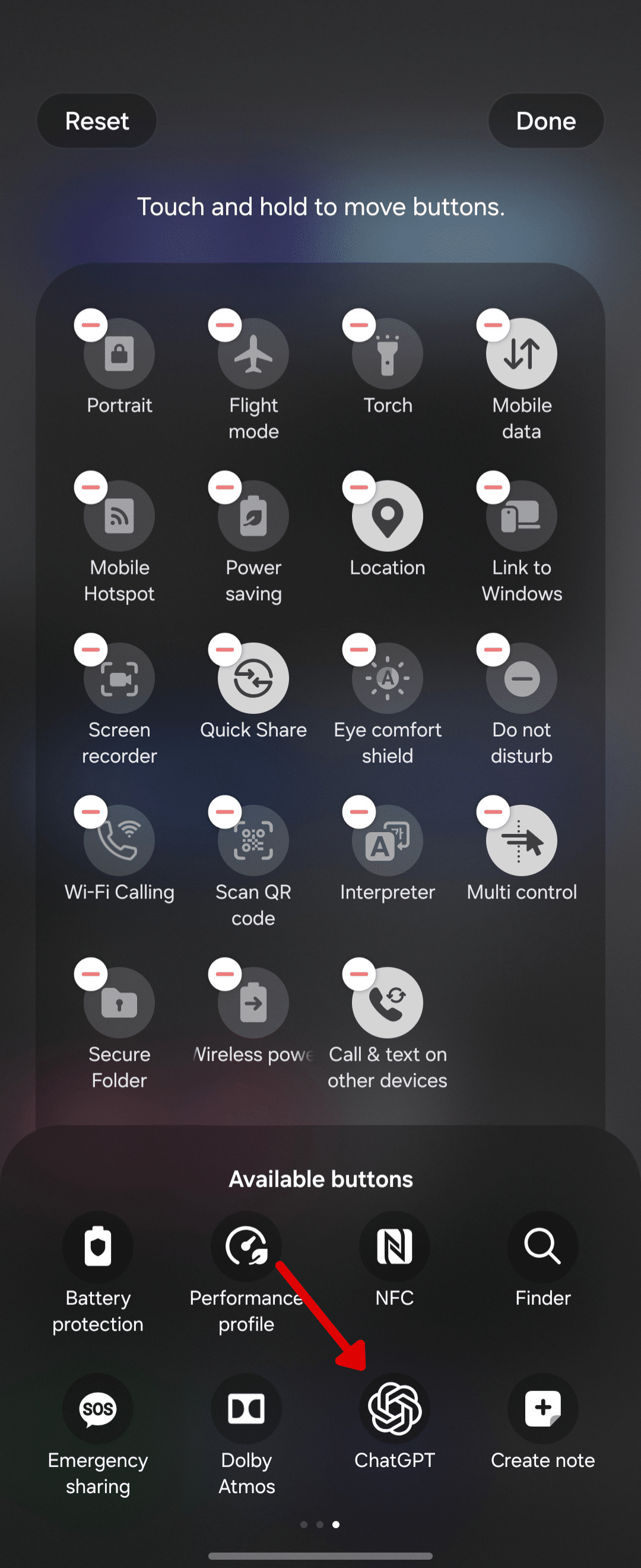
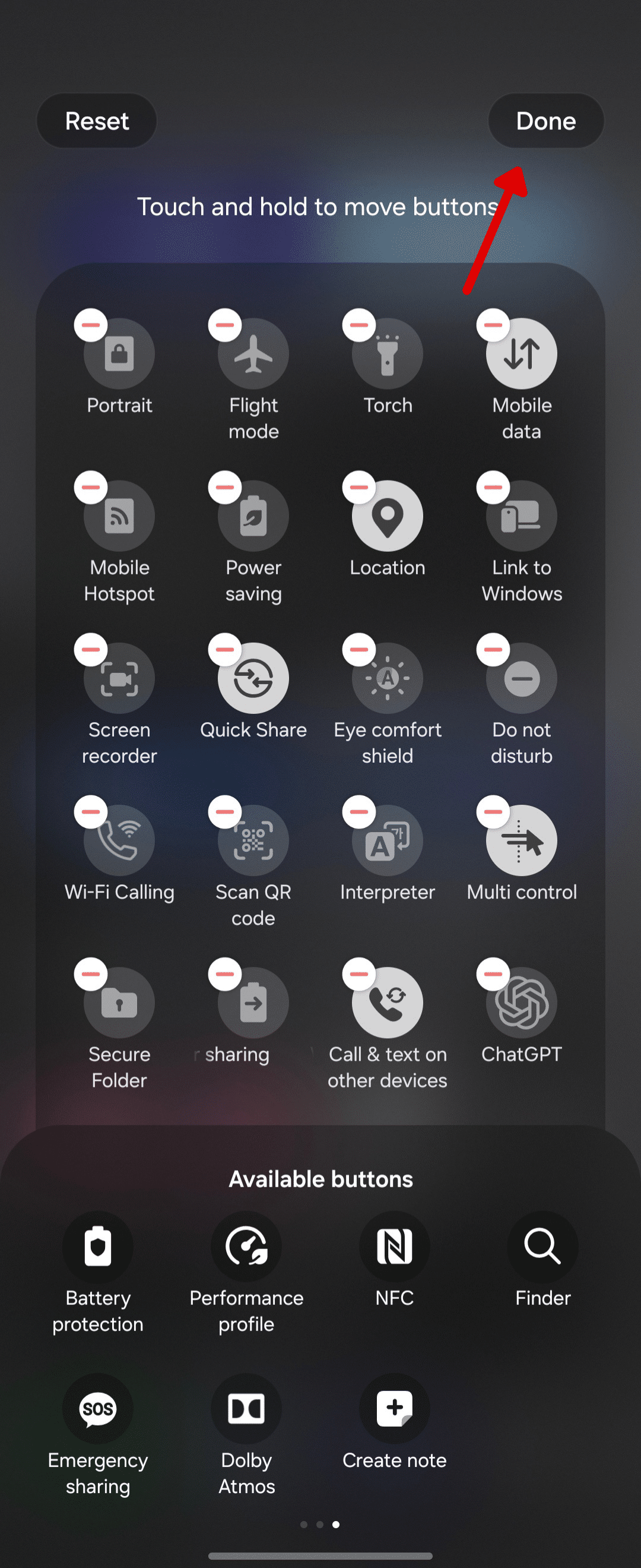
If you prefer, you can watch this quick video to follow the steps visually. It won’t take long.

Written by
Abhinav AnandAbhinav Anand is the News Editor at SammyGuru and a technology journalist based in New Delhi. Before joining SammyGuru, he contributed to numerous outlets, including Android Headlines, ExtremeTech, The Mac Observer, Financial Express, Economic Times, iGeeksBlog, KnowTechie, PhonesWiki, SlashGear, and more. You can reach him at abhinav@sammyguru.com.

Follow us on Google Discover & set us as a preferred source in Google News
Share this Post
___________________________


New Blog Posts
___________________________

First Set of Pixel 11 Pro XL Renders Are Here
Pixel 11 Pro XL CAD renders show minimal design changes

Is Samsung Preparing One UI 8.5 Beta for Galaxy Z Fold 5 and Flip 5?
Samsung may launch a One UI 8.5 beta program for its 2023 foldables

Galaxy S25 One UI 8.5 Beta May Run Longer Than Expected
Galaxy S25 series’ One UI 8.5 beta may stretch to 10 rounds







