
Samsung Reminds Users About Samsung Pass to Wallet Migration
SammyGuru is reader-supported. We have affiliate and sponsored partnerships, so we may earn a commission when you buy through links on our site — at no extra cost to you. Learn more.
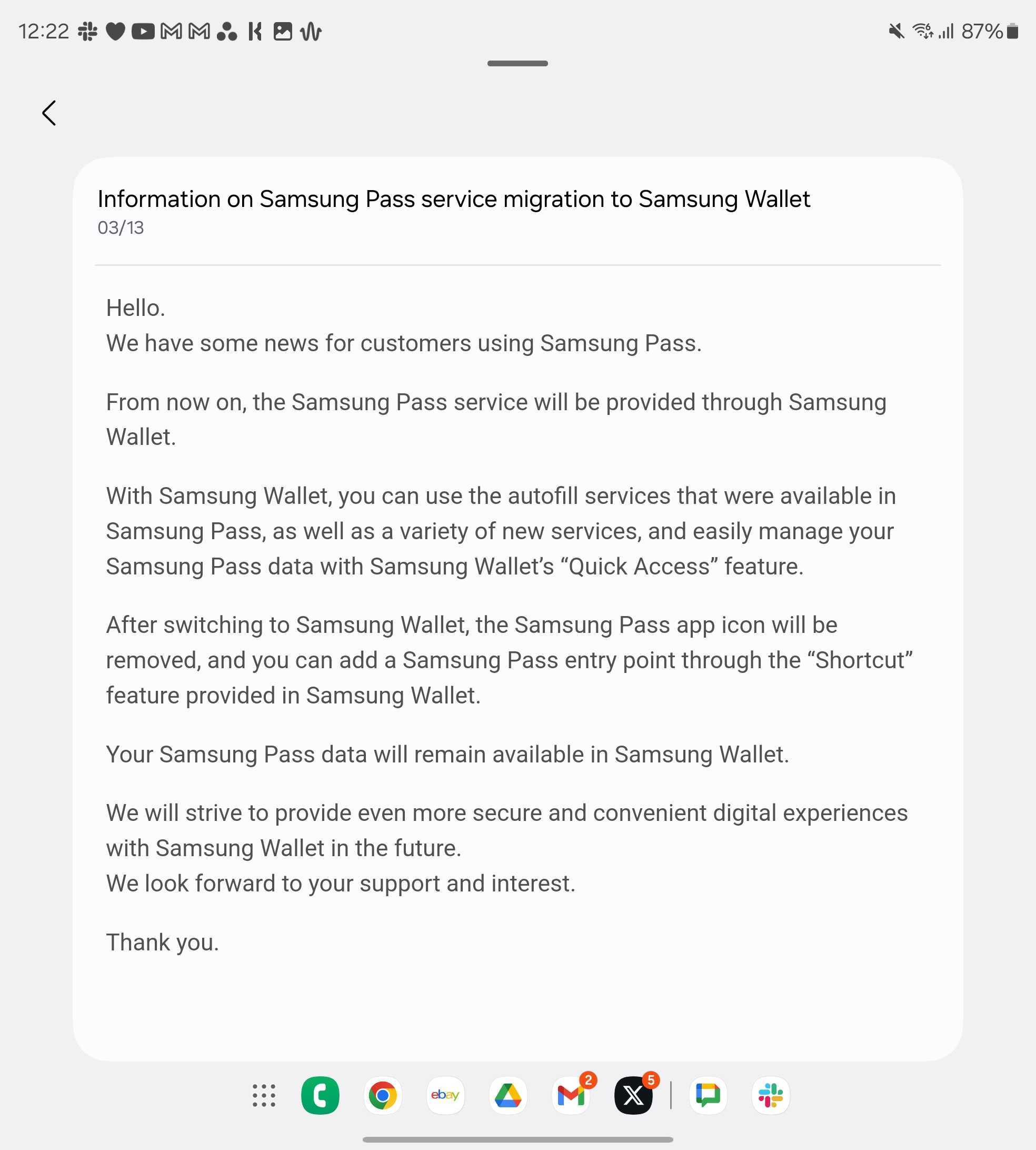
Samsung has started reminding users about the migration of its Samsung Pass service to Samsung Wallet. This merger began a long time back, but not everyone might be aware of it. The company is now reminding them with fresh notifications. Several users have confirmed receiving notifications through email (including us) that mention the migration news for customers using Samsung Pass.
In case you do not remember, Samsung began the merging process nearly three years ago to remove duplicate apps with similar functions and clean up their app ecosystem. The Korean firm is combining Samsung Pay and Samsung Pass services into one single app — Samsung Wallet.
Samsung Pass users are notified about upcoming changes
As per the official notification, the Samsung Pass service will be provided via Samsung Wallet. The autofill services from Pass can now be used from Quick Access in the Wallet app. After switching to Samsung Wallet, the Samsung Pass app icon will be removed, but all the data in your Samsung Pass will be available in the Samsung Wallet. However, you can add a Samsung Pass entry point through the “Shortcut” feature available in Samsung Wallet.
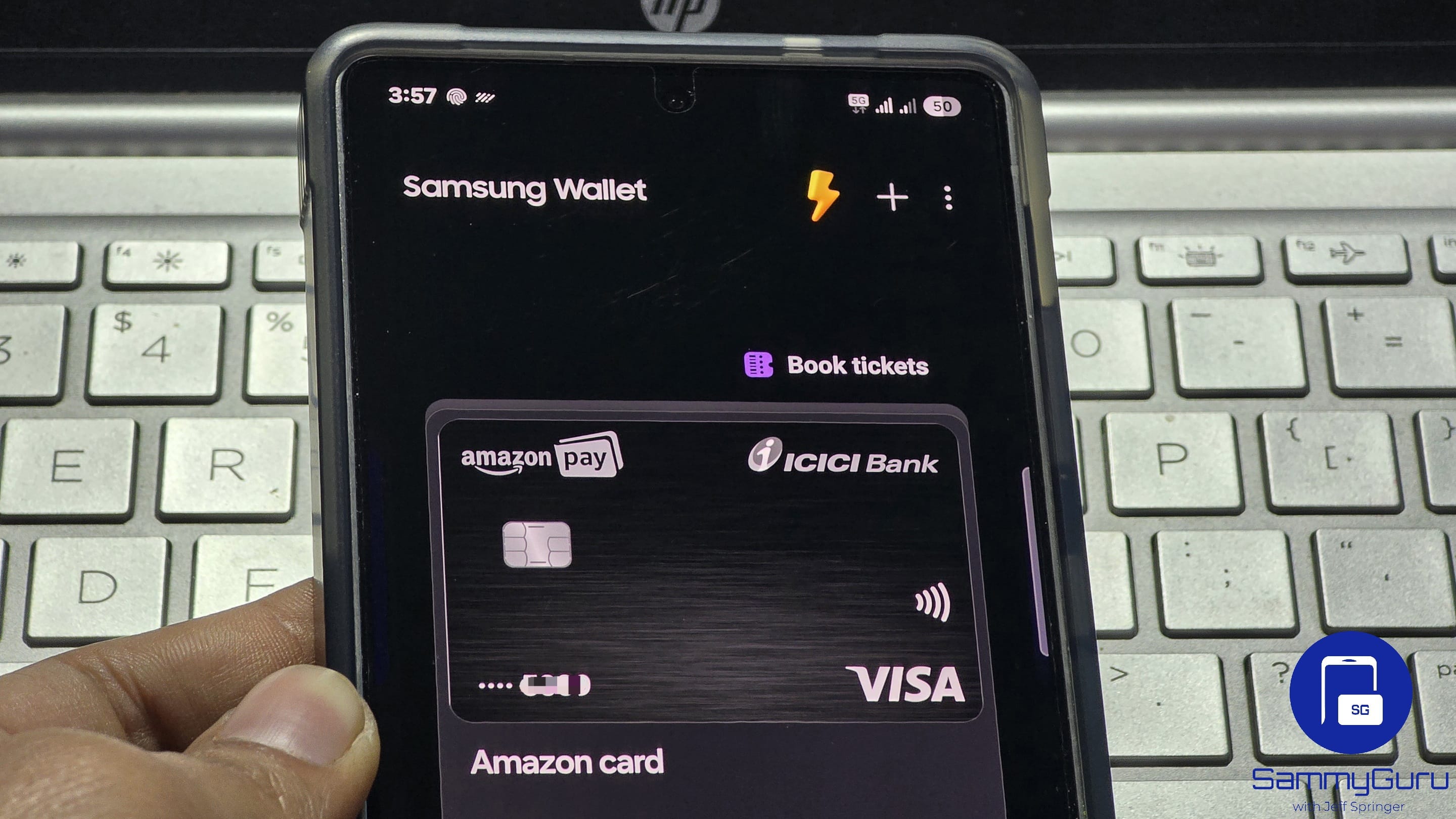
With the Samsung Wallet app, you can add and access payment cards, gift cards, membership cards, health passes, digital assets, digital keys, and boarding passes. Since Samsung Pass is used for password management, the Wallet app will now take over this feature as well.
Samsung Pass is a service that stores login info and passwords. To set up the Samsung pass, first open the Samsung Wallet app. Now enable the Autofill feature (You’ll find it in the Menu tab). Open the required app or website and then sign in to the website as usual, as you’d normally do. You will get a popup from Samsung Pass asking if you want to save your login info. Tap Save, and the app will automatically fill in the information after you verify it with your fingerprint the next time you log in.

Written by
Binay KonwarBinay Konwar started his blogging journey in 2014 and has since written plenty of tech articles. At present, he is working as a News Writer at SammyGuru, covering everything about Samsung. He holds a Master's degree in Mathematics, but his real passion lies in tech and writing. In his free time, he enjoys playing chess and watching movies.

Follow us on Google Discover & set us as a preferred source in Google News
Share this Post
___________________________


New Blog Posts
___________________________

First Set of Pixel 11 Pro XL Renders Are Here
Pixel 11 Pro XL CAD renders show minimal design changes

Is Samsung Preparing One UI 8.5 Beta for Galaxy Z Fold 5 and Flip 5?
Samsung may launch a One UI 8.5 beta program for its 2023 foldables

Galaxy S25 One UI 8.5 Beta May Run Longer Than Expected
Galaxy S25 series’ One UI 8.5 beta may stretch to 10 rounds







